
Computer input devices are hardware components that send data, commands, or control signals to a computer. Common examples include keyboards, mice, microphones, scanners, webcams, touchscreens, gamepads, and graphics tablets. Each device captures a different type of input, such as text, movement, sound, images, touch, or biometric information.
As hardware interfaces evolve, the textbook definition of input devices often citing trackballs and light pens has become obsolete. This guide also analyzes the modern Human Interface Device (HID) landscape, from high-polling gaming mice to spatial computing controllers, ensuring you understand the tools that truly define interaction today.
What Is a Computer Input Device?
A computer input device allows a person or another system to provide information and instructions to a computer. The device detects an action such as pressing a key, moving a mouse, speaking, scanning a document, or touching a screen and converts it into digital data that the computer can process. Microsoft Learn: Human Interface Devices
Input devices can be built into a computer or connected externally. A laptop keyboard and touchpad are built-in examples, while a USB microphone, scanner, or graphics tablet is usually external.
In technical terms, many input devices use sensors, switches, cameras, or microphones to detect physical changes. An internal controller then sends information through a connection such as USB, Bluetooth, or a wireless receiver. The operating system(OS) and its drivers interpret that information for an application to use. Microsoft Learn: HID Architecture
10 Common Computer Input Devices and Their Functions
| Input device | Main function | Typical use |
|---|---|---|
| Keyboard | Enters letters, numbers, symbols, and commands | Writing, searching, and shortcuts |
| Mouse | Controls a pointer and selects items | Navigation and desktop applications |
| Touchpad | Controls a pointer through touch and gestures | Laptop navigation |
| Microphone | Captures sound | Calls, recording, and voice commands |
| Scanner | Converts printed material into digital files | Document and image digitization |
| Webcam | Captures live video | Video calls and recording |
| Touchscreen | Detects taps, swipes, and other touch actions | Phones, tablets, kiosks, and some computers |
| Joystick | Sends directional and button commands | Games and simulations |
| Gamepad | Combines buttons, triggers, and directional controls | Computer gaming |
| Graphics tablet | Converts stylus movement into digital drawing input | Illustration, handwriting, and design |
The table prioritizes familiar examples for general computer-literacy and school-related searches.
Types of Computer Input Devices and Their Functions
Keyboards for Text, Numbers, and Commands
A keyboard is the main input device for entering text, numbers, symbols, and keyboard commands. It can also control software through shortcuts, function keys, and navigation keys.
Common keyboard types include:
- Membrane keyboards: Use pressure-sensitive layers beneath the keys.
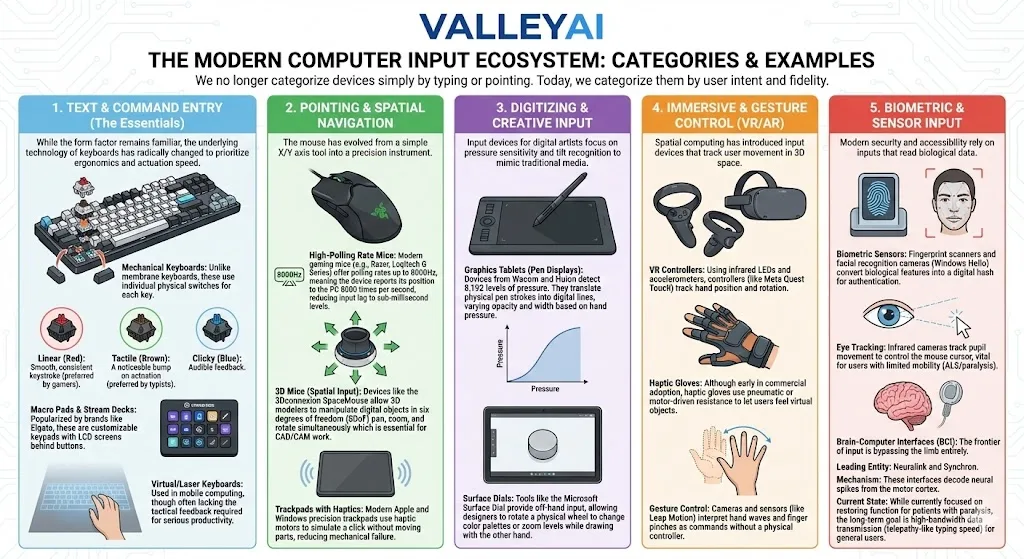
- Mechanical keyboards: Use individual switches that register each key press.
- Ergonomic keyboards: Use shapes or layouts intended to support a more comfortable typing position.
- Virtual keyboards: Display keys on a touchscreen and detect taps.
- Macro pads: Provide programmable keys for repeated actions or application controls.
Mechanical switch types are often described as linear, tactile, or clicky. The best choice depends on typing preference, noise tolerance, and the application being used.
Mice, Touchpads, Trackballs, and Other Pointing Devices
Pointing devices control a cursor or pointer on the screen. A mouse detects movement across a surface, while a touchpad detects finger movement and gestures. A trackball stays in one place while the user rotates a ball to control the pointer.
Common pointing actions include:
- Moving the pointer
- Selecting files or controls
- Opening menus
- Scrolling through pages
- Dragging objects
- Zooming or changing views
A standard mouse usually reports relative movement: the pointer moves according to how far the device travels. A touchscreen and many graphics tablets provide more direct position-based input because the user interacts with the surface where the result appears.
Specialized pointing devices include 3D mice, eye trackers, and high-polling-rate gaming mice. These are useful for particular workflows, but they are not required for ordinary computer navigation.
Microphones and Other Audio-Input Devices
A microphone captures sound and converts it into digital audio. Computers use microphones for voice calls, recordings, speech recognition, voice commands, music production, and accessibility tools.
Microphones may be:
- Built into laptops, webcams, and headsets
- Connected through USB
- Connected through an analog audio port
- Integrated into specialized recording equipment
A MIDI keyboard is another type of audio-related input device. It sends musical performance data such as notes, timing, and control changes to music software. The MIDI keyboard itself usually does not produce the final sound; the computer or connected instrument generates it. MIDI Association: MIDI Basics
Scanners, Cameras, Webcams, and Image-Input Devices
Scanners capture printed pages, photographs, or other physical material and create digital representations. Optical character recognition (OCR) software can analyze a scanned document and convert recognizable text into editable characters.
Other visual input devices include:
- Webcams: Capture live video for meetings, streaming, and recording.
- Digital cameras: Capture still images or video for transfer to a computer.
- Barcode readers: Capture coded visual patterns for inventory, retail, or identification systems.
- Fingerprint readers: Capture fingerprint/iris scanners characteristics for authentication.
- 3D scanners: Capture the shape or surface of a physical object.
A camera or scanner provides input to the computer, while the monitor displays the resulting image as output.
Touchscreens and Gesture-Input Devices
A touchscreen combines a display with a touch-sensitive input layer. The display presents text, images, and controls, while the touch layer detects actions such as taps, swipes, and pinches.
Gesture-input systems use cameras or other sensors to interpret body, hand, or finger movement. Some systems allow users to control software without touching a physical button.
VR controllers add buttons, motion sensors, and position tracking. They can send hand movement, rotation, and button commands to a compatible virtual-reality system.
Joysticks, Gamepads, and Motion Controllers
Joysticks and gamepads are composite input devices because they combine several controls in one unit. A gamepad may include directional controls, buttons, triggers, analog sticks, and vibration feedback.
They are commonly used for:
- Computer games
- Flight and driving simulators
- Training software
- Remote-control applications
- Interactive simulations
VR controllers are a specialized type of motion controller. Many track position and rotation in three dimensions, often described as six degrees of freedom (6DoF): movement along three axes and rotation around those axes. Microsoft Learn: Motion Controllers
Graphics Tablets and Digital Pens
A graphics tablet detects the position of a digital pen and sends that information to drawing or design software. Many tablets can also detect pressure and tilt, allowing software to vary line width, opacity, or brush behavior.
Graphics tablets are used for:
- Digital illustration
- Photo editing
- Handwritten notes
- Animation
- Computer-aided design
- Signature capture
Pressure levels and tilt features vary by model, so specifications should be checked on the manufacturer’s current product page before purchase.
Biometric, Sensor, and Accessibility Input Devices
Biometric input devices capture physical characteristics used for identity verification. Fingerprint readers and facial-recognition cameras are common examples. The exact method for storing and comparing biometric information depends on the platform and implementation; systems commonly use a mathematical biometric template rather than treating the captured feature as an ordinary photograph. NIST: Biometric Recognition
Accessibility-focused input devices provide alternative ways to control a computer. Examples include:
- Eye-tracking systems
- Voice-input software
- Switch controls
- Adaptive keyboards
- Braille keyboards
- Head pointers
- Sip-and-puff controllers
Eye tracking can help some people control a pointer or select items without using a traditional mouse. Suitability depends on vision, motor control, software support, calibration, and personal needs. Microsoft Accessibility: Eye Control
How Do Computer Input Devices Work?
A computer input device detects a user action, converts it into digital data, sends that data to the computer, and relies on the operating system or an application to interpret the command. Pressing a key, for example, can produce information that software interprets as a letter, shortcut, or control instruction.
The basic process is:
- The user performs an action. The action may involve typing, clicking, speaking, touching, or moving.
- The device detects the action. Switches, cameras, microphones, optical sensors, or other sensors capture the change.
- The device converts the action into digital data.
- The data travels to the computer. The connection may use USB, Bluetooth, Wi-Fi, or a dedicated wireless receiver.
- The operating system and driver interpret the data. A driver helps the operating system communicate with the hardware.
- The application responds. A word processor enters text, a game moves a character, or a video-call application transmits audio.
At a lower technical level, the device may encode information into packets or scan codes or binary data. The computer’s input system then routes that information through drivers and applications. The exact process depends on the device, operating system, connection, and software.
Input Devices vs Output Devices: What Is the Difference?
Input devices send data or commands to a computer. Output devices present processed information to the user. A keyboard and microphone are input devices, while a monitor, printer, and speaker are output devices.
| Feature | Input device | Output device |
|---|---|---|
| Main role | Sends data or commands to the computer | Presents results from the computer |
| Common examples | Keyboard, mouse, microphone, scanner | Monitor, printer, speaker, projector |
| Information direction | User or environment to computer | Computer to user or environment |
| Typical result | Text, movement, sound, images, or touch data | Visual, audio, printed, or physical feedback |
Is a Touchscreen an Input or Output Device?
A touchscreen is both an input and an output device. Its display presents images, text, and controls, while its touch-sensitive layer detects taps, swipes, and other gestures. The display provides output, and the touch layer sends commands to the computer.
Can One Device Perform Both Input and Output Functions?
Yes. A headset can receive audio through its speakers and send audio through its microphone. A webcam may capture video while also containing a microphone. Classification depends on the direction of the specific data: information entering the computer is input, while information delivered by the computer is output.
How to Choose the Right Computer Input Device
Choose an input device based on the task, compatibility, comfort, connection type, precision, and accessibility needs.
- Task: A keyboard suits text entry, while a graphics tablet suits digital drawing.
- Compatibility: Check the operating system, software, ports, and required drivers.
- Comfort: Consider the device’s shape, size, layout, and position during extended use.
- Connection: Wired devices avoid battery charging, while wireless devices can reduce cable clutter.
- Precision: Creative, gaming, and engineering applications may need more detailed movement control.
- Accessibility: Voice input, switches, eye tracking, or adaptive controls may offer useful alternatives.
- Portability: Compact devices can be useful for travel, classrooms, and shared workspaces.
Choosing Input Devices for Gaming
Gaming users may prioritize responsive controls, accurate movement, programmable buttons, and compatibility with their games. A gamepad is useful for many action and driving games, while a mouse and keyboard can provide separate pointer and key controls.
High-polling-rate mice report movement more frequently, but the practical benefit depends on the device, software, display, and computer configuration.
Choosing Input Devices for Creative Work
Designers and artists may prefer graphics tablets, digital pens, 3D mice, or control dials. Pressure sensitivity, tilt recognition, surface size, application support, and pen comfort are more relevant than a single specification such as the number of reported pressure levels.
Expert Insight: Modern High-Polling devices overwhelm older CPUs by sending too many interrupts. Windows 11 has optimized the input stack to handle 8000Hz polling rates, but legacy OS versions may stutter under the load.
Choosing Input Devices for Office Work and Remote Learning
Office and learning setups often benefit from a comfortable keyboard, reliable pointing device, webcam, and microphone. A headset can combine audio output and microphone input. Connection reliability and application compatibility should be checked before purchase.
Common Input Device Problems and Basic Troubleshooting
When an input device stops working, use this sequence:
- Check the cable, power switch, battery, or charging status.
- Try another USB port or reconnect the wireless receiver.
- Re-pair a Bluetooth device if the computer no longer detects it.
- Check whether the operating system lists the device.
- Update or reinstall the device driver when appropriate.
- Test the device in another application.
- Check the manufacturer’s compatibility, firmware, and support information.
Input lag can result from several factors, including wireless interference, low battery, software settings, connection problems, or system load. The cause should be tested rather than assumed from the device type.
Emerging Input Technologies
In modern computing, an input device is a transducer. Its primary role is to convert one form of energy kinetic (movement), acoustic (voice), or visual (gestures) into an electrical signal that the operating system can interpret.
Modern input systems include haptic gloves, advanced gesture recognition, spatial controllers, eye tracking, and brain-computer interfaces. These technologies can support immersive interaction or alternative control methods, but their availability, software support, and practical uses vary.
Brain-computer interfaces are an emerging research area rather than a standard input category for most computer users. Current research includes communication and assistive applications, while broader consumer use remains uncertain and should not be treated as an established capability.
Key Characteristics of Modern Input Devices
- Connectivity: Shift from PS/2 and Serial ports to USB-C, Thunderbolt 4, and Bluetooth 5.3.
- Latency: Measured in milliseconds (ms), critical for gaming and real-time creation.
- Sensor Type: Evolution from mechanical balls to Optical Tracking, capacitive sensing, and MEMS (Micro-Electro-Mechanical Systems).
Future Outlook: By 2030, we expect Hybrid Input Environments where eye-tracking selects an object, and a subtle neural command clicks it, eliminating the need for physical mouse movement entirely.
Frequently Asked Questions About Computer Input Devices
What are 10 input devices?
Ten computer input devices are a keyboard, mouse, touchpad, microphone, scanner, webcam, touchscreen, joystick, gamepad, and graphics tablet. They capture different types of information, including text, pointer movement, sound, images, touch, directional commands, and stylus movement.
What are the input devices of a computer?
Common input devices include keyboards, mice, touchpads, microphones, scanners, webcams, touchscreens, joysticks, gamepads, graphics tablets, barcode readers, and fingerprint readers. Some are built into laptops or tablets, while others connect externally through USB, Bluetooth, or another interface.
What are 5 input devices for a computer?
Five common input devices are a keyboard, mouse, microphone, scanner, and webcam. A keyboard enters text and commands, a mouse controls the pointer, a microphone captures sound, a scanner digitizes physical documents, and a webcam captures live video.
Is a touchscreen an input or output device?
A touchscreen performs both functions. Its display sends visual information to the user, making it an output device, while its touch-sensitive surface detects taps and gestures and sends those commands to the computer, making it an input device as well.
Can one device perform both input and output functions?
Yes. A touchscreen displays information and detects touch. A headset outputs sound through its speakers and inputs sound through its microphone. Multifunction hardware should be classified by the direction of the data being handled, rather than by the physical device alone.
How do input devices send information to a computer?
An input device detects an action with switches, sensors, cameras, or microphones. Its controller converts that action into digital information and sends it through a wired or wireless connection. The operating system and device driver then interpret the information so an application can respond.
Which input devices support accessibility?
Accessibility-focused input devices include eye trackers, voice-input systems, switch controls, adaptive keyboards, Braille keyboards, head pointers, and sip-and-puff controllers. Each supports different interaction needs, so suitability depends on the person, software, calibration, physical environment, and operating-system support.
What should I do if my computer does not recognize an input device?
Check the device’s power, cable, battery, USB port, or wireless pairing first. Then confirm that the operating system detects it and install any required driver or software. Testing another port, application, or computer can help identify whether the problem involves the device, connection, driver, or original computer.
How do VR controllers work as input devices?
VR controllers combine buttons and sensors to send hand movement, rotation, and commands to a compatible virtual-reality system. Many systems track six degrees of freedom, meaning the controller’s position and rotation can be monitored in three-dimensional space. Tracking methods vary by platform and controller design.
What is a Stream Deck used for?
A Stream Deck is a programmable control pad that sends shortcuts or commands to software. Users can assign buttons to actions such as launching applications, changing scenes, muting audio, or running a sequence of commands. Its function depends on the device software and the applications connected to it.
Are haptic gloves commercially available for computers?
Haptic gloves exist as specialized products for areas such as virtual reality, training, simulation, and research. Availability, computer compatibility, tracking method, and software support vary by model. Buyers should check current manufacturer documentation rather than assuming that every glove works with standard computer games.
Keyboard and mouse specifics: what is inside a keyboard, mechanical vs membrane keyboards, typing special characters, what LMB means, and right-clicking without a mouse.

Kaleem
Kaleem is a Computer Science graduate and the founder of Valley AI (valleyai.net), where he publishes in-depth, tested guides on computers, AI, and internet technologies. Every guide is researched from primary sources and updated regularly.