

Mouse DPI and polling rate are the two numbers that set how a cursor feels. DPI sets how far the cursor moves for each inch of hand movement. Polling rate sets how often the mouse reports its position to the computer. Match DPI to the distance you want per inch, match polling to how often reports should arrive, and check both against the monitor you use.
Start with the job, because one setting cannot serve every job well. A document editor wants steady, short cursor moves. A competitive shooter wants small, repeatable aim adjustments. A trader with several screens wants fast travel across a wide canvas. Each job points at a different pair of numbers.
Mouse DPI and polling rate at a glance
The table gives starting numbers for four common jobs. Treat them as starting points, then adjust by feel over a day of normal use.
| Job | Starting DPI | Polling rate | Why it fits |
|---|---|---|---|
| Desktop documents and web browsing | 800 DPI | 500 Hz | Short, steady moves with low hand travel |
| Aiming games | 400 to 800 DPI | 1000 Hz | Small, repeatable aim adjustments |
| Fast travel across multiple monitors | 1200 to 1600 DPI | 1000 Hz | Long crossings without repeated lifting |
| Travel with a laptop, no trackpad | 1000 DPI | 500 Hz | Cramped desks with short mouse space |
A higher number means a different sensitivity. Sensor quality is a separate question, answered by tracking accuracy and report stability.
Multi-monitor travel rewards a higher starting DPI, because the cursor must cross thousands of pixels per screen. A setting near the bottom of the table forces repeated lifting on a wide canvas. A setting near the top shortens each crossing, while finer aim gets harder.
Matching mouse DPI and polling rate to the job beats chasing a peak figure on the box.
How a mouse sensor reads movement
A mouse is one of the modern computer input devices, and its sensor turns hand movement into numbers the computer can use.
An optical sensor works like a tiny camera pointed at the desk. It lights the surface with an LED or a laser, photographs the texture thousands of times per second, and measures how far the pattern shifted between one frame and the next. That shift, counted in sensor steps, becomes cursor movement.
Two illumination types dominate: LED and laser. Laser illumination resolves finer surface detail, according to The Core iTech, and that detail keeps tracking steady on slick surfaces where LED light loses the pattern.
DPI and CPI describe the same count in most mouse software: steps reported per inch of travel. Vendors print DPI on the box, while sensor makers print CPI on the data sheet. Treat the two labels as one number when comparing mice, and check the native steps before trusting the headline figure.
Every sensor has native steps, the counts its hardware resolves directly. Values between native steps are interpolated, meaning the firmware estimates counts the hardware never measured. A mouse set to an interpolated step can feel slightly uneven at slow speeds, because estimated counts do not land as evenly as measured ones.
Does higher DPI mean a better mouse? No. DPI sets sensitivity only. A precise sensor at 800 DPI serves any control job better than a sloppy sensor at a higher DPI.
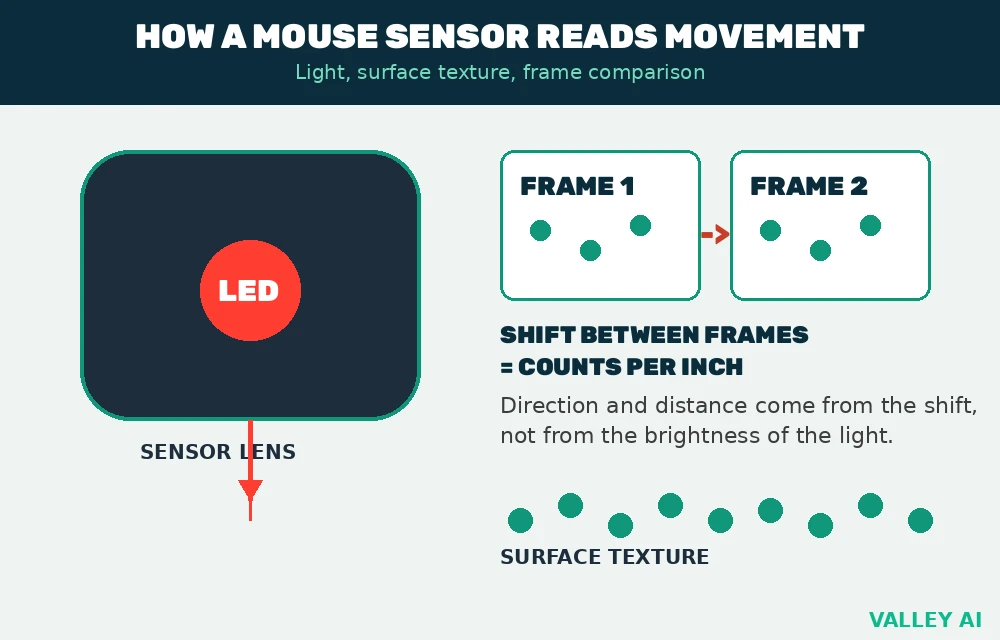
Sensor placement matters too. A sensor centered under the hand tracks the same path the hand travels. A sensor set toward the front swings wider on turns, which some players feel during fast arcs.
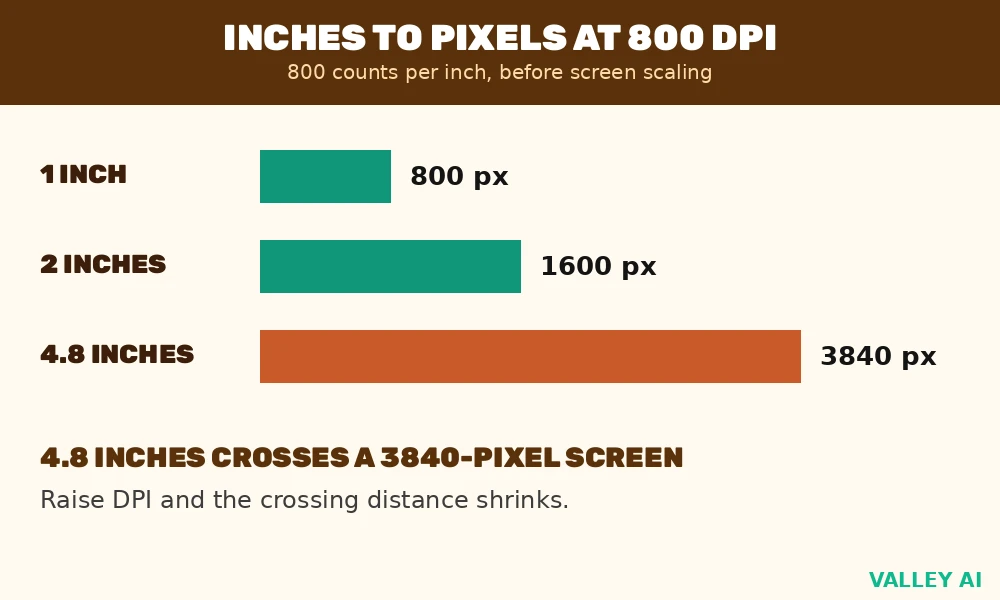
A worked calculation shows what 800 DPI means on a wide screen. Inputs: a screen 3840 pixels wide, a setting of 800 DPI. Divide 3840 by 800 to get 4.8 inches of mouse travel to cross the full width before operating system scaling. Raise the setting, and the crossing distance shrinks in proportion.
Polling rate: how often the mouse reports
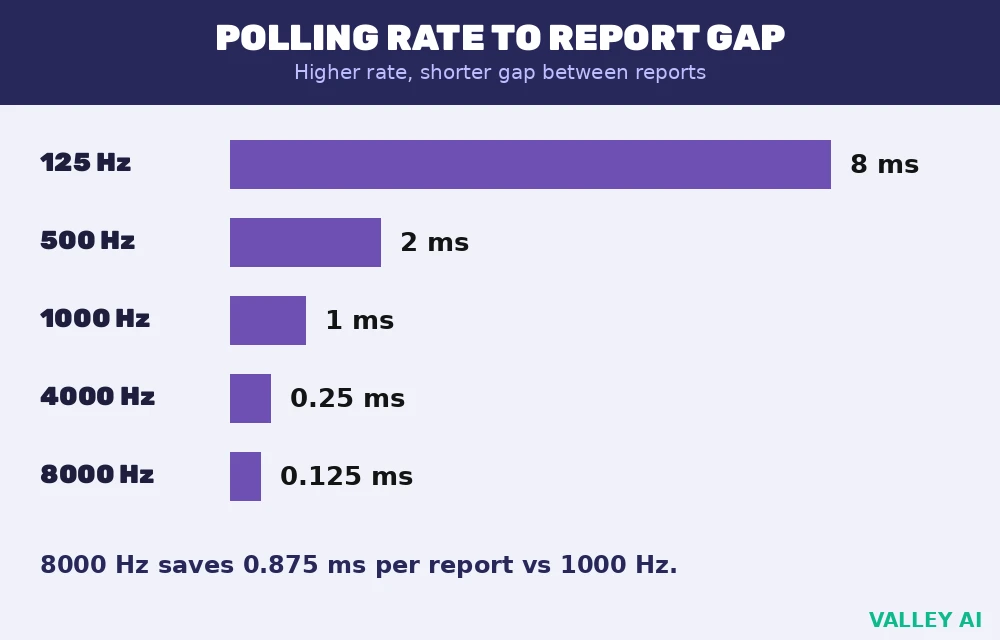
Polling rate counts reports per second, measured in hertz. A mouse set to 1000 Hz sends a position report 1000 times per second. The computer reads each report and moves the cursor to match. Faster reporting means the cursor position on screen stays closer to the hand position at any moment.
A wired mouse sends those reports over USB as HID packets, and connector shapes and speeds vary across the USB-C versus Thunderbolt generations.
| Polling rate | Gap between reports |
|---|---|
| 125 Hz | 8 ms |
| 500 Hz | 2 ms |
| 1000 Hz | 1 ms |
| 4000 Hz | 0.25 ms |
| 8000 Hz | 0.125 ms |
Stable polling matters alongside the headline rate. A mouse that averages 1000 Hz but dips under load feels less steady than one that holds its rate. Polling testers graph the rate over time, and a flat line signals a healthy report pipeline.
Tech Insider reports that some 8000 Hz wireless mice can load the processor enough to cause stutter on weaker systems, so the top rate carries a cost on modest hardware. Tech Insider lists the Razer Focus Pro sensor at a 35,000 DPI ceiling, a figure above any desktop job.
Does 8000 Hz polling help on a 60 Hz monitor? Barely. The mouse reports every 0.125 ms, while the screen draws a new frame every 16.7 ms. Most reports arrive between frames and wait, so the visible gain stays small on that screen.
Screens redraw at fixed intervals, and a monitor refresh rate above 60 Hz shortens the wait between a report and its visible frame.
A worked calculation sizes the polling step from 1000 Hz to 8000 Hz. Inputs: 1000 Hz gives 1 ms per report, 8000 Hz gives 0.125 ms per report. Subtract 0.125 from 1 to get 0.875 ms saved per report.
Tracking speed and IPS
IPS stands for inches per second, and it caps how fast the hand can move before the sensor loses the pattern. Desktop hands stay below gaming sensor ratings. Fast flicks in aiming games come closer to the cap, which is why IPS appears on gaming spec sheets.
Treat IPS as a headroom figure. A rating well above the fastest hand speed leaves margin for sudden moves. A rating near the fastest hand speed risks skipped counts during the quickest swipes.
Manufacturers test IPS on controlled rigs, so real desks give lower headroom than the printed rating. Treat the rating as a ceiling under ideal conditions, and keep hand speed comfortably inside it.
Acceleration and raw input
Pointer acceleration changes cursor speed with hand speed. A slow hand move covers less screen distance than a fast hand move of the same length. That behavior helps casual browsing, because small moves stay precise while large moves cross the screen quickly. It hurts repeatable aim, because the same hand move lands in a different spot depending on speed.
Windows ships with a setting called Enhance pointer precision, which switches acceleration on. Turning it off gives one fixed relationship between hand inches and cursor pixels at a given DPI. Most aiming players prefer that fixed relationship, because muscle memory needs the same result from the same move every time.
What does raw input do to pointer acceleration? Raw input bypasses Windows pointer handling. Game sensitivity then applies directly to sensor counts, without the operating system curve in between.
A worked calculation shows how eDPI keeps feel constant across DPI changes. Inputs: 800 DPI with an in-game sensitivity of 1.0. Multiply 800 by 1.0 to get 800 eDPI. At 1600 DPI, the same feel needs a sensitivity of 0.5, because 1600 times 0.5 also gives 800 eDPI. Players switching mice use eDPI to copy feel without guessing.
Lift-off distance and surface
Lift-off distance measures how high the mouse can rise before the sensor stops tracking. A low lift-off distance stops the cursor from drifting during repositioning, when the player lifts the mouse and sets it down again. A high lift-off distance lets the cursor wander while the mouse is in the air.
Surface texture decides how clean the pattern looks to the sensor. Matte cloth pads give the sensor a dense, even texture to read. Polished desks reflect light unevenly and can leave the sensor with too little pattern to read. Dust on the lens blurs the image, so a quick wipe restores tracking.
Check lift-off distance in the mouse software, where many gaming mice expose it as a setting. Lower it until repositioning stops moving the cursor, then leave it there.
Replace a worn pad when the weave flattens, because a flattened weave gives the sensor less texture to read.
Set up a mouse in five steps
- Set DPI from the decision table for the main job, then live with it for a day before judging it.
- Set polling to 1000 Hz as a starting point, and raise it only if the system stays steady under load.
- Turn off Enhance pointer precision for aiming games.
- Count cursor travel: mark one inch of mouse movement on the desk and note how far the cursor moves on screen.
- Read the live polling rate with a polling tester, and check the monitor refresh rate in display settings.
Change one setting at a time. Two changes at once hide which one helped, and the test has to start over.
Recheck after a week. Hands adapt, and a setting that felt fast on day one can feel twitchy once the novelty fades. A short retest with the same checks confirms the choice still fits.
Choose a mouse by job first
Sensor quality, polling stability, switch feel, and weight shape daily feel more than a headline DPI figure.
A heavy mouse tires the wrist during long aiming sessions, while a light mouse suits fast flicks. Shape matters alongside weight: a mouse that fits the hand grip lets the fingers rest without strain.
Grip styles split into palm, claw, and fingertip holds, and each one favors a different shell length and hump height.
Weight tuning through removable weights lets one shell serve different hands, but a shell that fits without tuning beats a heavy shell with weights removed.
Buy from the job list, not the spec sheet peak. A mid-range sensor with stable polling serves desktop work and aiming better than a peak DPI figure with uneven reports.
Try the shape before the sensor. Borrow a display model for a minute, rest the hand in its natural grip, and move it through the motions of a normal session. A shell that fights the hand wastes every sensor advantage printed on the box.
Conclusion
Start from the decision table, settle on the pair that stays steady under load, and revisit the choice only when the job or the monitor changes.
Frequently asked questions
Can a mouse sensor track on a glass desk?
Most optical sensors struggle on clear glass, because the beam passes through instead of reflecting a readable pattern. Laser sensors fare better, yet many still skip on fully clear panes. A thin matte pad under the mouse solves it with any sensor type.
Why does a wireless mouse feel slower than a wired mouse at the same polling rate?
Radio transmission adds a hop between the sensor report and the computer, and that hop carries its own small delay. Interference from nearby wireless gear can also force retransmissions, which arrive late. A wired link skips the radio hop, so its reports land with less variation.
Can a high polling rate drain a wireless mouse battery faster?
Yes. Each report wakes the radio and the processor, so eight thousand reports per second cost more energy than one thousand. Battery life drops at the top rate. Drop the rate for travel days, when battery life matters more than report frequency.
How do I undo a DPI change that feels wrong?
Open the mouse software or the operating system pointer settings and return the slider to its previous value. If the previous value is unknown, restore the software profile default and adjust in small steps from there. Write the comfortable value down once found, so the next change starts from a known point.
What is mouse smoothing, and how is it different from acceleration?
Smoothing averages recent sensor reports to soften jitter, while acceleration scales distance with hand speed. Smoothing changes the path between two points, and acceleration changes how far the path reaches. Turn smoothing off for aiming work, because averaging blurs the exact stop point of a flick.

Kaleem
Kaleem is a Computer Science graduate (Virtual University of Pakistan) and the founder and editor of Valley AI, where he publishes in-depth, tested guides on computer hardware, artificial intelligence, and how the internet works. Every guide is researched from primary sources, tested hands-on where possible, and updated when the facts change.