

Pick a trackpad by its sensing accuracy first, and let click feel and driver behavior settle close calls. Sensing decides whether the cursor goes where the finger points, click feel decides whether pressing the pad stays comfortable through a long workday, and driver behavior decides whether gestures behave alike in every app.
A modern trackpad is a glass sheet over a grid of electrodes. It sits among the modern computer input devices that turn hand movement into screen action. The grid tracks fingers, force hardware registers presses, and driver software turns both into cursor movement, clicks, and gestures. Each layer can fail on its own. A sharp grid with weak driver software still stutters, and a good driver cannot rescue a grid that loses the finger at the edges.
| Job | Check before buying | Good sign | Warning sign |
|---|---|---|---|
| Sensing | Slow diagonal drag across the pad | Full diagonal tracked | Cursor stalls near corners |
| Click | Press each corner in turn | Even feel everywhere | Top corners feel dead or mushy |
| Gestures | Two-finger scroll and three-finger swipe | Both fire first try | Scroll fires while swiping |
| Driver | Settings panel for the pad | Settings in system settings | Gestures need a vendor utility |
How a capacitive grid finds a finger
Under the glass sits a grid of row electrodes crossed by column electrodes, and each crossing holds a small electric charge. Phone screens use the same projected capacitive sensing behind how touchscreens work, and the trackpad grid applies it to pointing alone. A finger conducts electricity, so a finger near the surface changes the charge at the crossings beneath it. The controller scans the grid many times per second and records which crossings changed, and by how much.
Position comes from interpolation between crossings. A finger rarely sits dead center on one crossing, so the change spreads across neighbors. The controller weighs those neighbors to estimate a point between them, which is why a trackpad reports smooth motion from fixed grid points.
The grid works like a set of scales under a thin sheet, where each crossing reports how much electrical presence sits above it. A light touch registers a small shift, and a full fingertip press registers a larger shift across more crossings. The controller reads the pattern of shifts, and the pattern becomes the contact.
Report rate is measured in hertz, and the conversion to time is direct: divide 1000 by the rate to get the gap between reports in milliseconds. A 125 Hz pad reports every 8 ms, since 1000 divided by 125 equals 8. A 240 Hz pad reports every 4.2 ms, since 1000 divided by 240 equals 4.17. Faster reporting shortens the gap between the finger moving and the system learning about it. The same hertz-to-milliseconds conversion governs mouse DPI and polling rate, where a shorter gap also means fresher reports.
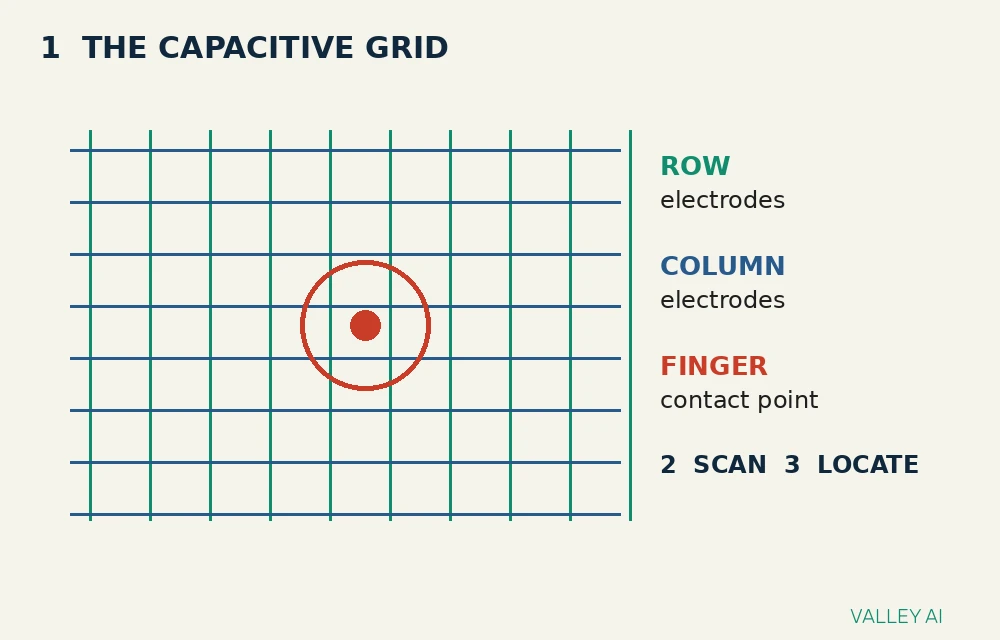
Why does a glove block a trackpad? A glove insulates the finger from the grid, so the charge shift at the crossings drops below the detection threshold and the controller sees no contact. Thin conductive glove tips restore the path, which is why they work while ordinary gloves fail.
Water causes the opposite problem. A drop spreads charge across several crossings, and the controller reads a wide, shifting contact. That contact looks like a palm, so the driver may ignore the area until the surface dries. Wiping the pad restores tracking immediately.
What a click is on a modern trackpad
Older trackpads clicked with a hinged plate. The plate pivoted near the top edge, like a diving board fixed at one end. Pressing near the bottom moved the plate most, and pressing near the top moved it least, so click feel varied across the pad and the hinge wore with use.
Force sensing replaces the hinge with measurement. Strain gauges sit on flexing metal supports under the pad, usually near the corners. Pressing the pad flexes a support by a tiny amount, and the gauge reports that flex as a force value. The click threshold is a number on that scale, and the driver fires a click when the reading crosses it.
Worked calculation, with inputs named. Take a force scale from 0 to 100 and a click threshold set at 50. A press reading 72 clears the threshold by 22 points, since 72 minus 50 equals 22. A press reading 41 falls short by 9 points, since 50 minus 41 equals 9. Raising the threshold to 65 demands a firmer press for every click.
Force data also separates a tap from a press. A tap is brief contact with no threshold crossed, while a press crosses the threshold and holds. That distinction lets one pad offer a light click, a firm click, and a force click for a preview action.
Why a haptic click feels real when nothing moves
A haptic trackpad barely moves when pressed. The click sensation comes from an actuator under the pad, firing a short vibration at the moment the force threshold is crossed. The brain reads that sharp pulse as button travel, even though the glass stays put, because the pulse lands within milliseconds of the press.
Two actuator types dominate. A linear resonant actuator moves a small mass back and forth with electromagnets, reaching full output in about one cycle. A piezoelectric actuator bends ceramic disks when current runs through them, with tight timing control. Windows Central describes both types in its haptic trackpad explainer, and iFixit found electromagnets pushing a metal rail in the early Force Touch teardown.
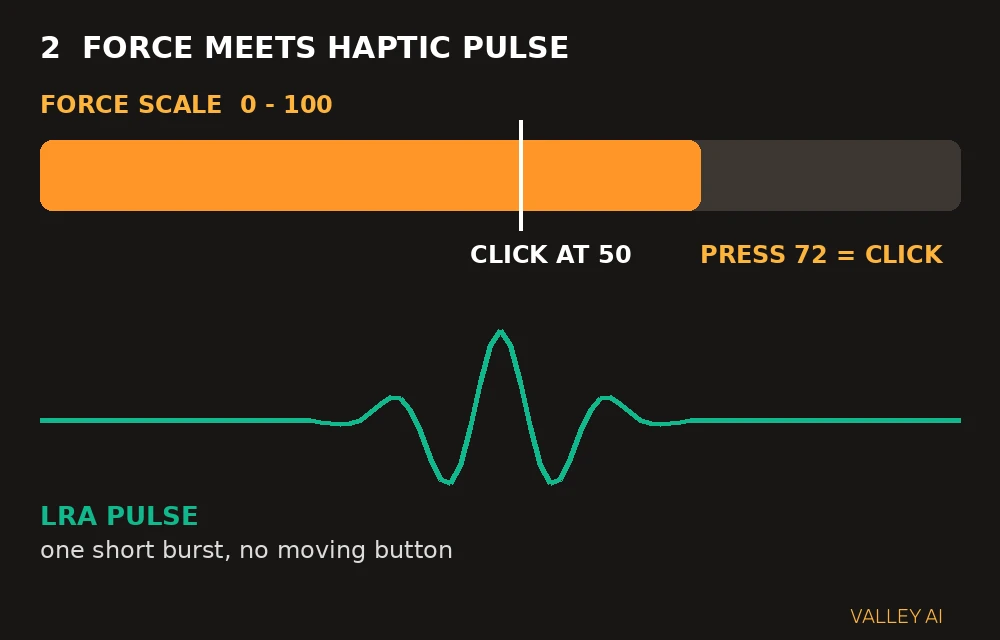
Uniform feel is the practical payoff: a haptic pad clicks evenly at the top corner and the bottom center, because no hinge travel is involved. Battery cost stays small, because each click uses one short pulse.
How gestures are recognized and palms are ignored
Gesture recognition reads contact paths over time. The driver stores each contact as a point with a timestamp, then watches how the points move together. Two points moving down together become a scroll, two moving apart become a zoom, and three sliding sideways become an app switch, where the system supports it.
Speed and spacing separate gestures that start alike. A slow two-finger drag with fingers close together reads as a scroll, and a fast flick with fingers spread reads as a swipe. The driver sets time windows for each gesture, and a movement that misses its window falls back to plain cursor motion. That fallback explains gestures that work on a slow try and fail on a fast one.
Worked calculation, with inputs named. Take a two-finger scroll of 15 mm completed in 0.25 seconds. Dividing 15 by 0.25 gives 60 mm per second of scroll input. Doubling the distance to 30 mm in the same 0.25 seconds gives 120 mm per second, so the driver sees twice the scroll speed from the same time window.
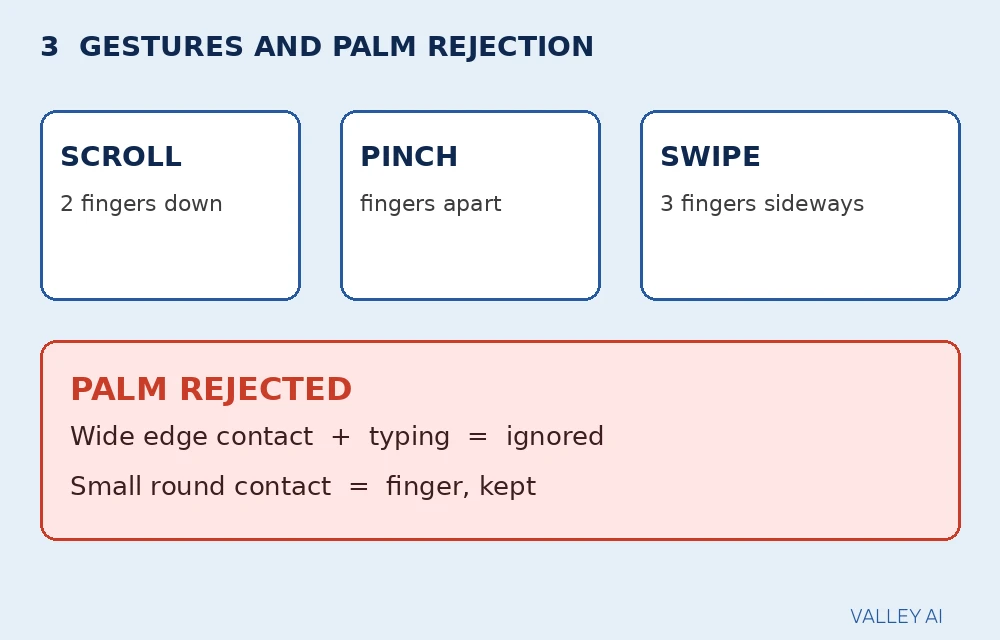
Palm rejection uses contact size, shape, and position. A fingertip covers a small round area, while a palm covers a wide area, often touching the bottom edge while typing. The driver rejects contacts above a size threshold, contacts at the edge during typing, and contacts whose shape stays wide while fingers move. Edge zones carry stricter rules, since palms rest there most.
Why does the cursor jump when a palm rests on the pad? The driver accepted the palm as a second finger. A typing hand shifts the palm slightly, and the driver reads that shift as a two-finger gesture or a cursor move. Lifting the palm ends the jump, which confirms the cause. Raising palm rejection sensitivity tightens the size threshold, at the cost of occasional missed taps near the edge.
- Two-finger scroll moves pages with a vertical drag.
- Pinch zoom scales content with fingers moving together or apart.
- Three-finger swipe switches apps or desktops.
- Four-finger tap opens a system view such as notifications.
- Tap to click turns a light touch into a click.
The driver pipeline, from contacts to cursor
Contacts leave the controller as a stream of reports, each carrying contact positions, contact sizes, and a timestamp. The stream travels to the operating system over an internal bus, usually I2C or USB, and the operating system driver converts it into pointer events, clicks, and gesture events for apps.
On Windows, Precision Touchpad drivers set the standard. Gesture handling lives in the operating system, so a Precision pad offers the same gestures across laptops from different makers. Older vendor drivers from Synaptics and ELAN handled gestures in vendor software, so the same gesture could behave differently on two laptops. A Precision badge in settings signals OS-level handling.
Cursor mapping turns finger distance into screen distance. Worked calculation, with inputs named. Take a trackpad 120 mm wide and a screen 344 mm wide. Dividing 344 by 120 gives a ratio of 2.87, so a 10 mm finger slide moves the cursor 28.7 mm. Acceleration bends that ratio, boosting fast slides and damping slow ones, so fine work stays controllable while long jumps stay quick.
Latency stacks across the pipeline. Scan time, report interval, driver processing, and screen refresh each add a slice. A 125 Hz interval contributes 8 ms on its own, and a 60 Hz monitor refresh rate adds up to 16.7 ms before the eye sees the move. Cutting the report interval helps, but screen refresh still gates the visible result.
Checks to run before buying
Start with the corner press test. Press each corner in turn, then press the center. Even click feel across all five spots marks a force or haptic design, and a dead top corner marks a hinged design for the life of the laptop.
Move to the slow diagonal test. Drag one finger slowly from the top left corner to the bottom right corner, then back. A cursor that follows the full path without stalls shows a grid and driver working together. Stalls near the edges point to weak edge sensing.
Finish with the typing test. Type a paragraph with palms resting naturally, then watch the cursor. A cursor that stays put shows palm rejection tuned for the user, and a cursor that jumps mid-sentence shows rejection tuned too loose.
- Glass surface over plastic, since glass tracks evenly and resists wear.
- Precision driver support on Windows, since OS-level gestures stay alike.
- Force or haptic click hardware, since even feel beats a hinge.
- Gesture settings inside system settings, since vendor tools vary.
What to do next
Shortlist laptops with a glass pad, a force or haptic click, and Precision driver support on Windows. Run the checks in the store or during the return window, and keep the laptop that passes them. A pad that fails the corner press test will annoy daily.
The haptic explainer from Windows Central and the Force Touch teardown from iFixit name the hardware this explanation builds on.
Frequently asked questions
Why do some laptops put the trackpad off-center?
Makers align the pad with the space bar, which sits left of center on many keyboards. Centering the pad on the chassis instead would put it under the right palm during typing.
Can a haptic trackpad click when the laptop is switched off?
No. The actuator needs power to fire its pulse, so a switched-off haptic pad gives no click sensation at all. A mechanical pad still moves under a finger when off, because its click comes from a physical switch.
Do all Windows laptops use Precision Touchpad drivers?
No. Many older or budget models still ship with vendor drivers that handle gestures in maker software. The Touchpad page in system settings shows Precision support, and its absence points to vendor handling.
Why do trackpads sit below the keyboard?
Typing hands rest in that zone, so thumbs reach the pad without lifting the hands from the keys. A pad beside the keyboard would force one hand to leave its home position for every pointer move.
Is a bigger trackpad always better?
No. A larger pad gives more room for gestures, but it also gives palms more room to rest on the sensing area. The right size leaves space for four-finger gestures while keeping the typing hand clear of the edges.

Kaleem
Kaleem is a Computer Science graduate (Virtual University of Pakistan) and the founder and editor of Valley AI, where he publishes in-depth, tested guides on computer hardware, artificial intelligence, and how the internet works. Every guide is researched from primary sources, tested hands-on where possible, and updated when the facts change.