

A touchscreen is two devices sharing one pane of glass. The display shows the picture. A sensor watches for contact. Every sensing technology answers one question differently: what counts as a touch?
Pick the sensing method by the object that will touch it and the room it will live in. A bare finger in a clean room points to capacitive. A gloved hand on a factory floor points to resistive or infrared. Touchscreens sit on the input side of a computer, in the family of modern computer input devices, and the sensing method is what sets one member of that family apart from another.
Which technology fits which job
| Technology | What it senses | Input object | Multi-touch | Best job | Watch out for |
|---|---|---|---|---|---|
| Projected capacitive | Electric field change | Bare finger, conductive stylus | Yes | Phones, tablets, indoor kiosks | Gloves, water drops |
| Resistive | Pressure contact | Any object that presses | No | Factory controls, medical carts, cheap terminals | Dimmer picture, wear with use |
| Infrared | Broken light beams | Any object | Yes | Large kiosks, whiteboards | Raised bezel, strong sunlight |
| Surface acoustic wave | Absorbed sound waves | Finger, soft stylus | Limited | Ticket machines, museum displays | Dirt and water on the glass |
| Optical | Camera shadow | Any object | Yes | Huge displays, classrooms | Cameras need a clear view |
Projected capacitive: the field under the glass
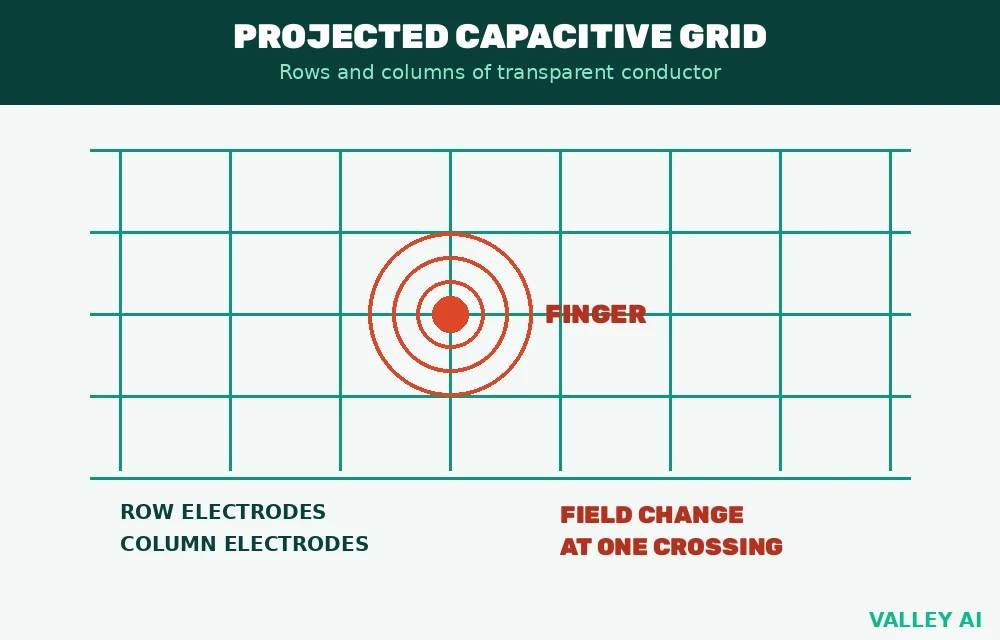
Projected capacitive screens hide a transparent conductor under the cover glass. The conductor is usually indium tin oxide, laid out as rows running one way and columns running the other. Where a row crosses a column, the pair forms a tiny capacitor. The grid works like a net of tripwires stretched across the glass: a finger crossing one changes the signal at that crossing.
A human finger conducts electricity. When it nears the glass, it pulls part of the electric field away from the nearest crossings. The controller scans the grid continuously, measures the field change at each crossing, and turns the strongest change into coordinates. Light touches register because pressure plays no part in the reading.
Why does a bare finger work when a gloved finger does not? An ordinary glove is an insulator. It keeps the finger’s field away from the grid, so the change at the crossings stays below the controller’s threshold. A glove with conductive thread in the fingertips bridges that gap, which is why capacitive gloves work while ordinary gloves fail.
Mutual capacitance
In a mutual capacitance grid, the controller measures each row-column crossing on its own. Two fingers change two crossings, and ten fingers change ten crossings. That independence is what makes true multi-touch possible: the controller never has to guess which row belongs to which column. Faytech, a touchscreen maker, gives 10 or more simultaneous points as the common figure for modern capacitive panels. Pinch, rotate, and multi-finger gestures all rest on that independence. The Hindu’s science explainer describes the same row-and-column grid and credits it with the spread of multi-touch phones.
Self capacitance
Self capacitance measures each electrode against ground, one at a time. A finger near an electrode raises its capacitance, and the controller reads the rise. The scan runs fast because each reading stands alone. Under multi-touch, though, the method can report ghost points: with two real fingers on two rows and two columns, the controller sees four crossings light up and cannot always tell the two real ones from the two false ones.
Resistive: pressure closes a circuit
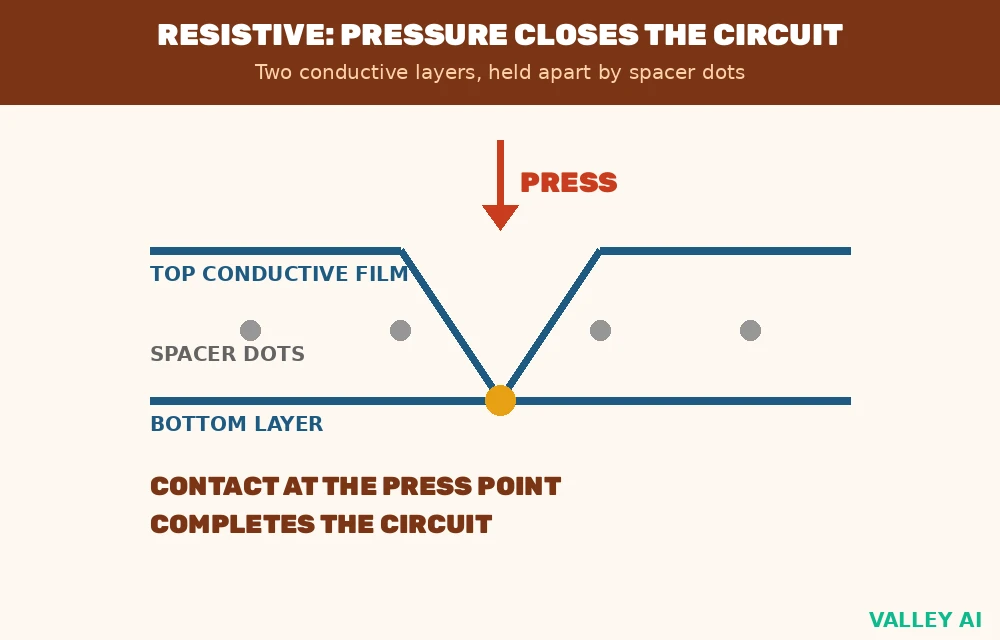
A resistive screen stacks two transparent conductive layers with tiny spacer dots holding them apart. Pressing the surface bends the top layer down until it touches the bottom layer at that spot. Contact closes a circuit. The controller reads a voltage along one layer to fix one coordinate, then switches layers to read the other coordinate.
Pressure is the only requirement. A fingernail, a pen cap, a gloved hand, or a stylus all close the same circuit. That universality is the reason resistive screens still run factory controls, medical carts, and cheap terminals.
Two costs come with the design. Light must cross two layers and an air gap. Faytech puts the loss at 15 to 25 percent, so the picture looks dimmer than a capacitive panel. A second press creates a second contact point. The controller reads a position between the two, which is why true multi-touch stays out of reach for resistive panels.
Faytech gives a typical activation force of 30 to 100 grams. A light brush will not register. A firm press will.
Infrared: a frame of light beams
An infrared screen puts no sensor over the display at all. Light-emitting diodes line two adjacent edges of a frame, and photodetectors line the opposite edges. The diodes and detectors form a grid of invisible beams just above the glass. Any object that breaks one row beam and one column beam marks a touch at that crossing.
Gloves, styluses, and wet fingers all break beams the same way, so input objects stop mattering. The picture keeps full brightness because nothing sits over it. The frame adds a raised bezel, and the design scales to very large panels, which is why ticket machines, whiteboards, and kiosks use it.
Sunlight carries infrared too. Strong direct sun on the frame can swamp the detectors and blur beam readings, so outdoor infrared panels need shading or stronger emitters. The display beneath the frame is an output device, turning data into light, while the frame alone handles input.
Surface acoustic wave and optical: the large-screen options
A surface acoustic wave screen sends ultrasonic waves across the cover glass from transducers at the corners. A finger on the glass absorbs part of the wave energy. Receivers measure the loss and time it to locate the touch. The glass stays clear, so the picture looks bright, and a soft stylus works. Dirt, water, and grime absorb waves too, so a dirty surface reports touches that never happened.
Optical screens mount two or more cameras in the corners of the frame. A finger on the surface casts a shadow in each camera view. Triangulation from the camera angles fixes the position. The method scales to huge displays and accepts any input object. Each camera needs a clear view of the surface, so the frame must stay unobstructed.
Size works against capacitive sensing on large panels. A bigger panel needs more rows and columns, and every added intersection adds scan time and noise for the controller to sort through. A phone grid scans in milliseconds. A wall-sized grid would take longer and cost more, while picking up stray signals from nearby wiring. Infrared and optical methods skip the grid entirely: beams and cameras cover a large surface without a sensing layer to scan. That scaling difference is why capacitive rules the pocket while frames and cameras rule the wall.
From touch to action: the controller pipeline
Four stages turn contact into action. The controller senses a change, locates it as coordinates, reports those coordinates to the host, and the operating system responds by activating the element under the point. Every touchscreen technology feeds the same four stages. Only the sensing stage differs.
Report rate sets the rhythm. A rate of 120 Hz means one report every 8.3 milliseconds, since 1000 divided by 120 equals 8.3. A rate of 60 Hz means one report every 16.7 milliseconds. Take a swipe across 100 millimeters of glass in 0.2 seconds. The controller samples that swipe about 24 times at 120 Hz and about 12 times at 60 Hz. More samples draw a smoother path, which is why fast swipes feel more faithful on a high report rate panel. A computer mouse reports its sensor readings on a similar schedule, and polling rate decides how often those reports arrive.
The scan load grows with grid size. Take an example panel with 24 rows and 14 columns of electrodes. 24 times 14 gives 336 intersections. The controller scans every one of them each cycle and builds a map of field changes before it reports a single coordinate.
Why does a palm resting on the screen not type gibberish? A palm covers a wide patch of the grid. A fingertip covers a small one. The controller compares contact areas, discards wide-area contacts as a palm, and keeps fingertip-sized contacts as input. Palm rejection is a controller decision, not a property of the glass.
Why a touch fails, and how to tell which cause it is
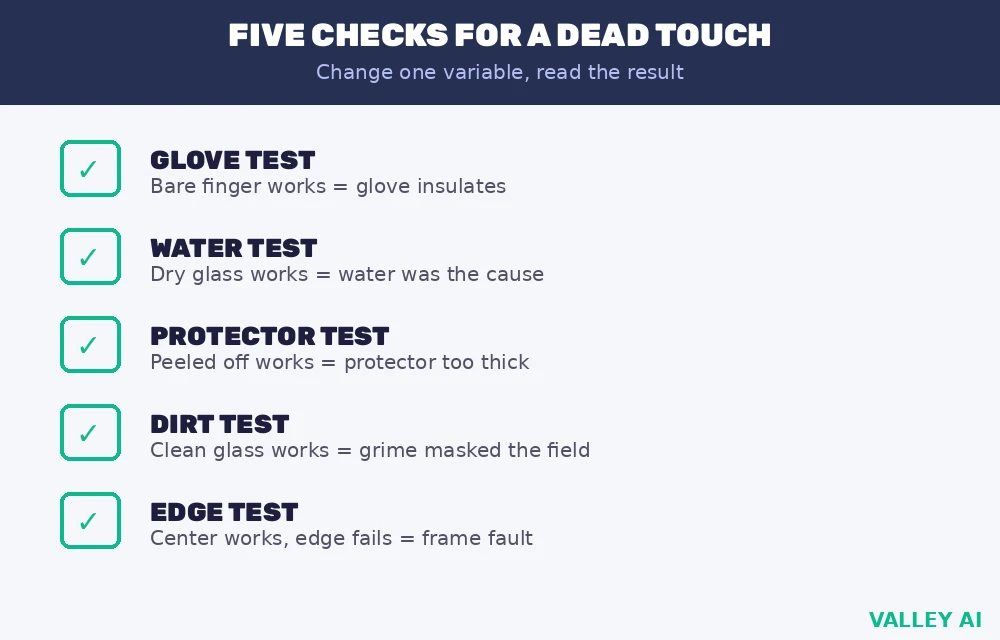
Most dead touches trace to five causes: water, gloves, a thick protector, dirt, or a damaged edge. Each cause leaves a different signature, and a short check identifies it.
- Glove test. Try the same tap with a bare finger. A working bare tap points to an insulating glove.
- Water test. Wipe the glass dry and tap again. Taps that stop after drying point to water on the surface.
- Protector test. Peel the protector off and tap again. A response that returns points to a protector too thick for the field to cross.
- Dirt test. Clean the glass and tap again. A response that returns points to grime masking the sensor.
- Edge test. Tap the center, then tap near the frame. Touches that fail only near the frame point to a frame or bezel fault on an infrared panel.
Why does a drop of water sometimes register as a tap? Water conducts electricity. A drop on a capacitive surface changes the field at its spot. The controller cannot always separate a drop from a finger, so it reports the drop as a touch. Wiping the glass dry removes the false signal.
A screen protector adds distance between finger and sensor. Thin films pass the field with little loss. Thick tempered glass weakens the field enough that light taps fall below the controller threshold, while firm presses still register.
Grime builds the same problem slowly. Skin oil and dust coat the glass, mask the field, and shrink the margin between a real tap and background noise. Cleaning restores the margin.
Conclusion
Buy the panel that survives a test with the gloves your staff wear on the job, tapped at the corners as well as the center. Run that test in the light the panel will live under, and let the result pick the technology.
A trackpad uses the same projected capacitive sensing as a screen, tuned for pointing instead of display: how trackpads work explains the grid, force click, and palm rejection behind the laptop pad.
A passive pen draws on the same capacitive sensing described above, while how a stylus works on EMR and protocol pens adds pressure, hover, and palm rejection that a bare touch cannot carry.
Frequently asked questions
Can a capacitive screen tell how hard you press?
A standard capacitive panel cannot. It reads field change, and a harder press only widens the contact patch slightly. True force sensing needs extra strain sensors under the display, which is why pressure-sensitive phone screens stayed a niche feature and most makers dropped them.
What makes a capacitive stylus different from an ordinary plastic stylus?
A capacitive stylus carries a conductive tip that couples to the sensing field. An ordinary plastic stylus is an insulator, so it leaves the field unchanged and the controller sees nothing.
Can a cracked touchscreen keep working?
Often, yes. A crack through the cover glass alone usually leaves touch working, because the sensing layer sits beneath the crack. Touch fails in the region where a crack severs electrode lines or the connection to the controller, and repair then means replacing the whole bonded assembly rather than just the glass.
Does cold weather change touchscreen response?
Extreme cold stiffens materials and shifts their electrical properties, so capacitive sensitivity can drop on a freezing day. Resistive panels keep working across a wider temperature span, with industrial units rated from minus 20 to 70 degrees Celsius.
What does the controller do with a touch it cannot place?
It discards it. Signals below the controller threshold, or too ambiguous to map to one coordinate, never become a report to the host. That filtering is why a hovering finger or a light brush across the glass produces nothing.

Kaleem
Kaleem is a Computer Science graduate (Virtual University of Pakistan) and the founder and editor of Valley AI, where he publishes in-depth, tested guides on computer hardware, artificial intelligence, and how the internet works. Every guide is researched from primary sources, tested hands-on where possible, and updated when the facts change.