

A stylus looks simple. A pointed tip meets a screen, and a line appears. The pen is only half the system. The screen decides what a pen can do, and the pen decides how much control you get over each stroke.
Match the pen to the screen first, and the brand second. A pen built for one sensing method will stay silent on a screen that uses a different method, even when the tip fits and the price looks right.
Start with the screen, then the pen
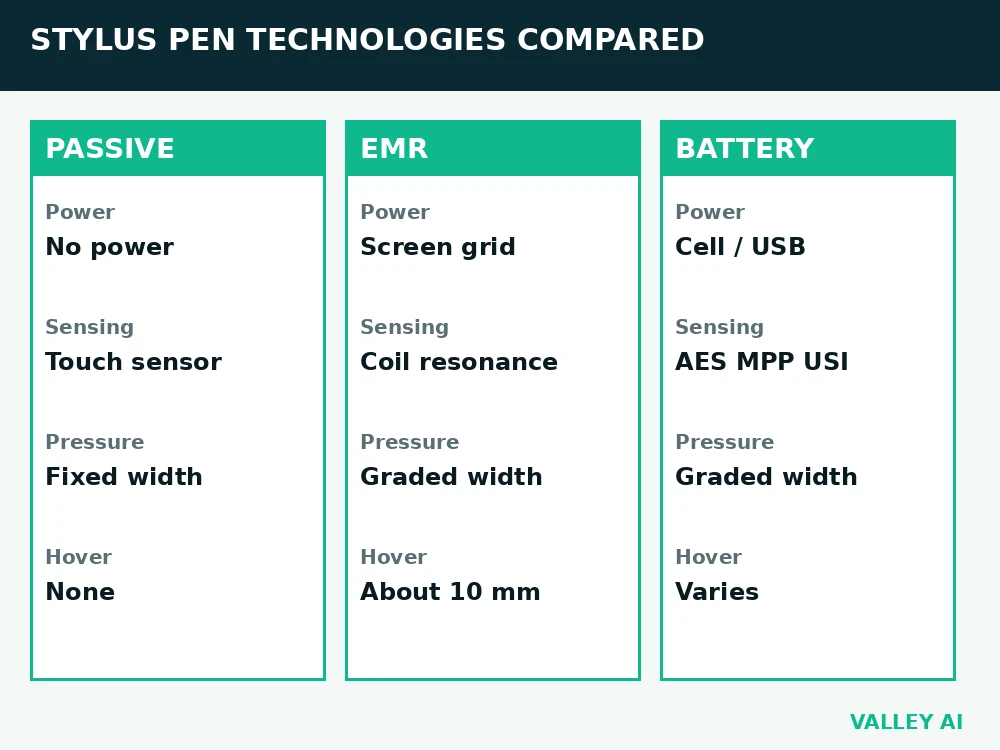
Every pen on sale falls into a small set of designs. Passive pens carry no electronics. EMR pens draw power from a sensor layer behind the screen. Battery-powered pens carry their own electronics and speak a named protocol such as AES, MPP, or USI. Pen displays add a screen to a drawing tablet. Screenless tablets keep the drawing surface separate from the monitor.
That split shapes every buying choice. A passive tip can draw a line. An EMR pen can vary line width with pressure and hover above the surface. A battery-powered pen can add tilt, shortcut buttons, and Bluetooth features. The table below sets the choice out before the detail follows.
| Pen type | Power source | How the screen reads it | Strongest use |
|---|---|---|---|
| Passive capacitive | None | Touch sensor reads a conductive tip | Notes and taps |
| EMR | Sensor grid behind the screen | Resonant coil signal tracked by the grid | Drawing and handwriting |
| Battery-powered AES, MPP, or USI | Internal battery or cell | Active signal plus a named protocol | Note taking on a matched device |
A stylus sits among modern computer input devices, where each tool trades precision for speed in a different way.
Passive capacitive pens: a fingertip with a point
How does a passive stylus work? A passive tip spreads the same kind of conductive touch a finger makes, and the touch sensor turns that touch into a coordinate. The tip is usually broad, soft, or mesh covered, because a tiny nonconductive point would register weakly or not at all.
Because no signal leaves the pen, the screen cannot measure pressure, tilt, or hover. Line width stays fixed unless an app fakes width from stroke speed. A passive tip succeeds only because of how touchscreens work, which turn a conductive touch into a coordinate on a grid.
Passive pens earn a place. They cost little, need no charging, and work on most capacitive screens. They suit signatures, short notes, and menu taps. They fall short for shaded drawing, fine handwriting, and long sketching sessions where pressure control matters.
EMR pens: power from the screen itself
Why does an EMR pen need no charging? A sensor grid behind the screen sends out an electromagnetic field, and a coil inside the pen resonates in that field. Pressure on the tip changes the resonance, and the grid reads the change as a pressure value. The pen holds no battery, because the screen supplies the energy for each reading.
Electromagnetic resonance gives EMR its two clear strengths. Hover tracking lets the cursor follow the pen before contact, which helps with aiming and with menu previews. Pressure readings arrive in fine steps, which helps with line variation in drawing apps. Wacom built much of the early EMR market, and Samsung S Pen models on supported tablets use the same sensing principle.
EMR has a firm limit. The pen works only on a device with a matching sensor grid. A pen from one EMR tablet may fail on a phone or tablet that lacks that grid, even when both devices share a brand name. Check the device specification for EMR support before buying a spare pen.
Battery-powered pens: Bluetooth and active protocols
Why do some pens need Bluetooth pairing? A battery-powered pen generates its own signal, and the device must know which protocol that signal follows. AES, MPP, and USI each define a different signal format, pressure range, and pairing method. On pens that support those extras, Bluetooth pairing adds shortcut buttons, battery status, and app switching.
Active pens pair with a narrow device list. An MPP pen suits a supported Windows device. A USI pen suits a supported Chromebook or tablet. An AES pen suits a supported device from its own maker list. Cross-brand use fails often, because the protocol match matters more than the connector shape or the tip size.
Battery life becomes a real running cost here. Some pens use a rechargeable cell with USB charging. Others use a replaceable AAAA cell. A pen that stops mid-stroke needs a charge or a fresh cell first, and that check saves a return trip. Robots.net describes the active pen signal and its protocol limits in a technical overview of the active stylus, which names the same protocol split.
Pen displays and screenless tablets
Pen displays place the drawing surface on the screen itself. The artist watches the tip and the line in one place, which shortens the learning curve for beginners. Pen displays cost more, need a desk cable setup, and tie the artist to one monitor size.
With a screenless tablet, the drawing surface stays separate from the monitor. The hand moves on a blank pad while the eyes watch the monitor. That split feels odd for a day or two, then fades for most users. Screenless tablets cost less, travel well, and suit desks with limited space.
Both tablet forms ship with an EMR pen in most cases. The choice turns on workflow, with direct drawing on a pen display and a lower price plus portability on a screenless pad. A beginners guide to drawing tablets from Seven Pens sets out the same display choice for first-time buyers, with size and workspace tradeoffs stated plainly.
Pressure levels, mapped to line width
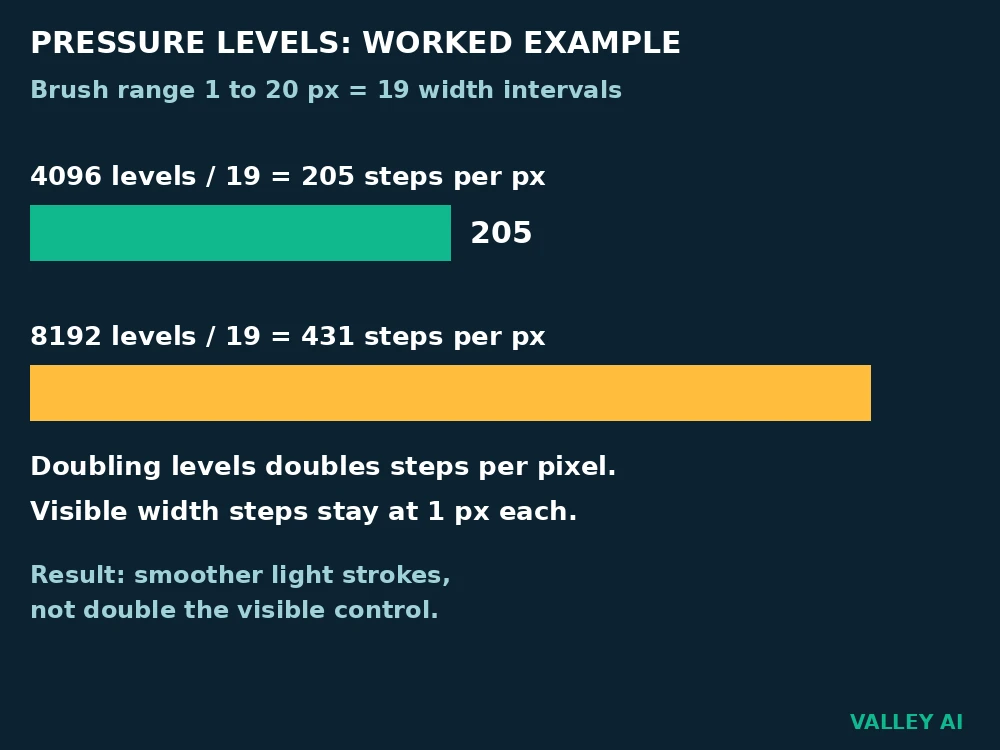
Pressure levels count the steps between the lightest touch and the hardest press. A 4096-level pen divides that range into 4096 steps. An 8192-level pen divides the same range into 8192 steps. A 16384-level pen divides it into 16384 steps. More steps sound better. The visible gain shrinks fast once the brush range is narrow.
The calculation below names its inputs. Input 1: a 4096-level pen. Input 2: a brush width range of 1 px to 20 px, which gives 19 intervals of width change. Divide 4096 by 19. The result is about 205 pressure steps for each 1 px step of width. Input 3: an 8192-level pen on the same brush range. Divide 8192 by 19. The result is about 431 pressure steps for each 1 px step of width. Doubling the level count doubles the steps per pixel. The eye sees the same 1 px width steps. Visible line control does not double. That arithmetic explains the smooth feel of a 4096-level pen for most drawing. Higher counts matter most for very light strokes at the soft end of the range.
Software sets the ceiling. An app that reads only 1024 levels will cap a 4096-level pen at 1024 steps. An app with no pressure support will draw a fixed width whatever pen is attached. Check app support beside device support, since either side can limit the result.
Hover, palm rejection, and tilt
Hover distance sets how far above the surface the cursor follows the pen. On EMR tablets, the cursor typically stops following at about 10 mm above the surface. A reader check runs without tools. Lift the pen slowly from the surface and watch where the cursor stops following. That stopping point is the hover limit for that pen and screen pair. Supported iPads add a similar hover preview for Apple Pencil, with the cursor visible before the tip touches glass.
Palm rejection works when the screen can separate the pen signal from a resting palm. EMR and active protocol pens carry a distinct signal, so the device can ignore the palm while tracking the pen. Passive pens lack that signal, so palm rejection depends on the app guessing from touch size and timing. Resting a palm on a passive setup often leaves stray marks.
Tilt sensing reads the angle of the pen shaft and changes the brush shape to match. Calligraphy brushes widen with tilt. Shading tools darken with tilt. Tilt helps artists most, and note takers least, since handwriting rarely needs a tilt response. Mouse sensors measure movement in dots per inch, and mouse DPI and polling rate show why a mouse can feel faster on a desktop while a pen feels steadier for drawing.
Buying checks you can run before you pay
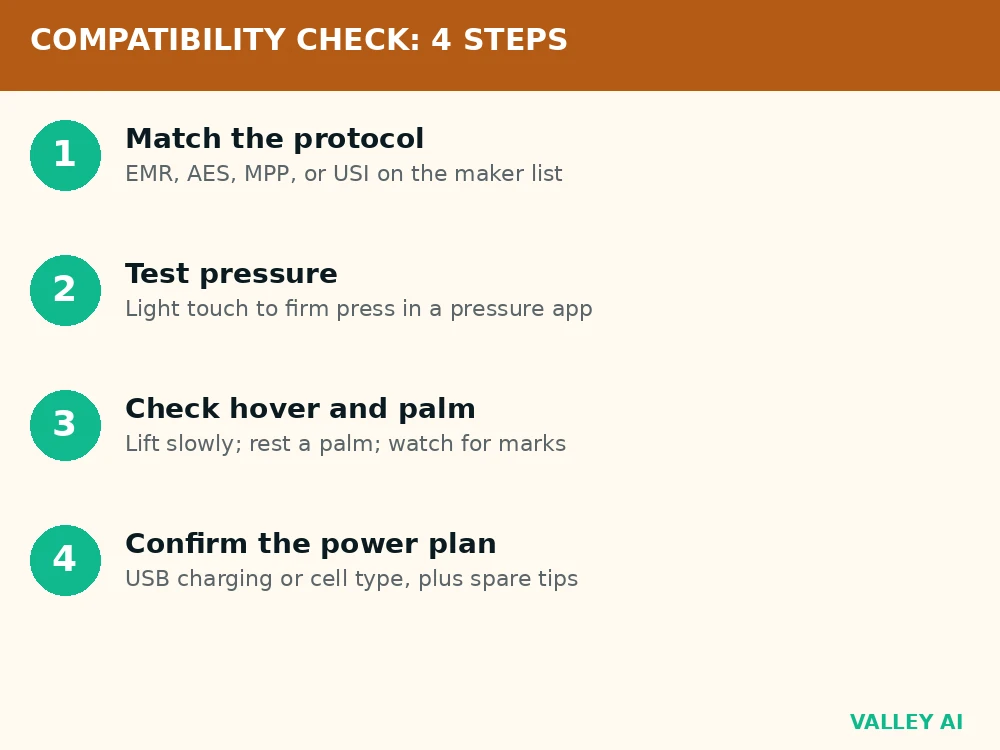
Run these checks in order, and stop at the first failure. A pen that fails an early check will fail in daily use, whatever its rating or price.
- Confirm the exact device model on the pen maker compatibility list, with protocol letters matching: EMR, AES, MPP, or USI.
- Test pressure in an app that lists pressure support, and watch line width change from a light touch to a firm press.
- Lift the pen slowly and note where hover tracking stops, then rest a palm on the screen and check for stray marks.
- Check the power plan: charging method for a rechargeable pen, or cell type for a replaceable-cell pen, plus spare tip availability.
Spare tips need a line in the budget. Tips wear with use on textured surfaces, and a worn tip drags, skips, or scratches a screen protector. Makers sell tip packs for most active and EMR pens. A pen with no spare tips on sale becomes a short-life purchase.
Conclusion
Run the compatibility check, the pressure test, and the hover check before paying, and keep a spare tip pack with the pen.
Frequently asked questions
Will a stylus scratch my screen?
A clean, smooth tip rarely marks modern hardened glass, while grit trapped under a tip or a cracked tip edge can leave a mark. Wipe the tip, replace a chipped tip at once, and fit a screen protector when the tablet travels in a bag with keys or grit.
Can I use a stylus through a screen protector?
Most pens keep working through a thin protector, though a thick matte protector can soften pressure response and shorten hover range. Choose a thin protector rated for pen use, then test pressure and hover after fitting it.
How should I store a stylus so the tip stays straight?
Keep the cap on when the pen ships with one, and carry the pen in a sleeve or case pocket where nothing presses on the tip. A tip bent by pressure in a crowded bag can draw at an angle and feel rough against glass.
Can I use a stylus while wearing gloves?
An EMR or battery-powered pen keeps working with gloves on, because its signal does not depend on skin contact. A passive capacitive tip depends on conductivity, so a thick glove can block it unless the glove material conducts touch.
Why does my pen work in one app and lag in another?
Apps differ in how they handle pen input, with some reading full pressure data and others treating the pen as a simple pointer. Lag in one app and smooth strokes in another points to that app input handling, plus its brush engine load, rather than a faulty pen.

Kaleem
Kaleem is a Computer Science graduate (Virtual University of Pakistan) and the founder and editor of Valley AI, where he publishes in-depth, tested guides on computer hardware, artificial intelligence, and how the internet works. Every guide is researched from primary sources, tested hands-on where possible, and updated when the facts change.