

What monitor refresh rate means
A monitor refresh rate of 144Hz means the panel draws a fresh image 144 times every second. The unit hertz counts redraws per second, so a 60Hz panel draws 60 fresh images in the same span and a 240Hz panel draws 240.
Each redraw replaces the frame on screen with the next one in sequence. Motion looks smoother at higher rates because the gaps between successive positions shrink, and a moving object gets more intermediate positions along its path.
Sixty hertz became the everyday default during the VGA era, when most displays and video outputs settled on that rate. That default still ships on many office monitors. A new high refresh monitor can surprise a buyer who expects the higher rate to be active out of the box.
Among all output devices explained, the monitor is the one a person watches all day. Its refresh behavior shapes every second of that use, from scrolling a document to tracking a fast target in a game.
Older cathode-ray displays drew the image by scanning an electron beam across the screen. A low rate produced visible flicker as each line faded before the next pass. Modern liquid-crystal and OLED panels hold each frame until the next one arrives. The flicker goes away. A different artifact takes its place: a held frame smears across the eye during fast motion, and faster redraws shorten each hold.
Television marketing complicates the number further. Some television brands advertise motion rates that double or quadruple the native panel rate through frame interpolation, which invents intermediate frames rather than displaying genuine new ones. A buyer comparing a television with a monitor should look for the native panel rate in the specifications. The marketed motion figure describes processing rather than panel behavior.
Refresh rate, frame rate, and the match between them
Refresh rate belongs to the panel. Frame rate belongs to the machine driving it, measured in frames per second (FPS), and the graphics processor renders those frames while graphics memory holds the textures and frame data the pipeline needs.
When the machine renders faster than the panel redraws, the extra frames never reach the eye as distinct images. A 240 FPS game on a 60Hz panel still shows 60 distinct images per second, and the surplus frames either get discarded or land mid-redraw, which is where tearing comes from.
Can a 60Hz monitor show 144 frames per second?
No. The panel caps visible output at its own redraw count, so the remaining frames cannot appear as additional distinct images no matter how fast the machine renders.
Running below the panel rate creates the opposite mismatch. A 144Hz panel fed 70 FPS in a demanding title repeats some frames, and that repetition reads as uneven motion.
Vertical synchronization, known as V-Sync, was the older answer to tearing. V-Sync holds each frame until the next panel redraw, which stops the split image but adds input delay and can drop the delivered rate sharply when the machine misses a deadline. Adaptive sync replaced that rigid bargain for most gaming setups by letting the panel follow the machine instead.
Frame pacing matters as much as the average frame rate. A game averaging 120 FPS with frequent dips to 40 FPS feels rougher than a steady 90 FPS, because the eye catches the irregular gaps between frames. In-game frame time graphs expose those spikes directly, and they explain why a smooth average can still feel uneven.
Frame time in milliseconds: the worked calculation
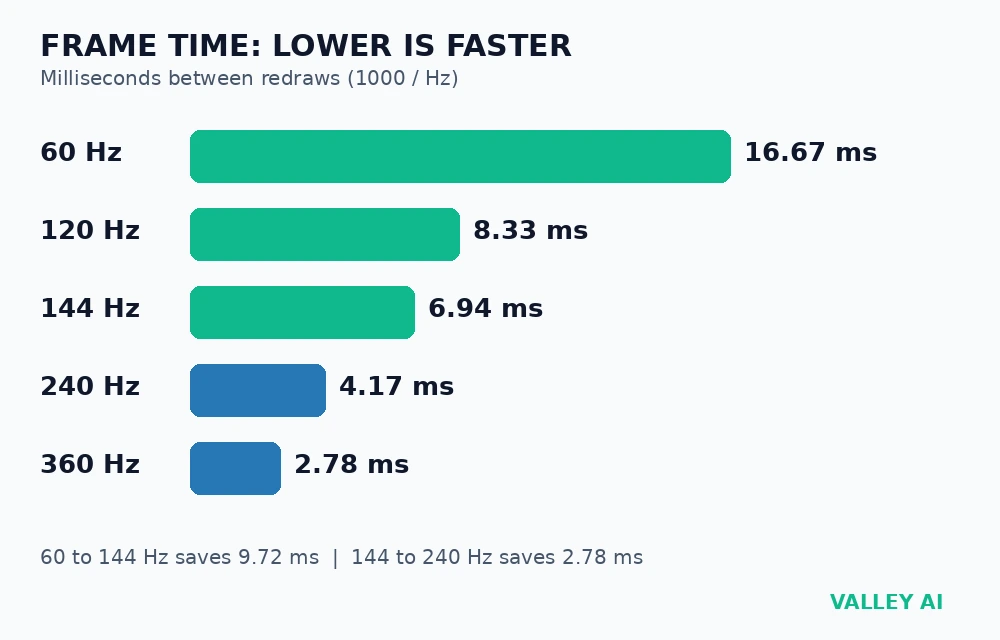
Converting the Hz number into a duration gives a buyer a direct comparison. Dividing 1000 by the Hz value gives the milliseconds between one redraw and the next, and the table below shows the result for five common rates.
| Refresh rate | Frame interval |
|---|---|
| 60Hz | 16.67 ms |
| 120Hz | 8.33 ms |
| 144Hz | 6.94 ms |
| 240Hz | 4.17 ms |
| 360Hz | 2.78 ms |
Subtracting one interval from the previous one shows where the gains shrink. Moving from 60Hz to 144Hz saves 9.72 ms per frame, moving from 144Hz to 240Hz saves 2.78 ms, and moving from 240Hz to 360Hz saves 1.39 ms.
The first jump transforms everyday motion, later jumps refine it, and each later jump demands far more rendering power for a smaller time saving.
Motion test pages in a browser offer a quick visual check after a purchase. A moving UFO graphic rendered at the panel rate shows distinct steps at low rates and a near-continuous path at high rates, and the test also reveals whether the operating system setting matches the panel specification. Running that test takes under a minute and settles arguments about whether a new monitor runs at its advertised rate.
Bandwidth: the calculation that decides whether a mode fits the cable
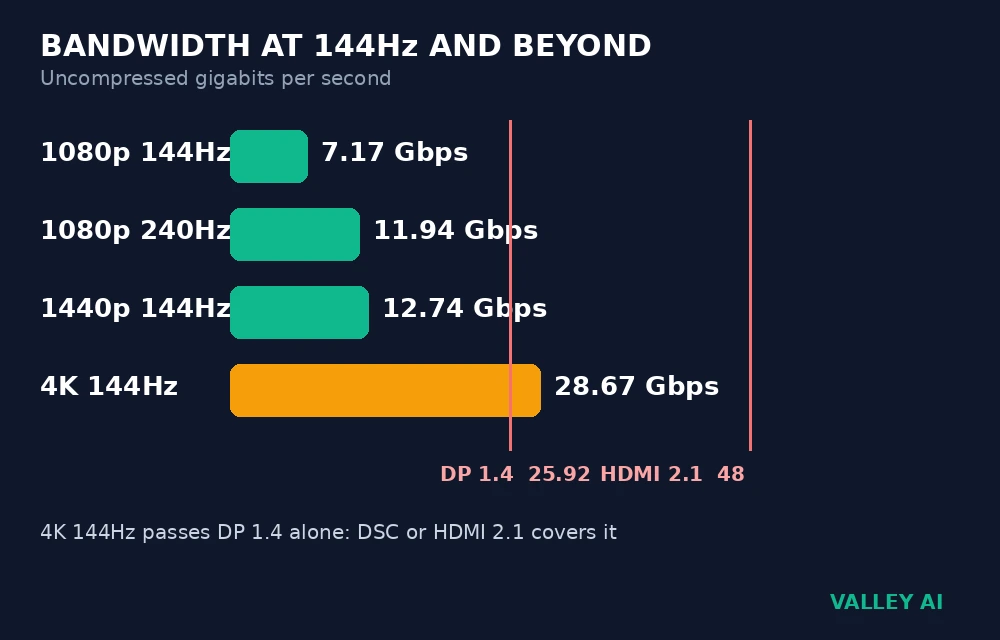
A high refresh mode also has to travel from the machine to the panel, and the cable sets a ceiling on that trip. Multiplying horizontal pixels by vertical pixels, then by the refresh rate, then by 24 bits per pixel gives the uncompressed data rate for a mode.
| Mode | Uncompressed rate |
|---|---|
| 1080p at 144Hz | 7.17 Gbps |
| 1080p at 240Hz | 11.94 Gbps |
| 1440p at 144Hz | 12.74 Gbps |
| 4K at 144Hz | 28.67 Gbps |
DisplayPort 1.4 carries an effective 25.92 Gbps from a 32.4 Gbps raw link, so the 4K 144Hz figure above passes its uncompressed ceiling while every other mode in the table sits inside it. HDMI 2.1 offers a 48 Gbps raw link, which holds the 4K 144Hz figure without compression.
Display Stream Compression, usually shortened to DSC, closes the remaining gap on DisplayPort 1.4. DSC compresses the stream in a way the eye cannot distinguish from uncompressed video. A 4K 144Hz mode can still run over that link when both the graphics card and the monitor support DSC. DisplayPort vs HDMI compares the two cables version by version for the mode you run.
Cable choice matters as much as panel choice. A mode missing from the settings menu often traces back to the link. On laptops and docks, USB-C display output in alt mode carries the same DisplayPort signal as a native cable, the wiring split the USB-C versus Thunderbolt comparison tabulates port by port.
Color depth changes the arithmetic, because the table above assumes 8-bit color at 24 bits per pixel. A 10-bit signal carries 30 bits per pixel, which lifts the 4K 144Hz figure from 28.67 Gbps to about 35.83 Gbps. High dynamic range content therefore leans harder on DSC or on a wider link, and that pressure grows with every step in resolution and color depth.
Adaptive sync: how tearing and stutter get handled
Tearing happens when the panel starts a fresh redraw halfway through showing a frame. The top half of the screen shows one frame. The bottom half shows the next. Stutter happens when frame delivery timing drifts against a fixed panel clock, so some frames linger and others rush past.
Adaptive sync breaks the fixed clock. Under FreeSync, G-Sync, or the generic variable refresh rate (VRR) standard, the panel waits for each frame and redraws on arrival instead of on a rigid schedule, which removes tearing without forcing the machine to repeat frames.
Does adaptive sync raise the maximum refresh rate?
No. Adaptive sync changes timing inside the range the panel and the link already support, so a 144Hz panel stays a 144Hz panel and simply delivers its frames more evenly.
Buyers should confirm the sync range before purchase, since some panels only support adaptive sync across part of their range. A panel whose sync window starts at 48Hz can still stutter when a demanding title drops below that floor.
Implementation differs between the two major adaptive sync families. G-Sync historically relied on a dedicated module inside the monitor, which added cost and tight certification, while FreeSync built on the open VESA adaptive sync standard and spread across a wider price range. Modern monitors blur that line. Many FreeSync displays now work with NVIDIA graphics cards. Many G-Sync compatible displays carry no module. Buyers should check the exact compatibility listing for their graphics card.
Panel response time: the other half of sharp motion
Response time measures how fast a pixel changes color, usually quoted as grey-to-grey (GtG) time, and it operates independently of the redraw clock. A panel can redraw often while its pixels still lag behind each redraw, leaving a faint trail behind moving objects.
Slow pixels smear fast motion even on a high refresh panel, because each new frame arrives while the previous colors still fade. Manufacturers add overdrive settings that push pixels harder to shorten the transition, though aggressive overdrive can overshoot and leave bright halos around dark objects.
Reviewers measure GtG with test equipment. Quoted figures usually reflect the fastest transition a pixel can make. A typical transition runs slower. A buyer comparing two high refresh panels should weigh measured response alongside the Hz figure, especially for fast games.
Backlight strobing offers a separate route to sharper motion. Strobing flashes the backlight briefly for each frame and switches it off between frames, which cuts the hold effect that smears moving objects. Brightness drops as a tradeoff, and some people see flicker from the flashing, so strobing suits bright-room competitive play better than dim-room evening use.
OLED panels change the response side of the equation because their pixels switch almost instantly compared with liquid-crystal pixels. That near-instant switching removes most of the smear that plagues slower panels, so an OLED display at a moderate rate can look sharper in motion than a liquid-crystal display at a higher rate with sluggish pixels. Panel technology therefore belongs in the comparison alongside the Hz figure.
How to pick a refresh rate for your use
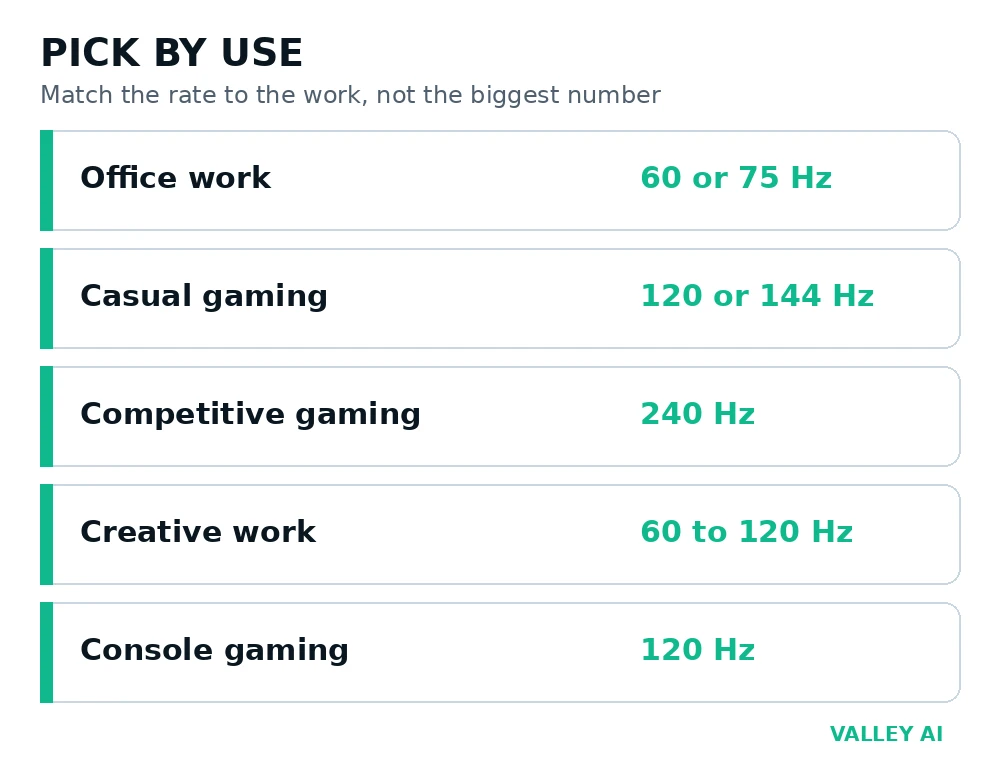
Picking starts from the work the screen does all day. The largest number on a spec sheet comes last. The table below matches five common uses to a rate and a reason for that match. The HP refresh rate guide breaks the same choice down by gaming tiers.
| Use | Suggested rate | Reason |
|---|---|---|
| Office documents and browsing | 60Hz or 75Hz | Static content gains little from faster redraws, so money goes further on panel quality |
| Casual gaming and video | 120Hz or 144Hz | Smoother camera movement and scrolling without demanding top-tier hardware |
| Competitive gaming | 240Hz | Shortest intervals between position updates for tracking fast targets |
| Creative photo and video work | 60Hz to 120Hz | Color accuracy and panel uniformity matter more than extra redraws for stills and timelines |
| Console gaming | 120Hz | Current consoles target 120 frames per second at most, so higher panel rates sit unused in games |
Budget follows the same logic. Spending on a 240Hz panel makes sense only when the machine already sustains high frame rates in the games that matter to its owner, while a buyer with a mid-range machine gets more visible benefit from a 144Hz panel paired with a better-quality display.
Resolution competes with refresh rate for the same rendering budget. A graphics card that sustains 144 FPS at 1080p might manage only 70 FPS at 4K in the same title, so a buyer choosing between a 1440p 144Hz panel and a 4K 60Hz panel trades smoothness against detail. Gamers usually benefit more from the smoother panel, while editors working with fine detail benefit more from the denser one.
Laptop buyers face the same choice in a fixed package. Most everyday laptops ship with 60Hz built-in panels, while gaming laptops offer 144Hz, 165Hz, or 240Hz options, and the panel choice stays with the machine for its whole life. A laptop buyer who plays fast games should weigh the built-in rate as heavily as the processor. An external monitor helps at a desk. It never fixes the built-in screen on the road.
How to check and change your refresh rate
Many high refresh monitors ship with a lower rate selected by default, so open the settings menu once after unboxing. Windows users open Settings, then System, then Display, then Advanced display, and pick the highest rate listed for the connected monitor. The Corsair guide to checking monitor refresh rate walks through that same Advanced display path.
On macOS, System Settings holds the Displays pane, where the refresh rate dropdown lists the modes the connected display reports. Some Mac configurations hide extra modes until the scaled resolutions view opens, and the monitor on-screen display (OSD) menu can confirm the rate the panel itself reports.
Why does a new 144Hz monitor still run at 60Hz after setup?
The operating system usually selects 60Hz as its safe default, so the higher mode stays unselected until a person picks it in display settings. A missing higher mode after that points at the port, the cable, or the OSD setting. Check all three before concluding the panel is at fault.
Verification closes the loop after changing the setting. A browser motion test or an in-game frame counter confirms the new rate took effect, and the monitor OSD readout serves as a second witness when the operating system and the panel disagree. Mixed-rate multi-monitor setups need one extra check. An animation or video playing on a slower secondary screen has historically disturbed smoothness on the primary screen in some configurations.
Open display settings today and confirm the rate your monitor runs at right now. If the menu offers a higher mode, select it. Use it for a week across work and games. Let that week decide whether an upgrade deserves a place on the shopping list. Shoppers should start from the games and work the screen will serve, then choose the panel whose rate, sync range, and measured pixel speed fit that use.
Frequently asked questions
Will a higher refresh rate drain a laptop battery faster?
Yes, in most cases. A faster panel redraws more often and the graphics hardware renders more frames to feed it, so both parts draw more power. Switching the laptop to its lower rate while unplugged, or letting the power plan cap the rate on battery, stretches battery life without changing any hardware.
Does refresh rate change how a still photo looks?
A still image shows the same pixels whether the panel redraws 60 times per second or 240 times per second. Refresh timing only shapes motion, so sharpness, color, and detail in a photograph come from resolution, panel type, and calibration instead.
Is 165Hz a real step up from 144Hz?
The step is small. Dividing 1000 by 165 gives 6.06 milliseconds between redraws, against 6.94 milliseconds at 144Hz, a saving under one millisecond. Most buyers feel that change far less than the jump from 60Hz, so 165Hz works best as a bonus on an otherwise strong panel. On its own it rarely justifies a premium.
Does variable refresh work on a television?
Many recent televisions support variable refresh over HDMI, and consoles use that support to smooth frame delivery on the big screen. Both the console and the television must support the feature, and television sync ranges tend to run narrower than gaming monitor ranges, so checking both spec sheets matters before relying on it.
Why do some monitors list two rates, such as 144Hz and 165Hz overclock?
The second figure is a factory overclock mode that pushes the panel past its stock rate through a setting in the on-screen display menu. Enabling it can add a small amount of smoothness, but it sometimes introduces artifacts or requires a specific port, so the stock rate remains the safer figure to shop by.
Can refresh rate cause flicker at low brightness?
Flicker at low brightness usually traces back to dimming behavior or variable refresh timing. The refresh figure itself is rarely the cause. Panels that dim by pulsing the backlight can flicker visibly when brightness drops, and variable refresh can flicker when frame rates swing sharply, so a buyer sensitive to flicker should look for flicker-free dimming claims and reviews that test low-brightness behavior.

Kaleem
Kaleem is a Computer Science graduate (Virtual University of Pakistan) and the founder and editor of Valley AI, where he publishes in-depth, tested guides on computer hardware, artificial intelligence, and how the internet works. Every guide is researched from primary sources, tested hands-on where possible, and updated when the facts change.