
A GPU is the processor that handles graphics and other workloads made of many calculations that can run at the same time. The acronym stands for graphics processing unit.
That definition is accurate, but incomplete. A GPU might be built into a laptop processor, installed as a separate graphics card, rented through the cloud, or used to train an artificial intelligence model. The right GPU depends less on its name than on the work you need it to perform.
What a GPU Actually Does
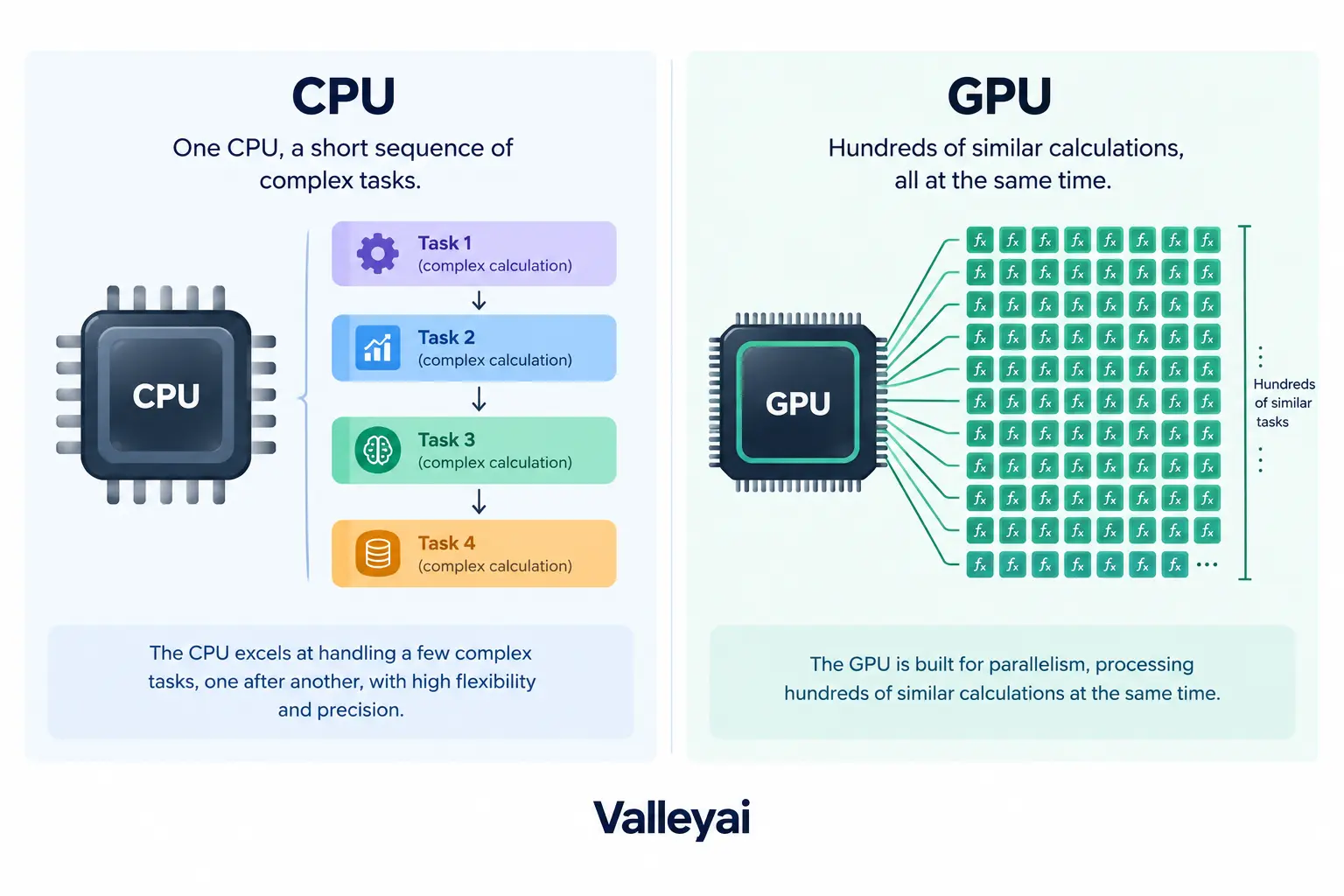
A GPU processes large sets of similar operations in parallel. That design makes a GPU effective at drawing images, editing video, rendering 3D scenes, processing matrix calculations, and running many machine-learning workloads.
A CPU usually handles a smaller number of complex tasks with strong sequential performance. A GPU contains many specialized processing resources that can work on smaller pieces of a larger task at the same time.
For example, rendering a video frame requires calculations for many pixels. A GPU can process groups of pixels concurrently rather than treating every pixel as a completely separate job in a long sequence.
The same principle applies outside graphics:
- Gaming: Calculates lighting, geometry, textures, shadows, and effects.
- Video editing: Accelerates supported playback, effects, encoding, and decoding.
- Artificial intelligence: Processes matrix and tensor operations used by many AI models.
- Scientific computing: Runs simulations involving large sets of numerical calculations.
- Computer-aided design: Displays and manipulates complex 2D and 3D models.
Parallel processing is the GPU’s main advantage, but parallel processing is not useful for every task. A workload with many dependencies, unpredictable branching, or strict single-thread latency requirements may run better on a CPU.
Intel describes GPUs as processors suited to graphics and highly parallel operations. Amazon Web Services also identifies visualization, machine learning, simulation, and other parallel workloads as common GPU applications.
Modern AI PCs add a third option to this split; see how an NPU against a GPU stacks up for machine-learning work.
GPU vs CPU: Why Computers Use Both
A GPU does not simply replace a CPU. The two processors are designed for different types of work and commonly cooperate inside the same computer.
| Characteristic | CPU | GPU |
|---|---|---|
| Main design goal | Handle varied, sequential, and latency-sensitive tasks | Handle many similar calculations in parallel |
| Typical structure | A smaller number of powerful general-purpose cores | Many parallel processing resources |
| Common work | Operating-system tasks, application logic, file operations, control flow | Graphics, video effects, matrix operations, parallel simulation |
| Strength | Fast response to complex instructions | High throughput for suitable parallel workloads |
| Limitation | Less efficient for massive, repeated parallel calculations | Less suitable for heavily sequential or branching work |
| Memory relationship | Usually uses system memory | May use dedicated VRAM or shared system memory |
The CPU typically runs the operating system, coordinates applications, manages input and output, and decides what work should happen next. The GPU handles tasks that software can divide into many simultaneous operations.
A game, for instance, may use the CPU for game logic, physics decisions, input, and artificial-intelligence behavior. The GPU then renders the resulting scene. In video editing, the CPU may manage the application and timeline while the GPU accelerates supported effects or codec operations.
Can a GPU replace a CPU? Usually, no. A GPU can perform some general-purpose computing tasks, but a computer still needs a CPU for operating-system control, application coordination, and workloads that do not map well to parallel processing. GPU computing complements CPU computing rather than making the CPU unnecessary.
Display connections are a separate matter from the processor itself, and older analog outputs still appear on many machines, so it helps to know what VGA is and where it still applies before judging a card by its ports.
GPU vs Graphics Card: The Terms Are Related, Not Identical
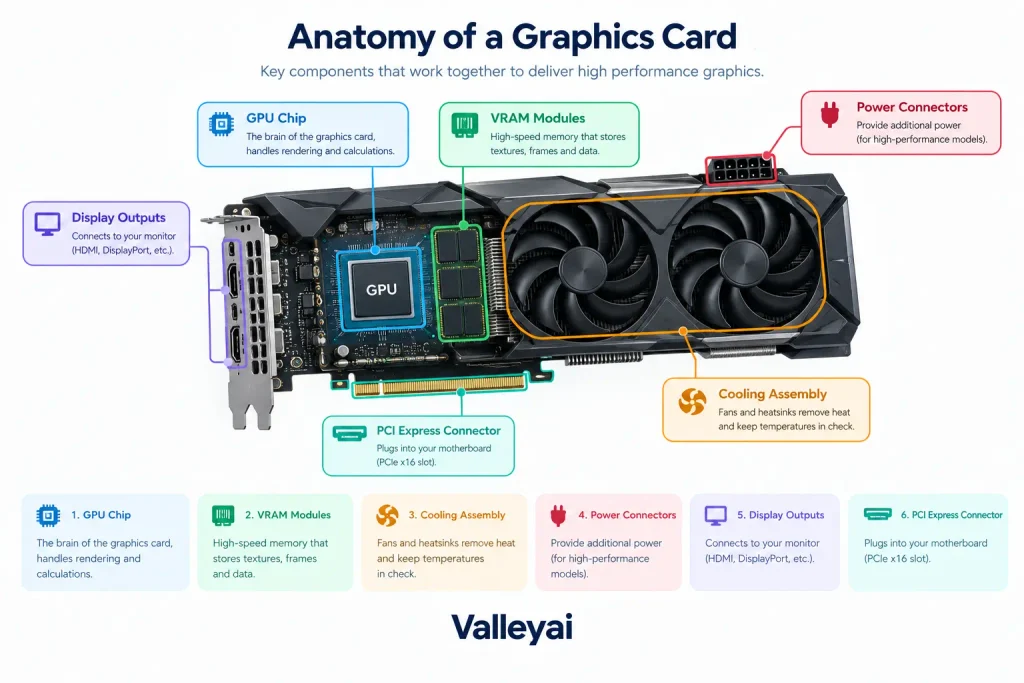
A GPU is the processor. A graphics card is the complete hardware board that contains the GPU and the other components needed to operate it.
A discrete graphics card commonly includes:
- The GPU chip
- Video memory, or VRAM
- A printed circuit board
- Voltage regulation and power-delivery components
- A cooler, heatsink, and fans
- Display outputs
- A PCI Express connector
- Firmware and supporting circuitry
Those power-delivery components are a smaller sibling of the motherboard VRM: every graphics card has its own phases stepping voltage down for the GPU chip and VRAM. For the full concept, see what a VRM is and how power phases work.
The GPU performs the calculations. The graphics card supplies memory, power, cooling, and connections so the GPU can function inside a desktop computer.
People often use “GPU,” “graphics card,” and “video card” interchangeably in casual conversation. That is understandable, but the distinction matters when comparing hardware. A graphics card’s performance depends on more than the GPU chip. VRAM capacity, memory bandwidth, cooling, power limits, drivers, and the card’s complete design also affect results.
Each type suits a different workload, which we compare directly in iGPU vs dGPU vs eGPU.
Integrated, Discrete, External, and Cloud GPUs
GPU form determines where the graphics processor lives, how it gets memory, and how easily it can be upgraded.
Integrated GPUs share system resources
An integrated GPU is built into a CPU or system-on-chip. Integrated graphics commonly share system memory with the CPU instead of using a separate pool of dedicated VRAM.
Integrated GPUs are often suitable for:
- Web browsing and office applications
- Video playback
- Basic photo editing
- Multiple-monitor output, depending on the system
- Casual or older games
- Lightweight creative applications
Integrated graphics use less space and power than a separate graphics card. That makes integrated GPUs useful in laptops, compact computers, and systems where battery life or low heat matters.
The tradeoff is limited graphics headroom. Shared memory and lower power budgets can restrict performance in demanding games, high-resolution 3D work, advanced video effects, and large AI models.
Discrete GPUs provide separate graphics hardware
A discrete GPU is a separate processor rather than a graphics section built into the CPU. In a desktop, the discrete GPU is commonly installed on a graphics card. In a laptop, the discrete GPU may be soldered onto the motherboard rather than being user-replaceable.
Discrete GPUs usually offer:
- More graphics processing resources
- Dedicated VRAM
- Higher performance potential
- Better support for demanding games and 3D applications
- Greater capacity for AI and compute workloads
The costs include higher power use, more heat, greater system expense, and additional physical space.
A computer can contain both an integrated GPU and a discrete GPU. That is not automatically a problem. The operating system may use integrated graphics for light tasks and activate the discrete GPU for a game or creative application.
External GPUs move graphics processing outside the computer
An external GPU, often called an eGPU, places a discrete graphics card inside an external enclosure. The enclosure connects to a compatible computer through a high-speed port.
An eGPU can add graphics capability to a laptop, but the result depends on:
- Port bandwidth
- Computer compatibility
- Driver support
- Enclosure power capacity
- The monitor connection
- Whether the application supports the setup efficiently
An external GPU is more flexible than replacing a laptop’s internal graphics hardware, but the enclosure adds cost and physical complexity.
Cloud GPUs run remotely
A cloud GPU is a GPU-based computing resource accessed through a remote data center. AWS and Google Cloud offer infrastructure designed for GPU-accelerated workloads, including AI, visualization, and scientific computing.
Cloud GPUs can be useful when a user needs temporary access to expensive hardware, large-scale AI training, or a remote workstation. They also introduce costs for usage time, storage, data transfer, and software configuration. A cloud GPU is not a faster version of a local GPU in every situation; network latency and moving data to the remote system can affect the workflow.
AI work is now splitting across a third chip as well — the neural processing unit (NPU), built specifically for on-device inference.
Where GPUs Matter Beyond Gaming
Gaming is the most familiar GPU use, but it is only one part of the picture.
Gaming and real-time graphics
A game GPU renders frames by processing geometry, textures, lighting, shadows, reflections, and post-processing effects. Performance depends on the game engine, display resolution, graphics settings, frame-rate target, and features such as ray tracing.
A GPU that performs well at 1080p may not provide the same experience at 4K. Ray tracing can also change the workload substantially because the GPU calculates how light interacts with objects in a scene.
Upscaling technologies can render a scene at a lower internal resolution and reconstruct a higher-resolution image. The result depends on the game, the GPU, the selected quality setting, and the software implementation.
Video editing and content creation
Video-editing applications can use a GPU for effects, color operations, timeline playback, hardware encoding, and hardware decoding. The exact benefit depends on the application and the codecs used by the project.
A powerful GPU does not automatically make every export faster. The editing software must support the relevant acceleration features, and the workflow may also be limited by the CPU, storage speed, system memory, or codec.
Artificial intelligence and machine learning
GPUs are useful for AI because many model operations involve large matrix calculations that can run in parallel. Google Cloud describes GPU use in both AI model training and AI inference.
- Training adjusts a model’s parameters over repeated calculations and can require substantial compute capacity and VRAM.
- Inference runs an already-trained model to produce an output. Inference may prioritize memory capacity, response time, energy efficiency, or the number of simultaneous users.
AI software support matters as much as raw hardware. Frameworks, drivers, libraries, and acceleration platforms determine whether an application can use the GPU effectively. NVIDIA CUDA is one example of a software ecosystem for GPU-accelerated computing, while other platforms support different hardware and programming environments.
CAD, 3D rendering, and professional visualization
CAD and 3D applications may use a GPU to display complex models, calculate effects, and render scenes. Professional software can have certified hardware and driver combinations, so a workstation decision should not rely only on gaming benchmarks.
A graphics card that produces excellent game frame rates may not be the best choice for a professional application if the software requires specific drivers, features, or certification.
Scientific computing and simulation
Scientific simulations, engineering calculations, and research workloads can benefit from GPU acceleration when the calculations are sufficiently parallel. The application must be written to use a GPU; simply installing a powerful graphics card does not accelerate software that only runs on the CPU.
Power figures confuse buyers more than any other spec, so it helps to understand TDP and board power before comparing cards.
Which GPU Specifications Matter?
GPU specifications are useful only when connected to a workload. No single number predicts overall performance.
Capacity is only part of the story, so it is worth understanding what VRAM is and how graphics memory behaves under load.
VRAM stores graphics and compute data
VRAM, or video random-access memory, is memory used by a GPU. VRAM holds items such as textures, frame data, geometry, video buffers, and portions of AI models.
More VRAM can help when:
- Playing at higher resolutions
- Using large textures
- Editing high-resolution video
- Working with complex 3D scenes
- Loading larger AI models
- Running several displays or demanding visual applications
More VRAM does not automatically make a GPU faster. If a workload fits comfortably within available memory, additional capacity may provide little performance benefit. If the workload exceeds the available VRAM, performance can become unstable or applications may fail.
Memory bandwidth affects data movement
Memory bandwidth describes how quickly data can move between the GPU and its memory. A GPU may have substantial compute resources but still perform poorly in a workload that constantly waits for data.
Memory bandwidth interacts with:
- VRAM type
- Memory bus width
- Memory frequency
- GPU architecture
- Cache design
- Application behavior
Treat bandwidth as part of the performance picture, not as a replacement for benchmark results.
Architecture and compute resources shape capability
GPU architecture determines how processing resources are organized and what features the hardware supports. Depending on the vendor, specifications may include:
- Shader cores
- Compute units
- Streaming multiprocessors
- Tensor or matrix-processing units
- Ray-tracing hardware
- Cache
- Supported graphics and compute APIs
Different vendors use different terms, so core counts are not directly comparable across NVIDIA, AMD, and Intel products. Even within one vendor, a newer architecture may do more work per processing resource than an older architecture.
Clock speed and FLOPS are limited indicators
Clock speed describes how quickly a processing resource cycles, while FLOPS estimates floating-point operations per second under defined conditions. Both can help describe hardware, but neither tells the full performance story.
A GPU with a higher clock speed may still lose in a real application because of differences in architecture, memory bandwidth, software support, thermal limits, or power settings.
Encoding, decoding, ray tracing, and upscaling
Video encoders and decoders can make a major difference in editing, streaming, and playback workflows. Verify that the GPU supports the codecs and formats used by the application.
Ray tracing hardware can accelerate specific lighting calculations. Upscaling hardware or software can improve performance in supported games and applications. These features are workload-specific; they should not be treated as universal measures of GPU speed.
Power and cooling determine sustained performance
A GPU may deliver a strong short burst and then reduce its speed if the system reaches a thermal or power limit. This is especially relevant in thin laptops, compact desktops, and poorly ventilated cases.
When a creative application or game slows after several minutes, check temperatures, power behavior, and cooling rather than assuming the GPU’s advertised specification is wrong. Sustained performance matters more than a brief peak result for long renders, AI training, and extended gaming.
How to Compare GPUs Without Trusting the Model Number
GPU model names communicate product positioning, but they are not a universal performance scale. A higher number does not guarantee better performance across vendors, product generations, or workloads.
Use this sequence instead:
- Name the workload. Gaming, video editing, AI inference, and CAD measure different strengths.
- Set the output target. Define resolution, frame rate, export time, model size, or viewport complexity.
- Check VRAM needs. Confirm that the workload fits within the GPU’s available memory.
- Read matching benchmarks. Use results from the same application, settings, resolution, and workload.
- Check software support. Confirm drivers, APIs, codecs, plug-ins, and application compatibility.
- Review sustained limits. Consider power consumption, cooling, noise, and thermal behavior.
- Check system compatibility. Verify power supply capacity, case clearance, motherboard support, ports, and display connections.
- Compare total value. Include the cost of the card, power supply, cooling, enclosure, cloud usage, or required software.
A graphics card is only as stable as the unit feeding it. Our guide to choosing the right PSU wattage for your graphics card walks through the sizing math with three worked builds.
A newer entry-level GPU can perform differently from an older high-tier GPU. The product generation, architecture, memory configuration, and workload benchmark tell you more than the model number alone.
Choosing a GPU by Workload
A “good GPU” is one that meets the requirements of the software and output target without creating unnecessary cost, heat, or compatibility problems.
| Workload | Likely GPU direction | What matters most |
|---|---|---|
| Office work and browsing | Integrated GPU is usually sufficient | Display support, power efficiency, and system memory |
| Casual gaming | Integrated or entry-level discrete GPU | Game resolution, settings, and target frame rate |
| High-resolution gaming | Discrete GPU is usually preferred | Sustained performance, VRAM, ray tracing, cooling, and power |
| Video editing | Integrated or discrete depending on project | Codec support, hardware acceleration, VRAM, CPU, and storage |
| AI model training | Discrete or cloud GPU | VRAM, parallel compute, software ecosystem, and cost |
| AI inference | Local or cloud GPU depending on scale | Model size, latency, memory capacity, and concurrent users |
| CAD and 3D design | Often a discrete GPU | Application support, viewport performance, VRAM, and certification |
| Large simulation workloads | Discrete or cloud GPU when supported | Parallelism, memory capacity, software support, and data movement |
For everyday computing, buying a discrete GPU can add expense without improving the tasks you perform. For high-resolution games or large AI models, integrated graphics may lack the memory and compute capacity required.
For video editing, begin with the application’s supported codecs and acceleration features. For professional CAD, check the software vendor’s hardware guidance before relying on gaming benchmarks.
How to Check Which GPU Your Computer Has
The GPU name shown by the operating system identifies the graphics processor, but it may not reveal every detail of the complete graphics card. Check the model, memory, driver, and current usage when diagnosing performance.
Windows
On Windows, common methods include:
- Open Task Manager and select the Performance section.
- Choose GPU to view the detected processor, memory information, utilization, and activity.
- Open Device Manager, expand Display adapters, and review the listed GPU devices.
- Open the system’s display settings to review connected displays and graphics options.
A Windows computer may list both integrated and discrete GPUs. Compare application usage with the GPU list before assuming that the wrong processor is being used.
macOS
On macOS, open the Apple menu and choose About This Mac. Depending on the macOS version, the graphics processor may appear in the hardware summary.
For additional detail, open System Information and inspect the graphics or display hardware section. Apple silicon systems use an integrated system-on-chip design, while some older Mac computers used separate graphics hardware.
Menu names can change across macOS releases, so verify the current path on the version installed on the computer.
Linux
Linux users can identify the GPU through the desktop system-information tools or terminal utilities available for the distribution and graphics driver.
Common diagnostic approaches include:
- Reviewing the desktop’s hardware information panel
- Checking the display adapter listed by the system
- Using the graphics driver’s information utility
- Reviewing GPU activity with a vendor-specific monitoring tool
The exact command depends on the GPU vendor, driver, distribution, and installation method. If a GPU is missing, check driver installation, firmware settings, power connections, and whether the hardware is visible to the operating system.
Checking GPU memory and usage
GPU usage and memory usage can reveal whether a workload is limited by graphics processing capacity or memory capacity. A game that uses nearly all available VRAM may stutter when textures are too demanding. A video application may show low GPU use because the active codec or effect is being processed by the CPU instead.
Monitoring tools are evidence, not a complete diagnosis. Compare usage with temperatures, CPU activity, storage behavior, frame time, and application settings.
GPU Cost and Upgrade Compatibility
GPU prices change with product generation, availability, region, memory capacity, and demand. A fixed price range quickly becomes outdated, so cost should be evaluated as part of the complete system.
Before upgrading a discrete GPU, check:
- Power supply wattage and connector requirements
- Physical card length, height, and thickness
- Case airflow and cooling capacity
- Motherboard slot compatibility: most graphics cards want a full x16 slot, so learn what PCIe lanes and slots mean for your GPU before you buy
- Monitor connectors and display requirements
- CPU performance and possible bottlenecks
- Driver and application support
- Required VRAM
- Total platform cost
A graphics card can fit in the motherboard slot and still be a poor upgrade if the power supply is insufficient, the case has inadequate airflow, or the CPU limits the workload.
The most useful upgrade is the one that removes the actual bottleneck. If a game is limited by CPU simulation, more GPU power may change little. If a video project is limited by storage or codec support, replacing the GPU may not solve the delay.
The Practical GPU Decision Rule
When choosing or evaluating a GPU, ask five questions:
- What software will use it?
- What output must it produce?
- How much VRAM does that workload require?
- Which benchmarks match the workload?
- Can the entire system power and cool it?
That process works for a laptop, desktop graphics card, workstation, external GPU, or cloud GPU. It also prevents the most common mistake: treating the GPU model name as the answer before identifying the task.
A GPU is not valuable because it is powerful in the abstract. A GPU is valuable when its architecture, memory, software support, and sustained performance match the work.
FAQs
Does every computer have a GPU?
Nearly every modern computer has some form of GPU, either integrated into the CPU or system-on-chip or installed as separate graphics hardware. The presence of a GPU does not mean the computer has a powerful or upgradeable discrete graphics card.
How much does a GPU cost?
GPU cost varies by performance tier, VRAM capacity, product generation, availability, and whether the hardware is new or used. Integrated graphics may be included in the computer, while discrete graphics cards can range from entry-level hardware to expensive workstation or data-center products. Compare total system value rather than price alone.
Why can a computer show two GPUs?
A computer may show an integrated GPU and a discrete GPU. The operating system can use integrated graphics for low-power tasks and activate the discrete GPU for demanding applications. Two GPU entries are not automatically evidence of a hardware fault; application assignments and driver status should be checked first.

Kaleem
Kaleem is a Computer Science graduate (Virtual University of Pakistan) and the founder and editor of Valley AI, where he publishes in-depth, tested guides on computer hardware, artificial intelligence, and how the internet works. Every guide is researched from primary sources, tested hands-on where possible, and updated when the facts change.