

PCI Express (PCIe) is the standard interface that connects high-speed components like graphics cards, storage drives, and network cards to your computer. Every modern motherboard has PCIe slots, and every modern graphics card and NVMe SSD depends on them. In short, PCIe is the wiring that lets the parts inside your PC talk to each other at full speed.
The full name is Peripheral Component Interconnect Express. Intel introduced it in 2003 to replace the older PCI, PCI-X, and AGP buses, and it is maintained today by the PCI Special Interest Group (PCI-SIG), a consortium of more than 900 hardware companies (PCI-SIG publishes the official specifications). If you have ever opened a PC case and seen the long horizontal slots on the motherboard, those are PCIe slots, and understanding them will make you a smarter buyer, builder, and upgrader.
What Is PCIe?
PCIe is a high-speed serial connection standard that links expansion components to the motherboard. Unlike the old PCI standard, which forced every device to share one parallel bus, PCIe gives each device its own dedicated point-to-point connection. That means a graphics card never competes with your network card or storage drive for bandwidth, which is why PCIe became the foundation of modern PC performance.
Here is what runs over PCIe inside a typical desktop: the graphics card, NVMe SSDs, high-speed network adapters, capture cards, USB expansion cards, sound cards, and Wi-Fi modules. The M.2 sockets that hold modern SSDs are themselves PCIe interfaces, each one usually carrying four PCIe lanes. To see how these slots fit into the motherboard as a whole, our guide to the motherboard and its components maps every part of the board.
What Is a PCIe Lane, Exactly?
A lane is one bidirectional data path made of two differential signal pairs: one pair of copper wires sends data, and a second pair receives data at the same time. Think of it as a narrow two-way road dedicated to one device, with separate lanes for traffic going out and traffic coming back, so nothing ever collides.
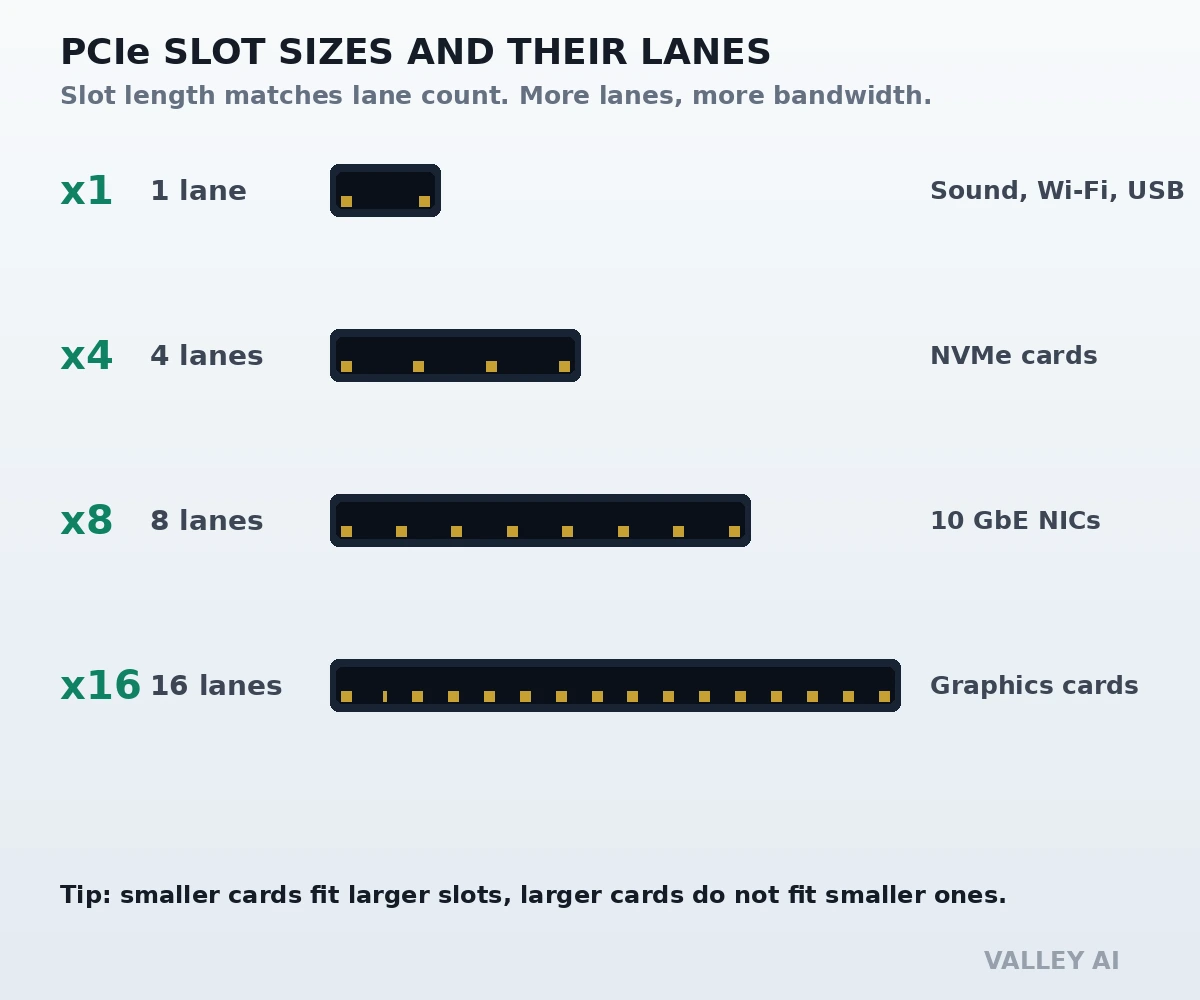
A lane is not a single wire and it is not a slot. It is the smallest unit of PCIe bandwidth, and a full PCIe link is made by bundling several lanes together. The number of lanes in a link is written with an “x” prefix: x1 means one lane, x4 means four, x8 means eight, and x16 means sixteen. More lanes working in parallel move more data at the same time, and pairing that count with the PCIe generation gives you the link’s total bandwidth, as the tables below show.
Why Serial Beat Parallel: The Handshake That Trains Every Link
Parallel buses died for a physical reason: timing skew. Sending 32 or 64 bits side by side sounds fast, but each wire is a slightly different length and sits on a different circuit board layer, so the bits arrive at slightly different times. Once the clock tick got shorter than that skew, the old parallel PCI bus could not keep up. PCIe went the opposite direction: it sends data serially, one bit at a time per lane, but at a much higher frequency, with the clock embedded in the signal itself.
When your PC powers on, every PCIe link runs a setup routine called link training. The two ends of the link test the connection and negotiate two things: how many lanes to use (width) and which generation to run at (speed). If lanes are damaged or the slot is only wired for four of sixteen pins, the link trains at a narrower width. If signal quality is poor, say from a cheap riser cable, it can train at a lower generation. That handshake is why a card sometimes reports x8 when you expected x16, a topic we return to in the mistakes section.
PCIe Slots: x1, x4, x8, and x16 Explained
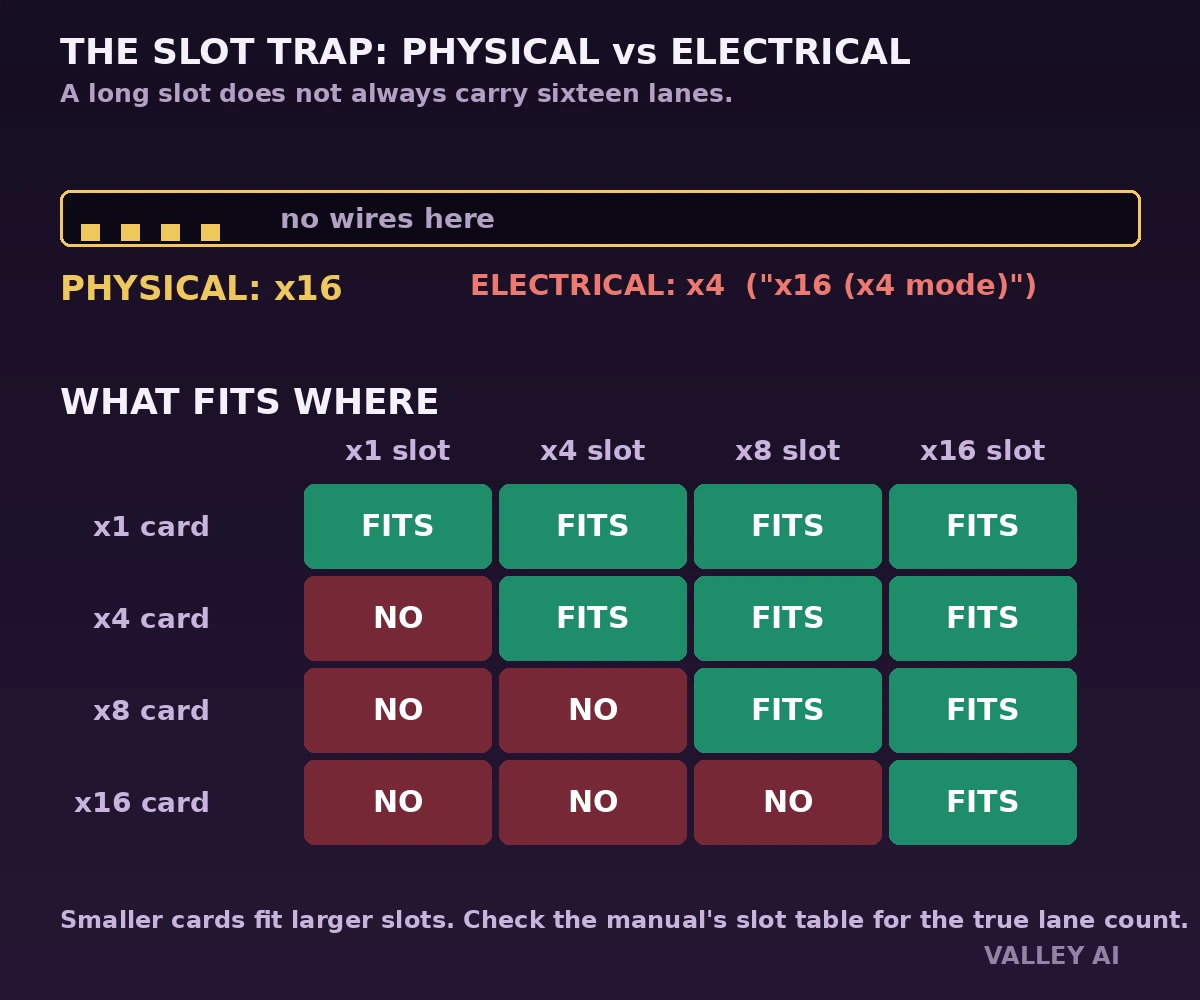
The x number describes both the physical slot and the link width, but here is the trap beginners fall into: a slot’s physical length does not always match its electrical wiring. Many motherboards carry slots labeled “x16 (x4 mode)”, which means a full-length slot wired for only four lanes. A long slot can fool you, so always read the motherboard manual’s slot table, which lists each slot’s physical size, electrical width, generation, and whether it comes from the CPU or the chipset.
| Slot | Lanes | Typical devices |
|---|---|---|
| x1 | 1 | Sound cards, Wi-Fi cards, USB expansion cards, basic network adapters |
| x4 | 4 | NVMe SSD adapters, RAID controllers, capture cards, 10 GbE network cards |
| x8 | 8 | High-end network cards, secondary graphics cards, fast storage controllers |
| x16 | 16 | Graphics cards, compute accelerators, AI and workstation cards |
A few fitting rules that save real money: a smaller card fits into a larger slot (an x1 card works fine in an x16 slot), but a larger card does not fit into a smaller closed slot (a x16 card will not enter an x1 slot). Some motherboards have open-ended slots with the back of the connector cut away, which let a longer card slide into a slot wired for fewer lanes; the card works, just at the slot’s lower bandwidth.
PCIe Generations 1.0 to 6.0: The Speeds, Side by Side
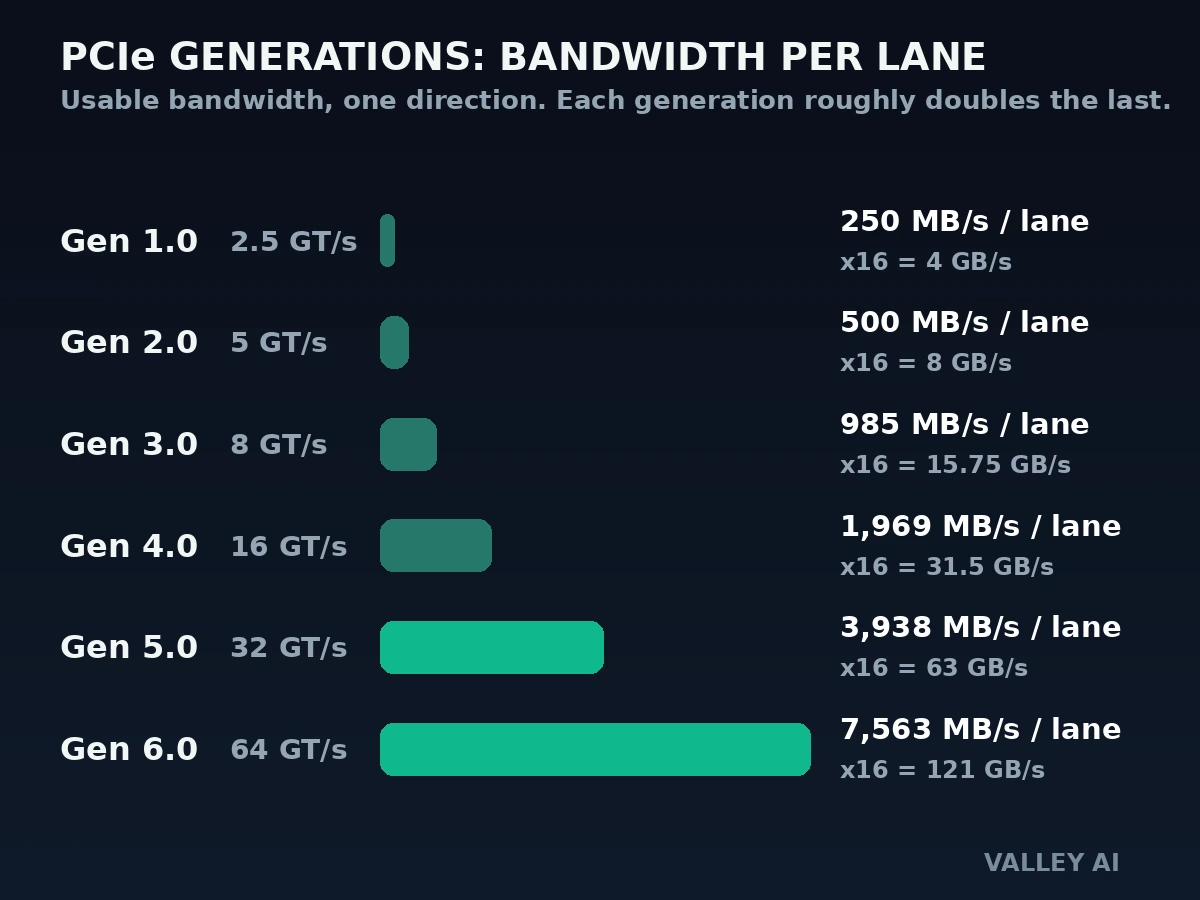
PCIe generations are versions of the standard, and each generation roughly doubled the per-lane speed of the one before it. The slot itself does not change shape between generations, which is the entire basis of PCIe backward compatibility. What changes is the signaling rate per lane, measured in gigatransfers per second (GT/s), plus improvements in encoding and error correction.
| Generation | Year | Per-lane rate | Usable per-lane (one direction) | x16 one direction |
|---|---|---|---|---|
| 1.0 / 1.1 | 2003 / 2005 | 2.5 GT/s | 250 MB/s | 4 GB/s |
| 2.0 | 2007 | 5 GT/s | 500 MB/s | 8 GB/s |
| 3.0 | 2010 | 8 GT/s | 985 MB/s | 15.75 GB/s |
| 4.0 | 2017 | 16 GT/s | 1969 MB/s | 31.5 GB/s |
| 5.0 | 2019 | 32 GT/s | 3938 MB/s | 63 GB/s |
| 6.0 | 2022 | 64 GT/s | 7563 MB/s | 121 GB/s |
Two details make these numbers honest. First, the usable figures above subtract encoding overhead (8b/10b on generations 1 and 2, 128b/130b on generations 3 through 5, and PAM-4 signaling with forward error correction on generation 6), so real application throughput is slightly lower. Second, bandwidth figures are usually quoted per direction; a full-duplex link can move roughly twice that when traffic flows both ways.
Do I need PCIe 5.0 for my graphics card? For gaming today, probably not. A PCIe 4.0 x16 slot already offers about 31.5 GB/s in each direction, and even PCIe 3.0 x16 (about 15.75 GB/s) keeps most current graphics cards within a few percent of their full performance. PCIe 5.0 matters most for Gen5 NVMe SSDs, which can finally saturate the extra lanes, and for workstation and AI workloads that constantly shuttle large datasets between the processor and the card.
Where PCIe Lanes Come From: CPU Lanes vs Chipset Lanes
Your PC has two pools of PCIe lanes, and they are not equal. The CPU provides a small pool of direct lanes, typically 16 to 20 on a consumer processor, reserved for the fastest devices: the top graphics slot and the first one or two M.2 sockets. These lanes have the lowest latency and never share their path, which is why your graphics card belongs in the top slot.
The motherboard chipset supplies the rest. Chipset lanes feed the smaller expansion slots, extra M.2 sockets, onboard Wi-Fi, USB controllers, and SATA ports, but all of them funnel through one shared uplink back to the CPU. That uplink is fine for light traffic and terrible for several fast devices running at once. This is the number one reason a second SSD sometimes benchmarks slower than the first: the first socket hangs off the CPU, and the second hangs off the chipset behind the uplink.
Two board behaviors grow out of this. Lane sharing means populating one connector can change another: a common pattern is that the top x16 slot drops to x8 when the second full-length slot is filled, or that installing a second M.2 drive disables two SATA ports. Bifurcation is the manual version of this: some BIOS setups let you split a CPU x16 slot into two x8 or four x4 links, which is exactly how add-in cards that mount four NVMe drives on a single x16 card work. The motherboard manual’s slot and M.2 tables are the only reliable map of these behaviors on your specific board.
What Plugs Into What: A Slot Map for Real Builds
With the mechanics in place, here is the practical map of which devices use which slots. Graphics cards take the top x16 slot, fed by CPU lanes. NVMe drives use x4 links through M.2 sockets (the first socket, wired to the CPU, is the one you want for your boot drive). High-speed network adapters such as 10 GbE cards usually take x4 or x8 slots, capture cards and USB expansion cards are happy in x4, and sound cards, Wi-Fi cards, and basic NICs need only x1.
A useful bridge to a different cluster: faster internet is not only about your router. If your broadband or office network outgrows gigabit Ethernet, the upgrade path is a 10 GbE network card in a PCIe x4 or x8 slot, which is why PCIe matters to the Wi-Fi vs Ethernet decision too. See our Wi-Fi vs Ethernet comparison for when wired speed is worth chasing.
Backward Compatibility: Mixing Old and New Generations
Will a new PCIe 5.0 graphics card work in my old PCIe 3.0 motherboard? Yes. PCIe is both backward and forward compatible, so any generation of card works in any generation of slot it fits into. The link trains at the highest generation both ends support, so a Gen5 card in a Gen3 slot runs at Gen3 speeds, and a Gen3 card in a Gen5 slot runs at Gen3 speeds.
That compatibility has a practical cost: you get the speed of the slower partner. A Gen5 NVMe SSD in a Gen4 slot loses roughly half its interface bandwidth, while a Gen5 graphics card in a Gen4 slot usually loses almost nothing in games, because graphics cards rarely saturate even Gen4 x16. When you are upgrading one part of an old system, generation compatibility is safe to mix, and the bottleneck question is always: does this device actually use the bandwidth the newer link offers?
4 Mistakes Beginners Make With PCIe
- Installing the graphics card in the wrong slot. Many boards have two full-length slots, but only the top one is wired as CPU-direct x16. The second is often a chipset-fed x4 slot in disguise. The top slot is the graphics card’s home; everything else is a compromise.
- Adding a second SSD without checking the lane table. Populating the second M.2 socket can halve the graphics slot to x8 or disable SATA ports on some boards. Read the manual’s expansion table before buying the second drive, not after.
- Judging a slot by its length. A slot that looks like x16 can be electrically x8 or x4, which is fine for a capture card but a real penalty for a graphics card. Look for the “x16 (x4 mode)” style labels in the manual.
- Panicking over a software reading of x8 or Gen 4. Monitoring tools show the link as negotiated right now, and power-saving states can temporarily report a narrower or slower link. Check the reading while the device is under load (a benchmark running), and compare it against the manual’s documented configuration. If it still reads x8 in the top slot under load, reseat the card and inspect for dust or a loose latch before blaming the board.
If your next project is adding fast storage, the PCIe side of the job is half the story; the physical steps are covered in our guide to installing an NVMe or M.2 SSD without the usual headaches.
Frequently Asked Questions About PCIe
What does PCIe stand for?
PCIe stands for Peripheral Component Interconnect Express. It is the standard high-speed interface that connects expansion components like graphics cards, storage drives, and network cards to a computer’s motherboard. Intel introduced it in 2003, and it is maintained by the PCI Special Interest Group (PCI-SIG).
Is PCIe backward compatible?
Yes. PCIe is both backward and forward compatible, so any generation of card works in any generation of slot it physically fits into. The link negotiates the highest generation both ends support, so a newer card in an older slot runs at the older slot’s speed.
Which PCIe slot should my graphics card go in?
Use the top full-length slot closest to the CPU. That slot is almost always the CPU-direct x16 connection with the most lanes and the lowest latency. Lower slots are frequently wired for fewer lanes or fed by the chipset, which can bottleneck a fast graphics card.
Do NVMe SSDs need a PCIe x4 slot?
Yes, NVMe SSDs almost always use a four-lane (x4) PCIe link, usually through an M.2 socket. For the fastest speeds, use the first M.2 socket, which is typically wired directly to the CPU, and make sure the socket’s generation matches the drive’s generation.
What is the difference between PCIe x16 and x8 for a graphics card?
x16 gives the card sixteen lanes and x8 gives it eight, so x8 provides half the link bandwidth at the same generation. In practice, many graphics cards lose only a few percent of gaming performance at x8 on PCIe 4.0, because games rarely saturate the link. The penalty grows on older generations, where x8 is closer to a real bottleneck.
Do chipset PCIe lanes perform the same as CPU lanes?
No. CPU lanes connect directly to the processor with the lowest latency and a dedicated path, while chipset lanes share a single uplink back to the CPU. Under heavy simultaneous load from several devices, chipset-connected devices can contend for that uplink, which is why the graphics card and primary SSD should use CPU lanes.

Kaleem
Kaleem is a Computer Science graduate (Virtual University of Pakistan) and the founder and editor of Valley AI, where he publishes in-depth, tested guides on computer hardware, artificial intelligence, and how the internet works. Every guide is researched from primary sources, tested hands-on where possible, and updated when the facts change.