

A PSU (power supply unit) is the metal box with a fan that sits at the back or bottom of your PC case. Its job is simple to state and hard to do well: it takes the high-voltage alternating current (AC) from your wall outlet and converts it into the low-voltage, tightly regulated direct current (DC) that your motherboard, processor, graphics card, and drives actually run on. Every watt your PC uses passes through this one component, which is why builders who obsess over CPUs and GPUs and then grab the cheapest PSU on the shelf are making the most expensive mistake in PC building.
This guide explains what a PSU does, how it converts wall power into PC power, what the connectors and ratings mean, and how to choose the right one for your build. It is one part of our complete guide to computer hardware components, and it completes the inside-the-PC picture alongside the processor, memory, storage, and motherboard.
What a PSU Is (and Why It Is the One Part You Should Never Cheap Out On)
Think of the PSU as your PC’s electrical heart. The wall outlet delivers power that swings back and forth 50 or 60 times a second at 120 or 230 volts. Your components cannot use any of that directly. They need steady DC at precise voltages: mainly 12 volts, with smaller 5-volt and 3.3-volt supplies for logic circuits, drives, and USB devices. The PSU performs that conversion continuously, thousands of times per second, while keeping every output inside a tight tolerance even as your CPU and GPU demand power in sudden spikes.
Here is the part beginners miss: a PSU does not just feed your components, it protects them. A well-built unit carries automatic shutdown circuits that cut power the instant something goes wrong: a short, a surge, an overheating transformer. A cheap no-name unit often skimps on exactly those protections, and when it fails, it can take the motherboard, the graphics card, or your data with it. The PSU is the one component whose failure mode is measured in destroyed parts, not just a dead part.
How a PSU Turns Wall Power Into PC Power
A modern PSU is a switch-mode power supply, which means it converts power in a rapid sequence of stages rather than with one giant, heavy transformer. Here is the journey each watt takes, from the wall socket to your graphics card:
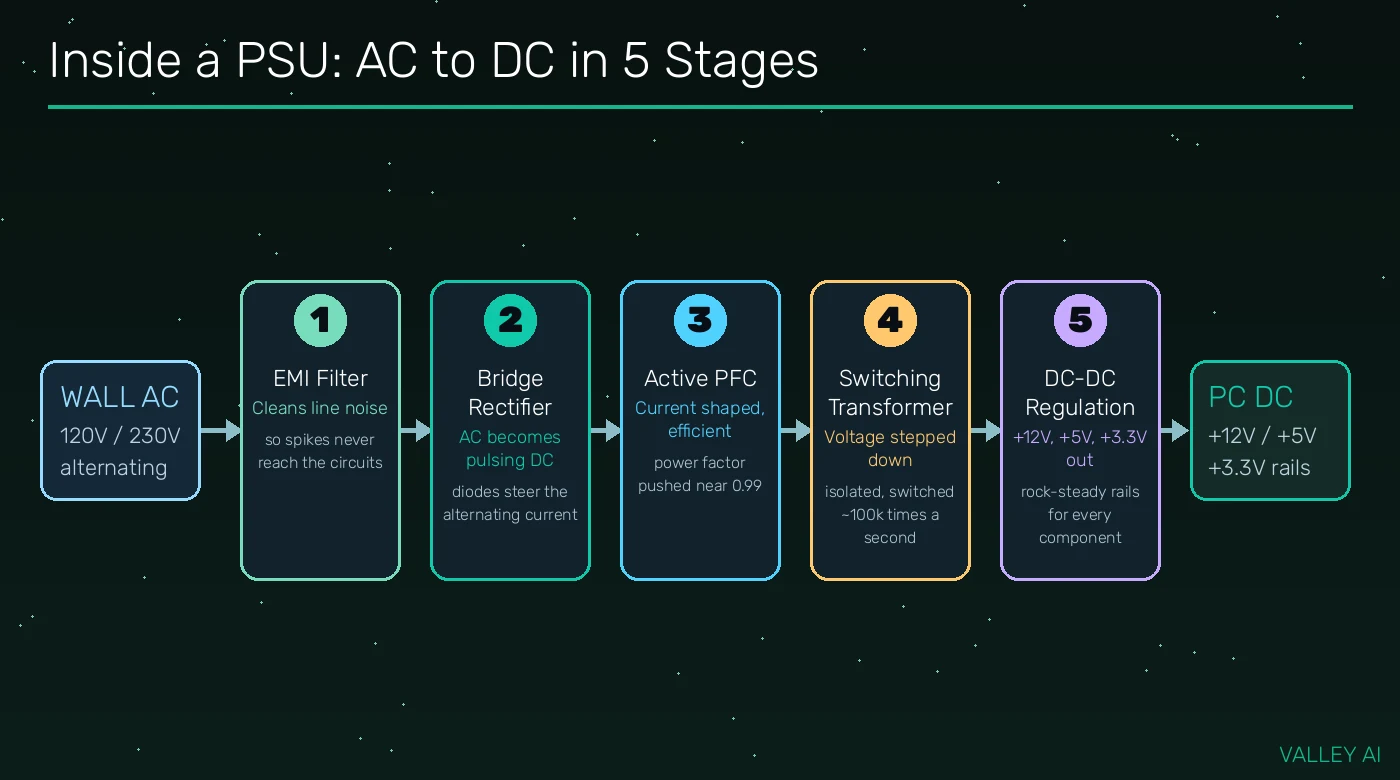
First, the EMI filter cleans up electrical noise coming in from the grid, so spikes and interference never reach the sensitive circuits downstream. Next, the bridge rectifier (a set of diodes) steers the alternating current so it flows in one direction, turning AC into rough, pulsing DC. Then active PFC (power factor correction) shapes how the PSU draws current from the wall, pushing the power factor close to 0.99, which makes the unit draw power cleanly and efficiently.
The switching transformer is the heart of the conversion. It chops the high-voltage DC and switches it around 100,000 times a second, which lets a small, light transformer step the voltage down to 12 volts while keeping the wall side electrically isolated from your components. Finally, DC-DC regulation derives the +5V and +3.3V rails from the 12V output and filters everything until the rails are rock steady. Large capacitors smooth out the remaining ripple, which is why quality capacitors are one of the main things separating good PSUs from bad ones.
That switching design is also why modern PSUs are so compact. An old linear supply delivering 750 watts would need a transformer the size of a brick. The high switching frequency shrinks the magnetics dramatically, which is how a 1000-watt unit fits in a box you can hold in one hand.
The Voltage Rails: What the 12V, 5V, and 3.3V Lines Actually Feed
A PSU does not output one voltage. It outputs several independent rails, each feeding different parts of the system:
- +12V: the workhorse. It powers the CPU (through the EPS connector), the graphics card (through PCIe connectors), case fans, and pumps. In a modern gaming PC, the 12V rail delivers the large majority of the total wattage.
- +5V: feeds SSD and hard-drive logic, USB ports, and various controllers and peripherals.
- +3.3V: supplies system memory, chipset logic, and M.2 SSDs.
- +5VSB (standby): an always-on rail that keeps USB ports, the network card, and the power button alive while the PC sleeps, so it can wake on a keypress or a timer.
- -12V: a legacy rail once used by old serial ports and some audio circuits. It is now optional in the ATX standard, and some modern PSUs omit it entirely.
Each rail must stay within about 5 percent of its nominal voltage no matter how the load changes, so +12V is allowed to sit between 11.4V and 12.6V. When a rail drifts outside that window, components misbehave long before anything visibly breaks: random crashes, corrupted files, a graphics card that artifacts under load. That is why stable regulation matters more than the wattage number printed on the box. Note that the motherboard does its own final regulation too: its voltage regulator modules step the 12V feed down further for the CPU, as explained in our guide to what a motherboard does.
80 Plus Efficiency Ratings, Explained Honestly
Efficiency is the percentage of wall power that actually reaches your components. A PSU rated 90 percent efficient at 450 watts of output pulls 500 watts from the wall; the missing 50 watts becomes heat inside the unit. The 80 Plus certification tests this at 20, 50, and 100 percent load and awards tiers:
| 80 Plus tier | Minimum efficiency at 50% load | Who it suits |
|---|---|---|
| Bronze | 85% | Budget office and basic home builds where every dollar counts |
| Silver | 88% | A small step up, common in prebuilt mid-range systems |
| Gold | 90% | The sweet spot for most gaming PCs: efficient, quiet, reasonably priced |
| Platinum | 92% | High-end builds and always-on machines where heat and power bills matter |
| Titanium | 94% | Enthusiast and workstation builds chasing maximum efficiency |
Two things the tier table does not tell you. First, efficiency follows a curve: most PSUs are most efficient at around 50 percent load and less efficient near idle or at full tilt, which is one more reason to size with headroom (covered below). Second, a tier is not a quality badge. A Gold unit from a reputable brand with good reviews will outlast and outperform a Platinum unit from a brand nobody has heard of, because the certification tests efficiency, not component quality, protection circuits, or fan longevity. And remember that every wasted watt becomes heat dumped into your case, which is one more reason an efficient PSU keeps the whole system cooler. If heat is already a problem in your build, read our guide to fixing an overheating CPU after this one.
PSU Sizes and Shapes: ATX, SFX, and What Fits Your Case
PSUs come in standard physical sizes called form factors, and the one you need is decided by your case:
- ATX: the standard desktop size (150 x 86 x 140 mm, though high-wattage units run longer). If you have a normal mid-tower or full-tower case, this is what you want.
- SFX and SFX-L: compact units for small-form-factor and mini-ITX builds. SFX-L is slightly longer and usually quieter because it fits a bigger fan.
- TFX and Flex ATX: slim units for tiny prebuilt-style cases. Rarely relevant to a custom build.
The practical rule: check your case manufacturer’s PSU clearance spec (usually listed as a maximum length in millimeters) before buying, because a 1000-watt ATX unit can be 20 mm longer than a 550-watt one from the same brand, and that extra length is exactly what collides with a drive cage in a compact case.
Modular vs Non-Modular: What the Cables Actually Do
On a non-modular PSU, every cable is permanently attached, so you route the ones you need and stuff the rest somewhere out of sight. A fully modular PSU has no attached cables at all: you plug in only the ones your build needs, which makes for cleaner cable management and better airflow. Semi-modular sits in between, with the essential 24-pin and CPU cables fixed and everything else detachable.
Does a fully modular PSU perform better than a non-modular one? Electrically, no. The same model in modular and non-modular form delivers identical power quality. What you are paying for is a tidier build, easier installation, and better airflow, which matters most in small cases where a nest of unused cables can genuinely choke ventilation. For a big case with a PSU shroud hiding the cable mess, semi-modular is often the value pick.
One warning that belongs here because it destroys hardware every year: never mix modular cables between different PSU brands or models. The end that plugs into your components is standardized, but the end that plugs into the PSU is not: each manufacturer wires its own pinout. A cable from another brand can send 12 volts straight into a 5-volt drive circuit. Always use only the cables that came in your PSU’s box.
Every PSU Connector, Labeled
Every cable coming out of a PSU ends in a keyed plug, and each plug has exactly one correct home. Here is the full set you will meet:
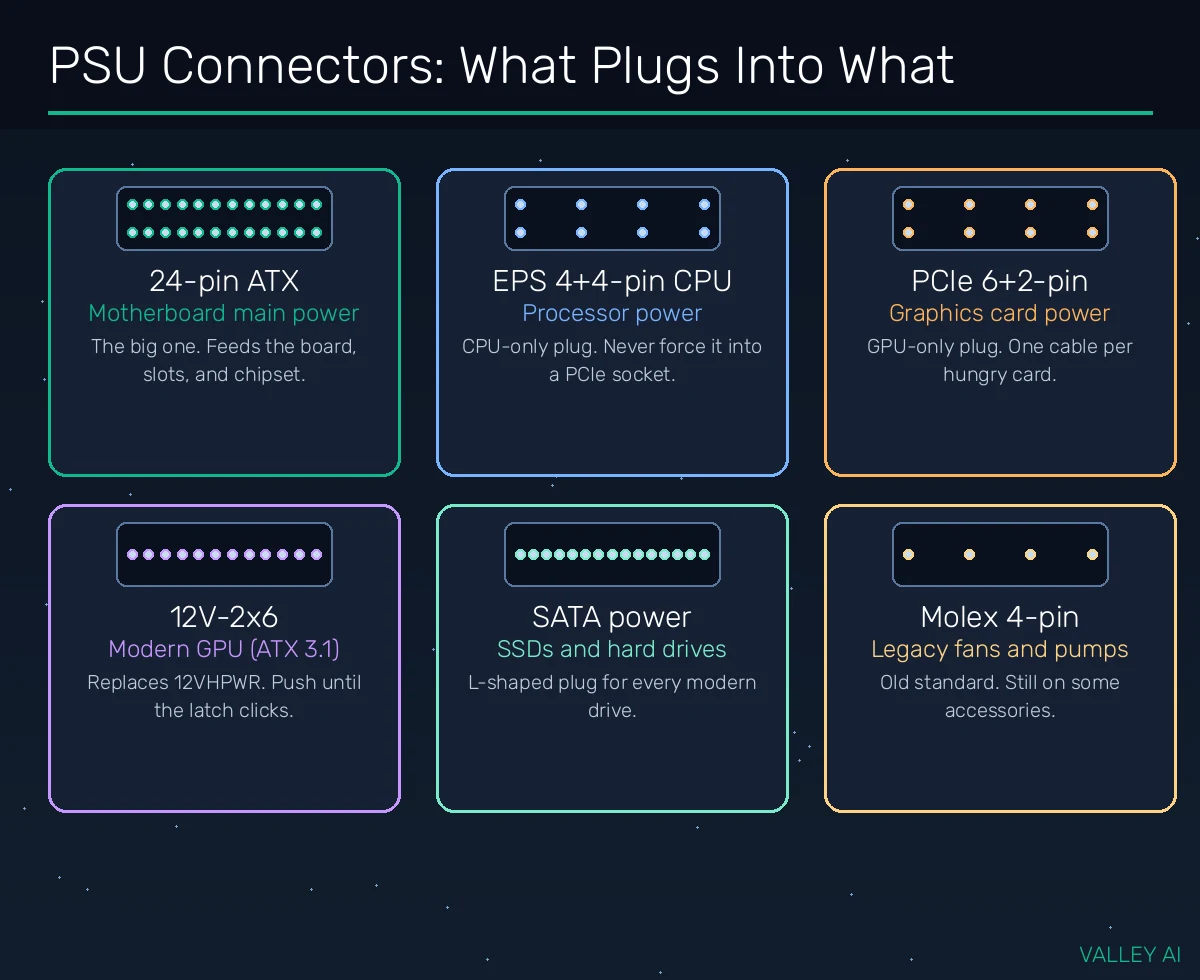
| Connector | Pins | What it powers |
|---|---|---|
| 24-pin ATX | 24 | The motherboard itself: slots, chipset, and onboard devices |
| EPS 4+4-pin CPU | 8 (splittable) | The processor, via the motherboard’s CPU power socket |
| PCIe 6+2-pin | 8 (splittable) | Graphics cards (older and mid-range models) |
| 12V-2×6 | 16 (12+4) | Modern high-end graphics cards (ATX 3.1 standard) |
| SATA power | 15 | SSDs, hard drives, and some accessories |
| Molex 4-pin | 4 | Legacy fans, pumps, and old accessories |
The critical detail: the EPS CPU plug and the PCIe plug look similar and both have 8 pins, but they are keyed differently and wired differently. The CPU plug splits into 4+4; the PCIe plug splits into 6+2. If a plug does not slide in with gentle pressure, stop: you are holding the wrong one. Forcing an EPS plug into a graphics card socket (or the reverse) is one of the classic ways beginners damage a new build. The same matching-plug discipline applies everywhere in PC building, from power cables to data cables: it is the same idea behind matching the right cable to the right port in our USB-C vs Thunderbolt comparison.
The EPS connector exists because modern processors can pull enormous current through the 12V rail: a flagship desktop CPU can draw over 250 watts on its own, which is why boards now carry one and sometimes two EPS sockets. Our guide to how a CPU draws power explains where all that current goes.
How Much Wattage Do You Actually Need?
Sizing a PSU is simple arithmetic, not guesswork. Add up the peak draw of your two hungriest parts (the CPU’s TDP and the graphics card’s board power), add roughly 100 to 150 watts for the motherboard, memory, storage, fans, and USB devices, then multiply by about 1.5 for comfortable headroom. That headroom keeps the PSU in its efficiency sweet spot, absorbs brief power spikes, keeps the fan quiet, and leaves room for a future upgrade.
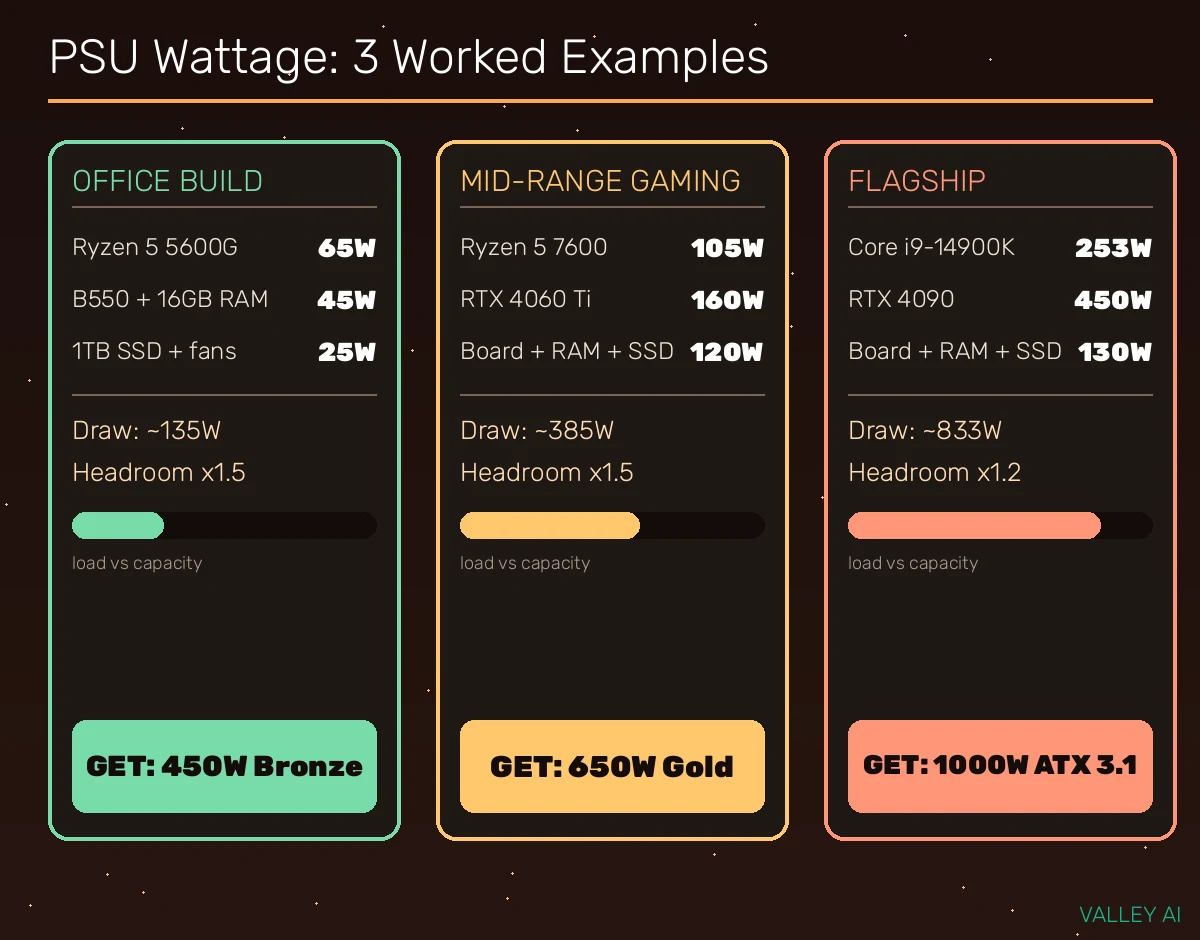
Here is the math worked through for three realistic builds:
| Build | Key parts and draw | Estimated total draw | Sensible PSU pick |
|---|---|---|---|
| Office PC | Ryzen 5 5600G (65W), board and 16GB RAM (45W), SSD and fans (25W) | About 135W | 450W Bronze |
| Mid-range gaming | Ryzen 5 7600 (105W), RTX 4060 Ti (160W), board, RAM, SSD (120W) | About 385W | 650W Gold |
| Flagship | Core i9-14900K (253W), RTX 4090 (450W), board, RAM, SSD (130W) | About 833W | 1000W Gold or Platinum, ATX 3.1 |
Do I need exactly the wattage my build draws? No, and you should not try to match it closely. A PSU running flat out is loud, hot, inefficient, and has no margin for the split-second power spikes that modern graphics cards produce. The 1.5x rule puts a typical gaming load right around 50 to 60 percent of capacity, which is exactly where efficiency peaks and fans stay quiet. Overshooting wildly is not virtuous either: a 1600-watt unit idling at 120 watts sits in an inefficient part of its curve. Size for your build, then add headroom, then stop. If you are still deciding on the graphics card, our guide to how much power a graphics card needs will help you pin down the biggest number in the equation.
ATX 3.1 and the 12V-2×6 Connector
The ATX standard, maintained by Intel, defines what a desktop PSU must do: its dimensions, its rails, its connectors, and how it must behave under stress. The current revision is ATX 3.1, and its headline change is the connector that feeds modern graphics cards. ATX 3.0 introduced a 16-pin plug called 12VHPWR that could deliver up to 600 watts through a single cable. Then came widely reported cases of melted connectors, and investigation pointed at one root cause more than any other: plugs that were not fully seated, leaving a small gap that concentrated current on partial contact.
ATX 3.1 answers with the 12V-2×6 connector. It looks nearly identical, but the four small sense pins are shorter and the power pins engage more positively, so the graphics card can detect a proper connection before drawing full power. The practical seating rule is physical and simple: push the plug in until the latch clicks and no gap is visible between the plug and the socket. If you can see daylight between them, it is not seated. ATX 3.1 also tightens the rules for power excursions, requiring the PSU to absorb spikes up to double its rated output for brief instants, which is exactly the behavior that used to trip older units when a flagship GPU suddenly woke up. You can read the standard’s connector history on the ATX specification reference page.
Do I need an ATX 3.1 PSU for my new graphics card? If you are buying an RTX 40-series or newer card (or any card with the 16-pin socket), an ATX 3.1 unit with a native 12V-2×6 cable is the cleanest and safest choice: one cable, correct sense wiring, no adapters. An older ATX 2.x PSU can work through the adapter that ships in the graphics card box, provided it has enough wattage and you use separate PCIe cables rather than daisy-chained pigtails, but the native cable removes the most failure-prone link in the chain.
The Three Mistakes Beginners Make With Power Supplies
Ask any PC repair shop what kills new builds, and the same three power mistakes come up again and again:
- Daisy-chaining one PCIe cable to a hungry graphics card. Many PCIe cables end in two 6+2-pin plugs on one wire (a pigtail). For a modest card that is fine, but a card pulling 250 watts or more deserves two separate cables run back to the PSU. One cable carrying double its comfortable load runs hot and can droop in voltage exactly when the GPU spikes.
- Mixing modular cables between PSU brands. Worth repeating because it is the most expensive item on this list: the component-side plugs are standard, but the PSU-side pinouts are proprietary. A borrowed cable can route 12V into a drive’s 5V line and kill every drive on that cable instantly. If you lost your cables, order replacements made for your exact PSU model.
- Forcing the EPS CPU plug into the PCIe socket, or the reverse. They are both 8-pin plugs and they look alike at a glance, but the keying notches and the wiring are different. The rule is absolute: if it does not slide in with light, even pressure, it is the wrong plug. Never push harder.
The Safety Net Inside a Good PSU
Open a quality PSU’s spec sheet and you will find an alphabet soup of protections. Each one is a dedicated circuit watching for a specific failure, and each one shuts the unit down before the fault reaches your components:
- OVP (over-voltage protection): cuts power if any rail climbs above its safe limit.
- OCP (over-current protection): cuts power if any rail or cable draws more current than it should.
- OTP (over-temperature protection): shuts down if the internals overheat, for example when a fan fails or vents are blocked.
- SCP (short-circuit protection): reacts in microseconds to a dead short, such as a stray screw bridging contacts.
- OPP (over-power protection): guards against the total output exceeding the rated wattage.
This is the real reason experienced builders pay for known brands with professional reviews: the protections are invisible until the day they save a thousand dollars of hardware. A PSU vendor’s own engineering notes describe the same philosophy, that a power supply is responsible for delivering clean, stable, and safe electricity and shutting down to protect connected components when something goes wrong (see Seasonic’s PSU buying guide for the vendor’s own telling). When you compare two units at the same wattage, the one with the full protection set, Japanese capacitors, and a 7 to 10 year warranty is telling you the truth about its build quality.
How to Choose the Right PSU: A 5-Step Walkthrough
With the theory covered, here is the buying process distilled into five steps:
- Do the wattage math. Add your CPU TDP, your graphics card’s board power, and 100 to 150 watts for everything else, then multiply by 1.5. Round up to the nearest standard size (450, 550, 650, 750, 850, 1000W).
- Match the standard to your graphics card. Buying a modern high-end GPU? Get ATX 3.1 with a native 12V-2×6 cable. Building with older or mid-range parts? A quality ATX 2.x unit is still perfectly fine.
- Pick Gold or better from a brand reviewers trust. 80 Plus Gold is the value sweet spot. Then check professional reviews (not just star ratings) for ripple, regulation, and protection tests. The tier alone is not enough.
- Choose modularity for your case. Small case: fully modular. Big case with a PSU shroud: semi-modular saves money. Either way, use only the cables in the box.
- Check the physical fit and the warranty. Confirm the unit’s length against your case’s PSU clearance, and treat the warranty as a quality signal: manufacturers do not offer 10 years on units they expect to die in three.
Follow those five steps and you will end up with a quiet, efficient unit that protects everything downstream of it for the better part of a decade. The PSU is the least glamorous box in the build and the one your entire system trusts the most, which is exactly why it deserves the careful choice. For the full component-by-component picture, return to our complete guide to computer hardware components and keep building out your knowledge from there.
Frequently asked questions
What does PSU stand for?
PSU stands for power supply unit. It is the component inside a desktop PC that converts high-voltage AC from the wall outlet into the low-voltage DC (mainly +12V, +5V, and +3.3V) that the motherboard, CPU, GPU, and drives run on.
How long does a power supply last?
A quality PSU typically lasts 7 to 10 years, often outliving two or three full PC builds. The manufacturer’s warranty is the best proxy for expected lifespan: brands offering 7 to 10 year warranties build units they expect to survive that long. Cheap units with 1 to 3 year warranties tend to fail much sooner.
Can a bad PSU damage other PC components?
Yes. A failing or poorly protected PSU can send incorrect voltages to the motherboard, graphics card, and drives, damaging or destroying them. This is why protection circuits (OVP, OCP, OTP, SCP) and buying from a reputable brand matter far more than chasing the highest wattage number.
Is a higher wattage PSU always better?
No. A PSU is most efficient at around 50 percent load, so a massively oversized unit idling at low load wastes more electricity and money than a correctly sized one. Do the wattage math for your parts, add about 50 percent headroom for spikes and upgrades, and stop there.
Do I need a new PSU when upgrading my graphics card?
Only if your current PSU falls short on wattage or lacks the right connector. Add the new card’s board power to your existing total and check it against your PSU’s rating with headroom to spare. If the card uses the 16-pin 12V-2×6 socket, an ATX 3.1 PSU with a native cable is the safest pairing, though the adapter in the card’s box works with a sufficiently powerful older unit.
What is the difference between single-rail and multi-rail PSUs?
It describes how over-current protection is arranged on the +12V output. A single-rail PSU has one OCP circuit guarding the whole 12V output, so the full wattage is available to any connector. A multi-rail PSU splits the 12V output into several separately guarded rails, which can shut down sooner if one cable is overloaded. For most builders the difference is minor; either design from a good brand is safe.

Kaleem
Kaleem is a Computer Science graduate (Virtual University of Pakistan) and the founder and editor of Valley AI, where he publishes in-depth, tested guides on computer hardware, artificial intelligence, and how the internet works. Every guide is researched from primary sources, tested hands-on where possible, and updated when the facts change.