

Computer hardware is the physical equipment that makes up a computer system. It includes internal components such as the CPU, motherboard, RAM, storage drive, power supply, graphics processor, and cooling system, along with external devices such as monitors, keyboards, mice, printers, and speakers. Hardware receives input, processes data, stores information, and produces output.
A computer also needs software. Hardware provides the physical systems, while software provides the instructions that tell those systems what to do. Firmware and device drivers help connect the two layers.
The 12 Main Computer Hardware Components
There is no single universal list of exactly 12 components because desktops, laptops, servers, and all-in-one computers use different designs. A typical desktop computer can be described using these main hardware components:
| Component | Main function |
|---|---|
| Case or chassis | Houses and protects the internal parts |
| Motherboard | Connects the main components |
| CPU | Executes general-purpose instructions |
| RAM | Holds active data and program instructions temporarily |
| Storage drive | Saves files, applications, and the operating system |
| GPU | Processes graphics and visual data |
| Power supply unit | Converts and distributes electrical power |
| Cooling system | Removes heat from components |
| Monitor | Displays visual output |
| Keyboard | Sends text and commands to the computer |
| Mouse | Sends pointing and selection commands |
| Network adapter | Connects the computer to a wired or wireless network |
Speakers, printers, webcams, microphones, sound cards, optical drives, expansion cards, and external storage are also types of computer hardware. Laptops may combine several of these parts into a single compact design.
Types of Computer Hardware by Function
Computer hardware can be classified by the job it performs:
- Input hardware sends data or commands to the computer. Examples include keyboards, mice, microphones, scanners, webcams, and game controllers.
- Processing hardware executes instructions or performs calculations. The CPU handles general-purpose processing, while the GPU specializes in graphics and some parallel workloads.
- Memory hardware holds data that the computer is actively using. RAM is the main example.
- Storage hardware saves data for longer periods. Common examples include hard disk drives, SATA solid-state drives, NVMe solid-state drives, USB drives, and memory cards.
- Output hardware presents results to the user. Monitors, printers, speakers, and headphones are output devices.
- Communication hardware connects computers to other devices or networks. Network adapters, Wi-Fi adapters, routers, switches, and modems fit into this broader category.
Hardware can also be classified by location. Internal hardware is installed inside a computer, while external hardware connects from outside the case. A network adapter, for example, may be an internal PCIe card, a USB device, or a built-in wireless component.
Essential Internal Computer Hardware Components
CPU: The Component That Executes Instructions
The CPU, or central processing unit, executes instructions and performs general-purpose calculations for a computer. It coordinates tasks requested by the operating system and applications, while other components handle specialized work such as graphics rendering or data storage. SOURCE: Intel, “What Is a CPU?”
CPU Cores, Clock Speed, Threads, and Cache
A CPU core is an individual processing unit within the processor. A processor with multiple cores can work on multiple instruction streams at the same time, although the benefit depends on the software and workload.
Clock speed, measured in gigahertz (GHz), describes the frequency at which a processor operates. It is not a complete measure of performance because processor architecture, cache, core count, power limits, software optimization, and cooling also affect results. SOURCE: Intel, “What Is Clock Speed?”
A thread is a sequence of programmed instructions that a CPU can manage. Some processors allow one core to manage more than one thread at a time through simultaneous multithreading or a similar technology.
Cache is a small amount of high-speed memory located inside or near the CPU. It stores frequently used data and instructions so the processor can access them more quickly than it usually can from main memory. SOURCE: Intel, “What Is CPU Cache?”
CPU Registers and the Computer Memory Hierarchy
CPU registers are very small storage locations inside the processor. They hold data, instruction information, or addresses that the CPU is using immediately.
Common Types of CPU Registers
A basic level, CPUs use several common types of registers:
- Accumulator: Stores intermediate results of calculations.
- Program Counter: Keeps track of the address of the next instruction to be executed.
- Instruction Register (IR): Holds the current instruction being processed.
- General Purpose Registers: Used to store data and variables during program execution.
A simplified memory hierarchy looks like this:
- Registers: Smallest and closest to the CPU.
- Cache: Very fast memory located inside or near the CPU.
- RAM: Temporary working memory for active programs.
- SSD or HDD: Long-term storage for files and applications.
Registers and cache are much smaller than RAM, while storage usually provides far more capacity. The trade-off is that larger storage devices are generally farther from the CPU and are not used in the same way as active memory.
Workload type decides where the budget should go, which is the core of our GPU vs CPU comparison.
Choosing a CPU for Different Workloads
CPU requirements depend on the operating system, applications, background tasks, and performance target. Everyday work may run well on a current entry-level processor, while gaming, video editing, software development, and scientific workloads may benefit from additional cores or stronger single-thread performance.
Check the requirements of the applications you plan to use instead of choosing a processor from a core-count rule alone. The CPU must also match the motherboard socket and supported processor list.
Motherboard: The Main Circuit Board Connecting Components
The motherboard is the main circuit board in a computer. It provides physical connections and communication pathways for the CPU, RAM, storage, graphics card, power supply, expansion cards, and external ports.
Important motherboard features include:
- CPU socket: Holds a compatible processor.
- Chipset: Helps manage communication between the processor, storage, USB devices, and other hardware.
- RAM slots: Hold supported memory modules.
- PCIe slots: Connect graphics cards and other expansion cards.
- SATA ports: Connect compatible storage drives.
- M.2 slots: Commonly connect compact storage drives or other modules.
- Power connectors: Bring power from the PSU to the motherboard and processor.
- Firmware storage: Holds BIOS or UEFI firmware used during startup.
Motherboards come in different form factors, including ATX, Micro-ATX, and Mini-ITX. The motherboard form factor must fit the computer case. SOURCE: Intel, “Motherboard Form Factors”
RAM: Short-Term Working Memory for Active Tasks
RAM, or random access memory, temporarily holds the data and instructions that active programs need. RAM is volatile memory, which means its contents are normally cleared when the computer loses power. SOURCE: IBM, “What is RAM?”
More RAM can help when a computer is running several programs or handling large active files. However, adding memory does not automatically improve every task. The result depends on whether the existing system was running short of available RAM.
Important RAM specifications include:
- Capacity: Usually measured in gigabytes.
- Memory generation: Common examples include DDR4 and DDR5.
- Module type: Desktop computers commonly use DIMMs, while many laptops use smaller SO-DIMMs.
- Speed: Describes how quickly the memory can transfer data under supported conditions.
- Supported capacity: Determined by the motherboard or laptop design.
RAM must match the system’s supported memory generation and module type. DDR4 and DDR5 modules, for example, are not interchangeable in ordinary motherboard slots.
Storage choices start with the connection standard, so understanding what SATA is makes the differences between these four options far easier to follow.
Computer Storage: HDD, SATA SSD, NVMe, and M.2
Storage holds the operating system, applications, documents, photos, videos, and other files after the computer is turned off.
HDD
A hard disk drive stores data on spinning magnetic platters. HDDs often provide high capacity at a lower cost per gigabyte, but they are slower than solid-state drives and contain moving parts. SOURCE: Britannica, “Hard Disk”
SATA SSD
A SATA solid-state drive stores data in flash memory and has no spinning platters. It is generally quieter and more responsive than an HDD, but its performance is limited by the SATA interface.
NVMe SSD
NVMe is a storage protocol designed for non-volatile memory. NVMe drives commonly communicate with the computer through PCIe, which can provide higher throughput and lower latency than SATA in supported systems. SOURCE: NVM Express, “NVM Express Overview”
M.2
M.2 describes a compact physical form factor and connector style. An M.2 drive is not automatically an NVMe drive. Some M.2 drives use NVMe over PCIe, while others use SATA. Check the motherboard or laptop documentation before buying a replacement drive.
| Storage option | Main technology | Common strength |
|---|---|---|
| HDD | Magnetic platters | High capacity at a lower cost |
| SATA SSD | Flash memory over SATA | Fast, quiet general storage |
| NVMe SSD | Flash memory using NVMe over PCIe | High throughput and low latency |
| External drive | HDD or flash storage in an external enclosure | Easy transfer and backup |
A fast drive can improve boot and application-loading times, but storage capacity and backup are separate concerns. A drive stores data; it does not replace a backup strategy.
For a deeper look at the architecture behind these options, see our guide to what a GPU is.
GPU: Integrated and Dedicated Graphics Explained
The GPU, or graphics processing unit, processes visual information for monitors and other displays. It can render game scenes, video frames, user interfaces, and 3D models. Some applications also use GPUs for parallel workloads such as image processing or machine-learning calculations.
There are two common arrangements:
- Integrated graphics: Built into the processor or system platform. Integrated graphics commonly share system memory and are suitable for many office, browsing, media, and lighter gaming tasks.
- Dedicated graphics: A separate graphics card with its own processor, memory, cooling system, and power requirements.
GPU requirements depend on the application, display resolution, frame-rate target, drivers, and specific GPU model. A dedicated GPU is often valuable for demanding games and graphics applications, but it is not required for every computer or workload.
Before installing a graphics card, check:
- Available PCIe slot
- Card length and thickness
- Power connectors
- PSU capacity and power headroom
- Case airflow
- Monitor connection requirements
PSU: Power Delivery, Wattage, and Connectors
The power supply unit converts electricity from a wall outlet into the voltages used by computer components. It distributes power through connectors for the motherboard, CPU, storage devices, graphics card, and other hardware. For the full picture, see our guide to what a PSU is and how to choose the right power supply.
When selecting a PSU, check:
- Total system power demand
- Required motherboard and CPU connectors
- Graphics-card power connectors
- PSU form factor
- Available power headroom
- Manufacturer and safety certifications
A generic wattage range is not a reliable substitute for checking the exact CPU and GPU requirements. A gaming system with a high-power graphics card may need a different PSU from an office computer, even if both use similar amounts of RAM and storage.
An 80 PLUS rating describes tested power-conversion efficiency levels under specified conditions. Higher efficiency can reduce wasted energy, but efficiency is only one part of PSU quality. SOURCE: CLEAResult, “80 PLUS Certification”
Never open a PSU enclosure. Power supplies contain electrical components that can present a serious hazard, even after the system has been unplugged. SOURCE: Cisco Press, “Introduction to Personal Computer Hardware”
Computer Case: Protecting Components and Managing Airflow
The computer case, also called a chassis, houses and protects internal hardware. It also affects airflow, cable management, drive installation, graphics-card clearance, and cooling options.
Case sizes include full tower, mid tower, mini tower, and small-form-factor designs. A case must support the motherboard form factor and provide enough room for the graphics card, power supply, storage devices, and CPU cooler.
Cooling Systems: Managing CPU and GPU Heat
CPUs and GPUs produce heat while operating. Cooling systems move that heat away from the component so it can continue working within its supported temperature range.
Common cooling parts include:
- Fans
- Heatsinks
- Thermal paste
- CPU coolers
- GPU coolers
- Radiators
- Pumps
- Case vents and filters
Air cooling uses heatsinks and fans. Liquid cooling uses a pump, coolant loop, radiator, and fans. Neither method is automatically better for every system; the correct choice depends on the component, case, workload, noise target, maintenance needs, and budget.
Case fans normally work as intake or exhaust fans. Good airflow provides a path for cool air to enter and warm air to leave. If a component becomes too hot, it may reduce its operating speed through thermal throttling. SOURCE: Intel, “What Is Thermal Throttling?”
Peripherals, Expansion Cards, and Network Adapters
Input and Output Peripherals
Peripherals are external devices that allow people to interact with a computer or receive results from it.
Input peripherals include:
- Keyboard
- Mouse
- Microphone
- Webcam
- Scanner
- Touchscreen
- Game controller
- Drawing tablet
- Barcode reader
Output peripherals include:
- Monitor
- Printer
- Speakers
- Headphones
- Projector
- Plotter
Some devices perform both input and output. A touchscreen, for example, displays information and detects touch commands.
Graphics can be integrated, added internally, or attached externally, a choice we break down in iGPU vs dGPU vs eGPU.
Expansion Cards and Internal Add-Ons
Expansion cards add features through motherboard expansion slots, commonly PCIe slots.
Examples include:
- Dedicated graphics cards
- Sound cards
- Network interface cards
- Video-capture cards
- Storage-controller cards
- Specialized adapter cards
A separate expansion card is not always necessary because many motherboards include built-in audio, networking, display outputs, and storage connections. An add-on card may be useful when the built-in feature is missing, insufficient, or unavailable.
Networking Hardware
Networking hardware allows computers and other devices to exchange data.
- A network adapter connects one computer to a wired or wireless network.
- A Wi-Fi adapter provides wireless network connectivity.
- A router directs traffic between different networks, such as a home network and the internet.
- A switch connects multiple devices within a local network.
- A modem connects a local network to a service provider’s connection.
- An Ethernet cable carries data between compatible wired network devices.
A desktop may use a built-in Ethernet port, a PCIe network card, or a USB adapter. Laptops commonly include built-in Wi-Fi and Bluetooth hardware.
Computer Ports, Cables, and Interfaces Explained
| Connection or interface | Common use | Typical location |
|---|---|---|
| USB-A or USB-C | Keyboards, mice, phones, storage, and hubs | External |
| HDMI | Digital video and audio | External |
| DisplayPort | Digital video and audio | External |
| Ethernet/RJ45 | Wired networking | External |
| 3.5 mm audio | Headphones, speakers, and microphones | External |
| SATA | Internal storage connection | Internal |
| PCIe | Graphics and expansion cards | Internal |
| M.2 | Compact storage or other modules | Internal |
A connector is the physical shape used to attach a device. An interface or protocol describes how data is communicated. These terms are related but not identical. For example, M.2 describes a physical form factor, while NVMe describes a storage protocol.
Firmware, Drivers, and the Operating System
Firmware is software stored on a device that helps control or initialize its hardware. On a computer motherboard, BIOS or UEFI firmware starts before the operating system.
During startup, firmware can:
- Perform an initial hardware check called POST.
- Initialize essential components.
- Detect available boot devices.
- Pass control to a bootloader and operating system.
UEFI is the modern successor to traditional BIOS implementations and supports features such as modern boot methods and Secure Boot on supported systems. Our guide to BIOS vs UEFI explains how the two firmware types start your computer, step by step, and how they differ. Exact features depend on the motherboard and firmware version. SOURCE: Unified Extensible Firmware Interface Forum, “UEFI Specifications”
A device driver is software that allows the operating system to communicate with a particular hardware device. Graphics cards, printers, audio devices, and network adapters may require specific drivers. SOURCE: Microsoft Support, “What is a driver?”
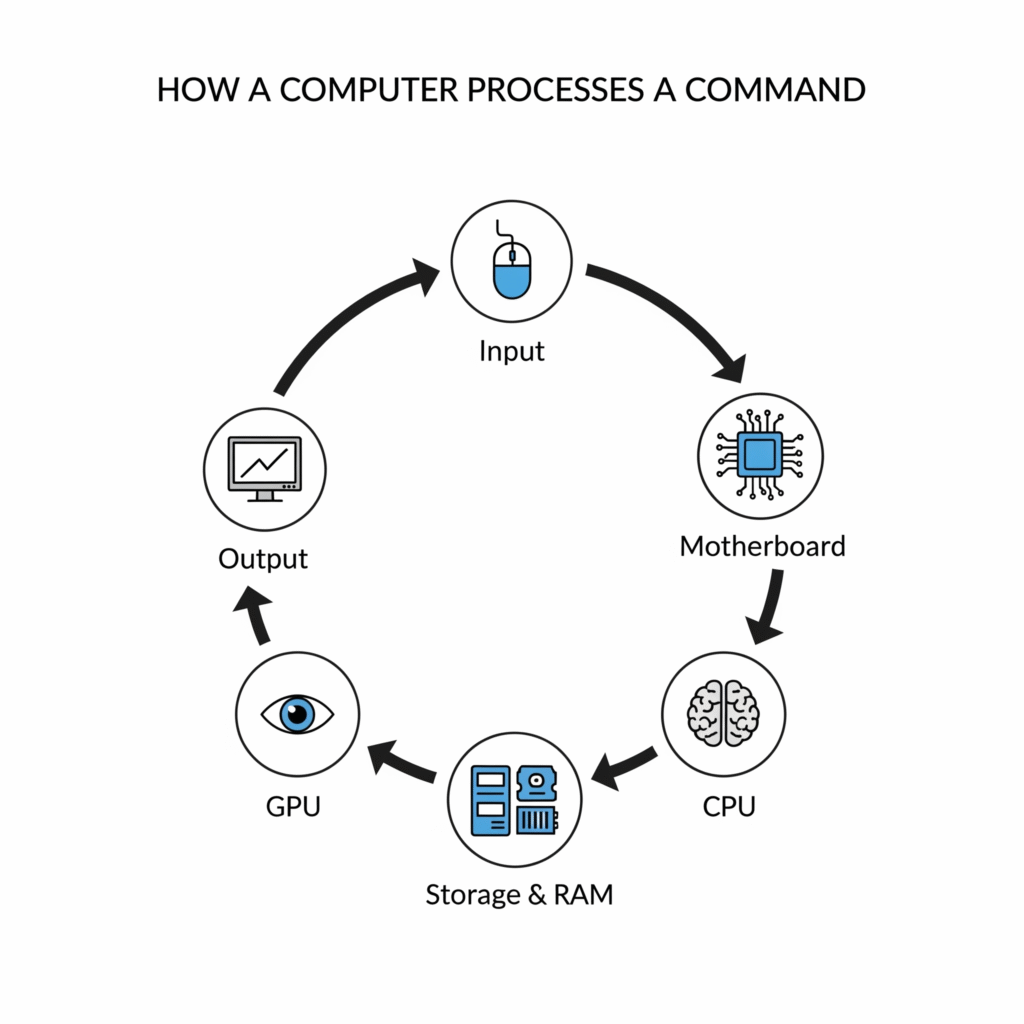
How Computer Hardware Works Together
When you open a program, several hardware and software layers cooperate:
- An input device sends a command through a wired or wireless connection.
- A hardware controller and the motherboard transfer the input data through the system.
- The operating system and device driver interpret the request.
- The CPU executes the relevant instructions.
- Storage supplies the program files if they are not already available in memory.
- RAM holds the active program data and instructions.
- The GPU processes visual output when the program requires graphics rendering.
- The monitor, speakers, or another output device presents the result.
The PSU supplies electrical power throughout the process, while the cooling system helps keep the CPU, GPU, and other components within their supported operating conditions.
Hardware Compatibility: What to Check Before an Upgrade
Exact compatibility depends on the model, generation, firmware, power requirements, and physical design of each component. Verify manufacturer documentation before buying or installing new hardware.
| Component being added | What to check | Where to verify it |
|---|---|---|
| CPU | Socket, chipset, supported processor list, firmware support | Motherboard documentation |
| RAM | Memory generation, module type, capacity, supported speed | Motherboard or laptop documentation |
| Storage | SATA or PCIe support, M.2 slot, drive size, boot support | Motherboard or laptop documentation |
| GPU | PCIe slot, card length, thickness, power connectors | GPU, case, and PSU documentation |
| CPU cooler | Socket support, cooler height, radiator clearance | Cooler and case documentation |
| PSU | Wattage, connectors, form factor, power headroom | PSU and component documentation |
| Motherboard | Form factor, case support, expansion slots | Motherboard and case documentation |
Before replacing storage, back up important files. Before opening a computer, shut it down, unplug the power cable, and follow the manufacturer’s service instructions. Handle components by their edges, avoid exposed contacts, and use suitable electrostatic-discharge precautions. Never open a power-supply enclosure. SOURCE: Cisco Press, “Introduction to Personal Computer Hardware”
Build or Buy a PC: Compatibility and Support Considerations
Building Your Own PC
Building a desktop can provide control over the processor, graphics card, storage, memory, case, cooling, and power supply. It can also help you understand how the components work together.
Possible advantages include:
- Greater component choice
- Easier control over upgrade paths
- Ability to select the power supply and storage quality
- Practical experience with PC hardware
Possible disadvantages include:
- Time spent researching compatibility
- Assembly mistakes
- Separate warranties for individual parts
- Responsibility for diagnosing problems
Buying a Prebuilt PC
A prebuilt computer arrives assembled and normally includes one system warranty or support channel.
Possible advantages include:
- Faster setup
- Manufacturer support
- Less assembly work
- A single tested configuration
Possible disadvantages include:
- Fewer customization choices
- Potentially limited upgrade options
- Less visibility into every component
- Higher or lower value depending on the included parts
Neither option is always better. Build a PC when component selection and learning matter most. Choose a prebuilt system when convenience, support, and ready-to-use hardware are higher priorities.
How to Check Your Computer Hardware Specifications
Check Basic Hardware Details in Windows
On Windows, open Settings > System > About to view basic information such as the processor, installed RAM, device name, and operating-system version.
For more detailed information:
- Open the Start menu.
- Search for System Information.
- Open the application.
- Review system, motherboard, memory, BIOS, and operating-system details.
You can also open Device Manager to view installed hardware categories and driver status. Menu names may vary slightly between Windows versions. SOURCE: Microsoft Support, “Device Manager”
Find Detailed Windows Hardware Information
Use Device Manager to inspect devices such as:
- Display adapters
- Network adapters
- Processors
- Storage controllers
- Sound devices
- USB controllers
For graphics and display information, Windows also provides the DirectX Diagnostic Tool. Type dxdiag into the Windows search field or Run dialog, then review the System, Display, Sound, and Input tabs.
Tool names and available information can change with operating-system updates. Verify the current instructions for the Windows version installed on the computer.
Check Hardware Details on a Mac
Choose Apple menu > About This Mac to view an overview of the Mac model, chip, memory, and storage.
For more detail:
- Open the Apple menu.
- Choose About This Mac.
- Select More Info or open System Information, depending on the macOS version.
- Review hardware, storage, network, USB, and display information.
Apple documents these tools for identifying Mac hardware and system information. SOURCE: Apple Support, “Find information about your Mac”
Computer Hardware Maintenance and Troubleshooting
Safe Hardware Maintenance
Basic maintenance can include:
- Cleaning dust from vents, filters, and fans
- Keeping cables clear of airflow paths
- Checking for loose external connections
- Monitoring unusual temperatures or fan noise
- Keeping supported drivers and operating-system updates installed
- Installing firmware updates only when the manufacturer recommends them for a relevant fix, compatibility issue, or security concern
- Backing up important data
- Checking storage health when the drive shows warning signs
Turn off and unplug a computer before opening the case. Do not use liquid directly on components. Stop work if you see burning, liquid damage, swollen batteries, exposed electrical parts, or damaged cables.
PC Will Not Start
- Confirm that the wall outlet and power cable work.
- Check the PSU switch if the computer has one.
- Disconnect nonessential external devices.
- Look for fans, indicator lights, diagnostic LEDs, or beep codes.
- If the system was recently upgraded, check the main motherboard and CPU power connections after safely powering down and unplugging the computer.
PC Starts but Shows No Display
- Confirm that the monitor is powered on.
- Select the correct monitor input.
- Check the video cable at both ends.
- If a dedicated GPU is installed, confirm that the display cable is connected to the intended graphics output.
- Check GPU power connections and component seating only after shutting down and unplugging the system.
Computer Is Overheating
- Check whether the case and CPU fans are spinning.
- Clear dust from vents, filters, and heatsinks.
- Confirm that intake and exhaust fans have a clear airflow path.
- Monitor CPU and GPU temperatures with a suitable tool.
- Inspect cooler mounting or thermal paste only if you are comfortable following the manufacturer’s service instructions.
Computer Is Running Slowly
Slow performance can result from limited RAM, storage problems, thermal throttling, background programs, outdated drivers, malware, or a failing component. Start by checking Task Manager or Activity Monitor, available storage, system temperatures, and recent changes before buying an upgrade.
Storage or USB Device Is Not Detected
- Reconnect the device and test another cable or port.
- Test the device on another computer when possible.
- Check Disk Management on Windows or Disk Utility on macOS.
- Review Device Manager or System Information for hardware detection.
- Stop using a drive that makes unusual noises or reports repeated errors, and protect important data before attempting repairs.
Computer Hardware Questions Answered
What are the 12 main components of computer hardware?
A typical desktop PC can be described using 12 main hardware components: case, motherboard, CPU, RAM, storage drive, graphics processor, power supply, cooling system, monitor, keyboard, mouse, and network adapter. The exact list varies by device because laptops and all-in-one computers combine or integrate several parts. Speakers, printers, webcams, sound cards, and expansion cards are also hardware.
What are the basics of computer hardware?
The basics are the physical components that receive input, process instructions, hold active data, save files, produce output, and communicate with other devices. The CPU processes instructions, RAM supports active tasks, storage saves data, the motherboard connects components, and peripherals allow people to interact with the computer.
How can I get all PC hardware details?
On Windows, use Settings > System > About for basic information, System Information for detailed system data, and Device Manager for installed devices and driver status. On a Mac, choose Apple menu > About This Mac, then open System Information for expanded hardware details. Menu names can vary slightly by operating-system version.
What are the 7 basic computer skills?
Seven useful computer skills are operating a keyboard and mouse, managing files and folders, using an operating system, browsing the web safely, installing or updating software, connecting peripherals, and performing basic troubleshooting. These are general computer-literacy skills rather than hardware components, but hardware knowledge can make troubleshooting and upgrades easier.
What is the difference between RAM and storage?
RAM is temporary working memory for active programs, while storage keeps files, applications, and the operating system for long-term use. RAM normally loses its contents when power is removed, but data stored on an SSD or HDD remains available after shutdown. More RAM supports active multitasking; faster storage can improve loading and startup responsiveness.
Can computer parts from different brands work together?
Yes, parts from different brands can work together when their specifications are compatible. Check the CPU socket and motherboard support, RAM generation, storage interface, graphics-card clearance, PSU connectors, cooler support, and case form factor. Brand matching is usually less important than meeting the required technical standards and manufacturer specifications.
What should I check before upgrading a PC?
Check the new component’s physical size, interface, power requirements, firmware support, and compatibility with the existing system. Common checks include CPU socket, motherboard chipset, RAM type, M.2 or SATA support, GPU clearance, PSU connectors, cooler clearance, and available expansion slots. Back up important files before replacing storage.
Is an M.2 SSD always NVMe?
No. M.2 describes a compact physical form factor and connector style, while NVMe describes a storage protocol commonly used over PCIe. Some M.2 drives use NVMe, but others use SATA. Check the motherboard or laptop manual to confirm which M.2 drive types and protocols the system supports.
What hardware matters most for gaming?
The GPU often has the greatest effect on gaming frame rates, but the best choice depends on the game, resolution, frame-rate target, CPU, RAM, storage, drivers, and monitor. A balanced system is usually more useful than spending the entire budget on one component. Check the requirements of the specific games you plan to play.
What is the difference between internal and external hardware?
Internal hardware is installed inside the computer, such as the CPU, motherboard, RAM, storage drive, and graphics card. External hardware connects from outside the system, such as a monitor, keyboard, mouse, printer, or USB drive. Some functions can use either arrangement; network adapters, storage, and sound devices may be built in or externally connected.
What is the difference between a router, switch, modem, and network adapter?
A network adapter connects an individual computer to a network. A switch connects multiple devices inside a local network. A router directs traffic between separate networks, while a modem connects a local network to an internet service connection. Modern home equipment may combine modem, router, switch, and wireless-access-point functions in one device.
What should I do before opening a computer case?
Shut down the computer, unplug the power cable, disconnect external devices, and follow the manufacturer’s service instructions. Use electrostatic-discharge precautions and handle components by their edges. Do not open a power-supply enclosure. If the system has liquid damage, a burning smell, a swollen battery, or exposed electrical damage, seek qualified service instead of continuing.
Computer Hardware Basics: What to Learn Next
Understanding the CPU, motherboard, RAM, storage, GPU, power supply, cooling, peripherals, and networking hardware gives you a practical foundation for using, upgrading, or buying a computer.
The next useful step is to identify the hardware already installed in your system. Then compare its specifications with the requirements of the applications, games, or workflows you plan to use. Always verify compatibility and safety instructions for the exact model before installing a new component.
Whether you are running a small site or a large platform, dedicated hosting is often the right call for enterprise-level workloads.
Planning your next upgrade or learning path? Browse the full Tech, Computer and AI Research Guides.
When it is time to choose storage for a build, compare SSD vs HDD and which one suits your workload.

Kaleem
Kaleem is a Computer Science graduate (Virtual University of Pakistan) and the founder and editor of Valley AI, where he publishes in-depth, tested guides on computer hardware, artificial intelligence, and how the internet works. Every guide is researched from primary sources, tested hands-on where possible, and updated when the facts change.