
Choose a solid-state drive (SSD) for your operating system, applications, current games, and other files you use often. Choose a hard disk drive (HDD) when low-cost, high-capacity storage matters more than speed.
For many desktops, the best setup is both: an SSD for active data and an HDD for large files, archives, or a second local copy. Neither drive should be the only place where you keep irreplaceable files.
The short answer: SSD for activity, HDD for capacity
An SSD is the better primary drive for most modern computers because low access latency makes Windows, macOS, applications, and games feel more responsive. An HDD remains useful for storing large amounts of data at a lower cost per terabyte.
| Your main need | Better choice | Why |
|---|---|---|
| Operating system and applications | SSD | Faster startup and application access |
| Modern PC gaming | SSD | Shorter loading times and smoother asset access |
| Office work and web browsing | SSD | Better responsiveness, especially in older PCs |
| Large photo or video library | HDD | More capacity for the money |
| Active video editing projects | SSD | Faster project, cache, and scratch-disk access |
| Long-term local backup | HDD | Lower cost for large backup sets |
| Laptop upgrade from an HDD | SSD | Usually the most noticeable speed improvement |
| Quiet or shock-prone portable use | SSD | No spinning platters or mechanical heads |
| Home media server or NAS | Usually HDD | High capacity and lower storage cost |
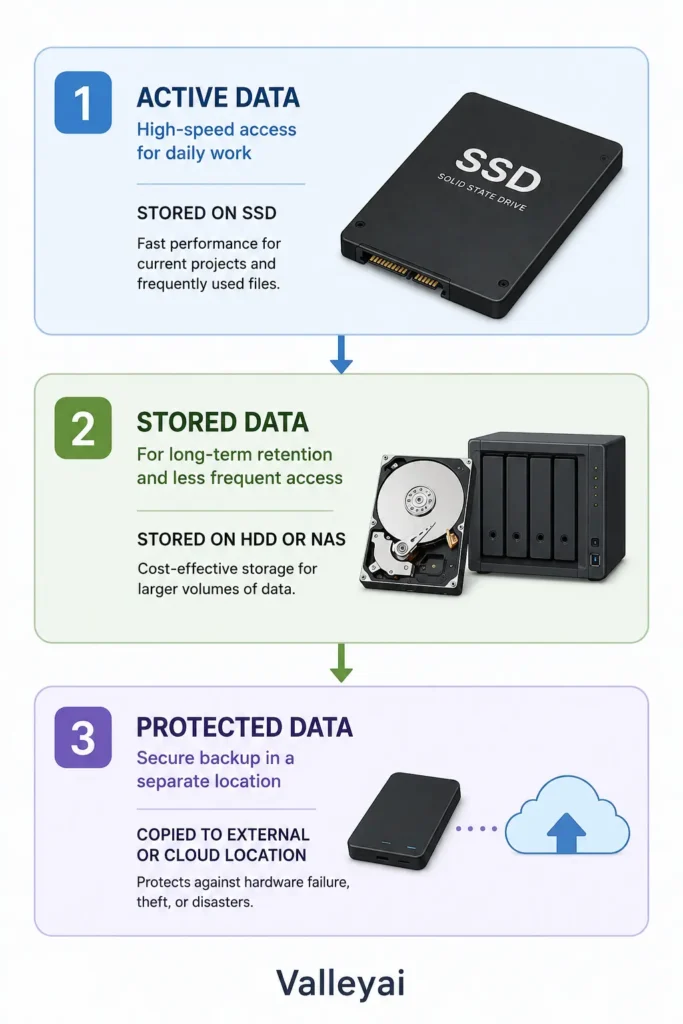
The right question is not “Which technology is universally better?” Ask which files are active, which are merely stored, and which files must be protected against failure.
What changes between SSD and HDD in daily use?
An SSD stores data in NAND flash memory, while an HDD stores data magnetically on rotating platters. The SSD has no spinning platters or mechanical read/write heads; the HDD uses a spindle motor, actuator arm, and read/write heads to locate data.
That architectural difference affects the way each drive feels:
- SSD: Low latency, fast random access, silent operation, and strong resistance to movement.
- HDD: Higher mechanical latency, audible operation, vibration, and excellent low-cost capacity.
- Both: Can slow down under certain workloads, fail without sufficient warning, and require backups.
Why SSD speed is noticeable
Operating systems and applications constantly access many small files. SSDs handle those scattered requests with far less mechanical delay than HDDs. The result is faster booting, quicker application launches, and less waiting when a computer performs background tasks.
Large file transfers are different. Sequential performance matters more when reading or writing a single large video file, disk image, or archive. A high sequential benchmark does not guarantee that every application will open dramatically faster.
In practice, replacing an old system HDD with an SSD is often more noticeable than upgrading from one fast SSD to an even faster SSD. The first change removes a mechanical bottleneck; the second may only improve demanding workloads.
Does an SSD improve gaming performance?
An SSD usually improves game loading and installation times, but an SSD does not automatically increase frame rates. Frame rates depend mainly on the processor, graphics card, game settings, and memory.
Some modern games stream assets while you play, so an SSD can help reduce loading pauses or texture-streaming problems. Intel’s storage guidance discusses the role of sequential and random performance, SATA SSDs, NVMe SSDs, and gaming workloads in more detail. Intel’s gaming storage guide
Match the drive to the way you use data
Storage decisions become simpler when files are assigned a role.
Active data belongs on an SSD
Active data is accessed frequently or used interactively. Examples include:
- Operating-system files
- Applications
- Current games
- Virtual machines
- Active photo and video projects
- Frequently edited documents
An SSD is most valuable when waiting interrupts your work. If a file is opened once every few months, SSD speed may not justify the additional cost.
Stored data can belong on an HDD
Stored data is retained mainly because you need it available, not because you access it constantly. Examples include:
- Completed video projects
- Large photo libraries
- Downloaded movies
- Music collections
- Disk images
- Older games
- Installation files
An HDD can be the sensible choice for this role because capacity and price per terabyte often matter more than low latency.
Protected data needs another copy
Protected data includes family photos, financial records, business documents, and anything that would be difficult or impossible to recreate. A second internal drive can hold a copy, but the second internal drive is not full protection against theft, fire, malware, or damage to the entire computer.
CISA recommends maintaining backups as part of protection against data loss and ransomware. CISA cybersecurity guidance
When an HDD is still the smarter buy
An HDD is still a good choice when you need several terabytes of storage and most files are accessed occasionally. A desktop user might install Windows and applications on an SSD, then place a large media collection on an internal HDD.
HDDs also make sense for:
- Local backup targets
- Home media libraries
- NAS storage arrays
- Surveillance video storage
- Completed creative projects
- Secondary game libraries
- Files that do not need rapid interactive access
An HDD is less attractive as a primary system drive. Mechanical seek time makes booting, application launches, updates, and multitasking feel slower, particularly on older computers.
One practical warning: do not buy an HDD for a laptop simply because the drive is cheaper. A laptop may lack the required 2.5-inch bay, mounting hardware, or cable. An HDD also adds vibration and can consume more power than an SSD.
When paying more for an SSD is worth it
The SSD premium is easier to justify when the computer is used interactively for several hours each day. An SSD is especially useful for:
- A Windows or Linux boot drive
- Software development environments
- Photo and video editing caches
- Large application libraries
- Virtual machines
- Frequently accessed work files
- Portable computers
- Quiet workspaces
For a laptop upgrade, an SSD is often the highest-impact storage change available if the laptop currently uses an HDD. The processor does not need to become faster for the computer to feel more responsive during startup and application access.
SSD capacity still matters. A nearly full SSD can create management problems and limit room for updates, temporary files, and applications. Buy enough capacity for the next few years rather than choosing the smallest drive that fits today’s files.
SATA SSD or NVMe SSD?
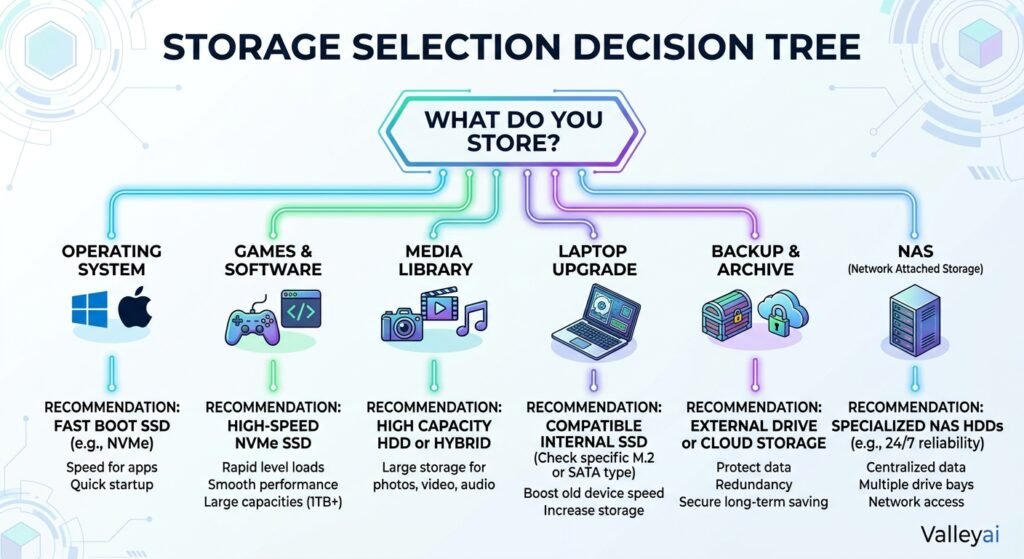
A SATA SSD uses the Serial ATA interface. An NVMe SSD uses the NVMe protocol over PCI Express, which supports higher bandwidth and lower protocol overhead for compatible systems. M.2 describes a physical form factor; M.2 does not automatically mean NVMe.
That distinction prevents a common buying mistake. An M.2 slot may support NVMe drives, SATA drives, or only one of those types. Check the laptop or motherboard documentation before ordering.
| Drive type | Typical role | Main consideration |
|---|---|---|
| 2.5-inch SATA SSD | Laptop or desktop replacement | Requires SATA data and power connections in many desktops |
| M.2 SATA SSD | Compatible compact upgrade | Looks like an NVMe drive but uses SATA |
| M.2 NVMe SSD | Modern laptop, desktop, or workstation storage | Requires an M.2 slot with NVMe support |
| PCIe add-in-card SSD | Desktop expansion | Requires an available compatible slot |
| External USB SSD | Portable active storage | Faster access and better mobility |
| External USB HDD | Affordable bulk storage or backup | Lower cost, but slower and more sensitive to movement while operating |
NVMe is worthwhile for heavy file transfers, demanding content creation, large datasets, and workloads that can use high throughput. For ordinary browsing, office work, and many game-launch scenarios, a quality SATA SSD already feels vastly faster than an HDD.
NVM Express provides the official technical context for the NVMe protocol, while PCI-SIG publishes PCI Express specifications. NVM Express · PCI-SIG specifications
SSD vs HDD reliability: avoid the simple winner
Neither storage type has a universal reliability advantage. SSD endurance depends partly on NAND type, controller design, workload, firmware, and the amount of data written. HDDs face mechanical wear and can develop problems involving platters, heads, motors, or electronics.
An SSD’s lack of moving parts improves resistance to physical shock during normal portable use. That advantage does not make an SSD immune to controller failure, firmware problems, electrical damage, or sudden loss of access.
HDD data recovery is sometimes possible after certain failures, but recovery depends on the damage, encryption, media condition, and specialist tools. Recoverability is not the same as reliability, and recoverability is never a substitute for a backup.
Manufacturer endurance ratings such as TBW describe a product’s tested or specified write limit under defined conditions. TBW is not a guaranteed expiration date, and it does not predict every form of failure.
Build a storage setup without one point of failure
A practical desktop arrangement might look like this:
- SSD: Operating system, applications, active projects, and current games.
- HDD: Large media files, completed projects, installers, and less frequently used games.
- External drive or NAS: Scheduled backup of important files.
- Cloud or off-site copy: Protection against theft, fire, ransomware, or damage to the home.
A second internal HDD is useful for convenience, but a backup should be separated from the primary computer when possible. RAID can improve availability when a drive fails, but RAID is not an independent backup because accidental deletion, malware, and physical damage can affect the entire array.
For irreplaceable files, use a 3-2-1-style approach: maintain multiple copies, use more than one type of storage, and keep at least one copy separated from the computer or primary location. Exact implementation depends on your budget and the importance of the data.
Check compatibility before buying
Compatibility varies by laptop, motherboard, operating system, drive interface, and form factor. Confirm the following before purchasing:
- Does the device have an available M.2 slot?
- Does the M.2 slot support NVMe, SATA, or both?
- Does a 2.5-inch drive bay exist?
- Does a desktop need a SATA data cable and power connector?
- Does the motherboard support the required PCIe generation?
- Is there room for an NVMe heatsink?
- Will the operating system be installed fresh or cloned?
- Does the laptop manufacturer limit supported drive sizes or types?
Do not rely on the phrase “M.2 compatible” alone. The device manual or manufacturer support page should identify the supported storage interface.
Final recommendations by user type
| User | Recommended setup |
|---|---|
| Basic home or office user | SSD for the system; external backup drive |
| Gamer | SSD for the operating system and regularly played games |
| Budget desktop builder | Moderate-capacity SSD plus HDD for bulk storage |
| Laptop owner | SSD if the laptop supports the upgrade |
| Photographer | SSD for active catalog work; HDD, NAS, or cloud for the library |
| Video editor | SSD for active projects and cache; high-capacity HDD for completed work |
| Media collector | HDD for the library, with a separate backup |
| Home-server user | HDDs for capacity; SSD only where caching or application speed justifies it |
| Data-sensitive user | SSD or HDD for primary storage, plus independent local and off-site backups |
The Final Verdict
Choose an SSD when responsiveness, portability, quiet operation, or frequent file access matters. Choose an HDD when affordable capacity is the priority and files are accessed less often. Choose both when you need a fast computer, a large local library, and a practical backup workflow.
SSD vs HDD questions buyers still ask
Is an SSD always better than an HDD?
An SSD is better for interactive performance, but an HDD can be better for inexpensive bulk storage. A 4TB HDD may provide more usable space for a media library than a similarly priced SSD. The better option depends on whether access speed or capacity is the limiting factor.
Should Windows be installed on an SSD?
Windows should generally be installed on an SSD when the computer supports one. Operating-system files involve frequent small reads and writes, so SSD latency improves startup, application launches, updates, and general responsiveness compared with an HDD.
Can an SSD replace an HDD?
An SSD can replace an HDD as a primary system drive if the computer supports the SSD’s interface and form factor. Replacement does not automatically solve capacity or backup needs. Users with large media libraries may still benefit from retaining an HDD or adding external storage.
Is an HDD safer for long-term storage?
An HDD is not automatically safer for long-term storage. Both SSDs and HDDs need suitable storage conditions, periodic checks, and multiple copies. An offline HDD can be useful as one archive copy, but important files should also exist on another device or in a separate location.
Can I use an SSD and HDD together?
An SSD and HDD can be used together in the same desktop or compatible laptop setup. Place the operating system, applications, and active projects on the SSD. Use the HDD for larger files, older games, media, or local copies. Keep a separate backup because the two drives can be lost together.
Is an external SSD better than an external HDD?
An external SSD is better for frequent transfers, travel, and active work because it is quiet and more resistant to movement. An external HDD is usually better when maximum capacity and lower cost matter most. Disconnect backup drives after use when practical to reduce exposure to ransomware or accidental deletion.
Does NVMe make every computer faster than SATA SSD?
NVMe can deliver higher throughput than SATA, but the difference is workload-dependent. Large transfers, heavy editing, virtual machines, and demanding professional workloads can benefit more than web browsing or office work. Compatibility, capacity, thermals, and price should be considered before choosing NVMe.
Which drive type should hold my only copy of important files?
Neither an SSD nor an HDD should hold the only copy of important files. Use a primary drive plus at least one independent backup, and keep another copy off-site or in cloud storage when the data would be costly to replace. A backup is useful only if it can be restored when needed.
To understand real-world endurance, see how long an SSD actually lasts.
Planning a storage upgrade? See how to install an NVMe M.2 SSD, and how to safely remove an SSD when you swap drives.

Kaleem
Kaleem is a Computer Science graduate and the founder of Valley AI (valleyai.net), where he publishes in-depth, tested guides on computers, AI, and internet technologies. Every guide is researched from primary sources and updated regularly.