

Usually, no. Most NVMe SSDs can run safely without an aftermarket heatsink during web browsing, office work, ordinary gaming, and other short workloads. A heatsink becomes more useful when the drive handles sustained transfers, repeated heavy writes, restricted airflow, or high-performance PCIe Gen4 or Gen5 workloads.
The key distinction is simple: safe operation, maximum sustained performance, and buying an aftermarket heatsink are three different decisions.
The Short Answer: Check the Workload, Not Just “NVMe”
An NVMe SSD does not automatically need a heatsink because it uses the NVMe protocol or the M.2 form factor. The SSD model, controller, workload, airflow, and manufacturer temperature specification determine whether additional cooling is worthwhile.
| Your situation | Heatsink recommendation |
|---|---|
| Web, office work, and general desktop use | Usually unnecessary |
| Typical game loading and play | Usually unnecessary |
| Motherboard includes an M.2 cover | Use it if it fits correctly |
| Long file transfers or large installations | Recommended if temperatures rise or performance drops |
| Video editing, virtual machines, or scratch-disk work | Often recommended |
| Repeated benchmarks | Recommended |
| Fanless PC or poorly ventilated case | Verify temperatures carefully |
| Laptop | Use only a device-compatible solution |
| External USB enclosure | Depends heavily on enclosure design |
| PS5 | Required within Sony’s size and cooling requirements |
A heatsink cannot make an SSD faster than its controller, NAND, interface, or firmware allow. It mainly helps the drive sustain performance when heat would otherwise trigger thermal management.
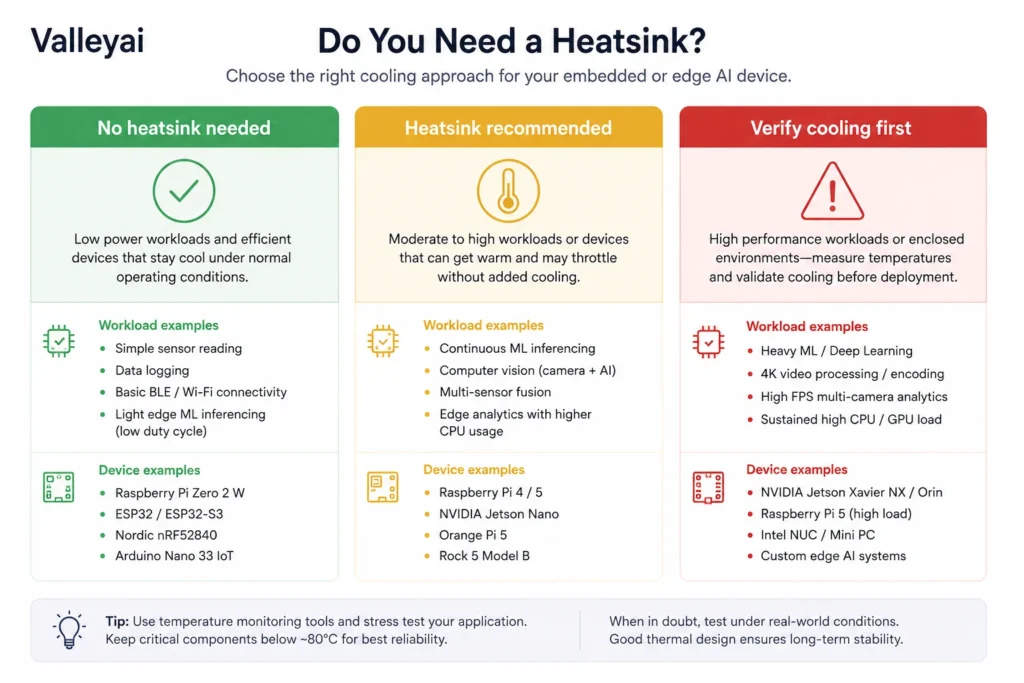
Why Gaming Usually Does Not Require an NVMe Heatsink
Typical gaming does not usually require an NVMe heatsink because game loading tends to occur in bursts rather than as one continuous, high-write workload.
Playing a game primarily involves reading assets from storage. The SSD may work hard during startup, level loading, updates, or installation, but those events are usually intermittent. A large game installation, repeated updates, video recording, shader-cache activity, or copying hundreds of gigabytes creates a different thermal pattern.
That distinction matters in practice. A drive that stays comfortable while loading games may still heat up during a long Steam installation or a sustained file copy.
An aftermarket heatsink is generally unnecessary for gaming when:
- The desktop case has reasonable airflow.
- The SSD is installed under a properly fitted motherboard M.2 cover.
- The drive remains within its manufacturer-rated operating range.
- You are not regularly transferring or writing large amounts of data.
Gaming is not a special exemption from heat. It is simply often a lighter storage workload than sustained video editing, benchmarking, or large sequential writes.
When Sustained Workloads Change the Recommendation
A heatsink is more useful when the SSD controller remains active for long periods and the system cannot remove heat efficiently.
Common examples include:
- Editing video directly from the NVMe SSD
- Using the SSD as a scratch or cache disk
- Running virtual machines
- Copying very large datasets
- Installing several large games in succession
- Performing repeated drive benchmarks
- Creating disk images or backups
- Using a high-performance PCIe Gen4 or Gen5 SSD in a compact system
Thermal throttling reduces SSD performance when the drive becomes too hot. Throttling is a protective response, not automatic evidence of permanent damage. The practical symptom is usually a drop in sustained transfer speed after the drive has been under load for some time.
A heatsink is worthwhile when it prevents that performance drop. If the SSD never throttles and remains within its published temperature range, a cooler may produce little noticeable benefit outside benchmark results.
Do PCIe Gen4 and Gen5 SSDs Need Heatsinks?
PCIe Gen4 and Gen5 SSDs do not universally require heatsinks, but higher-performance models deserve more attention to cooling because performance and power characteristics vary by drive.
The PCI-SIG defines PCI Express as a high-speed interconnect standard, while NVMe defines the storage command protocol used by compatible drives. Neither standard means that every SSD installation needs a particular heatsink. The drive manufacturer’s specification and the host platform’s design remain the deciding references. (PCI-SIG, NVM Express)
A Gen4 or Gen5 drive is more likely to benefit from a heatsink when:
- It is used for sustained writes or reads.
- The SSD controller is located beneath a properly designed thermal pad.
- The M.2 slot sits beneath a graphics card or in a low-airflow zone.
- The system is small, fanless, or poorly ventilated.
- Monitoring shows sustained high temperatures or throttling.
Generation alone is a weak buying rule. A lower-power drive in a well-ventilated desktop may need less cooling than a more demanding drive installed in a cramped enclosure.
Is a Motherboard M.2 Heatsink Enough?
A motherboard M.2 heatsink is often sufficient if the thermal pad contacts the SSD correctly and the cover fits the drive without excessive pressure.
Before installing the cover, verify:
- The correct M.2 slot is being used.
- The thermal pad’s protective film has been removed.
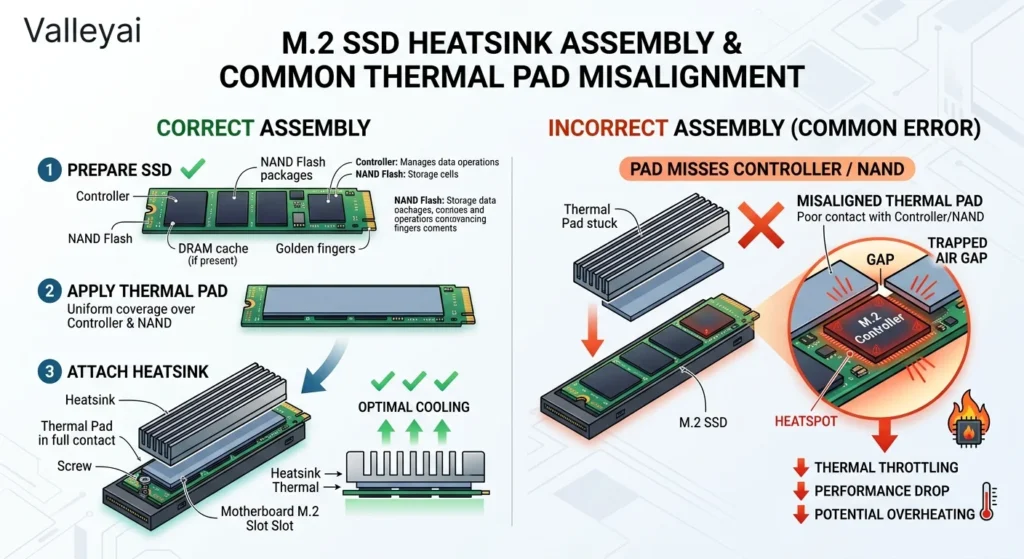
- The pad aligns with the SSD controller and other intended contact areas.
- The SSD thickness matches the motherboard’s supported configuration.
- The cover does not press against components or prevent the drive from sitting flat.
- The motherboard manual does not specify a different pad or standoff position.
Motherboard manuals are the authority for M.2 cover installation, slot behavior, and clearance. For example, consult the support documentation for your exact ASUS, MSI, Gigabyte, ASRock, Dell, Lenovo, or other host device model rather than relying on a generic installation diagram.
A cover that looks attached but has an air gap above the controller is not performing its intended job.
The Thermal Pad Is the Part That Makes or Breaks Cooling
An NVMe heatsink works through a simple thermal path: SSD controller → thermal pad → heatsink → surrounding air.
The thermal pad must bridge the gap between the SSD and the heatsink. It should not be so thin that contact is incomplete, or so thick that the cover bends the SSD or interferes with the M.2 screw and standoff.
During installation, check the following:
- Remove every protective film from both sides of the thermal pad.
- Place the pad over the controller area specified by the heatsink maker.
- Confirm whether the SSD is single-sided or double-sided.
- Use the pad thickness recommended for the heatsink or motherboard.
- Avoid stacking random pads to compensate for a clearance problem.
- Make sure the M.2 screw secures the SSD without bending the board.
A practical contact check is to install the heatsink, remove it carefully, and inspect the compression mark on the thermal pad. A clear contact impression is more useful than assuming the pad touched because the cover was screwed down.
I have seen heatsinks fail to improve temperatures because the pad covered the NAND packages but missed the controller. The installation looked tidy; the heat path was simply in the wrong place.
How to Tell Whether Your NVMe SSD Actually Needs Cooling
Your SSD needs more cooling when measured temperature and sustained performance show a problem not merely because the drive feels warm.
Use this workflow:
- Find the SSD’s reported temperature.
Read SMART/NVMe health data through your operating system or the SSD manufacturer’s utility. Samsung Magician, WD Dashboard, Crucial Storage Executive, and similar tools may expose model-specific health and temperature information. - Check the exact manufacturer specification.
Temperature limits differ between SSD models. Use the technical specification or support page for your drive, not a universal number copied from another SSD. - Test the real workload.
Monitor the drive during the file transfer, editing session, installation, or benchmark that causes concern. Idle temperature does not reveal how the SSD behaves under sustained activity. - Look for performance changes.
A sharp speed decline after several minutes of continuous activity can indicate thermal throttling, although cache exhaustion and workload changes can produce similar behavior. - Inspect the physical cooling path.
Check airflow, M.2 slot location, thermal-pad contact, protective film, and heatsink clearance before buying a larger cooler.
A brief temperature spike is less concerning than a drive that remains hot and slows repeatedly under the same workload.
Laptop, External Enclosure, and PS5 Exceptions
Laptop NVMe SSDs should not receive a generic heatsink automatically. Laptop chassis clearance is limited, and an incorrectly sized cooler can prevent the bottom cover from closing or apply pressure to the SSD. Follow the laptop service manual and use only a solution designed for that chassis.
External USB NVMe enclosures need separate consideration because the enclosure often acts as the heat-spreading surface. An aluminum enclosure can help move heat away from the drive, but sustained transfers may still warm the enclosure significantly. Ventilation, controller-to-case contact, USB bridge behavior, and transfer duration all matter.
PS5 installations have stricter physical requirements. Sony states that compatible M.2 SSDs require an effective heat-dissipation structure, such as a heatsink, and the complete SSD-and-heatsink assembly must fit the console’s dimensional limits. Follow the current official PlayStation M.2 SSD installation requirements rather than assuming a desktop heatsink will fit.
The Practical Buying Rule
Buy or install an NVMe heatsink when at least one of these conditions applies:
- Your workload is sustained and storage-intensive.
- Monitoring shows temperatures approaching the drive’s specified limit.
- The SSD throttles during transfers or repeated heavy activity.
- The system has restricted airflow.
- The drive is installed in a hot location beneath a graphics card.
- The motherboard manufacturer supplies a compatible M.2 cover that you have not yet installed.
Skip an aftermarket heatsink when ordinary use keeps the SSD within its manufacturer-rated range and the drive shows no signs of throttling.
If you already have high temperatures, diagnose the thermal path before spending money. A correctly fitted motherboard cover with a functioning thermal pad is often better than a cheap aftermarket heatsink that barely contacts the controller.
NVMe SSD Heatsink FAQ
Can an NVMe SSD run safely without a heatsink?
Yes, many NVMe SSDs can run safely without an additional heatsink during ordinary desktop use. Safety depends on the specific model’s operating-temperature range, workload, and airflow. A heatsink becomes more relevant when sustained activity causes throttling or pushes the drive near its documented limit.
Does thermal throttling damage an NVMe SSD?
Thermal throttling is designed to reduce performance when an SSD becomes too hot. A single throttling event does not automatically mean the drive is damaged. Repeated high temperatures should still be investigated because they may indicate poor airflow, incorrect thermal-pad contact, or an unsuitable enclosure.
What temperature is too high for an NVMe SSD?
There is no single temperature that applies to every NVMe SSD. Controller sensors, firmware, and manufacturer specifications differ. Compare the reading from SMART/NVMe health data with the exact SSD model’s published operating range, then check whether sustained workloads cause throttling or unusual performance loss.
Do Gen5 NVMe SSDs need active cooling?
Most Gen5 NVMe SSDs do not automatically require a fan, but some benefit from substantial passive cooling during sustained workloads. Start with the manufacturer’s heatsink guidance and the motherboard’s M.2 cooling design. Active cooling is a platform-specific solution, not a universal requirement for the PCIe generation.
Should you remove an SSD’s label before installing a heatsink?
Do not remove the SSD label unless the drive manufacturer specifically instructs you to do so. The label may be part of the drive’s identification or warranty process, and many heatsinks are designed to work over it. Follow the heatsink and SSD installation instructions instead of peeling the label off by default.
Can a heatsink make an NVMe SSD slower?
A properly installed heatsink should not make an NVMe SSD slower, but an incorrectly fitted heatsink can create problems. Excessive pad thickness, mounting pressure, poor clearance, or contact with another component may bend the SSD or prevent correct installation. Fit matters as much as heatsink size.
New to SSDs? Start with our complete guide: What Is an SSD? How Solid-State Drives Work (2026 Guide)

Kaleem
Kaleem is a Computer Science graduate and the founder of Valley AI (valleyai.net), where he publishes in-depth, tested guides on computers, AI, and internet technologies. Every guide is researched from primary sources and updated regularly.