
A computer and monitor can both have familiar-looking ports and still fail to connect. The reason is that VGA refers to more than a plug shape: it is a display interface associated with analog video. Knowing whether VGA is on the computer, the monitor, or both helps you choose the right next step.
What is VGA?
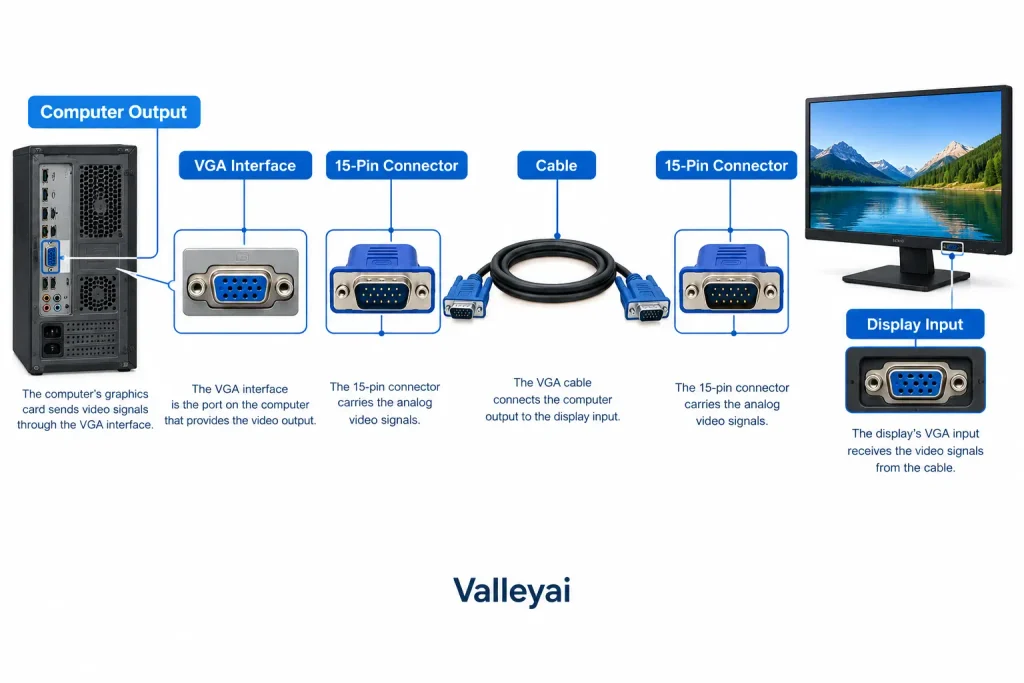
VGA stands for Video Graphics Array. In everyday use, people may mean the VGA display connection, its cable, or the 15-pin connector. Those terms are related, but they are not interchangeable: the connector is the physical part, while the interface describes how video is sent to a display.
VGA carries analog video, including red, green, and blue color information and synchronization signals. That is the key detail when checking compatibility with another display connection. A plug that fits is not, by itself, proof that the devices can exchange a usable signal.
VGA is not the same thing as a GPU
A GPU is graphics hardware; VGA is a display interface. A graphics card or other graphics hardware produces video output, while a VGA connection is one possible route for sending that output to a monitor or projector.
| Term | What it refers to |
|---|---|
| GPU | Graphics hardware that produces a computer’s visual output |
| VGA | A display interface associated with analog video |
| VGA connector | The physical connector used for a VGA connection |
| VGA cable | The cable that links compatible VGA ports |
So, no: VGA is not the same as a GPU. A computer can have a GPU without a VGA port, and a display with a VGA input still needs a compatible video output from the source device.
Where VGA still fits
VGA is associated with older computers and displays, as well as some projectors and specialized equipment. Its continued presence can matter when connecting existing hardware; it does not mean that VGA is the right connection for every modern setup.
DVI, HDMI, and DisplayPort are other display connections readers may encounter. The practical difference is that VGA carries analog video, while connecting it to a digital interface can require signal conversion. The exact requirement depends on the ports and devices at both ends.
VGA is less common in newer setups because newer display connections are more widely used in the equipment represented across the supplied research. That does not make a VGA connection unusable. It means you should check the actual ports and signal requirements before choosing a cable or adapter.
How to tell whether a VGA connection will work
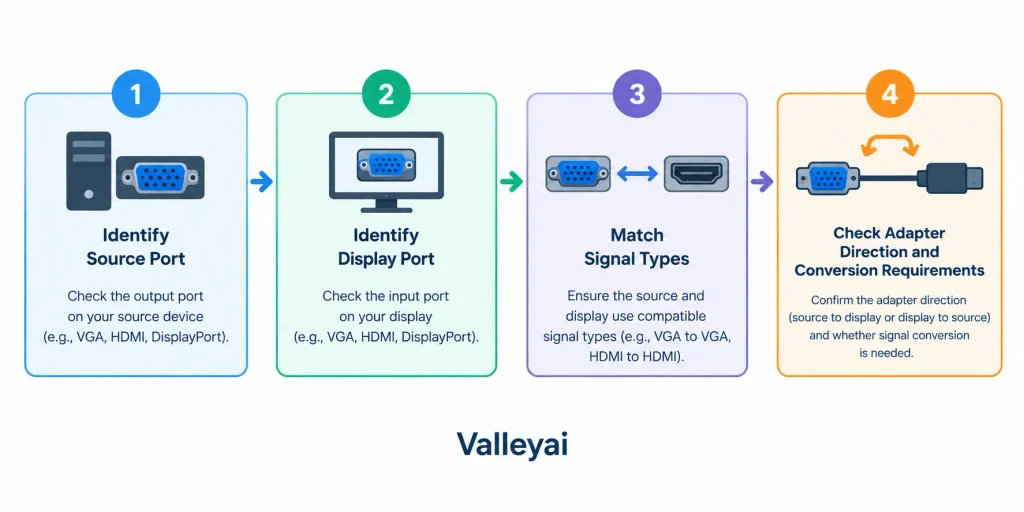
Check both devices before buying a cable or adapter. A VGA-shaped connector on one end does not establish that the source and display use compatible signal types.
- Identify the source output. Check the computer or graphics card for its available display ports.
- Identify the display input. Look at the monitor or projector, not just the cable already attached.
- Compare the connection types. If both devices have VGA ports, the connection may be direct, subject to the devices’ requirements.
- Check for a signal mismatch. When one device uses VGA and the other uses HDMI or DisplayPort, a simple cable may not be enough. Signal conversion may be required.
- Verify the adapter’s direction and requirements. Do not assume that an adapter works in both directions or with every device. Check its product specifications against the source and display ports.
| Source port | Display port | What to check |
|---|---|---|
| VGA | VGA | Confirm both ports are available and the devices support the intended connection |
| VGA | HDMI or DisplayPort | Check whether the adapter converts the signal from the source to the display |
| HDMI or DisplayPort | VGA | Check whether conversion is supported in this direction |
| No matching ports | Any | Confirm the required adapter or converter supports both devices |
If the port and signal checks pass and the screen still stays dark or shows distorted color, work through general display troubleshooting steps before assuming the cable or the monitor has failed.
What to check when a VGA display shows no signal
A “no signal” message means the display is not showing the expected video input. Start with simple connection and input checks before assuming the cable or computer is faulty.
- Select the correct display input. Use the monitor’s input control to confirm it is set to VGA if that option is available.
- Check both ends of the connection. Make sure the cable is connected to the intended output on the computer and input on the display.
- Confirm the source is sending video through that port. A computer may have more than one display output. Check the device’s display settings and available output options.
- Review any adapter or converter. Confirm it supports the source-to-display direction and the signal conversion needed for the connection.
- Isolate the uncertain part. If possible, try a known-compatible cable or connect the display using another available input. This can help narrow down whether the issue is tied to the VGA path, the display input, or the source output.
These checks help identify where to investigate next; they do not guarantee a fix. If the devices’ ports or adapter requirements are unclear, consult their specifications before replacing equipment.
Use the ports—not the cable name—to make the call
When deciding whether to use VGA, start with the source and display ports, then confirm their signal requirements. A matching connector can simplify a connection, but different interface types may require conversion. If the devices do not support a compatible path, choose another supported connection or check the equipment documentation before buying an adapter.
FAQs:
Why isn’t VGA used as often in newer setups?
VGA is less common in newer setups because other display connections, including HDMI and DisplayPort, are used in the equipment covered by the supplied research. VGA remains relevant when older monitors, computers, projectors, or specialized equipment use it. For a specific setup, check the available ports and adapter requirements rather than relying on the age or appearance of a device.

Kaleem
Kaleem is a Computer Science graduate (Virtual University of Pakistan) and the founder and editor of Valley AI, where he publishes in-depth, tested guides on computer hardware, artificial intelligence, and how the internet works. Every guide is researched from primary sources, tested hands-on where possible, and updated when the facts change.