

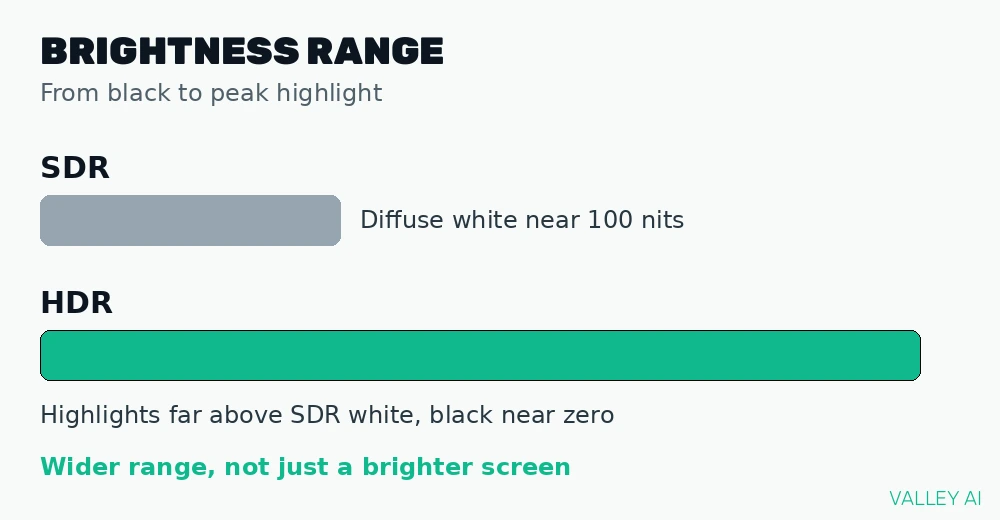
HDR on a monitor changes how bright and dark parts of one image sit together. A standard display keeps highlights and shadows inside a narrow band. An HDR display widens that band, so a sunlit window and a dark room corner can hold detail in the same frame.
Brightness for displays is measured in nits. One nit equals one candela per square meter, a unit that describes light leaving a surface. Diffuse white on a standard display sits near 100 nits. HDR content can ask for highlights far above that level, while keeping black close to zero.
The decision rule for buying HDR on a monitor
Buy HDR only when the full chain can deliver it. Content, output device, cable, panel, and dimming must all support HDR. One weak link caps the result for the whole chain.
Pay for HDR when you watch HDR films, play HDR games, or edit HDR video on a regular basis. Skip paid HDR when your days run on documents, web pages, and standard video. A strong standard display serves that work with no penalty.
| Main use | Choose | Skip |
|---|---|---|
| Films and streaming | DisplayHDR 600 or higher, or True Black | A tier with no local dimming |
| HDR gaming | DisplayHDR 600 or higher, or True Black | A tier that dims the whole screen as one unit |
| Office and standard video | A strong standard display | Paid HDR as a headline feature |
| Photo and video work | DisplayHDR 1000 or True Black with calibration | An uncertified HDR label |
Certification matters because an HDR label alone proves little. A monitor can accept an HDR signal and lack the brightness, dimming, and color range to show it well.
What HDR changes on a monitor
Dynamic range means the distance between the darkest black and the brightest highlight a display can show at once. HDR widens that distance. Shadows gain steps. Highlights gain headroom. Midtones keep their shape between those extremes.
Color range grows with the brightness range. HDR content uses a wider color space than standard video, with DCI-P3 as a common target. Wider color space plus higher bit depth gives smoother gradients in skies, skin, and smoke.
The full chain from content to panel
Five parts must line up for HDR to work. The content carries HDR data. The PC, console, or player outputs an HDR signal. The cable carries enough bandwidth for that signal at the chosen resolution and refresh rate. The panel produces the brightness and color. Dimming controls light region by region.
Bandwidth sets a hard limit. A cable that cannot carry the signal at full resolution and refresh rate forces a compromise in resolution, refresh rate, or color depth. Motion smoothness depends on the monitor refresh rate, and that rate interacts with cable bandwidth when HDR is active.
Cable choice follows the same limit. Bandwidth and feature support differ between DisplayPort and HDMI cables. Those differences decide whether a given resolution, refresh rate, and HDR combination fits through one connection. Check the cable version against the monitor manual before judging the panel.
A monitor belongs to a wider family of output devices that turn a signal into a visible result. That family view helps here, because HDR fails at the weakest conversion step, whether the step is signal, cable, or panel.
HDR10, HDR10+, and Dolby Vision
Metadata tells a display how to map content brightness onto its own limits. Static metadata gives one set of brightness values for a whole film or game. Dynamic metadata updates those values scene by scene or frame by frame, so a dark scene and a bright scene get different treatment.
HDR10 serves as the baseline format. Support for HDR10 is near universal across monitors, players, and games, which makes HDR10 the safe format for a first HDR monitor. HDR10+ adds dynamic metadata on top of that baseline, with support concentrated in streaming and Samsung hardware.
Dolby Vision adds dynamic metadata plus per-display adjustment. Dolby describes Dolby Vision as tuning its output to the measured capability of the display receiving it. The same content then maps differently onto a 600 nit panel and a 1000 nit panel. Support for Dolby Vision on PC monitors stays narrower than support on televisions, so check the monitor spec sheet for the exact format list.
| Format | Metadata | Where it appears most |
|---|---|---|
| HDR10 | Static | Games, discs, streaming |
| HDR10+ | Dynamic | Streaming, Samsung hardware |
| Dolby Vision | Dynamic with per-display tuning | Streaming, televisions, some monitors |
| HLG | Broadcast hybrid | Live television broadcasts |
Format support alone does not guarantee a good result. A monitor that accepts Dolby Vision but lacks local dimming cannot separate a bright highlight from a dark background region by region.
DisplayHDR tiers and what each tier proves
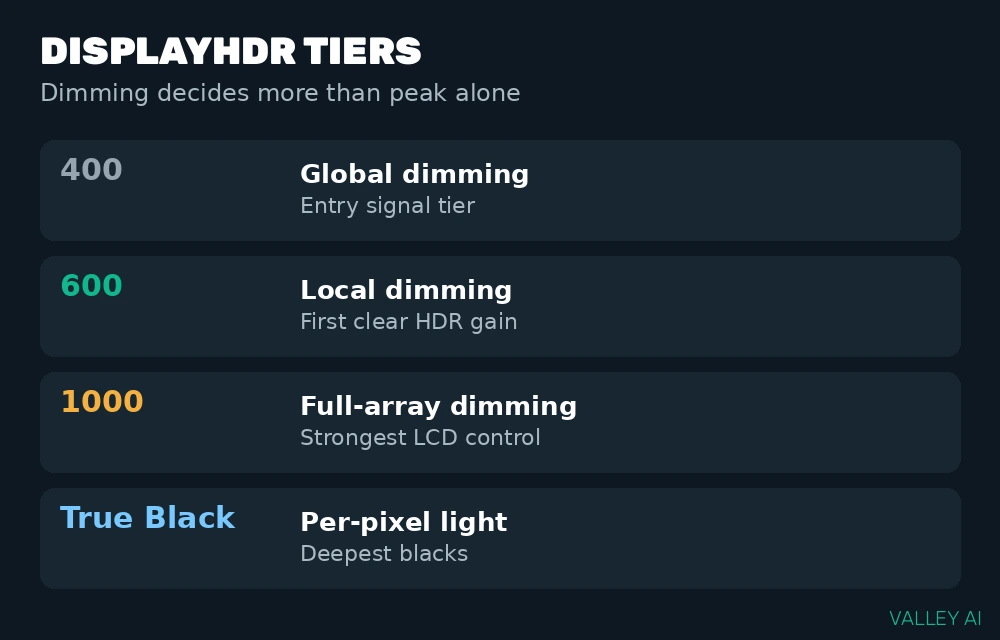
VESA DisplayHDR certifies measured display performance, and the tier number tracks peak brightness in nits. VESA DisplayHDR 400 certifies a 400 nit peak. VESA DisplayHDR 600 certifies a 600 nit peak with local dimming and a wider color gamut than the 400 tier. VESA DisplayHDR 1000 certifies a 1000 nit peak with full-array local dimming and the strictest LCD contrast requirement of the three LCD tiers.
Dimming separates the tiers more than peak brightness does. Global dimming moves the whole backlight as one unit, so a bright object lifts the black level of the entire screen. Local dimming divides the backlight into zones that move independently, so one zone can stay dark while a neighbor zone goes bright. Full-array local dimming uses a grid of zones behind the whole panel, which gives finer control than edge-lit dimming.
LCD tiers
DisplayHDR 400 works as an entry signal-acceptance tier. It proves the monitor handles an HDR signal at a modest peak, with no local dimming requirement. HDR on such a panel can look flat in dark scenes, because the backlight cannot darken one region without darkening all regions.
At the 600 tier, HDR gain shows clearly in mixed scenes. Local dimming plus a higher peak separates highlights from shadows. Edge-lit models with few zones can show a faint halo around small bright objects on black. DisplayHDR 1000 pushes that control further with a full-array backlight and a higher peak, which suits bright-room viewing and HDR mastering work.
True Black tiers for emissive panels
True Black tiers certify emissive panels, where each pixel produces its own light and switches off for black. That design removes zone halos entirely, because no backlight zone spans multiple pixels. Peak brightness runs lower than the 1000 tier on many True Black models, yet black level sits near zero, which keeps contrast high.
Why panel type changes HDR
Panel type decides the starting contrast HDR has to work with. VA panels block backlight light well, so their blacks run deep for an LCD design. Pixel response is slower, and viewing angles are narrower. IPS panels hold color steady across wide angles, while their blacks sit higher because backlight light leaks through the liquid crystal layer. OLED panels switch each pixel off, so black level approaches zero and contrast rises far above LCD designs.
The differences among monitor panel types explain why two monitors with the same HDR label can look different in a dark room. A VA panel with local dimming holds shadow detail better than an IPS panel with global dimming, even when both accept the same HDR signal.
Adaptive sync interacts with HDR gaming in a separate way. The adaptive sync system matches frame delivery to panel refresh, which affects motion smoothness, while HDR affects brightness and color. Both systems can run together, and a fault in one does not diagnose a fault in the other.
Why HDR looks washed out on a monitor
Why does HDR look washed out on a monitor? The usual cause is tone mapping plus SDR brightness mapping. Tone mapping compresses a wide content range onto a narrower panel range. SDR mapping places standard desktop white inside that HDR range. Both mappings need correct values for the specific panel, and a wrong value flattens the result.
Consider a worked tone-mapping calculation with its inputs named. Content mastered with a 4000 nit highlight plays on a 400 nit panel. The panel must compress that highlight by a factor of 10, since 4000 divided by 400 equals 10. Detail survives that compression only when the mapping curve stays smooth across the range, with no sudden steps in brightness.
Black level decides HDR more than peak brightness alone. A contrast calculation with its inputs named shows the point. A 1000 nit peak over a 0.05 nit black level gives a ratio of 20,000 to 1. The division is 1000 divided by 0.05. The same 1000 nit peak over a 0.5 nit black level gives a ratio of 2,000 to 1. The division is 1000 divided by 0.5. Ten times the black level cuts contrast tenfold at the same peak.
Bit depth shapes gradient smoothness in the same calculation style. Ten-bit color gives 1024 shades per channel, and 1024 cubed equals 1,073,741,824 colors. Eight-bit color gives 256 shades per channel, and 256 cubed equals 16,777,216 colors. That gap explains banding in skies and gradients on 8-bit panels, where shade steps stay visible.
Tone mapping works like a mapmaker shrinking a mountain range onto a small sheet, compressing tall peaks while keeping their order. A good mapping keeps peak order and relative spacing. A poor mapping flattens peaks together or clips them to one flat white value.
Cables, settings, and washed out desktops
Does every HDR monitor need a new cable? A new cable matters only when the current cable lacks bandwidth for the chosen resolution, refresh rate, and color depth together. A cable that already carries that combination needs no replacement, and a new cable cannot fix a panel that lacks local dimming.
Can a standard monitor show HDR content? A standard monitor can accept HDR content through tone mapping in the player or operating system, but the result stays inside standard range limits. Highlights clip to the panel peak. Shadows compress into the panel black floor. The file plays, and the HDR gain stays absent.
Windows adds its own mapping layer for the desktop. Standard desktop content runs inside HDR mode through an SDR brightness control, which sets where standard white lands inside the HDR range. A wrong setting leaves the desktop gray and flat, while true HDR video in the same session can look correct.
Checks you can run without instruments
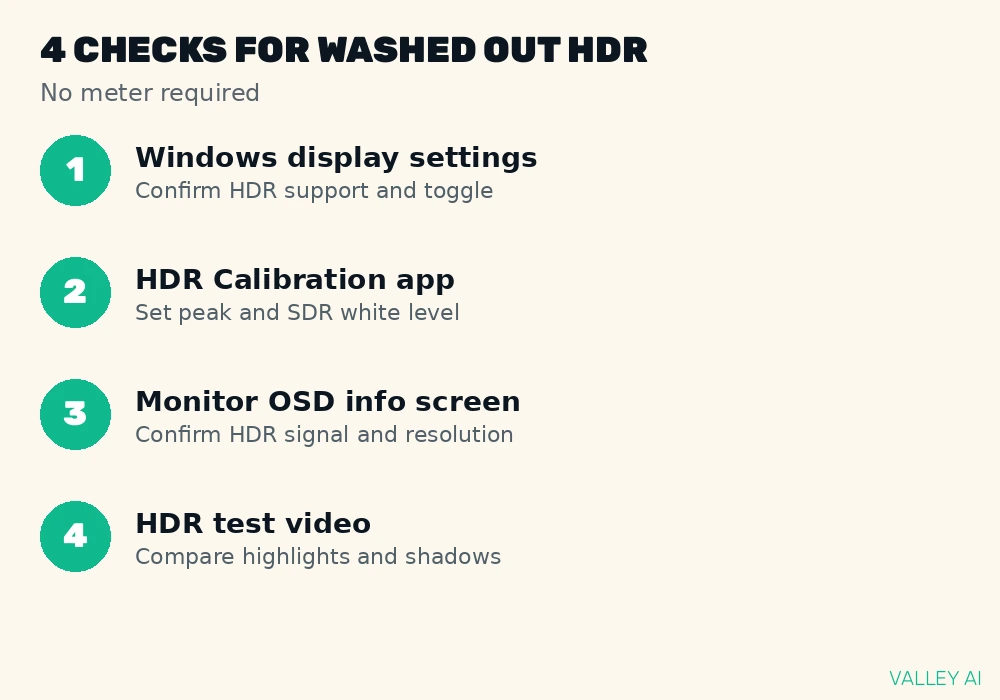
Four checks separate a setup fault from a panel limit. Each check uses built-in tools or a standard test file, with no meter required.
- Open Windows display settings and confirm HDR support shows for the connected display, with the HDR toggle on.
- Run the Windows HDR Calibration app and set peak brightness plus SDR white level to the values the app measures for the panel.
- Open the monitor on-screen display info screen during HDR playback and confirm the signal reads as HDR at the expected resolution.
- Play an HDR test video with bright highlights and dark shadows, then compare highlight detail and shadow detail against the same file with HDR off.
Interpretation follows a simple pattern. A fault that changes with calibration or settings points to mapping. A fault that stays across settings, cables, and content points to panel hardware. Halo around subtitles points to zone size in local dimming. A gray desktop with correct HDR video points to SDR white level mapping.
Conclusion
Match the purchase to the content you watch and play most. Favor a tier with local dimming or per-pixel light when HDR forms a regular part of that use. Run the calibration and signal checks before judging any new monitor. Return to standard mode for office work when HDR adds nothing to the task at hand.
Frequently asked questions
Does a second monitor without HDR change HDR on the first?
No. Windows sets HDR per display, so the HDR monitor keeps its HDR output while the second monitor shows standard range. Each display keeps its own setting in Windows display settings.
Does HDR raise input lag for gaming?
HDR on its own does not set input lag. Lag comes from the processing path a monitor uses for a given mode. Game mode on many monitors shortens that path, so check a measured lag figure for the exact mode you plan to play in.
Does HDR help photo editing?
HDR helps when the delivery target is an HDR screen, since edits then map to the wider range the viewer will see. For standard delivery, a calibrated standard display with accurate color gives the more reliable result.
Should HDR stay on all day in Windows?
Windows stores the HDR setting per display, so switching takes one toggle in display settings. Leaving HDR on does no harm to the panel, and the desktop mapping stays active while it is on.
Does room light change HDR quality?
Room light lifts perceived black, so a bright room narrows visible contrast on any panel. A dim room preserves shadow detail, and a soft light behind the monitor can improve perceived contrast without washing out the screen.

Kaleem
Kaleem is a Computer Science graduate (Virtual University of Pakistan) and the founder and editor of Valley AI, where he publishes in-depth, tested guides on computer hardware, artificial intelligence, and how the internet works. Every guide is researched from primary sources, tested hands-on where possible, and updated when the facts change.