

A monitor with a fixed refresh rate redraws on a strict schedule. A graphics card finishes frames on no schedule at all. That gap is the whole problem adaptive sync solves. This is the G-Sync vs FreeSync question: which certification system matches your graphics card, your cable, and your panel.
Adaptive sync lets the monitor wait for each finished frame, then redraw at that moment. A rate of 144 Hz means 144 redraws per second, or one redraw every 6.94 milliseconds. At 97 frames per second, each frame takes 10.3 milliseconds. A fixed 144 Hz panel redraws every 6.94 milliseconds whether a new frame is ready or not. That mismatch is where torn frames come from.
Match the monitor’s variable refresh rate range and certification tier to your graphics card and cable. The badge on the box says little on its own, and the range line on the spec sheet says far more.
How a fixed refresh rate creates tearing
Refresh timing decides how many redraws fit in one second, and monitor refresh rate sets that timing. A panel at 144 Hz starts a new redraw every 6.94 milliseconds. A game that delivers frames at 97, 81, then 110 frames per second never lands on that grid. Some redraws catch a frame halfway through its delivery.
A fixed refresh rate works like a metronome ticking at one speed while a musician plays at changing speeds. The two stay together only while the speeds match, and every drift shows up as a visible break.
That break is screen tearing: the top of the screen shows one frame and the bottom shows the next, split by a jagged line. Older V-Sync fixed tearing by holding finished frames until the next redraw, which added delay between input and display. Adaptive sync removes the wait by moving the redraw to the frame, so motion stays whole without that delay.
Does adaptive sync remove tearing at any frame rate?
Only inside the panel’s rated window. Below the floor, the panel falls back to fixed timing or frame repetition. Above the ceiling it cannot redraw any faster. Tearing can return at either edge.
Stutter differs from tearing, and the distinction decides what adaptive sync can fix. Tearing shows two frames at once. Stutter shows one frame held too long, so motion jumps forward in steps. A fixed schedule creates both faults at once, because frames arrive early, late, or halfway through a redraw. Adaptive sync removes the schedule fault, while uneven frame delivery from the game itself can still leave small steps in motion.
G-Sync vs FreeSync tiers: what each one certifies
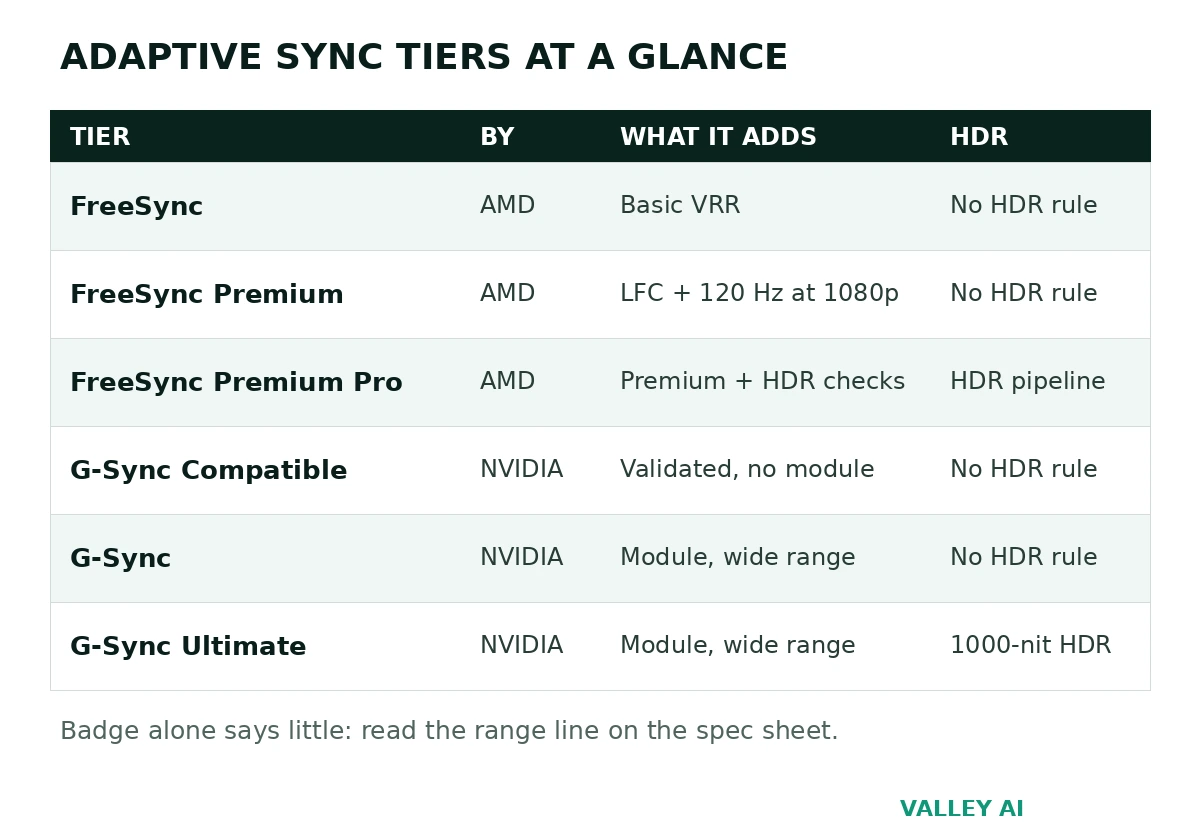
AMD certifies the FreeSync tiers and NVIDIA certifies the G-Sync tiers, and both publish monitor lists buyers can search. VESA defines Adaptive-Sync as part of the DisplayPort standard, and that open standard is the shared base for FreeSync and G-Sync Compatible panels.
| Tier | Certified by | Hardware in the monitor | Variable refresh behavior | HDR note | GPU fit |
|---|---|---|---|---|---|
| FreeSync | AMD | None, uses VESA Adaptive-Sync | Basic variable refresh, range varies by model | No HDR requirement | AMD and Intel cards, plus many NVIDIA cards |
| FreeSync Premium | AMD | None | At least 120 Hz at 1080p, low framerate compensation required | No HDR requirement | AMD and Intel cards, plus many NVIDIA cards |
| FreeSync Premium Pro | AMD | None | Premium behavior plus HDR pipeline checks | HDR with luminance and wide color checks | AMD and Intel cards, plus many NVIDIA cards |
| G-Sync Compatible | NVIDIA | None, validated Adaptive-Sync panel | Validated range, low framerate compensation depends on the model | No HDR requirement | NVIDIA cards, and the same panel can serve AMD cards through FreeSync |
| G-Sync | NVIDIA | Dedicated module | Wide module-managed range | No HDR requirement | NVIDIA cards |
| G-Sync Ultimate | NVIDIA | Dedicated module | Wide module-managed range | HDR at the 1000-nit class with local dimming checks | NVIDIA cards |
A basic FreeSync panel can carry a narrow window. That window drops sync in exactly the heavy scenes where smooth motion matters most. A Premium panel guarantees the compensation feature that covers those dips.
Does a high refresh rate make adaptive sync unnecessary?
A high ceiling shortens each redraw interval, but the schedule stays fixed, so uneven frame delivery still lands across redraw boundaries.
Variable overdrive is the quiet difference between tiers. Pixel response tuning that suits 165 Hz overshoots at 60 Hz, so a panel needs its overdrive adjusted as the refresh rate moves. Native G-Sync modules tune that adjustment per panel, because NVIDIA controls the module and tests the result. FreeSync panels leave the tuning to the panel vendor, so two panels with the same badge can ghost differently at low frame rates. Measured reviews that test ghosting across the range catch that difference, and a badge alone cannot.
HDR tiers need the same caution. A Premium Pro or Ultimate badge certifies an HDR pipeline, but it does not certify that a given panel gets bright enough for HDR to look right in a bright room. Panel brightness, local dimming zones, and color volume decide the visible result, and those figures sit in measured reviews, apart from the badge name. Buy the HDR tier for the pipeline, then judge the panel on its measured brightness.
Below the floor: how low framerate compensation works
Every panel has a floor, the lowest refresh rate it can follow. Frame rates under that floor leave the rated window, and the panel must do something else with those frames.
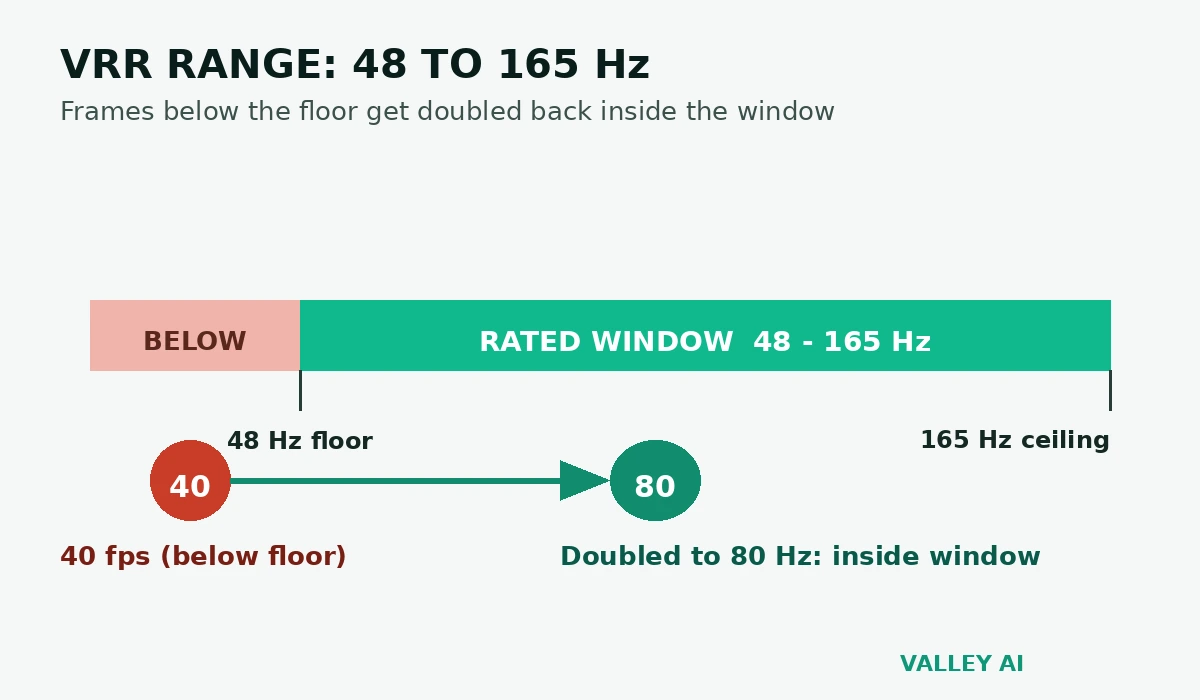
Low framerate compensation repeats each frame so the doubled rate lands back inside the window. The arithmetic needs a window whose top is at least twice its floor. Doubling only helps when the doubled rate still fits under the ceiling.
Take a game running at 40 frames per second on a panel rated 48 to 165 Hz. Forty sits below the 48 Hz floor. The compensation step doubles each frame to 80 Hz. Eighty sits inside the 48 to 165 Hz window and keeps motion synced through the dip. The inputs are 40 frames per second and a 48 to 165 Hz rated window, and the output is 80 Hz.
Panels without that feature lose sync at the floor instead. The practical check is the spec sheet range line. Divide the top figure by the floor figure. A result under two warns that low frame rates will fall out of sync.
Frame repetition keeps timing, not detail. A doubled frame shows the same image twice, so motion stays on schedule without new positions in between. That tradeoff is worth it at low frame rates, because steady timing reads as smooth motion even when the game itself renders slowly. It cannot rescue a game that renders new positions too slowly to follow fast camera movement, and no sync technology invents frames the graphics card never rendered.
Which cable carries variable refresh rate
DisplayPort carries VESA Adaptive-Sync, and that makes it the default PC route. HDMI carries variable refresh through two different routes, and the route depends on the HDMI version at both ends of the cable.
| Connection | PC variable refresh | Console variable refresh | Limit to watch |
|---|---|---|---|
| DisplayPort Adaptive-Sync | Yes, the standard PC route | Not a console route | Monitor port must support Adaptive-Sync |
| HDMI 2.1 VRR | Yes, where the monitor lists HDMI VRR | PS5 and Xbox Series X and S | Both ends need HDMI 2.1 ports |
| HDMI 2.0 and older HDMI | FreeSync over HDMI on some monitors, G-Sync Compatible generally needs DisplayPort | Xbox FreeSync on some displays, PS5 gets no VRR this way | Lower resolution and refresh ceiling than HDMI 2.1 |
| USB-C DisplayPort alt mode | Yes, where the port and monitor support it | Not a console route | Laptop port mode decides support |
A laptop port that outputs DisplayPort alt mode over USB-C can carry the same variable signal. The USB-C and Thunderbolt distinction decides which port modes a given laptop offers. Console buyers face a sharper split. PS5 uses HDMI Forum VRR over HDMI 2.1 only. Xbox Series X and S also accept FreeSync over HDMI on displays that offer it.
Check the console video output menu after connecting. PS5 lists its VRR switch under Screen and Video. Xbox lists its variable refresh switch under Video modes. A menu with no VRR option points at the cable or the port before it points at the panel.
Cable labels mislead in both directions. An HDMI cable sold as high speed may still predate the 2.1 specification, and a DisplayPort cable carries no version stamp that guarantees its bandwidth. Ultra High Speed certification marks an HDMI cable tested for 48 gigabits per second, which is the bandwidth 4K at 120 Hz needs. For DisplayPort, the port version on the monitor and the graphics card decides the ceiling, and a cheap cable that drops the link at high bandwidth shows up as flicker or a blank screen, with no neat error message. Bandwidth decides which resolutions each version can carry at high refresh rates. The DisplayPort vs HDMI comparison works through the figures: DisplayPort 1.4 carries 25.92 Gbps usable, HDMI 2.1 carries 48 Gbps.
Adapters and docks can strip variable refresh even when every other part of the chain supports it. A dock that converts DisplayPort to HDMI may pass a fixed signal while dropping the variable timing. An adapter that predates the needed specification does the same. Test with a direct cable first when sync refuses to engage. Then add the dock or adapter back into the chain to find the part that breaks it.
Matching the tier to your graphics card
Frame output starts at the graphics card, and the GPU renders each frame before the monitor draws it. The card brand narrows the tier list fast, because native G-Sync panels serve NVIDIA cards while FreeSync panels serve the wider field.
Run the check with real names. An AMD Radeon RX 7600 fits a FreeSync Premium panel. An NVIDIA GeForce RTX 4060 fits a G-Sync Compatible panel. A panel carrying both badges fits either card. That pairing keeps a future card swap from forcing a monitor swap.
Can a FreeSync monitor work with an NVIDIA graphics card?
Many can. NVIDIA validates some Adaptive-Sync panels as G-Sync Compatible. The driver can enable sync on other FreeSync panels. Results vary by model.
The monitor sits at the end of that chain as an output device, turning finished frames into light. Budget buyers get the most from a FreeSync Premium panel. HDR buyers should weigh Premium Pro against G-Sync Ultimate on measured panel brightness. Competitive players chasing very high frame rates gain least. Tearing shows less at those speeds.
Intel Arc cards join the same field through Adaptive-Sync support, so the tier list is not a two-brand contest at the panel level. An Arc card drives FreeSync panels through the open standard, and the same range and cable checks apply to it as to any other card. The badge question stays the same regardless of card brand: read the range, read the tier, then check the cable.
How to confirm variable refresh rate is running
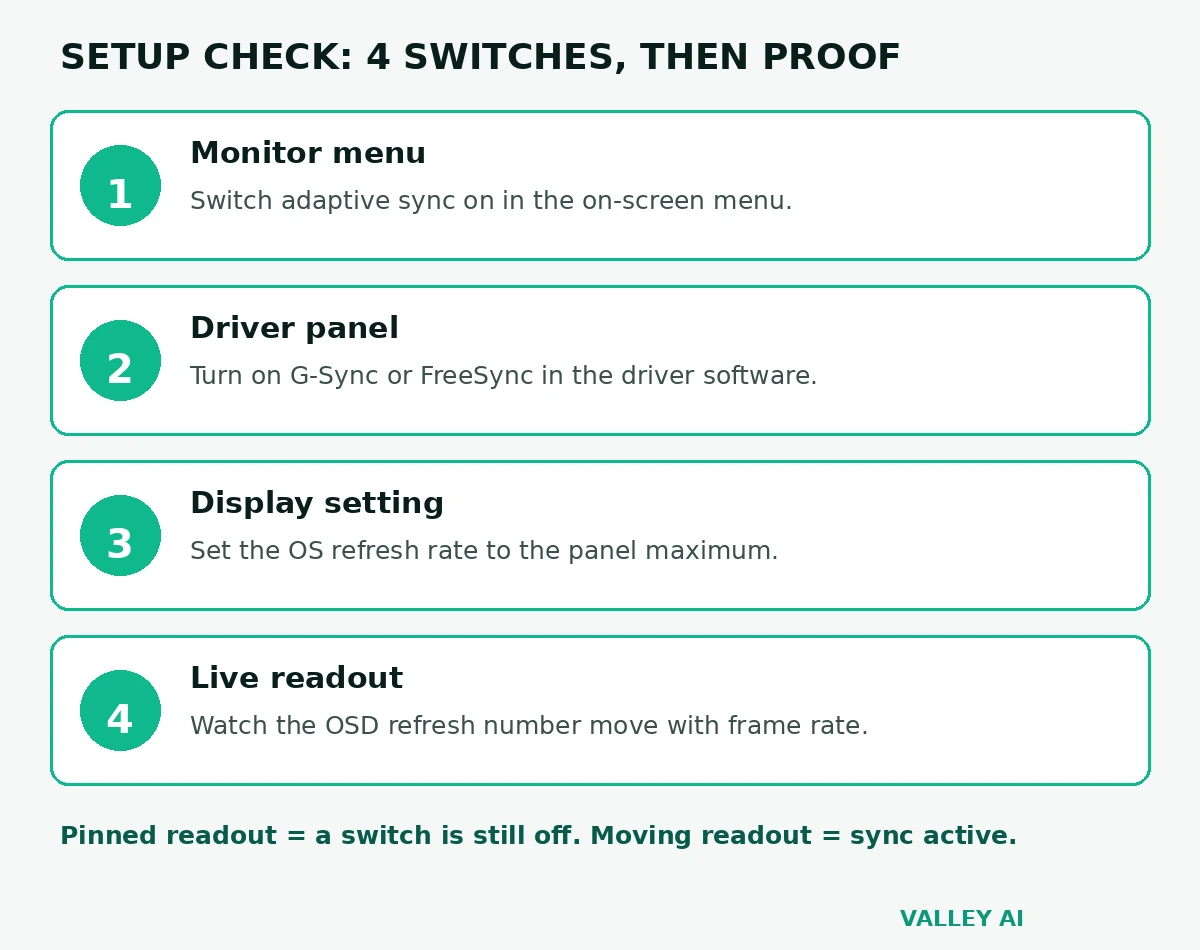
Certification on the box does not guarantee sync on the desk. Three switches must all sit in the on position: the monitor menu, the driver panel, and the operating system refresh setting.
- Switch adaptive sync on in the monitor on-screen menu, since some panels ship with it off.
- Switch it on in the driver: the G-Sync setting in NVIDIA Control Panel, or FreeSync in AMD Adrenalin software.
- Set the operating system display setting to the panel maximum refresh rate, since many panels default to 60 Hz.
- Cap the game frame rate a few frames below the panel maximum, so frame rates stay inside the rated window.
Open the monitor on-screen menu and watch its live refresh readout while a game runs. A readout that moves with the frame rate proves sync is active. A readout pinned at one number proves a switch is still off somewhere in the chain.
NVIDIA Control Panel offers a G-Sync indicator overlay for the same check. AMD Adrenalin software shows its own sync status in its overlay. Either overlay confirms the driver side. The monitor readout confirms the panel side. The two checks together cover the full chain.
Pick a test scene that stresses the range. A game with an uncapped frame rate and a busy outdoor scene swings the frame rate across the window, which is exactly what the readout check needs. A locked frame rate scene proves nothing, because a pinned readout and a synced readout look identical when the frame rate never moves. Drive through a town, turn the camera fast, and watch the readout follow the frame rate down and back up.
Work the pinned-readout fault in order. Confirm the monitor menu switch first, then the driver switch, then the operating system refresh setting, then the cable. That order runs from the panel outward, and it finds the usual fault fast: a monitor left at 60 Hz in the operating system settings wastes a high refresh panel even when every sync switch sits on.
Frequently asked questions
Should V-Sync stay on alongside adaptive sync?
V-Sync and adaptive sync cover different ranges. Adaptive sync handles frames inside the rated window, and V-Sync handles frames that arrive above it, so leaving V-Sync on in the driver keeps the top end clean.
Can adaptive sync work on a laptop built-in display?
Some laptop panels support it through the embedded DisplayPort link. Support depends on the panel and the driver, so the laptop spec sheet and the driver panel decide it for a given model.
Does adaptive sync help for video playback or office work?
Video runs at fixed rates and desktop work rarely changes frame rates fast enough for tearing to show. The benefit concentrates in games where frame rates shift from scene to scene.
What happens with two monitors at different refresh rates?
Each panel keeps its own timing in normal desktop use. A 60 Hz second screen does not drag a gaming panel to 60 Hz, though window-mode behavior can differ from fullscreen behavior.
Is there a downside to leaving adaptive sync on all the time?
On most panels, nothing shows in daily use. A small number of panels flicker at very low frame rates with the feature on, and switching it off for that game clears that case.
Which older NVIDIA cards support G-Sync Compatible?
GeForce GTX 10-series cards and newer support it over DisplayPort with a current driver. Older cards predate the driver support, so they cannot enable the validated mode.
Conclusion
Order the checks this way: card, cable, range line. Shortlist panels carrying both validations when a future card swap is plausible, then run the live readout check once the panel is on your desk.

Kaleem
Kaleem is a Computer Science graduate (Virtual University of Pakistan) and the founder and editor of Valley AI, where he publishes in-depth, tested guides on computer hardware, artificial intelligence, and how the internet works. Every guide is researched from primary sources, tested hands-on where possible, and updated when the facts change.