
Most people use Windows 11 the same way they used Windows 10 with the same habits, the same workflow, and about 20% of what the OS can actually do. That’s not a criticism. It’s just how software adoption works. The features are there. Nobody shows you how they fit together.
This guide does something different. Instead of a flat list of 47 tips you’ll skim and forget, it’s organized around how you actually work starting with the features that compound on each other, then going deeper into customization, performance, security, and the handful of things Microsoft quietly added in 24H2 that most people haven’t found yet.
One scope note upfront: this assumes Windows 11 is already installed and running. Installation, upgrade eligibility, and TPM 2.0 requirements are a separate conversation.
Build Your Productivity Stack First
Before touching any individual feature, understand this: Windows 11’s best productivity tools are designed to work together. Most guides treat them as separate items. They’re not. Snap Layouts, Virtual Desktops, Focus Sessions, and Clipboard History form a system and using them in isolation misses the point.
Here’s what that system looks like in practice.
Snap Layouts — Stop Dragging Windows Around
Snap Layouts lets you divide your screen into defined zones and assign apps to each zone. Hover over the maximize button on any window and a layout grid appears. Click a zone, and Windows prompts you to fill the remaining zones with other open apps.
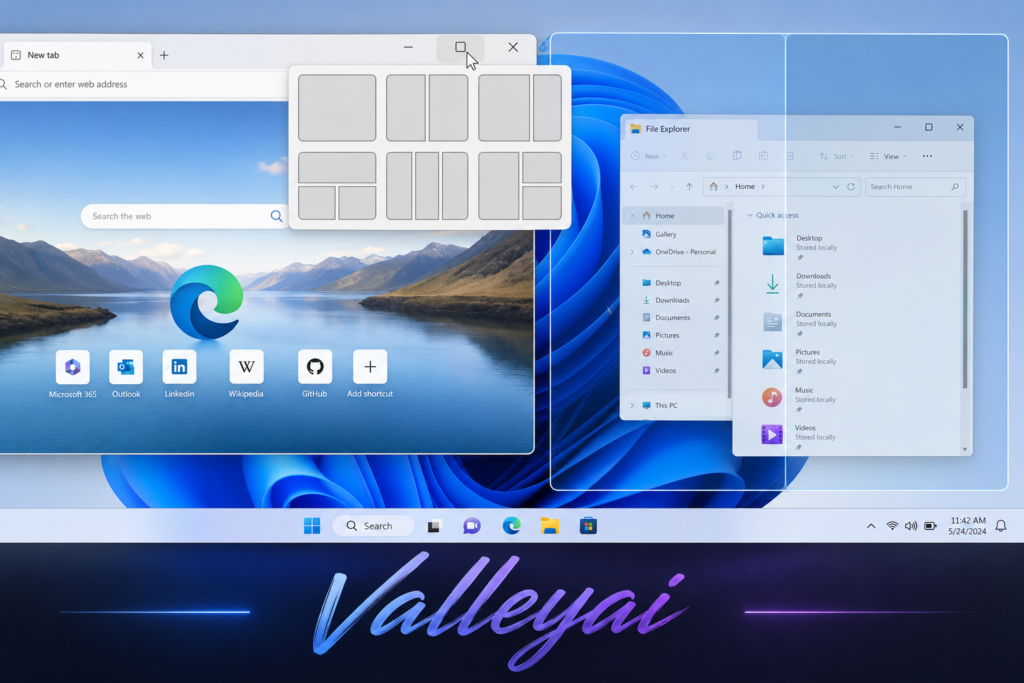
How to use it:
- Hover over the maximize (□) button in any window’s title bar
- Select a layout from the grid that appears
- Click your preferred zone Windows will tile that app there
- Select apps to fill remaining zones from the thumbnails shown
Keyboard alternative: Win+Z opens the layout selector without touching the mouse.
Snap Layouts supports up to six layout configurations depending on your screen resolution, including 2-column, 3-column, and mixed-size arrangements. See official Snap Layouts documentation on Microsoft Support.
Limitation worth knowing: Snap Layouts only works with windowed apps. Any app running in fullscreen mode will break the layout when you switch to it.
The 2-column layout is the obvious starting point, but the 3-column layout is where the real productivity shift happens. Once you’re working with a browser, a document, and a reference panel side by side, going back to 2-column feels like working with one hand tied behind your back.
Virtual Desktops — Separate Contexts, Not Just Windows
Virtual Desktops let you run completely separate desktop environments on the same machine. Different wallpapers, different open apps, different window arrangements all switching in under a second.
How to create and manage them:
- Press Win+Tab to open Task View
- Click New desktop in the top-left area
- Drag apps between desktops in the Task View panel
- Press Win+Ctrl+Left/Right Arrow to switch between desktops
You can also rename each desktop by double-clicking its name in Task View which matters more than it sounds. Microsoft’s Virtual Desktops documentation covers the full feature set.
Most people set up Virtual Desktops and then forget them within a week. The reason is almost always naming. “Desktop 1” and “Desktop 2” mean nothing when you’re switching fast. Name them by active project “Q2 Report,” “Client Calls,” “Personal” and the cognitive load of switching drops significantly. The desktop name appears in Task View, so you always know where you’re landing.
The workflow combination that actually works:
Use Snap Layouts within each Virtual Desktop. Your “Client Calls” desktop might have your CRM snapped left and your email snapped right. Your “Q2 Report” desktop might have a 3-column layout with your spreadsheet, browser, and notes app. Switching between them with Win+Ctrl+Arrow is faster than Alt+Tab hunting through 12 open windows.
Focus Sessions — The Feature Nobody Uses Correctly
Focus Sessions is built into the Clock app, not the Settings app — which is why most people never find it. It combines a Pomodoro-style timer with automatic Do Not Disturb activation and optional Spotify integration.
How to start a Focus Session:
- Open the Clock app (search for it in Start)
- Click Focus Session in the left sidebar
- Set your session length (25 minutes is the standard Pomodoro interval)
- Click Start focus session
During a session, Windows automatically silences notifications. They still accumulate in the Notification Center they just don’t interrupt you. Official Focus Sessions documentation is available on Microsoft Support.
Focus Sessions feels like a gimmick the first time you use it. Give it a genuine 30-minute test with notifications silenced and the timer visible on screen. The combination of visual countdown and enforced quiet is more effective than it has any right to be especially when you pair it with a Virtual Desktop dedicated to the single task you’re focusing on.
Clipboard History — The Shortcut That Changes Everything
Win+V. That’s it. That’s the shortcut that most Windows 11 users have never pressed.
Clipboard History stores the last 25 items you’ve copied text, images, and links and lets you paste any of them in any order. No more re-copying something you copied 3 steps ago.
To enable it:
- Press Win+V — if it’s not enabled, Windows will prompt you to turn it on
- Or go to Settings > System > Clipboard and toggle Clipboard history to On
Once enabled, Win+V opens a floating panel above your cursor with everything you’ve recently copied. Click any item to paste it.
The moment you start using Clipboard History regularly, you realize how much time you were wasting re-copying the same things. It’s not a dramatic productivity gain it’s a hundred small frictions removed per day.
Customizing Windows 11 Without Breaking Anything
Taskbar — The First Thing Worth Fixing
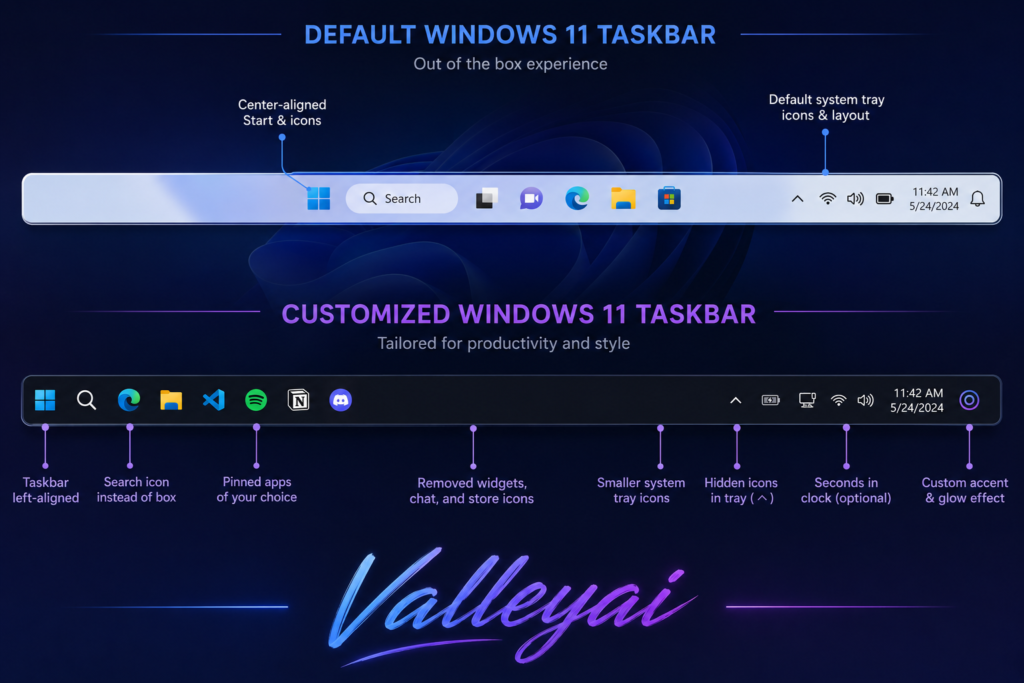
The default Windows 11 taskbar centers everything, which bothers some people deeply and others not at all. If you’re in the first camp:
Settings > Personalization > Taskbar > Taskbar behaviors > Taskbar alignment > Left
That one change makes the taskbar behave more like Windows 10. The Start button moves to the bottom-left corner. Muscle memory resumes.
Beyond alignment, you can control which system icons appear in the taskbar corner (the bottom-right area). Go to Settings > Personalization > Taskbar > Taskbar corner icons to toggle the Pen menu, Touch keyboard, and Virtual touchpad on or off. Under Taskbar corner overflow, you can choose which background apps appear in the system tray versus stay hidden.
Right-clicking the taskbar gives you almost nothing in Windows 11 that’s an intentional change from Windows 10. If you want deeper taskbar customization (custom icon sizes, transparency, etc.), Microsoft’s PowerToys utility is the practical answer. It’s free, open-source, and maintained by Microsoft itself. PowerToys is available on GitHub.
Start Menu — Pinned Apps Over Recommendations
The Start Menu in Windows 11 defaults to showing “Recommended” items recent files and newly installed apps. For most users, the pinned apps section is more useful.
Settings > Personalization > Start > Layout > More pins
This expands the pinned apps grid and reduces the Recommended section. You can also toggle off “Show recently opened items” and “Show recently added apps” if you want a cleaner, more predictable Start Menu.
To pin an app: right-click it in the app list and select Pin to Start. To rearrange pinned apps, drag and drop them. To remove one, right-click and select Unpin from Start.
Quick Settings Panel — Customize What’s Actually There
The Quick Settings panel (Win+A, or click the network/volume/battery cluster in the taskbar) is customizable. By default it includes Wi-Fi, Bluetooth, Airplane mode, Battery saver, Focus assist, Accessibility, and a few others.
Click the pencil icon in the Quick Settings panel to enter edit mode. From there you can add, remove, and rearrange tiles. Night Light, Mobile Hotspot, and Project are useful additions that aren’t there by default.
Night Light — Underrated for Evening Work
Night Light shifts your display toward warmer colors after sunset, reducing blue light exposure. It’s not a dramatic visual change, but over a long evening session, the difference in eye fatigue is noticeable.
Settings > System > Display > Night light
You can set it to turn on automatically at sunset or define custom hours. The strength slider controls how warm the shift goes the default is moderate; going higher starts to feel like working by candlelight.
The Keyboard Shortcuts That Actually Matter
Most keyboard shortcut lists are padded with things you’ll never use. This is the set that changes daily workflow.
| Shortcut | Function | When It Matters |
|---|---|---|
| Win+Z | Open Snap Layout selector | Faster than hovering over the maximize button |
| Win+Tab | Open Task View (Virtual Desktops) | Switching between project contexts |
| Win+Ctrl+D | Create a new Virtual Desktop | Adding a workspace mid-session |
| Win+Ctrl+← / → | Switch between Virtual Desktops | Fastest desktop-switching method |
| Win+Ctrl+F4 | Close current Virtual Desktop | Cleaning up when done |
| Win+V | Clipboard History | Pasting from recent copy history |
| Win+Shift+S | Snipping Tool screenshot | Capture any area of screen instantly |
| Win+D | Show/hide desktop | Quick access to desktop without minimizing |
| Win+L | Lock screen | Fastest way to step away securely |
| Win+E | Open File Explorer | Direct access without Start Menu |
| Win+I | Open Settings | Faster than Start > Settings |
| Win+K | Cast/Connect to wireless display | Connecting to a TV or second monitor |
| Win+X | Power User menu | Quick access to Device Manager, Terminal, Disk Management |
| Win+. (period) | Emoji picker | Faster than searching for emoji in chat |
| Alt+F4 | Close active window | Still works, still fast |
| Ctrl+Shift+Esc | Open Task Manager directly | Faster than Ctrl+Alt+Delete |
| Win + X Then U then U | Shutdown Shortcut Key | Shut down a Windows PC faster |
| Windows Key + X, then U, then R | Restart key for pc | Quick restart option |
The official Windows keyboard shortcuts reference covers the full list if you need it. Microsoft’s keyboard shortcuts page.
Win+X is the one most people don’t know. It opens a context menu with direct links to Device Manager, Event Viewer, Terminal (Admin), Disk Management, and more. It’s the fastest route to system tools faster than searching, faster than Control Panel.
Advanced Features Most Users Never Find
God Mode — 200+ Settings in One Folder
God Mode isn’t a mode. It’s a folder shortcut that aggregates every Control Panel setting into a single searchable list. Useful when you know a setting exists but can’t remember where Windows buried it.
How to enable it:
- Right-click the desktop and select New > Folder
- Name the folder exactly:
GodMode.{ED7BA470-8E54-465E-825C-99712043E01C} - Press Enter — the folder icon changes to a Control Panel icon
- Open it to find 200+ categorized settings
God Mode is useful for troubleshooting. When the Settings app is behaving strangely, or you need a setting that Microsoft moved between versions, this folder usually has it. It’s also a rabbit hole there are settings in there that have no business existing, and you’ll spend 20 minutes exploring things you never needed to change.
PowerToys — Microsoft’s Own Power-User Toolkit
PowerToys is a free, open-source utility suite maintained by Microsoft that adds features Windows should have shipped with. It’s not built into Windows 11, but it’s officially maintained and available through the Microsoft Store or GitHub.
The tools worth knowing:
| PowerToy | Function |
|---|---|
| FancyZones | Advanced window layout manager — goes beyond Snap Layouts |
| PowerRename | Batch file renaming with regex support |
| File Locksmith | Shows which process has a file locked (ending the “file in use” mystery) |
| Peek | Preview files without opening them (like macOS Quick Look) |
| Color Picker | Win+Shift+C to pick any color from the screen |
| Keyboard Manager | Remap any key or shortcut system-wide |
| Always on Top | Pin any window to stay above all others |
| Text Extractor | OCR tool extract text from any image on screen |
File Locksmith alone is worth the installation. The “this file is being used by another process” error is one of the most frustrating Windows experiences, and File Locksmith identifies the culprit immediately.
Task Manager — The Redesigned Version Is Actually Good
The Task Manager in Windows 11 (introduced in 23H2 and refined in 24H2) is a significant improvement over the Windows 10 version. The new design has a left-side navigation panel with separate views for Processes, Performance, App History, Startup Apps, Users, Details, and Services.
Open it: Ctrl+Shift+Esc
The Startup Apps tab is the most immediately useful. It shows every app that launches at startup, along with its measured startup impact (Low, Medium, High). Disabling high-impact startup apps that you don’t need immediately is one of the fastest ways to improve boot time.
The Performance tab now shows CPU, Memory, Disk, and Network usage with clean graphs and real-time data. If your system feels slow, this is where you look first.
Snipping Tool — More Than a Screenshot App
The Snipping Tool (Win+Shift+S) does more than most people realize.
Screenshot modes:
- Rectangular Snip — drag to capture any area
- Window Snip — click a window to capture it exactly
- Full-screen Snip — captures everything
- Freeform Snip — draw any shape
After capturing, the screenshot opens in the Snipping Tool editor where you can annotate, crop, and add text. In Windows 11 24H2, the Snipping Tool gained OCR text extraction click the text icon after a screenshot to copy any text visible in the image.
The Snipping Tool also records screen video. Open the full Snipping Tool app (not just the shortcut), click the video camera icon, and you can record any portion of your screen without third-party software.
Performance & System Management
Storage Sense — Automate the Cleanup You Keep Forgetting
Storage Sense automatically deletes temporary files, old Windows Update files, and items in the Recycle Bin that have been there longer than a set threshold.
Settings > System > Storage > Storage Sense
Toggle it on, then click the arrow to configure it. You can set it to run on a schedule (daily, weekly, monthly, or when disk space is low) and define how long items sit in the Recycle Bin or Downloads folder before automatic deletion.
One important caveat: Storage Sense can delete files from your Downloads folder automatically if you configure it that way. Review the settings carefully before enabling that option it’s not the default, but it’s easy to enable without realizing what it does. Official Storage Sense documentation.
If your drive is constantly full and you’re not sure why, enabling Storage Sense and running it once manually (there’s a “Run Storage Sense now” button at the bottom of the settings page) is the first diagnostic step. It’s not glamorous, but it prevents the “drive full at 3pm on deadline day” scenario that has ruined more than a few afternoons.
Startup App Management — Boot Time Is a Choice
Every app that launches at startup costs you boot time. Most of them don’t need to start automatically.
Settings > Apps > Startup
Or use Task Manager’s Startup Apps tab (Ctrl+Shift+Esc > Startup apps) the Task Manager version shows the measured startup impact, which the Settings page doesn’t.
Disable anything marked High impact that you don’t need running immediately after boot. Common offenders: Spotify, Discord, Teams (if you don’t use it for work), OneDrive (if you prefer to launch it manually), and any software updater that runs in the background.
Dynamic Refresh Rate — Automatic Battery vs. Performance Balance
On laptops with displays that support variable refresh rates (VRR), Dynamic Refresh Rate automatically switches between high refresh rates (120Hz) for smooth scrolling and lower rates (60Hz) when the screen is static, saving battery.
Settings > System > Display > Advanced display > Choose a refresh rate > Dynamic
This option only appears if your display hardware supports it. On compatible devices, it’s worth enabling the battery savings are measurable during long sessions.
Several of these protections depend on TPM 2.0 being present and enabled on your machine.
Privacy & Security Settings Worth Configuring
Windows 11 collects diagnostic and usage data by default. Most of it is opt-outable. Privacy settings in Windows 11 are more granular than in Windows 10, giving users finer control over what gets shared.
Settings > Privacy & security is the master control panel.
The Settings Worth Changing
Diagnostic & feedback:
Settings > Privacy & security > Diagnostics & feedback
Set diagnostic data to Required (minimum) rather than Optional (everything). Disable “Improve inking and typing” and “Tailored experiences” these use your usage data to personalize ads and suggestions.
Advertising ID:
Settings > Privacy & security > General > Let apps show me personalized ads by using my advertising ID > Off
This doesn’t eliminate ads. It disconnects your device from Microsoft’s advertising ID system, making cross-app ad targeting less effective.
App permissions:
Settings > Privacy & security > App permissions
Camera, Microphone, Location, Contacts, Calendar each has a master toggle and per-app controls. Review which apps have microphone and camera access. The list is often longer than expected.
Activity history:
Settings > Privacy & security > Activity history > Store my activity history on this device > Off
This disables Windows Timeline and activity syncing across devices. If you don’t use Timeline, there’s no reason to keep it on.
One thing worth knowing: some privacy settings reset after major Windows Updates. After any significant update (like a feature update from 23H2 to 24H2), it’s worth revisiting Settings > Privacy & security to confirm your preferences are still in place.
Windows Hello — Biometric Authentication Without the Friction
Windows Hello supports three authentication methods: facial recognition, fingerprint, and PIN. Full Windows Hello documentation on Microsoft Support.
Settings > Accounts > Sign-in options
| Method | Speed | Reliability | Hardware Required |
|---|---|---|---|
| Facial recognition | Fast after initial setup | Can fail in low light | IR camera required |
| Fingerprint | Very fast | Highly reliable | Fingerprint reader required |
| PIN | Fast (typing) | Always works | None |
Facial recognition is slower than a PIN on first boot while the system initializes. Once it’s running, it’s noticeably faster than typing especially if your hands are occupied. The convenience factor is real, but it’s worth setting up a PIN as a backup for low-light situations or when wearing a mask.
Passkeys are the next evolution Windows Hello can now authenticate you to websites and apps using passkeys instead of passwords, eliminating the need to type credentials entirely for supported sites.
Windows Backup — The Setting Most People Configure After a Disaster
Windows Backup syncs your settings, app list, and files to your Microsoft account, making it easier to restore your configuration on a new device.
Settings > Accounts > Windows backup
Toggle on Remember my apps, Remember my preferences, and configure OneDrive folder backup. Official Windows Backup documentation.
The honest limitation: Windows Backup restores the list of apps, not the apps themselves. When you set up a new device, it shows you what was installed and offers to reinstall them — but you’ll still need to sign back into each one and reconfigure settings that aren’t synced. It’s better than starting from scratch. It’s not a complete restore.
What’s New in Windows 11 24H2
Windows 11 24H2 shipped in late 2024 with several additions that are genuinely useful and several that are harder to classify.
Sudo for Windows — Run elevated commands in a non-admin terminal without opening a new window. Previously a Linux-only workflow, now available natively. Microsoft’s DevBlog announcement on Sudo for Windows.
Energy Recommendations — Settings > System > Power & battery > Energy recommendations Windows now suggests specific settings changes (like display timeout, sleep settings, and power mode) with an estimated battery impact for each. Useful on laptops; mostly irrelevant on desktops.
Improved Phone Link — Tighter integration with Android devices, including the ability to run Android apps directly on Windows (on supported hardware). The feature requires a Samsung device or a compatible Android phone with Link to Windows installed.
Snipping Tool OCR — Extract text from screenshots directly in the Snipping Tool editor. No third-party software needed.
Enhanced Copilot integration — Copilot in Windows 11 has shifted from a sidebar panel to a more integrated experience. Its practical usefulness depends heavily on your workflow — for document summarization and quick lookups it’s functional; for complex tasks it’s inconsistent.
HDR background support — Wallpapers can now be displayed in HDR on compatible displays, which is either a meaningful visual improvement or completely invisible depending on your monitor.
The Features That Disappoint
Not everything in Windows 11 delivers on its promise. Saying so isn’t pessimism it’s the information you need to decide where to invest your time.
Widgets board: The Widgets board (Win+W) sounds like a useful at-a-glance information panel. In practice, it’s a news feed with a weather widget attached. The “personalized” news is algorithmically selected and skews toward clickbait. Most power users disable it within a week. To remove it from the taskbar: Settings > Personalization > Taskbar > Widgets > Off.
Copilot (current state): Copilot in Windows 11 is functional for simple tasks summarizing a document, answering a quick question but it doesn’t deeply integrate with your system the way the marketing implies. It can’t reliably control Settings, it doesn’t have persistent memory between sessions, and it opens a browser for many tasks that feel like they should stay in the OS. It’s improving with each update, but as of 24H2, it’s a browser-based assistant with a Windows wrapper.
Recommended items in Start Menu: The “Recommended” section shows recent files and newly installed apps. The intent is helpful; the execution is inconsistent. It surfaces files you opened once and never need again while missing the ones you use daily. Most users are better served by pinning their most-used apps and disabling Recommended entirely (Settings > Personalization > Start > Layout > More pins).
Timeline (removed, not replaced): Windows 10 had Timeline a history of everything you worked on, searchable by date. Windows 11 removed it. Nothing has fully replaced it. If you relied on Timeline for recovering “that document I was working on Tuesday,” the workflow gap is real.
The Widgets board disappointment is one of those things that’s hard to explain until you’ve used it for a week. It felt like a genuine Live Tiles replacement on paper. The reality is that it’s a news aggregator that Microsoft really wants you to use.
Frequently Asked Questions
Does Windows 11 have a God Mode like Windows 10?
Yes. The method is identical create a folder with the exact name GodMode.{ED7BA470-8E54-465E-825C-99712043E01C} on your desktop. It works in Windows 11 and aggregates 200+ settings in one place.
How do I move the taskbar back to the left in Windows 11?
Go to Settings > Personalization > Taskbar > Taskbar behaviors > Taskbar alignment and select Left. This moves the Start button and all taskbar icons to the left edge, matching the Windows 10 layout.
Can I use multiple monitors with Snap Layouts?
Yes. Snap Layouts works independently on each monitor. You can have a different layout on each screen, and Windows will remember your per-monitor arrangements.
How do I stop Windows 11 from collecting my data?
Go to Settings > Privacy & security and work through each subcategory. The most impactful changes are: setting Diagnostics to Required only, disabling the Advertising ID, reviewing app permissions (Camera, Microphone, Location), and turning off Activity history.
What’s the fastest way to switch between apps in Windows 11?
Alt+Tab for apps on the current desktop. Win+Ctrl+Left/Right for switching between Virtual Desktops. Win+Tab for a visual overview of everything. For power users, combining Virtual Desktops with per-desktop Snap Layouts reduces the need to Alt+Tab at all.
Does Windows Hello work without an internet connection?
Yes. PIN, fingerprint, and facial recognition all authenticate locally. They don’t require an internet connection or Microsoft account verification at the time of login.
How do I speed up Windows 11 startup?
Three things make the biggest difference: (1) Disable high-impact startup apps in Task Manager > Startup apps. (2) Enable Storage Sense to keep the drive from filling up. (3) Check Settings > System > Power & battery and ensure your power mode isn’t set to Best power efficiency, which throttles performance.
What is the Windows 11 24H2 update and should I install it?
24H2 is the 2024 annual feature update for Windows 11. It adds Sudo for Windows, Energy Recommendations, improved Snipping Tool OCR, and refined Copilot integration, among other changes. For most users, it’s a stable update worth installing. Enterprise environments should follow their IT department’s deployment timeline.
The most useful thing you can do right now is pick one section from this guide just one and spend 10 minutes actually enabling and testing what it describes. The Productivity Stack section is the highest-leverage starting point. Snap Layouts + Virtual Desktops + Clipboard History, used together for a single workday, will change your opinion of Windows 11 faster than any feature list ever could.
To work faster once Windows is tuned, keep our task-first Windows keyboard shortcuts cheat sheet within reach.

Kaleem
Kaleem is a Computer Science graduate (Virtual University of Pakistan) and the founder and editor of Valley AI, where he publishes in-depth, tested guides on computer hardware, artificial intelligence, and how the internet works. Every guide is researched from primary sources, tested hands-on where possible, and updated when the facts change.