

You’re staring at a blue screen. It demands a 48‑digit recovery key you don’t remember creating, and your only other thought is the deadline you’re about to miss. That sinking feeling isn’t a malfunction it’s BitLocker doing its job. The good news: your key almost certainly exists. The bad news: it’s probably not where you’re looking.
This isn’t a theoretical walkthrough. It’s the guide you need when the recovery screen is already up, or when you’re smart enough to prepare before it ever appears.
Where Your BitLocker Recovery Key Lives (and How to Retrieve It Right Now)
Your BitLocker recovery key is a 48‑digit number that unlocks an encrypted drive when the normal unlock mechanism fails. It’s not your Windows password, not a PIN, not a file you can guess. But it is stored in one of several specific places. Your job is to check them all not just the first one that comes to mind.
Microsoft account (personal) If you signed into Windows with a personal Microsoft account, the key was likely saved automatically to account.microsoft.com/devices/recoverykey. Sign in, and you’ll see a list of recovery keys matched to recovery key IDs. Match the ID shown on your recovery screen to the one in the list. If you see multiple keys, that’s normal each encrypted drive gets its own.
Work or school account (Azure AD) Devices joined to an organization often store the key in Azure AD. Go to aka.ms/aadrecoverykey and sign in with your work credentials. If your organization uses Microsoft Intune, the key may also be visible to your IT admin. If you don’t see it, contact them immediately they can retrieve it, but only if it was backed up during provisioning.
USB flash drive During BitLocker setup, you might have saved the key as a .BEK file on a USB drive. Plug that drive into any working computer. The file is tiny and looks like a random string of characters. Open it with Notepad, and you’ll find the 48‑digit key inside.
Printed copy Some people print the key and file it away. If that’s you, dig it out. The printed page includes the recovery key ID, which you’ll need to match with the screen.
Password manager or secure note If you’re the kind of person who exports keys into a password manager, you already know where to look. If not, now’s a good time to start but only after you regain access.
No key found? If you’ve checked every location and come up empty, skip to the lockout section below. Don’t waste time re‑checking the same account twice; panic has a way of making you overlook the obvious, but the key doesn’t move.
A Pre‑Lockout Backup Plan That Actually Works
Automatic backup can fail silently especially if you first set up Windows with a local account and later switched to a Microsoft account. The key never retroactively syncs.
A real backup plan means you verify the key exists, not just assume it does. Here’s a checklist that takes five minutes and can save your data:
- Confirm the Microsoft account backup. Sign in at
account.microsoft.com/devices/recoverykey. If you don’t see a key with a matching recovery key ID, it’s not there. Don’t trust the memory of having saved it. - Export the key manually. Open an elevated Command Prompt and run:
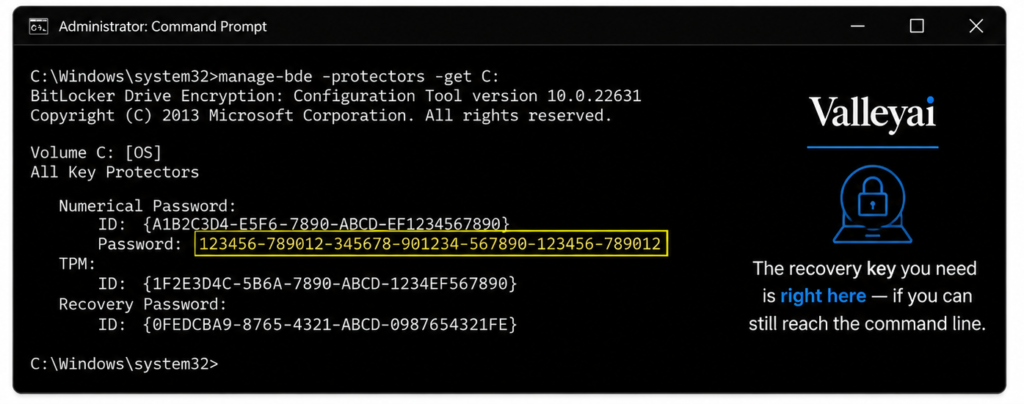
manage‑bde -protectors -get C:
Look for the “Numerical Password” entry. That’s your recovery key. Copy it somewhere safe a password manager, an encrypted note, or a piece of paper stored in a locked drawer. - Save to a dedicated USB drive. Create a text file containing only the 48‑digit number, label the drive clearly, and store it separately from your computer. A fireproof safe beats a desk drawer.
- Print a physical copy. Thermal printers fade; use a laser printer. Staple the printout to your will or hide it in a book you won’t forget, but a book a thief wouldn’t open.
- Set a calendar reminder. Every six months, or after any major Windows feature update, verify the key is still accessible. Updates can reset TPM states; they don’t delete keys, but they can change the protector configuration, making a previously backed‑up key invalid for future recovery.
This isn’t paranoia. It’s the difference between a 30‑second unlock and a weekend of data loss.
What to Do the Moment You’re Locked Out (Even If You Can’t Find the Key)
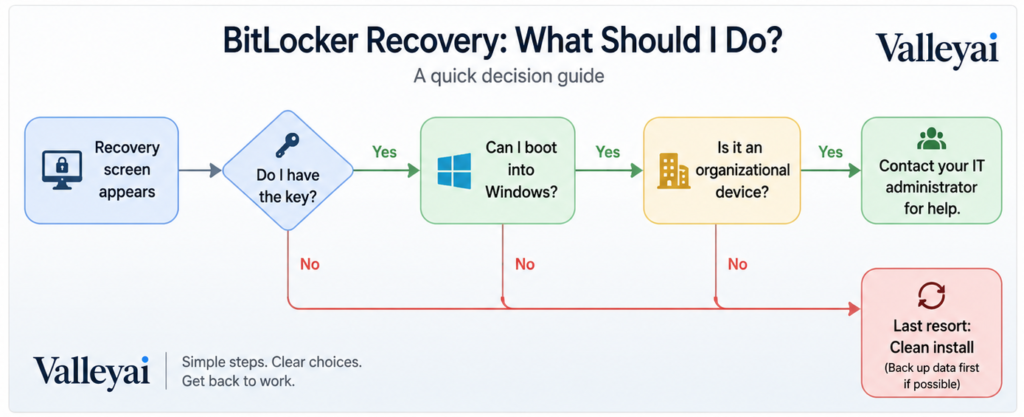
The recovery screen appears. You have the recovery key ID on screen. Here’s your escalation path, in order:
- Enter the key if you have it. Type the 48‑digit number using the function keys (F1–F9) to input numbers. The screen tells you which keys to press. If the key is rejected, double‑check the recovery key ID you might be using a key for a different drive.
- If you can still boot into Windows (even Safe Mode). This is the escape hatch most guides miss. Open an elevated Command Prompt and run:
manage‑bde -protectors -get C:
The recovery key is displayed right there. Write it down, then reboot and enter it on the recovery screen. - If the locked drive is a secondary drive or external USB (BitLocker To Go). Connect it to another Windows machine. You can unlock it using the BitLocker control panel or the
manage‑bde -unlockcommand provided you have the key. If you don’t, and it’s a secondary drive, you’re in the same boat as step 4. - No key, no bootable Windows, and no secondary access. Contact your IT department if the device belongs to an organization. Give them the recovery key ID from the screen. They may have the key in Azure AD or Intune. Do not attempt any recovery method that violates your company’s security policy.
- Personal device, no key anywhere. You’ve reached the hard truth: Microsoft cannot recover your key. There is no backdoor. Your data is encrypted with AES‑128 or AES‑256; without the key, it is mathematically inaccessible. At this point, you have two options:
- Professional data recovery — expensive, not guaranteed, and only viable if the drive is physically intact.
- Clean Windows installation — this will wipe the drive completely. Boot from a Windows installation USB, delete all partitions during setup, and reinstall. Your data is gone, but the hardware is usable again.
Before you choose the nuclear option, ask yourself: did you ever sign into another Microsoft account on that machine? Did you use a work account for Office 365 while signed into Windows with a personal account? That key might be living in the other account’s recovery key page. Check every email address you’ve ever used.
The trigger is almost always a firmware or hardware change that altered how TPM 2.0 reports the system state.
Why That Blue Screen Appeared (And How to Stop It Happening Again)
BitLocker doesn’t lock you out randomly. It’s responding to a security event. The most common trigger is a change in the Trusted Platform Module (TPM) measurements the hardware “fingerprint” that Windows uses to verify your PC hasn’t been tampered with.
A BIOS update, a firmware flash, a hardware change (new SSD, added RAM), or even disabling Secure Boot can alter the TPM’s Platform Configuration Registers (PCRs). When the PCR values no longer match what was recorded at encryption time, BitLocker enters recovery mode. It’s doing exactly what it was designed to do: protecting your data from an unauthorized boot environment.
The recovery key is the override. Once you enter it, the TPM reseals its measurements to the new hardware state, and you won’t be prompted again until the next significant change.
To reduce the chance of surprise lockouts:
- Pause BitLocker before updating your BIOS or firmware. Open Control Panel → BitLocker Drive Encryption → “Suspend protection” for the system drive. Reboot, apply the update, and protection resumes automatically.
- Keep your recovery key backup verified, as described earlier. You can’t predict every hardware change, but you can always be prepared for the recovery prompt.
- If you frequently swap hardware (e.g., an external GPU or dock), consider whether BitLocker’s TPM‑only protector is appropriate. Some users add a startup PIN as a secondary factor, which can prevent recovery prompts from minor configuration changes — but that’s a trade‑off between convenience and security best left to your organization’s policy.
The blue screen isn’t a punishment. It’s proof your encryption works. The real problem is not the lockout it’s the missing key.
Frequently Asked Questions
Can Microsoft help me find my BitLocker recovery key?
No. Microsoft does not have a copy of your recovery key and cannot bypass BitLocker encryption. If you used a Microsoft account, the key might be stored in your online account, but Microsoft support cannot retrieve it for you. This is by design if a backdoor existed, it would undermine the entire purpose of encryption.
How to unlock BitLocker without recovery key?
Without the key, there is no official unlock method. If the drive is still accessible (e.g., you can boot into Windows or attach it as a secondary drive), you can extract the key using the manage‑bde -protectors -get command. If the drive is completely locked and you have no key, your only option is to wipe it and reinstall Windows, which destroys all data.
Does the BitLocker recovery key change?
The recovery key itself does not change unless you manually remove and re‑add the protector. However, a single drive can have multiple protectors (TPM, PIN, recovery key), and if you suspend BitLocker or change protectors, the recovery key remains valid as long as it wasn’t deleted. The recovery key ID shown on the screen helps you match the correct key if multiple exist. Official Microsoft security documentation.
What to do if the recovery key is not in my Microsoft account?
Sign in at account.microsoft.com/devices/recoverykey. If no key appears, check every other Microsoft account you might have used on that device personal, work, school, or even a family member’s. If the device was set up with a local account and later linked to a Microsoft account, the key was likely never uploaded. In that case, try the manage‑bde method if you can still boot, or fall back to the escalation path in the lockout section above.
How to turn off BitLocker without recovery key?
You cannot turn off BitLocker from the recovery screen without the key. If you can boot into Windows, open Control Panel → BitLocker Drive Encryption and click “Turn off BitLocker.” This decrypts the drive. If you’re locked out and have no key, you must perform a clean installation of Windows, which removes encryption by wiping the drive. There is no other way.
BitLocker is one layer of a wider defence, explained in our ultimate guide to cybersecurity and internet safety.

Kaleem
Kaleem is a Computer Science graduate (Virtual University of Pakistan) and the founder and editor of Valley AI, where he publishes in-depth, tested guides on computer hardware, artificial intelligence, and how the internet works. Every guide is researched from primary sources, tested hands-on where possible, and updated when the facts change.