
Ever looked inside a computer and felt like you were staring at a complex, alien city? You’re not alone. The world of computer hardware is filled with acronyms and jargon that can make anyone feel overwhelmed. But what if i told you it’s all surprisingly simple?
Think of a computer like a human body. It has a brain that thinks, a memory to recall information, a skeleton to hold everything together, and senses to interact with the world. The hardware is that physical body the skeleton, the organs, the senses. The software (apps and operating system) is the consciousness the thoughts and skills that bring the body to life.
We will break down every core PC component, explaining what it is, what it does, and most importantly, why it matters to you. By the end, you’ll understand what makes a computer fast, what’s needed for gaming, and you’ll be able to shop for a PC with confidence.
What Is Computer Hardware?
Computer hardware refers to the physical components of a computer system that you can touch and see. This includes the internal parts like the CPU, RAM, and motherboard, as well as external peripherals like the monitor, keyboard, and mouse. Hardware provides the physical framework that allows software to run.
Main Components Of A Computer
The main hardware components of a modern computer include:
- Motherboard (The central circuit board)
- Central Processing Unit (CPU)
- Random Access Memory (RAM)
- Storage Drive (SSD or HDD)
- Power Supply Unit (PSU)
- Graphics Processing Unit (GPU)
Hardware vs Software: The Two Halves of a Whole
Before we open the case, let’s solidify the most fundamental concept.
- Hardware: These are the physical parts of a computer you can touch. The monitor, the keyboard, USB-C, the microchips inside it’s all hardware.
- Software: This is the set of programs, instructions, and data that guide the hardware what to do. Your web browser, your operating system (like Windows or macOS), and your video games are all under the category of software.
An easy analogy is a cookbook. The book itself, with its paper and ink, is the hardware. The recipes written inside are the software. You need both to cook a meal.
The 4 Main Categories of Hardware
To make things easier, computer hardware is often divided into four distinct functional categories. Understanding these helps you see how data moves through the system:
- Input Devices: Tools you use to send data into the computer (Keyboard, Mouse, Microphone).
- Processing Devices: The components that calculate and manipulate that data (CPU, GPU).
- Output Devices: Hardware that shows you the results (Monitor, Speakers, Printer).
- Storage Devices: Where data is kept when not in use (Hard Drive, SSD, Flash Drive).
The Core Components: Inside Your Computer’s Engine Room
Every computer, from a high-end gaming rig to a simple office desktop, is built around four essential internal hardware components. Think of these as the non-negotiable parts of the engine.
The Brain: Central Processing Unit (CPU)
The CPU is the brain of the computer. Its primary job is to process instructions and perform calculations. Every time you click, type, or start an application, the CPU is what executes that command.
Read: where does the cpu store its computation
What it does: It crunches numbers and executes billions of instructions per second, making it the primary factor in your computer’s overall speed.
- Key Metrics Explained:
- Cores: Think of a core as an individual processor. More cores allow the CPU to multitask effectively (e.g., stream music while you’re gaming).
- Clock Speed (GHz): This measures how many cycles a CPU can complete per second. In simple terms, A higher clock speed usually means a faster processor for individual tasks.
A powerful CPU means a faster, more responsive computer that can handle demanding tasks like video editing, programming, or complex spreadsheets without lagging.
Popular CPU Brands
The two biggest names in CPUs are Intel and AMD. Intel processors are known for strong single core performance, which is useful for tasks like gaming. AMD processors, especially the Ryzen series, offer excellent multi-core performance, making them great for heavy workloads like video editing or 3D rendering.
Choosing the Right CPU
- Everyday Use (web, documents, light apps): A budget-friendly dual-core or quad-core CPU is enough.
- Gaming: Look for CPUs with at least 6 cores and strong single-core speed.
- Content Creation / AI Work: Go for CPUs with higher core counts (8–16 cores or more) to handle demanding tasks.
The Workspace: Random Access Memory (RAM)
If the CPU is the brain, RAM acts as short term memory or its workbench. Whenever you open an application or a file, it gets loaded from your long-term storage into the RAM so the CPU can access it quickly.
What it does: It temporarily keeps all the data for the applications you are currently usning. The more RAM you have, the bigger your “workbench” is, and the more things you can handle at once.
- Key Metrics Explained:
- Capacity (GB): The amount of data it can hold. 8GB is standard, 16GB works well for multitasking and gaming, and 32GB+ is for advaced or professional users.
- Speed (MHz): How quickly the memory can read and write data.
- Types of RAM
- DDR4: Most common in modern systems.
- DDR5: Newer, faster, and more efficient, but currently more expensive.
Why it matters: Insufficient RAM is why your computer slows to a crawl when you open too many browser tabs. More RAM means smoother multitasking.
Read also: How to potimize ram usage.
The Nervous System: Motherboard
The motherboard is the central nervous system. It’s a large circuit board that connects all the hardware components together. The CPU, RAM, storage drives, and graphics card all plug directly into the motherboard. It enables all the component in the computer to communicate with one another. It’s the central hub for data and power.
- Key Roles of the Motherboard
- Provides power and data connections between components.
- Hosts the BIOS/UEFI firmware, which controls startup.
- Offers expansion slots for GPUs and other cards.
- Form Factors (Sizes)
- ATX: Standard size with plenty of expansion slots.
- Micro-ATX: Smaller, fewer slots, more budget-friendly.
- Mini-ITX: Very compact, good for small PCs but limited upgrades.
- Choosing the Right Motherboard
- Check CPU compatibility (socket type).
- Look at the number of RAM slots and supported speeds.
- Consider expansion options for future upgrades (extra SSD slots, PCIe lanes, etc.).
The motherboard doesn’t directly affect performance like a CPU or GPU, but it decides what components you can use and how well they work together.
Ports and Connections: The Back Panel Explained
If you look at the back of your PC tower (or the side of your laptop), you’ll see a row of ports connected directly to the motherboard. Here is what they do:
- HDMI / DisplayPort: Connects your monitor to transmit video and audio.
- USB (Type-A & Type-C): Universal ports for keyboards, mice, and external drives. Type-C is the newer, faster standard.
- Ethernet (RJ45): A square port for a wired internet connection, offering faster speeds than Wi-Fi.
- Audio Jacks (3.5mm): Usually color-coded (Green for speakers, Pink for microphones).
The Library: Storage (SSD, HDD, NVMe)
Storage is the computer’s long-term memory, similar to a library or a filing cabinet. It’s holds your operating system, applications, and your personal files (photos, documents, games) are permanently kept, even when pc power is off .
Types of Storage
- HDD (Hard Disk Drive):
- Uses spinning disks and a mechanical arm to read/write data.
- Pros: Large storage capacity, cheaper per GB.
- Cons: Slower performance, more fragile.
- SSD (Solid State Drive):
- Uses flash memory, no moving parts.
- Pros: Much faster than HDDs, quieter, more durable.
- Cons: Smaller storage capacity for the price.
- NVMe SSD (Non-Volatile Memory Express):
- The fastest type of storage, connects directly to the motherboard via PCIe.
- Pros: Extremely fast boot times and file transfers.
- Cons: More expensive than regular SSDs.
Read a detail guide about the difference between HDD, SSD and NVMe
Best Storage Setups
- Budget Systems: HDD only.
- Balanced Setup: SSD for OS + HDD for bulk storage.
- High-Performance Systems: NVMe SSD for OS and programs + larger SSD/HDD for extra storage.
In short, if you want a faster computer, upgrading to an SSD or NVMe drive is one of the best investments.
CPU Registers: What Are CPU Registers?
CPU registers are very small and extremely fast storage locations inside the processor. They temporarily hold data, instructions, or addresses that the CPU is actively using. Because registers are built directly into the CPU, they allow the processor to access information almost instantly, without waiting for RAM.
In simple terms, registers act like the CPU immediate working area, helping it perform tasks quickly and efficiently.
Common Types of CPU Registers
At a basic level, CPUs use several common types of registers:
- Accumulator: Stores intermediate results of calculations.
- Program Counter (PC): Keeps track of the address of the next instruction to be executed.
- Instruction Register (IR): Holds the current instruction being processed.
- General Purpose Registers: Used to store data and variables during program execution.
These registers work together to ensure instructions are processed smoothly and efficiently.
The Specialists: Powering Your Visuals and Performance
While the core four are essential, specialist components handle specific, heavy-duty tasks to take the load off the main system.
The Artist: Graphics Processing Unit (GPU)
Also known as a graphics card or video card, the GPU is a specialized processor designed to rapidly create and render images, videos, and animations.
What it does: It takes complex data and turns it into the images you see on your monitor. While every computer has some form of graphics processing (often built into the CPU, called “integrated graphics”), a powerful, “dedicated” GPU is essential for demanding visual tasks.
Integrated vs Dedicated GPUs
- Integrated GPU: Built directly into the CPU. Good for everyday tasks like browsing, streaming, and light gaming.
- Dedicated GPU: A separate, more powerful graphics card. Essential for gaming, video editing, 3D modeling, and AI computing.
Key Specs to Look At
- VRAM (Video Memory): More VRAM allows the GPU to handle higher resolution textures and complex graphics.
- Clock Speed & Cores: Similar to CPUs, GPUs also have cores (like CUDA cores in NVIDIA cards) that affect how fast they process graphics.
Why it matters: A dedicated GPU is the single most important component for PC gaming. It’s also crucial for professional work like 3D modeling, animation, and high-resolution video editing.
Use Cases
- Casual Use: Integrated graphics are fine for office work or media streaming.
- Gaming: A dedicated GPU like NVIDIA GeForce or AMD Radeon ensures smooth performance.
- Professional Work (AI, design, video editing): High-end GPUs are essential for rendering large files and running machine learning models.
The Heart: Power Supply Unit (PSU)
The PSU is the humble but vital heart of your computer. It takes the electricity from your wall outlet and converts it into the proper voltages that all the other components need to run.
- What it does: It powers everything in your system.
- Why it matters: A low-quality PSU can be dangerous, providing unstable power that can damage your components or fail completely. Choosing a reliable PSU is critical for a stable and long-lasting PC.
Key Things to Consider
- Wattage: How much power your system needs. A basic PC may run on 400–500W, but gaming or workstation PCs often need 650W–850W or more.
- Efficiency Ratings (80 Plus): Look for ratings like Bronze, Gold, or Platinum. Higher efficiency means less wasted energy and lower electricity bills.
- Modular vs Non-Modular:
- Non-modular: All cables are permanently attached (cheaper but messier).
- Modular: You only connect the cables you need, which makes building and cleaning easier.
If your PSU fails, your whole system goes down. That’s why investing in a trusted brand is always worth it.
The Support System: Case and Cooling
These components provide the structure and environment for the high-performance parts to operate safely.
- The Skeleton & Skin: The Computer Case (Chassis): This is the metal or plastic box that houses and protects all the internal hardware. It also plays a key role in airflow to keep things cool.
- The Lungs: Cooling Systems: The CPU and GPU generate a lot of heat. Cooling systems, like fans and heatsinks (air cooling) or radiators and pumps (liquid cooling), draw this heat away to prevent the components from overheating and throttling their performance.
The Bridge to You: Peripheral And Expansion Components
Peripherals are the external hardware devices that allow you to interact with your computer. They are the bridge between you and the machine.
- Input Devices (Your Commands): These send data to the computer.
- Keyboard & Mouse: The primary way we interact with PCs.
- Microphone: Inputs audio.
- Webcam: Inputs video.
- Drawing Tablets / Game Controllers: Useful for artists and gamers who need specialized input.
- Output Devices (The Computer’s Response): These receive data from the computer.
- Monitor: Displays the visual information from the GPU, Resolution (1080p, 1440p, 4K) and refresh rate (60Hz, 144Hz, 240Hz) affect clarity and smoothness.
- Speakers/Headphones: Outputs audio.
- Printer: Creates physical copies of digital documents.
- Expansion Cards
- Some features are not built into the motherboard. Expansion cards can add them:
- Graphics Cards (GPUs): For high-performance graphics.
- Sound Cards: For higher-quality audio.
- Network Cards (NICs): For faster or more stable internet connections.
These components may not always be essential, but they make your PC more personalized and powerful.
Firmware: BIOS & UEFI
When you press the power button, the first thing that starts is the firmware either BIOS (Basic Input/Output System) or the newer UEFI (Unified Extensible Firmware Interface).
What Firmware Does
- Runs a quick check of hardware (POST: Power-On Self-Test).
- Initializes key components like the CPU, RAM, and storage.
- Passes control to the operating system (Windows, macOS, Linux, etc.).
BIOS vs UEFI
- BIOS (Older): Text-based interface, limited to older systems, but still used in many machines.
- UEFI (Newer): More user-friendly, supports larger storage drives, faster boot times, and advanced security features.
Why It Matters
The BIOS/UEFI allows you to:
- Change boot order (e.g., boot from USB).
- Overclock or adjust CPU/RAM settings.
- Enable or disable hardware features.
Understanding firmware helps when troubleshooting for example, if your PC won’t boot, you often need to check the BIOS/UEFI first.
The Symphony: How All Computer Hardware Works Together
Understanding the individual parts is great, but the magic happens when they work in concert. So, how do computer hardware components work together? Let’s trace a simple action: clicking on a program icon to open it.
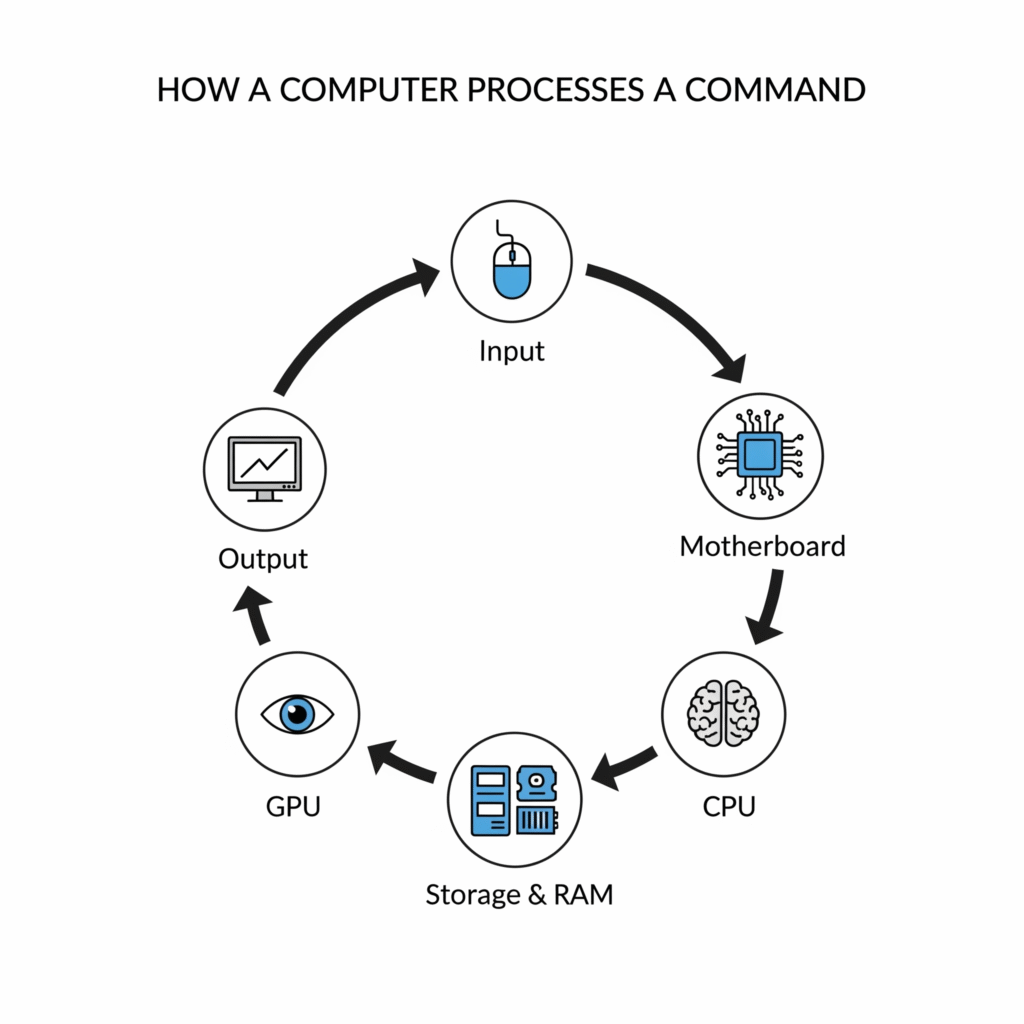
- Input: You click your mouse. The mouse sends a signal to the computer.
- Communication: The signal travels through a port to the motherboard.
- Processing: The motherboard routes the signal to the CPU. The CPU interprets the signal as a command to launch the program.
- Retrieval: The CPU requests the program’s data from your storage drive (SSD/HDD).
- Activation: The program data is loaded from the storage drive into the RAM, your super-fast workspace.
- Execution & Display: The CPU begins executing the program’s instructions using the data now in RAM. Simultaneously, the GPU renders the program’s visual interface.
- Output: The GPU sends this visual information to your monitor, and the program window appears on your screen.
All of this happens in a fraction of a second, powered continuously by the PSU and kept from overheating by the cooling system. It’s a perfectly coordinated symphony.
Building vs Buying a PC
When it comes to getting a new computer, you usually have two choices: build your own or buy a prebuilt system. Both options have pros and cons.
Building Your Own PC
- Pros:
- Full control over every part (CPU, GPU, RAM, etc.).
- Can save money if you choose parts wisely.
- Easier to upgrade later.
- Cons:
- Requires research and patience.
- Mistakes in assembly or compatibility can be frustrating.
- No official warranty for the whole system (only individual parts).
Buying a Prebuilt PC
- Pros:
- Ready to use right out of the box.
- Comes with warranty and customer support.
- No need for technical knowledge.
- Cons:
- Often more expensive than building.
- Limited options for customization.
- Sometimes uses lower-quality parts in non-visible areas (like PSU).
Which should you choose?
- If you want to learn and customize, build your own PC.
- If you prefer convenience and support, buy prebuilt.
How to Check Your PC Specs
Don’t know what hardware is currently inside your rig? Here is the quickest way to find out without opening the case:
For Windows:
- Press the Windows Key and type System Information.
- Press Enter. This opens a window listing your Processor (CPU), BaseBoard (Motherboard), and Installed Physical Memory (RAM).
- To see your Graphics Card, click the + next to Components and select Display.
For Mac:
- Click the Apple Icon in the top-left corner and select About This Mac. This shows your Chip (CPU/GPU) and Memory (RAM).
Troubleshooting And Maintenance
Even the best computer hardware needs care. Maintenance keeps your system running smoothly, while troubleshooting helps you fix issues when things go wrong.
Basic Maintenance Tips
- Clean regularly: Dust can block airflow and cause overheating.
- Update software: Keep drivers, BIOS/UEFI, and the operating system up to date.
- Check cables: Loose connections can cause random crashes.
Common Troubleshooting Steps
- PC won’t start: Check PSU switch, power cables, and motherboard connections.
- Overheating: Clean fans, reapply thermal paste, or improve cooling.
- Slow performance: Add more RAM, upgrade to SSD, or scan for malware.
- No display: Reseat the GPU or check monitor connections.
Tools That Help
- Device Manager (Windows): Shows if drivers or hardware have issues.
- BIOS/UEFI settings: Useful for checking CPU/RAM recognition.
- Temperature monitoring apps: Help you spot overheating early.
Regular maintenance not only fixes problems but also extends the life of your hardware.
Conclusion: You’re Now Hardware-Savvy
The world of computer hardware isn’t so scary after all. By understanding that each component has a specific role—a brain, a workspace, a nervous system you can break down any machine into a set of understandable parts.
You now have the foundational knowledge to read tech reviews, make informed decisions when buying your next computer, and appreciate the incredible symphony of technology working together right at your fingertips.
Read also: Importance of computer in modern life
Frequently Asked Questions (FAQs)
What is the most important piece of computer hardware?
CPU is generally considered the most critical component as it dictates the overall speed and capability of the entire system. For gamers, however, the GPU is equally, if not more, important.
Can I upgrade my computer’s hardware?
Yes! One of the biggest advantages of desktop PCs is modularity. You can often upgrade your RAM, storage, and GPU quite easily. CPU and motherboard upgrades are more complex but still possible.
How do I choose hardware for gaming vs. work?
For gaming, prioritize a powerful dedicated GPU and a fast CPU. For general office work, a modern CPU with integrated graphics and a fast SSD for quick boot times are more important. For creative work like video editing, you need a balance of a strong CPU (many cores), lots of RAM (32GB+), and a good GPU.
What’s the difference between RAM and storage?
RAM is volatile, fast, short term memory (your active workbench) that is cleared when the power is off. Storage (SSD/HDD) is non-volatile, slower, long-term memory (your library) that saves your files permanently.
What exactly is computer hardware?
How do internal and external hardware work together?
Internal components such as the CPU, RAM, and motherboard work behind the scenes to run software and manage data. Meanwhile, external peripherals interact with users input devices like keyboards provide instructions, while output devices like monitors display results. Compatibility between both hardware types is essential for smooth operation.
Can I mix and match parts from different brands?
Yes, but you must check compatibility. For example, your CPU must fit the motherboard socket, and your PSU must have enough power for your GPU. Always check specifications before buying.
What’s the most important part for gaming?
Both the CPU and GPU matter, but the GPU (graphics card) usually has the biggest impact on gaming performance. RAM and storage also affect speed, but less directly.
Is more storage better than faster storage?
Not always. A fast SSD or NVMe drive makes your computer feel more responsive than a huge but slow HDD. A smart setup is having both: SSD for speed, HDD for capacity.
What are the 5 main hardware components of a computer?
The five main hardware components are the Motherboard, Central Processing Unit (CPU), Random Access Memory (RAM), Hard Drive or Solid State Drive (Storage), and the Power Supply Unit (PSU).
How do I check my computer hardware specs?
On Windows, open Settings > System > About, or type ‘System Information’ in the search bar. On Mac, click the Apple menu > About This Mac.

Kaleem
My name is Kaleem and i am a computer science graduate with 5+ years of experience in Computer science, AI, tech, and web innovation. I founded ValleyAI.net to simplify AI, internet, and computer topics also focus on building useful utility tools. My clear, hands-on content is trusted by 5K+ monthly readers worldwide.