
You click an application, open a file, or start your computer. The processor does the work, RAM holds active information, and the SSD supplies the stored data. Understanding that division makes SSD terminology much easier to follow.
An SSD, or solid-state drive, is a storage device that saves data using electronic NAND flash memory rather than spinning magnetic platters. An SSD stores an operating system, applications, games, photos, documents, and other files even when the computer is turned off.
SSDs are common in laptops, desktops, gaming consoles, external drives, servers, and data centers. They are usually faster and quieter than hard disk drives, but the best choice still depends on capacity, compatibility, workload, and budget.
What Is an SSD in Simple Terms?
An SSD is persistent computer storage built from flash memory chips and a controller. “Persistent” means the stored information remains available after the device loses power.
Unlike a traditional hard disk drive (HDD), an SSD has no spinning platters or mechanical read/write heads. The SSD controller locates data across NAND flash memory cells and manages how information is read, written, corrected, and distributed.
An SSD commonly stores:
- The operating system, such as Windows, macOS, or Linux
- Applications and games
- Documents, photos, music, and videos
- Temporary working files
- Virtual machines and project files
- Backups, when the SSD is used as a separate backup device
The word drive describes the storage device, not a guarantee that the device contains moving parts. A solid-state drive is still a drive even though its data storage is electronic.
SSD, RAM, CPU, and GPU: Where Each Part Fits
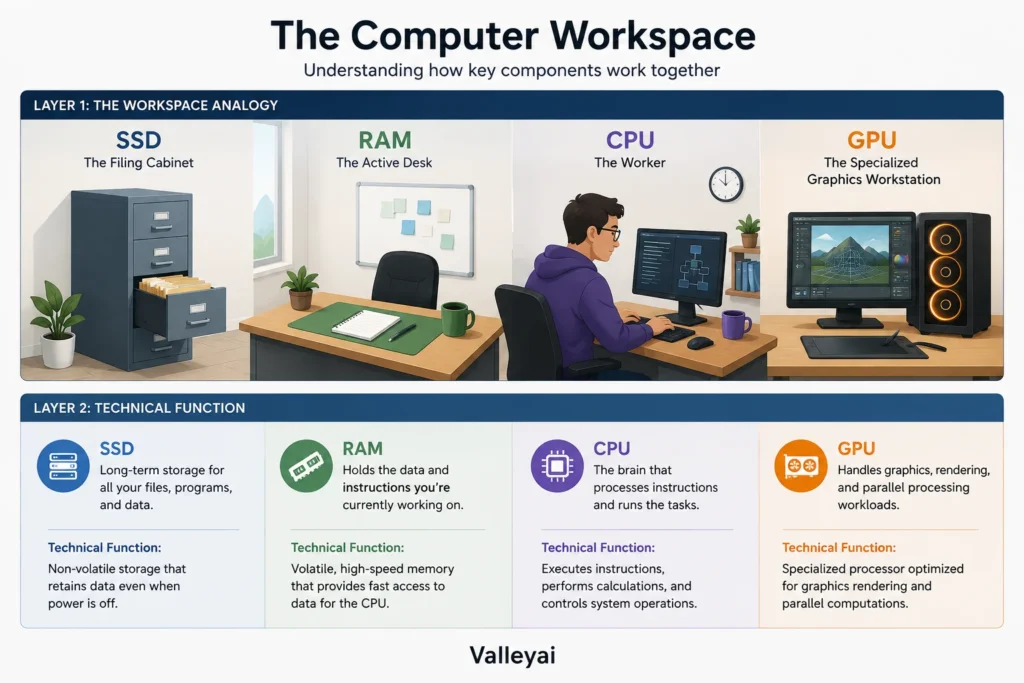
An SSD stores data for long-term use, while RAM temporarily holds information that active programs need immediately.
A useful mental model looks like this:
| Computer component | Main job | Keeps data after shutdown? |
|---|---|---|
| SSD | Stores files and programs | Yes |
| RAM | Holds active working data | No |
| CPU | Processes instructions | Not applicable |
| GPU | Processes graphics and parallel workloads | Not applicable |
Think of the SSD as a filing cabinet, RAM as the desk, and the CPU as the worker. The filing cabinet holds all available documents. The desk holds the documents currently in use. The worker reads and changes those documents.
An SSD does not replace RAM. A computer with more SSD capacity can store more files, but additional storage does not give applications more working memory. If a computer lacks enough RAM, the operating system may use storage as temporary virtual memory, but an SSD remains much slower than physical RAM.
An SSD can make a computer feel much faster without increasing CPU or GPU power. Booting, launching programs, opening files, and loading game levels involve storage access, so replacing a mechanical HDD with an SSD often changes the experience immediately.
How Solid-State Storage Works
An SSD stores electrical charge in NAND flash memory cells, while the SSD controller translates the computer’s logical requests into physical flash operations.
The process is more involved than saving a file into a single fixed location. An SSD typically uses several management systems:
- Memory cells: NAND cells hold charge states that represent stored data.
- SSD controller: The controller coordinates communication, reads, writes, error correction, and maintenance.
- Flash Translation Layer (FTL): The FTL maps logical addresses used by the operating system to physical locations in flash memory.
- Error correction: Error-correcting systems detect and repair certain read errors.
- Wear leveling: The controller distributes writing across available cells to reduce uneven wear.
- Garbage collection: The drive reorganizes valid data and prepares flash blocks for reuse.
- Cache: Some SSDs use DRAM or a portion of flash as a temporary performance buffer.
- TRIM: Supported operating systems can tell an SSD which data blocks are no longer needed, helping the controller manage space.
When a computer reads a file, the SSD controller finds the relevant flash locations and returns the data through the drive’s interface. When a computer writes a file, the controller may write new data to available flash pages rather than overwriting the original location directly.
That arrangement helps flash memory work efficiently, but it also means an SSD’s internal behavior is not visible from the file system. A file may appear to occupy one location to the operating system while the controller stores its pieces elsewhere.
Why NAND flash is called non-volatile
NAND flash is non-volatile memory, meaning it can retain stored information without continuous electrical power. That property makes NAND suitable for SSDs, USB flash drives, memory cards, and many embedded storage systems.
NAND flash is different from RAM. RAM loses its working data when power is removed, while NAND flash is designed to retain stored data without power. The two technologies support different roles inside a computer.
SSD vs HDD: Which Storage Technology Fits the Job?
An SSD is usually the better choice for an operating-system drive and frequently used applications, while an HDD can still make sense for inexpensive, high-capacity storage.
| Characteristic | SSD | HDD |
|---|---|---|
| Storage method | NAND flash memory | Magnetic platters and read/write heads |
| Moving parts | None | Yes |
| Access behavior | Low-latency electronic access | Mechanical seek and rotation |
| Noise | Silent during normal operation | May produce audible movement |
| Shock resistance | Generally better against physical impact | More vulnerable while operating |
| Capacity per dollar | Often less favorable at very high capacities | Often attractive for bulk capacity |
| Best fit | Operating systems, applications, games, active projects | Large archives, media libraries, secondary storage |
| Failure pattern | Can fail electronically or through flash/controller issues | Can fail mechanically or electronically |
SSDs generally make a computer more responsive because they avoid the physical seek and rotational delay of an HDD. The difference is especially noticeable during operating-system startup, application launches, and workloads involving many small files.
An HDD may remain the sensible option for a large photo archive, surveillance recordings, or other data that does not need frequent access. Lower purchase cost per terabyte can matter more than access speed in those situations.
Physical durability does not mean data safety. An SSD can tolerate some forms of movement better than an operating HDD, but both storage technologies can fail. Neither one replaces a separate backup.
This is the heart of a question most buyers eventually ask: whether the NVMe versus SATA speed difference matters once the drive is doing ordinary work.
Why SSD Speed Numbers Can Mislead
SSD performance depends on more than the largest sequential read number printed on a product page.
Sequential throughput measures how quickly a drive can move large, continuous blocks of data. Sequential speed matters when copying large videos, disk images, or other files. Random performance and latency matter more when the system accesses many small files in different locations.
A drive’s real-world behavior can also depend on:
- The SSD controller and NAND type
- Drive capacity
- Available free space
- Operating-system behavior
- PCIe or SATA limitations
- The source and destination drives during a transfer
- Temperature and thermal throttling
- Temporary write-cache size
- Sustained workload duration
For ordinary office work, chasing the highest sequential speed is often a poor use of the budget. Capacity, system balance, random responsiveness, and reliable compatibility usually matter more.
A high-end NVMe SSD may produce impressive benchmark results while offering only a modest difference in web browsing compared with a mainstream NVMe model. The workload may be limited by the processor, application design, network connection, or available RAM instead.
The SSD Terms That Are Easy to Confuse
SSD terminology becomes clearer when each term is assigned a different category.
| Term | What it describes | Examples |
|---|---|---|
| Form factor | Physical size and shape | M.2, 2.5-inch, U.2 |
| Interface | Electrical connection to the host | SATA, PCIe, USB |
| Protocol | Rules used to communicate with storage | NVMe, AHCI |
| NAND type | Flash-cell storage design | SLC, MLC, TLC, QLC |
| Capacity | Amount of data the drive can hold | 500 GB, 1 TB, 2 TB |
| Endurance | Expected tolerance for written data | TBW rating |
Is M.2 the same as NVMe?
M.2 is a physical form factor, while NVMe is a storage protocol. An M.2 SSD can use SATA or PCIe/NVMe, depending on the drive and the computer’s M.2 slot.
That distinction matters during upgrades. An M.2 drive may fit physically and still fail to work because the slot does not support the drive’s interface or protocol. The M.2 label is where many upgrades go wrong. Physical fit is not proof of electrical or protocol compatibility.
A 2.5-inch SSD usually uses the SATA interface and connects with a SATA data cable and power connection in a desktop. M.2 SSDs install directly into a compatible motherboard slot, but the supported connection type must be checked first.
These three terms cause most of the confusion when buying a drive, so it helps to first understand what SATA is and how it works before comparing it with the newer protocols.
SATA, NVMe, and PCIe Explained Without the Jargon
SATA is a storage interface, PCIe is a high-speed expansion interface, and NVMe is a storage protocol commonly designed for flash storage over PCIe.
- SATA SSD: Uses the Serial ATA connection standard. SATA SSDs are common in 2.5-inch drives and some M.2 drives. See the SATA-IO specifications.
- PCIe SSD: Communicates through PCI Express lanes. PCIe generations and lane configurations affect available bandwidth. The PCI-SIG specifications define PCI Express technology.
- NVMe SSD: Uses the NVMe protocol to communicate with non-volatile memory, commonly over PCIe. The NVM Express specifications document the protocol and related standards.
NVMe is not a physical shape. A drive can be an M.2 NVMe SSD, a PCIe add-in-card NVMe SSD, or another supported form factor.
A newer PCIe generation can offer more bandwidth, but the host computer, SSD, firmware, workload, and cooling must all support the expected performance. Installing a newer drive in an older slot may make the drive operate at the older connection’s limits.
SSD Flash Types: SLC, MLC, TLC, and QLC
SLC, MLC, TLC, and QLC describe how many bits of information each NAND flash cell stores.
| NAND type | Bits per cell | General tradeoff |
|---|---|---|
| SLC | 1 | High endurance and performance, high cost |
| MLC | 2 | Strong endurance, higher cost |
| TLC | 3 | Common balance of capacity, cost, and endurance |
| QLC | 4 | Higher density and lower cost, with workload tradeoffs |
Consumer SSDs commonly use TLC or QLC NAND. The label alone does not determine the entire drive’s quality because the controller, firmware, cache design, capacity, cooling, warranty, and endurance rating also affect behavior.
QLC SSDs can be a sensible choice for everyday storage and read-heavy workloads. A TLC SSD may be preferable for sustained writing, frequent video production, large data sets, or other workloads that write substantial amounts of data.
What SSD Capacity Should You Choose?
SSD capacity should be matched to the operating system, applications, games, files, and free-space needs—not selected from a universal rule.
| Workload | Practical capacity direction |
|---|---|
| Web browsing and office work | Enough room for the operating system, applications, and personal files |
| Gaming | More capacity if several large games will remain installed |
| Photo work | Additional space for originals, catalogs, and exports |
| Video editing | Larger capacity for source footage, previews, cache, and project files |
| Laptop replacement drive | Match the current drive’s data plus room for future growth |
| External backup | Large enough for the data set and multiple backup versions |
Leave room for updates, temporary files, application caches, and normal growth. A nearly full SSD may have less flexibility for garbage collection and background management, which can affect sustained write behavior on some drives.
Capacity is also a durability decision. A larger SSD may have more flash resources available for managing writes, but the exact result depends on the model and workload. Check the manufacturer’s endurance rating rather than assuming that capacity alone guarantees longer life.
A common follow-up question is whether adding more SSDs actually makes a PC faster, and the answer depends far more on the bottleneck than on the number of drives installed.
Where SSDs Make the Biggest Difference
SSDs provide the clearest improvement when a workload frequently waits for storage access.
Common examples include:
- Starting Windows, macOS, or Linux
- Launching applications
- Opening projects with many small files
- Loading games and game levels
- Searching large collections of files
- Running development environments and virtual machines
- Editing media stored on a fast local drive
- Moving files between compatible high-speed storage devices
An SSD usually improves game loading times, texture streaming behavior, and installation or update times. An SSD does not automatically increase frames per second because frame rates are mainly affected by the CPU, GPU, RAM, game engine, settings, and software configuration.
External SSDs can also improve portable storage and file transfers, but the connection matters. USB generation, cable quality, enclosure controller, source drive, and destination drive can all limit external SSD performance.
Compatibility work starts with knowing what you already own, so begin with how to check what type of SSD is in your PC before comparing new drives.
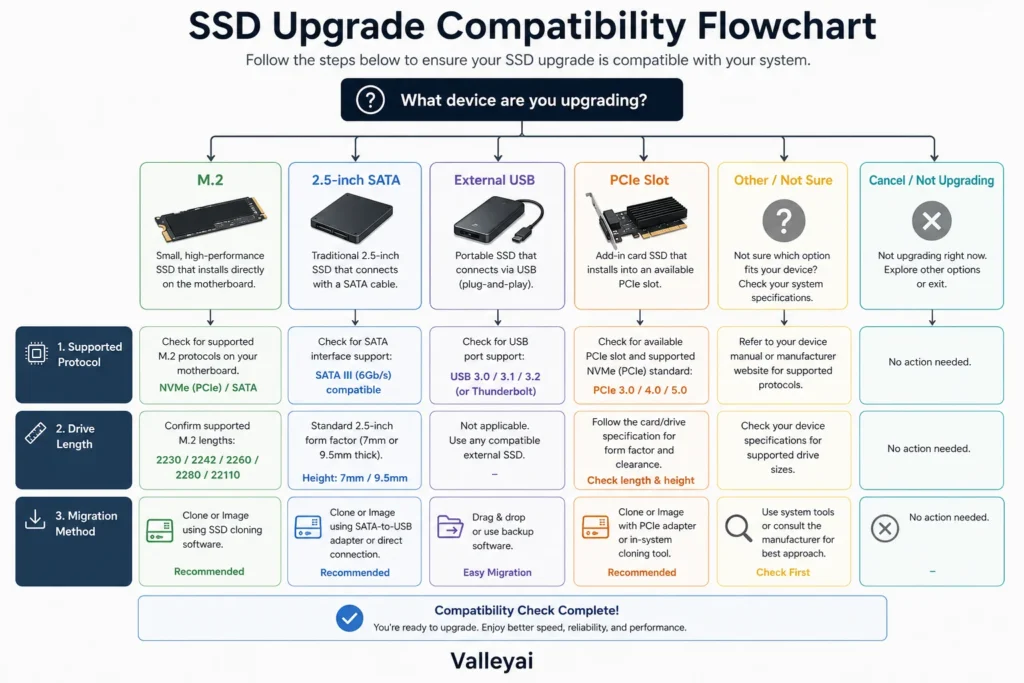
How to Check SSD Compatibility Before Buying
SSD compatibility depends on the computer’s slot, interface, physical space, firmware, and operating system.
Use this workflow before ordering a drive:
- Identify the exact device model.
Find the laptop model number or motherboard model rather than relying on a product family name. - Check the available physical location.
Look for an M.2 slot, 2.5-inch drive bay, SATA connector, or compatible PCIe expansion slot. - Confirm the supported interface.
Determine whether the M.2 slot supports SATA, PCIe/NVMe, or both. - Check physical dimensions.
M.2 drives have different lengths. A slot may support a 2280 drive but not provide mounting for a shorter or longer model. - Review capacity and firmware limits.
Older systems may have operating-system, firmware, or manufacturer restrictions. - Plan installation and migration.
Decide whether to perform a fresh operating-system installation, clone the existing drive, or use the SSD as secondary storage. - Back up important files first.
Keep a separate backup before cloning, formatting, removing the original drive, or changing partitions.
Back up important files before installing, cloning, formatting, or replacing an SSD. Hardware compatibility and migration steps vary by device, operating system, and drive configuration. When data is irreplaceable, retain at least one separate backup before making changes.
SSD Reliability, Endurance, and Backups
SSD endurance describes how much writing a drive is designed to withstand, while reliability describes the broader likelihood of continued operation under particular conditions.
Manufacturers may express endurance using TBW, or terabytes written. TBW is useful for comparing rated write workloads, but it is not a promise that the drive will fail immediately after reaching that number or remain healthy indefinitely before reaching it.
Factors that affect SSD behavior include:
- Total data written
- NAND type
- Controller and firmware
- Drive temperature
- Power conditions
- Available free space
- Workload pattern
- Manufacturing variation
- Sudden power loss
- Encryption and operating-system behavior
A drive can be durable enough for years of daily use and still fail without warning. Durability is not a backup plan.
Maintain at least one separate copy of important files. For especially valuable data, use more than one backup location, such as an external drive stored separately or a reputable cloud backup service. An SSD used as a backup is helpful only when the backup is separate from the original data and updated consistently.
SSD Maintenance That Actually Matters
SSD maintenance is mostly about firmware, free space, cooling, and backups rather than routine defragmentation.
Modern operating systems commonly send TRIM commands to compatible SSDs. TRIM helps an SSD identify blocks no longer needed by the file system. Users should also install firmware updates when the manufacturer provides a clear reason and safeguard important data before applying them.
Avoid filling an SSD to its absolute limit. Keep the operating system updated, monitor unusual temperature or health warnings, and investigate sudden performance changes instead of repeatedly running synthetic benchmarks.
Traditional disk defragmentation is designed around mechanical HDD behavior. SSD optimization tools use different methods, so allow the operating system to manage compatible SSD maintenance unless a manufacturer’s documentation says otherwise.
Explore the Complete SSD Guide Series
Deep dives on every SSD topic — from NVMe speeds to installation and troubleshooting:
- SSD vs HDD: Which Should You Choose?
- NVMe vs SATA SSD: Does the Speed Difference Matter?
- How to Check What Type of SSD Is in Your PC?
- Does Having More SSDs Actually Make Your PC Faster?
- What Is SATA? A Clear Guide to Drives, Cables, Speed, and Compatibility
- How Long Does an SSD Actually Last? A Practical Answer to Lifespan and TBW
- Do You Need a Heatsink for Your NVMe SSD?
- What Is M.2? M.2 vs NVMe Explained Clearly
- How to Install an NVMe/M.2 SSD Without the Usual Headaches
- What Is NVMe? How It Differs From a Regular SSD
- How to Safely Remove an SSD from a Desktop or Laptop PC
- Storage Speed Explained: Why Your Libraries Load Faster on NVMe vs. SSD and HDD
- Should You Install Games on an SSD? What Gets Faster and What Doesn’t
Frequently Asked Questions About SSDs
What does SSD stand for?
SSD stands for solid-state drive. A solid-state drive is a persistent storage device that uses NAND flash memory to store data without spinning magnetic platters or mechanical read/write heads.
Is an SSD a hard drive?
An SSD is a storage drive, but it is not a hard disk drive. An HDD stores data magnetically on spinning platters, while an SSD stores data electronically in NAND flash memory. People often use “hard drive” as a general term for both, but the technologies work differently.
Can an SSD replace RAM?
An SSD cannot replace physical RAM. RAM provides fast, temporary working memory for active programs, while an SSD stores data persistently. An operating system may use SSD space as virtual memory when RAM is limited, but virtual memory is not an equal substitute for additional RAM.
Does an SSD make a computer faster?
An SSD can make a computer feel substantially faster when the previous storage device was a mechanical HDD. Startup, application launches, file searches, and loading screens may improve. An SSD will not eliminate limits caused by an older CPU, weak GPU, insufficient RAM, poor software, or a slow network connection.
Is M.2 always NVMe?
M.2 is not always NVMe. M.2 describes the physical form factor and connector. Some M.2 drives use SATA, while others use PCIe with the NVMe protocol. The computer’s documentation must confirm which type the M.2 slot supports before purchase.
Are SSDs good for gaming?
SSDs are well suited to gaming because they can reduce game startup, level-loading, installation, and update times. An SSD usually does not increase average frame rates by itself. Frame rates depend more heavily on the GPU, CPU, RAM, game settings, and engine behavior.
Are SSDs more reliable than HDDs?
SSDs avoid mechanical parts and may handle movement better than operating HDDs, but neither technology is immune to failure. SSD reliability depends on the controller, flash, firmware, temperature, power conditions, and workload. Important data should always have an independent backup.
Should an SSD be used for backup?
An SSD can be an excellent backup destination because it is quiet, portable, and fast. The backup must remain separate from the original data, and the drive should not stay permanently connected if protection from accidental deletion, malware, or ransomware is a priority. A second copy in another location adds protection.
What is the difference between SSD and ROM?
SSD storage and ROM are different categories. An SSD is a rewritable storage device used for operating systems and files. ROM traditionally refers to read-only or rarely rewritten memory used for fixed instructions, although modern systems use several types of non-volatile memory that do not fit the simplest historical definition of ROM.
Why does an SSD slow down during large file transfers?
An SSD may slow during a long write because a temporary write cache becomes full, the NAND must perform background management, the drive heats up, or the source and destination cannot supply data quickly enough. Sustained performance depends on the drive model, capacity, temperature, workload, and connection.
Wondering how long these drives actually last? Read How Long Does an SSD Actually Last.

Kaleem
Kaleem is a Computer Science graduate (Virtual University of Pakistan) and the founder and editor of Valley AI, where he publishes in-depth, tested guides on computer hardware, artificial intelligence, and how the internet works. Every guide is researched from primary sources, tested hands-on where possible, and updated when the facts change.