
You are renaming a file, copying text, and arranging two windows. Your hand keeps traveling between the keyboard and mouse even though Windows can perform each action with two or three keys.
Windows keyboard shortcuts are key combinations that run editing, navigation, screen-capture, window-management, and system commands in Microsoft Windows. Some combinations are handled by Windows; others depend on the active application, enabled settings, keyboard layout, or hardware.
Scope: Current Windows 11 behavior with Windows 10 compatibility noted where relevant. Key labels assume a standard US keyboard.
Microsoft maintains the authoritative Windows keyboard shortcut reference. The tables below prioritize shortcuts by practical value rather than trying to reproduce every available command.
The 15 Windows shortcuts worth learning first
Start with shortcuts that work across several everyday tasks. Learning 15 useful commands creates more value than memorizing 100 combinations you rarely use.
| Shortcut | Action | Memory cue or caveat |
|---|---|---|
Ctrl + C | Copy the selected item or text | C for copy |
Ctrl + X | Cut the selected item or text | Think of the X as scissors |
Ctrl + V | Paste clipboard contents | Common across Windows applications |
Ctrl + Z | Undo the previous action | Behavior depends on the active application |
Ctrl + A | Select all available content | A for all |
Alt + Tab | Switch between open applications | Hold Alt and tap Tab to cycle |
Alt + F4 | Close the active window or application | The application decides how unsaved work is handled |
Win + D | Show or restore the desktop | D for desktop |
Win + E | Open File Explorer | E for Explorer |
Win + I | Open Settings | I can mean information or settings |
Win + L | Lock the computer | L for lock |
Win + R | Open the Run dialog | R for Run |
Win + Shift + S | Open the Snipping Tool capture controls | Select a region to copy it to the clipboard |
Ctrl + Shift + Esc | Open Task Manager | Faster than going through the security screen |
Win + Left/Right Arrow | Snap the active window to one side | Combine with Up or Down for more positions |
The Win key generally controls Windows-level actions: opening Settings, managing windows, launching system tools, or changing desktops. Ctrl combinations are more often handled by the active application. Alt commonly controls window switching, menus, and application-level actions.
Those patterns are useful memory aids, not universal rules. An application can intercept or redefine a key combination.
A shortcut that works on the desktop but fails inside one program usually points to keyboard focus or an application override not a Windows-wide failure.
Windows keyboard shortcuts organized by task
The fastest reference is the one arranged around what you are trying to accomplish. These shortcut groups cover the commands most people need for text, system navigation, windows, files, screenshots, virtual desktops, dialogs, and the taskbar.
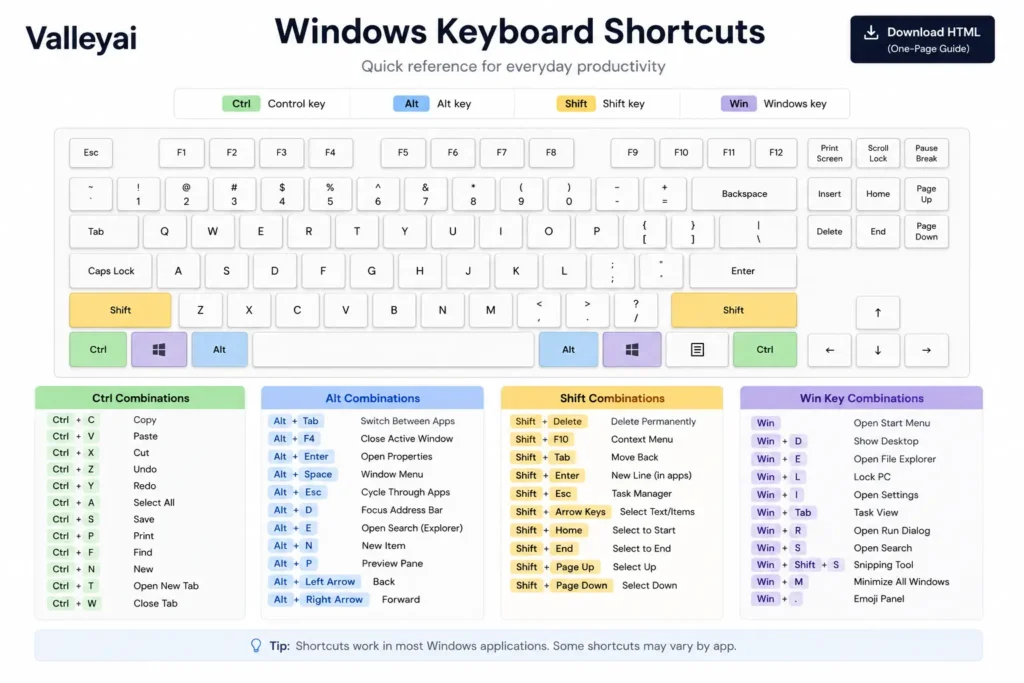
Edit text and use the clipboard
| Shortcut | Action |
|---|---|
Ctrl + C | Copy selected text or an item |
Ctrl + X | Cut selected text or an item |
Ctrl + V | Paste clipboard contents |
Ctrl + Z | Undo the previous action |
Ctrl + Y | Redo an action in supported applications |
Ctrl + A | Select all content in the active area |
Ctrl + F | Find text or items in many applications |
Ctrl + Backspace | Delete the previous word in supported text fields |
Ctrl + Left/Right Arrow | Move the cursor one word at a time |
Ctrl + Shift + Left/Right Arrow | Select text one word at a time |
Win + V | Open Clipboard history |
Win + . | Open the emoji and symbols panel |
Win + H | Start voice typing where text input is available |
Win + V opens Clipboard history, but Clipboard history may need to be enabled the first time. Device policies can also restrict the feature.
Ctrl + Shift + V often pastes without formatting, but Windows does not guarantee that behavior across every application. Browsers, communication tools, document editors, and terminals may implement the combination differently.
Open Windows tools and system panels
| Shortcut | Action |
|---|---|
Win | Open or close the Start menu |
Win + S | Open Windows Search |
Win + E | Open File Explorer |
Win + I | Open Settings |
Win + R | Open the Run dialog |
Ctrl + Shift + Esc | Open Task Manager |
Win + X | Open the Quick Link menu |
Win + A | Open Quick Settings in Windows 11 |
Win + N | Open Notification Center and the calendar in Windows 11 |
Win + Pause | Open system information or the About settings page |
Ctrl + Alt + Delete | Open the Windows security screen |
Win + Ctrl + Q | Open Quick Assist where available |
Ctrl + Shift + Esc opens Task Manager directly. Ctrl + Alt + Delete opens a protected Windows screen containing security and session options, including Task Manager. The two combinations are related, but they are not interchangeable.
Switch, snap, and move windows
| Shortcut | Action |
|---|---|
Alt + Tab | Switch between open applications |
Alt + Shift + Tab | Cycle through applications in reverse |
Win + Tab | Open Task View |
Win + D | Show or restore the desktop |
Win + M | Minimize all windows |
Win + Shift + M | Restore windows minimized with Win + M |
Win + Up Arrow | Maximize the active window |
Win + Down Arrow | Restore or minimize the active window |
Win + Left/Right Arrow | Snap the active window to a side |
Win + Z | Open Snap Layouts in Windows 11 |
Win + Shift + Left/Right Arrow | Move the active window between monitors |
Alt + F4 | Close the active window or application |
Alt + Tab is designed for rapid switching. Win + Tab opens Task View and keeps the overview visible, making Task View better when you need to inspect several windows or manage virtual desktops.
On multiple monitors, Win + Shift + Left/Right Arrow is one of the highest-value commands on this page. Dragging a maximized window across screens is slower and, frankly, needlessly awkward.
Manage files in File Explorer
| Shortcut | Action |
|---|---|
F2 | Rename the selected file or folder |
Ctrl + Shift + N | Create a new folder |
Alt + Left Arrow | Return to the previous location |
Alt + Right Arrow | Move to the next location in navigation history |
Alt + Up Arrow | Open the parent folder |
Ctrl + L or Alt + D | Focus the address bar |
Ctrl + E | Focus the search box |
Alt + Enter | Open properties for the selected item |
Shift + Delete | Delete the selected item without normally sending it to the Recycle Bin |
Ctrl + W | Close the active File Explorer window or tab |
Ctrl + N | Open a new File Explorer window |
Space | Select or clear an item when keyboard focus is on it |
Treat Shift + Delete as a destructive command. Recovery is not guaranteed, so verify the selected file before confirming deletion.
On a laptop, testing F2 without checking Function Lock wastes time. If the key changes volume or brightness, Windows may never receive an F2 command. You may need Fn + F2 or a different Function Lock setting.
Capture the screen
| Shortcut | Result |
|---|---|
Win + Shift + S | Open Snipping Tool capture controls and copy the capture to the clipboard |
PrtScn | Capture the screen or open Snipping Tool, depending on settings |
Alt + PrtScn | Copy the active window image to the clipboard |
Win + PrtScn | Capture the full screen and save an image file |
Win + G | Open Game Bar controls where available |
Win + Alt + R | Start or stop recording through Game Bar in supported contexts |
The practical difference is the output. Win + Shift + S is best for selecting part of the screen, while Win + PrtScn is useful when you want Windows to save a full-screen image automatically.
When PrtScn appears to do the “wrong” thing, the keyboard is rarely broken. The usual causes are a compact keyboard’s Fn layer or the Windows setting that routes Print Screen to Snipping Tool.
Control virtual desktops
| Shortcut | Action |
|---|---|
Win + Tab | Open Task View |
Win + Ctrl + D | Create a virtual desktop |
Win + Ctrl + Left Arrow | Switch to the desktop on the left |
Win + Ctrl + Right Arrow | Switch to the desktop on the right |
Win + Ctrl + F4 | Close the current virtual desktop |
Closing a virtual desktop is different from closing its applications. Windows generally moves open windows to another desktop rather than terminating the applications.
Navigate dialogs and the taskbar
| Shortcut | Action |
|---|---|
Tab | Move to the next control or interactive element |
Shift + Tab | Move to the previous control |
Space | Select, clear, or activate the focused control |
Enter | Activate the focused command or default action |
Esc | Cancel or close the current menu or dialog |
Alt + underlined letter | Activate the corresponding menu command where shown |
Shift + F10 | Open the context menu for the selected item (this is the keyboard equivalent of RMB, the right mouse button) |
Win + T | Cycle through taskbar applications |
Win + 1 through Win + 9 | Open or switch to the application in that taskbar position |
Win + B | Move keyboard focus to the taskbar notification area |
Win + number uses taskbar position rather than the number of open windows. If File Explorer is the first pinned application, Win + 1 opens or switches to File Explorer.
Which shortcuts depend on Windows version, apps, or hardware?
Most core editing and navigation shortcuts work in both Windows 10 and Windows 11. Newer interface features, application commands, enabled settings, and keyboard hardware create the exceptions.
| Shortcut or feature | Windows 10 | Windows 11 | Confidence label and caveat |
|---|---|---|---|
Ctrl + C, Ctrl + V, Alt + Tab | Yes | Yes | Stable, though the active application handles some behavior |
Win + E, Win + I, Win + R | Yes | Yes | Windows default |
Win + V | Yes | Yes | Setting-dependent; Clipboard history must be available and enabled |
Win + Shift + S | Yes | Yes | Windows default; interface details may differ |
Win + PrtScn | Yes | Yes | Hardware-dependent on compact keyboards |
PrtScn | Yes | Yes | Setting- and hardware-dependent |
Win + Z | Different or limited behavior | Snap Layouts | Version-sensitive |
Win + A | Action Center | Quick Settings | Same keys, different interface behavior |
Win + N | Not equivalent | Notification Center and calendar | Windows 11-oriented |
Ctrl + Shift + V | Varies | Varies | Application-dependent |
F1–F12 | Yes | Yes | Function Lock and keyboard-dependent |
Win + Shift + Left/Right Arrow | Yes | Yes | Requires multiple displays |
| Remote-session combinations | Varies | Varies | Remote Desktop configuration determines where some commands run |
A shortcut list can be technically accurate and still mislead users if it omits context. “Supported in Windows” does not mean every keyboard sends the same key signal or every application accepts the command.
Three distinctions prevent most confusion:
- Windows default: Microsoft Windows handles the command under ordinary settings.
- Application-dependent: The focused program decides what happens.
- Hardware-dependent: The physical keyboard, firmware,
Fnlayer, or Function Lock changes the input.
Five workflows that make shortcuts easier to remember
Isolated key combinations are easy to forget. A repeatable sequence ties each shortcut to a visible outcome.
Clean up a group of files
- Press
Win + Eto open File Explorer. - Press
Ctrl + Shift + Nto create a folder. - Type the folder name and press
Enter. - Select a file and press
F2to rename it. - Press
Alt + Up Arrowto return to the parent folder.
The workflow associates Explorer, folders, renaming, and navigation with one task instead of four separate facts.
Capture and share part of the screen
- Press
Win + Shift + S. - Select the required region.
- Switch to the destination with
Alt + Tab. - Press
Ctrl + Vto paste the capture.
If you need an image file rather than clipboard content, open the Snipping Tool notification and save the capture.
Arrange windows across two monitors
- Select a window with
Alt + Tab. - Press
Win + Shift + Left/Right Arrowto move it to another monitor. - Press
Win + Left/Right Arrowto snap it. - Use
Win + Zon Windows 11 when you want a specific Snap Layout.
Separate tasks with virtual desktops
- Press
Win + Ctrl + Dto create a desktop. - Open the applications needed for the second task.
- Switch desktops with
Win + Ctrl + Left/Right Arrow. - Close the current desktop with
Win + Ctrl + F4when finished.
Inspect an unresponsive application
- Try
Alt + Tabto confirm whether another application responds. - Press
Ctrl + Shift + Escto open Task Manager. - Inspect the application’s status before ending the task.
- Use
Alt + F4first when the application still accepts input.
Ending a task can discard unsaved work. A slow application and a frozen application are not always the same problem.
Why a Windows keyboard shortcut is not working
A failed Windows keyboard shortcut is usually caused by keyboard focus, an application override, a disabled feature, Function Lock, a Windows-key lock, or a remapping conflict. Test the combination outside the affected application before replacing drivers or assuming the keyboard has failed.
1. Test a neutral location
Try the shortcut on the Windows desktop or in a simple application such as Notepad. If the command works there, the original application probably controls or intercepts the combination.
Also click the exact field, window, or panel that should receive the command. Keyboard focus can remain inside a search box, menu, remote session, or embedded browser even when another area appears visually active.
2. Check gaming mode and Windows-key locks
Gaming keyboards and laptop utilities may disable the Windows key to prevent accidental interruptions. Look for a gaming-mode key, physical lock, keyboard-control application, or device profile.
If every Win combination fails but Ctrl and Alt commands still work, check the Windows-key lock early.
3. Inspect Fn and Function Lock
Compact and laptop keyboards often assign media controls and function commands to the same physical keys. Try the shortcut with Fn, then inspect the manufacturer’s Function Lock option.
PrtScn, F2, and F11 are common trouble spots because their labels or secondary functions vary by device.
4. Verify the input language and keyboard layout
Character-dependent shortcuts can behave differently after an input-language change. Check the active layout with the language indicator on the taskbar or use Win + Space to cycle through installed input methods.
Physical key placement is not proof that Windows is interpreting the same character.
5. Confirm that the required feature is enabled
Win + V can be correct while Clipboard history remains disabled or restricted by an organization’s policy. Screen capture, accessibility, and application-specific shortcuts can have similar setting dependencies.
6. Disable remapping tools one at a time
PowerToys Keyboard Manager, AutoHotkey scripts, keyboard-vendor utilities, and gaming profiles can all intercept input.
Disable one remapping layer at a time. Removing every tool at once may restore the shortcut, but it will not reveal which rule caused the conflict. That distinction matters when you turn the tools back on.
7. Check Remote Desktop behavior
A remote session can send some combinations to the local computer and others to the remote computer. The result depends on the Remote Desktop client, display mode, and keyboard settings.
Test the combination after leaving full-screen mode and review the client’s keyboard preferences before changing the remote system.
8. Isolate the hardware last
Try another USB port, keyboard, Windows account, or computer. Hardware becomes more likely when individual keys fail in every application and no remapping software is active.
Restart Windows before making larger changes. Restarting clears temporary input hooks and background utility failures without creating new configuration problems.
Choose the right way to remap a shortcut
Windows keyboard shortcuts can be changed when the relevant application provides shortcut settings or when a remapping tool intercepts and replaces the original input. Use the least complicated method that solves the problem.
| Need | Best option | Why |
|---|---|---|
| Change a command inside one application | The application’s shortcut settings | Keeps the change limited to that program |
| Adjust a Windows feature with a native setting | Windows Settings | Avoids another background utility |
| Swap keys or replace a simple combination | PowerToys Keyboard Manager | Microsoft’s tool supports key and shortcut remapping |
| Create app-specific or multi-step hotkeys | AutoHotkey | Supports conditional logic and scripted automation |
| Change a manufacturer-specific function key | Keyboard firmware or vendor utility | The behavior may occur before Windows receives the key |
PowerToys Keyboard Manager is the sensible middle ground for straightforward remapping. AutoHotkey is better when a command must work only in a particular application, type several steps, or respond differently under defined conditions.
Do not casually override sign-in, security, accessibility, or recovery combinations. Keep at least one reliable way to disable the remapping tool if the new configuration blocks normal keyboard use.
Custom hotkeys are not automatically more efficient. If a command takes longer to remember than the action takes to perform, the remap has failed its job.
Mouse-free navigation depends on a small set of movement keys, and the Home and End keys do most of the work when you need to jump to the start or end of a line.
If you are working without a pointing device entirely, our guide to what LMB means and how to simulate it covers the keyboard alternatives in detail.
Navigate Windows without a mouse
Keyboard-only Windows navigation combines focus movement, application switching, menus, system controls, and accessibility features. Start with Tab, Shift + Tab, the arrow keys, Enter, Space, Esc, Alt + Tab, and Shift + F10.
| Goal | Shortcut |
|---|---|
| Move forward through controls | Tab |
| Move backward through controls | Shift + Tab |
| Activate a focused button or command | Enter or Space |
| Open the selected item’s context menu | Shift + F10 |
| Switch applications | Alt + Tab |
| Open Task View | Win + Tab |
| Focus the taskbar | Win + T |
| Start Narrator | Win + Ctrl + Enter |
| Open Magnifier | Win + Plus (+) |
| Close Magnifier | Win + Esc |
| Open the On-Screen Keyboard | Win + Ctrl + O |
Microsoft publishes a dedicated reference for Windows accessibility keyboard shortcuts.
Repeatedly pressing Shift or holding certain keys may trigger Sticky Keys, Filter Keys, or related prompts. Do not disable an accessibility feature someone relies on merely because its activation was unexpected.
Print the cheat sheet, then learn it in layers
A useful Windows keyboard shortcut cheat sheet should fit the task, not chase an arbitrary command count.
- Week 1: Learn the first 15 shortcuts.
- Week 2: Add the File Explorer and screenshot commands you use.
- Week 3: Add window, monitor, and virtual desktop controls.
- Later: Add accessibility, remapping, and specialized application commands only when needed.
For printing, use your browser’s print command and select only the shortcut tables relevant to your workflow. A one-page essentials sheet is usually more useful beside a keyboard than a 100-command poster with no hierarchy.
Pick three repeated mouse actions from your next work session. Replace those three not all of them with keyboard shortcuts. That is how a reference list becomes muscle memory.
Keyboard deep dives: what is inside a keyboard, mechanical vs membrane keyboards, how to type special characters, and how to type the degree symbol.

Kaleem
Kaleem is a Computer Science graduate (Virtual University of Pakistan) and the founder and editor of Valley AI, where he publishes in-depth, tested guides on computer hardware, artificial intelligence, and how the internet works. Every guide is researched from primary sources, tested hands-on where possible, and updated when the facts change.