
The Home key usually moves the cursor toward the beginning of a line, while the End key moves it toward the end. On some keyboards, the keys are dedicated buttons. On laptops and compact keyboards, the same commands may be hidden behind an Fn layer or replaced by operating-system shortcuts.
The exact result depends on the keyboard, operating system, and application.
What the Home and End Keys Do
| Action | Common Windows/Linux key | Common macOS shortcut |
|---|---|---|
| Beginning of the current line | Home | Command + Left Arrow |
| End of the current line | End | Command + Right Arrow |
| Beginning of a document | Ctrl + Home | Command + Up Arrow |
| End of a document | Ctrl + End | Command + Down Arrow |
| Select to the beginning or end of a line | Shift + Home/End | Shift with the relevant shortcut |
On Windows and many Linux environments, Home and End normally move within the current line. On macOS, the physical Home and End keys may scroll to the top or bottom of a document instead, while Command + Left Arrow and Command + Right Arrow commonly move to the beginning or end of a line.
A browser, terminal, code editor, or document application can interpret the same command differently.
Where Are Home and End on a Keyboard?
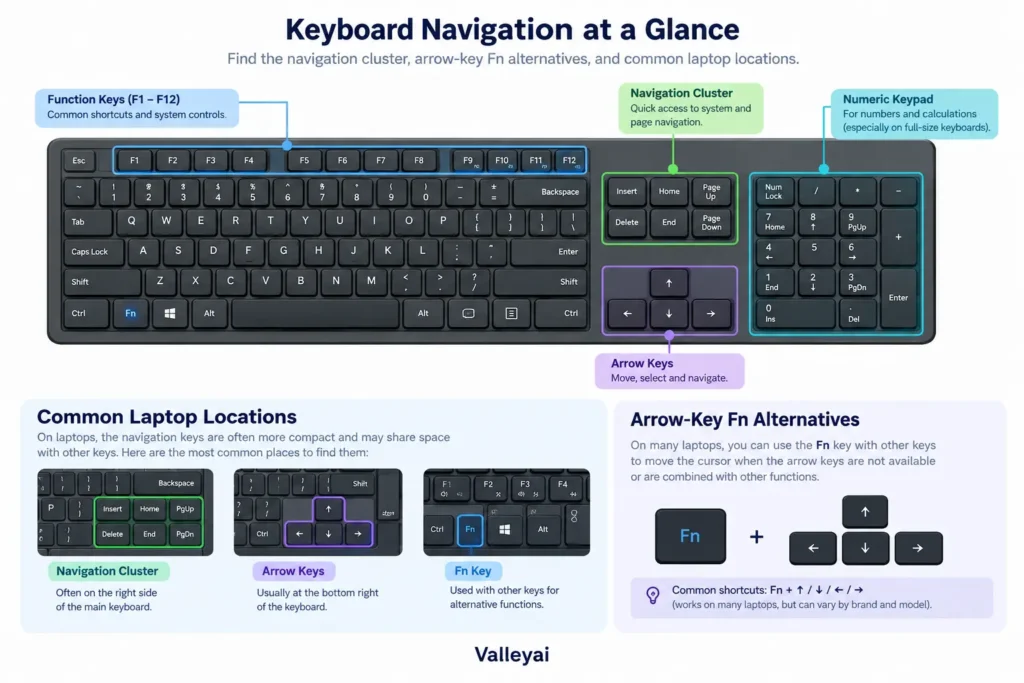
On a full-size keyboard, Home and End are usually in the navigation cluster above the arrow keys and near the number pad. They may appear alongside Insert, Delete, Page Up, and Page Down.
Laptop and compact keyboards often do not provide separate Home and End buttons. Look for smaller labels printed on:
- Left or right arrow keys
- Function-row keys
- Number-row keys
- A key labeled Fn
- A keyboard layer selected through firmware or layout software
A 60% keyboard may place Home and End entirely on a secondary layer. A 75% keyboard may include the commands but omit the dedicated navigation cluster.
Beyond line navigation, the same modifier logic appears across the wider set of Windows keyboard shortcuts used for selection, window management, and file handling.
Home and End Shortcuts by Operating System
Windows
On Windows, try:
- Home — beginning of the current line
- End — end of the current line
- Ctrl + Home — beginning of the document
- Ctrl + End — end of the document
- Shift + Home — select from the cursor to the beginning of the line
- Shift + End — select from the cursor to the end of the line
These commands work in many text fields and editors, but applications can override them.
macOS
On a Mac, common text-navigation shortcuts are:
- Command + Left Arrow — beginning of the line
- Command + Right Arrow — end of the line
- Command + Up Arrow — beginning of the document
- Command + Down Arrow — end of the document
- Fn + Left Arrow — often sends Home
- Fn + Right Arrow — often sends End
The Fn combinations are common on Apple keyboards, but behavior can vary by keyboard and application. On a Windows-layout keyboard connected to a Mac, the physical Home and End keys may scroll rather than move the text cursor to a line boundary.
Linux
Linux commonly follows the traditional desktop convention:
- Home — beginning of the line
- End — end of the line
- Ctrl + Home — beginning of the document
- Ctrl + End — end of the document
Linux behavior can vary between desktop environments, terminal programs, and text editors. Test the shortcut in the specific application where you need it.
How to Use Home and End Without Dedicated Keys
Start with the keyboard’s secondary layer:
- Look for Home or End labels on the arrow keys or function row.
- Hold Fn and press the labeled key.
- Try Fn + Left Arrow for Home and Fn + Right Arrow for End if the keyboard documentation suggests those mappings.
- Test the result in a basic text field.
- If the command fails, check the keyboard manual, firmware settings, or layout software.
There is no universal Fn shortcut. The keyboard firmware determines what the combination sends, so two compact keyboards with similar layouts may use different commands.
On macOS, Command + Left Arrow and Command + Right Arrow are often more reliable than guessing an Fn combination for line navigation.
Why Home and End Change Between Applications
Keyboard behavior has three layers:
- Keyboard hardware or firmware sends a key code.
- The operating system interprets the key code.
- The application may accept, modify, or override the command.
That explains why Home may move the cursor in a text editor but scroll a page in a browser. A terminal may use different control conventions, while a code editor can assign its own shortcut.
The fastest diagnostic test is to try the same key combination in a plain text field and then in the application where the problem occurs. If the shortcut works in the plain field but not in the target application, the keyboard is probably sending input correctly.
How Shift Changes Home and End
Holding Shift while using a navigation command usually selects the text between the original cursor position and the destination.
Examples include:
- Shift + Home — select to the beginning of the line
- Shift + End — select to the end of the line
- Shift + Command + Left Arrow — common macOS line-start selection
- Shift + Command + Right Arrow — common macOS line-end selection
Selection behavior depends on the text field or application. If the command selects an entire document, scrolls the page, or does nothing, test the same shortcut in another text editor.
Before assuming a hardware fault, it helps to know what is inside a keyboard and which internal layer actually registers a key press.
What to Do When Home or End Does Not Work
Use this hardware-first checklist:
- Test a plain text field. This separates general keyboard behavior from an application-specific conflict.
- Try the dedicated key without Fn. The key may already send Home or End directly.
- Try the labeled Fn combination. Avoid assuming that every keyboard uses the same arrow-key mapping.
- Check the operating-system shortcut. On macOS, try Command plus the appropriate arrow key.
- Test another application. Compare a text editor, browser field, and the application causing the problem.
- Check keyboard firmware or remapping software. A custom layer may be replacing the expected command.
- Remap only after testing. A system-wide change can affect applications that already use the same shortcut.
Remapping options and key layouts differ between mechanical and membrane keyboards, so the board you own can decide the answer.
Should You Use a Shortcut or Remap the Keys?
Use the native shortcut when you need Home or End occasionally. Native shortcuts require no configuration and are less likely to interfere with application commands.
Consider remapping when:
- You switch between Windows and macOS throughout the day.
- Your compact keyboard has an awkward Fn combination.
- You use line navigation constantly in a code editor or writing workflow.
- You need the same physical keys to produce consistent commands.
On macOS, text key bindings or a remapping utility can change Home and End behavior. Back up existing settings, apply one change at a time, close and reopen affected applications, and test the result before making the mapping permanent. Some applications may ignore system-level text bindings.
FAQs
Does Fn + Left Arrow always act as Home?
No. Fn combinations are controlled by keyboard firmware and vary by model. Fn + Left Arrow commonly produces Home on some Apple and compact keyboards, but another keyboard may use a different key or require configuration software.
Why do Home and End work in one application but not another?
Applications can override operating-system shortcuts. A text editor may use Home for line navigation, while a browser or terminal may scroll, move differently, or assign the combination to another command.
How do you select text with Home or End?
Hold Shift while using Home, End, or the platform’s equivalent shortcut. On Windows, Shift + Home and Shift + End commonly select to the beginning or end of the current line. macOS uses Shift with its Command-arrow navigation shortcuts in many text fields.

Kaleem
Kaleem is a Computer Science graduate and the founder of Valley AI (valleyai.net), where he publishes in-depth, tested guides on computers, AI, and internet technologies. Every guide is researched from primary sources and updated regularly.