
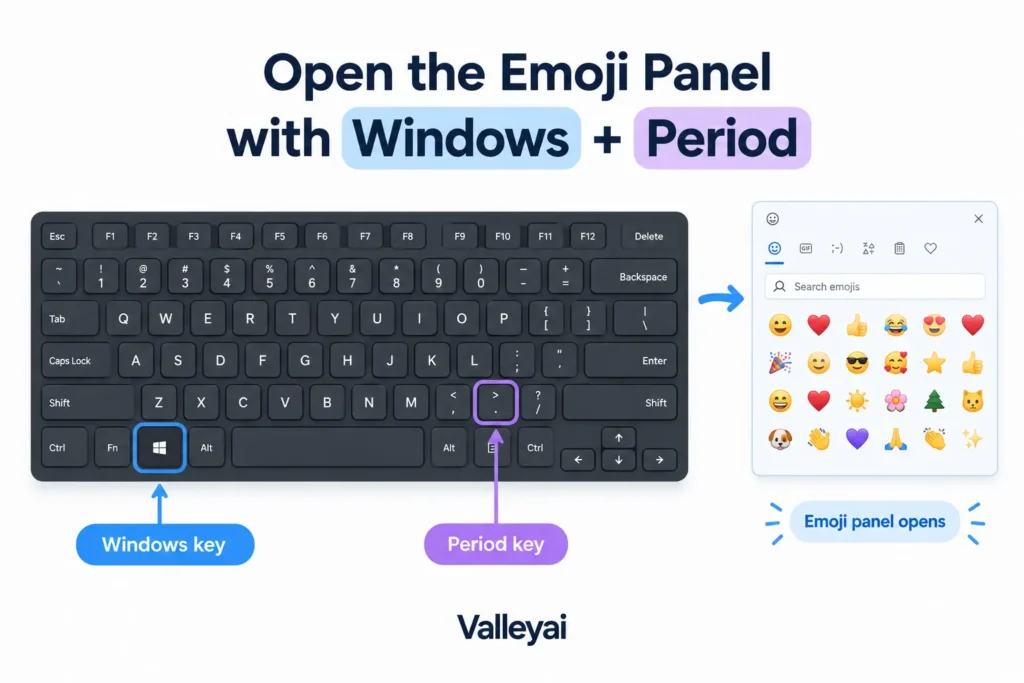
You can type an emoji without leaving your keyboard. On a Windows PC, click inside any text field and press Windows key + period (.). The emoji panel opens, allowing you to search, browse, and insert an emoji directly into your message, document, or email.
The same panel also includes GIFs, kaomoji, and symbols. If the shortcut fails, a short troubleshooting sequence usually identifies the problem.
The Windows emoji shortcut that works fastest
To type an emoji on a Windows keyboard:
- Click where you want the emoji to appear.
- Hold the Windows key.
- Press the period key (.).
- Select an emoji from the panel, or type a description such as “heart” or “smile.”
- Press the emoji you want to insert it.
The Windows emoji panel works only when the cursor is active in a text-entry field. If no text box is selected, pressing the shortcut may appear to do nothing.
Microsoft Support’s “Windows keyboard tips and tricks” documents the Windows emoji-panel shortcut and related panel features: Microsoft Support.
Use Windows key + semicolon instead
Windows key + semicolon (;) opens the same Windows emoji panel on supported Windows systems. The period shortcut is easier to remember, but both combinations are useful.
If one shortcut does not respond, try the other. Do not press the Windows key first and release it before pressing the second key. Hold both keys as part of the same shortcut.
Search, browse, and insert an emoji
After the panel opens, you have several ways to find an emoji:
- Search: Type a description such as “coffee,” “dog,” “laugh,” or “blue heart.”
- Browse categories: Move through smileys, people, animals, food, travel, activities, objects, and symbols.
- Use recently selected emojis: The panel typically places recently used choices near the front for faster access.
- Choose a modifier: Some people and body emojis offer skin-tone options before insertion.
Search is usually faster than browsing. Emoji names are not always intuitive, so try a simple related word if the first search produces no result.
The panel can also expose GIFs, kaomoji, and symbols. Those options are related to emoji input, but they are not the same type of content.
Where the shortcut works and where it may not
The Windows emoji panel inserts a character into an active text field. That can include a message box, browser form, email composer, document, or chat application.
| Where you are typing | What to try |
|---|---|
| Microsoft Word | Click in the document, then use Windows + period |
| Outlook | Click inside the message body before opening the panel |
| Web browser | Place the cursor in a form, comment box, or chat field |
| Messaging app | Select the message field, then open the emoji panel |
| Search box | Use the shortcut if the search field accepts emoji characters |
| Password field | Emoji input may be blocked or inappropriate for the field |
The shortcut does not override an application’s input rules. A text field may accept ordinary letters but reject emoji, formatted characters, or pasted content. Testing the same shortcut in Notepad or another basic text field can show whether the issue belongs to Windows or the original application.
Emoji rendering can also change after insertion. The character is generally the same Unicode emoji, but the design may look different in Microsoft Windows, a browser, a phone, or the recipient’s messaging app. A different appearance does not necessarily mean the emoji was typed incorrectly.
If the Windows emoji shortcut does nothing
A shortcut failure is often a focus problem, not a broken keyboard. Work through these checks in order:
- Click inside a real text field.
Place the cursor in a message, document, search box, or note. A blank area of an application is not enough. - Try both shortcuts.
Press Windows + period, then try Windows + semicolon. Keep the Windows key held while pressing the second key. - Test another application.
Try a basic text editor or browser text field. If the panel opens there, the original application may restrict emoji input. - Check the Windows key.
Press the Windows key by itself. If the Start menu does not open, the key may be disabled by a keyboard mode, device setting, gaming lock, or hardware issue. - Check the keyboard layout.
A different physical or language layout can change where punctuation keys are located. Confirm that the key you are pressing produces a period or semicolon when used normally. - Try copy and paste.
If the native panel is blocked, find the emoji through a reputable online emoji keyboard, copy it, and paste it into the active text field. - Consider device restrictions.
A managed work computer may limit input tools, browser behavior, or installed applications. In that situation, copy-and-paste may be the practical workaround rather than a sign that the keyboard is defective.
A useful diagnostic split is simple: if the emoji panel opens in one application but not another, the keyboard shortcut is probably working. The problem is more likely the application, text field, or device policy.
The quickest method on Mac, iPhone, and Android
The Windows shortcut is not universal. Use the input method built into the device you are using.
| Device | Keyboard emoji method |
|---|---|
| Windows PC | Press Windows + period or Windows + semicolon |
| Mac | Press Control + Command + Space to open the character viewer |
| iPhone | Tap the emoji key or globe key on the on-screen keyboard |
| Android phone | Tap the emoji button on the on-screen keyboard, often near the space bar |
| Any device | Copy an emoji from an online emoji keyboard and paste it |
On an iPhone or Android phone, the emoji control may be hidden behind the globe, smiley-face, or keyboard-options button. The exact icon can vary with the installed keyboard and device settings.
On a Mac, the character viewer provides emoji search and category browsing. The viewer can also contain symbols and other characters, so searching by description is often faster than scanning categories.
Emoji, emoticon, kaomoji, GIF, or symbol?
These terms describe different kinds of keyboard content:
| Term | Meaning | Example |
|---|---|---|
| Emoji | A Unicode character commonly displayed as a colorful pictograph | 😂 |
| Emoticon | A face or expression made from ordinary keyboard characters | :) |
| Kaomoji | A text-based expression using multiple characters | ¯\_(ツ)_/¯ |
| GIF | An animated image or short looping media file | A reaction animation |
| Symbol | A character representing math, currency, punctuation, or another concept | ©, →, € |
An emoticon such as :) does not automatically become a colorful emoji in every application. Some services convert typed emoticons into graphical images, while others leave the characters unchanged.
Microsoft’s “Emoticon keyboard shortcuts” page documents this type of application-specific behavior for GroupMe: Microsoft Support.
Windows may place emoji, GIFs, kaomoji, and symbols in the same panel because they are all useful for text input. Their formats remain different. A GIF is media, a kaomoji is text, and an emoji is a Unicode character rendered according to the operating system and application.
Copy and paste an emoji when shortcuts are unavailable
Copy-and-paste is the simplest fallback when the emoji panel will not open or the application does not support it.
- Open an online emoji keyboard or another trusted emoji source.
- Select the emoji.
- Copy it with Ctrl + C on Windows or Command + C on Mac.
- Click inside the destination text field.
- Paste with Ctrl + V on Windows or Command + V on Mac.
Copying an emoji does not guarantee identical visual results everywhere. The recipient’s device may use a different emoji font or rendering system, so a smiling face, heart, or hand gesture can look slightly different after sending.
Copy-and-paste is also useful on restricted workplace computers. When the native picker is disabled, the fallback keeps the task moving without changing the keyboard or installing an extension.
Once the emoji panel is open, moving the cursor quickly matters just as much, and knowing what the Home and End keys do makes editing a line far faster.
A simple decision rule for typing emojis
Use the native picker when your device provides one:
- Windows: Windows + period
- Mac: Control + Command + Space
- iPhone or Android: Emoji key on the mobile keyboard
If the picker fails, test the shortcut in another text field. If it works elsewhere, check the original application. If it fails everywhere, try the alternate shortcut, verify the keyboard layout, and use copy-and-paste when necessary.
The practical lesson is that “typing an emoji” is not one universal action. It means opening the input tool your operating system provides, selecting a Unicode character or text expression, and inserting it where the application allows.
Frequently asked questions
What is the keyboard shortcut for emojis on Windows?
Press Windows key + period (.) to open the Windows emoji panel. You can also press Windows key + semicolon (;). The cursor must be active in a text-entry field before the panel can insert an emoji.
How do I search for an emoji using my keyboard?
Open the Windows emoji panel with Windows + period, then type a description in the panel’s search field. Try related words if the first search does not show the desired result. Select an emoji from the results to insert it into the active text field.
Can I use the emoji keyboard in Word, Outlook, or a browser?
Usually, yes, when the cursor is inside an editable field such as a document, email body, form, comment box, or chat window. Some applications or fields restrict emoji input. Test the shortcut in another text field if nothing appears.
Why does the same emoji look different on another device?
Emoji characters are rendered by the operating system, application, and available font. Windows, macOS, iOS, Android, and messaging services may use different artwork for the same Unicode character. The changed design does not necessarily indicate a typing or sending error.
How can I type an emoji without a Windows key?
Use an online emoji keyboard to copy and paste the character, or insert the emoji from the application’s own emoji menu. On a Mac, use the character viewer. On a phone, use the emoji key on the on-screen keyboard.
Are :) and 😂 the same thing?
No. :) is an emoticon made from keyboard characters, while 😂 is a Unicode emoji. Some messaging services convert emoticons into images, but that behavior depends on the application and is not guaranteed in ordinary text fields.
What should I do if Windows + period does not work?
Click inside a text field, then try Windows + semicolon. Test both shortcuts in another application to identify whether the original app is blocking input. If neither works, check the Windows key and keyboard layout, then use copy-and-paste as a fallback.
With the right shortcut, emoji entry is a two-second task: focus the text field, open the device’s picker, search or browse, and select the character. The fallback path matters because applications and managed devices do not all handle keyboard input the same way.
For symbols beyond emojis, check How to Type the Degree Symbol.

Kaleem
Kaleem is a Computer Science graduate and the founder of Valley AI (valleyai.net), where he publishes in-depth, tested guides on computers, AI, and internet technologies. Every guide is researched from primary sources and updated regularly.