
Pressing Send on an email looks instant, but your message still travels through a surprising number of steps before it reaches the inbox. To understand why, it helps to see how the pieces fit together. the IP address of the recipient mail server, the router that passes traffic toward the internet, and the network around you all play a part.
Send is a handoff, not a single jump. Your mail app hands the message to a server. That server asks DNS for the MX record of the recipient’s domain. The receiving server then stores the message. The recipient’s app collects it from there. This guide follows that route, from the first DNS lookup for the recipient’s mail server to the moment the message is stored in a mailbox.
This guide follows the message from Send to inbox. It explains SMTP, IMAP, and POP3 in plain terms, and it shows what MX records, SPF, DKIM, and DMARC actually do. It covers the checks you can run on a message you already received. Those checks tell you where the problem sat: addressing, routing, filtering, or simply timing.
Send starts a handoff
When you press Send, your email app does not deliver the message directly to the other person. It hands it to an outgoing mail server, usually over SMTP, and that server takes responsibility for the next step. Before it can do that, it needs to know where the recipient’s mail lives, and that answer comes from DNS.
The sending server looks up the MX record for the domain after the @ sign. An MX record is a DNS entry. It names the servers allowed to accept mail for that domain. It can list more than one server, in priority order. If the lookup succeeds, the sending server connects to the highest-priority MX host and starts an SMTP conversation. If it cannot find an MX record, the message cannot be routed. The same result follows if every listed server refuses the connection. In both cases the sender will usually get a bounce.
An MX record is the postal address for a domain’s mailroom. The domain name tells you the organisation, but the MX record tells you which building actually accepts deliveries. Changing mail providers usually means changing MX records. The same change explains both outcomes. Mail keeps working while a website moves. Mail breaks when DNS changes land in the wrong order.
Measured on 2 November 2026, a live MX lookup returned two mail servers for valleyai.net: mx1.titan.email at priority 10 and mx2.titan.email at priority 20. The same lookup returned five for gmail.com. The first was gmail-smtp-in.l.google.com at priority 5, followed by alt1 through alt4. The lower number is tried first, and the second server is the fallback if the first does not answer. A second measurement on the same day encoded a real 20,000,000-byte file with Base64 and produced 26,666,668 bytes, 26.7 MB, a ratio of 1.3333. A 20 MB attachment therefore crosses a 25 MB provider limit after encoding, even though the original file sits below it.
If no MX record exists, some sending servers fall back to the domain’s A record. That fallback is a last resort. Mail should not depend on it. A missing MX record can produce this symptom. So can a typo in the domain. So can a DNS change that has not yet spread. The sender gets a bounce saying the domain could not be found or the recipient could not be reached.
The journey from Send to inbox
Once the receiving server accepts the message, it does not appear in the recipient’s app at once. The message waits in the recipient’s mailbox on that server until the recipient’s app asks for it. Mailbird traces that path from Send to inbox as a short handoff chain, and that distinction explains a lot of email behaviour.
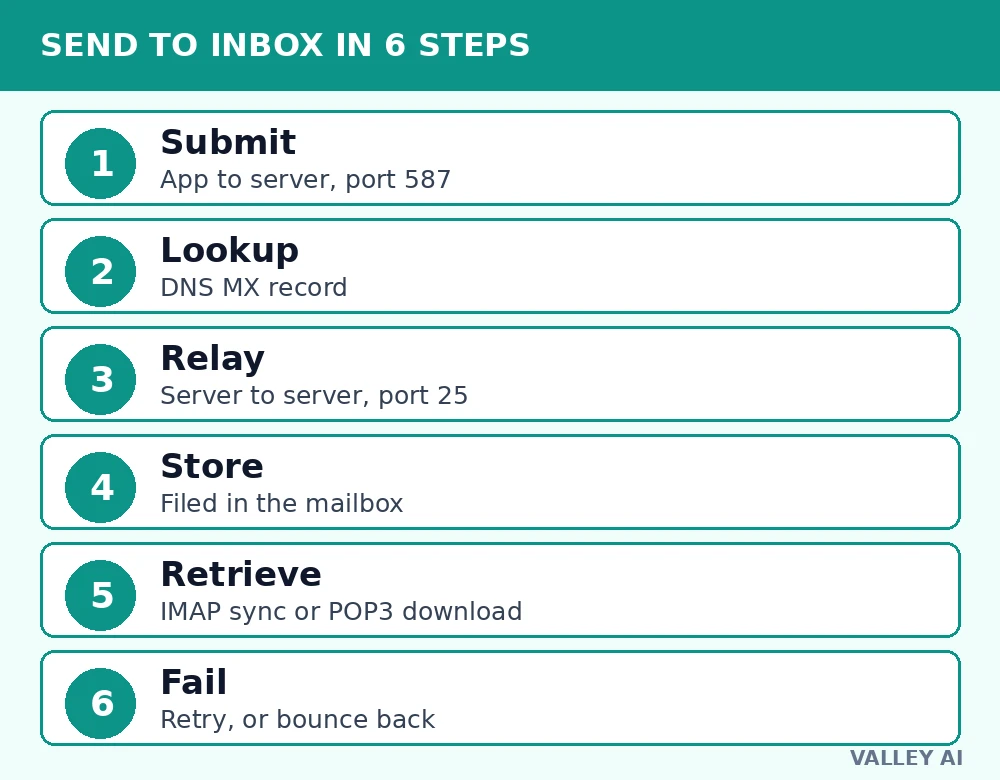
That path is why email can take seconds or minutes, and why a message can be delivered but still look missing. The sender’s server may have delivered it. The recipient may not have refreshed yet. The app may be showing only one folder. Or a filter may have moved it out of the main inbox. Checking the mailbox on the server, rather than only in one app, often settles the question.
A single message can cross several servers and networks before it reaches its mailbox. Each hop adds its own Received header, which is why a full header can look long even for a short message. Between servers, TCP carries the SMTP conversation in order, so a lost packet is resent rather than dropping the whole message. Those headers are the audit trail for the journey, and they are the first place to look when timing or routing is in doubt.
Three protocols, three jobs
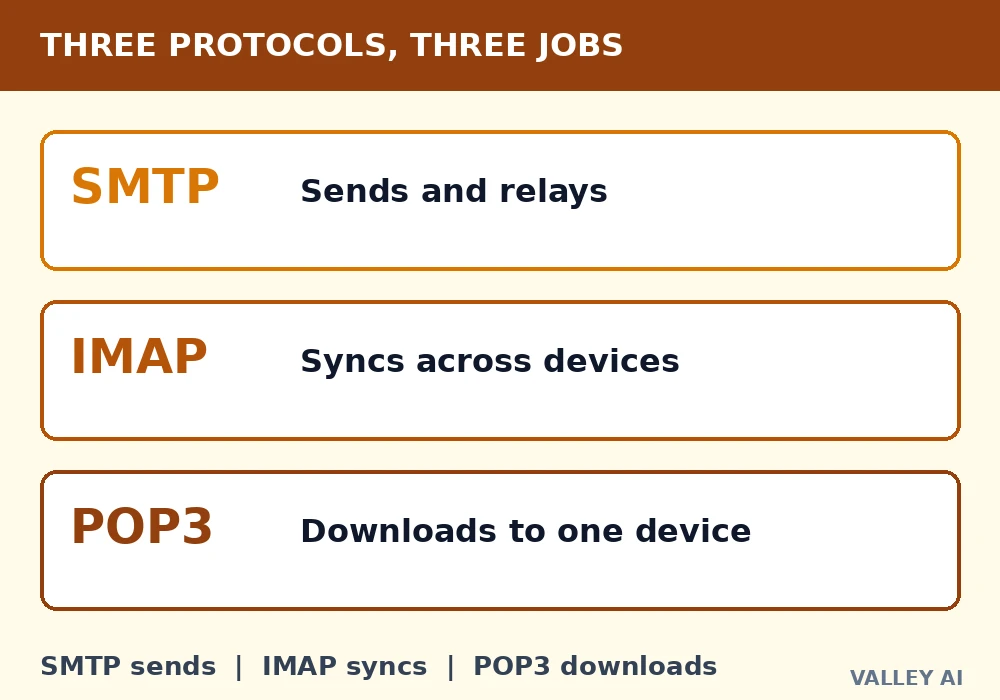
Email uses different protocols for sending and reading, and mixing them up is a common source of confusion. SMTP is for sending and for server-to-server transfer. IMAP and POP3 are for reading mail that is already stored in a mailbox. None of them, on its own, covers the whole journey.
- SMTP — Sends outgoing mail and moves it between mail servers.
- IMAP — Lets an app read mail stored on the server, keeping folders and read status in sync across devices.
- POP3 — Downloads mail from the server, usually removing it from the server afterwards unless the app is set to leave a copy.
The practical difference shows up when you switch devices. With IMAP, a message read on a phone is marked read on a laptop as well. Both apps are looking at the same mailbox on the server. With POP3, a message downloaded to one device may not be available on another, because the copy was moved off the server.
| Step | Job | If it fails |
|---|---|---|
| Send (SMTP) | Moves the message from the sender’s app to the sending server | The message stays in the Outbox or the sender gets an error |
| Route (DNS/MX) | Finds the receiving server for the recipient’s domain | The sender gets a bounce saying the domain or recipient could not be reached |
| Deliver (SMTP) | Accepts the message into the recipient’s mailbox | The sender gets a bounce, or the message is queued and retried |
| Read (IMAP/POP3) | Shows the stored message in the recipient’s app | The message exists, but the inbox looks empty until the app syncs or the right folder is checked |
That table is why a message can be “sent” without being “received”. Sending only means the sender’s server accepted it. Receiving means the receiving server accepted it into a mailbox, and reading means an app has fetched it from that mailbox. Each stage has its own failure message, and the wording of that message usually points to the stage that failed.
When mail is late, bounced, or filtered
Late mail is often not lost mail. A receiving server can temporarily refuse a message, a practice called greylisting, and ask the sender to try again later. A busy server can queue mail and retry it over minutes or hours. In both cases the message may arrive on its own. No action from the sender or recipient is needed. That is why waiting a short time is often the first useful step.
A bounce is different: it is a definite answer that delivery failed, and it usually includes a reason. Common reasons include a misspelled address, a full mailbox, a missing MX record, or a server that rejected the message for policy reasons. Debounce separates hard bounces, where delivery will not succeed on retry, from soft bounces, where a temporary problem may clear. The bounce text tells you which of those happened.
Filtering is a third outcome, and it can look like non-delivery. A receiving server or app can accept a message. It can then place the message in spam, promotions, or another folder. The placement depends on content, sender reputation, or authentication results. For example, a firewall rule can close that port, and a provider policy can block a connection before it reaches the mailbox. That is why a message can be delivered, pass the mailbox check, and still not be in the main inbox.
Authentication checks are a large part of modern filtering. SPF says which servers may send for a domain. DKIM adds a cryptographic signature to the message. DMARC tells receivers what to do when those checks fail. When those records are missing or misaligned, a legitimate message is more likely to be filtered, even if its content is harmless.
Checks you can run on a message you already received
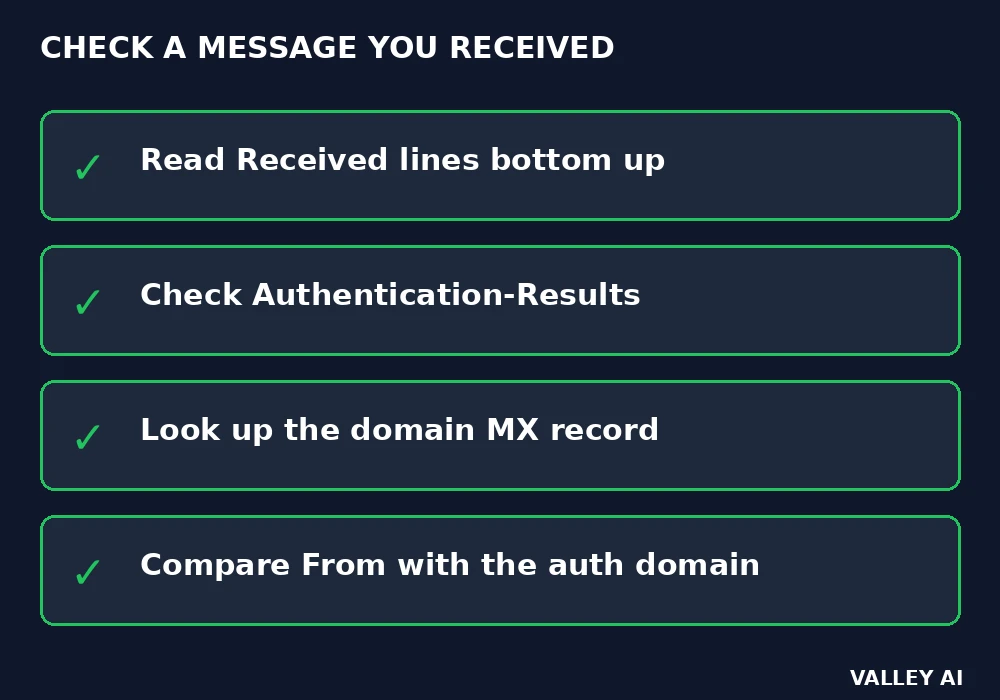
The checks below use information already in the message, so you do not need access to the sending server to run them. They will not fix a broken MX record or a full mailbox. They will tell you where the problem sits, and what to ask the sender or the mail provider to check next. For younger readers, internet safety habits apply here too: do not open unexpected attachments and do not click links in messages you were not expecting.
- Look at the bounce message, if there is one, and note the exact reason and the server that reported it.
- Confirm the spelling of the address and the domain, and check whether the domain has an MX record.
- Ask whether the message appears in webmail, in another app, or in spam and other folders.
- Read the full headers for Received lines, authentication results, and the time each hop recorded.
Full headers are the most reliable single check, because they show the route, the timing, and the authentication results in one place. If the headers show the message arriving at the mailbox, the problem is reading or filtering. If they stop before the receiving server, the problem is routing or rejection. If authentication fails, the problem is more likely to be filtering.
Conclusion
Email works because sending, routing, delivery, and reading are separate jobs, each with its own protocol and checks. SMTP moves mail, MX records point it to the right server, and IMAP or POP3 lets an app read what is already stored. When a message is late, bounced, or filtered, the stage that failed usually leaves a clue. The clue sits in a bounce message or a header. Following it is faster than resending the same message and hoping for a different result.
Frequently asked questions
Can email be sent without an internet connection?
An app can accept a message while offline and hold it in its outbox. Delivery starts only after the device reconnects and the app reaches its submission server. A downloaded copy can be read offline, but a new message cannot leave the device until a connection returns.
Why do two people receive the same message at different times?
Each recipient domain runs its own servers, queues, and filters. One domain may accept and file a message at once, while another queues it after a temporary failure or holds it in a filter. Retrieval timing adds a further gap, since each app syncs or downloads on its own schedule.
Does changing an email app change the mailbox?
Changing the app changes only the view onto the mailbox. With IMAP the mailbox stays on the server, so a new app shows the same folders and messages after sign-in. With POP3 a mailbox already downloaded to one device does not move to a new app by itself.
Is a message in Sent the same as delivered?
A Sent copy records only that the sender app handed the message to a submission server. Delivery means the recipient server accepted it, and that acceptance is not shown to the sender in most apps. A missing message with no bounce usually points to a queue, a filter, or a retrieval gap.

Kaleem
Kaleem is a Computer Science graduate (Virtual University of Pakistan) and the founder and editor of Valley AI, where he publishes in-depth, tested guides on computer hardware, artificial intelligence, and how the internet works. Every guide is researched from primary sources, tested hands-on where possible, and updated when the facts change.