

You save a photo, close the laptop, and open it again a week later. The photo is still there, in the same folder, under the same name. Nothing about that feels strange until you ask where the photo actually sat while the power was off.
The answer is a file system: the layer that turns a name into a place on the drive and keeps that mapping intact through crashes and restarts. One real file, traced from its name to the exact blocks that hold it, shows how the layer works.
What a file system is: the layer between a name and the blocks
A bare drive holds blocks and nothing else. It has no names, no folders, and no record of which blocks belong together. A file system is the set of structures written onto that drive that supplies all three: directories pair names with numbers, inodes describe each file, and a bitmap tracks which blocks are free.
Is the file system the same thing as the drive? No. The drive is the hardware that stores bits, and the file system is the organization laid over it. Format the same drive twice with different file systems and you get different rules, different limits, and a different answer to what happens when the power fails.
The layer sits between every program and the drive. When you open a file twice, the second read often comes from RAM, because the operating system keeps recently read blocks in memory. When that memory fills, cached file blocks are the first thing dropped. A full memory brings other symptoms with it.
A 64 MiB test image shows the scale of the structures: 16,384 blocks of 4,096 bytes, with room for 16,384 inodes. A small summary block called the superblock records those counts, so the system knows the shape of the filesystem before it reads a single file.
One file, traced end to end
I built a small ext4 filesystem and read its inodes back with debugfs. The file I traced is photo.bin, a 5,120-byte file I wrote into the image. Its path through the layer takes four steps.
- The root directory pairs the name photo.bin with inode 13. The directory itself is a file, inode 2, and its only job is matching names to numbers.
- Inode 13 says the file holds 5,120 bytes, has one link, and carries the mode 0660. The inode holds no bytes of the file itself, only the facts about it.
- The inode’s extent list says logical blocks 0 and 1 sit at physical blocks 2066 and 2067. One extent entry covers both blocks because they sit next to each other.
- The bytes live in those two 4,096-byte blocks. The file fills the first block and 1,024 bytes of the second, which leaves 3,072 bytes unused at the tail.
Why does the file system need the inode at all? Because a name is only a label. Two names can point at one inode, a file can be renamed without moving a single byte, and the system can check permissions and size without opening the file. The inode is where all of that lives.
Three limits apply to these numbers. The image is one test filesystem on one machine. The three file sizes were my choice. The machine’s own disk runs btrfs. This ext4 image was built as a test filesystem. Fragmentation was not measured here either: no fragmented volume was built. The fragmentation section describes the scattered case as a mechanism, and gives no measurement for it. What was measured is the allocation itself, and it is exact.
Inodes: the file’s identity card
An inode is a fixed-size record, and every file and directory on the filesystem gets one. The test image holds 16,384 of them, numbered from 1. The numbers I read back show how the low end is spent: inode 2 is the root directory, inode 8 is the journal, inode 11 is the lost+found folder, and my three files took 12, 13, and 14.
Open inode 13 and the record reads like an identity card. It lists the file type (regular file), the mode (0660), the owner and group (both 0 here, since the test ran as root), one link, a size of 5,120 bytes, and four timestamps: created, modified, accessed, and changed. Below those fields sits the extent list, the part that points at the data.
Finding a file means walking that pairing. The system reads the root directory, inode 2, finds the name, takes the number beside it, and opens that inode. A path with folders repeats the step at each level: each directory is a file whose entries pair names with numbers, so a deep path is a chain of small lookups.
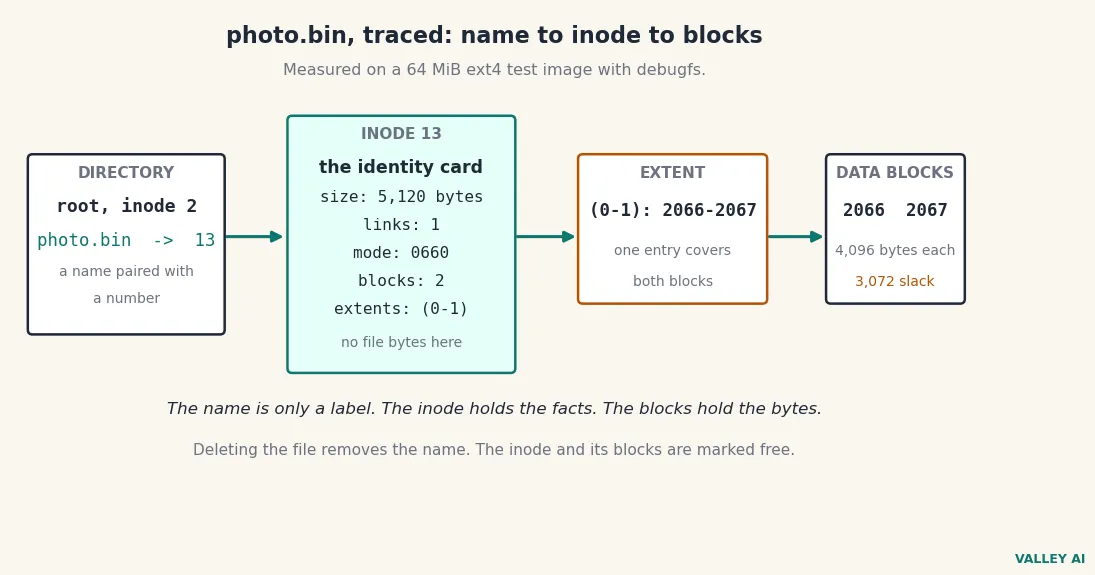
The inode never holds the file’s bytes. That split is the point: metadata lives in the inode table, data lives in blocks, and the directory only stores the pairing of a name with a number. Lose the inode table and the blocks become anonymous bytes, which is why filesystem repair tools start there.
Blocks and slack space: what a small file really costs
Blocks are the unit of allocation, and the file system never hands out less than one. On the test image a block is 4,096 bytes, so every file’s disk use is a whole number of blocks, whatever its byte count says.
| File | Bytes | Inode | Blocks | Disk use | Slack |
|---|---|---|---|---|---|
| note.txt | 6 | 12 | 1 | 4,096 | 4,090 |
| photo.bin | 5,120 | 13 | 2 | 8,192 | 3,072 |
| big.bin | 100,000 | 14 | 25 | 102,400 | 2,400 |
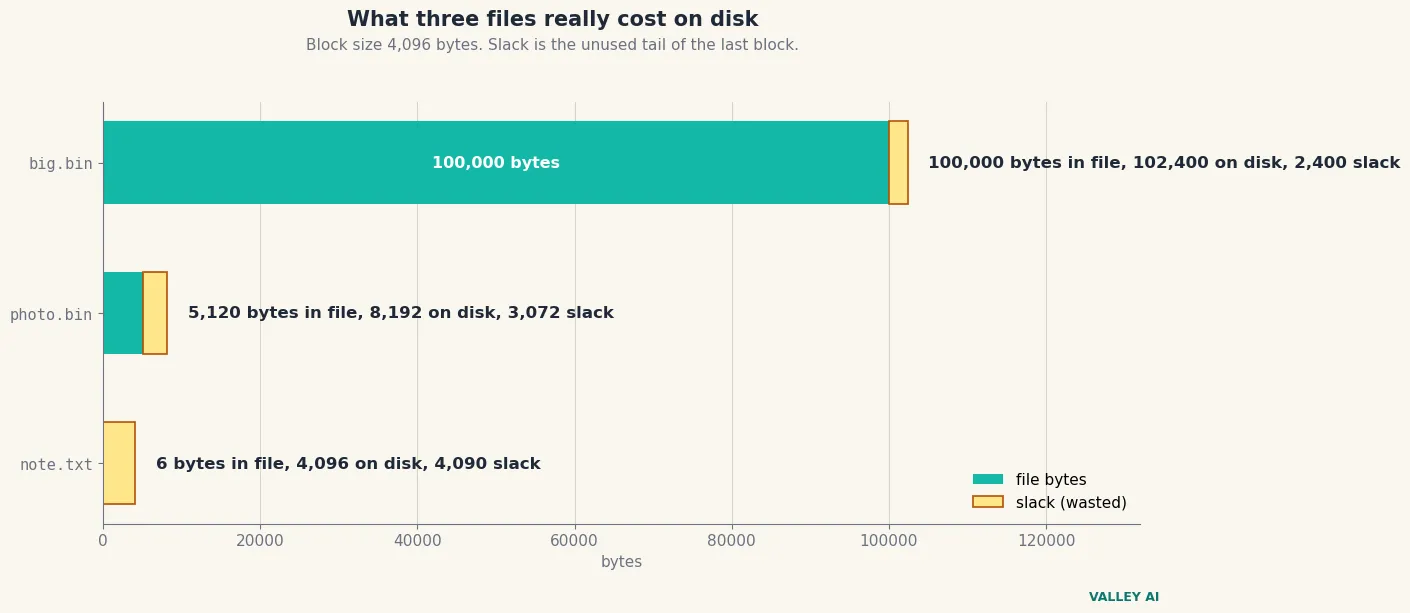
The pattern is plain: the smaller the file, the larger the waste in proportion. A 6-byte file takes a whole 4,096-byte block and leaves 4,090 bytes idle. A 100,000-byte file wastes 2,400 bytes, which is a small share of its size. The waste has a name, slack space, and it is the price of fixed-size allocation.
Does deleting a file erase its bytes? No. Removing note.txt from the test image took its name out of the root directory and left photo.bin and big.bin untouched at inodes 13 and 14. Deletion removes the name and marks the blocks free; it does not scrub the bytes, which is why deleted files stay recoverable until those blocks are reused.
Journaling: the crash notebook
A crash can strike between two writes: the file’s data lands, the inode update does not, and the filesystem wakes up contradicting itself. Journaling fixes that ordering problem by writing the intent first. The change goes into a log, and only then does it go into place.
The test image carries its journal as an ordinary file, inode 8, with 4,194,304 bytes set aside for it. That is 4 MiB of log on a 64 MiB filesystem, about one byte in sixteen. Its extents run (0-9) at blocks 15-24, (10-24) at 26-40, and (25-1023) at 1066-2064, which shows the journal itself is scattered across the image in three runs.
When the machine boots after a crash, the filesystem replays the journal before it lets anyone in. Changes the log shows as complete go into place; changes the log shows as half written are dropped. Either way the filesystem wakes up consistent, and the log is then cleared for the next round of writes.
The journal surprised me when I read its size: 4 MiB set aside on a 64 MiB image. That is a sixteenth of the whole filesystem, just to record intentions. That share is the cost of surviving a power cut. It is why journaling filesystems recover in seconds where older ones needed a full scan.
Not every format keeps such a notebook. Microsoft’s file system comparison lists journaling for NTFS and for none of the other Windows formats. A USB stick formatted exFAT has no log to replay after an unclean unplug. Apple’s APFS takes a different route: copy-on-write metadata. A change is written to fresh blocks and a pointer flips, so the old consistent state survives a crash without a journal at all. Apple describes that design in its guide to the Apple File System.
Fragmentation: when files scatter
A file’s blocks do not have to sit together. The filesystem hands out whatever blocks are free when the file grows, so a file written in pieces over weeks can end up spread across the drive. That spread is fragmentation, and its cost depends on the drive underneath.
The test image shows the other end of the scale. My largest file, big.bin, holds 100,000 bytes in 25 blocks, and all 25 sit in one extent, blocks 2068 through 2092, written in one go. A file written that way reads in one sweep. A file split into dozens of extents makes the drive travel between them.
On a hard drive that travel costs time. The head must move between tracks to reach each scattered run, as how a hard drive works explains. On flash storage there is no head to move. Scattered blocks cost nothing measurable, which is one of the ways how an SSD works differs from spinning disks.
I did not measure fragmentation live, since no fragmented volume was built alongside the test image, so there is no before-and-after timing to quote. The contrast stands on the measured side only, big.bin’s 25 blocks in one extent, against the mechanism of a file split across many.
Which file system for which drive
The format decision is a matching exercise. Each filesystem was built for a home: NTFS for Windows, ext4 for Linux, APFS for Apple devices, exFAT for drives that travel. Match the format to the machines the drive must plug into and the choice mostly makes itself.
Size limits rarely decide it. They settle one old trap: a video file larger than 4 GB will not fit on a FAT32 stick. Microsoft’s file system comparison caps a FAT32 file at 4 GiB. Microsoft’s Windows file systems guide puts the practical NTFS limit at 16 TB with 4 KB clusters, and the exFAT ceiling at 16 exabytes. The Linux kernel’s ext4 documentation puts the ext4 limit at 16 TiB with 4 KiB blocks. Apple’s Disk Utility guide lists no single-file figure for APFS.
| File system | Where you meet it | Crash protection | Best for |
|---|---|---|---|
| NTFS | Windows internal drives | Journal | A Windows-only internal drive |
| exFAT | USB sticks, SD cards, external drives | None | A drive that moves between Windows and Mac |
| ext4 | Linux desktops and servers | Journal | A Linux system or data drive |
| APFS | Mac, iPhone, iPad | Copy-on-write | A Mac internal drive |
A USB stick earns exFAT for the same reason a system drive does not: the stick’s job is to be read anywhere. That trade-off is the reason how a USB flash drive works matters here: the stick’s controller and cells are built for portability, and every extra write shortens their life. A stick that never leaves one Windows PC is the exception; there, NTFS and its journal are the safer pick.
Start from the drive’s job. A drive that stays in one Windows PC takes NTFS. A drive that travels between Windows and Mac takes exFAT, with the understanding that an unclean unplug has no journal to fall back on. A Linux drive takes ext4, and a Mac drive already runs APFS unless someone changed it. Check the format before you copy a file larger than 4 GB onto a stick, and the format will stop surprising you.
Frequently asked questions about file systems
Can I change a drive’s file system without losing files?
No. Formatting writes new structures over the old ones, and the files go with them. Copy everything off the drive first, format it, then copy the files back. That is the safe path for all four formats.
Why can’t Windows write to a Mac-formatted drive?
Windows ships no driver for APFS, so it cannot make sense of the volume and offers to format it instead. A drive meant for both systems needs a shared format, and exFAT is the usual pick.
Does the file system affect speed?
Less than the drive does. Block size and journaling add small overheads, and fragmentation slows a hard drive, but the gap between a hard drive and flash storage is far larger than the gap between formats on the same drive.
What happens if I pull out a USB stick without ejecting?
Any writes still sitting in memory are lost, and the directory entry for the last file may be half written. A journaled format replays its log and lands in a consistent state; exFAT has no journal, so the same pull carries a higher chance of a damaged directory.
How many files can one folder hold?
The folder sets no limit of its own; the filesystem’s inode count does. A 64 MiB test image with 16,384 inodes holds about 16,384 files at most, and some of those inodes already belong to the journal and the folders. Real drives carry millions of inodes, so the practical limit is disk space long before the count runs out.
Is exFAT safe for a drive I never unplug?
It works, but it is the weakest pick for an always-attached drive. Without a journal, a power cut can leave the directory inconsistent, and there is no log to replay. NTFS, ext4, or APFS fits a drive that stays plugged in, since each one carries crash protection.

Kaleem
Kaleem is a Computer Science graduate (Virtual University of Pakistan) and the founder and editor of Valley AI, where he publishes in-depth, tested guides on computer hardware, artificial intelligence, and how the internet works. Every guide is researched from primary sources, tested hands-on where possible, and updated when the facts change.