
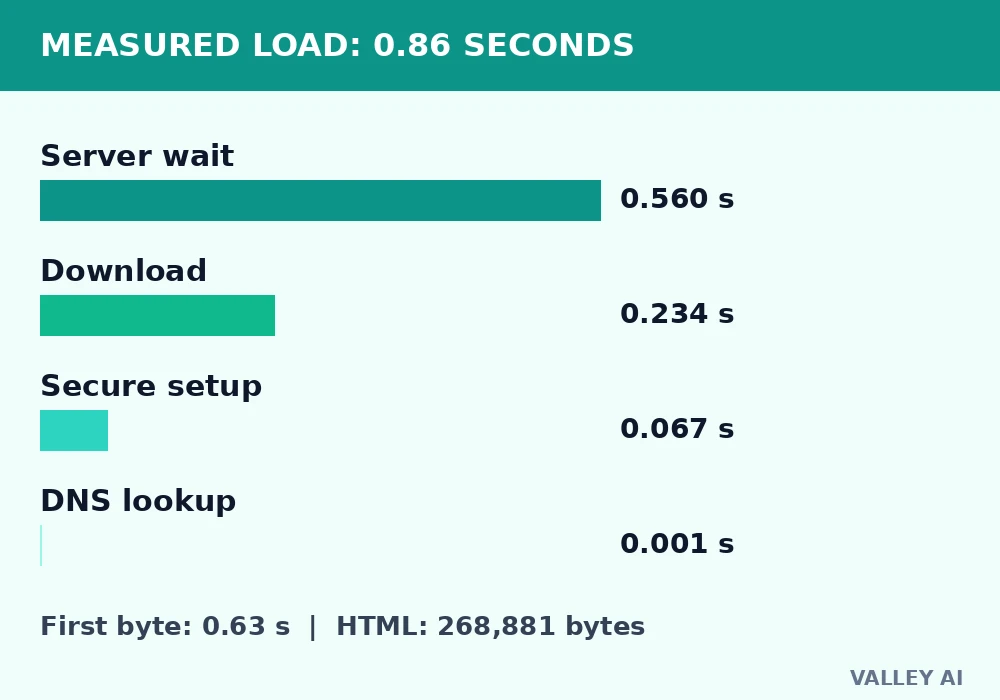
A measured load, before any theory. On 2 November 2026, one request to the valleyai.net home page returned 268,881 bytes in 0.86 seconds.
The first byte took 0.63 seconds to arrive. Download after that point took 0.23 seconds. Most of the wait sat before any page content moved, in server processing and the secure connection setup. That split matters. A slow page is often blamed on the download, while the measurement points earlier in the chain.
| Stage | Measured time |
|---|---|
| DNS lookup | 0.001 seconds |
| Secure connection setup | 0.067 seconds |
| Server wait to first byte | 0.560 seconds |
| Download after first byte | 0.234 seconds |
| Full request | 0.861 seconds |
Those numbers come from a timed request run on 2 November 2026, with a second run returning 0.94 seconds for the same page. The home page HTML measured 268,881 bytes, which is 262.6 KiB. At a steady 100 megabits per second, that HTML alone would take about 0.02 seconds to download. The gap between that ideal and the measured 0.86 seconds sits in connection setup, server work, and the later files a browser must fetch before it can paint.
Keep that split in mind through the rest of this guide. The browser is not one step. It is a chain, and the slow stage is usually the one you cannot see.
The parts inside every browser
A browser is a program that fetches a page, turns its code into a visible layout, and keeps that page running while you interact with it. A search engine is a different thing: it is a site that helps you find pages. The browser is the tool that shows them.
- User interface: address bar, tabs, menus, and controls.
- Browser engine: coordinates work between the interface and the rendering engine.
- Rendering engine: builds the DOM and CSSOM, runs layout, and paints.
- Networking: performs DNS lookup, TCP connection, TLS handshake, and HTTP fetch.
- JavaScript engine: runs scripts and handles events.
- Data storage: keeps cache, cookies, and site settings.
The interface never draws the page itself. It asks the rendering engine to do that work, and the rendering engine asks networking for files, the JavaScript engine for behaviour, and storage for anything saved earlier. Chrome uses Blink, Firefox uses Gecko, and Safari uses WebKit. Those engines follow the same web standards, but they can differ in detail, which is why a page can look slightly different in different browsers.
Does the browser download a whole page before it shows anything? In fact, the browser shows early content as soon as it has enough parsed HTML and style information to build a first layout. The rest can arrive while the user is already reading. That is why a partly loaded page is not a fault: it is the normal order of work.
From bytes to a tree: HTML parsing
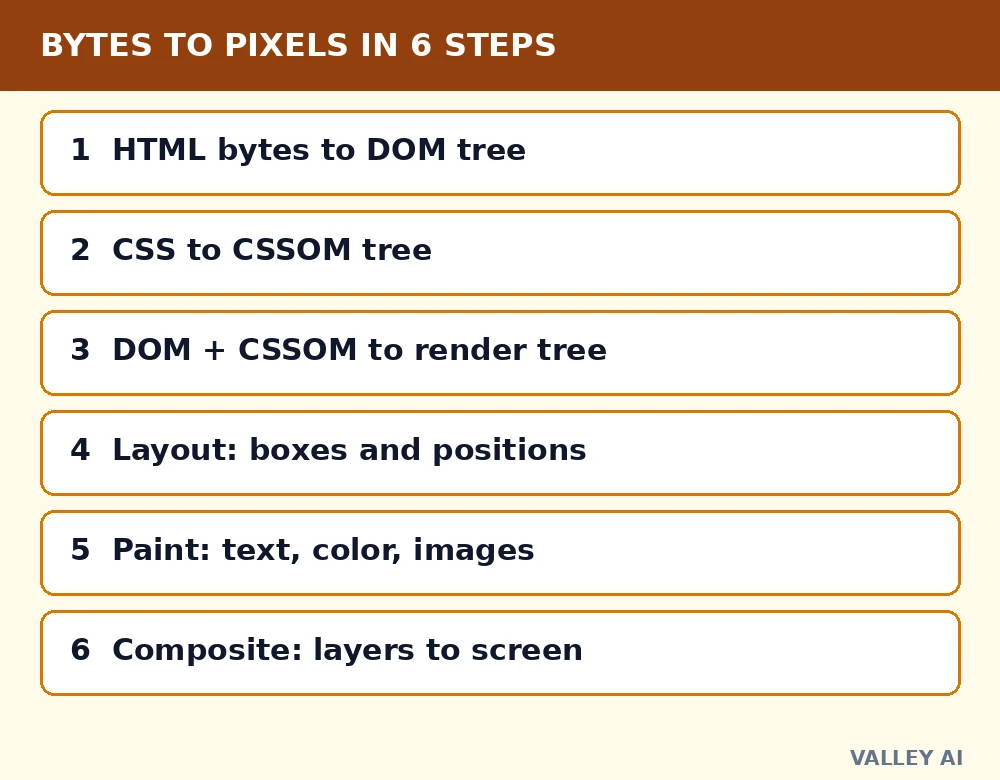
Parsing turns bytes into a tree the browser can work with. The browser reads the HTML, builds the Document Object Model (DOM), and keeps that tree as the live structure of the page. Every element, attribute, and text node becomes a node in that tree. When a script changes the page, it changes the DOM, and the browser redraws from the changed tree.
Bytes stream in order, and the parser turns them into tokens, then nodes, then a tree. A missing closing tag does not stop the parser. The parser applies error handling rules, closes the open element where the standard says it should, and keeps going. That tolerance is why broken HTML often still shows a page, and why two browsers can still differ on badly formed markup.
A script tag must be downloaded and run before the parser continues, unless it is marked to defer or run asynchronously. A large script in the head therefore delays the first paint, because the parser waits. A script at the end of the body, or a deferred script, lets the parser build more of the page first. That is a practical reason to check where scripts sit when a page feels slow to start.
Styles, layout, and paint: how pixels are chosen
CSS follows the same idea. The browser parses each stylesheet into the CSS Object Model (CSSOM), a tree of style rules. It then combines the DOM and the CSSOM into a render tree, which contains only the visible nodes and the styles that apply to them. Hidden elements stay out of the render tree, even though they stay in the DOM.
The DOM plus the CSSOM gives the browser a render tree. Layout then assigns a position and a size to each visible node, using the page width, the font, and the box model. Paint then fills in text, colours, borders, and images, layer by layer. Compositing puts those layers together into the final image on screen. A change to layout is more expensive than a change to paint alone, because layout can move other elements with it.
CSS blocks rendering, because the browser cannot build a correct render tree without the styles. A missing stylesheet therefore leaves text without layout, while a slow stylesheet delays the first paint. JavaScript can block rendering when it runs, because a script can change the DOM or read a layout value that forces the browser to finish layout first.
Why does a page flash unstyled content for a moment? The browser has painted early HTML before the stylesheet arrived, so the first paint uses default styles. When the stylesheet lands, the browser rebuilds the render tree and repaints with the correct styles. The flash is the gap between those two paints, not a fault in the page itself.
JavaScript, tabs, and the security boundary
Modern browsers run each tab or group of tabs in a separate process, so one broken tab does not have to take down the whole browser. That separation helps memory accounting: a single tab’s heavy page cannot hide inside a shared total. Closing a tab is not the same as closing the browser, and the browser keeps its stored data for the next tab.
Does closing a tab close the browser? No. Closing a tab ends that tab’s processes, while the browser itself keeps running with its other tabs, stored cookies, and saved settings. A fresh tab then starts with a clean rendering process, even though the browser’s shared storage remains.
Security rests on the same-origin policy. A page from one origin cannot read data from another origin unless that origin allows it. Cookies are tied to a site, so a script on one site cannot read cookies set by another. That boundary is what stops a random page from reading your mail or your bank session just because both tabs are open.
The address bar shows the security state of the connection, through the HTTPS padlock and certificate checks. The padlock says the connection is encrypted and the certificate matches the host. It says nothing about whether the site itself can be trusted. A phishing page can carry a valid certificate. The domain name in the address bar, checked letter by letter, is the check that catches a lookalike domain.
When a page breaks, the stage tells you why
A symptom points to a stage. A blank page with a DNS error points to name resolution, which DNS lookup for the host explains. A page that loads text but no styling points to a blocked or missing stylesheet. A page that looks right but buttons do nothing points to a script that failed or was blocked. A page that loads on one network but fails on another points to a network rule or a filter on that network, a pattern the firewall rule checks help explain.
Start with the cheapest test. Reload once, then try a private window, which skips most extensions and uses a fresh cache for that session. If the private window works, an extension or a stale cache is a likely cause. If it fails in the same way, the problem is more likely in the network, the server, or the page itself.
Cache deserves a careful check. A cached file can be stale, and a cached redirect can send you to the wrong place even after the server is fixed. Clearing cache for that site, rather than for all time, is the narrower test. If the page works after that clear, the old copy was the cause, and you have not lost other saved data for no reason.
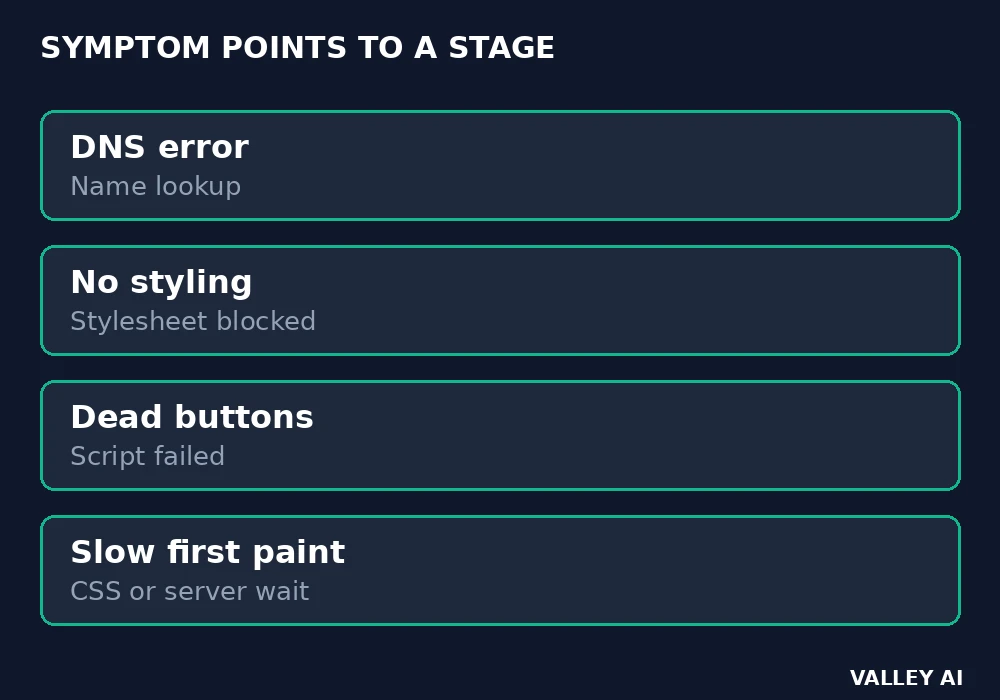
The request itself travels over the local link first, then the wider network. The wired path inside a home follows the Ethernet frame and switch rules. The message exchange with the server follows the ordered TCP delivery that web traffic uses. Test one stage at a time. Check DNS, then connection, then first byte, then download. That order names the slow stage faster than a general speed test. The internet safety habits apply here as well. Check the domain. Check the certificate. Treat an unexpected download prompt as a stop sign.
Conclusion
For the next slow page, name the stage before you blame the browser. Check the first byte, the download, the stylesheet, and the script, in that order. A browser is a chain of small, testable steps, from address bar to pixels, and each step leaves a number you can measure.
Do not guess at the stage: repeat the measurement, check one stage at a time, and let the numbers say where the wait sits. That habit turns a vague complaint about a slow page into a specific, fixable cause.
Frequently asked questions
Is a browser the same as a search engine?
A browser is the program that fetches and draws pages. A search engine is a website that answers a query with a list of pages. You open a search engine inside a browser, and you can change the default search engine in browser settings without changing the browser itself.
Why do some sites look different in different browsers?
Each browser ships a different rendering engine, and each engine renders fonts, form controls, and edge cases in its own way. Sites that test in one browser only can drift apart in another. A difference in one control is usually an engine choice. A broken layout in one browser points to a rule that browser handles differently.
Does clearing cache delete saved passwords?
Cache holds copies of files such as images and stylesheets. Passwords sit in the password manager, which is a separate store with its own clear option. Clearing cache can remove local preferences, but it leaves saved logins in place unless you choose the password option as well.
Why does a browser use so much memory with many tabs?
Each tab holds its own page tree, scripts, and images, and modern browsers add a process per site for crash isolation. Memory therefore grows with open tabs and with heavy pages. Closing tabs frees their page memory. Extensions add their own share, so a browser with many extensions starts heavier before any page loads.
Can a browser show a page without an internet connection?
Yes, in limited cases. A page stored in cache, a file opened from local disk, or a page a site saved for offline use can open without a network. A fresh page from a server cannot load offline, because the browser has no file to draw. The error page that appears names the missing connection, not a broken browser.

Kaleem
Kaleem is a Computer Science graduate (Virtual University of Pakistan) and the founder and editor of Valley AI, where he publishes in-depth, tested guides on computer hardware, artificial intelligence, and how the internet works. Every guide is researched from primary sources, tested hands-on where possible, and updated when the facts change.