
You buy a keyboard labeled AZERTY, connect it to a computer configured for QWERTY, and suddenly the keys produce unexpected characters. Or you switch to AZERTY for French typing and discover that your game controls, brackets, punctuation, and shortcuts no longer feel familiar.
That confusion comes from treating two separate things as one: the physical keyboard and the software keyboard layout.
QWERTY and AZERTY are not different keyboard technologies. They are arrangements of letters, numbers, punctuation, and symbols. QWERTY usually fits English-first and international workflows. AZERTY usually fits users who type French regularly. Neither layout is universally faster or better.
QWERTY and AZERTY at a glance
QWERTY and AZERTY are keyboard layouts that assign different characters to some of the same physical key positions. The names come from the first six letters across the top letter row: Q-W-E-R-T-Y on QWERTY and A-Z-E-R-T-Y on AZERTY.
| Decision factor | QWERTY | AZERTY |
|---|---|---|
| Common association | English-language computing and international use | French-language computing |
| Top letter row | QWERTY | AZERTY |
| Common letter changes | Standard English arrangement | A/Q and Z/W positions commonly change |
| French accents | Available, but may require shortcuts or input methods | Common lowercase accents are often more accessible |
| English punctuation | Familiar to English-trained users | Several punctuation positions may require adjustment |
| Programming | Often familiar for English-language tools and documentation | Symbols may feel less convenient at first |
| Gaming | WASD is a common default | ZQSD may be used based on physical key positions |
| Regional consistency | US, UK, and other versions differ | French and Belgian versions differ |
| Hardware requirement | Works with QWERTY keycaps or a software layout | Works with AZERTY keycaps or a software layout |
The exact positions of punctuation and symbols vary by country, operating system, keyboard manufacturer, and physical format. A US ANSI QWERTY keyboard, UK ISO QWERTY keyboard, French AZERTY keyboard, and Belgian AZERTY keyboard are not interchangeable diagrams.
![A side-by-side keyboard diagram highlighting A/Q, Z/W, M, punctuation, number-row symbols, and Alt Gr positions.]](https://valleyai.net/wp-content/uploads/2026/09/side-by-side-keyboard-diagram-highlighting-1024x683.webp)
The key differences you notice first
The most visible difference is the letter order. On a common French AZERTY layout, the physical positions used for Q and A are exchanged compared with QWERTY, as are W and Z. The M key also moves in common French arrangements.
Those changes affect more than alphabetical familiarity. They alter where users reach for punctuation, symbols, accented characters, and keyboard shortcuts.
Letter positions
A person trained on QWERTY expects the upper-left letter keys to begin with Q and W. A person trained on AZERTY expects A and Z in those positions. Typing a familiar word with the wrong software layout can produce a string of apparently random letters.
The difference is not caused by defective hardware. The computer is using a different character map.
Numbers and symbols
Common French AZERTY implementations may require the Shift key to type numbers from the number row, while the unshifted keys can provide symbols or accented characters. The exact arrangement differs between French Windows keyboards, Apple keyboards, Belgian layouts, and newer standardized proposals.
That distinction matters for passwords, spreadsheets, coding, and shortcuts. Someone switching from QWERTY may initially press the number row expecting 1, 2, and 3, then receive symbols instead.
Punctuation and programming symbols
Punctuation can be more disruptive than letters because punctuation marks are used constantly but are less deeply memorized. Apostrophes, quotation marks, periods, slashes, brackets, braces, and backslashes may occupy different positions or require Alt Gr, the alternate graphic key used to access additional characters.
For ordinary prose, the adjustment may be manageable. For programming, command-line work, regular expressions, or spreadsheet formulas, symbol placement becomes a daily workflow issue.
Why French users commonly encounter AZERTY
AZERTY developed as a regional keyboard convention for French-language computing. The arrangement reflects the needs and traditions of French typing, including access to accented letters and punctuation conventions.
The historical explanation is less useful than the practical result: keyboard layouts persist because users learn them, schools and workplaces deploy them, and manufacturers sell hardware to match local expectations. A layout becomes familiar through repetition, not because every key position remains optimal for every modern task.
French AZERTY also has limitations. Traditional layouts may make common lowercase characters such as é, è, à, ù, and ç convenient while making uppercase accents, ligatures, or less-common symbols less obvious.
French keyboard standardization has addressed some of these issues. The NF Z71-300 standard is associated with French keyboard-layout specifications; verify the exact scope and current documentation through AFNOR. Standardization does not mean every laptop or mechanical keyboard sold in France uses the same arrangement.
French and Belgian AZERTY are related, not identical
Belgian AZERTY is not simply French AZERTY with a different country label. The two layouts share the AZERTY identity and French-language context, but punctuation, symbols, accents, and modifier behavior can differ.
A buyer should check the actual product photograph or manufacturer layout chart rather than relying on the word “AZERTY.” Product listings may use “French,” “Belgian,” or “European” loosely.
Look for these details before buying:
- Which characters appear on the number row
- Where
Mis located - Whether the keyboard uses ISO or another physical format
- How
@,#, brackets, braces, and backslash are entered - Whether
Alt Gris present - Whether the legends match French or Belgian conventions
- Whether the operating system includes the matching software layout
A keyboard can be physically compatible with your computer while still being confusing to use if the printed legends do not match the active software layout.
French accents: AZERTY helps, but not equally for every character
AZERTY is often more convenient for frequent French typing because common accented characters are placed within easier reach on many French layouts. That does not mean every French character becomes effortless.
| Character or feature | Typical consideration |
|---|---|
é | Commonly easy to access on French layouts |
è, à, ù | Often supported directly or through layout-specific keys |
ç | Commonly available on French layouts |
É, Ç | May require Shift, Caps Lock behavior, a dead key, or another input method |
œ, Œ | Availability varies by layout and operating system |
æ, Æ | Usually requires a secondary method |
| Nonbreaking space | May depend on application or input method |
| French quotation marks | Often require a shortcut or character method |
A dead key does not immediately produce a visible character. Instead, it modifies the next key. For example, a dead accent key followed by e can produce an accented letter. Alt Gr provides another layer of symbols on many international layouts.
Unicode defines the characters themselves, but the keyboard layout determines how conveniently a user enters them. The Unicode Character Code Charts are useful when you need to confirm a character or ligature, not when you need a convenient everyday shortcut.
In practice, uppercase accents are the test many comparisons skip. A user may write lowercase French comfortably and still lose time when entering É, À, or Ç in headings, names, forms, and formal documents.
Can you type English on an AZERTY keyboard?
Yes. An AZERTY keyboard can type English normally, but English-trained users may need to relearn letter positions, punctuation, shortcuts, and number-row behavior.
English letters are present on AZERTY. The issue is not language compatibility; the issue is motor memory. If you touch-type on QWERTY, your fingers will initially press the positions associated with QWERTY rather than the characters printed or expected under AZERTY.
English-heavy work may expose several friction points:
- Apostrophes and quotation marks
- Number entry
- Slash and backslash
- Brackets and braces
- Keyboard shortcuts
- Password entry
- Command-line syntax
- Game controls
A user who looks at the keys while typing may adapt faster than a touch typist whose fingers rely on fixed positions. Neither experience predicts long-term speed perfectly.
Typing speed and ergonomics depend on the person
There is no honest universal winner in QWERTY vs AZERTY typing speed. Performance depends on the language being typed, training, hand position, punctuation frequency, software, and how long the user has practiced the layout.
AZERTY may reduce reach or search time for some French characters. QWERTY may reduce friction for an English-dominant user who already knows its shortcuts and symbol positions. A layout change usually causes a temporary performance drop while muscle memory rebuilds.
Ergonomics also cannot be decided from the layout name alone. Desk height, keyboard angle, key resistance, hand size, typing technique, and breaks often matter more than whether the top row begins with Q or A.
A practical test is more useful than a theoretical argument:
- Type a paragraph in your main language.
- Enter numbers, punctuation, and symbols.
- Write a typical email or document.
- Run a normal programming or command-line task.
- Repeat the test after several practice sessions.
- Record errors and hesitation, not just words per minute.
The layout that produces fewer corrections in your real work may be the better choice, even if another layout looks more efficient on paper.
Programming favors familiarity with symbols, not a specific nationality
QWERTY is often easier for programmers who learned on US keyboards because programming tutorials, key references, and common development environments frequently show US QWERTY positions. That is a familiarity advantage, not proof that QWERTY is inherently superior for code.
Programming places heavy demand on:
- Parentheses
- Brackets and braces
- Angle brackets
- Slash and backslash
- Pipe
- Ampersand
- Asterisk
- Underscore
- Equals and plus signs
- Colons and semicolons
- Quotes and backticks
On AZERTY, several of these symbols may require different modifier combinations. A developer who writes code for hours each day may notice the change more than someone writing occasional scripts.
The right test is your toolchain. Open your editor, terminal, browser developer tools, and version-control interface. Check whether the symbols you use most are easy to reach and whether shortcuts such as copy, paste, select all, save, and comment behave as expected.
Gaming: WASD versus ZQSD is only the beginning
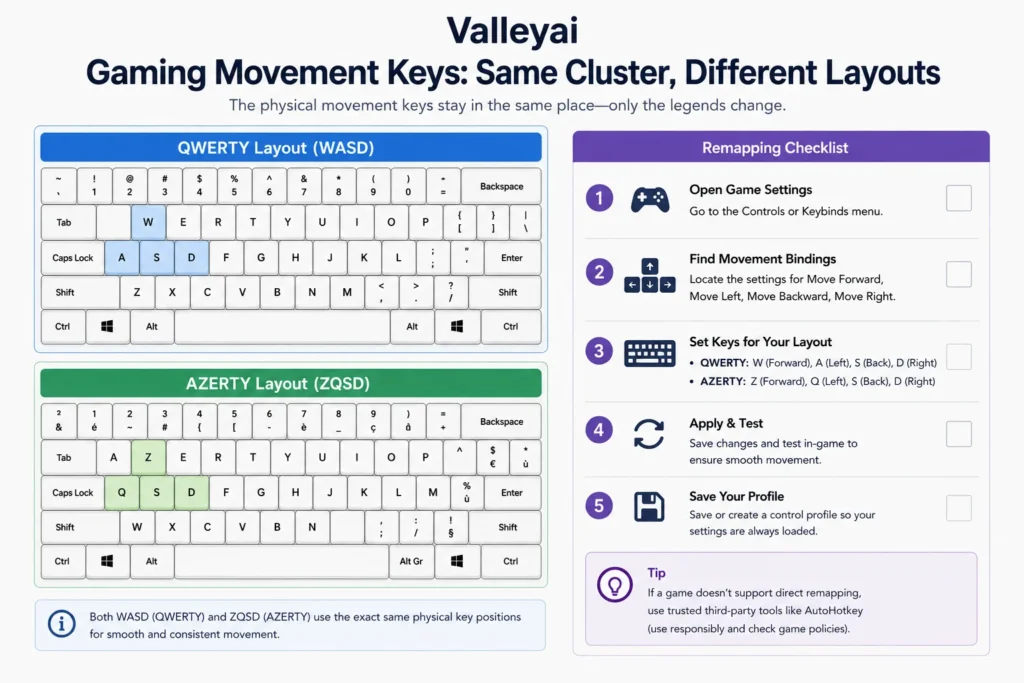
Many PC games use WASD as a default movement cluster because those keys are adjacent on QWERTY. On a common AZERTY arrangement, the same physical positions correspond to ZQSD, so some games or players use ZQSD instead.
The outcome depends on how the game reads and assigns controls:
- Some games bind movement to physical key positions.
- Some games bind movement to character values produced by the active software layout.
- Some games provide complete keyboard remapping.
- Some games store controls per profile or per device.
- Some games assume QWERTY-style defaults.
If movement does not work after changing layouts, do not immediately replace the keyboard. Use this checklist:
- Open the game’s control settings.
- Check the displayed movement bindings.
- Press the intended keys and confirm which inputs the game detects.
- Assign movement manually to the keys you want.
- Test sprint, crouch, reload, and nearby controls.
- Save the profile and test again after restarting the game.
- Repeat the configuration on other computers or profiles.
A game can have correct text input and still have inconvenient controls. Game bindings are separate from ordinary document typing.
The layout printed on the keyboard is not always the active layout
A physical keyboard contains switches, key positions, and printed legends. The operating system’s software layout decides which character or command a key press generates.
That means a QWERTY-labeled keyboard can produce AZERTY input if the computer selects an AZERTY software layout. The reverse is also true. Changing the software layout does not move the legends or physically rearrange the keys.
| Situation | What changes | What does not change |
|---|---|---|
| Select AZERTY in Windows | Characters generated by key presses | Printed QWERTY legends |
| Buy AZERTY keycaps | Visual labels | The active software layout |
| Remap a key in firmware | Hardware output behavior | Other operating-system settings |
| Change a game binding | Game controls | Normal text entry in other apps |
| Add a macOS input source | Active typing layout | Physical key positions |
This distinction solves several common problems:
- Software-only switch: Cheap and reversible, but the labels may become misleading.
- New keycaps: Useful when the physical keyboard is otherwise comfortable and compatible.
- New keyboard: Best when the layout, hardware format, legends, and regional keys all need to match.
- Per-application remapping: Useful for games or specialist software without changing everyday typing.
Before buying, decide whether you need different physical key positions or merely a different character map.
How to switch layouts in Windows, macOS, or Linux
Operating-system interfaces change, so use current official instructions rather than relying on an old screenshot.
Windows
Windows lets you add keyboard layouts through language and keyboard settings, then switch between installed layouts from the taskbar or a keyboard shortcut. Microsoft explains the current process in its documentation for managing language and keyboard/input layouts.
After switching, test:
- The letter row
- Number-row behavior
- Accents
- Brackets and punctuation
- Keyboard shortcuts
- Password fields
Adding a layout does not change the legends on a physical keyboard.
macOS
On a Mac, add an input source through Keyboard settings and switch sources from the Input menu. Apple’s official Input Sources guidance also explains how the Keyboard Viewer can display the active arrangement.
Keyboard Viewer is especially useful when the key labels and software layout differ. It shows what macOS expects from each key and modifier combination.
Linux
Linux keyboard configuration depends on the distribution and desktop environment. GNOME, KDE Plasma, and other environments may expose different settings panels, while lower-level configurations can involve XKB, the X Keyboard Extension.
Add the desired layout through your desktop’s keyboard settings, then verify the result in a text editor and terminal. Avoid assuming that instructions for one distribution apply to every Linux installation.
Choose by workflow, not by country
Country is a useful clue, but your daily tasks are a better predictor of satisfaction.
| Your workflow | Starting recommendation | Why |
|---|---|---|
| French is your main writing language | AZERTY | Familiar access to common French characters and local conventions |
| English is your main writing language | QWERTY | Familiar letters, punctuation, shortcuts, and shared-device compatibility |
| You write French and English equally | Test both, or separate by device | Switching cost may outweigh accent convenience |
| You program mostly in English | Usually QWERTY | Symbol positions and documentation may feel more familiar |
| You game across international PCs | Usually QWERTY | Wider familiarity with default bindings, though remapping solves much |
| You use a French workplace or school computer | Match the local layout | Reduces confusion on shared devices |
| You travel or use borrowed computers | QWERTY often creates less friction internationally | More devices and support materials use QWERTY conventions |
| You type French occasionally | Keep QWERTY and add French input tools | Avoids relearning the entire layout |
| You own multiple devices | Match each device to its primary task | Separate layouts can be easier than constant switching |
| You are buying replacement keycaps | Confirm regional layout and ISO/ANSI format first | AZERTY labels alone do not guarantee a complete match |
The switching-cost test
Ask three questions:
- How many hours each week do I type French?
- Which symbols and shortcuts cause friction now?
- Will I use one keyboard consistently for several months?
If French writing occupies most of your day, AZERTY may repay the learning period. If French appears only in occasional messages, software input tools on QWERTY may be the lower-friction option.
When keeping QWERTY is the better solution
You do not need to abandon QWERTY to type French. A QWERTY user can add a French input source, use compose or dead-key methods, insert characters through the operating system, or rely on application-specific shortcuts.
Keeping QWERTY often makes sense when:
- Your work is mainly in English.
- You code or use command-line tools daily.
- You switch between international computers.
- You game on systems with QWERTY-oriented defaults.
- You already type quickly and French accents are occasional.
- You share a computer with QWERTY users.
- You want consistent keycap legends across devices.
This approach trades some French-character convenience for lower switching cost. For bilingual users, that can be the sensible compromise rather than an incomplete solution.
Is AZERTY better than QWERTY?
AZERTY is better for a French-dominant workflow when its character positions and local conventions save more time than the layout change costs. QWERTY is better for many English-dominant, international, programming, and shared-device workflows because users already know its positions and shortcuts.
Neither layout is inherently faster or more ergonomic for every person. Choose according to language frequency, programming symbols, gaming habits, device availability, and willingness to retrain muscle memory.
Alternatives worth knowing: NF Z71-300 and BÉPO
Traditional AZERTY is not the only French-oriented option. BÉPO is an alternative French keyboard layout designed around French typing and broader ergonomic considerations. It is a different learning commitment, not a quick substitute for AZERTY.
NF Z71-300 is associated with French keyboard standardization. Standards can improve consistency, but actual hardware adoption varies. Check the exact keyboard diagram before purchase, especially if you need uncommon symbols, uppercase accents, or specialist language support.
Frequently asked questions
Is AZERTY used in Belgium?
Yes. Belgium commonly uses Belgian AZERTY keyboards, but Belgian AZERTY is not identical to every French AZERTY implementation. Punctuation, symbols, accents, and modifier combinations can differ. Check the manufacturer’s layout image and the operating system’s selected input source before buying or configuring a keyboard.
Which layout is better for gaming?
Neither layout automatically wins. QWERTY games often default to WASD, while AZERTY users may prefer the equivalent physical cluster, commonly ZQSD. The best choice depends on whether the game supports remapping and how it interprets key input. For a specific title, the in-game binding menu matters more than the layout’s name.
Is QWERTY better for programming?
QWERTY is often more familiar to programmers who learned through US-centric tutorials and tools, especially for brackets, braces, slashes, and command-line symbols. AZERTY can work well, but symbol access may require different modifier combinations. Test your editor and terminal workflow instead of treating QWERTY as a universal programming standard.
Do QWERTY and AZERTY require different physical keyboards?
No. The computer can use QWERTY or AZERTY through software, regardless of the printed legends. A physical AZERTY keyboard is useful when you want matching labels and key positions, but it is not technically required. Mismatched legends become the main practical problem when the software layout and hardware labels disagree.
How can you type French accents on QWERTY?
Add a French keyboard input source or use your operating system’s accent, dead-key, compose, or character-picker features. The exact method depends on Windows, macOS, Linux, and the selected layout. For occasional French writing, keeping QWERTY and adding an input source is often easier than relearning AZERTY. Confirm the method in your current operating-system documentation.
Can an AZERTY keyboard type English correctly?
Yes. AZERTY contains the letters needed for English, and English applications work normally. The adjustment concerns key positions, punctuation, numbers, and shortcuts rather than basic language support. An experienced QWERTY typist may initially make more errors because finger memory points to different characters.

Kaleem
Kaleem is a Computer Science graduate (Virtual University of Pakistan) and the founder and editor of Valley AI, where he publishes in-depth, tested guides on computer hardware, artificial intelligence, and how the internet works. Every guide is researched from primary sources, tested hands-on where possible, and updated when the facts change.