
You use it for hours every day, yet most people never think about what’s happening under their fingertips. A keyboard looks simple, a grid of keys, but inside it is a small computer of its own, making thousands of decisions per second.
This guide covers everything: how keyboards actually work, the five technologies inside them, layouts and sizes, the mystery keys (what even is LMB?), typing symbols and emojis, the shortcuts worth memorizing, and how to pick the right keyboard for the way you work. Each section links to a deeper guide where you can go further.
What Is a Keyboard?
A keyboard is an input device: it converts your finger presses into electrical signals your computer understands. Every key is a switch sitting over an electronic circuit. Press the key, the switch closes the circuit, and the keyboard’s internal processor figures out which key you pressed and tells the computer.
Keyboards replaced punched cards as the main way to talk to computers in the 1970s, and despite touchscreens and voice assistants, they remain the fastest precise input method ever made. A practiced typist produces 60 to 100 words per minute. No phone keyboard comes close..
How a Keyboard Actually Works
Here’s what happens in the milliseconds between your finger pressing a key and a letter appearing on screen.
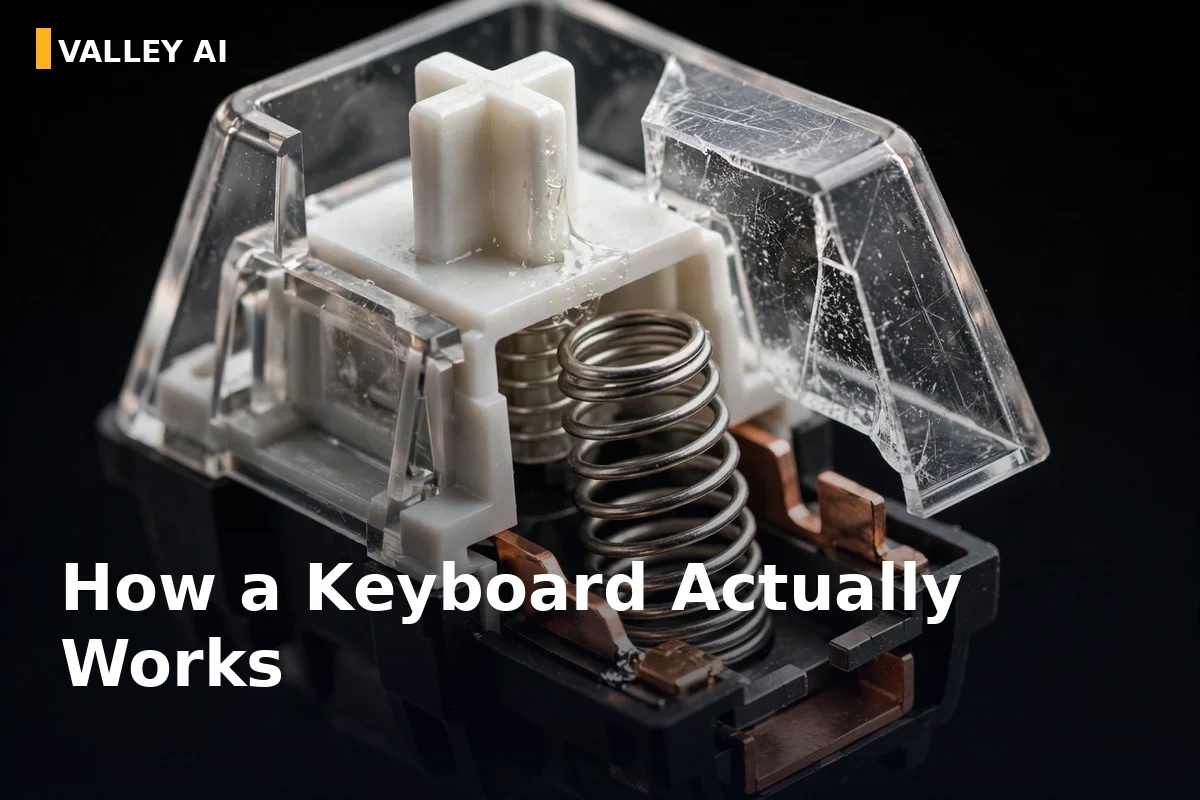
1. The key matrix. Under the keys sits a grid of circuits called the key matrix: rows and columns of electrical traces. Each key sits at one intersection. When idle, every circuit is broken at its key’s position.
2. The switch closes. Pressing a key pushes a switch down, completing the circuit at that intersection. A tiny current flows. Mechanical switches do this with metal contacts; membrane keyboards press conductive layers together; optical keyboards break a beam of light instead.
3. Debounce. A physical switch doesn’t close cleanly. It bounces, making and breaking contact several times in a few milliseconds. The keyboard’s processor filters out this “bounce” so one press registers as exactly one keystroke.
4. Scan codes. The processor identifies which row and column closed, then looks up that position in its character map (stored in the keyboard’s own memory) and converts it into a scan code, a number representing the physical key, not the letter. That’s why the same keyboard can type French on an AZERTY layout setting: the computer, not the keyboard, decides what the scan code means.
5. Delivery. The scan code travels to the computer over USB (wired), Bluetooth, or a 2.4 GHz wireless dongle. Your operating system translates it into a character or command. Total time: under 10 milliseconds on a good wired keyboard, slightly more on Bluetooth. (The full technical background: key matrix design, scan code sets, and keyboard history is well documented on Wikipedia’s computer keyboard article.)
Hold vs. tap. Press and hold a key, and the keyboard’s processor sends the scan code repeatedly. That’s why holding “a” gives you “aaaaaaaa”. The repeat rate is controlled by your OS settings.
The 5 Types of Keyboards
Not all keyboards are built the same. The technology under the keycaps defines how typing feels, how loud it is, and how long it lasts.
1. Mechanical
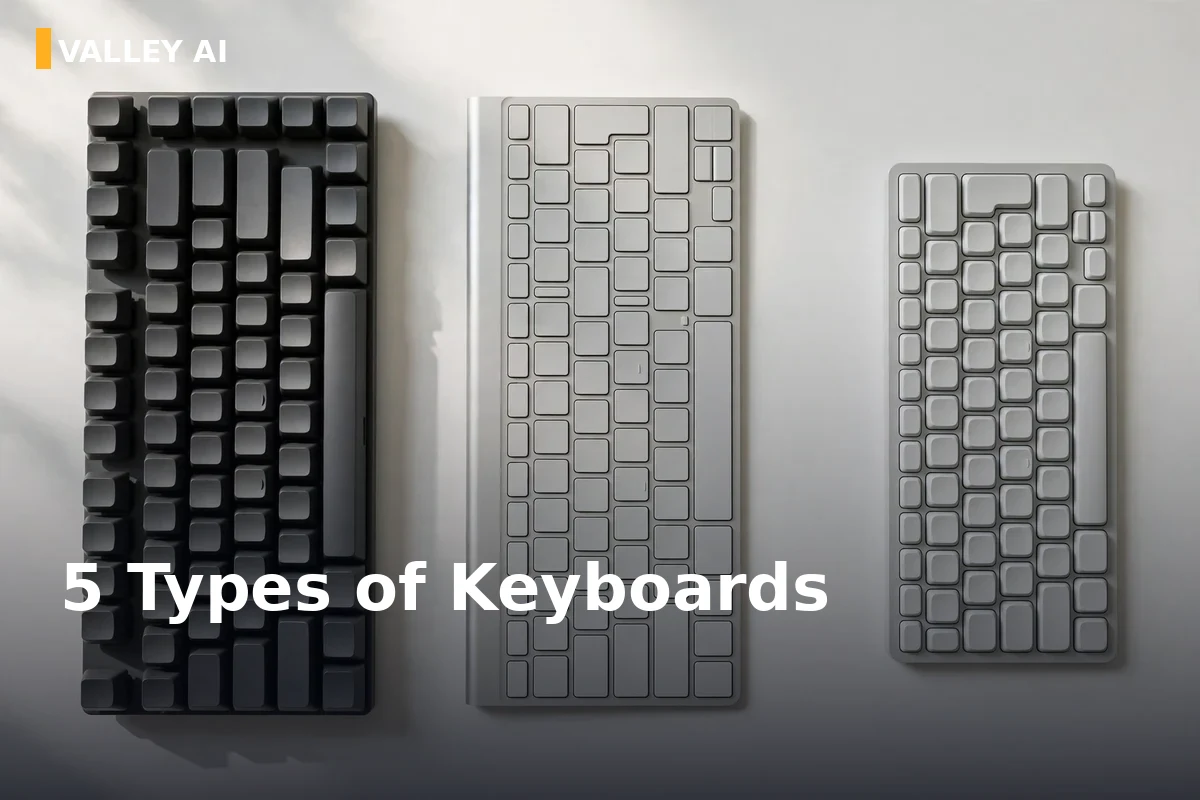
Each key has its own individual mechanical switch: a spring, stem, and metal contacts. Switches come in three personalities: linear (smooth, quiet-ish), tactile (a bump you can feel), and clicky (bump plus an audible click). Lifespan is enormous: 50 to 100 million keystrokes per switch. Downsides: louder, heavier, pricier. Loved by programmers and gamers.
2. Membrane
A rubber or silicone sheet sits under all keys; pressing a key pushes a dome down to complete the circuit on the membrane layers below. Quiet, cheap, and spill-resistant, the default keyboard of offices and budget PCs. Downsides: mushy feel, shorter life (5 to 10 million presses), and the whole board tends to wear unevenly.
3. Scissor-switch
A refined membrane design found in most laptops: a tiny plastic “scissor” mechanism stabilizes each key, giving short, crisp travel in a thin package. The reason laptop keyboards feel the way they do. Downsides: hard to clean or repair, limited customization.
4. Optical / Hall-effect
Instead of metal contacts, these detect keypresses with light (optical) or magnets (Hall effect). No physical contact means almost no wear, rated up to 100 million presses, plus adjustable actuation points and features like rapid trigger for gaming. Downsides: expensive, fewer models to choose from.
5. Capacitive
High-end and rare (Topre is the famous name): keys change an electrostatic field as they approach a sensor plate, with no contact at all. Buttery, quiet, and extremely durable. Downsides: premium pricing that makes most buyers blink.
Keyboard Layouts and Sizes
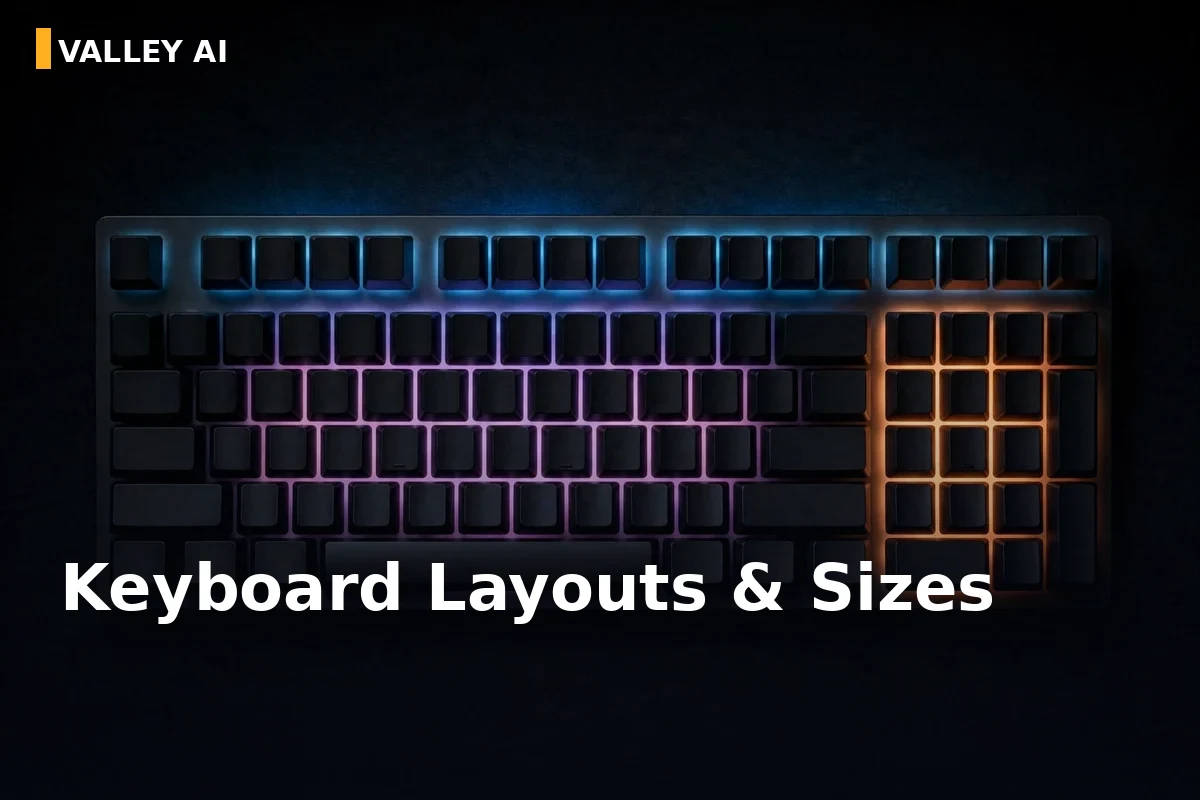
Physical sizes. Full-size (100%) has everything: letters, number pad, function row, navigation cluster, best for data entry. Tenkeyless / TKL (80%) drops the number pad: the sweet spot for most desks. 75%, 65% and 60% boards go progressively compact; 60% drops even the arrow keys (accessed via a function layer).
Letter layouts. QWERTY dominates because of history, not efficiency. It was designed to stop typewriter keys jamming. AZERTY is standard in France and Belgium (A and Z swap with Q and W). Dvorak puts vowels on the home row for theoretically faster typing, beloved by a small devoted community, ignored by everyone else.
Special Keys, Decoded
- LMB / RMB: not keyboard keys at all. They mean Left Mouse Button and Right Mouse Button. Software and games reference them constantly, which confuses keyboard-focused users.
- Home / End: jump the cursor to the start or end of a line (with Ctrl, start/end of a document).
- Windows key / Command key: opens the Start menu (Windows) or acts as the main modifier (Mac).
- Fn: a modifier on laptops that unlocks secondary functions on F1 to F12 (volume, brightness, media).
- Alt / Option, Ctrl / Control: the modifier keys behind nearly every shortcut.
- Print Screen, Scroll Lock, Pause: legacy keys from the DOS era. Print Screen still takes screenshots on Windows.
Typing Symbols, Emojis, and Special Characters
- Degree symbol (°): Alt+0176 on Windows (numpad), Option+Shift+8 on Mac.
- Emojis: Win+. (Windows) or Ctrl+Cmd+Space (Mac) opens the emoji picker anywhere.
- Arrows (→ ← ↑ ↓): Alt codes on Windows, Option shortcuts on Mac.
- Accents (é, ñ, ü): US-International layout, dead keys, or long-press on touch keyboards.
Essential Keyboard Shortcuts
Shortcuts are the highest-ROI keyboard skill. Universal (Windows/Linux): Ctrl+C / Ctrl+X / Ctrl+V (copy/cut/paste), Ctrl+Z / Ctrl+Y (undo/redo), Ctrl+S (save), Alt+Tab (switch apps), Ctrl+Shift+Esc (task manager), Win+D (desktop), Win+L (lock).
Mac: Cmd replaces Ctrl for most of the above; Cmd+Space opens Spotlight; Cmd+Tab switches apps.
Power moves: Win+V (clipboard history), Win+Shift+S (screenshot snippet), Ctrl+Shift+T (reopen closed browser tab). The last one saves more grief than any other shortcut in existence.
How to Choose the Right Keyboard: A Framework
Don’t start with brands. Start with four questions:
1. What do you do most?
Typing all day → tactile mechanical or quality scissor-switch. Gaming → optical/Hall-effect or linear mechanical. Shared office → quiet membrane or silent switches.
2. How much desk do you have?
Full-size only if you genuinely use the number pad; most people are happier with TKL.
3. Wired or wireless?
Wired for zero-latency gaming; 2.4 GHz wireless is fine for everything else.
4. Budget? A $30 membrane board is perfectly usable; past ~$100 you’re paying for feel and durability, not function.
Keyboard Care and Troubleshooting
- Cleaning: unplug, shake out debris upside down, compressed air between keys, lightly damp microfiber for keycaps. Never spray liquid directly.
- Stuck or repeating key: usually debris. Remove the keycap gently and clean underneath.
- Dead key: test on another computer. If it follows the keyboard, the switch or membrane is failing; if not, it’s software.
Explore the Complete Keyboard Guide Series
Deep dives on every keyboard topic, from individual keys to full comparisons:
- What is LMB on Keyboard? Meaning, Location, and How to Simulate It
- How to Type the Degree Symbol (°) on a Keyboard Across Every Device
- RMB on Keyboard: The Ultimate Guide to Right-Clicking Without a Mouse
- Windows Keyboard Shortcuts: A Task-First Cheat Sheet
- What Is Inside a Keyboard? How It Actually Works
- Home and End Keys on a Keyboard: Where They Are and What They Do
- How to Type Emojis Using a Keyboard on Any Device
- Mechanical vs Membrane Keyboards: Which One Fits the Way You Work and Play?
- How to Type Special Characters on a Keyboard
- QWERTY vs AZERTY Keyboards: Which Layout Fits Your Workflow?
- Shutdown Shortcut Keys for Windows and Mac Computers
- How to Restart Computer with Keyboard Shortcuts
- What Is the Command Key on a Windows Keyboard?
- How to Make Arrow Symbols on a Keyboard (Windows, Mac, Linux, Word, and Web)
Frequently Asked Questions
What is the most common keyboard type?
Membrane keyboards are the most common worldwide: cheap, quiet, shipped with most prebuilt PCs. Among enthusiasts, mechanical keyboards dominate.
How long do keyboards last?
A membrane board typically lasts 3 to 5 years of heavy use; a mechanical board can last a decade or more since individual switches can be replaced.
Are expensive keyboards worth it?
For feel and durability, yes, up to a point. A $100 mechanical board is a genuine upgrade over a $20 membrane one. Beyond ~$150, you’re paying for enthusiast features.
Why is it called QWERTY?
After the first six letters on the top letter row. Designed in the 1870s to prevent mechanical typewriter keys from jamming, not for typing speed.
Can I use any keyboard with any computer?
Almost always, yes. USB and Bluetooth are universal. The only friction is OS-specific keys (Windows key vs Command), remappable in settings.

Kaleem
Kaleem is a Computer Science graduate and the founder of Valley AI (valleyai.net), where he publishes in-depth, tested guides on computers, AI, and internet technologies. Every guide is researched from primary sources and updated regularly.