
The confusion starts with product names such as “M.2 2280 PCIe 4.0 x4 NVMe.” One label describes the shape. Another describes the connection. A third describes the storage protocol.
M.2 and NVMe are not competing SSD formats. M.2 describes how a drive is physically packaged and installed. NVMe describes how a compatible storage device communicates with the computer. An M.2 SSD can use NVMe, but an M.2 SSD can also use SATA.
That distinction matters when you buy an SSD, upgrade a laptop, or troubleshoot a drive that physically fits but does not appear in the BIOS.
The short answer: M.2 is physical, NVMe is logical
M.2 is a compact form factor and connector standard; NVMe is a storage protocol commonly used over PCIe. An M.2 SSD may use either the SATA interface or PCIe with NVMe, depending on the drive and the host slot.
| Term | What it describes | Typical example |
|---|---|---|
| M.2 | Physical form factor, module dimensions, and connector family | M.2 2280 SSD |
| NVMe | Storage communication protocol | NVMe SSD using PCIe |
| PCIe | High-speed connection bus and lane system | PCIe 4.0 x4 |
| SATA | Storage interface used by SATA drives | SATA III SSD |
| NAND flash | Non-volatile memory that stores your data | TLC or QLC NAND |
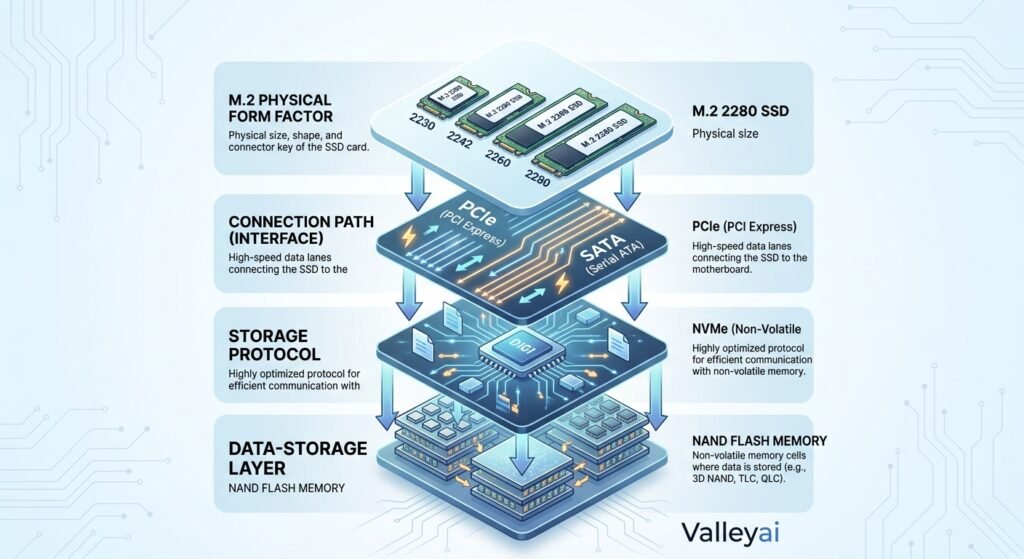
A useful mental model is to treat an SSD like a vehicle:
- M.2 is the vehicle’s physical body and mounting shape.
- PCIe or SATA is the road or connection path.
- NVMe or SATA storage commands are the language used to communicate.
- NAND flash is where the data is stored.
The analogy is not perfect, but it prevents the most expensive misunderstanding: assuming every M.2 drive is automatically an NVMe drive.
What M.2 actually describes
M.2 describes the physical design of a small internal expansion module, including its dimensions, connector, mounting points, and keying. M.2 modules are commonly used for SSDs, Wi-Fi cards, Bluetooth cards, and other internal devices.
An M.2 SSD is a thin circuit board that installs directly into an M.2 slot on a motherboard or laptop. The drive is usually secured with a small screw or retention mechanism at the far end.
M.2 size names use a four- or five-digit code:
- 2230 = 22 mm wide and 30 mm long
- 2242 = 22 mm wide and 42 mm long
- 2260 = 22 mm wide and 60 mm long
- 2280 = 22 mm wide and 80 mm long
- 22110 = 22 mm wide and 110 mm long
The first two digits indicate width. The remaining digits indicate length. A common desktop SSD is M.2 2280, but laptops and handheld devices often use shorter 2230 or 2242 modules.
M.2 does not tell you:
- Whether the SSD uses SATA or NVMe
- Which PCIe generation the drive supports
- How many PCIe lanes the drive uses
- Its actual read or write performance
- Whether a particular motherboard slot supports it
The slot’s physical size is only one part of compatibility.
What NVMe actually describes
NVMe, or Non-Volatile Memory Express, is a storage protocol designed for non-volatile memory such as NAND flash. NVMe is maintained through specifications published by NVM Express, Inc. The official NVM Express specifications describe the protocol family and its technical development.
NVMe is designed to communicate efficiently with modern computers through PCIe. Compared with older storage command systems, NVMe supports many command queues and is designed for the low latency and parallelism available from flash storage.
The relationship normally looks like this:
NAND flash → SSD controller → NVMe protocol → PCIe connection → CPU or chipset
That does not mean NVMe itself is a physical connector. An NVMe SSD can appear in different physical formats, including:
- M.2 modules
- PCIe add-in cards
- U.2 or U.3 enterprise drives
- Other manufacturer-specific assemblies
So the phrase “NVMe drive” tells you more about how the storage communicates than how the storage is shaped.
M.2 vs NVMe: the comparison people actually need
M.2 and NVMe answer different questions.
| Question | Relevant term |
|---|---|
| Will the module fit the slot physically? | M.2 size and keying |
| Which connection does the drive use? | SATA or PCIe |
| Which storage command protocol does it use? | NVMe or SATA-related storage commands |
| How much bandwidth is available? | PCIe generation and lane count |
| Will the drive work in this computer? | Motherboard or laptop specifications |
A product described as “M.2 NVMe” usually means:
- The drive uses the M.2 physical form factor.
- The drive communicates through PCIe.
- The drive uses the NVMe storage protocol.
A product described as “M.2 SATA” usually means:
- The drive uses the M.2 physical form factor.
- The drive communicates through the SATA interface.
- The drive is not using PCIe NVMe communication.
Both drives can look similar. They are not automatically interchangeable.
The two main types of M.2 SSD
The two common M.2 SSD categories are M.2 SATA and M.2 NVMe, and the two types can require different electrical support from the M.2 slot.
M.2 SATA SSD
An M.2 SATA SSD uses the SATA storage interface even though the drive has a compact M.2 shape. Its performance is generally in the same broad range as a 2.5-inch SATA SSD because both use the SATA connection standard.
M.2 SATA can be useful when:
- A laptop supports M.2 SATA but not NVMe
- You need a compact replacement for an older storage device
- The system has limited PCIe support
- Capacity and price matter more than maximum throughput
An M.2 SATA drive is not automatically slower in every practical situation than a 2.5-inch SATA SSD. Both may be constrained by the same SATA interface, although the controller, NAND, firmware, and workload still affect results.
M.2 NVMe SSD
An M.2 NVMe SSD uses PCIe for the connection and NVMe for storage communication. PCIe generation and lane count determine much of the theoretical bandwidth ceiling. PCI-SIG publishes the PCI Express specifications.
M.2 NVMe is usually the preferred option for:
- New desktop builds
- Modern laptop upgrades
- Large file transfers
- Video editing
- Software compilation
- Virtual machines
- Databases and other high-I/O workloads
The fastest specification on the product box does not guarantee the fastest experience in every task. Controller quality, NAND type, cooling, firmware, and sustained workload behavior all matter.
How to decode an SSD product name
A product listing often compresses several technical facts into one line. Consider:
2TB M.2 2280 PCIe 4.0 x4 NVMe SSD
Here is what each part means:
| Label | Meaning |
|---|---|
| 2TB | Approximate storage capacity |
| M.2 | Physical form factor |
| 2280 | 22 mm wide and 80 mm long |
| PCIe 4.0 | PCI Express generation |
| x4 | Four PCIe lanes |
| NVMe | Storage communication protocol |
| SSD | Solid-state storage device |
That label still does not prove that the drive will work in your computer. You must compare the drive’s requirements with the specific M.2 slot.
A PCIe 4.0 NVMe SSD may operate in a PCIe 3.0 slot when the platform supports backward compatibility, but the drive will normally be limited by the slower connection. Exact behavior depends on the motherboard, laptop, firmware, and drive.
How to check whether an M.2 NVMe drive will work
The official motherboard or laptop manual is the final authority for M.2 compatibility. Product photos, retailer filters, and key shapes are useful clues, but they cannot replace the platform specification.
Use this verification process before buying.
If the machine already has a drive fitted, how to check which SSD type you have will often reveal the slot type faster than reading the specification sheet.
1. Identify the exact computer model
For a desktop, find the precise motherboard model and revision. For a laptop, identify the full model number, not just the product family name.
Two laptops with nearly identical names can have different M.2 slots, supported lengths, or storage limits.
2. Read the M.2 slot specification
Look for terms such as:
- M.2 SATA
- PCIe x4
- PCIe NVMe
- Socket 3
- 2230, 2242, or 2280
- Supports SATA and PCIe
- Supports PCIe only
A specification that says “M.2 PCIe x4” is different from one that says “M.2 SATA.” A slot that supports both modes should say so in the manual or board specifications.
3. Match the physical length
Confirm that the motherboard or laptop has a mounting point for the SSD length you plan to buy. An M.2 2280 drive will not necessarily fit a device designed only for an M.2 2230 module.
Some laptops also have clearance limits involving single-sided or double-sided SSDs. The service manual may mention those restrictions.
4. Check keying and connector design
M.2 drives use notch patterns called keys. M-key, B-key, and B+M-key are common labels.
Keying can indicate which electrical contacts and signaling modes a module may use, but keying is not a complete compatibility test. A drive can physically enter a slot and still fail because the slot does not support the drive’s protocol.
When an M.2 drive fits but is missing from the BIOS, repeatedly reseating the drive is rarely the best first move. Check whether the slot supports SATA, PCIe, or both before assuming the SSD is defective.
5. Review PCIe generation and lane count
Check whether the slot supports PCIe 3.0, PCIe 4.0, or PCIe 5.0, and whether it provides x2 or x4 connectivity.
The drive and slot do not always need to use the same PCIe generation for basic operation. The connection generally negotiates a compatible mode, with performance limited by the slower side. The motherboard documentation should confirm the supported combination.
6. Look for shared lanes
Some motherboard designs share resources between M.2 slots, PCIe slots, and SATA ports. Installing an M.2 drive may disable one or more SATA ports, reduce an expansion slot’s available lanes, or change how another M.2 slot operates.
This is not a defect. It is a platform design choice documented in the motherboard manual.
Why physical fit does not prove compatibility
Physical fit proves only that the module and connector can align; it does not prove that the host slot supports the drive’s signaling or protocol.
Think of the M.2 connector as a shared-looking doorway. Different devices may use different electrical paths behind that doorway.
Possible situations include:
- An M.2 slot that supports SATA only
- An M.2 slot that supports PCIe NVMe only
- An M.2 slot that supports both SATA and PCIe NVMe
- A slot with a physical key that differs from the drive
- A slot that supports a shorter module than the SSD you purchased
- A slot whose lanes are shared with another device
M-key drives are commonly associated with PCIe x4 NVMe designs. B-key or B+M-key drives can be associated with SATA or lower-lane PCIe designs. Those are common patterns, not universal rules.
The motherboard or laptop manual wins over visual inspection.
For a fuller breakdown of the practical gap, see our comparison of NVMe vs SATA SSD across gaming, large files, and everyday tasks.
Which is faster in real use?
M.2 NVMe is usually faster than M.2 SATA because PCIe provides a higher bandwidth ceiling than SATA, but the visible improvement depends on the workload and the rest of the system.
The SATA-IO specifications provide the standards context for Serial ATA storage. PCIe NVMe drives can use more bandwidth than SATA-based SSDs, especially as PCIe generations advance.
Performance depends on several layers:
- PCIe generation
- Number of PCIe lanes
- SSD controller
- NAND flash type
- DRAM or host-memory design
- Drive capacity
- Temperature
- Firmware
- Queue depth
- Sequential versus random workload
- Amount of data written continuously
Where NVMe gains are easier to notice
NVMe can provide meaningful benefits during:
- Large file transfers
- Video editing and media caching
- Software builds
- Virtual machine workloads
- Database operations
- Heavy multitasking
- Large game installations or asset transfers
Where the difference may be modest
The improvement can be less dramatic during:
- Web browsing
- Office applications
- Light photo management
- Basic startup tasks
- Games that are limited by CPU, GPU, or asset design
An NVMe SSD can benchmark several times faster than a SATA SSD while feeling only moderately faster during ordinary desktop use. That is not contradictory. Peak sequential throughput and perceived application responsiveness measure different things.
A fast PCIe 5.0 drive can also lose its advantage during long writes if heat causes thermal throttling. A heatsink and adequate airflow may matter more than another step up in advertised peak speed.
Running several drives together is common, but it is worth checking whether a second SSD improves performance before spending on another one.
Can you use M.2, NVMe, and SATA drives together?
Many desktops can use an M.2 NVMe SSD alongside a 2.5-inch SATA SSD or hard drive, but the supported combination depends on motherboard lane allocation and port-sharing rules.
Common configurations include:
- One M.2 NVMe boot drive plus a 2.5-inch SATA data drive
- One M.2 NVMe SSD plus several hard drives
- An M.2 SATA SSD plus a 2.5-inch SATA SSD
- Two M.2 NVMe drives, if the motherboard provides enough supported slots
- An M.2 NVMe SSD plus an M.2 SATA SSD, if both slot modes are supported
Before installation, check whether:
- A particular M.2 slot disables SATA ports
- Two M.2 slots share PCIe lanes
- The second slot runs at fewer lanes
- The slot is connected to the CPU or chipset
- BIOS firmware recognizes the drive
- The operating system supports the intended boot configuration
A laptop is usually less flexible. Some laptops have one storage slot, while others use a proprietary layout or reserve the M.2 connector for a specific drive type.
That decision is easier once you know what the SATA interface can and cannot deliver in terms of speed, cabling, and compatibility.
When M.2 SATA still makes sense
M.2 SATA remains a sensible choice when the computer supports SATA but not NVMe, or when the upgrade is limited by cost, capacity, or platform compatibility.
Choose M.2 SATA when:
- The manual lists SATA support only
- You are replacing an older M.2 SATA drive
- The workload is light and the price is favorable
- You need a compact drive in a SATA-only laptop
- The system cannot use the additional PCIe bandwidth
Do not buy M.2 SATA solely because it looks like an NVMe SSD. Confirm the slot mode first.
Which type should you choose?
Use the following decision framework:
| Your situation | Usually sensible choice |
|---|---|
| New desktop with a modern PCIe M.2 slot | M.2 NVMe |
| Laptop manual explicitly supports PCIe NVMe | M.2 NVMe in the supported size |
| Older laptop lists M.2 SATA only | M.2 SATA |
| Existing 2.5-inch SATA SSD still meets your needs | Keep it unless capacity or workload justifies an upgrade |
| Video editing, virtual machines, or large project files | NVMe with adequate cooling |
| Basic office and web use | The best compatible SSD at a reasonable capacity |
| Multiple-drive desktop build | Check lane-sharing and disabled-port notes first |
Capacity often improves daily convenience more than a small increase in benchmark speed. A nearly full SSD can perform poorly and leave little room for updates, temporary files, or working data.
For a system drive, also consider endurance, warranty, firmware support, and backup strategy. The SSD with the highest sequential read number is not automatically the best long-term choice.
Frequently asked questions
Is M.2 the same as NVMe?
No. M.2 describes the physical form factor and slot family. NVMe describes a storage protocol commonly used over PCIe. An M.2 SSD can use NVMe, but an M.2 SSD can also use SATA. The terms refer to different layers of the storage system.
Are all M.2 SSDs NVMe?
No. M.2 SSDs can use SATA or PCIe with NVMe. Check the product specifications for terms such as SATA, PCIe, or NVMe. The M.2 label alone identifies the physical format, not the drive’s communication method or speed.
Can an M.2 NVMe drive work in a SATA M.2 slot?
Usually not. An NVMe SSD requires PCIe-based support, while a SATA-only M.2 slot is wired for SATA signaling. A drive may fit physically but remain undetected. Confirm the slot’s supported modes in the motherboard or laptop manual before installation.
Will a PCIe 4.0 NVMe SSD work in a PCIe 3.0 slot?
Often, a PCIe 4.0 NVMe SSD can operate in a PCIe 3.0 slot at the older slot’s speed, but platform support determines the result. The drive cannot achieve PCIe 4.0 throughput through a PCIe 3.0 connection. Check the motherboard documentation for lane and generation support.
Does M-key mean a drive is NVMe?
Not always. M-keying is a physical connector design commonly found on PCIe x4 NVMe drives, but keying alone does not prove the protocol. The slot and drive must also support compatible electrical signaling, dimensions, and firmware behavior. Treat the key as a clue, not a final answer.
Is NVMe worth upgrading to from a SATA SSD?
NVMe is most worthwhile when the system supports it and your workload moves large files, compiles software, runs virtual machines, edits media, or performs frequent high-volume storage operations. For browsing and office work, an existing SATA SSD may already provide a responsive experience.
Why is my M.2 SSD not showing in BIOS?
Common causes include unsupported SATA or PCIe mode, incorrect drive keying, a wrong module length, an incompletely seated connector, disabled lanes, outdated firmware, or a motherboard slot shared with another device. Start with the official manual and BIOS storage page before replacing the drive.
Can an M.2 SSD disable SATA ports?
Yes, some motherboards share chipset resources between an M.2 slot and specific SATA ports. Installing a drive can make selected ports unavailable or change their behavior. The exact ports affected are motherboard-specific, so consult the storage-lane table in the manual.
Does an NVMe SSD need a heatsink?
An NVMe SSD does not always need a separate heatsink, especially for light workloads, but sustained transfers can raise temperatures and trigger thermal throttling. A motherboard’s built-in M.2 heatsink, adequate case airflow, and the drive manufacturer’s recommendations should guide the decision.

Kaleem
Kaleem is a Computer Science graduate and the founder of Valley AI (valleyai.net), where he publishes in-depth, tested guides on computers, AI, and internet technologies. Every guide is researched from primary sources and updated regularly.