
You can check your computer’s installed RAM in under a minute without opening the case. Windows shows the amount under device specifications, while macOS lists memory through About This Mac. Use Task Manager or System Information when you need more than the total capacity.
| Computer | Fastest method | Information shown |
|---|---|---|
| Windows 11 or Windows 10 | Settings → System → About | Installed RAM |
| Windows detailed check | Task Manager → Performance → Memory | Usage, speed, available memory, and more |
| Mac | Apple menu → About This Mac | Memory or unified memory |
| Mac detailed check | System Information → Hardware → Memory | Additional hardware details |
How to check RAM on Windows 11 or Windows 10
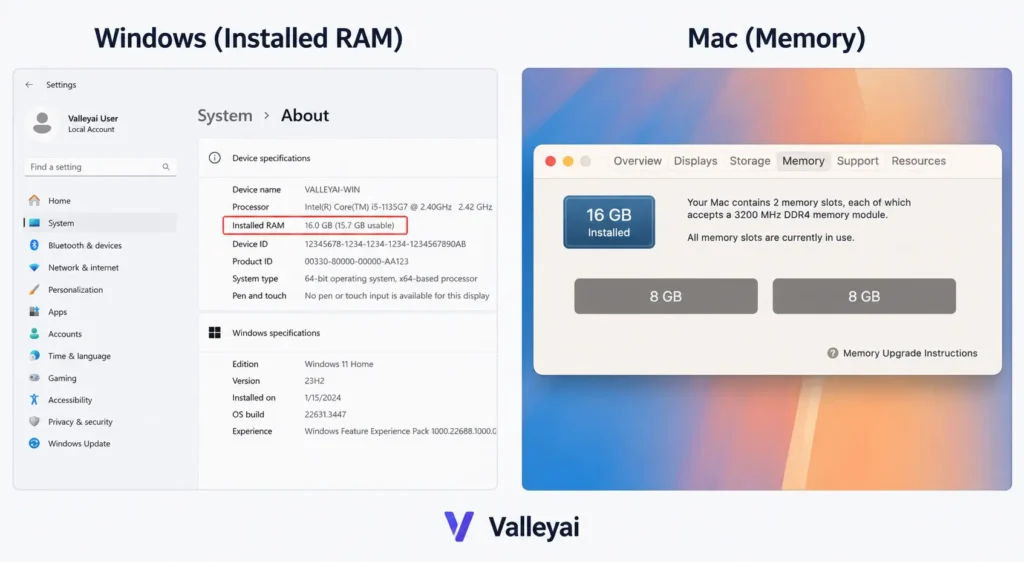
Windows Settings displays the total installed RAM under the computer’s device specifications.
- Press Windows + I to open Settings.
- Select System.
- Choose About.
- Find Installed RAM under Device specifications.
The value may appear as 8.00 GB, 16.0 GB. That number represents the physical RAM Windows detects, not necessarily the amount currently available for applications.
Microsoft documents device specifications, including installed memory, through its official Windows device information guidance.
A faster keyboard shortcut
Press Windows + Pause/Break if your keyboard includes a Pause key. Windows may open the system information page directly. On newer computers without that key, Windows + I → System → About is the more reliable route.
How to check RAM usage in Windows Task Manager
Windows Task Manager shows live memory usage, available memory, speed, and other details that the Settings app does not provide.
- Right-click the Start button.
- Select Task Manager.
- If necessary, select More details.
- Open the Performance tab.
- Select Memory.
The Memory screen can show:
- Total memory
- Memory currently in use
- Available memory
- Committed memory
- Cached memory
- Memory speed
- Number of memory slots used
- Form factor, such as DIMM or SODIMM
Task Manager is the better choice when a computer feels slow or when you are checking RAM before an upgrade. The live usage percentage changes as applications open, close, and work in the background.
When diagnosing a slow PC, check the Memory graph while the problem is happening. A screenshot taken immediately after startup may look normal even though a browser, game, or virtual machine later consumes most of the RAM.
What the Windows memory numbers mean
| Label | Meaning |
|---|---|
| Installed | Total physical RAM detected by the computer |
| In use | RAM currently used by Windows, applications, and services |
| Available | RAM Windows can make available to applications |
| Committed | Memory promised to applications, supported by RAM and the paging file |
| Cached | Data held in memory so Windows can access it faster |
| Hardware reserved | RAM set aside for hardware or firmware and unavailable to normal Windows processes |
Do not confuse available memory with total RAM. A computer with 16 GB installed may show only 9 GB available because Windows and running applications are already using the rest.
How to check RAM on a MacBook, iMac, or Mac mini
About This Mac displays the total memory installed in a Mac.
- Select the Apple menu in the upper-left corner.
- Choose About This Mac.
- Look for Memory, Unified Memory, or a similar entry.
The exact label depends on the Mac model and processor. Intel-based Macs commonly display Memory, while Apple silicon Macs may display Unified Memory.
Apple silicon Macs use a shared memory architecture in which the processor and other system components access the same memory pool. The displayed number still tells you the Mac’s system memory capacity, but the memory may not be upgradeable after purchase.
Apple provides additional Mac hardware details through System Information.
Find deeper memory details in macOS
- Open the Apple menu.
- Select About This Mac.
- Choose More Info if that option appears.
- Scroll down and select System Report.
- In the sidebar, review the hardware and memory categories.
On some macOS versions, you can open System Information by holding the Option key while selecting the Apple menu, then choosing System Information.
Seeing “Unified Memory” on a Mac does not mean the memory works like an interchangeable desktop RAM module. Check the exact Mac model before assuming a memory upgrade is possible.
Installed RAM, usable RAM, and available memory are different
Installed RAM is the total physical memory detected by the computer; usable RAM is the portion available to the operating system; available memory is the amount not currently needed by active processes.
These terms answer different questions:
- Installed RAM: How much physical memory is in the computer?
- Usable RAM: How much of that memory can Windows or macOS use?
- Available memory: How much memory is available right now?
- Memory usage: How much RAM is currently occupied?
Available memory can change every few seconds. Opening a video editor, game, or dozens of browser tabs may reduce available memory without changing the computer’s installed RAM.
RAM is also different from storage. RAM supports active work while the computer is running; an SSD or hard drive stores files and applications even when the computer is turned off.
Why Windows may show less usable RAM than installed RAM
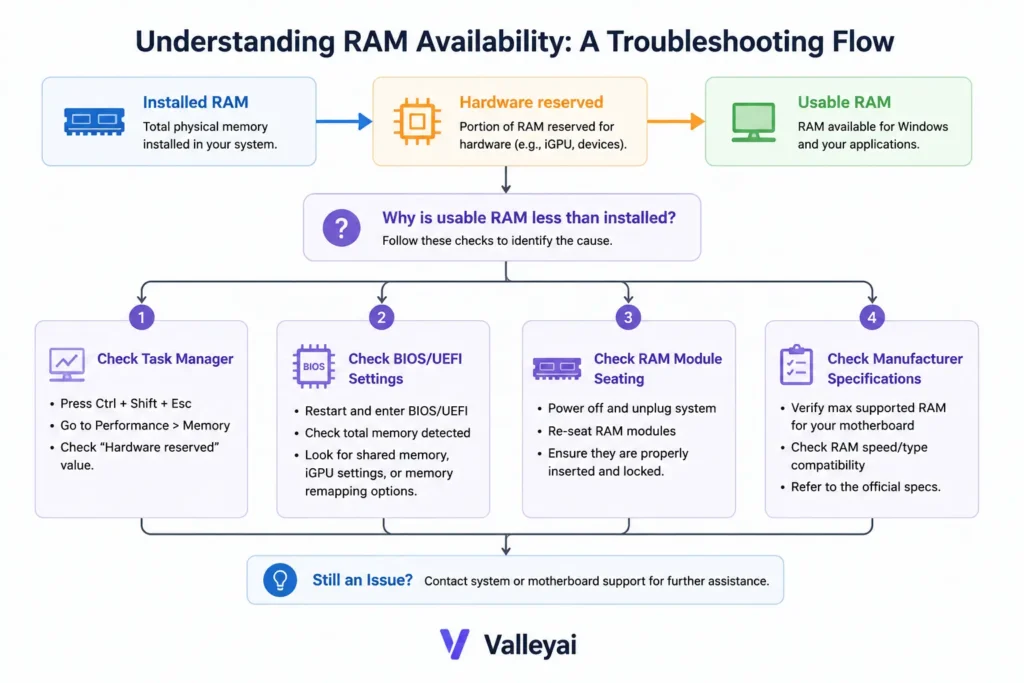
Windows may show less usable RAM than installed RAM because some memory is reserved for hardware, firmware, integrated graphics, or system limitations.
For example, a computer may report:
- Installed RAM: 16 GB
- Usable RAM: 15.7 GB
- Hardware reserved: 300 MB
A small difference is often normal. A large difference deserves investigation.
Check the Hardware Reserved value
- Open Task Manager.
- Select Performance.
- Choose Memory.
- Review the Hardware reserved figure.
If Windows detects only half the expected RAM, possible causes include:
- A memory module is not fully seated.
- One RAM module or slot has a hardware problem.
- The installed modules are incompatible.
- The computer has a firmware or motherboard limitation.
- The operating system has a configuration issue.
- Integrated graphics has reserved more memory than expected.
Do not remove or reinstall RAM while the computer is powered on. Before opening a desktop or laptop, shut it down completely and follow the manufacturer’s service instructions.
Choose the RAM check based on your goal
The best RAM-checking method depends on whether you need capacity, live usage, hardware details, or upgrade information.
| Your goal | Best tool | Why |
|---|---|---|
| Check total RAM on Windows | Settings → System → About | Fastest basic check |
| Check total memory on Mac | About This Mac | Quick Mac-specific result |
| See whether RAM is full | Windows Task Manager | Shows live usage |
| Check RAM speed | Task Manager → Performance → Memory | Often lists memory speed |
| Check memory slots | Task Manager or manufacturer documentation | Availability varies by computer |
| Verify memory before Windows loads | BIOS/UEFI | Helps separate Windows issues from hardware detection |
| Plan a RAM upgrade | Manufacturer specifications | Confirms capacity, type, and upgrade limits |
| Investigate crashes or memory errors | Windows Memory Diagnostic | Tests for possible memory problems |
BIOS or UEFI menus vary by computer manufacturer. Use the firmware screen as a verification step, not as the first method for a basic RAM check.
How do I check RAM from Command Prompt?
Open Command Prompt and type this:
wmic memorychip get capacity
Hit Enter, and it’ll list the capacity of each RAM stick installed on your PC in bytes. Since that number isn’t precisely reader-friendly, divide it by 1073741824 to convert it to GB (so if you see something like 8589934592, that’s 8GB).
If you just want the total installed RAM without doing math, use this alternatively:
systeminfo | findstr /C:”Total Physical Memory”
This pulls the total RAM straight from your system info, already converted to a readable GB or MB figure.
Quick heads-up: wmic is being phased out on newer Windows builds (Microsoft’s nudging everyone toward PowerShell), so if it throws an error on Windows 11, switch to PowerShell and run Get-CimInstance Win32_PhysicalMemory | Measure-Object -Property Capacity -Sum.
Check RAM before buying an upgrade
Checking installed RAM is only the first step before purchasing more memory.
Confirm all of the following:
- Exact computer model
Laptop and desktop models can have different memory limits, even within the same product family. - Maximum supported capacity
Manufacturer or motherboard documentation should specify the maximum supported RAM. - Memory type and form factor
Desktop computers commonly use DIMM modules, while laptops often use smaller SODIMM modules. Some systems use soldered memory instead. - Available slots
A computer may have no open slot even when the operating system shows less RAM than the maximum supported amount. - Upgradeability
Many modern Macs use integrated or unified memory that cannot be replaced by the user. Manufacturer specifications are the final authority. - Current module arrangement
Mixing incompatible memory modules can cause instability or prevent the computer from using the full capacity.
A RAM upgrade decision should never be based on the number shown in Settings alone. Settings confirms capacity; it does not reliably confirm slot availability, memory type, or the maximum supported configuration.
Can you check RAM without opening your computer?
You can check installed RAM without opening a Windows PC or Mac because both operating systems provide built-in system information tools.
Use:
- Windows Settings for installed RAM
- Windows Task Manager for usage and some hardware details
- About This Mac for basic Mac memory information
- System Information for deeper Mac hardware details
Physical inspection is only necessary when software reports an unexpected amount, a module is not detected, or you are preparing an upgrade. Consult the computer or motherboard manufacturer before handling internal components.
Frequently asked questions
Is 8 GB of RAM enough for a computer?
Eight gigabytes of RAM can be sufficient for web browsing, email, office work, streaming, and light multitasking. More demanding games, video editing, software development, and virtual machines may benefit from additional memory. Compare installed RAM with the recommended requirements for the applications you actually use.
Why does available RAM keep changing?
Available RAM changes because Windows or macOS constantly allocates memory to applications, background services, cached files, and system tasks. A lower available-memory figure is not automatically a problem. Check whether the computer is slow, constantly using the paging file, or showing sustained high memory usage before treating the value as a fault.
Does Task Manager show the same RAM amount as Windows Settings?
Task Manager and Windows Settings can show the same installed capacity while presenting different additional figures. Settings usually emphasizes installed RAM, while Task Manager separates installed, in-use, available, cached, and hardware-reserved memory. Small differences in usable memory are common because hardware and system processes may reserve part of the installed capacity.
Can BIOS or UEFI show how much RAM is installed?
BIOS or UEFI can usually show the memory detected before Windows starts, although the menu location and wording vary by manufacturer. If BIOS detects the expected amount but Windows does not, investigate Windows configuration or hardware-reserved memory. If BIOS also shows the wrong amount, inspect compatibility, seating, slots, and firmware documentation.
Can you upgrade the RAM in a Mac?
Some older Mac models support RAM upgrades, while many newer Macs use soldered or unified memory that cannot be upgraded after purchase. The answer depends on the exact model and year. Check Apple’s technical specifications or an authorized service guide before buying memory or opening the computer.
Does more RAM always make a computer faster?
More RAM helps when the computer regularly runs out of usable memory and begins relying heavily on storage-based virtual memory. Additional RAM does not automatically fix a slow processor, failing storage drive, excessive startup software, or thermal throttling. Check Task Manager or Activity Monitor while the slowdown occurs before choosing an upgrade.

Kaleem
Kaleem is a Computer Science graduate (Virtual University of Pakistan) and the founder and editor of Valley AI, where he publishes in-depth, tested guides on computer hardware, artificial intelligence, and how the internet works. Every guide is researched from primary sources, tested hands-on where possible, and updated when the facts change.