
Pick by the mode you run, not by the connector name. A monitor, a graphics card, and a cable form one link. That link either carries the resolution and refresh rate you selected, or it falls back to a lower mode. Connector shape alone tells you almost nothing about that outcome. Version numbers decide it.
Your graphics card sends a stream of pixel data down the cable. Resolution sets how many pixels fill each frame. Refresh rate sets how many frames leave the card each second. Color depth sets how many bits describe each pixel. Multiply those three values and you get the data rate the link must carry. Bandwidth is the limit.
The link’s data rate is only half the story: what happens to the signal once it arrives decides the picture, from the scaler to the panel to the light.
DisplayPort and HDMI both carry that stream. They differ in bandwidth, in adaptive sync support, and in where each one fits best. Read the version on each port before buying a cable. A DisplayPort 1.4 cable cannot fix an HDMI 2.0 port. An HDMI 2.1 cable cannot add bandwidth to a DisplayPort 1.4 monitor input.
The decision table: match the cable to the mode
Find your target mode in the table, then read across to the cable version that carries it. Start with the mode, then check the ports on your graphics card and your monitor. Both ends must support the version in the row. One older port caps the whole link.
| Setup | HDMI 2.0 | HDMI 2.1 | DisplayPort 1.4 | DisplayPort 2.1 |
|---|---|---|---|---|
| Total bandwidth | 18 Gbps | 48 Gbps | 32.4 Gbps | 80 Gbps |
| Usable data rate | 14.4 Gbps | 48 Gbps | 25.92 Gbps | 80 Gbps |
| 1440p at 240 Hz | No | Yes | Yes | Yes |
| 4K at 120 Hz | No | Yes | Yes | Yes |
| 4K at 144 Hz | No | Yes | Yes, with DSC | Yes |
| 4K at 240 Hz | No | Yes | Yes, with DSC | Yes |
| Variable refresh | Limited | HDMI VRR | G-Sync and FreeSync | G-Sync and FreeSync |
| Daisy-chaining | No | No | Yes, with MST | Yes, with MST |
| Console and TV fit | Good for 4K 60 Hz | Best for PS5 and Xbox Series X | Weak, consoles lack the port | Weak, consoles lack the port |
PC gaming favors DisplayPort 1.4 or newer in most desks. Console gaming favors HDMI 2.1. Shared desks need both cables in place, one per device, with the monitor input switched between them. Keep the table beside the port labels when you shop. Version numbers matter more than brand names on the box.
What DisplayPort and HDMI are
DisplayPort arrived in 2006 as a royalty-free interface built for computers. VESA, the standards body behind it, designed it around high bandwidth and packet-based transport. Packet transport lets one cable carry video, audio, and extra data streams in separate packets. That design also enables multi-stream transport for daisy-chained monitors.
HDMI arrived in 2003 as a consumer electronics interface for TVs, players, and consoles. A consortium of electronics makers built it to replace analog video cables in living rooms. HDMI carries video and audio together, plus device control signals. Its strength sits in broad device support across TVs, consoles, soundbars, and receivers.
Both standards have grown through versions. Each version raised bandwidth, added features, or both. Version labels on ports and cables use the same numbering. Check both ends of the link, since the older version sets the ceiling.
| Version | Year | Total bandwidth | Best known for |
|---|---|---|---|
| HDMI 2.0 | 2013 | 18 Gbps | 4K at 60 Hz on TVs and consoles |
| DisplayPort 1.4 | 2016 | 32.4 Gbps | High refresh PC gaming with DSC support |
| HDMI 2.1 | 2017 | 48 Gbps | 4K at 120 Hz and variable refresh on consoles |
| DisplayPort 2.1 | 2022 | 80 Gbps | 4K at 240 Hz without compression |
Older versions still appear on budget monitors and older graphics cards. A monitor box may print “HDMI” with no version number at all. Spec sheets list the version near the port list, often in small print. Read that line before ordering a cable.
Bandwidth decides which modes fit
Bandwidth means gigabits per second, written as Gbps. One gigabit equals one billion bits. A video mode needs a data rate in the same unit, so the comparison stays direct. Compare the mode rate against the usable rate of the link. The usable rate decides the outcome.
Pixel data follows the same limit as water in a pipe. A wider pipe moves more water each second. A narrower pipe caps the flow no matter how strong the source pump runs. More pixels per frame and more frames per second raise the flow. Color depth raises it further.
Headline bandwidth numbers hide one detail. DisplayPort 1.4 and HDMI 2.0 use 8b/10b encoding. That encoding sends 10 bits on the wire for every 8 bits of video data. Two bits in every ten carry encoding overhead. Multiply the headline rate by 0.8 to find the usable rate. DisplayPort 1.4 gives 25.92 Gbps of usable data from a 32.4 Gbps headline. HDMI 2.0 gives 14.4 Gbps of usable data from an 18 Gbps headline.
Does a better cable improve picture quality at the same resolution and refresh rate? No. A digital link either delivers the full mode or it drops to a lower mode. Picture quality at a fixed mode stays identical across cables that carry it. Cable quality matters only at the edge, where a weak cable fails to hold the mode at all.
Worked bandwidth calculations
Each calculation below uses one formula. Multiply horizontal pixels by vertical pixels by refresh rate by 24 bits per pixel. Divide by one billion to convert bits per second into Gbps. Color depth stays at 24 bits, the standard 8 bits per color channel. Real signals add blanking intervals, so real link loads run slightly above these figures. Treat any mode within a couple of Gbps of a limit as tight.
| Mode | Calculation | Uncompressed rate | Fits without compression |
|---|---|---|---|
| 1080p at 240 Hz | 1920 x 1080 x 240 x 24 | 11.94 Gbps | HDMI 2.0, DP 1.4, HDMI 2.1, DP 2.1 |
| 1440p at 144 Hz | 2560 x 1440 x 144 x 24 | 12.74 Gbps | HDMI 2.0, DP 1.4, HDMI 2.1, DP 2.1 |
| 1440p at 240 Hz | 2560 x 1440 x 240 x 24 | 21.23 Gbps | DP 1.4, HDMI 2.1, DP 2.1 |
| 4K at 120 Hz | 3840 x 2160 x 120 x 24 | 23.89 Gbps | DP 1.4, HDMI 2.1, DP 2.1 |
| 4K at 144 Hz | 3840 x 2160 x 144 x 24 | 28.67 Gbps | HDMI 2.1, DP 2.1 |
| 4K at 240 Hz | 3840 x 2160 x 240 x 24 | 47.78 Gbps | HDMI 2.1, DP 2.1 |
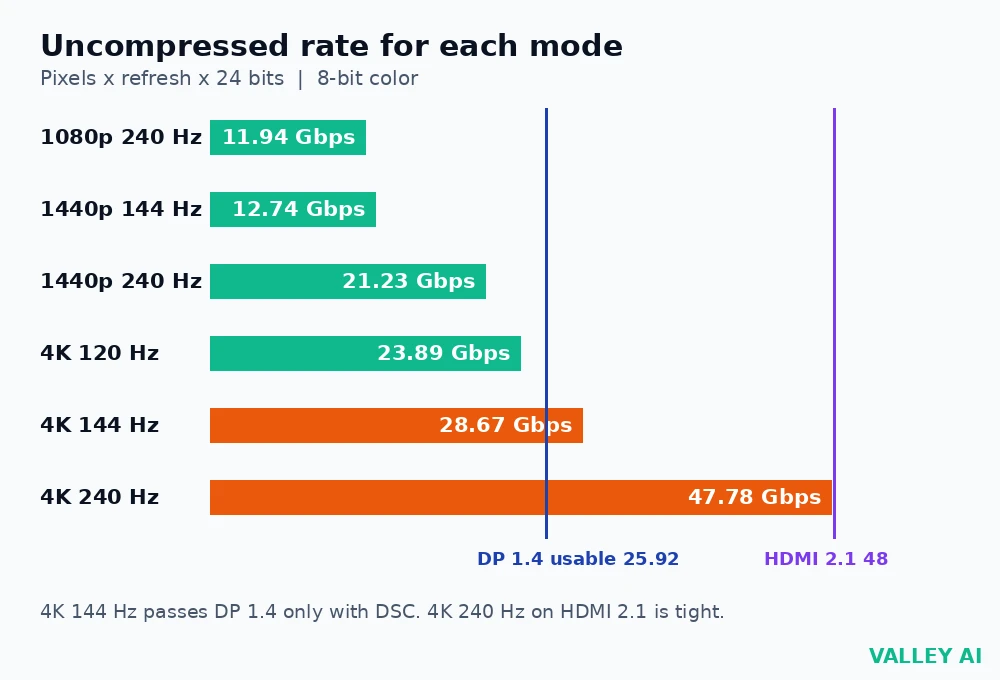
Run the 1440p at 240 Hz numbers first. The result lands at 21.23 Gbps. DisplayPort 1.4 carries 25.92 Gbps of usable data. That mode fits with room to spare. HDMI 2.0 carries 14.4 Gbps of usable data. That mode fails on HDMI 2.0.
Move up to 4K at 144 Hz. The result lands at 28.67 Gbps. DisplayPort 1.4 usable data stops at 25.92 Gbps. Uncompressed 4K at 144 Hz exceeds that ceiling. Display Stream Compression closes the gap on DisplayPort 1.4. DSC compresses the stream in a visually lossless way. Most viewers cannot spot the difference in games. HDMI 2.1 carries the same mode uncompressed at 48 Gbps.
Push further to 4K at 240 Hz. The result lands at 47.78 Gbps. HDMI 2.1 carries 48 Gbps in total. That margin measures 0.22 Gbps. Blanking overhead eats into that margin in real signals. Treat 4K at 240 Hz over HDMI 2.1 as workable but tight. DisplayPort 2.1 carries 80 Gbps in total. That margin leaves real headroom for the same mode.
Refresh rate choice shapes the cable choice directly. A reader who picked 144 Hz at 1440p needs far less bandwidth than a reader who picked 240 Hz at 4K. Monitor refresh rate sets the frame count in every calculation above. Settle the refresh rate first, then match the cable to the mode it creates.
Adaptive sync over each interface
Adaptive sync lets the monitor refresh rate follow the graphics card frame rate. Frame rates in games swing up and down with scene complexity. A fixed refresh rate shows tearing when the card delivers a frame mid-refresh. Adaptive sync removes most tearing by timing each refresh to a finished frame.
DisplayPort carries adaptive sync through its native standard. AMD FreeSync and NVIDIA G-Sync both run over DisplayPort on supported monitors. Support varies by monitor model, so check the monitor spec sheet for the exact sync brand listed. G-Sync Compatible monitors accept FreeSync signals over DisplayPort in many cases.
HDMI 2.1 carries variable refresh rate as part of its own standard. Consoles use HDMI VRR at 4K 120 Hz on supported TVs and monitors. HDMI 2.0 lacks that standard VRR support. Some HDMI 2.0 monitors still run FreeSync over HDMI, but support stays patchy across models. Verify the exact monitor model before relying on it.
Does adaptive sync work over any cable that fits the port? No. Three parts must agree: the graphics card output, the cable version, and the monitor input. All three must support the same sync method. A cable alone cannot add sync support to a monitor that lacks it. Enable the setting in the monitor menu and in the graphics driver after connecting.
Ports, labels, and cables
Port labels sit beside the sockets on the back of the monitor and the graphics card. Labels vary by maker, and some makers print no version at all. Read the label, then confirm the version in the product spec sheet when the label stays silent. Four checks cover most desks.
- Read the text printed beside each HDMI and DisplayPort socket on the graphics card.
- Read the matching text beside each input socket on the monitor.
- Match the cable version to the lower of the two port versions.
- Open the monitor on-screen display and read the resolution and refresh rate it reports.
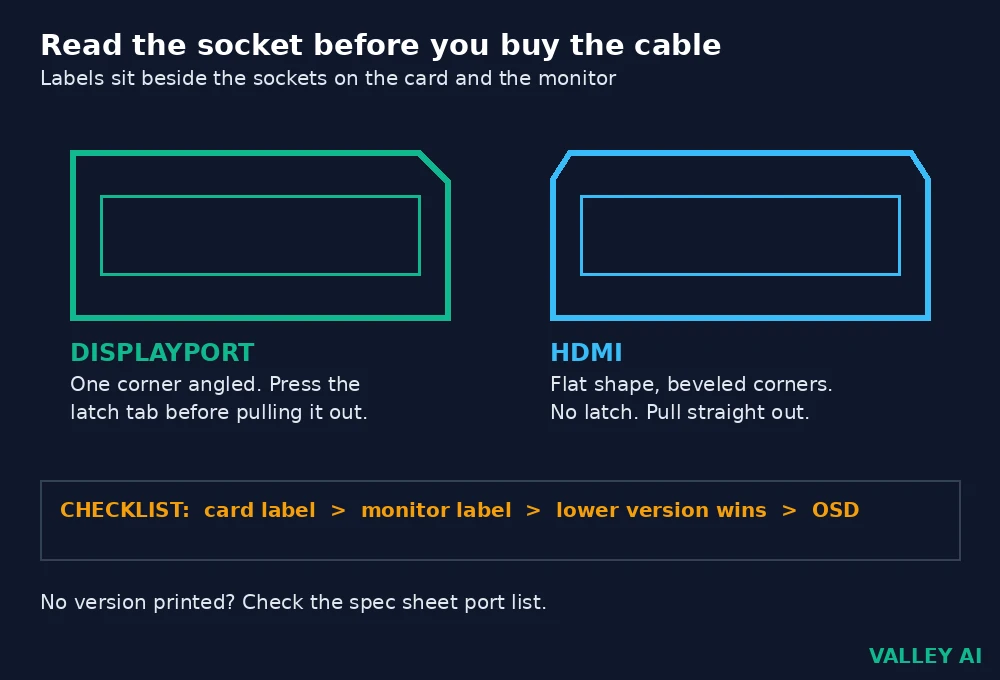
DisplayPort sockets look like HDMI sockets with one corner cut at an angle. HDMI sockets look like a flat rectangle with two corners beveled. Latch tabs on DisplayPort plugs lock into the socket, so press the release tab before pulling the plug out. Forcing a latched plug can damage the socket.
Why does a monitor show a lower refresh rate than its box promises? A port version cap usually explains it. An HDMI 2.0 input caps 1440p at 144 Hz even when the panel supports 240 Hz over DisplayPort. A cable rated for an older version caps the link the same way. Switching to the DisplayPort input with a matching cable often restores the full mode at once.
Once the cable delivers the full mode, the panel still decides the picture: monitor panel types differ in contrast, color, and response time, so the same 240 Hz mode looks different on VA, IPS, TN, and OLED screens. HDR on a monitor adds the brightness side, since the same mode can carry an HDR signal the panel may show well or barely at all.
Cable certification matters at high modes. Certified DisplayPort 1.4 cables carry the HBR3 rating. Certified HDMI 2.1 cables carry the Ultra High Speed label. Uncertified cables may still work at 1080p, then fail at 1440p 240 Hz or 4K 120 Hz. Buy the certified rating for the mode you run.
Graphics card choice sets which ports exist at all. A card with three DisplayPort outputs and one HDMI output suits a PC-first desk. A graphics card converts game data into the pixel stream the cable carries. Check its port list in the spec sheet before buying the monitor, since the card side caps the link just like the monitor side.
Multi-monitor setups and daisy-chaining
DisplayPort multi-stream transport sends two or more video streams down one cable. Monitors in the chain need a DisplayPort output socket as well as an input socket. Connect the graphics card to the first monitor, then link the first monitor output to the second monitor input. Each monitor still needs its own power cable.
Bandwidth splits across the chain. Two 1440p at 144 Hz streams need 12.74 Gbps each, or 25.48 Gbps combined. DisplayPort 1.4 usable data stops at 25.92 Gbps. That pair fits with almost no margin. Higher pairs need DSC or a DisplayPort 2.1 link. Check the combined rate before adding a third screen.
HDMI cannot daisy-chain. Each HDMI monitor needs its own cable and its own graphics card output. USB-C video outputs can carry DisplayPort signals, which changes the cable but keeps the same bandwidth math. USB-C and Thunderbolt use different connectors for the same DisplayPort signal in many laptops. Count graphics card outputs before planning a second screen.
Consoles, TVs, and shared desks
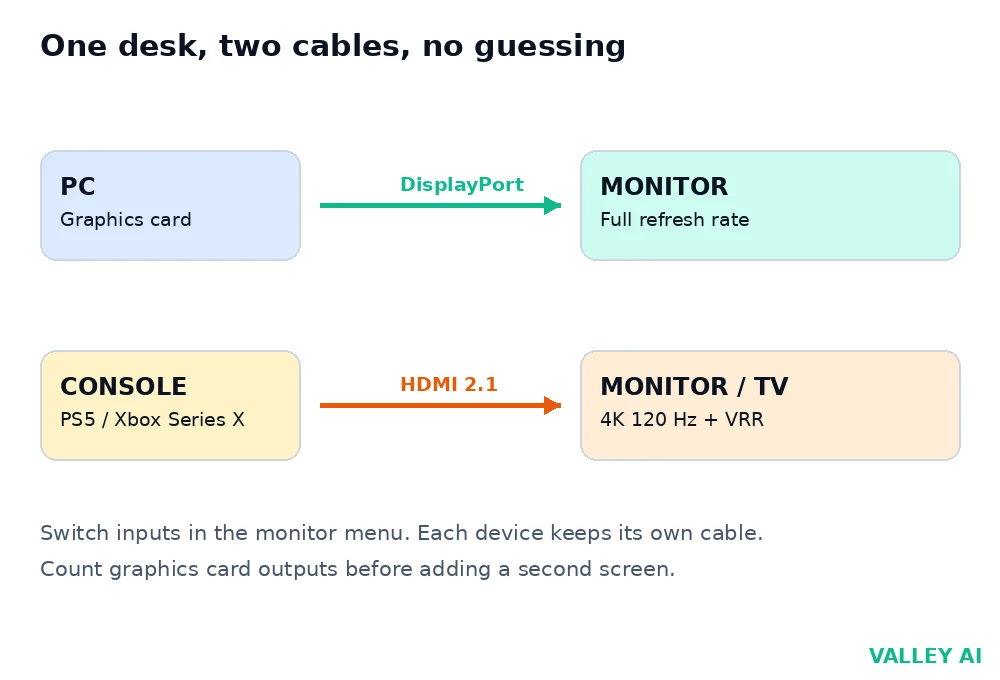
PlayStation 5 and Xbox Series X output video over HDMI only. Both consoles reach 4K at 120 Hz through HDMI 2.1. A monitor with an HDMI 2.1 input serves both a console and a PC. Connect the PC over DisplayPort and the console over HDMI 2.1. Switch inputs from the monitor menu.
TVs follow the same pattern. HDMI 2.1 inputs on a TV support 4K at 120 Hz, variable refresh, and auto low latency mode. DisplayPort inputs remain rare on TVs. A PC connected to a living room TV usually runs over HDMI. Check the TV input version, since some TV HDMI inputs run at 2.0 while others run at 2.1 on the same set.
Shared desks need a small plan. Plug the PC into DisplayPort, the console into HDMI 2.1, and any work laptop into the remaining input. Label each cable at the monitor end with tape when the desk holds four or more cables. Tracing a loose cable later takes seconds with labels in place.
When a mode will not appear
Missing modes usually trace to four causes. Work through them in order, checking the monitor on-screen display after each change. The display reports the mode it receives, so that reading confirms or rules out each fix.
- Wrong input selected on the monitor, while the cable sits in a different socket.
- Cable version below the mode, often an old HDMI cable in a new setup.
- Adaptive sync or overclock setting disabled in the monitor menu.
- Graphics driver set to a lower mode after a driver update reset display settings.
Open display settings after each fix and look for the target refresh rate in the list. A missing rate points back to the cable or port version. A present rate that resets after reboot points to the driver or monitor setting. Swap in a certified cable before replacing any hardware. Cables fail more often than ports.
Rounding explains small gaps in the display reading. A 144 Hz setting commonly reads 143.98 Hz in the display menu. A 240 Hz setting commonly reads 239.76 Hz in the same menu. Both readings show normal rounding.
Output devices share one trait across categories. Each device in the chain limits the result to its own ceiling. Output devices include monitors, TVs, and projectors, and each one reports its own limits in its spec sheet. Read those limits before blaming the cable alone.
Frequently asked questions
Can a DisplayPort to HDMI adapter run 4K at 120 Hz?
An active adapter rated for HDMI 2.1 can pass 4K at 120 Hz, while a passive adapter usually caps the signal at HDMI 2.0 rates. Check the adapter rating printed on its packaging before buying, since the adapter becomes the slowest part of the link.
Does cable length change which mode a cable can carry?
Length matters at high modes. Passive copper cables hold full HDMI 2.1 and DisplayPort 1.4 rates up to about 2 meters. Longer passive runs may drop to lower modes, while active or optical cables hold high modes over longer distances at a higher price.
Do gold-plated connectors change signal quality?
Gold plating resists corrosion on the connector surface, which helps plugs that stay connected for years in humid rooms. Plating adds no bandwidth and cannot raise a cable past its rated version. Treat plating as durability only.
Is buying a DisplayPort 2.1 cable useful with a DisplayPort 1.4 monitor?
A 2.1 cable works in a 1.4 port, since the connectors match, but the link still runs at 1.4 rates. Buying the newer cable makes sense only when a monitor upgrade to 2.1 sits in near-term plans. Otherwise the 1.4 cable costs less for identical results.
What happens to audio when a monitor has no speakers?
A monitor without built-in speakers ignores the audio stream. Route audio to external speakers through the PC sound settings when the monitor has no speakers of its own.
Conclusion
Settle the mode first. Read the port labels on the graphics card and the monitor next. Buy a certified cable that matches the lower port version. Confirm the mode in the monitor on-screen display after connecting. Change one part at a time when the expected mode stays missing, and let the display reading guide the next change.

Kaleem
Kaleem is a Computer Science graduate (Virtual University of Pakistan) and the founder and editor of Valley AI, where he publishes in-depth, tested guides on computer hardware, artificial intelligence, and how the internet works. Every guide is researched from primary sources, tested hands-on where possible, and updated when the facts change.