

A chipset is the set of chips on your motherboard that manages communication between the CPU and everything else: storage drives, USB ports, expansion cards, and network and audio controllers. The CPU does the computing. The chipset decides what the CPU can talk to, and how fast.
That division of labor is why two motherboards with the same socket can behave so differently. A B650 and an X670 board both accept a Ryzen 7000-series CPU, but the X670 hands you more PCIe lanes, more USB ports, and more SATA connections. On Intel’s side, a Z790 board unlocks CPU overclocking that a B760 board keeps locked. When you pick a motherboard, you are really picking a chipset. Our complete motherboard guide maps the rest of the board. This article covers the chip that defines its limits.
What a chipset does
Picture a new PC build with every part on the desk. The CPU runs instructions, and RAM holds the data it is working on. The chipset wires up everything else and negotiates how it all connects. Every USB drive you plug in, every SATA SSD, every add-in card reaches the CPU through lanes and controllers that the chipset provides or manages.
The five things a chipset decides about your PC
- CPU compatibility. The chipset and socket together define which processor generations fit. A BIOS update can add support for newer CPUs on the same socket, but the chipset sets the boundary.
- Memory standard. The memory controller lives inside the CPU now, yet the chipset still sets the platform’s memory ceiling: DDR4 or DDR5, and the officially supported speeds. Our DDR4 vs DDR5 guide walks through that choice.
- PCIe lane budget. Beyond the CPU’s own lanes, the chipset adds expansion lanes for extra NVMe drives, capture cards, and network cards, at a specific generation.
- USB and SATA ports. The chipset caps how many ports a board can expose and at what speeds, from USB 2.0 up to 20 Gbps USB-C.
- Overclocking and RAID. Whether the CPU multiplier unlocks, and which RAID levels the board supports natively, are chipset decisions.
None of this shows up in a benchmark chart. All of it shows up the day you try to add a second fast SSD, a capture card, or a 10-gigabit network card and discover the board has nowhere to put them.
From two chips to one: the northbridge and southbridge story
Old PC diagrams show two large chips flanking the CPU socket. They were the original chipset, and their names told you exactly what they did.
Northbridge and southbridge: who did what
| Chip | Position | Job |
|---|---|---|
| Northbridge | Closest to the CPU | RAM, the graphics slot (AGP, later PCIe), and the front-side bus. Intel called it the Memory Controller Hub. |
| Southbridge | Farther from the CPU | Slower I/O: USB ports, storage (PATA, then SATA), audio, and the BIOS chip. Intel called it the I/O Controller Hub. |
The split made sense when feeding the CPU from memory was the hardest problem in a PC. The northbridge existed to keep that path as short and fast as possible.
Why the northbridge disappeared
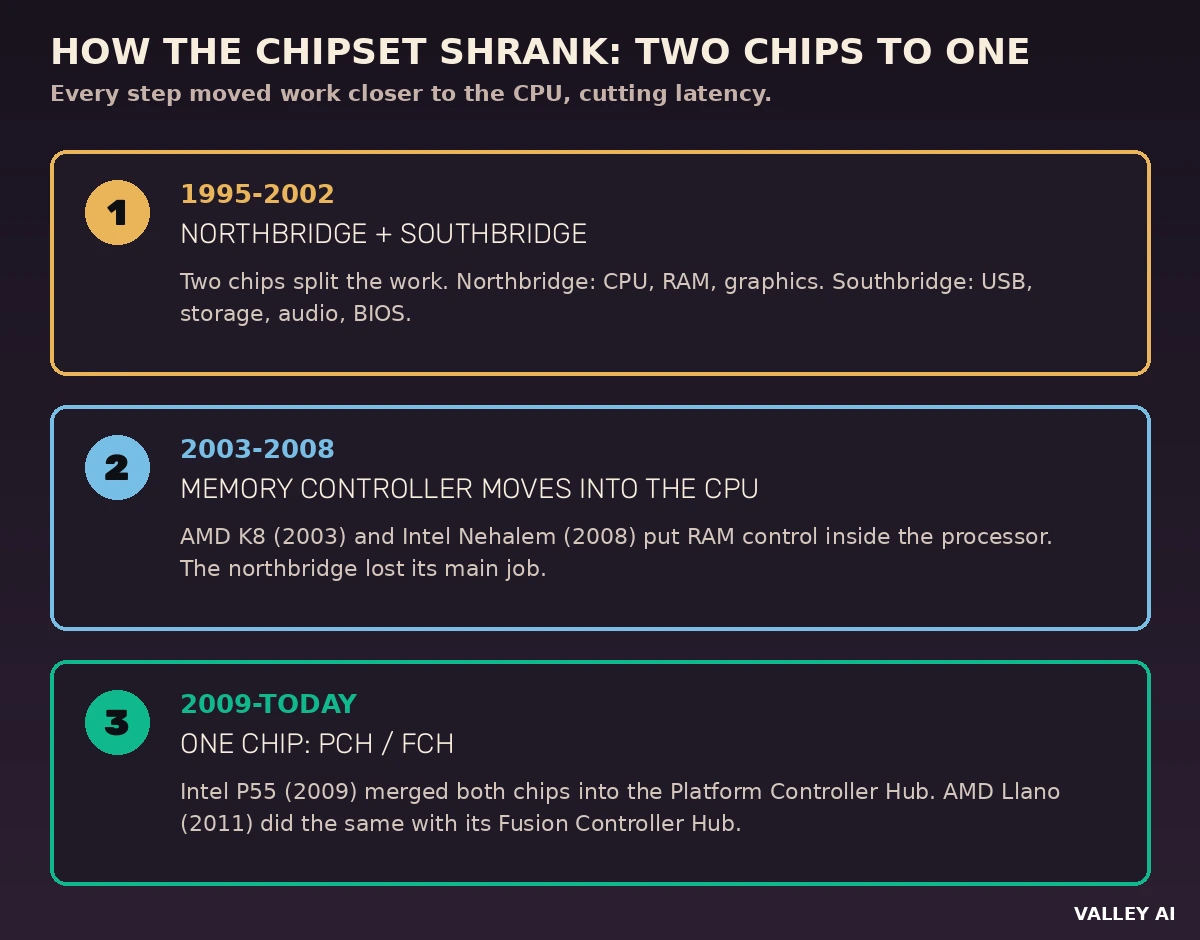
AMD moved the memory controller inside the processor with the Athlon 64 in 2003. Intel followed with the Core i7, codenamed Nehalem, in 2008. With RAM control gone, the northbridge had nothing left to do, so the two chips merged. Intel’s P55 chipset from 2009 combined them into a single chip called the Platform Controller Hub, or PCH. AMD merged its pair into the Fusion Controller Hub, or FCH, with the Llano APUs in 2011. On today’s AM5 boards, AMD just calls it the chipset.
The names still differ by vendor, and that trips up a lot of buyers. Intel says PCH. AMD says FCH, or chipset. The fast link between the chip and the CPU has different names too, and it is the part most guides skip entirely.
How a chipset talks to the CPU
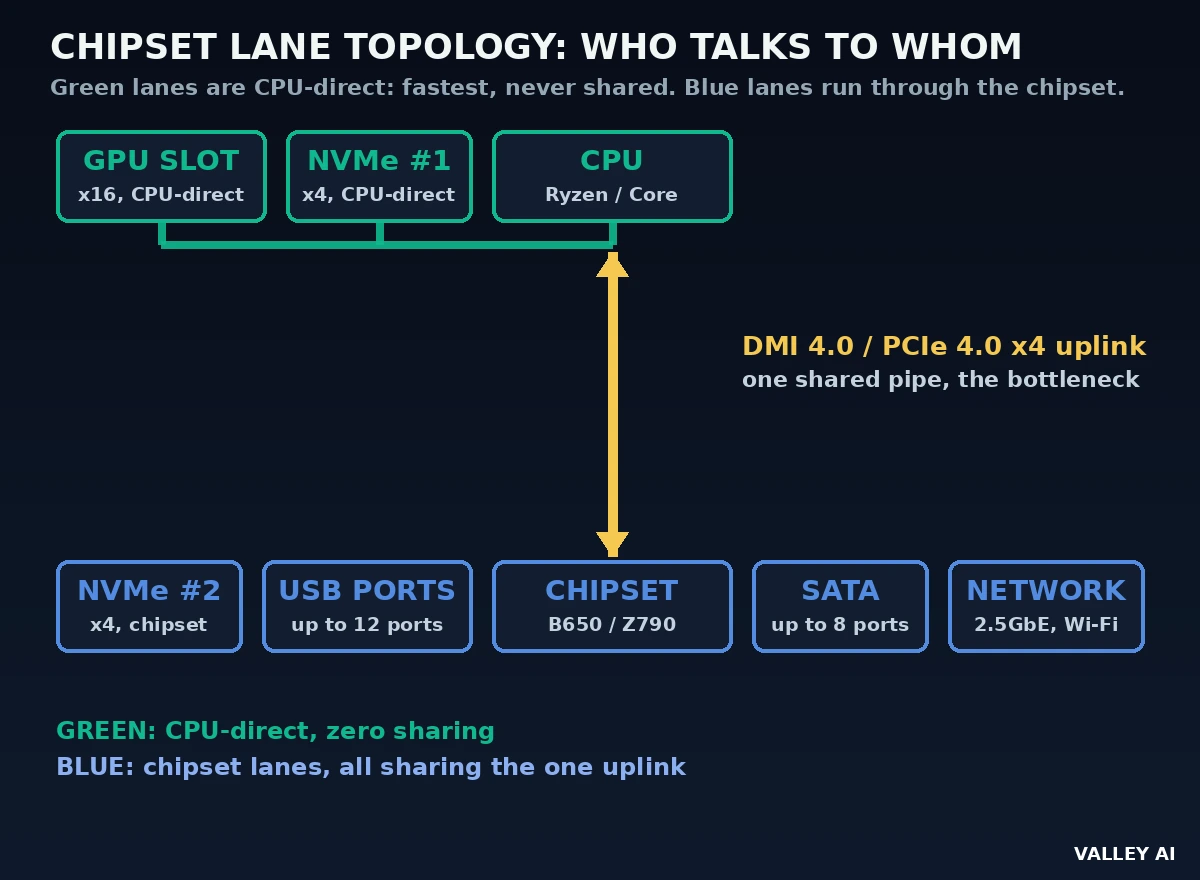
The chipset is no second processor. Traffic from your fastest devices never touches it. The CPU keeps its own express lanes for the graphics card and the first SSD. The chipset gathers everything else and funnels it to the CPU through one shared link.
On Intel boards that link is DMI, the Direct Media Interface. On current 700-series boards it runs the DMI 4.0 protocol at about 2 GB/s per lane. Z790 gives it eight lanes, roughly 16 GB/s in each direction. B760 gives it four lanes, roughly 8 GB/s. On AMD’s AM5 boards the chipset connects through four PCIe 4.0 lanes, also about 8 GB/s per direction. One terminology warning: DMI is Intel-only. AMD does not use it.
This single link is the quiet bottleneck of every motherboard. Every chipset-attached SSD, USB device, network controller, and extra PCIe card shares it. If several of them transfer at full speed at the same time, they contend for the same pipe. The number that matters most in a chipset spec sheet is the uplink bandwidth sitting behind the lane count.
CPU lanes vs chipset lanes
A current desktop CPU carries its own PCIe lanes, usually 20 to 28. The top graphics slot takes 16 of them, and the first M.2 slot usually takes four. These lanes never share, never queue behind other devices, and run at the lowest latency in the system. Your graphics card lives here, on the fastest path in the machine.
Everything the chipset adds sits behind the DMI or PCIe uplink. A second NVMe drive on chipset lanes still runs fast, often the full speed of its PCIe 4.0 x4 connection, because a single device rarely saturates the shared link on its own. Two SSDs plus a 10-gigabit network card all hammering at once is a different story. Then the uplink becomes the limit that decides who waits. For the full walkthrough of how lanes, slots, and generations fit together, read our guide to PCIe lanes.
So why do boards advertise 36 or 44 total lanes?
Why does a B650 board advertise 36 PCIe lanes when my graphics card only uses 16? The 36 mixes two different things. Around 20 to 24 of those lanes come from the CPU: the graphics slot, the first NVMe slot, and the four lanes of the chipset link itself. The rest come from the chipset. The headline number tells you how much you can connect in total. Simultaneous movement is a separate figure, set by the shared uplink the headline hides.
That distinction also decides where your drives should go. The first M.2 slot on almost every board is CPU-direct, so it gets your boot drive. Extra M.2 slots are chipset lanes, and they are still excellent for a game library or scratch disk. Our guide to installing an NVMe SSD shows how to read which slot is which before you mount anything.
B650 vs X670 vs Z790 vs B760: the four chipsets that matter
Strip away the marketing and four chipsets cover nearly every desktop build worth buying right now: two from AMD on socket AM5, two from Intel on LGA1700. The differences are lane counts, port counts, overclocking unlocks, and the uplink behind it all.
| B650 | X670 | Z790 | B760 | |
|---|---|---|---|---|
| CPU overclocking | Yes | Yes | Yes | No (RAM only) |
| Chipset-to-CPU link | PCIe 4.0 x4 | PCIe 4.0 x4 | DMI 4.0 x8 | DMI 4.0 x4 |
| Uplink bandwidth | 8 GB/s | 8 GB/s | 16 GB/s | 8 GB/s |
| Chipset Gen4 lanes | 8 | 12 | 20 | 10 |
| 10 Gbps USB ports | 6 | 12 | 10 | 4 |
| SATA 6Gb/s ports | 4 | 8 | 8 | 4 |
| Typical board price | $130-230 | $230-400 | $180-400 | $110-200 |
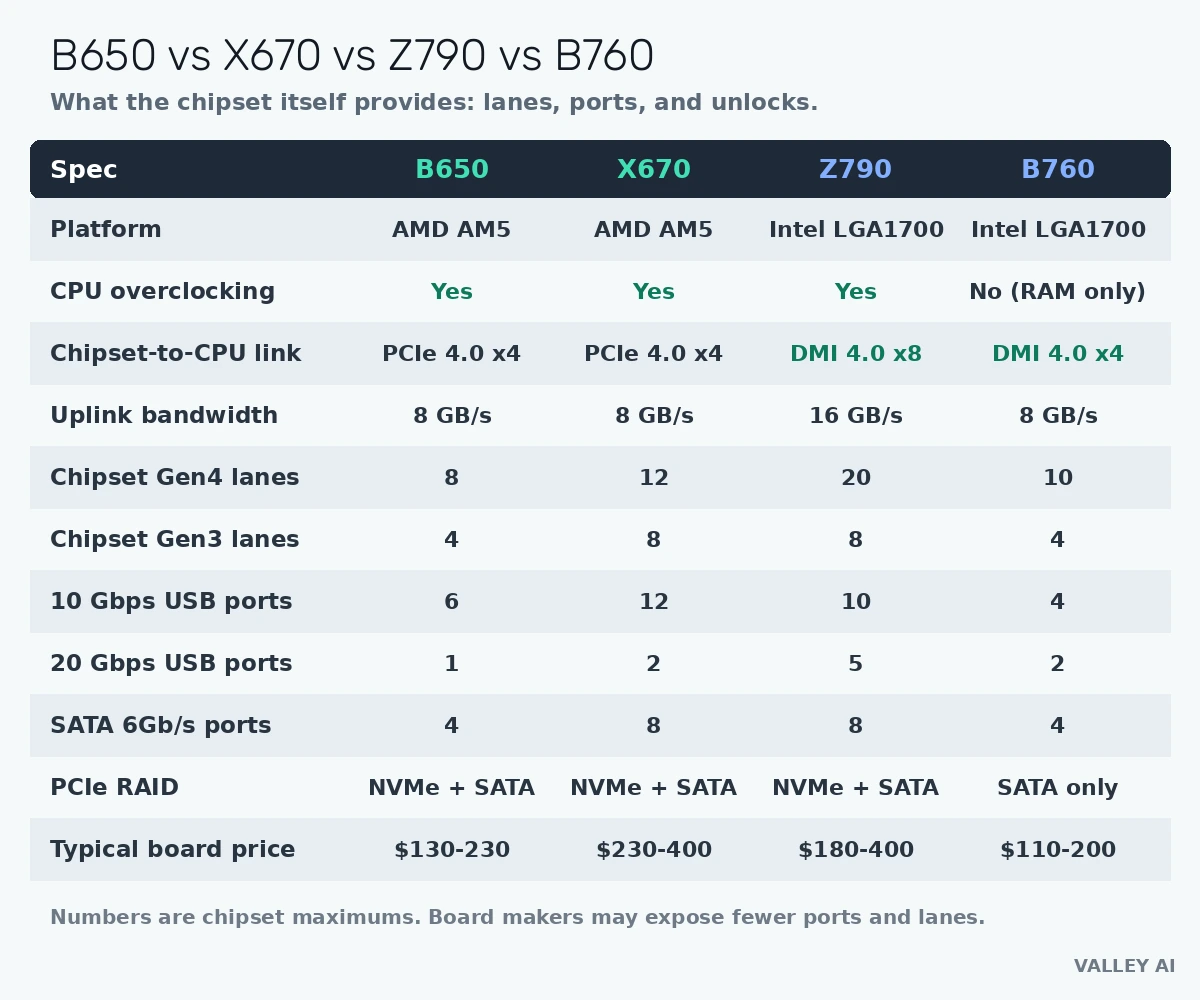
Two details deserve attention. First, AMD allows CPU overclocking on both B650 and X670, while Intel locks it to the Z-series. An unlocked Intel K processor on a B760 board cannot be CPU-overclocked, no matter what the board maker implies. Second, the AMD chipset’s link to the CPU is four PCIe 4.0 lanes on both B650 and X670, so the X670’s extra lanes do not arrive with a wider pipe. Intel’s Z790 doubles B760’s uplink to DMI 4.0 x8. That wider uplink is the one place the flagship shrinks the bottleneck itself. The rest of the premium buys ports.
Three worked examples: picking a chipset for a real build
Spec tables only mean something inside a parts list. The three builds below use real CPUs and real board price tiers, with the lane math worked out line by line. These budgets were calculated for this article from the makers’ published lane counts.
The office PC: Ryzen 5 8600G on B650
The 8600G carries integrated graphics, so no graphics card is needed and its 16 CPU graphics lanes sit idle. The build needs one boot NVMe drive on the CPU-direct x4 slot, one more Gen4 x4 NVMe for storage on chipset lanes (4 of B650’s 8 Gen4 lanes), a Wi-Fi card on a chipset x1 lane, and one hard drive on SATA. Chipset Gen4 lanes used: 5 of 8. USB used: a keyboard, a mouse, and a webcam against 6x 10 Gbps ports plus a 20 Gbps port. Nothing in an office PC comes close to the ceiling. An X670 board adds roughly $100 or more to the board price for lanes this build will never touch.
The gaming PC: Ryzen 7 7800X3D on B650
The lane budget: graphics card on CPU-direct x16, boot NVMe on CPU-direct Gen5 x4, a second Gen4 x4 NVMe for the game library on chipset lanes, a capture card on a chipset x1 lane, and 2.5-gigabit Ethernet on a chipset x1 lane. That is 6 of B650’s 8 Gen4 chipset lanes, with 2 to spare. The X670 alternative costs about $100 more and buys lanes that sit idle. Frame rates come from the CPU and GPU; with identical parts, a B650 and an X670 score the same. The $100 goes further on the graphics card tier or a larger SSD.
I bought a Z790 board with a locked i5 and never overclock. Did I waste money? Probably, if the B760 board on your shortlist had the ports you needed. Z790’s two real advantages are CPU overclocking and the wider DMI x8 uplink. With a locked CPU you use neither, and a B760 board at $60 to $100 less leaves the gaming experience identical.
The workstation: two NVMe drives plus 10-gigabit networking on Z790
Now the uplink math earns its keep. Two Gen4 x4 NVMe drives on chipset lanes can each push about 7 GB/s, and a 10-gigabit NIC adds another 1.25 GB/s. If all three peak at once, the combined demand is roughly 15 GB/s against Z790’s DMI x8 ceiling of about 16 GB/s: the link just barely holds. On B760’s DMI x4 ceiling of about 8 GB/s, the same workload runs at roughly half the combined throughput. A workstation buyer pays the Z790 premium for that quantified gap. Port count is the smaller half of the difference.
The pattern across all three: buy lanes and uplink for the devices you will actually run at the same time. Everything else is decoration.
How to find out which chipset you have
Upgrading a PC you already own starts with identifying the board. The chipset name is printed on the chip itself, but it is usually hiding under a heatsink, so check in software first.
- Windows: open Device Manager, expand System devices, and look for entries starting with the chipset family name. Or press Win+R, type msinfo32, and read BaseBoard Product: that is your board model, and the chipset is on its spec page.
- CPU-Z: the free utility’s Mainboard tab shows the chipset directly.
- Linux: run dmidecode -t baseboard for the board model, or lspci and look for the ISA bridge line.
Once you have the board model, look it up on the manufacturer’s support page. The chipset is listed in the specifications, along with the CPU support list and the manual’s lane-sharing table. Update chipset drivers from the board maker or from Intel or AMD directly; the version Windows installs on its own is often several releases behind.
Five mistakes people make when choosing a chipset
- Paying for overclocking they will never use. A Z790 board with a locked CPU, or a Z-series board for someone who has never opened the BIOS, is money converted into unused features.
- Pairing an unlocked K-series Intel CPU with a B760 board, then discovering CPU overclocking is locked. The board runs the chip fine; it just never unlocks the multiplier.
- Reading the headline lane total instead of the uplink. A 44-lane platform with an 8 GB/s shared uplink moves less at once than the number suggests.
- Assuming same-chipset boards are equal. Two B650 boards can differ in VRM quality, exposed ports, and lane sharing: one board’s second M.2 slot may disable two SATA ports when populated. The manual’s lane-sharing table tells the truth.
- Buying ports they will never plug in. Eight SATA ports for a one-drive build, or twelve 10 Gbps USB ports for a keyboard and a webcam, add cost without adding anything you will touch.
Does a more expensive chipset make games faster? No. With the same CPU, graphics card, and RAM, a B650 and an X670 deliver the same frame rates, because the graphics card and CPU set the pace. The chipset buys you connections and unlocks, and the frame rate comes from the parts plugged into them.
Chipset vs CPU vs motherboard: what each one does
These three get mixed up constantly, so the clean split looks like this. The CPU runs instructions; it also holds the memory controller and the direct PCIe lanes for the graphics card and the first SSD. Our CPU guide covers what the processor itself handles. The chipset adds every other connection and feature the board supports: extra lanes, USB, SATA, RAID, overclocking unlocks. The motherboard is the physical board carrying the socket, the chipset, the slots, and the power delivery. The socket is just the physical mount, and a matching socket alone does not guarantee a CPU will work: the board’s CPU support list and BIOS version decide. One more bridge: the network controller usually hangs off chipset lanes, which is one reason Wi-Fi vs Ethernet speeds differ by more than the cable.
Frequently asked questions
What is a chipset in simple terms?
A chipset is the motherboard’s traffic controller. It is the chip that manages communication between the CPU and storage drives, USB ports, expansion cards, and network and audio controllers, and it decides which CPUs, memory, and features a board supports.
Does the chipset affect gaming performance?
Barely, and never directly. Frame rates come from the CPU and graphics card. The chipset affects which parts you can install and whether overclocking is unlocked, but a mid-range and a flagship chipset give the same FPS with identical parts.
Is the chipset the same as the motherboard?
No. The chipset is one chip on the motherboard. The motherboard is the whole board: socket, chipset, slots, power delivery, and ports. Picking a motherboard means picking a chipset, but the board maker also decides VRM quality, cooling, and which of the chipset’s features actually get exposed.
How do I check which chipset my motherboard has?
On Windows, use CPU-Z’s Mainboard tab or Device Manager’s System devices section. On Linux, dmidecode -t baseboard shows the board model. Then look up the model on the manufacturer’s site for the chipset name.
Do I need a Z790 or X670 motherboard for gaming?
Usually not. A B650 or B760 board runs the same CPU and GPU at the same frame rates for about $60 to $100 less. Step up only if you need the extra lanes, ports, or overclocking the flagship unlocks.
What is the difference between PCH, FCH, and DMI?
PCH (Platform Controller Hub) is Intel’s name for its chipset chip; FCH (Fusion Controller Hub) was AMD’s. DMI (Direct Media Interface) is the Intel-only link between the chipset and the CPU. AMD’s AM5 chipsets connect through four PCIe 4.0 lanes instead.

Kaleem
Kaleem is a Computer Science graduate (Virtual University of Pakistan) and the founder and editor of Valley AI, where he publishes in-depth, tested guides on computer hardware, artificial intelligence, and how the internet works. Every guide is researched from primary sources, tested hands-on where possible, and updated when the facts change.