

Move the mouse an inch and the cursor crosses half the screen. Move the same inch slowly and it travels a shorter distance. Slide the mouse on plain glass and nothing happens at all. Three different results from one hand, and each comes from a different part of the mouse.
How does a computer mouse work? It photographs the desk under it thousands of times a second, counts how far the surface pattern moved between pictures, and reports that count to the computer. Match the sensor to the surface, the polling rate to the screen, and the DPI to your hand, and the cursor goes where you expect. That count travels from the desk to the screen in four steps: sensor, switch, signal, software.
The same inch, three different results
The mouse belongs to the computer’s input devices, and its whole job is turning hand movement into cursor movement. The distance the cursor travels for one inch of hand movement depends on the DPI setting. The speed of the hand changes the result when pointer acceleration is on. The surface decides whether the sensor sees anything to track. One inch, three variables, three different answers.
Laptops skip the mouse and use a trackpad for the same job, reading finger movement on a flat surface. A mouse reads the desk instead of the finger, and the desk gives it far more texture to work with.
Try it yourself. Slide the mouse on a mousepad, then on a wood desk, then on plain glass. The pad and the wood track smoothly. The glass does not track at all. That one test shows the mechanism at work: the sensor needs texture, and glass gives it a reflection and no texture to read.
The sensor: a tiny camera that never stops taking pictures
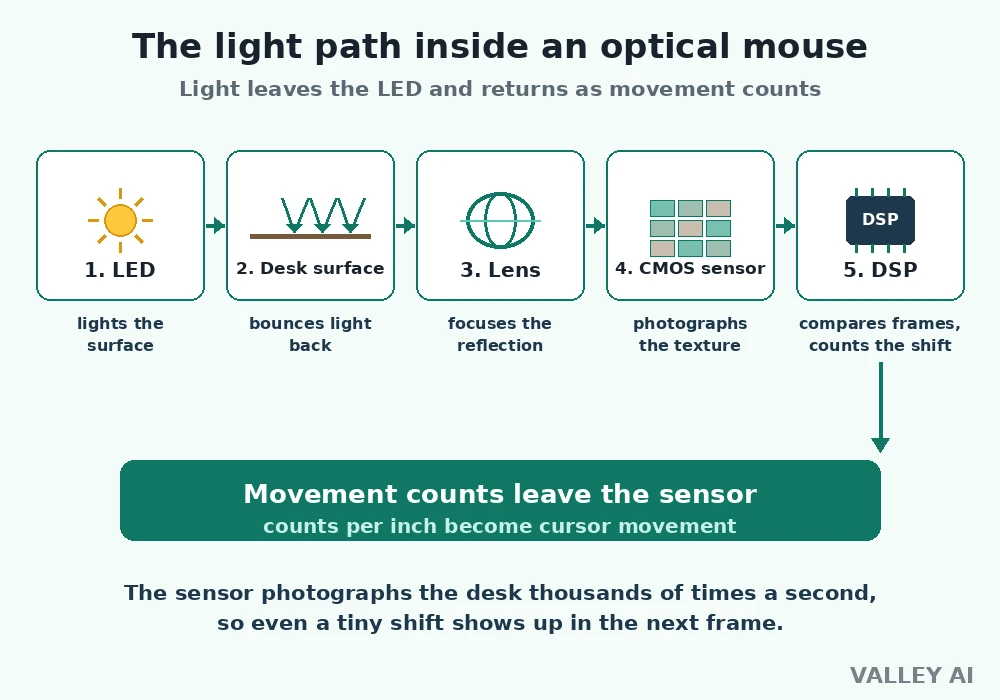
An optical sensor works in three parts. A light emitting diode shines light down on the surface. A lens focuses the reflected light on a CMOS image sensor, a tiny camera chip. A digital signal processor compares each new picture with the one before it and measures how far the surface pattern shifted. The shift becomes a movement count, and the count becomes cursor motion.
How many pictures does a sensor take? A modern sensor captures 6,000 to 12,000 frames a second, so one frame lasts 166.7 microseconds at the slow end and 83.3 microseconds at the fast end. That speed is what keeps fast flicks from losing the pattern. A sensor that photographed slowly would see the pattern jump too far between frames and lose track of the direction.
Simple arithmetic turns the counts into cursor travel. At 800 DPI, one inch of hand travel reports 800 counts. A screen 1,920 pixels wide needs 1,920 counts, so crossing it takes 2.4 inches of hand travel at 800 DPI, with no operating system scaling applied. The same crossing takes 4.8 inches at 400 DPI and 1.2 inches at 1,600 DPI. Inputs: 800 DPI, a 1,920 pixel screen, one inch equal to 800 counts.
The sensor works like a camera bolted to the bottom of a moving car, photographing the road surface and judging speed from how fast the markings slide past. The desk is the road, the sensor is the camera, and the processor reads the slide between frames.
Before optical sensors, mice used a rubber ball. The ball turned two rollers as the mouse moved, one for side to side and one for up and down. Each roller spun a slotted wheel, and a light beam shining through the slots broke into pulses that the mouse counted. Dirt on the ball or the rollers made the cursor stutter, and the ball itself wore smooth over time. The optical sensor removed every moving part from tracking, and the ball mouse vanished from desks.
Optical or laser: the light decides the surface
The difference between an optical mouse and a laser mouse is the light source. An optical sensor uses a light emitting diode, which gives broad, even illumination. A laser sensor uses a laser diode, whose coherent light reads finer detail and tracks on glossy surfaces where an LED loses the pattern. Modern high end optical sensors now match laser DPI while tracking more cleanly on cloth and hard pads.
- LED optical: tracks cloth mousepads, hard pads, and wood desks; lower noise on textured surfaces; the common choice in gaming mice.
- Laser: tracks a wider range of surfaces, including some glossy desks; reads finer detail; can pick up surface noise on textured desks.
- Plain glass: defeats most sensors of either type, because glass has almost no texture for the camera to read.
Why does a mouse stop working on glass? Plain glass has almost no surface texture, so the sensor’s pictures look the same from frame to frame and the processor finds no shift to measure. A mousepad fixes it by giving the sensor a pattern to read. Some laser sensors track on glass by reading deeper imperfections in the material, and that is the one real surface advantage laser light still holds.
Clicks and the wheel: switches, bounce, and the notched encoder
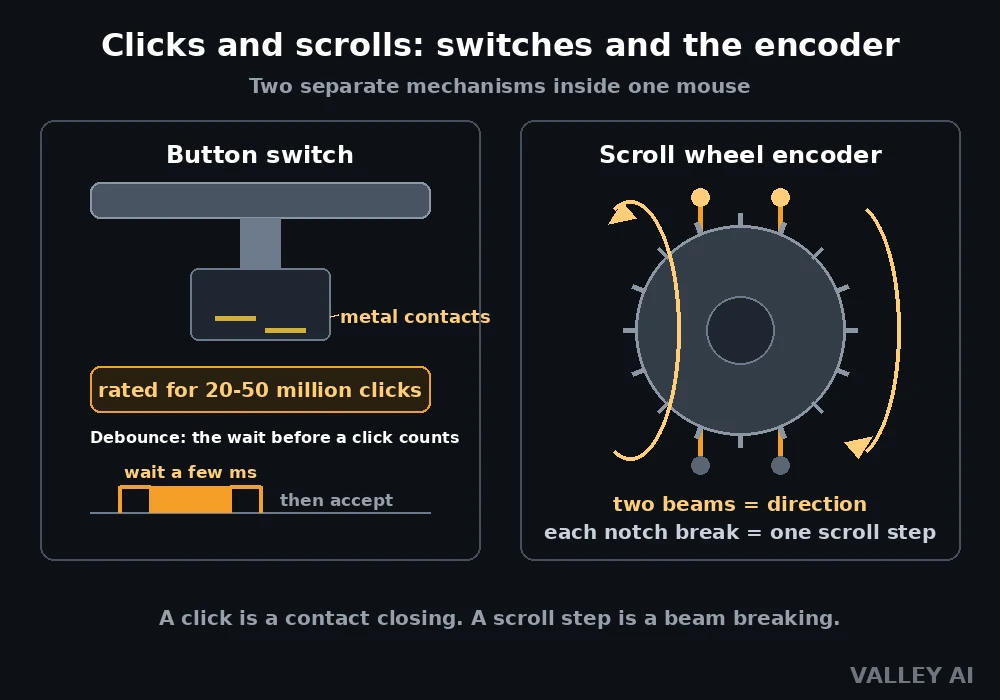
Each button sits over a small switch, often an Omron rated for 20 to 50 million clicks. Pressing the button closes the switch and completes a circuit. Releasing it opens the circuit again. The switch is the simplest part of the mouse, and the one that wears out first.
A mechanical switch does not close cleanly. Its metal contacts bounce apart and together for a few milliseconds after each press, and the mouse’s chip waits out the bounce so one press registers once. That wait is called debounce. When a switch wears, its bounce lasts longer than the filter expects, and one click registers twice. A double click that appears from nowhere usually means a worn switch, and the fix is a new switch or a new mouse.
Optical switches skip the bounce. A light beam crosses a gap inside the switch, and pressing the button breaks the beam. Metal never touches metal, so there is no bounce to filter and the click registers sooner. The keyboard beside the mouse uses the same idea at larger scale, with its own mechanical and optical switch designs.
The scroll wheel turns a notched encoder. Each notch interrupts a light beam or closes a contact as the wheel turns, and each interruption is one scroll step. Direction comes from two beams side by side: the order the beams break tells the mouse which way the wheel turned. The old ball mouse used the same trick with two slotted wheels, one for each axis, and the order of the pulses gave the direction of the hand.
Douglas Engelbart built the first mouse in 1964 from wood, with two wheels at right angles turning potentiometers to measure movement. His patent for the X-Y position indicator was granted in 1970. The wheels became a ball, the ball became a camera, and the potentiometers became a processor, but the job never changed: measure how far the hand moved, and in which direction.
How the signal reaches the computer
The mouse’s chip packages the movement counts, the button states, and the wheel steps into a HID report and sends it to the computer. HID is the human interface device standard, and it is why a basic mouse works with no driver install. The mouse plugs into a USB port when wired, or talks to a small radio receiver when wireless.
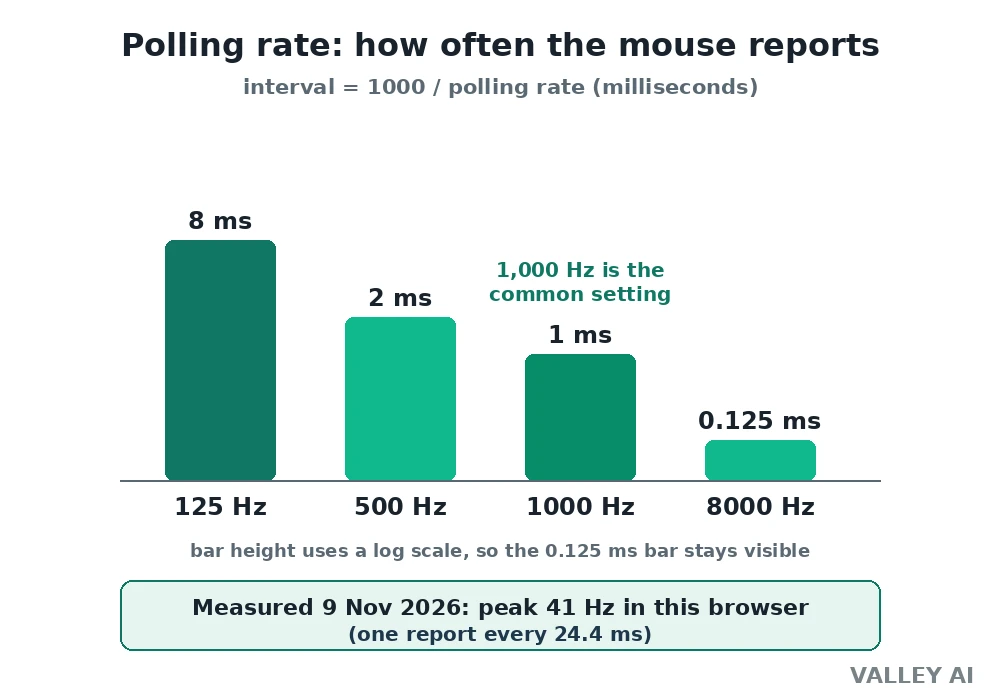
Polling rate sets how often the mouse sends that report. At 125 Hz the mouse reports every 8 milliseconds. At 500 Hz it reports every 2 milliseconds. At 1,000 Hz it reports every 1 millisecond. At 8,000 Hz it reports every 0.125 milliseconds. A higher rate shortens the delay between the hand moving and the cursor updating. DPI and polling rate set two different things: DPI sets how far the cursor moves per inch, polling rate sets how often the mouse reports.
Wired mice send their reports over the cable, with no battery to charge. A 2.4 GHz wireless mouse sends the same reports over a dedicated radio link to a small receiver dongle, and its latency sits close to wired. A Bluetooth connection uses the computer’s built in radio instead of a dongle, with slightly more delay and sleep states that save battery. That sleep is why a wireless mouse sometimes feels slow on the first move after a pause.
The polling chain shows up in a live test run. The TestUFO mouse rate test, run in a browser test session on 9 November 2026, reported a peak of 41 Hz across two continuous runs, after a first run of 10 Hz with slower movement. The page reports only a peak, with no average and no interval shown.
A peak of 41 Hz means one report every 24.4 milliseconds, and that number measures the rate the browser delivered pointer events in this remote session. A physical mouse reports faster. The page warns that the browser may not keep up with a high end mouse, and a SYNC FAILURE banner showed during the test. The reading proves the chain: the test can only report what the browser hands it.
Pair the polling rate with the screen. A 1,000 Hz report rate shows its benefit on a fast screen, where the monitor’s refresh rate decides how often each new frame can carry a fresh cursor position. On a 60 Hz screen the monitor redraws every 16.7 milliseconds. Reports faster than the redraw still help the path from hand to frame, but the eye sees the gain only when the screen keeps up.
What the computer does with the counts
The HID report reaches the driver, which hands the counts to the pointer. Pointer speed multiplies the counts before the cursor moves. Pointer acceleration goes one step further and scales the counts by hand speed, so the same inch travels farther when the hand moves fast.
Why does the same inch move the cursor a different distance? Pointer acceleration scales cursor distance by hand speed. Move the mouse an inch slowly and the cursor travels a short distance. Move it an inch fast and the cursor travels farther, because the acceleration curve multiplies the counts from the fast move. Turn acceleration off and the same inch gives the same distance every time, which is why competitive players switch it off.
Jitter is the small unwanted movement that appears when the mouse sits still or moves slowly. Sensor noise, a dirty lens, or a surface the sensor reads poorly all cause it. Smoothing and angle snapping reduce jitter, but they alter the true motion path, so good sensors aim for low jitter with little smoothing. A clean lens and a textured pad keep the output a faithful copy of the hand movement.
Lift-off distance is how high the mouse can rise before tracking stops. Low lift-off, around 1 to 2 millimeters, keeps the cursor still while you lift the mouse to reposition it. High lift-off lets the cursor drift during the lift, which shows up as the pointer wandering when you pick the mouse up. Gamers check this number; office users rarely need to.
Start with 800 DPI and a 1,000 Hz polling rate, turn acceleration off, and use a textured pad. Those four settings fix most cursor complaints before any new mouse is bought. If the cursor still jumps after that, clean the lens, change the surface, and check the battery before blaming the sensor.
Frequently asked questions
How do I clean a mouse sensor?
Turn the mouse over and wipe the small lens window with a dry, lint-free cloth. A speck of dust or a hair across the lens is enough to make the cursor jump, and a wipe fixes it more often than any setting change. Do not use water or cleaning spray on the lens.
Can I use two mice on one computer?
Yes. The computer merges the reports from both mice into one cursor, so either mouse moves the same pointer. The setting is useful when two people share one screen or when a left-handed user keeps a second mouse on the other side.
Why is my wireless mouse slow to wake up?
A wireless mouse sleeps between uses to save battery, and the radio needs a moment to wake on the first move. A low battery makes the wake slower, so change the battery first. If the delay stays, check the USB receiver position and the power saving settings for the USB port.
Does a mouse work without a driver?
A basic mouse works with the standard HID driver already built into Windows, macOS, and Linux, so no install is needed. Extra buttons, custom DPI steps, and lighting need the maker’s own software, and those features stay off until that software is installed.

Kaleem
Kaleem is a Computer Science graduate (Virtual University of Pakistan) and the founder and editor of Valley AI, where he publishes in-depth, tested guides on computer hardware, artificial intelligence, and how the internet works. Every guide is researched from primary sources, tested hands-on where possible, and updated when the facts change.