
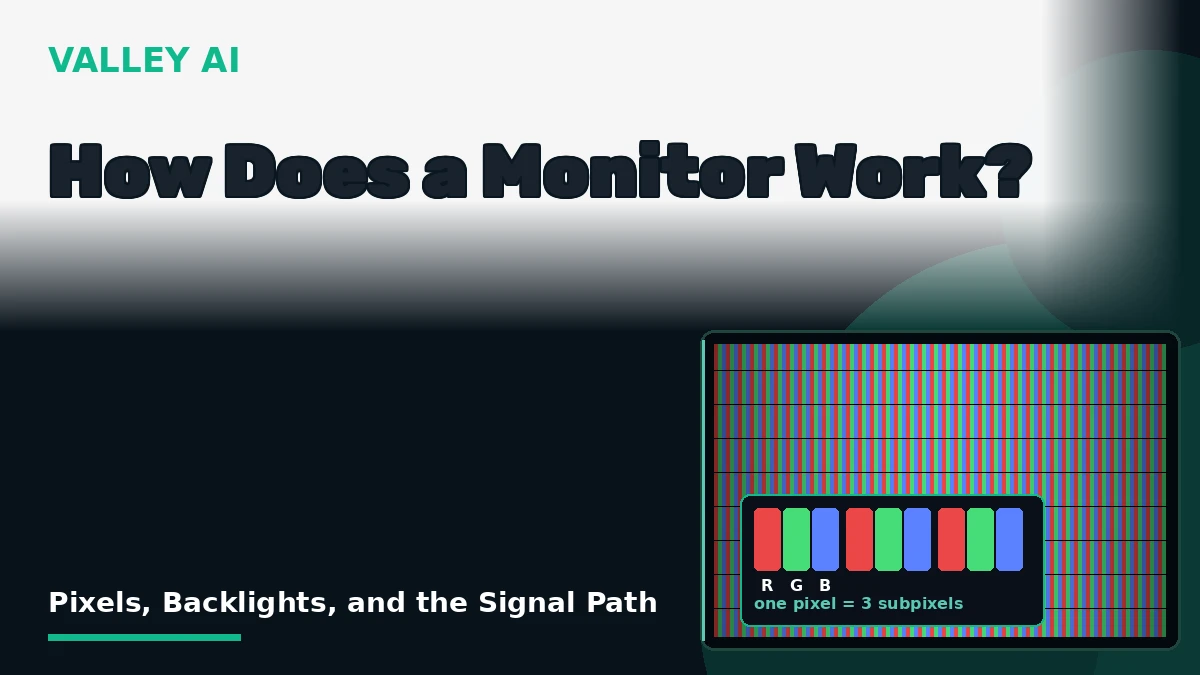
How does a monitor work? A monitor turns a stream of numbers from the graphics card into light, one pixel at a time. An LCD monitor makes its picture by blocking light. An OLED monitor makes its picture by producing light. The rest of the spec sheet, refresh rate, panel type, HDR, describes how well each of those two tricks works.
Two ways to make a picture: block light or make it
Every flat monitor on a desk today uses one of two methods. An LCD panel starts with a white backlight and filters it down to the colors you see. An OLED panel skips the backlight and lets each pixel glow on its own. The method decides the monitor’s strengths: LCDs reach higher brightness for less money, while OLEDs switch each pixel fully off and show black as true black.
Older screens used a third method. A CRT fired an electron beam at phosphor dots inside a glass tube. The beam drew the picture line by line, and the phosphor glowed where the beam hit. Flat panels replaced that tube with a grid of shutters or a grid of tiny lamps, and the picture got thinner, sharper, and cheaper to run.
Inside one pixel: three subpixels and a stack of layers
How many tiny lights sit behind one 4K picture? A 4K screen holds 8,294,400 pixels, and each pixel holds three subpixels, one red, one green, one blue. That is 24,883,200 subpixels, each with its own brightness setting. The monitor sets each subpixel’s brightness, and your eye blends the three into one color. Turn all three up and the pixel reads white. Turn all three down and it reads black.
Pixel density decides how sharp that grid looks. Density is pixels per inch, worked out from resolution and screen size. A 24-inch 1080p monitor packs 92 pixels per inch, a 27-inch 1440p monitor 109, and a 27-inch 4K monitor 163. The table below puts common sizes side by side, and the pattern is plain: a bigger screen at the same resolution spreads the same pixels wider, so density falls.
| Monitor | Pixels per inch |
|---|---|
| 24-inch 1080p (1920×1080) | 92 |
| 27-inch 1440p (2560×1440) | 109 |
| 27-inch 4K (3840×2160) | 163 |
| 32-inch 4K (3840×2160) | 138 |
| 34-inch ultrawide (3440×1440) | 110 |
| 43-inch 4K (3840×2160) | 103 |
An LCD pixel makes no light of its own. Light travels through five layers, back to front, and each layer has one job:
- Backlight: a sheet of white LEDs behind the panel.
- Rear polarizer: a filter that lines the light up in one direction.
- Liquid crystal layer: a grid of cells that twist the light in proportion to voltage.
- Color filters: red, green, and blue filters over each subpixel.
- Front polarizer: a second filter set at 90 degrees to the first, the final gate.
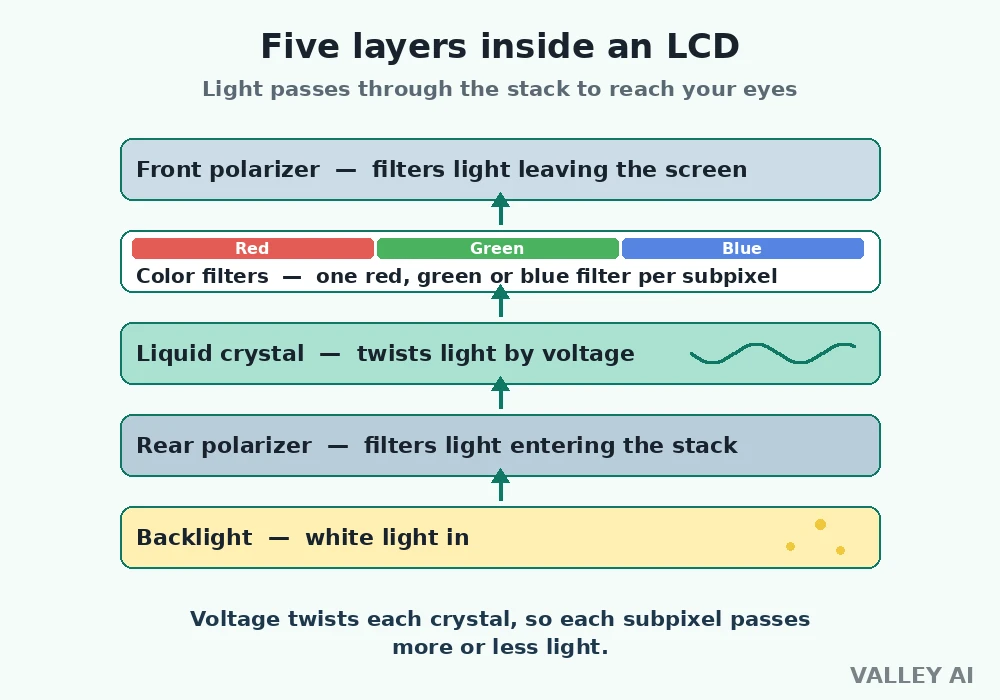
A liquid crystal cell works like a tiny shutter. With no voltage, the cell twists the light so it lines up with the front polarizer and passes through. With full voltage, the cell leaves the light alone, the front polarizer blocks it, and the subpixel goes dark. Voltages between those two points set every shade in between.
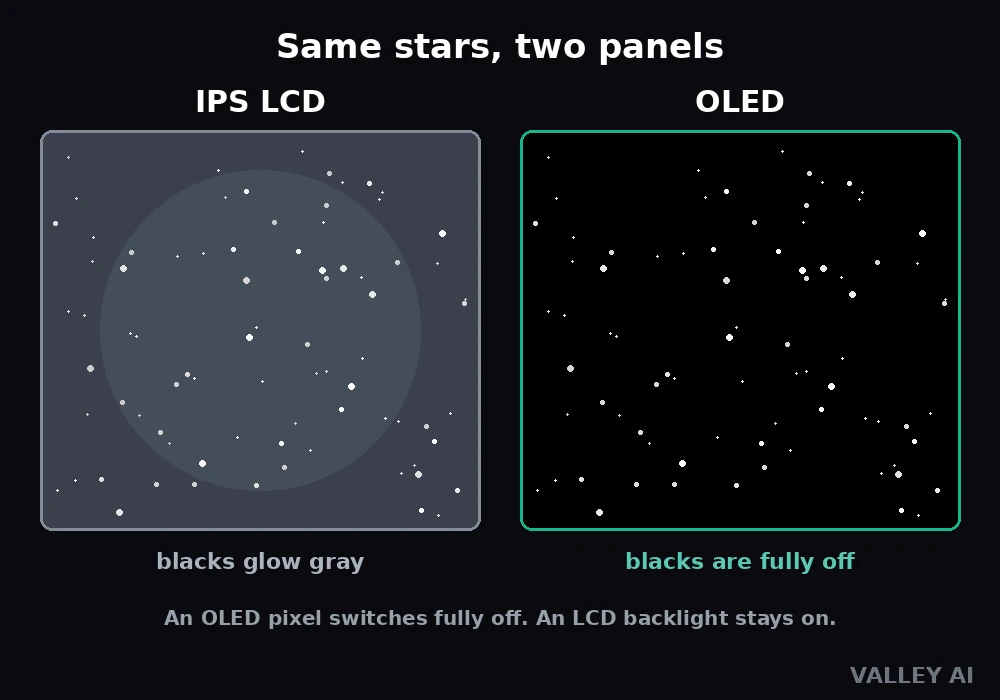
No shutter closes fully. A little backlight leaks through even a dark pixel, which is why LCD black looks gray in a dim room. The leak sets the panel’s contrast ceiling, and it is the reason LCD makers chase better backlights.
The transistor behind every subpixel
Each of those 24.9 million subpixels needs its own voltage, set and reset many times a second. A grid of thin-film transistors does the job. Every subpixel has one transistor, and the transistors sit in rows and columns across the glass. The monitor switches one row on at a time and writes the voltages for that row, then moves to the next row. A full pass across all rows is one frame.
The row-by-row pass is why refresh rate and response time are separate numbers. The pass sets how often a new frame arrives. The liquid crystal sets how fast a pixel answers. A fast pass with slow crystals still smears motion, and fast crystals with a slow pass still judder.
You can see the grid with no tools. Open a plain white image, hold a phone camera or a magnifier close to the screen, and the white breaks into red, green, and blue stripes. Those stripes are the subpixels, and the pattern they sit in is the subpixel layout your operating system’s text smoothing expects.
How an OLED pixel makes its own light
An OLED subpixel is an organic diode. Pass current through it and it glows. Cut the current and it goes dark. No backlight, no shutters, no polarizer stack. A black pixel draws no current and emits no light, so OLED black is the absence of light, and contrast in a dark room runs past anything an LCD can show.
Two kinds of OLED panels sit in monitors today. WOLED pixels emit white light and pass it through color filters, like an LCD without the backlight. LG Display makes most WOLED panels. QD-OLED pixels emit blue light, and a layer of quantum dots turns part of that blue into red and green. Samsung Display makes QD-OLED panels. Skipping the color filters lets QD-OLED reach higher peak brightness and a wider color range.
The price of self-lit pixels is wear. An organic diode dims a little each hour it glows, and a pixel that shows the same bright taskbar for thousands of hours dims faster than its neighbors. That uneven wear is burn-in. It builds over years of static content at high brightness, and hiding the taskbar, lowering brightness, and letting the panel’s pixel refresh run all slow it down.
Power follows the picture on OLED. A mostly black screen draws far less than a full white screen, because dark pixels draw nothing. An LCD backlight draws near-constant power whatever the picture shows, since the light stays on and the shutters do the work. The difference is one reason OLED laptops stretch battery life on dark themes.
Which panel fits your room: IPS, VA, TN, OLED
Panel type is a set of trade-offs, and the right one follows the room the monitor sits in. IPS, VA, TN and OLED panel types differ in how their crystals sit or whether they glow at all. IPS keeps color steady from wide angles. VA blocks light best and shows the deepest LCD blacks. TN answers fastest and costs least. OLED beats all three on contrast and motion and asks for care in return.
| Panel | Contrast | Brightness | Motion | Viewing angles | Burn-in risk | Best for |
|---|---|---|---|---|---|---|
| IPS | Around 1,000:1 | Good | Good, fast IPS is quick | Excellent | None | Color work, all-round use |
| VA | Around 3,000:1 | Good | Slower dark transitions | Moderate | None | Dark-room movies |
| TN | Around 1,000:1 or less | Good | Fastest of the LCDs | Narrowest | None | Competitive gaming on a budget |
| OLED | Effectively infinite in a dark room | Lower sustained brightness | Excellent | Excellent | Real, cumulative | Dark-room gaming and media |
Brightness numbers need the same care as the contrast numbers. A monitor that lists 400 nits of peak brightness can still show flat HDR if it has no local dimming to back it up. VESA’s entry DisplayHDR 400 tier asks for no local dimming at all, so many monitors at that level deliver little real HDR contrast. Meaningful HDR on an LCD needs full-array dimming, at DisplayHDR 1000 and above, or an OLED panel under VESA’s True Black tier.
How the picture gets there: scaler, EDID, and cable
The graphics card builds each frame in memory, in the VRAM set aside for the frame buffer, and sends it down the cable as a digital signal. The monitor’s scaler board receives that signal and translates it into the panel’s native resolution and timing. The scaler handles the on-screen menu, the input switch, and the scaling when the incoming resolution differs from the panel’s own. The same chain serves everything on screen: the web browser draws the page, and the monitor shows the result.
Why does the cable matter if the signal is digital? A digital signal either arrives or it does not, and the cable’s job is bandwidth: how many gigabits per second it can carry. A 4K picture at 60 Hz needs 11.9 gigabits per second uncompressed. The same picture at 144 Hz needs 28.7. DisplayPort 1.4 tops out at 25.9 gigabits per second, so 4K at 144 Hz over that cable needs compression, while HDMI 2.1 carries 48 gigabits per second and fits it whole. DisplayPort or HDMI is a bandwidth choice before it is a brand choice.
Before any picture flows, the monitor and the computer introduce themselves. The monitor sends an EDID block, a small data sheet listing its native resolution, its refresh rates, and its name. The computer reads it and offers only the modes the monitor reports. A monitor that shows the wrong resolution is usually a monitor whose EDID the computer misread, and swapping the cable or the port often fixes it.
The scaler adds a small delay of its own, a few milliseconds between the signal arriving and the picture appearing. Gamers call it input lag, and it sits apart from response time: response time is the pixel changing shade, input lag is the wait before the pixel starts. A monitor built for fast play keeps both low.
Refresh rate and response time, measured
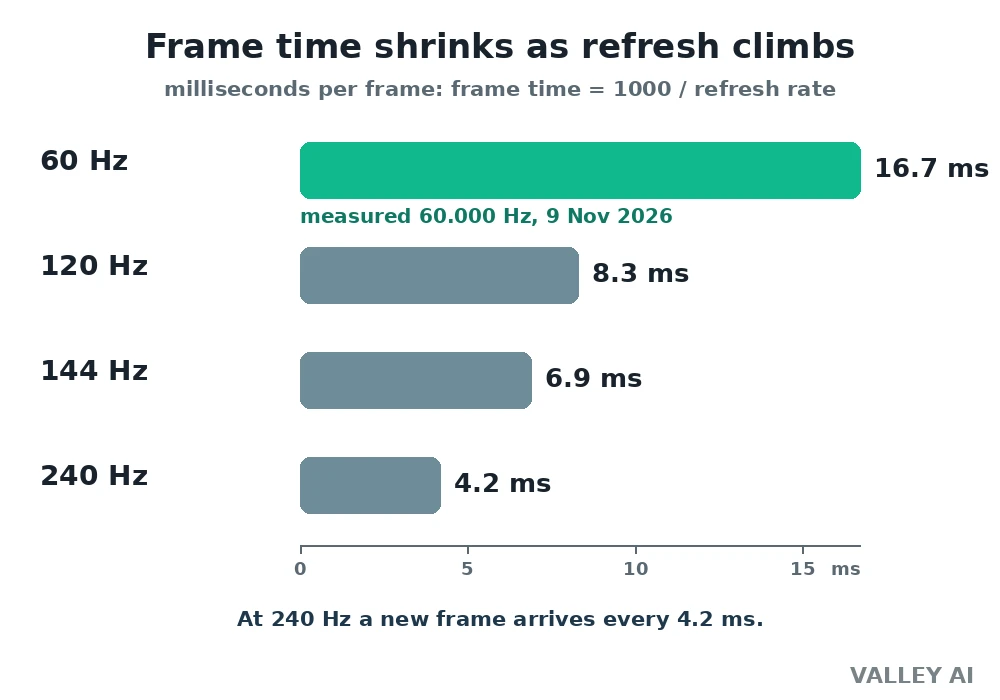
Refresh rate counts how often the panel draws a new frame. Response time counts how fast one pixel changes shade. The two numbers answer different questions, and the frame-time math ties them together: a 60 Hz monitor holds each frame for 16.7 milliseconds, a 120 Hz monitor for 8.3, a 144 Hz monitor for 6.9, and a 240 Hz monitor for 4.2. A pixel that needs 12 milliseconds to change shade cannot keep up with a 144 Hz refresh, whatever the box claims.
| Refresh rate | Frame time |
|---|---|
| 60 Hz | 16.7 ms |
| 120 Hz | 8.3 ms |
| 144 Hz | 6.9 ms |
| 240 Hz | 4.2 ms |
A live check on 9 November 2026 put a number on it. TestUFO’s refresh-rate test, run in the browser for the measurement, reported 60.000 Hz, steady across two readings 15 seconds apart. At 60 Hz each frame stays on screen for 16.7 milliseconds. The test page showed a sync-failure banner during the run, so the reading carries that caveat, and its frame-rate readout, 60 frames per second, matched the headline figure.
Response time on the box needs a second look. The quoted number is usually gray-to-gray, the fastest change the panel manages with overdrive on, and reviewers at RTINGS regularly measure higher averages, above all on VA panels with slow dark transitions. MPRT is a different measure again: it tracks perceived motion blur with backlight strobing, while gray-to-gray tracks how fast the pixel itself changes shade. Independent gray-to-gray measurements are the number to trust.
Adaptive sync closes the gap between the graphics card and the panel. Without it, the panel refreshes on a fixed schedule while the card finishes frames at uneven times, and the mismatch shows as tearing or stutter. With it, the panel waits for the frame. FreeSync builds on the open VESA Adaptive-Sync standard, and G-Sync is Nvidia’s version. Most variable-refresh monitors stop syncing below about 48 Hz, and the better tiers add low framerate compensation to cover the gap.
Run the check yourself. Open TestUFO’s refresh-rate test in the browser on the monitor you use, and the page reports the rate that display runs at. Compare it with the rate the monitor claims, and with the frame time the math gives you.
The numbers to check before you buy
Four numbers settle a monitor choice before money changes hands. Pixel density for the size you sit from: 109 pixels per inch or more keeps text crisp at a normal desk distance. Frame time at the refresh rate you play at: 6.9 milliseconds at 144 Hz, 4.2 at 240 Hz. Gray-to-gray response, measured by an independent reviewer. Cable bandwidth for the resolution and refresh rate you want: 28.7 gigabits per second for 4K at 144 Hz, which needs HDMI 2.1 or compression on DisplayPort 1.4.
Match those four to the room and the work. A bright room wants an LCD with strong peak brightness. A dark room lets OLED show what it can do. A desk that holds one monitor for years wants the panel whose wear pattern fits the hours it will run.
Frequently asked questions
Can a monitor work without a graphics card?
No. Something must build the picture and send the signal. A computer with no separate graphics card still has one: the graphics built into the processor send the signal from the motherboard’s video port. A monitor with no signal at all shows a ‘no signal’ message and waits.
Why does my monitor look washed out in a bright room?
Two causes share the blame. Glare from windows and lamps reflects off the screen and lifts the blacks, and a glossy coating reflects more than a matte one. Raising brightness helps, and so does moving the screen out of direct light. A monitor rated for a bright room pairs high peak brightness with a matte coating.
Do monitors wear out?
Yes, slowly. An LCD backlight dims over years of use, and the dimming is gradual enough that most owners never notice it. OLED panels wear unevenly, and that uneven wear is burn-in.
What does the ‘no signal’ message mean?
The monitor is powered and waiting, and no video signal reaches it. Check the cable at both ends, check the monitor’s input source matches the port you used, and check the computer is awake and sending a picture. A cable swap settles most cases.
Can I use a TV as a computer monitor?
Yes, with trade-offs. A TV works as a display, and a 4K TV at 43 inches shows about 103 pixels per inch, the same density as a 24-inch 1080p monitor. Text looks softer than on a monitor of the same resolution, input lag runs higher, and most TVs refresh at 60 Hz. For movies it works well. For text all day, a monitor serves better.

Kaleem
Kaleem is a Computer Science graduate (Virtual University of Pakistan) and the founder and editor of Valley AI, where he publishes in-depth, tested guides on computer hardware, artificial intelligence, and how the internet works. Every guide is researched from primary sources, tested hands-on where possible, and updated when the facts change.