

You put the pen down on a blank slab. Your eyes stay on the monitor. The cursor still lands where your hand expects it to land. That match feels strange at first. It feels strange because the hand and the eye work on two different surfaces.
A graphics tablet earns that match through position. A mouse earns its match through movement. Graphics tablets sit in the wider family of devices that feed a computer, and the input devices overview groups them by how each one captures a signal.
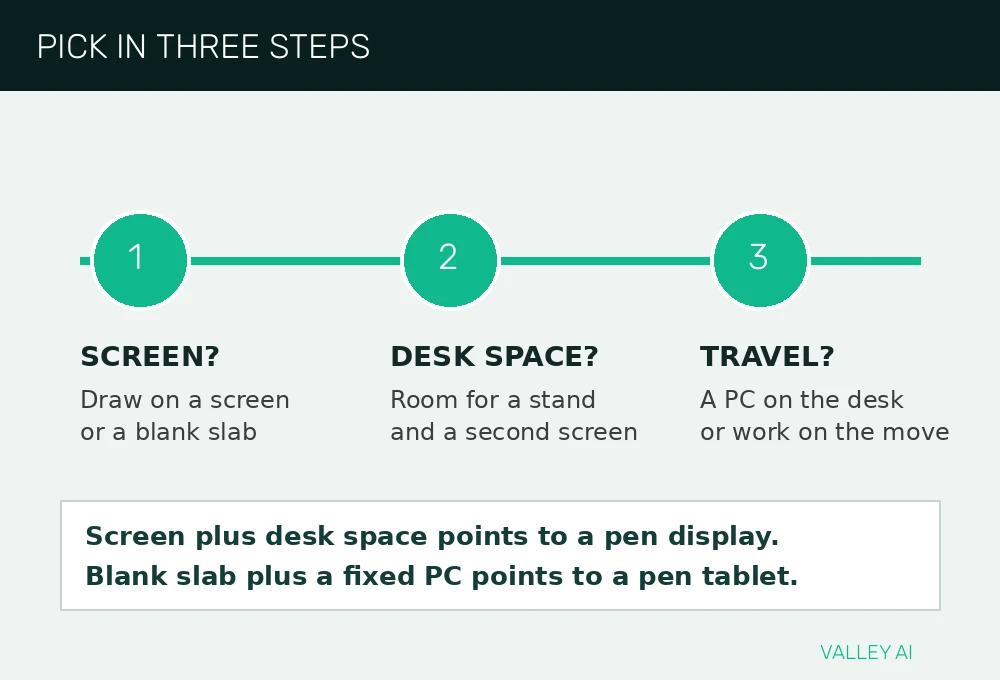
Pen tablet, pen display, or standalone
Three forms share the same sensing idea. The difference sits in what you look at while you draw. A screenless slab asks the hand to learn a new surface. A built-in screen lets the hand draw on the image itself.
| Form | What you look at | Setup load | Who it suits |
|---|---|---|---|
| Pen tablet | Separate monitor | Low: one cable and a driver | Sketching, notes, and photo edits on a desk PC |
| Pen display | Screen built into the tablet | Medium: video cable, power, and a stand | Drawing sessions where hand and image must meet |
| Standalone | Its own built-in screen and computer | High: a full device with charging and storage | Travel work with no separate PC |
Screenless slabs and tablets with a screen built in form the main split, and the XP-Pen drawing tablet guide describes that split in the same terms. A fixed desk suits a screenless slab. Long drawing sessions call for a pen display. Travel with no PC points to a standalone.
Standalone tablets run their own operating system and apps. Battery life and storage set their limits for long sessions. Travel work gains from that independence. Heavy desktop files stay easier on a desk PC.
How the sensor grid reads the pen
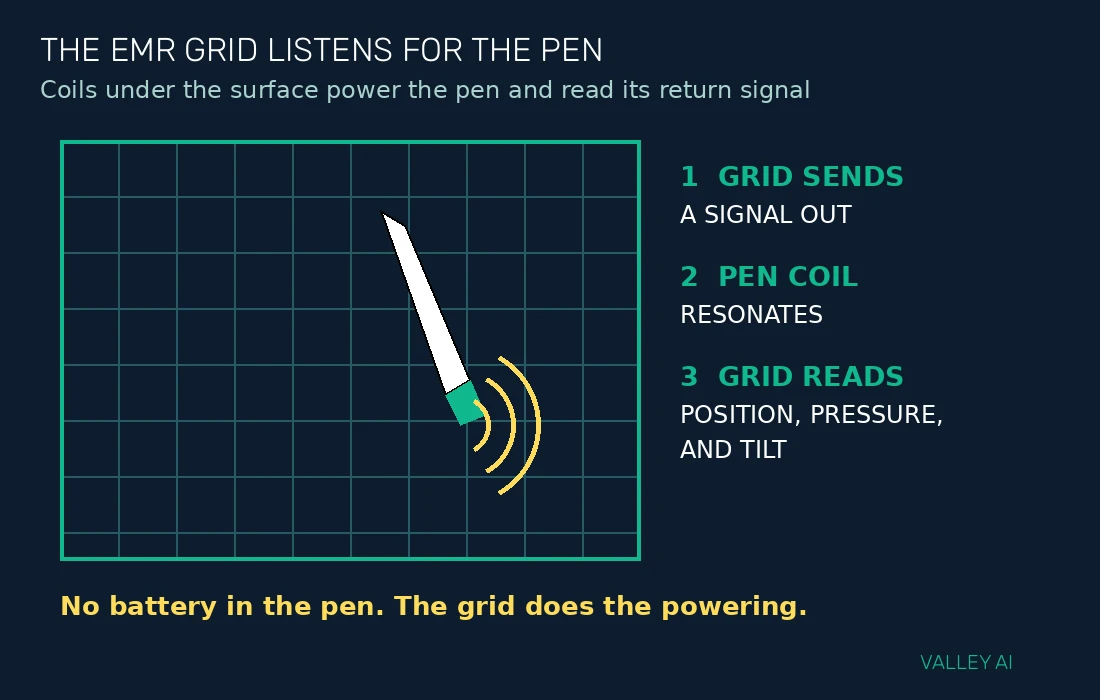
Coils sit under the tablet surface in a grid. The grid sends a signal out through those coils. The pen picks that signal up and sends a changed signal back. The grid reads the changed signal and works out where the pen sits.
Position comes from signal strength across neighboring coils. A coil close to the pen reads a stronger return. A coil farther away reads a weaker return. Software turns that pattern into one point on the active area.
That point is absolute. Touch the top left corner and the cursor jumps to the top left of the screen. Touch the center and the cursor jumps to the center. The tablet reports a place. It reports no distance travelled.
Battery-free pens and battery pens
Why does an EMR pen work with no battery? The coil inside the pen resonates with the grid signal, and that resonance powers the return signal for the brief moment of each reading.
Battery pens carry a small cell and send their own active signal. The sensor reads that signal directly. AES is the common system of that kind. A pen built for one system stays silent on a tablet built for the other system.
The pen itself carries its own sensing story, and how a stylus pen senses pressure explains the tip and coil inside the pen.
Pen nibs wear down with use. A worn nib drags on the surface and leaves uneven lines. Spare nibs sit inside the pen holder on many models. Swap the nib with the small removal tool in the box.
What pressure levels change in a stroke
Pressure levels count the steps between a faint touch and a full press. A tablet with 8192 levels splits that range into 8192 steps. A tablet with 4096 levels splits the same range into half as many steps.
Most hands stop feeling finer steps past that practical floor. A 16384 level tablet records finer steps. The hand behind the pen feels little change from those extra steps.
Do more pressure levels make lines smoother? Smoothness comes from report rate and steady hand control, while pressure levels set how finely shade can shift inside one stroke.
Initial activation force sets the lightest touch that leaves a mark. Tuned pens register near 3 g. A pen with a high activation force skips faint strokes at the start of a line.
Apps map pressure to brush size, opacity, or both. One app may map a light touch to a thin line. A second app may map the same touch to a faint line at maximum width.
Tilt, hover, and parallax
Tilt measures how far the pen leans from vertical. Most tablets read tilt to plus or minus 60 degrees. Drawing apps turn that lean into brush angle, so a calligraphy stroke widens as the pen leans.
Hover tracking keeps the cursor visible before the pen touches down. The pen stays tracked for a short distance above the surface. That preview lets a painter place a stroke before ink reaches the canvas.
Parallax is the gap between the pen tip and the mark on a pen display. Glass thickness sets that gap. A thick glass layer pushes the mark a visible distance from the tip at an angle. Thin glass and calibration shrink the gap.
Support varies by app. Some apps read tilt and pressure together for a single brush. Other apps read pressure and ignore tilt. Check the brush settings panel for tilt controls before assuming a tablet feature will appear in a stroke.
LPI and report rate
LPI counts lines per inch on the active area. One inch at 5080 LPI holds 5080 addressable points. Some tablets reach 5280 LPI. The extra density matters most for very large active areas.
Does a higher LPI give smoother lines? Line smoothness follows report rate, while LPI sets how finely position can be addressed inside one inch.
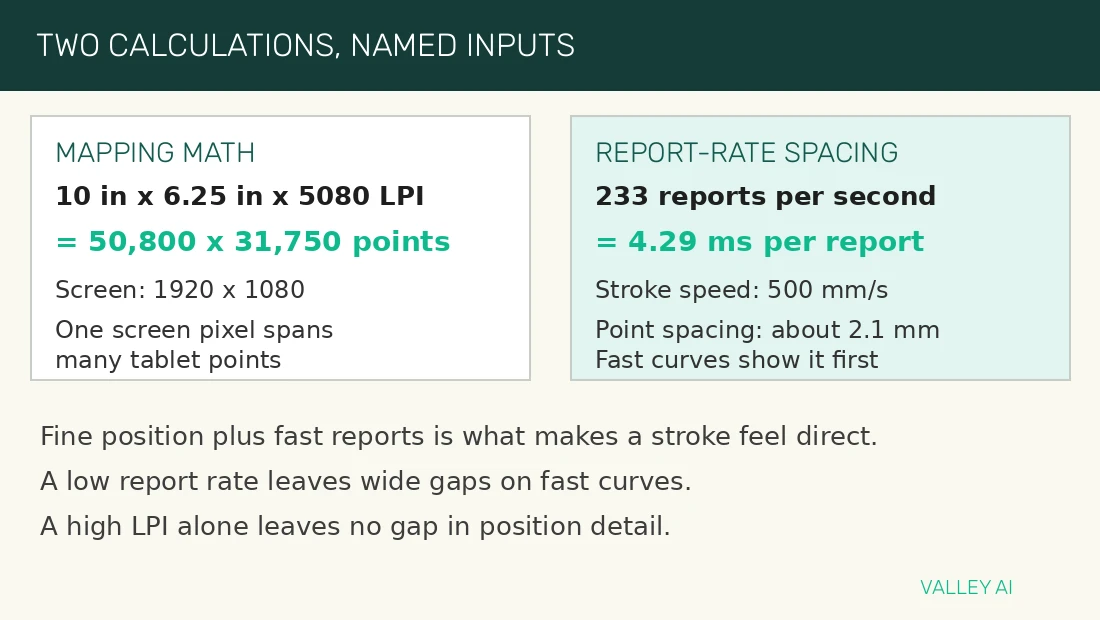
Report rate counts position reports per second. Rates at 200 reports per second or above feel smooth in normal drawing. At 233 reports per second, the gap between reports measures 4.29 ms. A fast stroke at 500 mm/s covers about 2.1 mm in that gap. Fast curves show the gap first, because slow strokes pack reports close together.
Mapping the active area to your screen
Mapping stretches the active area across the monitor. The driver scales tablet width to screen width and tablet height to screen height in one step.
A 10 x 6.25 inch active area at 5080 LPI gives 50,800 x 31,750 addressable points. A 1920 x 1080 screen holds about 2.07 million pixels. The tablet can address screen detail far finer than one pixel.
Aspect ratio decides whether strokes stretch. A 16 by 10 active area maps cleanly onto a 16 by 10 monitor. A wide tablet mapped onto a 4 by 3 monitor stretches horizontal strokes.
Edges behave less evenly than the center. Coils near the border read weaker returns from the pen. A stroke near the border may wobble where a center stroke stays steady. Test edges before judging a tablet, because center performance hides the difference.
A mouse reports movement from its last position, while a tablet reports an absolute point, and mouse DPI and polling rate explained sets out the relative side of that contrast.
Reading a spec sheet without getting fooled
Start with form, active area, and pressure levels. LPI and report rate come next. Tilt and hover distance close the check. Artists checking a spec sheet should weigh LPI and report rate early, and the Creative Bloq tablet specs explainer lists both among the first specs to check.
A large LPI number proves little on a small active area. A high report rate loses value when faint touches fail to register. Judge the numbers together, as a set that must serve one hand and one screen.
Hover the pen and watch the cursor track before contact. Edge strokes reveal dead corners at the borders. A fast curve reveals angular breaks when reports fall too far apart.
Setting the tablet up so it feels right
Install the driver before the first drawing session. The driver carries pressure, tilt, and mapping controls. Default settings suit most hands for a first test.
Map the active area to one monitor when two monitors sit on the desk. A single monitor map keeps hand travel predictable. Remap after any monitor change, because the old map stretches across the new screen shape.
Set pen buttons to undo and brush size for the first week. Small button sets suit new hands while muscle memory forms. Calibration on a pen display works best at the angle you draw at.
Pressure curves reshape the response between light and hard touches. A gentle curve lifts faint strokes into visibility. A steep curve keeps light touches faint until a firm press arrives. Adjust one curve point at a time and test with a single brush.
Conclusion
Daily drawing at a desk with room for a second screen suits a pen display. Notes and photo edits on a fixed PC suit a screenless slab. Start with driver defaults, map to one monitor, and adjust pressure curves after a week of real strokes. Run the hover, edge, and fast curve checks in the first session, then change one setting at a time.
Frequently asked questions
Can a graphics tablet replace a mouse for everyday computer use?
A tablet handles pointing, clicking, and scrolling for daily tasks. A mouse wins for rapid menu work and long text selection, so many desks keep both tools within reach.
Will a tablet work with an ultrawide monitor?
Mapping stretches the active area across the ultrawide width. Horizontal strokes travel farther across the hand range, so some users map only part of the active area to the ultrawide screen.
Why does a pen work on one tablet and fail on a second tablet?
Pens pair with the sensing system built into their own tablet family. An EMR pen sends no signal a battery-pen sensor can read, and the reverse pairing fails for the same reason.
Do I need a powerful computer to run a tablet?
Tablet drivers use little processor power on their own. The drawing or photo app sets the real demand, so a modest PC runs the tablet fine while a heavy app may need more memory.
Why does the cursor drift after a monitor change?
A monitor change breaks the old mapping between active area and screen shape. Opening the driver mapping panel and assigning the active area to the current monitor restores the expected cursor travel.

Kaleem
Kaleem is a Computer Science graduate (Virtual University of Pakistan) and the founder and editor of Valley AI, where he publishes in-depth, tested guides on computer hardware, artificial intelligence, and how the internet works. Every guide is researched from primary sources, tested hands-on where possible, and updated when the facts change.