

TPM 2.0 is a security technology built into many modern computers. You may encounter it while checking Windows compatibility, enabling a firmware setting, or deciding whether your PC needs an additional hardware module.
TPM 2.0, or Trusted Platform Module 2.0, helps a computer protect cryptographic keys and verify aspects of the platform’s security state. TPM 2.0 can exist as a separate chip, through firmware, or as part of a broader processor or platform design.
What is TPM 2.0?
A Trusted Platform Module (TPM) is a security component that helps a computer perform and protect sensitive cryptographic operations. TPM 2.0 is a version of the TPM specification.
A TPM can protect cryptographic keys, support device authentication, and help security software determine whether important parts of the computer started in an expected state. The TPM is designed to keep certain security operations separate from ordinary software running on the computer.
TPM 2.0 does not replace an antivirus application, encrypt every file by itself, or guarantee that a computer is secure. Instead, TPM 2.0 provides a hardware-backed foundation that operating-system features can use.
That foundation matters because security keys stored only in ordinary software memory may be more exposed to malware or unauthorized access. A TPM gives supported security features a protected place to work with those keys.
A TPM is one hardware layer inside the wider cybersecurity picture, not a complete defence on its own.
What does TPM 2.0 do?
TPM 2.0 commonly supports four related functions:
- Key protection: It helps protect cryptographic keys used by security features.
- Platform authentication: It can help a computer prove that it contains an expected security component.
- Integrity measurements: It can record information about parts of the startup process for later security checks.
- Protected cryptographic operations: It can perform or support security operations without exposing sensitive key material in the same way ordinary software might.
The exact features available depend on the operating system, hardware, firmware, and security software using the TPM.
It became a talking point mainly because Windows 11 made it part of the standard system requirements.
Why Windows users encounter TPM 2.0
TPM 2.0 appears frequently in Windows discussions because Windows security features can use TPM capabilities, and Windows compatibility checks may look for TPM 2.0.
Windows Security can identify a TPM as a security processor. The TPM may also support features associated with device encryption, BitLocker, Windows Hello, and platform integrity checks. Those features do not all work in exactly the same way, and TPM 2.0 is not another name for any one of them.
A computer can have TPM functionality without displaying a large physical component labeled “TPM” on the motherboard. Many systems expose TPM functionality through firmware or platform-integrated technology.
The practical question is therefore not simply, “Can I see a TPM chip?” It is usually:
- Does the computer provide TPM functionality?
- Is the TPM version 2.0?
- Is TPM enabled and visible to Windows?
- Does the computer meet the other requirements of the task or operating system?
Whether it is a separate chip or built into the processor, the feature is exposed through the motherboard and its firmware.
Where TPM 2.0 can exist in a PC
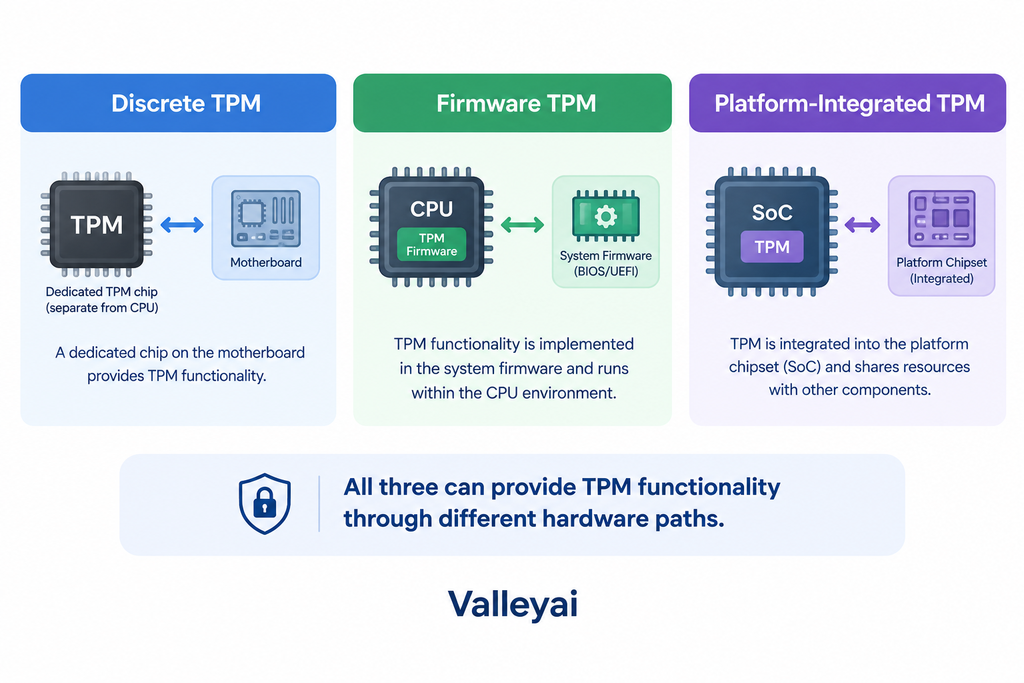
TPM 2.0 may be implemented in several ways. The implementation affects what the user sees in firmware settings, but the presence of a separate chip is not the only way a PC can provide TPM functionality.
| Implementation | What it means | What the user may encounter |
|---|---|---|
| Discrete TPM | A separate security component installed on or connected to the platform | A motherboard header, add-on module, or built-in component |
| Firmware TPM | TPM functionality provided through platform firmware | A firmware setting rather than a separately purchased chip |
| Platform-integrated TPM | TPM capabilities associated with the processor or platform design | A vendor-specific label in UEFI or BIOS |
Intel Platform Trust Technology (PTT) and AMD firmware TPM (fTPM) are examples of platform-specific terminology associated with firmware-based TPM functionality. The exact label depends on the computer or motherboard manufacturer.
That means buying a separate TPM module should not be the first response to a compatibility message. A computer may already have a compatible TPM that is disabled, hidden behind a different firmware label, or available through the processor platform.
A separate module may still be relevant for some systems, but compatibility depends on the motherboard, firmware, supported module type, and manufacturer documentation. A module designed for one platform should not be assumed to work with another.
Is Intel PTT or AMD fTPM the same as TPM 2.0?
Intel PTT and AMD fTPM are platform-specific terms related to firmware-based TPM functionality. They are not simply different versions of TPM 2.0.
TPM 2.0 describes the TPM specification and capability level. Intel PTT and AMD fTPM describe how a particular platform may provide that functionality. A computer using one of these terms may not show a menu labeled exactly “TPM 2.0.”
Firmware menus vary. Look for the manufacturer’s documentation before changing a setting, especially if Windows encryption or device protection is active.
This distinction matters most when a firmware change locks you out and you suddenly need the BitLocker recovery key.
TPM 2.0, Secure Boot, and BitLocker are different
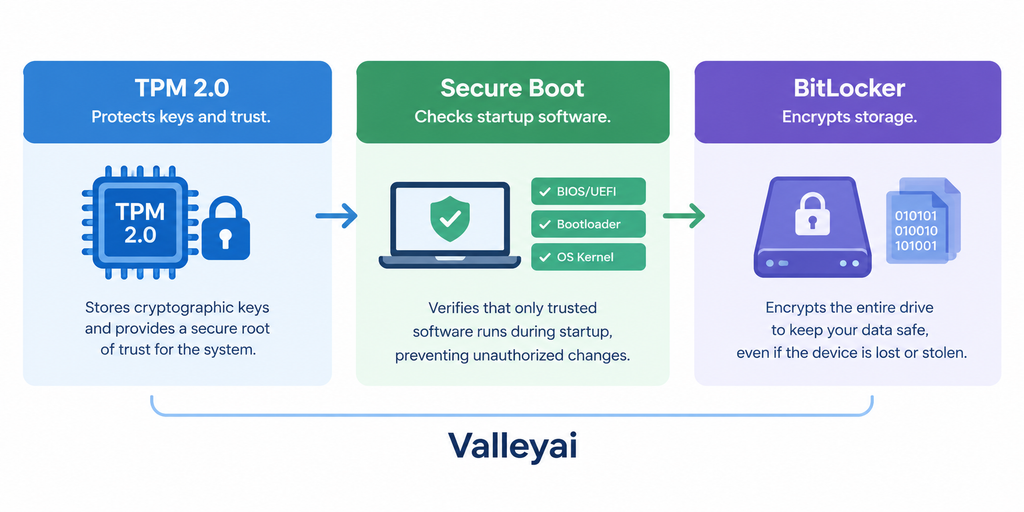
TPM 2.0, Secure Boot, and BitLocker often appear together in Windows security discussions. They are related, but they are not interchangeable.
| Technology | Primary role | What it is not |
|---|---|---|
| TPM 2.0 | Protects cryptographic operations and supports platform trust | Not a complete encryption product |
| Secure Boot | Helps control which boot software is allowed to start | Not a TPM and not a key-storage component |
| BitLocker | Provides drive encryption in supported Windows editions and configurations | Not another name for TPM 2.0 |
TPM 2.0 can support BitLocker by helping protect encryption-related keys and by contributing to platform trust checks. BitLocker remains the encryption feature.
Secure Boot addresses a different part of the startup process. It helps verify that approved boot software is used. A PC may use TPM 2.0 and Secure Boot together, but enabling one does not automatically mean the other is enabled.
This distinction matters when diagnosing a Windows compatibility message. A computer can have TPM 2.0 available while Secure Boot is disabled, or the reverse. The two settings should be checked separately.
If you prefer a command-line check, it is worth knowing how Command Prompt and PowerShell differ before running anything.
How to check whether your PC has TPM 2.0
Use Windows tools before opening firmware settings or purchasing hardware.
Check Windows Security
The Windows Security application may display TPM information under the device-security area. Look for a section referring to the security processor.
The available screen may show whether a security processor is present and provide details about its status. Interface wording can vary by Windows version and device configuration.
Check with tpm.msc
The TPM management console provides another way to inspect TPM status:
- Open the Windows search field.
- Enter
tpm.msc. - Open the TPM management result.
- Review the status and specification information shown by Windows.
The important distinction is between a TPM that is:
- Present and ready
- Present but disabled
- Present but below version 2.0
- Not detected
- Unclear because Windows cannot communicate with it
A message that TPM is unavailable does not automatically prove that the computer lacks TPM hardware. The TPM may be disabled in UEFI or BIOS, exposed under a vendor-specific name, or affected by a firmware or compatibility issue.
Use firmware settings only after checking Windows
If Windows cannot detect TPM 2.0, review the computer or motherboard manufacturer’s instructions. Common firmware labels may include TPM, security device, Intel PTT, or AMD fTPM, but menu locations differ.
Avoid changing several security settings at once. Changing multiple options makes it harder to identify which setting affected the result.
If encryption or device protection is active, confirm that you can access the relevant recovery information before changing TPM-related settings. Do not clear or reset a TPM simply because Windows does not display the status you expected.
Whatever the outcome, a TPM is only useful as part of a layered defence for your home PC.
A practical decision path for “TPM 2.0 not found”
Use the following sequence to avoid an unnecessary hardware purchase:
- Check Windows Security. Look for the security processor and its status.
- Run
tpm.msc. Confirm whether Windows reports a TPM and identify the specification version. - Check UEFI or BIOS documentation. Search for TPM, Intel PTT, AMD fTPM, or an equivalent security-device setting.
- Restart and check again. A firmware change may not appear in Windows until the system restarts.
- Check manufacturer support. Confirm whether the motherboard, processor, and firmware support TPM 2.0.
- Consider hardware only afterward. If the platform does not provide compatible TPM functionality, manufacturer documentation should guide any module or upgrade decision.
This workflow separates three different problems: a missing TPM, a disabled TPM, and a TPM that exists but does not meet the required version.
Before buying anything, confirm what your system already has by reviewing the components inside a PC and how they connect.
Do you need to buy a separate TPM module?
Usually, you should not assume that a separate module is necessary merely because Windows mentions TPM 2.0.
First determine whether the computer already provides TPM functionality through firmware or the processor platform. Intel PTT and AMD fTPM are examples of terminology that may indicate a firmware-based implementation rather than a missing physical chip.
A separate TPM module becomes a consideration only after you confirm that:
- The computer does not already provide TPM 2.0.
- The motherboard supports a compatible module.
- The firmware supports that module.
- The module type matches the platform.
- The manufacturer’s documentation recommends or permits the installation.
Compatibility information is more reliable than a generic module listing. A TPM module is not a universal plug-in upgrade for every motherboard.
Before changing major hardware
Replacing a motherboard, processor, or TPM-related component can change how the system presents its security hardware. If drive encryption or device protection is active, make sure recovery information is available before making hardware or firmware changes.
The safe principle is simple: verify protection status and recovery access before changing the platform that protects or unlocks encrypted data.
The shortest accurate definition
TPM 2.0 is a Trusted Platform Module specification that helps a computer protect cryptographic keys, support platform authentication, and provide hardware-backed security functions. TPM 2.0 may be delivered through a discrete component, firmware, or an integrated platform design.
That definition explains both the technology and the reason users may not find a physical “TPM chip” inside the computer.
Hardware security helps protect keys, but it does not replace knowing how to recognise a data breach and what to do next.
Choosing the next step
If you searched for TPM 2.0 because of a Windows message, begin with detection rather than purchasing. Check Windows Security, confirm the version with tpm.msc, and then consult the manufacturer’s UEFI or BIOS documentation.
If TPM 2.0 is present and enabled, additional hardware may not be necessary. If TPM is present but disabled, the next step is usually firmware-specific guidance. If no compatible TPM is available, only then should a supported module or hardware change enter the discussion.

Kaleem
My name is Kaleem and i am a computer science graduate with 5+ years of experience in Computer science, AI, tech, and web innovation. I founded ValleyAI.net to simplify AI, internet, and computer topics also focus on building useful utility tools. My clear, hands-on content is trusted by 5K+ monthly readers worldwide.