
A thin laptop can have an iGPU, a powerful gaming laptop can add a dGPU, and a compact mini-PC can gain desktop-class graphics through an eGPU. Yet the fastest-looking option is not always the best choice.
The answer changes with the workload. Gaming may expose display-routing and bandwidth limits. AI work may be constrained by VRAM. Battery-first computing may make an iGPU the smarter choice even when a dGPU is available.
If the fundamentals are still unclear, start with what a GPU is and how graphics processing units actually work.
iGPU vs dGPU vs eGPU: the differences that affect your decision
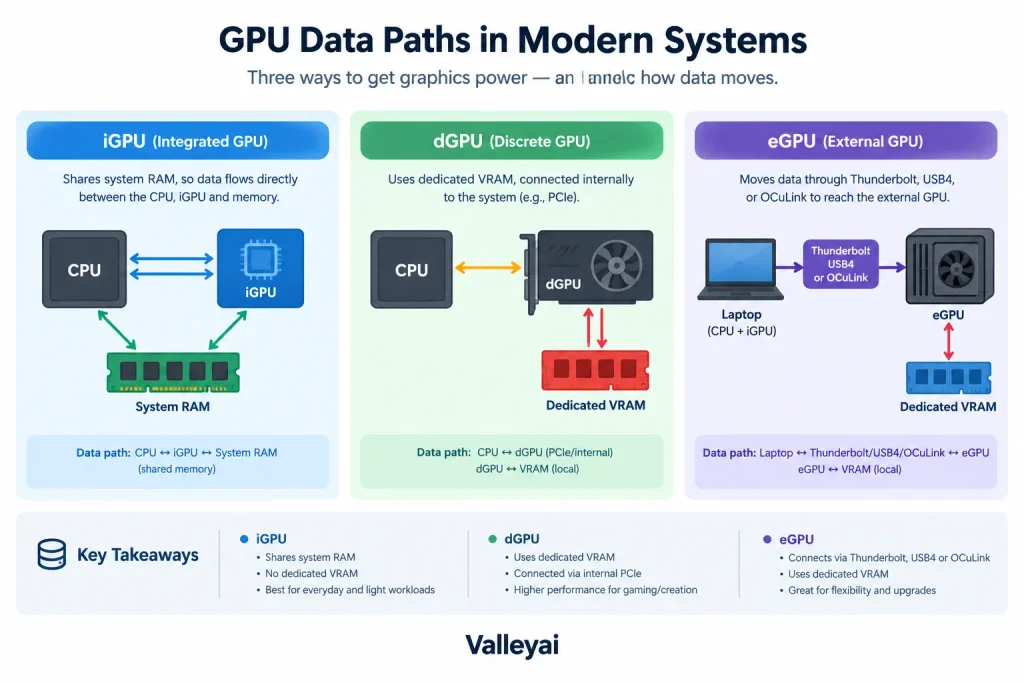
An iGPU is integrated into the processor or system-on-chip and normally uses system RAM. A dGPU is a separate graphics processor installed inside the computer with dedicated VRAM. An eGPU is a graphics processor located outside the computer and connected through an external interface such as Thunderbolt, USB4, or OCuLink.
| Factor | iGPU | Internal dGPU | eGPU |
|---|---|---|---|
| Location | Inside the CPU or SoC | Inside the laptop or desktop as a separate GPU | Outside the computer in an enclosure or dock |
| Memory | Shared system RAM | Dedicated VRAM | Dedicated VRAM on the external GPU |
| Power use | Usually lowest | Higher, especially under load | GPU plus enclosure power |
| Sustained performance | Limited by shared memory and system cooling | Usually strongest in a suitable desktop or gaming laptop | Limited by the external link, enclosure, and display path |
| Portability | Excellent | Good in laptops, poor in desktops | Lowest; requires external hardware |
| Upgradeability | Usually tied to the processor | Desktop cards are replaceable; laptop dGPUs usually are not | GPU can often be replaced within enclosure limits |
| Setup complexity | Minimal | Built into the system | Requires host support, drivers, enclosure, power, and display planning |
| Best fit | Office work, media, light gaming, battery-first systems | Gaming, rendering, editing, demanding GPU software | Upgrading a compatible laptop or mini-PC |
The category alone does not determine performance. GPU architecture, power limits, cooling, memory bandwidth, software support, and display routing can change the outcome.
Answering that properly means knowing what VRAM is and why shared memory behaves differently from dedicated graphics memory.
Does an iGPU use system RAM instead of VRAM?
Yes. An iGPU generally reserves part of the computer’s system memory for graphics data instead of using a separate pool of VRAM. That arrangement reduces hardware cost and power consumption, but the CPU and iGPU share memory bandwidth.
Memory configuration matters. An iGPU running with more memory bandwidth can behave very differently from the same processor paired with a constrained memory configuration. Intel and AMD processor specifications identify the supported memory architecture, but actual performance still depends on the computer’s memory channels, speed, firmware, and thermal limits.
Before choosing a graphics type, confirm the workload is GPU-bound at all, which our GPU vs CPU guide walks through step by step.
The workload decides which GPU type wins
A useful way to compare the three options is to ask what limits the application first: compute power, VRAM, memory bandwidth, external-link bandwidth, or sustained cooling.
| Workload | Usually best starting point | What can change the result |
|---|---|---|
| Office work and streaming | iGPU | Multiple high-resolution displays or specialized software |
| Casual or older gaming | iGPU or entry-level dGPU | Game settings, memory bandwidth, resolution, and upscaling |
| Modern gaming | Internal dGPU | GPU power limit, cooling, VRAM, and whether an eGPU drives an internal display |
| Video editing | dGPU or capable iGPU | Codec support, application acceleration, VRAM, storage, and export format |
| 3D rendering | dGPU or eGPU | Renderer support, VRAM, sustained power, and scene complexity |
| Local AI or large models | dGPU or eGPU with sufficient VRAM | CUDA or ROCm support, model size, memory capacity, and data movement |
| Battery-first travel | iGPU | Display count, background GPU use, and processor efficiency |
| Upgradeable compact system | eGPU | Host port, enclosure, power supply, monitor, and total cost |
Gaming: internal dGPU usually leads, but eGPU results vary
For gaming, an internal dGPU is usually the safer choice when the computer has adequate cooling and power. The GPU communicates with the rest of the system through an internal high-speed connection, avoiding the extra external link used by an eGPU.
An eGPU can deliver strong gaming performance, particularly when connected to an external monitor through a suitable interface. The result is less predictable when the eGPU renders frames for the laptop’s built-in display because completed frames may need to travel back through the connection.
An iGPU can handle esports titles, older games, and carefully configured modern games. It becomes less attractive when the target resolution, texture quality, ray tracing, or frame-rate requirement exceeds the available compute and memory bandwidth.
Which is better for gaming: an iGPU, dGPU, or eGPU? An internal dGPU is generally the most consistent choice for demanding gaming. An eGPU makes sense when the existing laptop or mini-PC is otherwise suitable and has a capable external-GPU connection. An iGPU is the practical choice for light gaming, portability, and low power use.
Video editing and 3D rendering need more than raw GPU speed
Creator applications do not all use the GPU in the same way. Timeline playback, effects, encoding, decoding, compositing, and final export may rely on different parts of the system.
A capable iGPU can be useful for hardware video decoding and encoding, especially in a thin laptop. A dGPU becomes more valuable when the project uses GPU effects, high-resolution footage, complex timelines, or 3D rendering. An eGPU can help a compatible compact system, but the application must support the external GPU correctly and the workload must justify the added data movement.
Adobe Premiere Pro, DaVinci Resolve, and Blender can respond differently to GPU model, VRAM capacity, codec support, and driver version. A benchmark from one application should not be treated as a prediction for all creator software.
AI: VRAM and software support can matter more than the label
AI workloads often change the comparison. A desktop eGPU may be more useful than a laptop dGPU when the external card provides enough VRAM to keep a model in memory. Avoiding model offloading can matter more than a modest difference in raw compute performance.
NVIDIA GPUs commonly rely on CUDA support in AI applications. AMD GPUs may depend on ROCm support or application-specific compatibility. The software stack must be checked before purchase; a GPU with excellent theoretical specifications can be a poor choice if the intended framework does not support it well.
Is a desktop eGPU better than a laptop dGPU for AI? Sometimes. A desktop eGPU can offer more VRAM, higher sustained power, and broader card selection. A laptop dGPU may still be better for a workload that repeatedly transfers data across an external link, or for a user who needs a self-contained mobile system. Model size, VRAM requirements, framework support, and connection type should decide the purchase.
Why laptop and desktop GPU names do not tell the whole story
A laptop dGPU and a desktop GPU may share a product family or similar model name while delivering different results. Laptop graphics processors often operate within tighter power and cooling limits. Some laptop versions also use different memory configurations or chip arrangements.
The same issue appears when comparing an internal laptop dGPU with a desktop GPU installed in an eGPU enclosure. The external card may have more VRAM and higher sustained power, but the host connection can limit how efficiently the system feeds it.
When comparing two products, check:
- Exact GPU model and variant
- VRAM capacity and memory type
- Configured power limit
- Cooling design
- Driver and application support
- Display connection
- Whether the test uses an internal or external monitor
A model name is a starting point, not a performance guarantee.
The eGPU bottleneck changes by workload
An eGPU is not simply a desktop graphics card placed beside a laptop. It is a chain: host computer, external interface, enclosure, power supply, GPU, drivers, application, and display path.
The slowest or least compatible part of that chain can define the result.
| Workload characteristic | Likely limitation | Why it matters |
|---|---|---|
| High frame rate gaming | Link bandwidth and display routing | Frames may move through the external connection repeatedly |
| Large AI model | VRAM capacity | Insufficient VRAM can force offloading or prevent the workload from running |
| Large texture or scene transfers | External-link bandwidth | Data movement can limit a powerful GPU |
| Long rendering sessions | Power and cooling | The enclosure and GPU must sustain performance |
| Video encoding | Application and codec support | The software may favor a specific GPU engine |
| Light GPU compute | Setup overhead | An eGPU may not justify its cost or complexity |
This is why an eGPU can be excellent for one task and disappointing for another. A rendering workload that keeps most data on the GPU may tolerate the external link better than a game that constantly transfers resources and frames.
Port markings are easy to misread, so our breakdown of USB-C vs Thunderbolt explains how to identify what a machine actually supports.
Thunderbolt, USB4, or OCuLink: which connection is best?
There is no universal answer based only on the connector shape. USB-C describes a physical connector; it does not guarantee a specific external-GPU capability.
Thunderbolt can provide a standardized high-speed connection for compatible eGPU enclosures, but the host computer, enclosure, operating system, and drivers must all support the required behavior. Intel’s Thunderbolt documentation and the computer manufacturer’s specifications are the right places to verify capability.
USB4 can support high-speed external devices, but USB4 implementations vary. A USB-C port labeled “USB4” should still be checked against the host manufacturer’s documentation for external GPU support, PCIe tunneling, and available bandwidth. The USB Implementers Forum defines the USB4 standard, while the computer manufacturer determines how the port is implemented.
OCuLink can provide a more direct external PCIe connection and may reduce some protocol overhead. It is common in selected mini-PC and enthusiast configurations, but it is less universal than USB-C-based connections and may not provide the same convenience or power delivery.
In practical terms:
- Choose Thunderbolt or supported USB4 for broader laptop compatibility and simpler cabling.
- Consider OCuLink when the mini-PC specifically supports it and maximum external GPU throughput matters.
- Verify the exact host port, not just the connector.
- Confirm that the enclosure, operating system, drivers, and application support the intended setup.
Does an external monitor improve eGPU performance?
Often, yes. An external monitor connected directly to the eGPU can avoid sending rendered frames back to the laptop through the external connection. That return path can add overhead, especially in games and other interactive workloads.
The improvement is not identical across systems. It depends on the host interface, GPU, resolution, game engine, driver behavior, and display-routing design. An external monitor also changes the practical setup: the user must be willing to use a desk-based display rather than relying only on the laptop panel.
If an eGPU appears slower than expected, test three configurations:
- External monitor connected directly to the eGPU
- External monitor connected to the laptop
- Laptop’s internal display driven by the eGPU
Keep resolution, quality settings, drivers, and application versions consistent. The comparison can reveal whether display routing is the bottleneck.
A whole-system view helps here, and our complete guide to computer hardware components covers how the CPU, RAM, and ports interact with graphics.
Before buying an eGPU, check the whole system
An eGPU works only when several dependencies line up. Use this checklist before buying the graphics card.
1. Confirm the host port
Identify the exact port standard and capabilities. A USB-C connector alone does not prove Thunderbolt, USB4 PCIe tunneling, or eGPU support.
Check the laptop or mini-PC manufacturer’s technical specifications. If the documentation does not clearly state external GPU support, treat the setup as unverified rather than assuming compatibility.
2. Check the operating system and drivers
Windows and macOS do not offer identical eGPU behavior, GPU selection, or driver support. Apple’s official documentation should be consulted for supported macOS and hardware combinations. Windows users should verify current GPU drivers and system support from Microsoft, NVIDIA, AMD, or the device manufacturer.
3. Match the enclosure to the GPU
The enclosure needs enough internal space, cooling capacity, and power for the graphics card. Check:
- Maximum GPU length and thickness
- Required power connectors
- Power supply wattage
- Ventilation
- Included cables
- Whether the enclosure supports the intended GPU generation
A graphics card that physically fits may still be unsuitable if the enclosure cannot cool it or supply stable power.
4. Check application support
Confirm that the applications you use can select and accelerate the external GPU. AI users should verify CUDA, ROCm, or framework-specific support. Creator users should check the application’s GPU and codec documentation.
5. Decide where the display connects
For demanding gaming or interactive work, connecting the monitor directly to the eGPU is often the cleaner path. If the laptop display must be used, account for possible frame-transfer overhead.
6. Calculate the complete cost
The real eGPU cost may include:
- Graphics card
- Enclosure or dock
- Power supply, if not included
- Cable
- External monitor
- Monitor accessories
- Storage or memory upgrades needed by the host system
Compare that total with the cost of replacing the laptop or buying a desktop. An eGPU is most compelling when the host computer already satisfies the user’s CPU, memory, storage, and portability needs.
7. Plan for future upgrades
Check whether the enclosure can accept future graphics cards and whether its power supply and interface will remain useful. A low-cost enclosure may become the limiting component if the user later installs a faster GPU.
Can an iGPU, dGPU, and eGPU work at the same time?
They can sometimes coexist, but simultaneous availability does not mean every application will use all three effectively.
The operating system and driver stack decide which GPU handles display output or application workloads. NVIDIA Optimus and AMD XConnect are examples of technologies associated with GPU selection or switching on supported systems, but behavior depends on the exact computer and software configuration.
A practical setup may use:
- The iGPU for low-power desktop output
- The internal dGPU for demanding laptop workloads
- The eGPU for a monitor or application that benefits from additional VRAM
Some applications allow explicit GPU selection. Others follow the display connection or operating-system preference. If multiple GPUs matter to your workflow, test the exact application rather than assuming that installing three graphics processors creates combined performance.
The practical choice by user profile
| If your priority is… | Start with… | Why |
|---|---|---|
| Long battery life and low weight | iGPU | Fewer power-hungry components and simpler cooling |
| Modern gaming without external hardware | Internal dGPU | Consistent performance and fewer connection limits |
| Local AI with large memory needs | dGPU or eGPU with enough VRAM | VRAM capacity may determine whether the model runs |
| Occasional desktop-class graphics from a mini-PC | eGPU | Adds upgrade flexibility without replacing the host |
| Video editing on a thin laptop | Capable iGPU or dGPU | Codec support and application behavior may matter more than GPU category |
| Maximum desktop performance | Desktop dGPU | Direct internal connection, stronger cooling, and broader upgrade options |
| Existing laptop that otherwise meets your needs | Compatible eGPU | Avoids replacing a functional host system |
| Portable everyday use with occasional desk gaming | iGPU laptop plus eGPU | Keeps travel hardware light while adding desktop graphics at home |
The shortest decision rule is this:
- Choose an iGPU when efficiency, price, and portability matter most.
- Choose an internal dGPU when demanding graphics performance must work consistently inside the computer.
- Choose an eGPU when the host is worth keeping, the port is genuinely compatible, and the external setup solves a specific VRAM or performance problem.
Can an iGPU be as good as a dGPU?
An iGPU can approach or match an entry-level dGPU in selected games or media tasks, especially when the iGPU has strong memory bandwidth and the dGPU is limited by a low laptop power profile. That does not make the two categories equal in every workload. Dedicated VRAM, sustained power, application support, and higher graphics settings usually favor a suitable dGPU.
What does each option cost?
An iGPU is generally included in the processor, so its direct cost is difficult to separate. A dGPU adds cost to the computer but also includes its cooling, motherboard integration, and power design. An eGPU has the most visible add-on cost because the graphics card is only one part of the system; the enclosure, power supply, cable, and possibly an external monitor also matter.
Closing: choose the bottleneck you can actually live with
The right comparison is not “Which GPU type is strongest?” It is “Which limitation will affect my work least?”
An iGPU accepts lower peak graphics performance in exchange for efficiency. An internal dGPU accepts higher power use in exchange for consistent graphics capability. An eGPU accepts cost and setup complexity in exchange for upgrade flexibility and desktop-class hardware outside a compact host.
Start with the workload, verify the memory and software requirements, then inspect the connection path. That order prevents an expensive GPU from becoming the wrong solution.
FAQs
Is an eGPU worth buying instead of replacing a laptop?
An eGPU can be worthwhile when the laptop already has a capable processor, enough memory, suitable storage, and a supported high-speed port. Replacement is often cleaner when the laptop has weak cooling, an incompatible port, poor battery health, or a processor that limits the intended workload. Compare the complete eGPU cost with the cost of a new system, not with the graphics card price alone.
Is OCuLink always faster than Thunderbolt for an eGPU?
OCuLink can provide a more direct PCIe connection, which may reduce some external-link overhead. That does not guarantee a better complete system. The host implementation, GPU, driver, display path, and workload still matter. Thunderbolt may be the better practical choice for a laptop because it is more widely integrated and easier to use, while OCuLink can suit a compatible mini-PC focused on throughput.
Why can an eGPU have plenty of VRAM but still feel slow?
VRAM capacity prevents one type of limitation, but it does not remove external-link bandwidth, display-routing overhead, driver issues, or application inefficiency. A game may fit comfortably in the eGPU’s VRAM yet lose performance when rendered frames return to the laptop display. Connecting the monitor directly to the eGPU and testing the exact workload can identify whether the link is limiting performance.
Can an eGPU upgrade a computer indefinitely?
No. An eGPU can extend the useful life of a compatible host, but the host processor, memory, interface, enclosure power, cooling, and operating system still impose limits. Future graphics cards may also expose weaknesses in the enclosure or connection. Treat an eGPU as a flexible upgrade path, not a permanent way around every system bottleneck.

Kaleem
My name is Kaleem and i am a computer science graduate with 5+ years of experience in Computer science, AI, tech, and web innovation. I founded ValleyAI.net to simplify AI, internet, and computer topics also focus on building useful utility tools. My clear, hands-on content is trusted by 5K+ monthly readers worldwide.