
Need a symbol that is not printed on your keyboard? The fastest method depends on three things: your operating system, whether your keyboard has a numeric keypad, and whether you need the character once or repeatedly.
Use this quick rule:
- Windows with a numeric keypad: use an Alt code.
- Windows without a numeric keypad: use Character Map, the symbols panel, or an external keypad.
- Mac: use an Option shortcut, press and hold a letter for accents, or open Character Viewer.
- Frequent accented characters: switch to an international keyboard layout.
- One obscure symbol: copy it from a visual character tool instead of memorizing a code.
Examples include the tilde (~), exponent or superscript two (²), square symbol (□), square root (√), copyright sign (©), euro sign (€), pipe (|), and backslash (\).
Choose the method that fits your keyboard
| Your situation | Best first method | Why |
|---|---|---|
| Windows desktop with a number pad | Alt code | Fast for familiar symbols |
| Windows laptop with no number pad | Character Map or symbols panel | Does not depend on hidden keypad functions |
| Windows laptop with an embedded number pad | Alt code, if the embedded pad is enabled | Works like a full-size keypad |
| Mac with a standard layout | Option shortcut or Character Viewer | Built into macOS |
| You type French, Spanish, or German often | International keyboard layout | Better for repeated accents |
| You need one uncommon mathematical symbol | Character Map or Character Viewer | Search visually by name |
| You write code or terminal commands | Keyboard layout plus a reference tool | Pipe, backslash, braces, and brackets vary by layout |
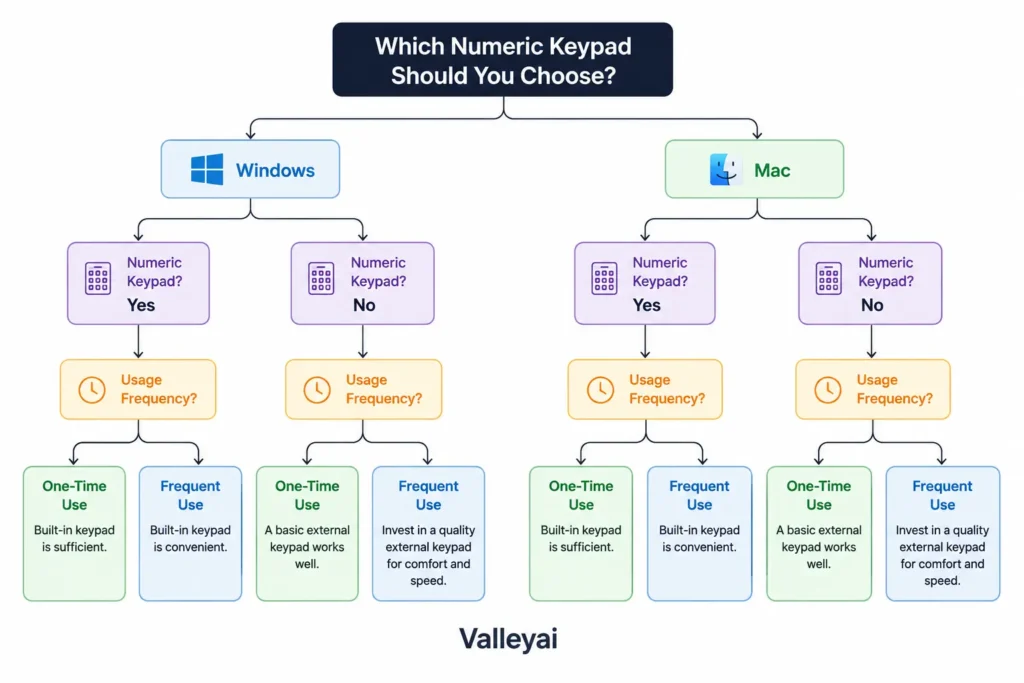
A useful distinction is direct input versus character lookup. A shortcut creates the character from the keyboard. Character Map and Character Viewer let you find the character visually and insert or copy it. Both approaches are valid; the right choice depends on the situation.
Windows Alt codes: the quickest route with a number pad
On Windows, an Alt code inserts a character by holding Alt while entering a decimal code on the numeric keypad. Microsoft documents this method alongside ASCII and Unicode character insertion in its official character-code guidance.
How to use an Alt code
- Place the cursor where the character should appear.
- Turn on Num Lock.
- Hold the Alt key.
- Enter the code using the numeric keypad.
- Release Alt.
Try these common Windows examples:
Alt+0169→ ©Alt+0174→ ®Alt+0153→ ™Alt+0128→ €Alt+0163→ £Alt+0176→ °Alt+0178→ ²Alt+0179→ ³Alt+0215→ ×Alt+251→ √
Leading zeros can matter. For example, Alt+0169 and Alt+169 may be interpreted differently by some Windows applications because legacy Alt codes can use different code-page conventions.
Do Alt codes work with the top number row?
Usually, no. Traditional Windows Alt codes require the numeric keypad, not the number row above the letters. Holding Alt and pressing the top-row numbers generally will not insert the same character.
Some laptops include an embedded numeric keypad activated with Fn, while others do not. If no numeric keypad exists, use Character Map, the Windows symbols panel, an external keypad, or a Unicode method supported by the application.
When an Alt code “does nothing,” the first check should be the keyboard hardware not the code list. Users often press the correct digits on the wrong part of the keyboard.
How to type special characters on a Windows laptop without a numeric keypad
A laptop without a numeric keypad still has several dependable options. Do not assume that every laptop has a secret Fn number layer; many compact keyboards simply do not.
Option 1: Use Character Map
Character Map is a built-in Windows utility that displays available characters by font.
- Open the Windows search box.
- Search for Character Map.
- Launch the app.
- Select a font.
- Choose a character.
- Click Select, then Copy.
- Paste the character into your document.
Character Map is useful for symbols such as □, √, →, ©, and less common Greek or mathematical characters. The selected font matters: a character may exist in Unicode but fail to display if the chosen font lacks a glyph.
Option 2: Open the Windows symbols panel
In many Windows text fields, press:
Windows key + . (period)
The panel can provide emoji, symbols, and kaomoji. Select the Symbols category when available, then choose the character you need. The exact categories and appearance can vary by Windows version and application.
Option 3: Use an external numeric keypad
An inexpensive USB or Bluetooth numeric keypad can make Alt codes practical on a laptop. This is useful if you regularly enter symbols but do not want to change your keyboard layout.
Option 4: Use Unicode in a supported application
Microsoft Word supports a convenient hexadecimal method:
- Type the Unicode code point.
- Press Alt+X.
- Word converts the code into the character.
For example, type 00B2, then press Alt+X to create ². Type 221A, then press Alt+X to create √.
The Alt+X method is primarily an application feature, not a universal Windows shortcut. It may not work in a browser text box, terminal, or every editor.
Character Map is often better than memorizing codes
Alt codes are efficient for five or ten familiar characters. Character Map is better when the symbol is unusual, the keyboard lacks a number pad, or you are unsure whether two similar-looking characters are actually different.
For example, these characters look related but are not interchangeable:
- Hyphen:
- - En dash:
– - Em dash:
— - Straight quotation mark:
" - Curly quotation mark:
“ - Minus sign:
−
Character Map can also show the selected character’s code information, depending on the Windows interface and font. Use the character itself as the final check instead of trusting a copied list with unclear code formats.
The On-Screen Keyboard is another useful diagnostic tool. Search Windows for On-Screen Keyboard to see the active layout and confirm where symbols are assigned. It is especially helpful when a physical key produces an unexpected character.
Keyboard layouts explain many “wrong” symbols
A keyboard layout determines what characters the operating system assigns to physical keys. The same key position can produce a different symbol under a US, UK, Canadian French, German, or international layout.
Windows lets you manage language and keyboard layouts through its official language and input settings.
US International layout and dead keys
The US International layout uses certain punctuation keys as dead keys. A dead key waits for the next keystroke so the two keys can create an accented character.
Common examples include:
'followed bye→é`followed bya→à"followed byu→ü~followed byn→ñ^followed byo→ô
To type the punctuation mark by itself, press the punctuation key and then Space. For example, press the apostrophe key followed by Space to produce '.
The AltGr key, available on some layouts, provides a third or alternate character on a key. On many keyboards, the right Alt key functions as AltGr. The result depends on the selected layout, so an instruction written for US International may not apply to a standard US layout.
How to change the keyboard layout
On Windows:
- Open Settings.
- Go to Time & language.
- Choose Language & region.
- Select the language’s keyboard options.
- Add the desired keyboard layout.
- Switch layouts from the taskbar language indicator.
The wording and location can change between Windows releases. If you frequently type in another language, adding an input layout is usually more efficient than entering every accent with an Alt code.
How to type accented letters
For occasional use, Character Map or the Windows symbols panel is simple. For repeated use, select an international or language-specific keyboard layout.
The best method depends on your writing pattern:
- One
é: Character Map or copy and paste. - Several accented words: US International or the relevant language layout.
- A full document in Spanish or French: use that language’s keyboard layout.
- Mixed technical writing: keep your normal layout and use Character Map for uncommon symbols.
If accents are part of every sentence, Alt codes become a tax on your attention. A layout change feels awkward for the first few minutes, then usually pays for itself.
Mac keyboard shortcuts for symbols and accents
macOS uses the Option key for many special characters. Apple documents keyboard shortcuts, input sources, and character tools through its Mac keyboard support resources.
On a standard US Mac layout, common shortcuts include:
- Option+G → ©
- Option+R → ®
- Option+2 → ™
- Option+Shift+2 → €
- Option+Shift+8 → °
- Option+V → √
- Option+8 → •
- Option+M → µ
For accented letters, press and hold a letter such as a, e, i, o, u, or n. macOS may display an accent menu. Select the desired version by clicking it or pressing its corresponding number.
You can also use a dead-key sequence. For example, on a standard US Mac layout:
- Option+E, then
e→ é - Option+N, then
n→ ñ - Option+U, then
u→ ü - **Option+
**, thena` → à
Exact shortcuts can vary with the selected input source. If a shortcut fails, check the active layout rather than repeatedly pressing the same keys.
Character Viewer and Keyboard Viewer on Mac
Character Viewer is macOS’s visual character browser. Press Control+Command+Space in many applications to open it, or use the character input menu if it is visible in the menu bar.
Search Character Viewer for terms such as:
- square
- superscript
- arrow
- copyright
- euro
- Greek
- mathematical
- box drawing
Select a result to insert it. You can also add frequently used characters to favorites.
Keyboard Viewer shows the characters available from the current keyboard layout, including symbols revealed by Option and Shift. To enable it, open the input menu settings and turn on the Keyboard Viewer. Apple’s Character Viewer and Keyboard Viewer documentation explains the current macOS workflow.
Character Viewer is usually the best choice for □, uncommon exponents, technical arrows, and symbols whose shortcut you do not know.
Quick reference: tilde, exponents, squares, and common symbols
The table below gives practical starting points. Windows Alt codes may depend on the application and code page; Mac shortcuts assume a standard US input source.
| Character | Name or use | Windows option | Mac option |
|---|---|---|---|
~ | Tilde | Press the tilde key; layout-dependent | Press the tilde key or use Character Viewer |
² | Superscript two | Alt+0178 or Word: 00B2, then Alt+X | Character Viewer |
³ | Superscript three | Alt+0179 or Word: 00B3, then Alt+X | Character Viewer |
□ | Square symbol | Character Map; Word: 25A1, then Alt+X | Character Viewer |
° | Degree sign | Alt+0176 | Option+Shift+8 |
× | Multiplication sign | Alt+0215 | Character Viewer |
√ | Square root | Alt+251 or Word: 221A, then Alt+X | Option+V |
© | Copyright | Alt+0169 | Option+G |
® | Registered trademark | Alt+0174 | Option+R |
™ | Trademark | Alt+0153 | Option+2 |
€ | Euro | Alt+0128 | Option+Shift+2 |
£ | Pound | Alt+0163 | Option+3 |
→ | Right arrow | Character Map; Word: 2192, then Alt+X | Character Viewer |
| ` | ` | Pipe, used in code | Layout-dependent key |
\ | Backslash | Layout-dependent key | Layout-dependent key |
The pipe and backslash symbols deserve special treatment. Their physical key location changes across keyboard layouts, and some laptop keyboards combine them with another key. If the printed key does not match the character, open Keyboard Viewer or On-Screen Keyboard to inspect the active layout.
Unicode, ASCII, ANSI, and Alt codes are not the same thing
Unicode assigns a code point to a character. For example, U+00B2 identifies superscript two (²), and U+221A identifies the square root symbol (√). The Unicode Consortium code charts are the authoritative reference for character names and code points.
ASCII is a much smaller character set containing basic Latin letters, digits, punctuation, and control characters. ASCII does not contain characters such as √, €, or ñ.
ANSI is commonly used as a broad label for legacy Windows code-page behavior. Many traditional Windows Alt codes are tied to decimal values and historical code pages rather than functioning as universal Unicode input.
That difference explains why two code lists may show different instructions for a similar-looking character. A Unicode code point identifies the character; an Alt code is one possible input method.
In Microsoft Word, hexadecimal Unicode input often works like this:
- Type the hexadecimal value, such as
00A9. - Press Alt+X.
- Word changes the value to
©.
HTML character references are different again. A web developer might write © or © in HTML, but HTML entities are not general keyboard shortcuts.
Why a special-character shortcut fails
Use the symptom to identify the cause.
Nothing appears
Check whether you are using the top number row instead of a numeric keypad. Then confirm that Num Lock is enabled. If the laptop has no numeric keypad, switch to Character Map, the symbols panel, or an application-specific Unicode method.
The wrong character appears
The code may depend on a legacy Windows code page, or the application may interpret the input differently. Compare the inserted character with an official Unicode reference. Do not assume that a familiar decimal value is a universal code for every operating system.
The shortcut works in one application but not another
Applications can capture or redefine keyboard combinations. Test the same input in a basic text editor. If the shortcut works there but not in a browser, terminal, or specialized program, the application is probably handling the key combination differently.
A key produces the wrong symbol
Check the active keyboard layout. Windows and macOS can switch layouts through a language indicator or shortcut, sometimes without the user realizing it. Use On-Screen Keyboard or Keyboard Viewer to see the current mapping.
An accented character does not form
Dead-key input requires the correct layout and sequence. On US International, an accent key may wait for a second letter. Press Space after the accent if you want the punctuation mark alone. If the layout is not enabled, the same key may simply type punctuation.
The character appears as a box or question mark
The character may be valid but unsupported by the selected font, application, or rendering system. Try a font with broader Unicode coverage and paste the character into another editor. A missing glyph is not automatically evidence of an incorrect code.
The laptop has a hidden number pad
Some laptops place keypad digits on letter keys and activate them with Fn or a dedicated Num Lock function. Look for small secondary digits printed on the keys and check the manufacturer’s documentation. If no secondary digits exist, the keyboard may not support an embedded pad.
For one obscure symbol, opening Character Map is usually faster than diagnosing three layers of keyboard settings. Troubleshooting should restore the task, not turn a single √ into a keyboard research project.
A workflow also has to cover plain cursor movement, so it is worth knowing what the Home and End keys do before you settle on a set of habits.
Pick a long-term workflow
Use this simple rule:
- Occasional symbols: Character Map, Character Viewer, or copy and paste.
- Frequent accents: an international or language-specific keyboard layout.
- Many Windows codes: a full-size or external numeric keypad.
- Mathematical writing: Character Viewer, Word’s equation tools, or Unicode-aware software.
- Programming: learn the active layout’s positions for
|,\, brackets, braces, backticks, and tildes. - Accessibility needs: On-Screen Keyboard, Keyboard Viewer, or visual character tools.
Copy and paste is a legitimate solution for a one-time character. Keep a small personal note containing characters you use often, such as ©, ™, →, ², and √. For repeated work, change the input method rather than relying on a growing list of codes.
Frequently asked questions
How do I type special characters without installing software?
On Windows, use Character Map, the symbols panel, an existing Unicode feature in your application, or copy and paste. On Mac, use Character Viewer or built-in Option shortcuts. Both operating systems include visual character tools, so third-party software is not required for ordinary symbol entry.
What is the easiest way to type é, ñ, and ü?
For a single accented letter, use the operating system’s character tool. For repeated typing, enable a suitable international or language-specific keyboard layout. US International uses dead-key sequences for many accents, while macOS can display accent choices when you hold down a supported letter.
Can Character Map or Character Viewer replace keyboard shortcuts?
Yes. Character Map on Windows and Character Viewer on Mac can replace shortcuts for occasional or obscure symbols. Visual tools are also safer when you need to distinguish similar characters, such as a minus sign, hyphen, and en dash. They are slower than shortcuts for symbols you type dozens of times per day.
Why does my Alt code create a different symbol?
Traditional Windows Alt codes can reflect legacy decimal code pages rather than a universal Unicode standard. The active application, keyboard, and code format can affect the result. If accuracy matters, use Character Map or a Unicode-aware method such as Word’s hexadecimal input and Alt+X conversion.
How do I type a square symbol or exponent?
For ² and ³, Windows users can try Alt+0178 and Alt+0179 with a numeric keypad. In Word, type 00B2 or 00B3, then press Alt+X. For a geometric square such as □, use Character Map, Character Viewer, or a Unicode-aware application.
Why can I type a symbol in Word but not in my browser?
Word supports application-specific features such as hexadecimal Unicode conversion with Alt+X. A browser text field may not support that same command and may capture the keystroke differently. Use the browser’s operating-system character tool, paste the character, or use a shortcut supported by the active layout.
How do I check which keyboard layout is active?
On Windows, inspect the language or keyboard indicator in the taskbar and open On-Screen Keyboard if needed. On Mac, use the input menu and Keyboard Viewer. The visual layout reveals whether symbols are assigned to different keys than the labels on your physical keyboard.
For a specific example of the same trick, see How to Type the Degree Symbol.

Kaleem
Kaleem is a Computer Science graduate and the founder of Valley AI (valleyai.net), where he publishes in-depth, tested guides on computers, AI, and internet technologies. Every guide is researched from primary sources and updated regularly.