

You open a few browser tabs, start a video call, and launch a work app. Then everything slows down. The cursor stutters, switching windows takes seconds, and the storage light stays busy.
A RAM percentage near 100% can cause that behavior but the percentage alone does not prove something is wrong. The useful diagnosis comes from combining RAM usage with available memory, disk activity, process behavior, and how responsive the computer feels.
What happens when your RAM is completely full?
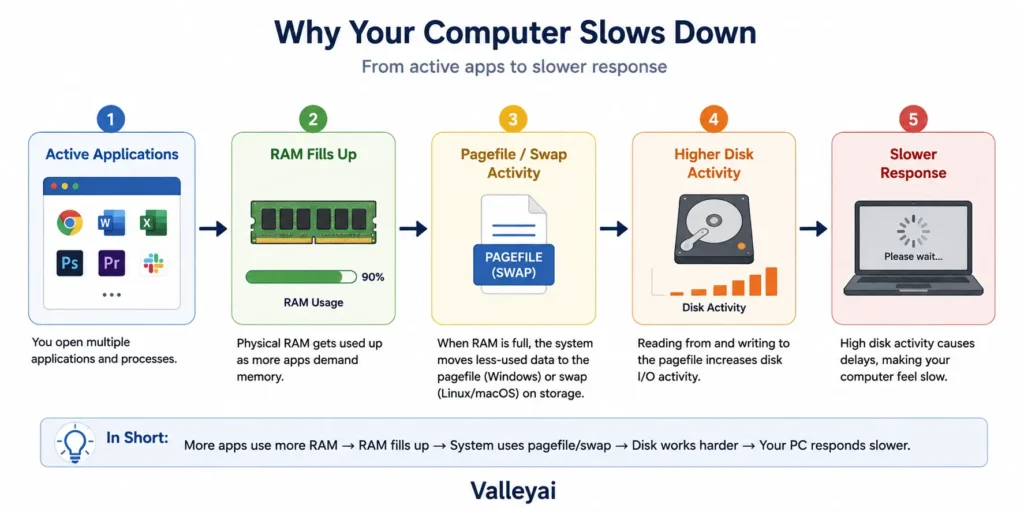
When available RAM runs low, the operating system reclaims less-used memory and may move some data to storage through virtual memory. Windows uses a page file, while macOS can use compressed memory and swap. Storage is slower than physical RAM, so repeated paging can make applications respond slowly. (Microsoft, Apple)
Typical results include:
- Slower app switching
- Browser tabs reloading
- Game stuttering
- Delayed typing or mouse response
- Higher SSD or hard-drive activity
- Applications refusing new tasks
- Freezing or crashes when an app cannot obtain enough memory
The computer does not usually run out of RAM in one dramatic instant. Operating-system memory management tries several strategies first. Performance becomes noticeably worse when memory demand remains high and the system must constantly move data between RAM and storage.
High RAM usage is not automatically a problem
High RAM usage without slowdowns is often normal because operating systems use available memory for active work and caching. If the computer remains responsive, applications open normally, and disk activity is ordinary, an 80% reading usually does not require immediate action.
| What you see | What it probably means | What to do |
|---|---|---|
| 70–85% usage with normal performance | Active work or useful caching | Keep working; no fix is required |
| 90–100% usage with stuttering and high disk activity | Memory pressure and paging | Close unnecessary workloads and inspect processes |
| Memory usage rises steadily over several hours | Possible memory leak | Check which process keeps growing |
| High usage immediately after startup | Startup app or background service | Review startup applications |
| Pressure returns during ordinary work | Installed RAM may not fit the workload | Consider an upgrade if the device supports one |
A full memory graph is a clue, not a verdict.
Is 80% RAM usage normal?
Yes, 80% RAM usage can be normal when the computer remains responsive. A percentage does not show whether the memory consists of active applications, cached data, or a process consuming memory abnormally. Check available memory and real-world performance before changing settings or buying hardware.
The symptoms that indicate genuine memory pressure
Memory pressure means the operating system is struggling to satisfy current memory demand efficiently. The clearest sign is a combination of high RAM usage, increased storage activity, and visible performance problems.
Look for these patterns:
Slow application switching
Windows or macOS may need to retrieve inactive application data from storage. Switching between programs then feels delayed, especially on systems using a hard disk drive.
Stutter in games is often blamed on system memory when the real constraint is graphics memory, so it is worth checking whether VRAM is the real bottleneck first.
Stuttering during games or video work
A game, editor, or virtual machine may compete with browsers and background services for memory. Frame pacing can worsen even when CPU usage does not appear unusually high.
Browser tabs reload unexpectedly
Browsers may discard or unload background tabs to reduce memory demand. Reloading the tab restores the page but can interrupt forms, media, or unfinished work.
Freezing and application crashes
An application may fail when it cannot allocate the memory required for a new operation. One program crashing does not necessarily mean the physical RAM is defective; the cause could be insufficient capacity, a software bug, or a memory leak.
Heavy disk activity
Paging creates additional reads and writes on the storage drive. Persistent high disk activity alongside full RAM and sluggish response is much more meaningful than a high RAM percentage by itself.
Why virtual memory helps—but cannot replace RAM
Virtual memory gives the operating system another place to manage memory data when physical RAM is under pressure. Windows uses a page file, and macOS uses swap as part of its memory-management system. (Microsoft, Apple)
Virtual memory is not equivalent to installing more RAM. A page file or swap area uses an SSD or hard drive, and storage has much higher latency than physical memory. An SSD can make paging less painful than an HDD, but an SSD does not provide the same capacity or performance as additional RAM.
You should not disable or manually clear the page file as a routine “RAM fix.” Windows manages the page file for ordinary workloads, and changing it without a specific reason can create a different performance problem.
A five-minute test: overload, leak, or insufficient RAM?
The fastest diagnosis is to observe what changes while the slowdown is happening.
1. Reproduce the problem
Open the applications that normally trigger the slowdown. Note whether the problem appears immediately, only after hours, or only during a demanding task such as gaming, video editing, or running a virtual machine.
2. Find the largest memory users
On Windows, open Task Manager with Ctrl + Shift + Esc, select Processes, and sort by the Memory column. Microsoft documents Task Manager as a way to inspect running processes and resource usage. (Microsoft Support)
On macOS, open Activity Monitor and choose the Memory tab. Pay attention to Memory Pressure, Swap Used, and individual applications rather than relying only on the memory-used figure. (Apple)
3. Compare memory with disk activity
If RAM is high but disk activity remains modest and the computer feels normal, the system may simply be using memory efficiently. If RAM is high, disk activity is sustained, and windows take several seconds to respond, paging is more likely.
4. Watch for process growth
Record the memory usage of suspicious applications, then check again after 30–60 minutes under similar conditions. A process that keeps growing without a matching increase in workload may have a memory leak or runaway behavior.
In practice, the largest process is not always the culprit. A video editor using substantial memory may be behaving normally, while a small utility in the background quietly grows for hours.
5. Test after closing one application
Close the largest nonessential application and wait briefly. If performance returns, the workload may have exceeded available capacity. If the same application quickly rebuilds its memory use or memory remains high after the app closes investigate updates, extensions, plug-ins, and background services.
How to fix high RAM usage safely
Start with reversible actions before changing system settings or buying hardware.
Close the workload you do not need
Save your work, then close unused editors, games, virtual machines, browser windows, and communication apps. Closing one large workload is more effective than repeatedly shutting down tiny background processes.
Do not end an unfamiliar Windows process simply because it uses memory. Identify the process first, and avoid terminating system processes when you are unsure of their purpose.
Restart the affected application
Restarting a browser or editor can release memory held by a temporary fault, plug-in, or leak. A computer restart clears active process state, but it does not repair the underlying application behavior.
If the same problem returns every time you reopen one program, update or replace that program instead of making daily restarts your permanent solution.
Review startup applications
On Windows, Task Manager includes startup controls. Disable only applications you recognize and do not need immediately after sign-in. Leave security software, hardware utilities, and system components alone unless you understand their role.
Reduce browser memory use
Close unused tabs, remove extensions you no longer use, and check the browser’s built-in task manager if available. A single poorly behaved tab or extension can consume more memory than many ordinary pages.
Update software and scan for unwanted programs
Install updates for the operating system, browser, and frequently affected application. If high usage comes with unfamiliar processes, pop-ups, or unexpected network activity, run a trusted security scan. High RAM use alone is not proof of malware.
When adding more RAM is the right fix
A RAM upgrade makes sense when memory pressure repeatedly appears during your normal workload not because the computer briefly reaches 80% usage.
Consider additional RAM when:
- The system slows down during ordinary multitasking.
- Paging occurs regularly while you work.
- Applications reload or crash when several programs are open.
- Your workload cannot be reduced without harming productivity.
- One or more applications publish memory requirements that exceed your current capacity.
- The device supports a compatible upgrade.
Check the manufacturer’s specifications before purchasing. Laptop RAM may be soldered, slots may be limited, and the motherboard may support a maximum capacity or specific memory type.
More RAM will not fix every slow computer. If CPU usage is constantly high, storage health is poor, the system is overheating, or an application has a memory leak, added capacity may only conceal the real issue for a while.
Is an SSD a substitute for more RAM?
No. An SSD can reduce the delay caused by paging compared with an HDD, but an SSD is still storage and cannot replace physical RAM. Upgrade RAM when the workload repeatedly exhausts available memory; upgrade storage when slow loading, low capacity, or drive performance is the actual bottleneck.
What changes on Mac, Android, and iPhone?
Desktop and mobile devices manage memory differently, but every platform must balance application demand against available physical memory.
| Platform | What you may notice under pressure | Where to check |
|---|---|---|
| Windows | Paging, high disk activity, slow switching, app errors | Task Manager and Resource Monitor |
| macOS | Elevated Memory Pressure, compressed memory, swap use | Activity Monitor |
| Android | Background apps may be suspended or closed; apps reload when reopened | Battery, app, or developer monitoring tools vary by device |
| iPhone | Background apps may refresh or reload rather than remain active | iOS exposes fewer desktop-style memory controls |
Android’s memory-management system can terminate background app processes when necessary, allowing the active app to continue running. (Android Developers) That behavior may look like an app “forgetting” its state, but it is often the operating system reclaiming memory.
Mobile devices also offer fewer practical RAM-upgrade options. Persistent app reloads may result from limited memory, aggressive background management, app bugs, or the app’s own design.
Quick decision guide
Use the action that matches the pattern:
- High usage, no symptoms: Do nothing and keep monitoring.
- High usage with immediate slowdown: Close the largest unnecessary application.
- Usage grows over time: Check for a memory leak or runaway background process.
- Problem begins after startup: Review startup applications and recently installed software.
- Problem returns during normal work: Check whether the device can support more RAM.
- Unknown process plus suspicious behavior: Run a security scan before ending processes.
- Only one application fails: Troubleshoot or update that application before changing hardware.
The right fix depends on the cause. Free up RAM is not a diagnosis.
Frequently asked questions
Can full RAM damage a computer?
Full RAM usage does not normally damage the RAM modules or permanently harm the computer. The operating system may slow applications, page data to storage, suspend background apps, or close a program. Repeated crashes can cause lost work, so save important files before troubleshooting.
Why is my RAM full when nothing is open?
Background services, startup applications, security tools, browser processes, cached data, and the operating system itself can consume memory even when no visible window is open. Use Task Manager or Activity Monitor to inspect processes. If one process grows continuously, investigate that process rather than assuming the RAM hardware is faulty.
Does restarting fix full RAM?
Restarting releases memory held by active applications and can temporarily resolve a stuck process or memory leak. A restart does not remove the underlying cause. If high usage returns after opening the same application or following the same workload, update, isolate, or replace the software responsible.
Can a virus cause high RAM usage?
Malware can consume memory, but high RAM usage alone does not establish an infection. Check for unfamiliar processes, unexpected startup items, pop-ups, performance changes, and unusual network activity. Run a trusted security scan, keep the operating system updated, and avoid deleting or ending files solely because their names look unfamiliar.
Why does RAM stay high after closing a program?
The operating system may retain released memory as cache so it can be reused quickly, or a related background process may still be running. A browser, launcher, helper service, or plug-in can also remain active. Check the process list and available memory; high usage with normal performance may not require correction.
How much RAM is enough for a laptop?
The right amount depends on the workload, operating system, integrated graphics allocation, and the number of applications used together. Office work and light browsing need less memory than video editing, modern gaming, software development, or virtual machines. Measure recurring memory pressure during your real workload instead of relying on a universal capacity number.
Should I use a RAM-cleaning app?
A third-party RAM cleaner is usually not the first solution. Operating systems already manage memory and caching, while forced cleanup can discard useful cached data and provide only temporary relief. Identify the process causing pressure, close unnecessary workloads, update faulty software, and consider a hardware upgrade only when the problem is repeatable.
What happens when RAM is full on an Android phone?
Android may suspend or terminate background app processes when available memory becomes limited. The active app can continue running, but another app may reload when reopened. Frequent reloads can result from limited RAM, a demanding app, aggressive manufacturer settings, or a software problem not necessarily defective memory hardware.

Kaleem
Kaleem is a Computer Science graduate (Virtual University of Pakistan) and the founder and editor of Valley AI, where he publishes in-depth, tested guides on computer hardware, artificial intelligence, and how the internet works. Every guide is researched from primary sources, tested hands-on where possible, and updated when the facts change.