

Buy mesh when the problem is coverage. A mesh system spreads one Wi-Fi network across several small boxes, and the link between those boxes decides what the far rooms get. A 500 Mbps plan delivers 500 Mbps at the modem. Two hops out, a laptop sees less than half of it. The backhaul spent the speed. The numbers below work out what each hop and each wall costs, so read them before you buy and you’ll know whether mesh fixes your house or only moves the weak spot.
The three parts of a mesh system
A mesh kit holds two or three identical-looking boxes, and each box does one of three jobs. The main node runs the network. The routing rules it uses are the ones how a router works describes: tables, next hops, and the path to the internet. It hands out IP addresses, routes traffic, and keeps the firewall. A satellite node serves the devices near it and relays their traffic back toward the main node. The backhaul is the link between nodes, wired or wireless, and its quality decides how fast the far nodes can be.
Satellites differ from the main node in one way: they carry no internet connection of their own. Every satellite serves the phones and laptops near it, then passes their traffic along the backhaul, so a phone two rooms from the modem talks to the nearest satellite and the satellite carries that traffic home. When a satellite sits too far from the next node, the chain breaks down, which is why placement matters more than the number of boxes.
The main node plugs into a modem with an Ethernet cable. That box turns the line from the street into internet your devices can use. The modem answers the provider, the main node answers the house, and the two boxes split the job between them.
Backhaul: the link that sets the speed
Backhaul is the traffic between nodes, and it comes in three forms. A dual-band Wi-Fi 6 system shares a 5 GHz radio between your devices and the backhaul. Every packet crosses the air twice on its way out. A tri-band system keeps a second 5 GHz radio, or a 6 GHz radio, for node traffic alone. A wired backhaul runs the traffic over Ethernet and skips the wireless relay entirely.
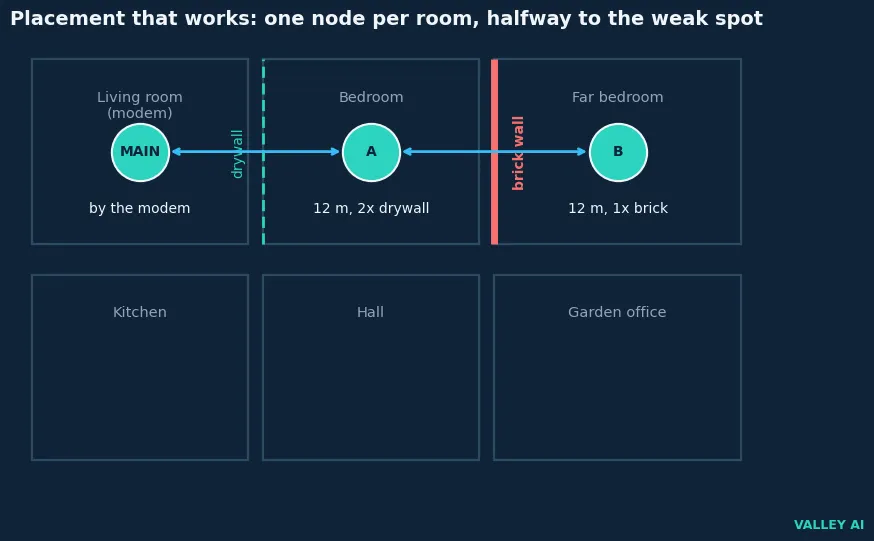
I priced a three-node house on a 500 Mbps plan. The main node sits by the modem. The first satellite stands 12 meters away, behind two drywall walls. The second sits 12 meters further, behind one brick wall. The radios run Wi-Fi 6 on 5 GHz at 80 MHz with two spatial streams, transmitting at 20 dBm. Wall loss comes from NIST planning figures (4 dB for drywall, 10 dB for brick, both at 5 GHz).
Free-space loss over 12 meters at 5 GHz is 68.3 dB. Add 8 dB for the two drywall walls. The first satellite sees -56.3 dBm, strong enough for MCS 10 at a PHY rate of 1080.9 Mbps, and real throughput runs near 70% of that rate once overhead and contention are counted, so the link carries 756.6 Mbps. Add 10 dB for the brick wall and the second satellite sees -58.3 dBm, which holds MCS 9 at 960.8 Mbps. The second link carries 672.6 Mbps.
Does mesh make the internet faster? No. The plan caps traffic leaving the home at 500 Mbps. Mesh fixes coverage, and the backhaul decides how much of that 500 the far rooms keep.
Three backhaul types, one house: the table lists what a device gets at every node.
| Node | Shared-band backhaul | Dedicated backhaul | Ethernet backhaul |
|---|---|---|---|
| At the main node | 500 Mbps | 500 Mbps | 500 Mbps |
| At satellite A, one hop | 378 Mbps | 757 Mbps | 500 Mbps |
| At satellite B, two hops | 224 Mbps | 673 Mbps | 500 Mbps |
| At satellite C, three hops | 168 Mbps | 673 Mbps | 500 Mbps |
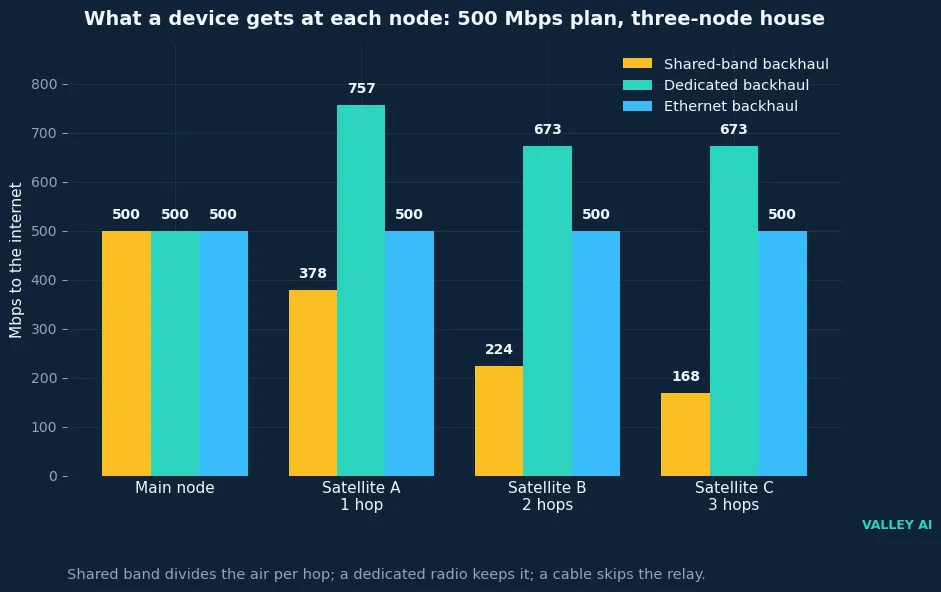
Two ceilings bind the far rooms, and they bind different traffic. The plan caps traffic leaving the home at 500 Mbps. The backhaul caps everything the far node carries. That includes traffic that never leaves the home, like a file moving to a NAS on the local network, so a laptop at satellite B on shared backhaul gets 224 Mbps to the internet and 224 Mbps to the NAS. The plan alone would allow 500. These figures come from a model, not a measurement. Free-space loss plus wall loss prices the layout. No furniture, neighbor networks, or competing devices sit in the math. The 70% efficiency and the signal thresholds are planning values that vary by radio. Real rooms run slower, and a crowded block runs slower still.
A third hop shows why adding boxes stops helping. Satellite C sits another 12 meters past B, through another brick wall. It holds MCS 9 and a 672.6 Mbps link. A device on it gets only 168 Mbps on shared backhaul, because the same channel now carries four transmissions for every packet. The dedicated radio keeps it at 673 Mbps, which is why a tri-band kit earns its price in a long house.
How nodes pick a path and hand your phone over
Nodes keep a live map of the links between them and pick the best path for every packet by signal strength and load, so when a node goes quiet, traffic reroutes through the next best path without anyone touching a setting. The radio rules underneath are the ones how Wi-Fi works sets out: channels, shared airtime, and a finite slice for every device.
Google’s own Nest support page states the limit plainly. If the main node goes offline, the whole network goes with it. Every path ends at the modem. A dead satellite costs nothing but coverage in a corner. A dead main node costs the house its internet.
Roaming follows that pattern, and three IEEE standards carry it. 802.11k lets a phone ask nearby nodes how strong they look. 802.11v lets the network suggest a better node when the phone clings to a weak one. 802.11r speeds the security handshake (the four-way handshake that proves the phone holds the network password), so the move takes milliseconds. The phone makes the final choice. A sticky phone can sit on a distant node while a stronger one stands a room away.
Can nodes from different brands work together? Only when both carry Wi-Fi EasyMesh certification, the Wi-Fi Alliance program that lets a controller manage agents from different vendors. Most retail kits skip it, so a second node usually has to come from that brand, and often from the same product line.
What walls do to the signal
A mesh system doesn’t push signals through walls. It gets around them by putting a node on the other side, so each device only has to reach the nearest node. The wall takes its cut from the node-to-node link, and the cut depends on the material.
| Wall material | Loss at 5 GHz per wall |
|---|---|
| Drywall | 4 dB |
| Brick | 10 dB |
| Concrete block | 15 dB |
| Poured concrete | 25.7 dB |
These are planning figures from NIST and 3GPP measurements. Real walls vary with thickness, moisture, and the metal inside them, so treat the numbers as a budget with room for error.
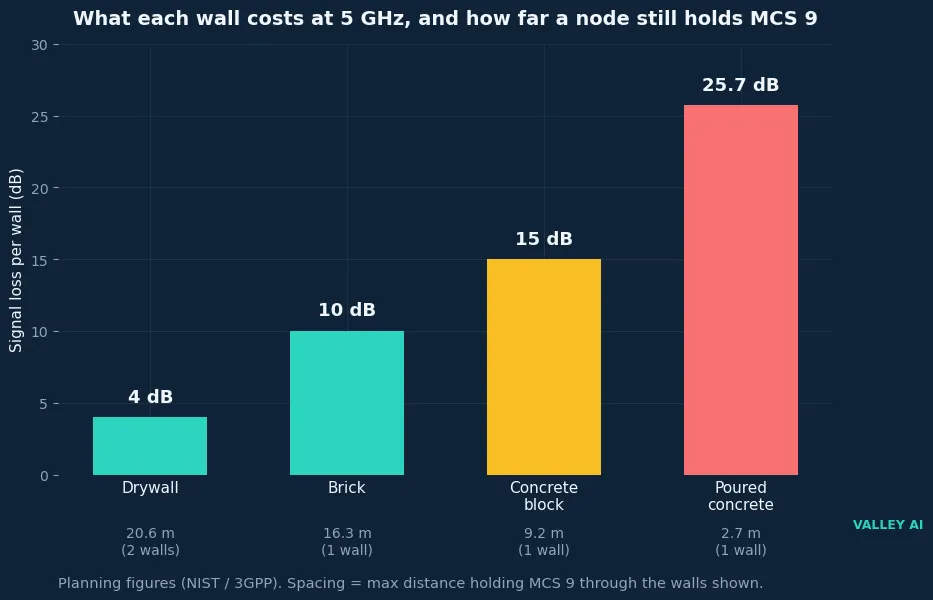
I checked the spacing by solving for the distance where the signal holds MCS 9, and the answer is 20.6 meters through two drywall walls and 16.3 meters through one brick wall. In open air the signal reaches 51.7 meters, which is why a node in the next room beats a node across the garden. Keep nodes within 15 to 20 meters of each other, with no more than two light walls between them. Move them closer when a brick wall sits in the path.
Why does the far node crawl while the near one flies? Two losses stack. A wall in the path drops the signal a step down the MCS table. Every hop on a shared band divides what is left. A node that sits behind a brick wall and two hops out pays both prices at once.
The band matters as much as the wall. The 2.4 GHz band reaches farther and bends around obstacles better, while the 5 GHz band carries more speed and loses more per wall, and the 6 GHz band loses the most of all. That’s why mesh kits fix 5 GHz coverage first while smart speakers and cameras stay on 2.4 GHz. You can read the signal yourself. A phone’s Wi-Fi settings show the strength in dBm. At -55 dBm or better, the link holds the fastest rates. At -65 dBm it works. At -75 dBm it has dropped to the slowest rates.
Mesh, extender, or wired access points
Three tools add coverage, and they solve different problems. A mesh system suits several weak rooms. An extender suits a single weak corner. Wired access points suit a home that already has Ethernet in the walls. A wired access point needs an Ethernet cable back to the router, and the cable carries the traffic at full speed.
| Mesh Wi-Fi system | Range extender | Wired access points | |
|---|---|---|---|
| How it connects | Wireless or wired backhaul, managed as one system | Repeats the router’s signal | Ethernet cable to the router |
| Network name | One name for the whole home | Often a separate name | One name if configured |
| Roaming | Coordinated and automatic | Basic; devices cling to weak signals | Good with a controller |
| Speed at the far end | Good with tri-band or wired backhaul; halved per hop on shared band | Often half the router’s speed or less | Full speed |
| Setup | App-guided | Simple | Needs cabling |
| Best for | Large or multi-floor homes | One weak room | Homes with Ethernet already in place |
A wired backhaul pays a second dividend. The cable that feeds a satellite can feed a NAS at full speed as well. Backups and media stream across the house without touching the air at all.
Setting it up so it works
Setup takes six steps, and none of them needs a tool.
- Plug the main node into the modem and put it in the open, out in the room.
- Place the first satellite halfway toward the weak area, where the signal stays good. A node in a dead zone has nothing strong to relay.
- Raise the nodes onto shelves or desks. The floor, a cabinet, and the back of a TV all weaken the link.
- Open the app and read the backhaul signal for every node. Move any node that reports a weak link closer to the next node.
- Run a speed test in the rooms you use most, then move a node and test again.
- Cable a node if you can. A single wired satellite lifts the whole network, and it frees the radios for your devices.
Two details catch buyers out. First, switch the old router’s Wi-Fi off once the mesh runs, since a second network beside the mesh fights it for airtime. Second, give the 2.4 GHz band its own name if the app allows it. Some older devices join only when they can see that band by itself.
When mesh is the wrong buy
Mesh earns its price in a large or multi-floor home, or a house with brick and concrete between the rooms. It earns nothing in a small flat, where one well-placed router already covers every room. It earns nothing for a single dead corner, where an extender costs less. Thick concrete walls change the math again. A wired access point beats a wireless hop through 25.7 dB of concrete. A mesh node on the far side of that wall needs a signal to relay.
Check the plan before the kit. A 100 Mbps plan stays 100 Mbps at every node. Mesh fixes coverage while the provider’s speed stays put, and running the old router and the mesh side by side as two routers creates double NAT, which breaks gaming, video calls, and remote access. Keep a single box routing and let the other only provide Wi-Fi.
Before spending anything, move the router to a central, raised spot and test the weak rooms again, and if they still fail, buy the smallest kit that covers the house. Place the first satellite halfway. Check the backhaul signal in the app before adding another node.
Frequently asked questions
Does mesh Wi-Fi work with my existing router?
It works with most routers. Plug the main mesh node into the old router and switch the mesh to access point mode, so the old router keeps routing and the mesh only provides Wi-Fi. The other way is to put the provider’s modem-router in bridge mode and let the mesh run the network.
Do I need Wi-Fi 7 for a mesh system?
Not for most homes. A Wi-Fi 6 kit covers most homes. Wi-Fi 7 earns its keep when the backhaul runs on 6 GHz, which is wide and uncrowded but short-range, or when dozens of devices share the air at once.
How many mesh nodes do I need?
Start with two: the main node and one satellite. Add a third only where a room tests weak. More nodes add hops and interference, so the count follows the house, and a new node belongs between the main node and the weak room, never inside the weak room itself.
Does mesh Wi-Fi slow down gaming?
A wireless hop adds latency, so a console on a far satellite plays worse than one wired to the main node. Cable the console to the nearest node, or cable that node back to the main one, and the game traffic skips the air entirely.

Kaleem
Kaleem is a Computer Science graduate (Virtual University of Pakistan) and the founder and editor of Valley AI, where he publishes in-depth, tested guides on computer hardware, artificial intelligence, and how the internet works. Every guide is researched from primary sources, tested hands-on where possible, and updated when the facts change.