
If you have ever stared at a DNS_PROBE_FINISHED_NXDOMAIN or ERR_NAME_NOT_RESOLVED error screen, you have likely stumbled upon advice to visit a mysterious URL: chrome://net-internals. For years, this internal Chrome page has been the magic wand for fixing stubborn connection issues.
chrome://net-internals is a built-in diagnostic page in Google Chrome that gives users direct access to the browser’s internal network state. It is not a website. It is a privileged internal URL that only works inside Chrome itself. The page allows you to clear the DNS host cache, flush active socket connections, delete stored HSTS security policies, and export detailed network logs for analysis.
As of Chrome 112+, the interface has been significantly simplified. Several tabs that previously existed including Events, Timeline, and Tests have been removed from the live UI and replaced by the separate chrome://net-export logging tool. What remains is a focused set of state management controls used primarily for resolving connection errors.
Every Tab in chrome://net-internals Explained
When you navigate to chrome://net-internals, you land on a page with a left-hand sidebar containing several sections. Here is what each one does and when you would use it.
DNS (chrome://net-internals/#dns) Displays Chrome’s internal Host Resolver Cache the list of domain names and their cached IP addresses. The “Clear host cache” button wipes this list entirely. Use this tab whenever a site loads incorrectly after a server migration or DNS record change.
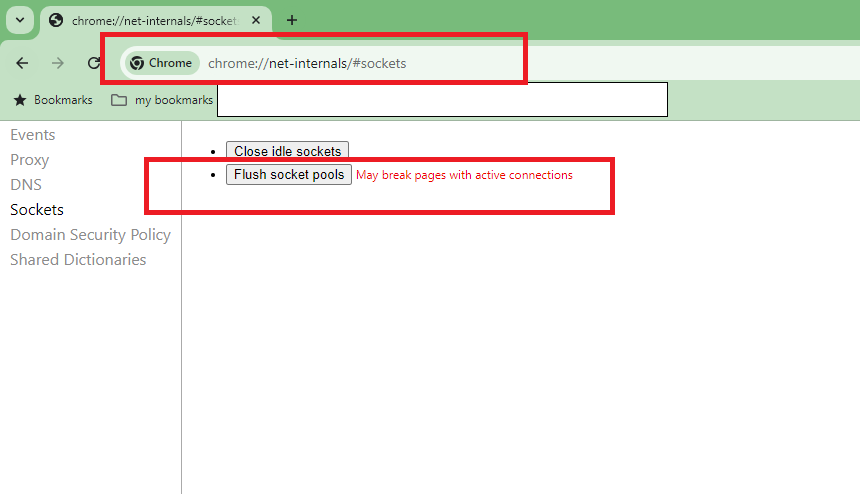
Sockets (chrome://net-internals/#sockets) Shows all active and idle socket connections Chrome is maintaining with remote servers. The “Flush socket pools” button terminates these connections. Use this tab when clearing DNS alone does not resolve a connection error, or when you suspect a stale keep-alive connection is causing problems.
HSTS (chrome://net-internals/#hsts) Manages HTTP Strict Transport Security policies stored by Chrome. This tab lets you look up, add, or delete HSTS entries for specific domains. It is particularly useful for local development environments where a self-signed certificate triggers a browser security block that cannot be bypassed with a standard refresh.
Proxy (chrome://net-internals/#proxy) Displays the current proxy configuration Chrome is using. Useful for diagnosing connection failures in corporate or VPN environments where proxy settings may be misconfigured.
Net Export (chrome://net-internals/#net-export) A shortcut link to chrome://net-export. This is the replacement for the deprecated Events and Timeline tabs. It allows you to capture a full network log as a JSON file for external analysis.
Note: Tabs including Events, Timeline, Tests, and Bandwidth no longer exist in Chrome’s current net-internals UI. If you are following an older guide that references these tabs, see the [Deprecated Features section below].
How to Clear DNS Cache and Flush Sockets in Chrome (2026)
Most of you are here for one reason: a website isn’t loading, and you need to fix it fast. If you are experiencing DNS errors, follow these steps immediately.
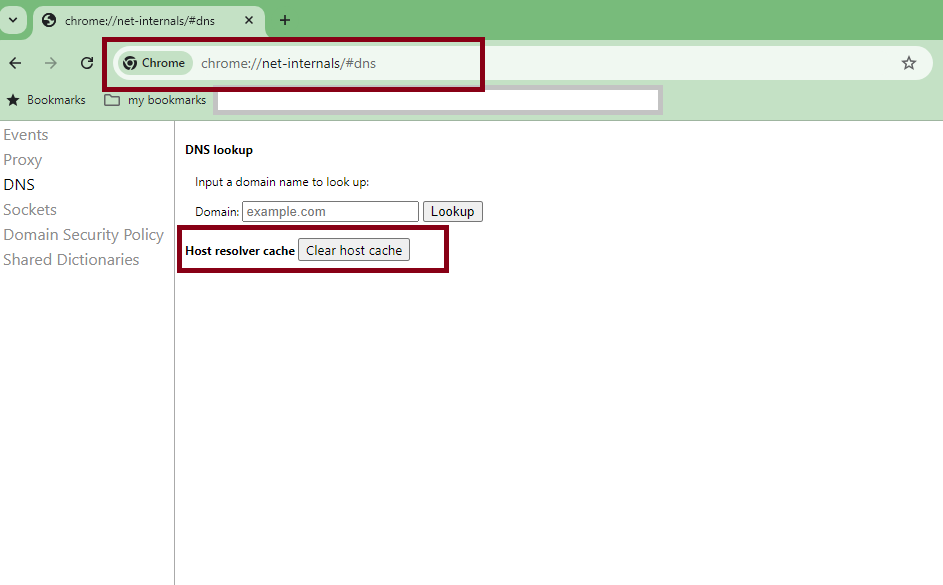
Step 1: Clear Host Cache (The Magic Button)
When you visit a website, Chrome saves (caches) the IP address so it doesn’t have to look it up again. If that IP changes, or if the cache gets corrupted, the site breaks. Here is how to wipe that slate clean:
- Copy and paste this URL into your address bar:
chrome://net-internals/#dns - Look for the button labeled Clear host cache.
- Click it once. Note: You will not see a success message or a spinning wheel. The button clicks silently, but it works instantly.
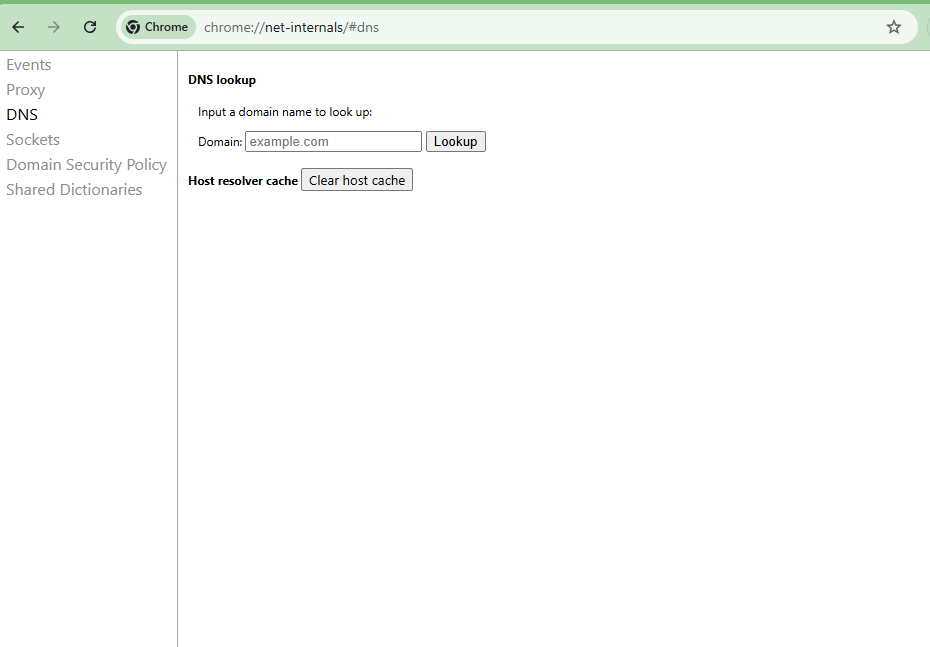
How do I clear my DNS cache in Chrome? To clear the DNS cache in Google Chrome, navigate to chrome://net-internals/#dns in the address bar. Locate the Clear host cache button under the Host Resolver Cache section and click it once. This instantly flushes the internal DNS records, forcing Chrome to retrieve fresh IP addresses for websites.
Reas also: Difference between System DNS and Chrome DNS cache
Step 2: Flush Socket Pools
Sometimes clearing the DNS isn’t enough. You also need to sever active connections to the server.
- Click on Sockets in the left-hand sidebar, or navigate directly to
chrome://net-internals/#sockets. - Click the button labeled Flush socket pools.
- Go back to the tab that was giving you an error and refresh the page.
Still Not Working? Flush Your Operating System DNS Cache
Chrome maintains its own DNS cache separately from your operating system. Clearing Chrome’s host cache does not clear the OS-level cache, and vice versa. If the steps above do not resolve your error, flush the OS cache using the appropriate command for your system:
| Windows 10/11 | ipconfig /flushdns | Open Command Prompt as Administrator, paste command, press Enter |
| macOS (Monterey/Ventura/Sonoma) | sudo dscacheutil -flushcache; sudo killall -HUP mDNSResponder | Open Terminal, paste command, enter your password |
| Ubuntu / Debian Linux | sudo systemd-resolve --flush-caches | Open Terminal, paste command |
| Chrome OS | Restart the device | No manual command available; restart clears DNS state |
After running the OS-level flush, return to Chrome, clear the host cache at chrome://net-internals/#dns, and refresh the page.
Why is chrome://net-internals Not Working on Android?
This is the most common frustration for mobile users. You read a guide that says go to net-internals on your phone, but when you try it, nothing happens, or the UI is unusable.
The Hard Truth: Modern versions of Chrome on Android and iOS have removed direct access to the chrome://net-internals UI. You cannot use the desktop steps above to clear the DNS cache on a mobile device.
The Android Workaround
Since you cannot access the internal tool, you must use the system-level controls to achieve a similar result:
- Method A (Browser Level): Go to Settings > Privacy and security > Clear browsing data. Ensure “Cached images and files” is selected. While this is less specific than the net-internals tool, it often forces a DNS refresh.
- Method B (System Level): Toggle Airplane mode on for 10 seconds and then off. This forces the Android OS to tear down network stacks and flush local DNS caches.
Deprecated Features Explained: What Replaced the Events and Tests Tabs
If you are a developer or a power user returning to this tool after a hiatus, you might be panicking. Where is the Events tab? Where is the Timeline view?
Google removed these logging features from chrome://net-internals to reduce the browser’s memory footprint. The tool is now strictly for state management (clearing caches).
How to Use chrome://net-export to Capture and Analyze Network Logs
What is chrome://net-export?
chrome://net-export is Chrome’s built-in network logging tool. It records all network activity DNS lookups, socket connections, HTTP requests, certificate checks, and protocol-level events and saves the data as a JSON file. This file can then be analyzed using the NetLog Viewer, a web-based tool maintained by the Chromium team.
Net-export replaced the real-time Events and Timeline tabs that were removed from chrome://net-internals in earlier Chrome versions. The trade-off is that you capture a log during a problem rather than watching it live, which is actually more reliable for intermittent issues.
How to capture a network log:
- Navigate to
chrome://net-exportin a new Chrome tab. - Under “Capture network log,” choose your privacy setting. “Strip private information” is selected by default and is appropriate for most users. If you are sharing the log with a developer or support team, confirm which level of detail they need before changing this.
- Click Start Logging to Disk and choose a save location.
- Open a new tab and reproduce the problem navigate to the broken site or trigger the error.
- Return to the
chrome://net-exporttab and click Stop Logging. - Upload the saved
.jsonfile to the NetLog Viewer to inspect the waterfall timeline, DNS resolution steps, and any error events.
What to look for in the NetLog Viewer:
Once your log is loaded, focus on the “Events” tab within the viewer. Filter by the domain that failed. Look for HOST_RESOLVER_IMPL_REQUEST entries to trace DNS resolution, and TCP_CONNECT entries to identify where a connection attempt failed. Error codes appear inline next to the failed event.
Technical Deep Dive: Cache vs Sockets
To truly troubleshoot, you need to understand what you are actually clicking. What is the difference between clearing cache and flushing sockets?
1. The Host Cache (DNS)
This is like your browser’s address book.
- Scenario: You type
google.com. Chrome looks at its internal “Host Cache” to see if it already knows the IP address. - The Problem: If the website moves to a new server (new IP) but Chrome keeps trying to call the old IP from its address book, you get a connection error.
- The Fix:
chrome://net-internals/#dnswipes the address book, forcing Chrome to ask the DNS server for the new, correct IP.
2. The Socket Pools
This is the active phone line. Chrome uses keep-alive connections (Sockets) to keep the line open with a server so it can load pages faster.
- The Problem: Even if you clear the DNS cache, Chrome might still be holding onto an open connection (socket) to the old server. It’s like trying to call a new phone number while you are still on the line with the previous person.
- The Fix: Flush socket pools aggressively cuts all active lines. When you refresh the page, Chrome is forced to dial a brand new connection using the fresh DNS information.
Fixing Common Chrome Network Errors Using net-internals
Using the tools above, you can resolve the following specific Chrome error codes:
ERR_NAME_NOT_RESOLVED Fix
This error means the domain name cannot be converted into an IP address.
- Primary Cause: Outdated DNS cache or a typo in the URL.
- Solution: Use clear host cache chrome steps first. If that fails, try changing your computer’s DNS settings to Google Public DNS (8.8.8.8).
DNS_PROBE_FINISHED_NXDOMAIN Chrome Fix
“NXDOMAIN” stands for Non-Existent Domain. Chrome thinks the website doesn’t exist.
- Primary Cause: The computer’s OS or browser is caching a negative result (remembering that the site was down).
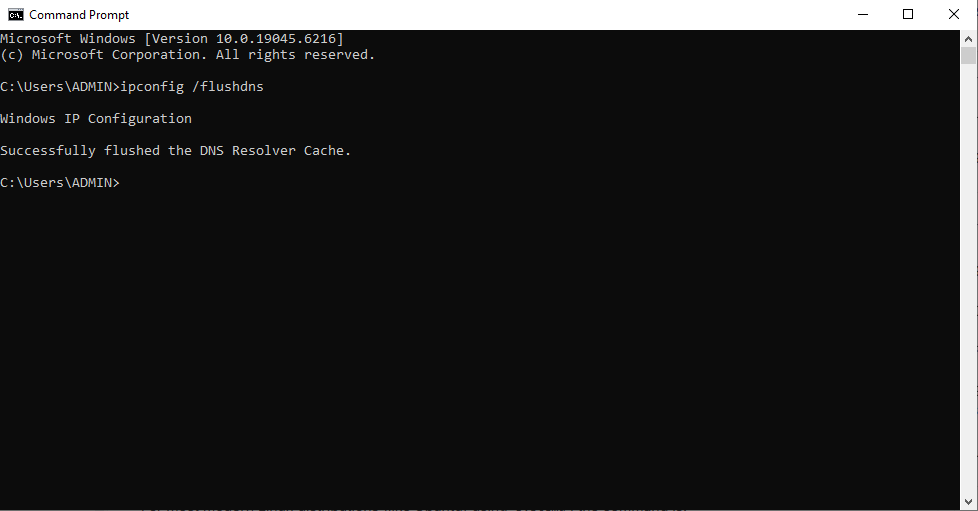
- Solution: This almost always requires both clearing the host cache and flushing socket pools. You may also need to flush your operating system DNS cache (e.g.,
ipconfig /flushdnson Windows).
ERR_CONNECTION_RESET Fix
This error means Chrome established a connection to the server but the server abruptly closed it before sending any data.
Primary causes: A firewall or security software interrupting the connection; a server-side timeout; or a stale socket that Chrome is attempting to reuse.
Solution sequence:
- Flush socket pools at
chrome://net-internals/#sockets— this is the most effective first step for this specific error. - If the error persists, clear the host cache at
chrome://net-internals/#dns. - If still unresolved, check whether a VPN, proxy, or antivirus software is intercepting the connection. Temporarily disabling these tools isolates the cause.
- For persistent cases, capture a net-export log and inspect TCP_CONNECT events in the NetLog Viewer to identify exactly where the connection is being dropped.
chrome://net-internals/#hsts, Fixing HSTS and Certificate Errors
HSTS (HTTP Strict Transport Security) is a browser security policy that forces Chrome to use HTTPS for a specific domain, even if you type http:// in the address bar. Once Chrome stores an HSTS policy for a domain, it refuses to load that domain over an insecure connection and the refusal cannot be bypassed by clicking “Proceed anyway.”
This becomes a problem in two common scenarios:
- Local development: You set up a local site (e.g.,
myapp.local) that previously used HTTPS with a self-signed certificate. The certificate expired or changed, and Chrome now blocks the site entirely withERR_CERT_AUTHORITY_INVALIDor a similar error. - Domain migration: A domain previously enforced HSTS but has since moved or changed its SSL configuration. Chrome’s stored policy conflicts with the new setup.
How to delete an HSTS entry in Chrome:
- Navigate to
chrome://net-internals/#hsts. - Scroll to the Delete domain security policies section.
- Type the domain name exactly (e.g.,
myapp.localorexample.com) — do not includehttps://or any path. - Click Delete.
- To confirm the entry was removed, use the Query HSTS/PKP domain section above and search for the same domain. If it returns “Not found,” the policy has been cleared.
- Close and reopen Chrome, then attempt to load the site again.
Important: Deleting an HSTS entry only removes Chrome’s locally stored policy. If the website itself sends an HSTS header (
Strict-Transport-Security), Chrome will re-store the policy the next time you visit the site over HTTPS.
Common error codes resolved by this fix:
ERR_CERT_COMMON_NAME_INVALIDERR_CERT_AUTHORITY_INVALIDNET::ERR_CERT_INVALID- Sites showing “Your connection is not private” with no bypass option
Is chrome://net-internals Safe to Use?
Yes. chrome://net-internals is a native Chrome internal page built and maintained by Google. It does not execute external code, does not communicate with third-party servers, and cannot be accessed or manipulated by websites. The chrome:// URL scheme is a privileged protocol websites cannot redirect you to it or embed it in an iframe.
The actions available on the page clearing DNS cache, flushing sockets, deleting HSTS entries — are non-destructive. They remove temporary cached data that Chrome will automatically rebuild as you browse. No personal data, passwords, or browsing history is deleted by any action on this page.
One caution: Be skeptical of browser extensions that claim to add net-internals functionality or “restore” deprecated tabs. These extensions cannot replicate the privileged access that the native page has, and some have been used as vectors for data collection. Use the native chrome://net-internals and chrome://net-export pages directly.
Frequently Asked Questions (FAQ)
Where did the Tests tab go in net-internals?
The Tests tab was removed from chrome://net-internals as part of a broader cleanup of the tool’s interface, which began around Chrome 76–80. Google’s stated goal was to reduce complexity and memory usage in the browser’s internal pages. For connectivity testing, the recommended replacement is the Network tab inside Chrome DevTools (press F12, then click “Network”). For deeper protocol-level analysis, chrome://net-export combined with the NetLog Viewer provides more structured data than the old Tests tab ever did.
Does Clear Browsing Data do the same thing as net-internals?
No. They target different types of cached data. “Clear Browsing Data” (accessible via Settings → Privacy and security) removes cookies, cached images, and static files stored on disk. It does not reliably clear Chrome’s in-memory Host Resolver Cache (DNS) or close active socket connections. For resolving network errors like ERR_NAME_NOT_RESOLVED or ERR_CONNECTION_RESET, chrome://net-internals is the correct tool because it targets the specific network-layer state causing the problem.
Is there a net-internals extension I can use?
No legitimate extension can replicate what chrome://net-internals does. The chrome:// URL scheme operates at a privileged level that browser extensions cannot access or replicate. Extensions claiming to restore deprecated net-internals tabs or add new diagnostic features should be treated with caution they cannot deliver on that promise and may introduce privacy risks. Use the native pages directly.
What is the difference between chrome://net-internals and Chrome DevTools?
chrome://net-internals manages the browser’s network state it clears caches, flushes connections, and deletes security policies. Chrome DevTools (F12 → Network tab) monitors network activity in real time for a specific tab. Use net-internals when you need to reset something. Use DevTools when you need to observe what is happening during a page load.
By mastering these internal URIs, you stop guessing why a webpage is broken and start fixing the root cause. Remember: for quick fixes, hit the DNS and Sockets tabs. For deep analysis, switch to Net-Export.

Kaleem
Kaleem is a Computer Science graduate (Virtual University of Pakistan) and the founder and editor of Valley AI, where he publishes in-depth, tested guides on computer hardware, artificial intelligence, and how the internet works. Every guide is researched from primary sources, tested hands-on where possible, and updated when the facts change.