

A laptop sends a print job to a printer on the same home network. The job leaves the laptop as a set of Ethernet frames. Each frame carries a source MAC address, a destination MAC address, and the print data inside. The switch sits between the two devices, and its job is to hand each frame to the right port and to no other port.
Ethernet switches do that job for a whole local network. They read the destination MAC address on each frame and look that address up in a table. The table names the port that reaches the destination device. Ports work in full duplex. Each port sends and receives at the same time.
Follow one frame from a laptop to a printer
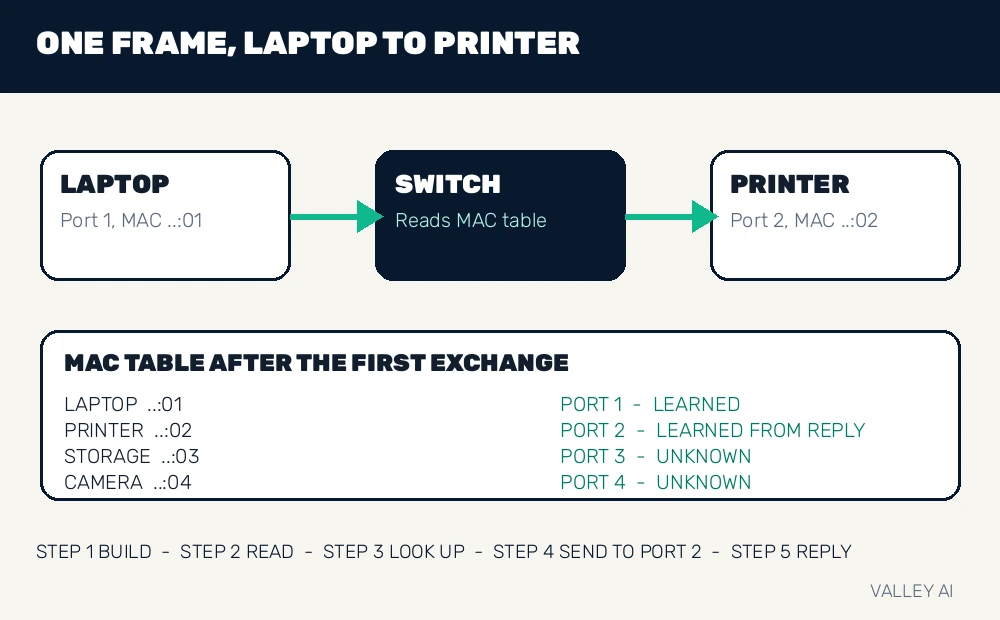
The print job starts when the laptop wraps print data in a frame. The frame header names the laptop MAC address as the source and the printer MAC address as the destination. The packet inside the frame carries an IP address for the final destination. The switch reads the MAC addresses, because the LAN hop runs on MAC addresses.
- Laptop builds a frame addressed to the printer MAC address.
- Switch receives the frame on port 1 and reads the destination MAC address.
- Switch looks the destination up in its MAC table.
- Switch sends the frame out port 2 only.
- Printer receives the frame and sends its reply back through the switch.
Nothing about that path needs the internet. Traffic bound for the internet leaves the switch for a router; a separate router vs modem comparison explains which box handles that boundary.
Past the router, NAT lets the whole house share one public IP address.
How a switch learns where devices live
A new switch starts with an empty table. It learns by watching traffic. Cisco Press describes the same learning rule: a switch builds its table from the source MAC address of each frame it receives.
The table works like a directory at a building entrance. A directory pairs a name with a room number. A MAC table pairs a device address with a port number.
Four devices sit on ports 1 to 4 of a small switch. The laptop sits on port 1, the printer on port 2, a storage box on port 3, and a camera on port 4. Their example MAC addresses end in 01, 02, 03, and 04, in port order.
| Device | Port | Table state after the first exchange |
|---|---|---|
| Laptop | 1 | Learned from the first frame |
| Printer | 2 | Learned from its reply |
| Storage box | 3 | Unknown until it sends |
| Camera | 4 | Unknown until it sends |
The laptop sends its first frame to the printer. The switch records the laptop address on port 1, then finds no entry for the printer.
What does a switch do when it meets a destination address it has never seen? It floods the frame out every port except the arrival port. Then it waits for the destination device to answer.
The printer answers. The reply arrives on port 2. The switch records the printer address on port 2. The next laptop frame goes to port 2 only.
Entries age out after a period of inactivity, commonly five minutes on many switches. A device that moves to a new port gets relearned from its next frame. Aging keeps tables current.
Switch, hub, and the two domains that matter
A hub copies every frame out every port, all the time. A switch copies a frame out every port only while the destination stays unknown. Once the table fills, each frame travels to one port. The difference shows up as soon as two pairs of devices talk at once.
Each switch port forms its own collision domain. Two devices on separate ports can send at the same time without their frames colliding. A hub gives all its ports one shared collision domain, so only one device on a hub can send at a time without a collision.
The broadcast domain is larger. A broadcast frame goes to every device in the same VLAN, because a broadcast has no single destination. A switch still floods broadcasts, and that flooding stays inside the VLAN boundary. Multicast frames flood by default, unless IGMP snooping limits them to ports with listeners.
Full-duplex links make the per-port math simple. A gigabit port sends at 1 Gbps and receives at 1 Gbps at the same time, giving 2 Gbps of combined capacity on that port.
Managed or unmanaged: the choice that shapes the rest
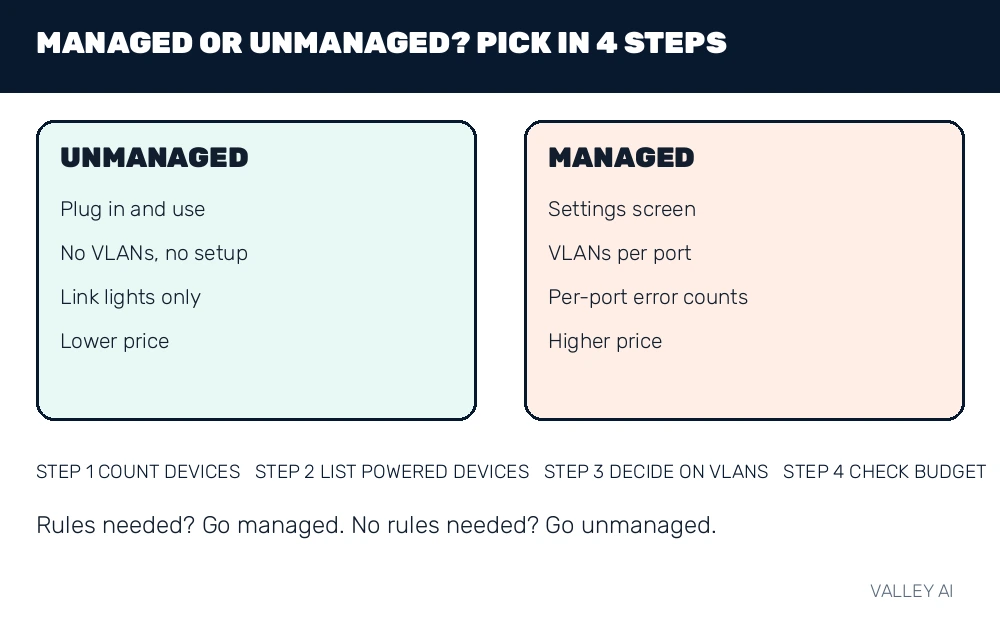
The managed question comes down to rules. A home network with one flat LAN and no powered devices needs no rules beyond forwarding. A network that separates guests from cameras, or gives one kind of traffic a faster lane, needs rules.
| Feature | Unmanaged switch | Managed switch |
|---|---|---|
| Setup | Plug in and use | Configure through a settings screen |
| VLAN support | None | Create and assign VLANs per port |
| Traffic priority | Fixed default handling | Priority queues for voice and video |
| Monitoring | Link lights only | Per-port traffic and error counts |
| Price | Lower | Higher |
Per-port error counts show a failing cable before the device on that port drops offline.
Switching capacity, measured in gigabits
Switching capacity states how much traffic the internal fabric moves at once. Vendors quote it in gigabits per second, and the number only means something when counted in both directions.
For a worked calculation, take an 8-port gigabit switch with two 10 Gbps uplink ports. One-way total: 8 ports at 1 Gbps plus 2 uplinks at 10 Gbps, equal to 28 Gbps. Full-duplex total: 28 Gbps doubled, equal to 56 Gbps of fabric capacity.
That fabric carries a 4K video stream and a file copy at the same time without either slowing the other. The stream needs about 25 Mbps, which is 2.5 percent of one gigabit port. The file copy can take the full gigabit port on its own link. Combined traffic through the fabric totals about 1.025 Gbps, far under the 56 Gbps fabric in the calculation.
A slow internet plan still caps downloads from the internet, and the switch cannot raise that ceiling. Local traffic never touches the plan. A file copy between two home devices runs at the local link speed, even on a slow plan.
Buffers absorb short bursts when several ports send to one port at once. Small buffers drop frames under a heavy burst, and dropped frames force retransmissions that slow the transfer.
Most home switches use store-and-forward switching. The switch receives the full frame, checks its frame check sequence, and drops the frame when the sequence fails. Cut-through switching forwards sooner, but it passes corrupt frames along, so home hardware rarely uses it.
VLANs put separate networks on one switch
A house with guests and cameras on one switch has a separation problem. Guests need internet access. Cameras need to reach the recorder, and guest phones have no business reaching the cameras.
VLANs solve it by assignment. Ports for guest devices join one VLAN, and ports for cameras join a second VLAN. Each VLAN forms its own broadcast domain. Broadcasts and floods stay inside their own VLAN.
Can two devices on the same switch be kept apart? Yes, when their ports sit in different VLANs, because Layer 2 traffic stays inside its own VLAN.
Between two switches, frames carry an 802.1Q tag naming their VLAN. Computerworld’s 802.1Q explainer documents the tag itself: a 4-byte field carrying a VLAN identifier. One link can then carry many VLANs.
A port facing a device normally sends frames untagged, while a port facing another switch tags frames for each VLAN it carries.
Traffic between VLANs needs a Layer 3 step. A Layer 3 switch routes between VLANs, and a router does the same job for a flat network with VLANs attached. Without that step, the VLANs stay apart.
Loops, Spanning Tree, and the home loop check
A loop forms when two paths connect the same two switches. One cable with both ends on one switch does the same. A broadcast frame then circles the loop. It gets copied again at each pass.
Spanning Tree Protocol stops that failure. Switches exchange messages and find the loop.
What stops a loop from flooding a network forever? Spanning Tree Protocol blocks one path in the loop, so each frame has one route between any two devices.
Traffic uses the open path. The blocked path waits in reserve.
A home loop check needs no instruments. Watch the port lights: a loop shows many lights blinking together in a storm pattern while the network slows to a crawl. Unplug one cable in the suspected loop. Normal speed returns when the loop breaks.
Managed switches show the blocked port in their settings screen, so the loop path is visible without guessing.
Power over Ethernet and the budget check
Power over Ethernet sends power and data over the same cable. A camera on a PoE port needs no wall socket near its mounting spot.
Things Embedded’s PoE standards guide lists 15.4 W for 802.3af and 30 W for 802.3at at the port. 802.3bt reaches 60 W or 90 W. The device receives less than the port figure. Cable loss takes a share.
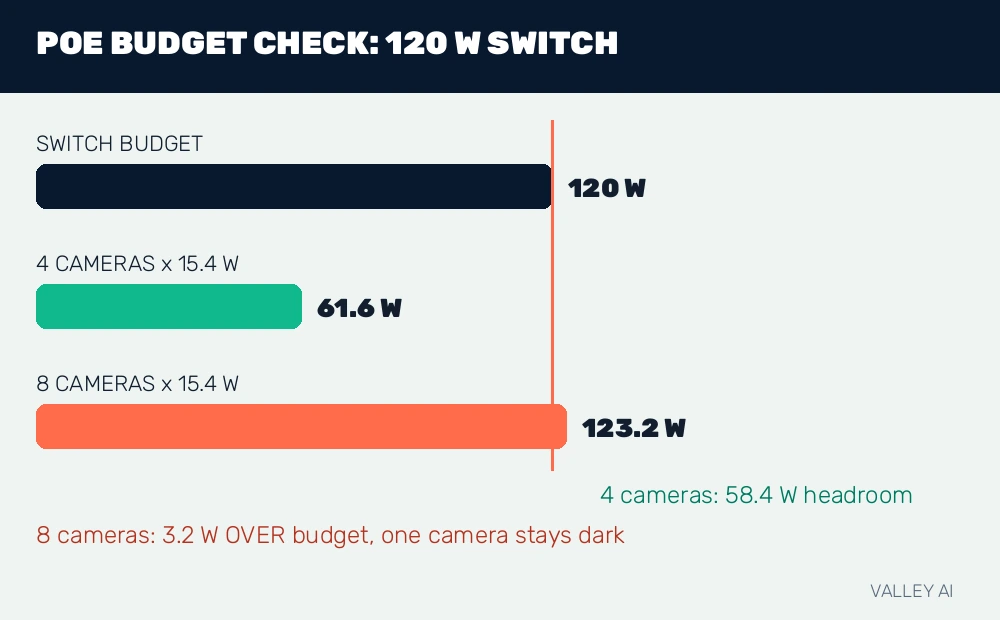
For the budget check, take a switch with a 120 W PoE budget and cameras drawing 15.4 W each. Four cameras draw 61.6 W, leaving 58.4 W of headroom. Eight cameras draw 123.2 W, which is 3.2 W over the budget, so one camera would not power up.
| Setup | Total draw | Against a 120 W budget |
|---|---|---|
| 4 cameras at 15.4 W | 61.6 W | 58.4 W of headroom |
| 8 cameras at 15.4 W | 123.2 W | 3.2 W over the budget |
Check the camera datasheet for its draw before counting ports, because a pan-and-tilt camera draws more than a fixed camera.
A non-PoE device on a PoE port stays safe. The switch tests before sending power.
Conclusion: how to pick one
Count the devices and the powered devices, and check the PoE budget before buying.
A switch that fits those counts, with spare ports, serves a home network for years.
Frequently asked questions
Does a switch need an IP address to forward frames?
Forwarding runs on MAC addresses, so an unmanaged switch forwards frames with no IP address of its own. A managed switch takes an IP address for its settings screen, and that address serves management traffic only.
Can I connect a switch to another switch?
Yes, one cable between the two switches extends the port count, and each added hop adds a small delay to the path. Use one cable between them for a simple home setup, and keep the chain short.
Why do some ports on one switch run at different speeds?
Each port negotiates the fastest speed both ends support, so an older device settles on a slower link while a newer device runs at full speed. A lower-grade cable can hold a port to a slower speed as well.
What does a blinking port light mean?
A steady light means the link is up, and a blinking light means traffic is passing through that port. A dark port means no link, a powered-down device, or a faulty cable.
How many devices can a switch handle at once?
The port count sets how many wired devices connect at the same time, and the MAC table holds thousands of learned addresses. Active traffic is bounded by port speed and fabric capacity, so a full port count with light traffic works fine.

Kaleem
Kaleem is a Computer Science graduate (Virtual University of Pakistan) and the founder and editor of Valley AI, where he publishes in-depth, tested guides on computer hardware, artificial intelligence, and how the internet works. Every guide is researched from primary sources, tested hands-on where possible, and updated when the facts change.