
That two-minute boot time isn’t normal aging. It’s a fixable problem and in most cases, the fix takes less than 20 minutes once you know where to look.
Experiencing a slow computer? This comprehensive guide will help you diagnose the root cause of performance issues and provide ranked, actionable solutions to how to speed up computer (PC) or Mac. Learn to identify bottlenecks like thermal throttling, bloatware, cleaning temp files, or excessive startup programs, and implement targeted fixes to restore your computer’s speed and responsiveness.
Many guides offer generic tips without helping you diagnose your specific bottleneck. This guide focuses on diagnosing the problem first, then providing targeted solutions.
Why Does Your PC Get Slower Over Time?
Performance degradation isn’t random. It follows a predictable pattern and understanding it changes how you troubleshoot.
When a PC is new, it has one job: run the OS and whatever you install. Over time, three things happen simultaneously:
- Software accumulates — every installed app adds background processes, startup entries, and scheduled tasks
- The OS grows — Windows Update adds features, telemetry services, and background maintenance tasks
- Hardware ages — thermal paste dries out, dust accumulates in fans, and HDDs develop fragmented file structures
The result is that the same hardware carries a progressively heavier software load. Most users blame the hardware. The hardware is usually fine.
There are three primary bottleneck types:
| CPU-bound | Everything feels sluggish; apps freeze briefly | Too many background processes, malware, driver issues |
| RAM-bound | Switching between apps is slow; browser tabs reload | Too many apps open, memory leaks, insufficient RAM |
| Disk I/O-bound | Boot is slow; files take time to open; 100% disk in Task Manager | HDD fragmentation, startup programs, Windows Search indexing |
There’s a fourth one most guides skip entirely: thermal throttling. When a CPU overheats, it deliberately reduces its own clock speed to prevent damage. You won’t see an error message the machine just feels inexplicably slow, and Task Manager shows high CPU usage with nothing obvious running. Laptops sitting on soft surfaces or desktops clogged with dust are the most common culprits.
How to Find Your Computer’s Performance Bottleneck?
Skipping diagnosis is why people spend an hour on fixes that don’t help. This takes three minutes.
Press Ctrl + Shift + Esc to open Task Manager. Click More details if it’s showing the compact view, then go to the Performance tab.
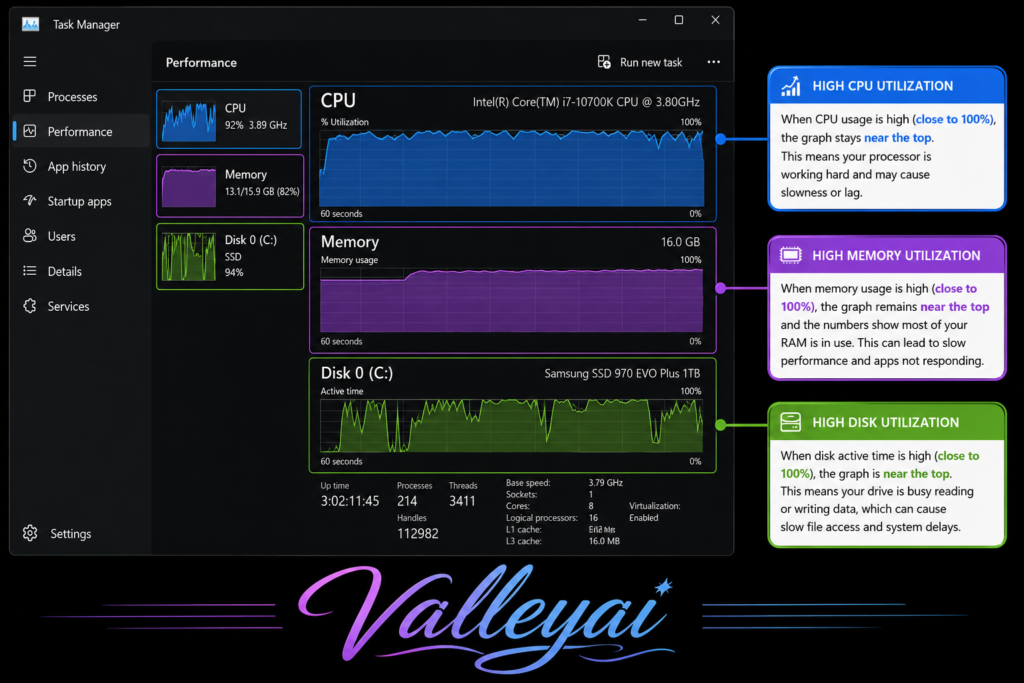
Look at three numbers:
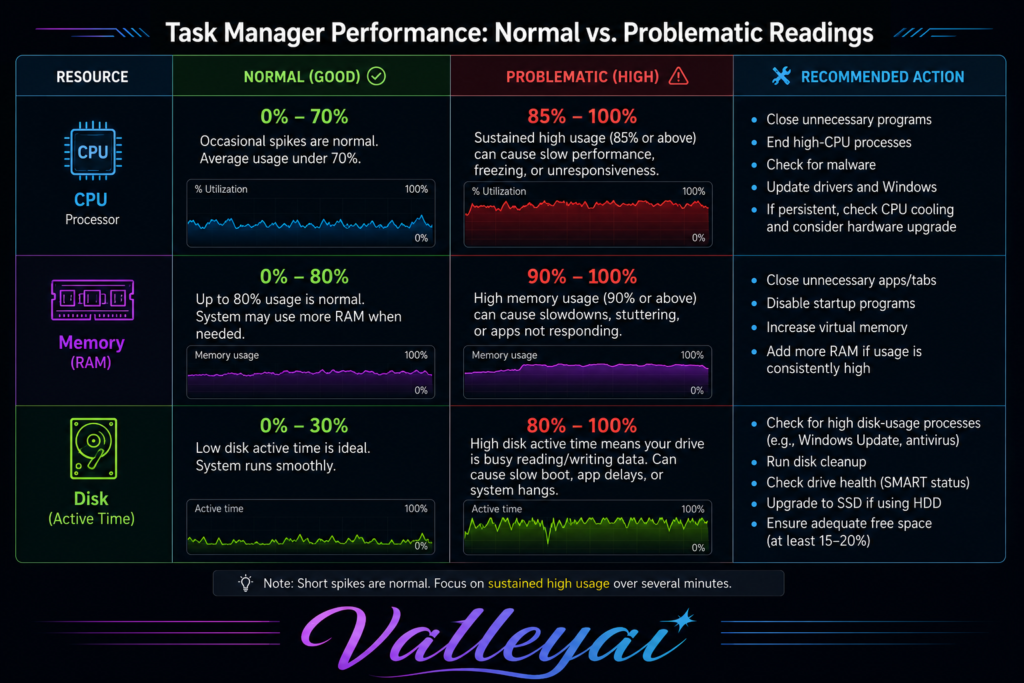
CPU: If it’s consistently above 70-80% while you’re not actively doing anything, you have a CPU bottleneck. Background processes, malware, or a driver conflict are the likely causes.
Memory: If it shows 80%+ used, your system is regularly using the page file (disk-based virtual memory), which is dramatically slower than RAM. You either have too many apps open, a memory leak, or genuinely need more RAM.
Disk: This is the most commonly misread metric. 100% disk usage on an HDD almost always means Windows Search indexing or a startup program is hammering the drive. On an SSD, sustained 100% disk usage is unusual and warrants deeper investigation.
How to Interpret Performance Numbers Correctly?
One thing most guides get wrong here: high memory usage isn’t automatically a problem. Windows deliberately fills RAM with cached data to speed up app launches that’s by design. The signal to watch is memory usage plus page file activity. In Task Manager’s Memory panel, if “In use” is near your total and “Available” is under 500MB, that’s when you have a real RAM bottleneck.
For a deeper look, press Windows + R, type resmon, and hit Enter. Resource Monitor breaks down which specific processes are consuming disk I/O the Disk tab shows read/write activity per process in real time. If you see SearchIndexer.exe or MsMpEng.exe (Windows Defender) consistently at the top, those are your culprits.
Fixes Ranked by Real-World Impact
These are ordered by how much difference they actually make for most users not by how easy they are to explain.
#1 — How to Cut Startup Programs for Faster Boot Times?
Every program that auto-starts at boot adds to a sequential initialization queue. Windows has to wait for each one to load before it hands control back to you. I’ve seen machines with 40+ startup entries boot in under 10 seconds after cleanup the same hardware that previously took 90 seconds.
- Open Task Manager (Ctrl + Shift + Esc)
- Click the Startup tab
- Right-click any program you don’t need immediately at boot → Disable
Focus on: Spotify, Discord, Teams (if you don’t need it at login), OneDrive (optional), any OEM software (Dell Update, HP Support Assistant, Lenovo Vantage), and third-party apps you installed manually.
Don’t disable: Windows Security, audio drivers, display drivers.
The “Startup impact” column in Task Manager (Low/Medium/High) is a useful guide, but don’t rely on it exclusively some High-impact programs are essential, and some Low-impact ones are useless.
#2 — Remove OEM Bloatware (Most Overlooked Fix)
This is the gap every formal guide ignores. If you bought a Dell, HP, Lenovo, or Asus machine, it came pre-loaded with software you never asked for. Dell machines commonly ship with 15+ pre-installed programs, including trial software, manufacturer utilities, and advertising platforms.
These programs do two things: they consume startup time, and they run background services that consume CPU and RAM indefinitely.
How to remove them:
- Press Windows + I → Apps → Installed apps
- Sort by Publisher — this groups OEM software together
- Uninstall anything from your manufacturer that isn’t a driver or firmware tool
Keep: driver utilities (like Dell Update for firmware), audio/display drivers, anything labeled “driver” or “firmware.”
Remove: trial antivirus suites (McAfee, Norton trials), “My Experience” apps, shopping apps, games that came pre-installed, manufacturer-branded browser toolbars.
#3 — Switch Your Power Plan
Windows defaults to “Balanced” power mode, which throttles CPU performance to save energy. On a desktop, this is usually pointless. On a laptop plugged in, it’s actively limiting your performance.
Windows 10: Control Panel → Power Options → Select High performance
Windows 11: Settings → System → Power → Power mode → Best performance
This doesn’t fix a bottleneck but it removes an artificial ceiling. Responsiveness and app launch speed often improve noticeably, especially on machines with older CPUs.
#4 — Reclaim Disk Space (Matters More on HDDs)
The relationship between disk space and performance is commonly misunderstood. On an HDD, a nearly full drive forces the file system to fragment data across scattered sectors, increasing read times. On an SSD, performance degrades when the drive is above ~90% capacity due to how NAND flash handles writes.
If your drive is under 80% full, disk cleanup will have minimal performance impact. If it’s above 85-90%, it matters.
Built-in method (Windows):
- Press Windows + R → type
cleanmgr→ Enter - Select your system drive (usually C:)
- Check all boxes, then click Clean up system files for a deeper clean
- This removes Windows Update cache files, which can be 5-15GB on older installations.
Storage Sense (Microsoft Docs) automates this on a schedule enable it in Settings → System → Storage.
#5 — Audit Background Apps
Startup programs are the apps that launch at boot. Background apps are the ones that keep running after boot, often without you realizing it.
Windows 11: Settings → Apps → Installed apps → click the three dots next to any app → Advanced options → Background apps permissions → Set to Never
Windows 10: Settings → Privacy → Background apps → Toggle off apps you don’t need running in the background
Priority targets: news apps, weather apps, Mail (if you use a browser for email), Xbox Game Bar (if you don’t game), and any app you use occasionally but don’t need on standby.
#6 — Run a Malware Scan
Malware often runs background processes that consume CPU cycles without appearing in Task Manager’s obvious view. The telltale sign is CPU usage staying at 20-30% even when you’ve closed everything visible.
Windows Defender is genuinely sufficient for most users the days when it was inferior to third-party antivirus are largely over. This OBSERVATION based on independent AV-TEST results, which have consistently rated Windows Defender at 99%+ protection rates in recent evaluations.
How to run a full scan:
- Windows Security → Virus & threat protection → Scan options → Full scan → Scan now
If you currently have a third-party antivirus running alongside Windows Defender, that’s actually a performance problem two real-time scanners conflict and both run slower. Pick one.
#7 — Update Drivers (Especially GPU)
A single outdated GPU driver can cause 60%+ CPU usage in a web browser due to software-based rendering fallback. Updating it drops CPU usage to single digits. This sounds extreme, but it happens more often than you’d expect.
Device Manager approach:
- Right-click Start → Device Manager
- Expand Display adapters → right-click your GPU → Update driver → Search automatically
For NVIDIA: use GeForce Experience or download directly from nvidia.com.
For AMD: use AMD Software: Adrenalin Edition.
Also update: network adapters (can cause browser lag), audio drivers (can cause stuttering), and chipset drivers (improves CPU-to-system communication).
#8 — Clean Temporary Files (Useful, Not Magic)
Temp files don’t slow your computer down directly they consume disk space, which indirectly matters. While useful for disk space, this fix typically offers minimal direct performance gains.
Manual method:
- Press Windows + R → type
%temp%→ Enter - Select all files (Ctrl + A) → Delete
- Skip any files that can’t be deleted (they’re in use)
Then repeat with temp (without the %) for system temp files.
#9 — Reduce Visual Effects
Windows runs animations for window transitions, shadows, and transparency effects. On modern hardware, this is negligible. On older hardware with integrated graphics or limited RAM, it adds up.
How to disable:
- Search “Adjust the appearance and performance of Windows” in Start
- Select Adjust for best performance or manually uncheck specific effects
- Keep “Smooth edges of screen fonts” checked — without it, text looks jagged
When the Standard Fixes Don’t Work
You’ve done everything above and the machine is still slow. Here’s what to check next.
Clean Boot: Isolating the Real Culprit
A clean boot starts Windows with only Microsoft services and drivers no third-party software. If your machine runs noticeably faster in clean boot, a third-party application or service is causing the problem.
I had a machine that was slow for weeks despite all the standard fixes. Clean boot revealed the culprit in 10 minutes: a VPN client running a background service that was consuming 30% CPU even when the VPN wasn’t connected.
How to perform a clean boot:
- Press Windows + R → type
msconfig→ Enter - Services tab → Check Hide all Microsoft services → Disable all
- Startup tab → Click Open Task Manager → Disable all startup items
- Restart and test performance
To re-enable everything: return to msconfig → General tab → Normal startup.
Important: If you use security software, verify it’s still active after clean boot. Some endpoint protection tools don’t survive this process gracefully.
Memory Leaks: When RAM Usage Grows Over Time
A memory leak happens when an application allocates RAM and doesn’t release it properly. The symptom: your machine feels fine after a restart, gets progressively slower over hours, and a restart fixes it temporarily.
The most common offenders are browsers (Chrome and Firefox are notorious for this), Electron-based apps (Slack, Discord, VS Code), and some background services.
Detection method:
- Open Resource Monitor (
resmon) - Go to the Memory tab
- Sort by Working Set (KB) — this shows current RAM consumption per process
- Note the values, leave the machine for a few hours, check again
- If a process has grown significantly without you actively using it, that’s your leak
The fix is usually: update the application, or restart it periodically. For browsers, disabling unused extensions often eliminates the leak.
Thermal Throttling: The Invisible Performance Killer
When a CPU reaches its thermal limit (typically 95-100°C for modern Intel and AMD processors Intel thermal specifications), it reduces its own clock speed to prevent damage. Your machine doesn’t tell you this is happening it just feels slow.
How to check:
- Download HWiNFO64 (free, no install required)
- Run it → Sensors view
- Look for your CPU temperature and “CPU Package Power”
- Also look for “CPU Core Clocks” — if your CPU is rated at 3.5GHz but running at 1.2GHz under load, it’s throttling
Common causes:
- Laptop sitting on a bed, carpet, or pillow (blocks vents)
- Desktop with dust-clogged fans (a can of compressed air fixes this)
- Thermal paste dried out after 5+ years (requires disassembly)
For laptops: elevating the machine with a stand and ensuring vents are clear often restores full performance immediately.
Windows Search Indexing on HDDs
Windows Search runs a background indexing service (SearchIndexer.exe) that continuously scans your files to build a searchable database. On an SSD, this is invisible. On an HDD, it can cause sustained 100% disk usage for hours after a restart.
How to disable or limit it:
- Search “Indexing Options” in Start
- Click Modify → reduce the indexed locations to only what you actually search
- Or: right-click Start → Computer Management → Services → Windows Search → set Startup type to Manual
Disabling it means Windows Search (the Start menu search bar) will be slower for file searches. For most users, that’s an acceptable trade-off.
Driver Conflicts via Event Viewer
If your machine crashes occasionally, freezes, or shows specific apps failing repeatedly, a driver conflict may be the cause.
- Press Windows + R → type
eventvwr→ Enter - Windows Logs → System
- Filter by: Error and Critical
- Look for repeated errors from the same source — a driver name, service, or hardware component
A pattern of errors from the same driver is a strong signal. The fix is usually: roll back that driver (Device Manager → right-click the device → Properties → Driver tab → Roll Back Driver) or update to the latest version.
Software Fixes vs Hardware Upgrades: The Honest Trade-Off
There’s a point where software optimization maxes out. Knowing when you’ve hit it saves time and frustration.
| Slow boot on HDD | ✅ Startup programs, indexing | 🔥 SSD upgrade is transformative |
| Slow boot on SSD | ✅ Startup programs | ⬜ Unlikely to help further |
| Browser lag, tabs slow | ✅ Extensions, RAM audit | ✅ More RAM if under 8GB |
| App launches slow (HDD) | ✅ Limited | 🔥 SSD upgrade is the fix |
| App launches slow (SSD) | ✅ Background processes | ⬜ Unlikely hardware issue |
| Everything slow, CPU maxed | ✅ Background processes, malware | ⬜ CPU upgrade rarely worth cost |
| Machine 8+ years old, HDD | ⚠️ Diminishing returns | 🔥 SSD upgrade is best investment |
| Overheating, thermal throttling | ⚠️ Dust cleaning, positioning | ✅ Thermal paste replacement if old |
The One Upgrade That Changes Everything
If your computer has a mechanical hard drive (HDD) and you upgrade to an SSD, it will feel like a new machine. Boot times drop from 60-120 seconds to 10-15 seconds. Apps open instantly. File Explorer stops freezing.
A 500GB SATA SSD costs $40-60 as of 2024. For a machine that’s otherwise functional, it’s the highest-ROI upgrade available. More RAM helps if you’re under 8GB and regularly running out. A faster CPU is rarely worth the cost unless you’re doing video editing or 3D rendering.
When to Stop Troubleshooting
If you’ve completed all the steps above and performance hasn’t meaningfully improved, the issue is likely hardware failure a failing HDD, degraded RAM, or a CPU with permanent thermal damage. At that point, professional diagnosis is the right call. Software optimization can’t fix dying hardware.
macOS: The Same Problem, Different Tools
macOS slows down for the same fundamental reasons background processes, startup items, and thermal issues. The tools are different.
Startup items: System Settings → General → Login Items — remove anything you don’t need at login.
Background processes: Activity Monitor (Applications → Utilities) shows CPU, Memory, and Disk usage per process — equivalent to Task Manager.
Storage: Apple menu → About This Mac → Storage → Manage — includes recommendations for cleaning up large files.
Thermal throttling: Macs Fan Control shows CPU temperatures; the diagnostic approach is the same as Windows.
One macOS-specific note: if you’re on an Intel Mac running macOS Ventura or later, SMC and NVRAM resets can resolve persistent performance issues that software cleanup doesn’t fix. Apple’s support documentation covers the procedure for your specific model.
Frequently Asked Questions
Why is my computer slow even after restarting?
A restart clears RAM and stops active processes, but it doesn’t address startup programs that immediately re-load, background services that auto-start, or hardware issues like thermal throttling. If your machine is slow immediately after a fresh boot, startup programs and background services are the first place to check.
What actually uses the most CPU?
Open Task Manager → Processes tab → click the CPU column header to sort by highest usage. The top offenders are usually browsers (especially with many tabs or extensions), antivirus scans, Windows Update installing in the background, or malware. A process you don’t recognize consuming significant CPU warrants a malware scan.
Should I upgrade my RAM?
Check your current RAM usage in Task Manager while doing your normal workload. If memory is consistently above 80-85% and you have 8GB or less, more RAM will help. If you have 16GB and it’s at 60%, adding more won’t change anything. RAM upgrades are most impactful for users who run multiple applications simultaneously or keep many browser tabs open.
Are PC cleaner tools worth it?
Most aren’t necessary, and some cause problems. Registry cleaners in particular are controversial the performance gains are negligible, and a mistake can destabilize Windows. Everything in this guide can be done with built-in Windows tools. If you want automation, Microsoft’s own PC Manager is free and safe. Avoid tools that promise dramatic performance improvements the ones that deliver them are doing the same things described here, just with a UI wrapper.
Is my computer too old to fix?
Age alone isn’t the issue the hardware spec is. A 7-year-old machine with an SSD and 8GB of RAM running Windows 11 can be fast for everyday tasks. The same machine with a mechanical hard drive will feel slow no matter what software fixes you apply. If your machine has an HDD, an SSD upgrade is almost always worth attempting before replacement.
What is thermal throttling and how do I know if it’s happening?
Thermal throttling is a CPU self-protection mechanism that reduces clock speed when temperatures get too high typically above 95-100°C. The machine doesn’t warn you; it just slows down. You can detect it using HWiNFO64 by watching CPU core clocks under load. If the clock speed is significantly below the processor’s rated speed during normal use, throttling is occurring.
How do I disable startup programs on Windows 11?
Open Task Manager (Ctrl + Shift + Esc) → Startup apps tab. Right-click any program and select Disable. Alternatively, Settings → Apps → Startup shows the same list with toggle switches.
Why does my computer slow down over time?
Three compounding factors: software accumulation (every installed app adds background processes), OS growth (Windows updates add services and features), and hardware aging (thermal paste degrades, dust accumulates, HDDs fragment). The software side is fully reversible. The hardware side requires physical maintenance or upgrades.
Finishing Thoughts
Consistent, routine maintenance, such as checking startup programs, running malware scans, verifying temperatures, and clearing temporary files every six months, is key to maintaining optimal computer performance.

Kaleem
My name is Kaleem and i am a computer science graduate with 5+ years of experience in Computer science, AI, tech, and web innovation. I founded ValleyAI.net to simplify AI, internet, and computer topics also focus on building useful utility tools. My clear, hands-on content is trusted by 5K+ monthly readers worldwide.