
The cooler will not lift off, or the fans spin louder than they used to. Both point to the same small job. The old thermal paste under the cooler has dried out, and it needs to come off before fresh paste goes on.
Three things do the job: isopropyl alcohol at 90% or stronger, a cloth that leaves no fibres behind, and a fresh tube of paste. With those on the bench, the cleaning takes 15 to 30 minutes.
Paste that has reached the pins needs a slower method than paste on the flat lid. The difference is the pins themselves. They bend easily, and a bent pin can turn a cleaning job into a repair bill.
What thermal paste is
Thermal paste, also called thermal interface material or TIM, is a thick compound made from a silicone base filled with tiny metal or ceramic particles. It fills the microscopic gaps between the flat metal lid on top of the CPU, the integrated heat spreader, and the base of the cooler.
Air sits in those gaps when no paste is present, and air moves heat poorly. The paste pushes the air out, so heat travels from the chip into the cooler through solid material.
That lid is the part you clean. The chip itself sits underneath it, sealed away from the paste, so nothing in the cleaning touches the silicon. The lid exists because a processor turns most of the power it draws into heat. What happens inside a processor decides how much heat the cooler must move.
Why old paste stops working
Fresh paste stays soft and spread thin. Heat, time, and thousands of heating and cooling cycles change it. The carrier dries out, the paste hardens, and cracks open across the layer.
Each cycle expands the lid and the cooler base by a slightly different amount. Over thousands of cycles that mismatch works the paste outward from the centre, so the hottest spot ends up with the least coverage. That slow outward creep is called pump-out.
Dried paste shows up as climbing temperatures, fans that run loud during light work, and sudden slowdowns or shutdowns under load. Those symptoms have other causes too. An overheating CPU can come from a dead fan or a clogged cooler as easily as from old paste.
What to clean it with
The cleaner matters as much as the wiping. Alcohol dissolves the paste and then evaporates, and the strength printed on the bottle decides how much water stays behind.
| Cleaner | Use it for | What to watch |
|---|---|---|
| 99% isopropyl alcohol | Lid, cooler base, pins and pads | Flammable; flash point near 12 C (53 F); keep the cap on and open a window |
| 90 to 91% isopropyl alcohol | Lid and cooler base | Fine on bare metal; needs longer to dry |
| 70% rubbing alcohol | Bare metal only, if nothing else is at hand | About 30% water; may hold oils or colour; needs much longer to dry |
| Dedicated paste cleaner, such as ArctiClean or MX Cleaner | Stubborn paste and thermal pad residue | Follow the bottle; many builders finish with an alcohol wipe |
| Acetone-based remover, such as TG Remove | Liquid metal residue only | Keep off plastics, acrylic, markings and adhesives |
Treat every bottle as flammable. Isopropyl alcohol vapour can catch fire at room temperature, so keep flames, soldering irons and cigarettes away from the bench. Never power the PC up while anything is still wet. NIOSH sets the 8-hour exposure limit at 400 parts per million, so an open window is part of the setup.
What you wipe with matters almost as much as the cleaner, because any fibre left on the lid ends up inside the next layer of paste. Lint-free wipes made for optics and electronics shed the least, and a folded wipe gives a clean face for every pass.
Coffee filters shed almost nothing and cost pennies, which is why builders have used them for years. Microfiber cloths work too, but paste stays caught in the weave, so keep one cloth for this job and wash it out after. Paper towels suit the first dry wipe only; wet, they shed fibres, so keep them off the final pass. Cotton swabs reach the lid edges and tight corners.
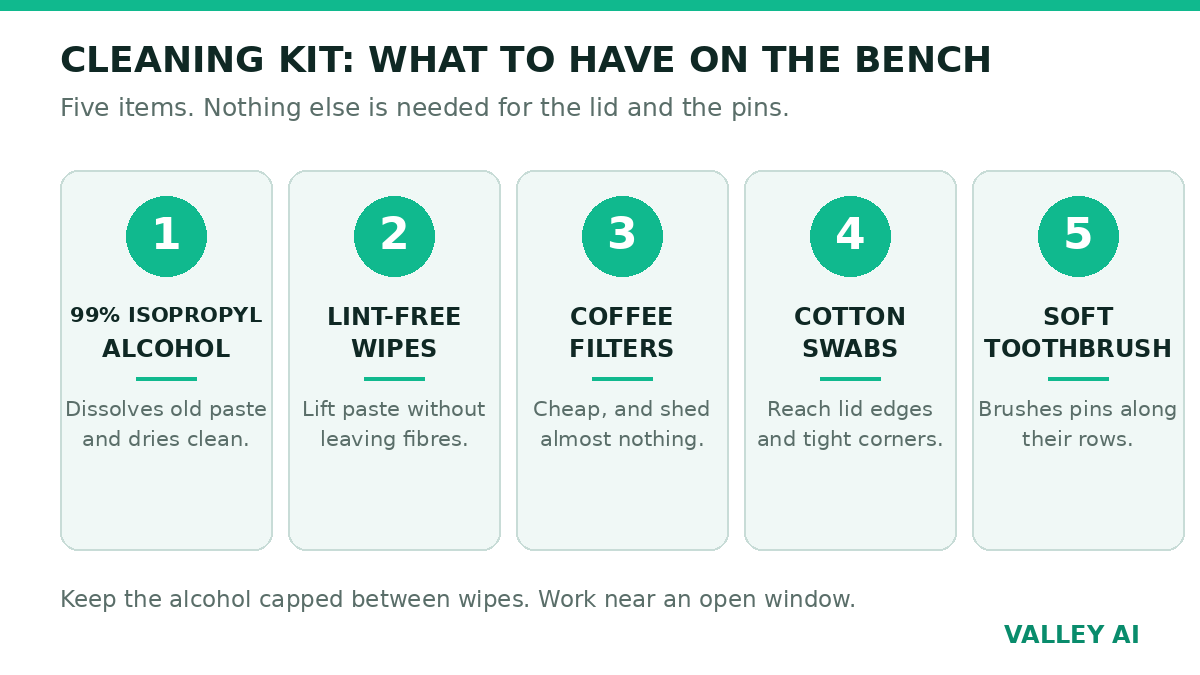
A soft toothbrush earns its place only at the pins, where a cloth would snag and bend them.
Before you start
Run the PC for about 15 minutes first, under load if you can. Warm paste lets go of the cooler; cold paste grips it, and a cold cooler can pull an AMD CPU clean out of its socket.
Shut the PC down, switch the power supply off, and unplug the cable. Press and hold the power button for 10 seconds with the PC unplugged; that drains the charge stored in the capacitors. Touch bare case metal or clip on a grounded wrist strap before you touch the CPU. Wear gloves so skin oil never reaches the lid.
Release the cooler screws or clips in the order the cooler manual gives, then twist the cooler gently from side to side until the seal breaks. Never pull it straight up. Once it feels loose, lift it away and set it base-up on a sheet of paper.
Leave the CPU latched in its socket for a plain repaste. The lid is the only part that needs cleaning, and the socket stays safer with the CPU in place. Take the CPU out only if paste has already run over the edge of the lid.
How to clean thermal paste off the CPU
Work through the lid and the cooler base in the same passes, and change to a clean wipe face before each one.
- Lift the bulk off with a dry lint-free wipe or coffee filter. Push toward the centre of the lid so nothing runs over the edge.
- Dampen a fresh wipe with alcohol. Damp, with no drips. Wipe the lid in small circles.
- Change to a clean face or a fresh wipe and repeat until one comes away with no grey on it.
- Clean the engraved lettering and the lid edges with a soft brush and a drop of alcohol, then wipe again.
- Do the same on the cooler base. Brush along the grooves between heat pipes, not across them.
- Finish both surfaces with one last wipe of 99% alcohol. Keep your fingers off them after that.
- Let both surfaces dry before fresh paste goes on.
Can I use 70% rubbing alcohol if that is all I have? Yes, on bare metal. Give it a longer drying time, and check the surface twice for residue or damp patches before fresh paste goes on. Keep it away from the socket and the pins, where the water in it does the harm.
Two checks tell you the cleaning is done. A wipe comes away white, with no grey on it, and the lid shows a clean reflection.
How to clean thermal paste off CPU pins
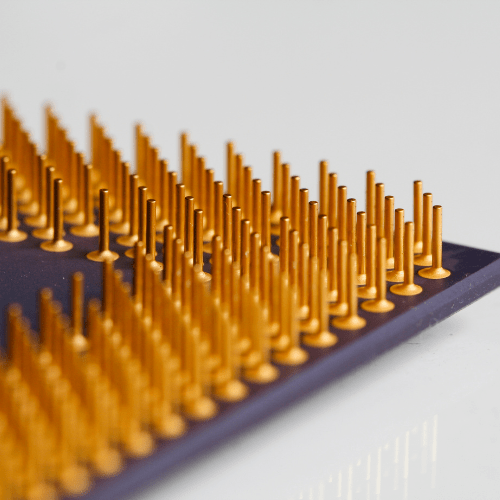
Paste belongs on the lid only. When it reaches the pins or the pads underneath the CPU, the job slows down and the tools change. A cloth snags on pins and bends them, so a soft brush does the work.
First, find which layout you have. Older AMD chips, AM4 and earlier, carry the pins on the CPU itself. Intel chips and AMD AM5 parts carry flat gold pads on the CPU, with spring contacts inside the socket on the board.
Pins on the CPU (AMD PGA)
Dip a soft brush in 99% alcohol and brush along the rows of pins, never across them. Brushing across the rows bends them. Rinse the brush in alcohol and repeat until the paste is gone. Let the CPU dry for at least 30 minutes, then check from the side that every row stands straight.
Pins in the socket (Intel LGA)
Socket pins are thin spring contacts, and one bent contact can stop a PC from starting. Dab at the paste with a soft brush wetted with 99% alcohol, and work in the direction the contacts lean, a little at a time. Never scrub. Inspect with a flashlight and a magnifier. Leave a small smear of non-conductive paste on the frame beside the contacts alone; chasing it with a brush risks more harm than the smear.
Most pastes are ceramic or carbon based, and those do not conduct electricity. A smear of that kind blocks contact without shorting anything, and that blockage alone means it has to come off. Arctic Silver describes its Arctic Silver 5 paste as very slightly capacitive, so any of it on contacts has to come off completely.
Liquid metal is a different material from paste. It is a gallium alloy that stays liquid at room temperature, it conducts electricity, and alcohol does not dissolve it. Collect the beads with a lint-free swab or draw them back into the applicator. Work the remaining film off with the cleaning pads and finish with an alcohol wipe. The acetone-based cleaner sold for liquid metal works on the lid and the cold plate only, kept away from plastics, acrylic, markings and adhesives.
What if a pin bends while I clean? Stop and look at the pin under magnification before you touch it again. A slightly bent pin can be eased back with a fine-tipped tool, such as a mechanical pencil with the lead out. Use almost no pressure, and move only along the pin’s own line. If the pin resists, or the board is still under warranty, let a repair shop handle it; a pin that snaps off is not a home repair.
What not to use
Water leaves moisture and corrosion behind, and it can short parts that still carry charge. It has no place on a CPU or a board.
A vacuum cleaner builds static as it runs, and a static discharge across a board can kill parts you cannot see failing. Blow dust out with compressed air only when the paste is already gone. Never aim air at a blob of paste; it spreads the paste further.
Razor blades, metal scrapers, scouring pads and sandpaper scratch the lid and the cooler base, and scratched surfaces sit less flat than they did. A plastic card lifts stubborn paste without cutting metal.
A hairdryer heats without control, and hot air on a board can warp plastic and push paste deeper into gaps.
Acetone dissolves paste, but it attacks polystyrene and other plastics, so keep it away from the socket body, fan frames and clear side panels. Its flash point sits near minus 20 C, which makes it more flammable than isopropyl alcohol.
How long to let it dry
Five minutes is enough for a wiped lid and cooler base cleaned with 99% alcohol. Anything the alcohol reached inside a socket, between pins, or under a component needs half an hour or more. Lower-strength alcohol and a cold room both need longer.
The reason sits in the bottle. A damp wipe carries about 2 mL of liquid. 70% alcohol leaves about 0.6 mL of water behind on the surface, while 99% leaves about 0.02 mL. That is 30 times more water to evaporate from the 70% wipe. Water boils at 100 C against 82.6 C for isopropanol, so the water is the slow part.
Those figures are arithmetic from the percentages printed on the bottles, worked on 14 November 2026. No two wipes were timed side by side, so the 30-times figure compares water left behind. It is not a measured drying time. Room temperature and airflow change real drying times, so treat those minutes as rules for the job. They are not laboratory numbers.
If the dry surface looks streaky, residue remains. Give it one more wipe with 99% alcohol and wait again.
When to replace thermal paste
Most pastes hold up for 2 to 5 years. Standard pastes last 2 to 3 years, and premium pastes hold up for 3 to 5. The clock runs faster on a machine that runs hot. An overclocked CPU ages its paste sooner, and so does a PC that spends its days rendering or gaming.
Replace the paste sooner when those symptoms show up. A cooler that comes off for any reason gets fresh paste before it goes back on. Reusing old paste traps air bubbles, and Intel gives the same advice for its own chips.
Putting fresh paste on
Squeeze a dot about the size of a pea, roughly 4 to 5 mm across, onto the centre of the lid. A rectangular lid takes a short line down its centre instead, so the paste reaches the corners. On a physically large die, an X pattern or several small dots spread more evenly.
Do not spread the paste by hand or with a card. The cooler’s mounting pressure spreads the dot into a thin, even layer, and spreading it yourself works air bubbles into the layer. Intel’s guide to applying thermal paste gives the same method. A pea-sized dot goes on, then the cooler presses straight down.
Lower the cooler straight down onto the CPU and hold it still while you fasten it. Tighten the screws in a cross pattern, a few turns each. Do not fully tighten one screw before the others are started; even pressure keeps the paste layer uniform. If paste squeezes out past the edges, too much went on; wipe it off with alcohol and start the application again. If fresh paste and a clean mount leave temperatures high, the cooler itself may be the limit. The choice of what replaces it depends on how air and liquid coolers compare for your chip and your case.
Does the pattern matter more than the amount? The amount matters more. On a standard desktop CPU the pattern changes temperatures by very little once the cooler presses down. A pea dot, a thin line, and an X all land close together. The exception is a physically large die, where an X or several dots give more even edge coverage.
Boot the PC and watch the idle temperatures for 10 minutes. If they sit in the normal idle range for your chip and cooler, the cleaning worked. If they climb well past that range, take the cooler off, clean both surfaces again, and remount it with fresh paste.
Frequently asked questions
Can I use nail polish remover to clean thermal paste?
No. Most nail polish removers mix acetone with oils, fragrance and conditioners, and those extras leave a greasy film on the lid that blocks heat transfer. Pure acetone will dissolve paste, yet the same solvent eats into plastics around the socket, so isopropyl alcohol stays the safer choice for a CPU.
Can I use toothpaste as thermal paste?
Only as a stopgap for a few hours. Toothpaste holds water and mild abrasives, so it dries out and cracks under sustained heat, and it moves heat far worse than real compound. Swap in proper paste as soon as you can.
Does unused thermal paste expire?
Yes, slowly. A sealed tube kept cool and dark lasts for years, and the maker prints a date on the tube. If the oil has separated from the solids and the paste looks watery or clumpy, throw the tube out and buy a fresh one.
Can I clean thermal paste off a laptop CPU the same way?
Yes, with two changes. Disconnect the battery before you open the laptop, since a laptop has no power supply switch to flip. The cooler is smaller and often covers the graphics chip as well. Clean both lids with the same alcohol and wipe, and keep track of the screws.
Can I clean thermal paste off a GPU the same way?
Yes, for the die itself. A graphics chip cleans with alcohol and a lint-free wipe, and it takes a pea-sized dot like a CPU. Graphics cards mount their coolers differently, and some carry warranty stickers over the screws, so check the maker’s guidance before you open one.

Kaleem
Kaleem is a Computer Science graduate (Virtual University of Pakistan) and the founder and editor of Valley AI, where he publishes in-depth, tested guides on computer hardware, artificial intelligence, and how the internet works. Every guide is researched from primary sources, tested hands-on where possible, and updated when the facts change.