

Today we will discuss how to turn off SafeSearch on iPhone. If you use an iPhone, you might have noticed the SafeSearch feature that filters explicit results from your search results. Before we dive into the steps, let’s first understand what SafeSearch is and why you might want to turn it off on your iPhone.
What is SafeSearch on iPhone?
SafeSearch is Google’s content filter for search results: it screens out explicit results from web, image, and video searches. Here is the part most guides skip: SafeSearch is not an iPhone feature at all. It belongs to Google, and you meet it on your iPhone because Google is the default search engine in Safari and powers the Google app.
Apple has its own separate layer called the Web Content restriction inside Screen Time. The two can stack on top of each other. If Google’s SafeSearch toggle is locked and grayed out, Apple’s restriction is often the reason, which is why this guide covers both settings.
Why turn off SafeSearch on iPhone?
While SafeSearch can be a useful feature for some users, it can also be frustrating for others, especially if they’re trying to search for content that is being unnecessarily filtered. Additionally, some websites may not be accessible with SafeSearch turned on. Turning off SafeSearch can provide a more complete browsing experience and access to a broader range of content.
There are three places to turn it off, depending on where you search. Start with the first one.
Turn Off SafeSearch in the Google App
This is the method most iPhone owners need, because the SafeSearch filter lives in your Google settings, not in iOS. It takes under a minute.
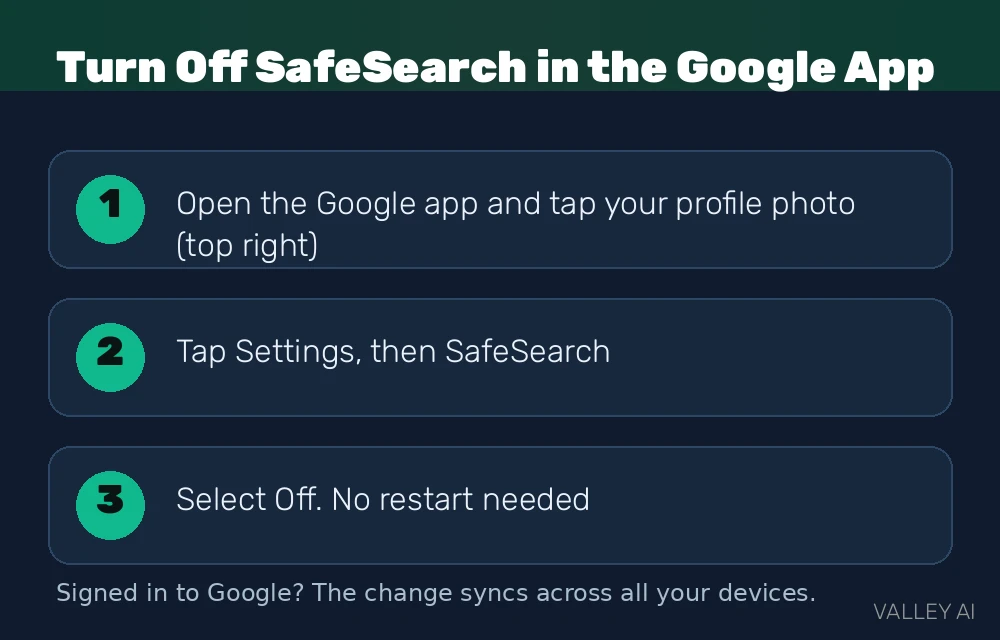
- Open the Google app and tap your profile photo (or initial) in the top right corner.
- Tap Settings, then SafeSearch.
- Select Off. No restart needed.
Google gives you three levels rather than a simple on/off switch. Filter blocks explicit results entirely, Blur hides explicit images while still showing text and links, and Off removes filtering completely. If full unfiltered results feel like too much but the strict filter hides things you need, Blur is a sensible middle ground.
One more thing worth knowing: if you are signed in to your Google account, this change syncs across all your devices automatically. Sign out first if you only want to change it on this iPhone.
Turn Off SafeSearch in Safari or Chrome
Prefer the browser? You can reach the same setting without installing anything.
- Open Safari (or Chrome) and go to google.com/preferences.
- Scroll down to the SafeSearch filters section.
- Select Off.
- Scroll to the bottom and tap Save.
If you are not signed in, Google saves this choice in a browser cookie instead of your account, so clearing cookies or opening a private tab can switch filtering back on. Signing in makes the choice stick.
Turn Off SafeSearch Through Screen Time Restrictions
This section controls Apple’s own web filter on the iPhone, not Google’s SafeSearch. Come here when the Google toggle is locked, or when you want the iPhone itself to stop restricting web content. The exact menu names vary slightly between iOS versions.
- Open the Settings app on your iPhone.
- Scroll down and tap on “Screen Time.”
- If you haven’t set up Screen Time before, you’ll be prompted to do so now. Follow the on-screen instructions to set up Screen Time.
- Once you’ve set up Screen Time, tap on “Content & Privacy Restrictions.”
- Turn on the toggle for “Content & Privacy Restrictions.”
- Tap on “Content Restrictions.” (On newer iOS versions, this sits under “App Store, Media, Web & Games.”)
- Enter your Screen Time passcode when prompted.
- Scroll down and tap on “Web Content.”
- Select “Unrestricted Access” to lift Apple’s web filter.
You can also customize what types of websites are allowed or not allowed under the “Web Content” settings instead of opening everything up.
What to Do If SafeSearch Is Locked
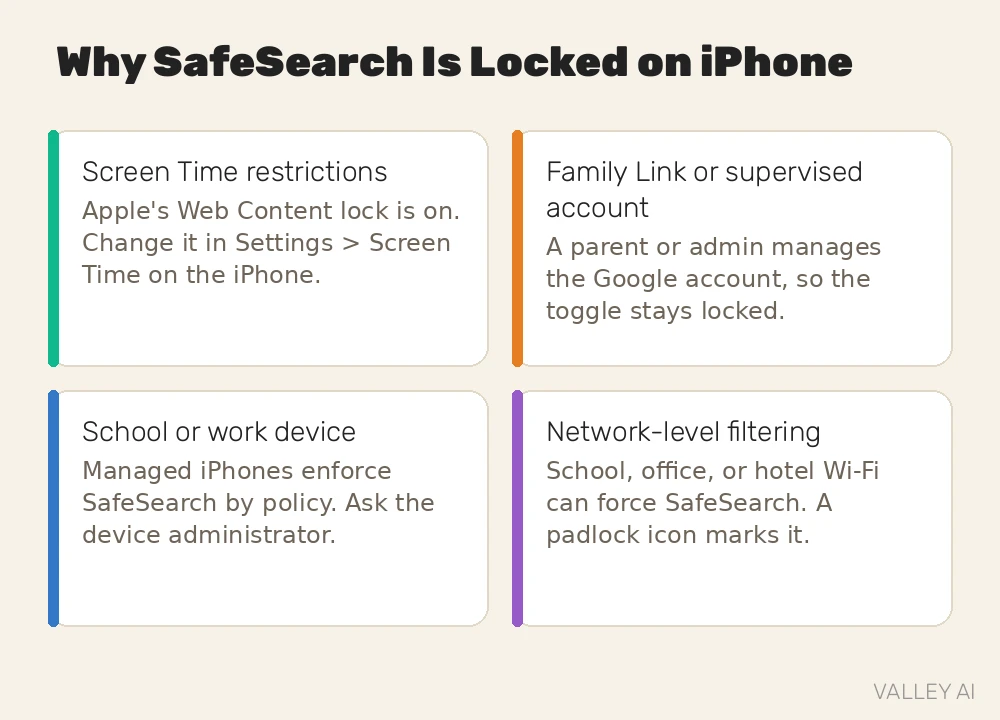
Sometimes the SafeSearch setting shows a padlock icon and refuses to change. That padlock is not a glitch. It means someone or something else controls the setting, and finding out who holds the lock saves far more time than trying workarounds.
- Screen Time restrictions are switched on. Apple’s Web Content lock (the section above) overrides the Google toggle, so lift it there first.
- A Family Link or supervised Google account. A parent or administrator manages the account, so only they can unlock the setting.
- A school or work iPhone. Managed devices enforce SafeSearch by policy, and you will need the device administrator’s help.
- Network-level filtering. School, office, or hotel Wi-Fi can force SafeSearch on every device connected to it. This works like a proxy server sitting between your iPhone and the internet: your traffic passes through the network’s rules before it reaches you, so the setting stays locked until you leave that network.
Conclusion
Start with the Google app toggle, because SafeSearch is Google’s setting. Check Screen Time only if that toggle is locked or you want Apple’s own web filter lifted as well. The steps above take a few minutes, and you can turn the filters back on the same way any time.
Turning off SafeSearch on your iPhone can provide a more complete browsing experience and access to a broader range of content. By following the steps outlined above, you can easily disable SafeSearch on your iPhone and enjoy a more unrestricted browsing experience.
SafeSearch is only one piece of staying in control online. The bigger picture, from passwords to phishing to securing your home network, is covered in our complete guide to cybersecurity and internet safety.
Is SafeSearch an iPhone feature or a Google feature?
SafeSearch is Google’s filter for its own search results, not a built-in iPhone feature. You meet it on the iPhone because Google is the default search engine in Safari and powers the Google app. Apple’s separate layer is the Web Content restriction inside Screen Time, and the two can stack on top of each other.
Why is SafeSearch locked on my iPhone?
A padlock icon means the setting is controlled by policy, not by you. The usual holders are Screen Time’s Web Content restriction on the iPhone, a Family Link or supervised Google account, a school or work device managed by an administrator, or network-level filtering from school, office, or hotel Wi-Fi. Identify who holds the lock before trying workarounds.
If I turn off SafeSearch on my iPhone, does it change on my other devices?
Only if you are signed in to your Google account: the Google app and browser setting then syncs across all your devices automatically. Sign out first to change it on one iPhone only. The Screen Time change always applies to that iPhone alone.

Kaleem
Kaleem is a Computer Science graduate (Virtual University of Pakistan) and the founder and editor of Valley AI, where he publishes in-depth, tested guides on computer hardware, artificial intelligence, and how the internet works. Every guide is researched from primary sources, tested hands-on where possible, and updated when the facts change.