

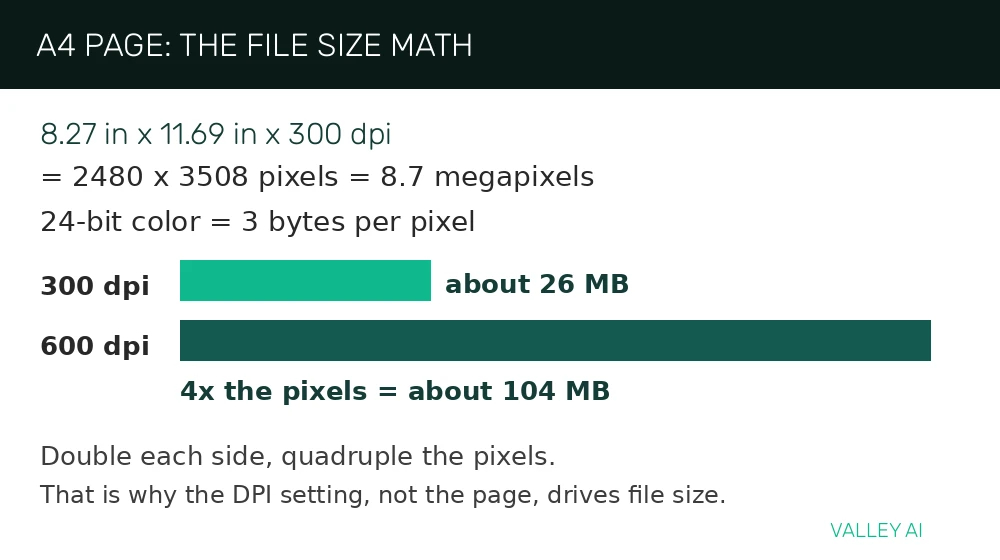
A standard A4 page measures 8.27 inches wide and 11.69 inches tall. At 300 dots per inch, that page becomes 2480 pixels wide and 3508 pixels tall. Multiply the two pixel counts and the page holds about 8.7 million pixels. At 24-bit color, each pixel needs 3 bytes, so the uncompressed file needs about 26 megabytes. Raise the setting to 600 dots per inch and each dimension doubles, the pixel count quadruples, and the same page needs about 104 megabytes.
Match the scanner to the original, and match the resolution to the output. A flatbed suits books and photographs. A sheetfed path suits stacks of loose pages. Set the resolution from what the scan will become: a readable document, a print, or an archive file.
A scanner belongs with the devices that send information into a computer, turning a physical page into data a machine can store, edit, and search.
The scan in one pass: light, reflection, sensor
Light does the reading. A light bar shines a narrow strip of light across the original. White paper reflects most of that light, dark ink reflects less, and a photograph reflects a range in between. A sensor records the returning light as one row of the image.
A stepper motor moves the light bar and sensor in small steps down the page. Each step adds one more row. Thousands of rows stack into a full page image.
Each sensor reading then becomes a number in an analog to digital converter. Brightness becomes a value, color becomes three values, and the row of values becomes a row of pixels. Software assembles the rows into a file the computer can display, print, or store.
CCD vs CIS: two ways to read light
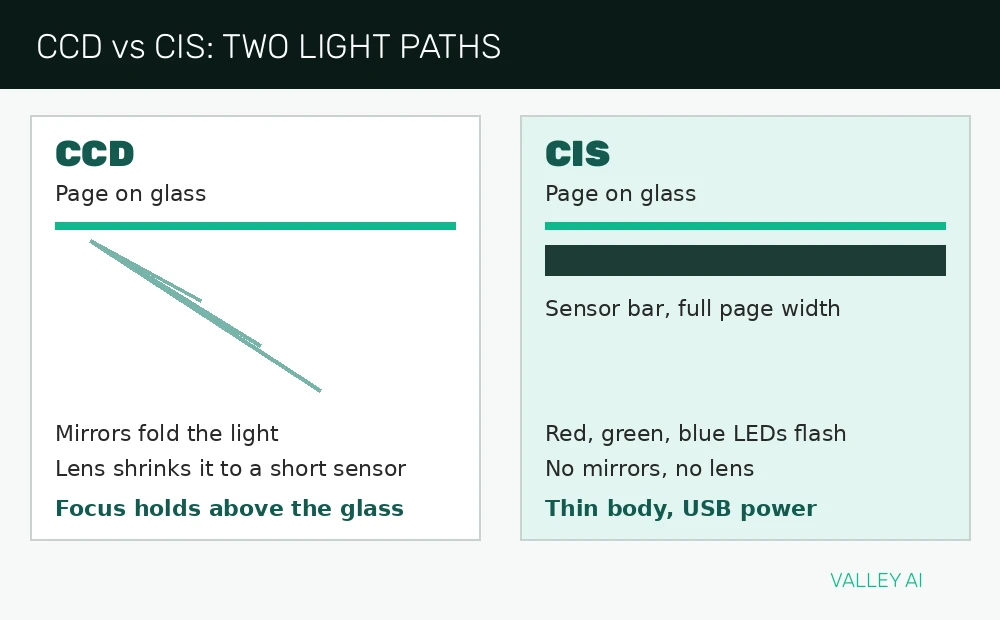
A CCD scanner sends reflected light on a longer journey. Mirrors fold the light path, a lens shrinks the page image down to a short sensor, and the sensor reads the shrunken image. The lens works like a camera lens, shrinking a wide scene onto a small piece of film.
That longer optical path keeps focus across a gap of several millimeters above the glass. A bound book page that rises near the spine stays readable, and a slightly raised photograph stays sharp. The tradeoff is size and power. The mirror assembly needs room, and the lamp draws more current than a strip of LEDs.
A CIS scanner places a sensor bar as wide as the page directly under the glass, an arrangement Brother’s scanner explainer describes for compact scanners. Red, green, and blue LEDs flash in sequence, and the bar records each color pass. No mirrors and no shrinking lens sit between page and sensor. That leaves a thin body that can run from USB power alone.
Why do thin scanners struggle with thick books? Focus holds only a short distance above the glass. A page that lifts near the spine falls out of focus. The gutter turns soft.
Flatbed, sheetfed, book and handheld: where the sensor moves
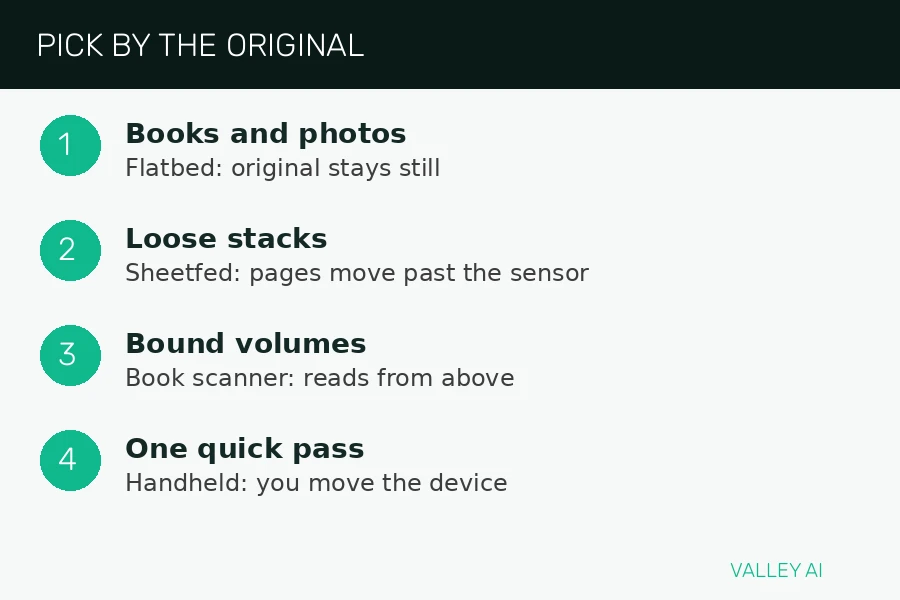
A flatbed keeps the original still and moves the sensor. That stillness suits fragile photographs, bound books, and any original that cannot bend through rollers.
Rollers pull each sheet past a fixed sensor strip in a sheetfed scanner. A second sensor on the opposite side captures the back in one pass on duplex models. Loose stacks move fast, and mixed paper sizes feed in one batch.
A book scanner reads from above instead of through glass. An overhead sensor photographs the open spread, and software flattens the curve near the spine. That overhead view suits rare volumes that must stay open at a gentle angle.
In a handheld scanner, the user moves the device across the original. The device stitches successive strips into one image, and a steady speed matters because uneven movement stretches or compresses the result.
A phone camera offers a quick substitute for a single page when no scanner is at hand. Hand position changes light and angle from shot to shot. That difference starts with webcam optics.
From light to pixels: color, bit depth and the converter
Each pixel in a color scan carries three numbers, one for red, one for green, and one for blue. The converter assigns 8 bits to each channel, giving 256 levels per channel and 16.7 million possible colors in a 24-bit image.
Some scanners capture 48-bit color, with 16 bits per channel. The extra levels give editing headroom for shadow and highlight correction. The delivered file drops back to 24-bit for viewing and sharing.
Grayscale scans drop color and keep brightness alone, with 8 bits giving 256 shades from black to white. Line art mode goes further and records each pixel as black or white only, which keeps text files small and edges crisp.
DPI: optical resolution, interpolated resolution, and file size
DPI counts samples per inch. A specification written as 1200 by 2400 gives two numbers with different meanings. The first is the optical sample count across the page, and the second is the number of mechanical steps the motor takes along the page.
Optical resolution is the only number that describes detail the sensor captured. A setting above the optical rating cannot recover fine print or fine texture, because the sensor never recorded it.
Interpolated resolution is software invention. HowStuffWorks describes interpolated pixels as pixels the sensor never captured, filled in after the scan. The software averages neighboring values. A red value of 100 beside a red value of 110 gains a new pixel at 105. The image grows larger without gaining detail.
| Job | DPI setting | Why this setting |
|---|---|---|
| Text documents for reading and searching | 300 | Text stays legible and files stay manageable |
| Photographs printed at the same size | 300 | Print detail matches screen detail at ordinary viewing distance |
| Photographs enlarged to twice the original size | 600 | Extra samples survive the enlargement |
| Fragile photographs kept as an archive | 600 | Fine detail is preserved for later printing |
| Small originals enlarged several times | 1200 optical | Enlargement needs real samples, and only an optical rating at that level supplies them |
Why does doubling the DPI setting quadruple the file size? DPI sets the sample count along both axes of the page, so doubling each axis multiplies the pixel count by four.
Scan at the optical rating for archive work, and scan at the setting the output needs for everyday work.
OCR: from a picture of text to editable text
OCR software turns a picture of text into text a computer can edit and search. The software segments the page into character shapes, matches each shape against letter patterns, and checks the resulting words against a dictionary and language patterns.
A searchable PDF keeps the page image and adds an invisible text layer underneath. The document looks unchanged. Text search and copying still work.
Why does OCR misread a scan that looks clean to the eye? Faint breaks inside a letter stroke push a shape toward the wrong pattern. A slight page skew has the same effect. Low contrast at a letter edge blurs the boundary the matcher needs. A reader sees the word without effort.
Straight pages, good lighting, and dark text on a light background give the matcher its best input.
Checks and fixes you can run without tools
Four quick tests reveal most scanner problems before a large batch wastes time.
- Lid test: close the lid on a blank sheet, scan, then repeat with the lid left slightly open in a lit room, and compare the edges for stray light.
- DPI comparison: scan one photograph at 300 dpi and again at 600 dpi, view both at full size on screen, and judge whether fine detail improves enough to justify the larger file.
- Book-spine test: scan one spread of a bound book and inspect the gutter area for softness.
- ADF skew test: feed a page with a printed horizontal line, then check whether that line stays level across the scan.
Dust on the glass shows as a streak, so wipe the glass with a dry lint-free cloth before rescanning. A skewed feed follows a crooked stack in many cases, so square the edges and reload. A second pass after cleaning separates a dirty glass problem from a sensor problem.
Conclusion
List the originals you scan most often, choose the type that fits that list, and set the resolution from the output you need. Run the four checks on the first scan, then start the large batch with settings you have already seen work.
Frequently asked questions
Do I need a transparency adapter to scan film negatives?
Yes for most flatbeds, because a normal scan lights the film from the front while a negative needs light from behind. A transparency adapter adds that backlight, and without it the scan comes out dark and muddy. Check the lid for a backlight panel before buying a separate adapter.
What file format should I choose for scans I may edit later?
TIFF keeps every pixel without lossy compression, so it suits an archive master. JPEG shrinks files by discarding detail, so keep it for copies meant for viewing only.
Can a scanner read handwriting?
Printed text converts far more reliably than handwriting, because letter shapes in print stay consistent while handwriting varies from writer to writer. Handwriting recognition exists in some software, but expect errors on cursive and mixed styles, and plan to proofread the result.
Can I scan a page larger than the glass?
Scan the page in overlapping halves, keep the overlap generous, and stitch the halves in an image editor using a shared landmark such as a heading or a diagram corner. Expect a visible seam if the two halves differ in brightness, so keep the lid and lighting the same for both passes.
Is a scan from a multifunction printer the same as a scan from a standalone scanner?
The sensor families match, but the paper path and software differ: a printer feeder prioritizes speed for office stacks, while a standalone photo scanner prioritizes gentle handling and color control. For office documents the difference rarely matters, for fragile photographs it does.
How long does a high resolution scan take?
Time rises with the area scanned and with the resolution setting, because the carriage moves slower and records more rows. Preview the page first and crop to the area you need, since a smaller area finishes sooner at any setting.

Kaleem
Kaleem is a Computer Science graduate (Virtual University of Pakistan) and the founder and editor of Valley AI, where he publishes in-depth, tested guides on computer hardware, artificial intelligence, and how the internet works. Every guide is researched from primary sources, tested hands-on where possible, and updated when the facts change.