

Imagine buying a powerful laptop and only ever using a tenth of it. Your browser, your documents, a video call or two, and the rest of the machine sits there idle, twiddling its virtual thumbs. Now imagine slicing that same laptop into three or four independent computers, each running its own operating system at the same time, each completely unaware of the others. One runs Windows, another runs Linux, a third pretends to be a web server, and your host machine keeps humming underneath them all.
That trick is called virtualization, and it is one of the most important ideas in modern computing. It quietly powers the cloud, it lets developers test software without breaking their machines, and you can try it yourself this afternoon on the computer you already own. This guide explains what virtualization actually is, how it works under the hood, and where it fits next to its cousins, containers and dual booting.
What virtualization actually is
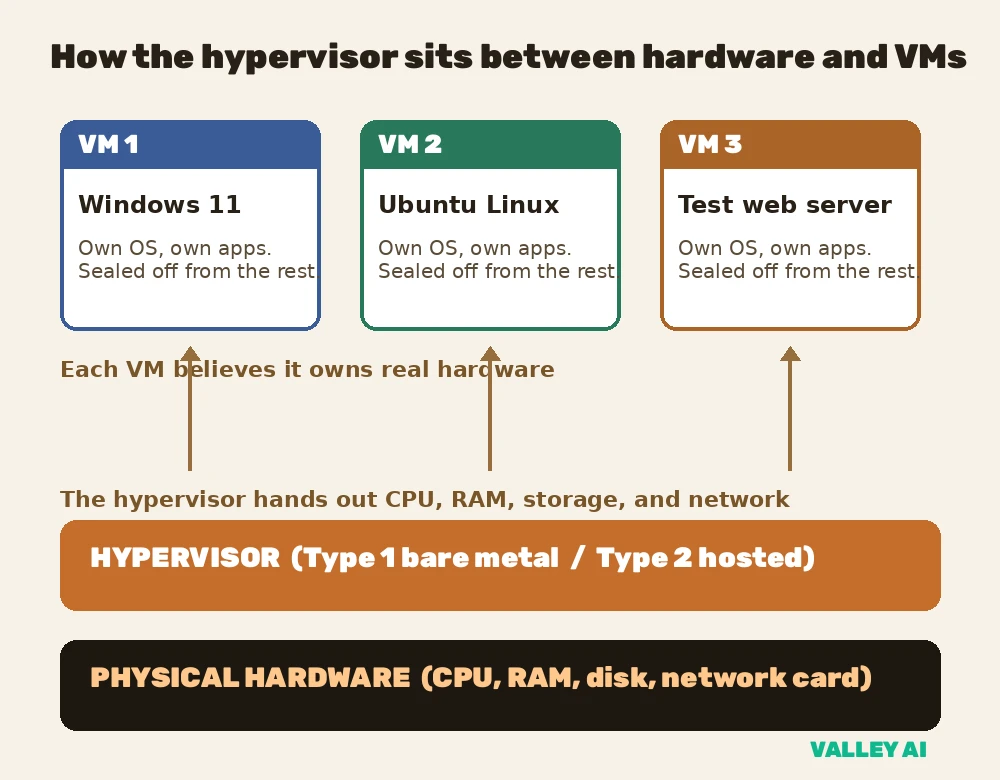
Virtualization is a technology that lets one physical computer behave like several independent computers. A special layer of software, called the hypervisor, sits between the hardware and the operating systems and divides the machine’s resources (CPU time, memory, storage, and network access) into sealed compartments. Each compartment is a virtual machine, a complete computer made of software, running its own operating system and its own applications.
The key idea is deception, done politely. Each virtual machine believes it owns real hardware. It boots up, loads an operating system, and runs programs exactly as if it were a standalone PC. In reality, it is sharing the physical machine with its neighbors, and the hypervisor referees every request so that no virtual machine can see or disturb another.
Wait, does the computer physically split into pieces? No, nothing is cut or separated in the hardware itself. Think of an apartment building. The building is the physical computer, the landlord is the hypervisor, and each apartment is a virtual machine. Every tenant has their own front door, their own rooms, and their own lease. The walls between them are not brick, they are rules enforced by the landlord, but as far as each tenant is concerned, they have a home of their own.
The hypervisor: the engine underneath
If virtualization is the apartment building, the hypervisor is the landlord, the building manager, and the utilities company rolled into one. Its formal name is the virtual machine monitor. It controls the hardware, hands out slices of CPU, memory, storage, and network to each virtual machine, and makes sure the guests play fair. There are two kinds of hypervisors, and the difference matters.
Type 1: bare metal hypervisors
A Type 1 hypervisor installs directly on the physical hardware, with no operating system underneath it. It IS the operating system, in a sense, purpose built for running virtual machines. Because there is no middleman, Type 1 hypervisors are fast, secure, and efficient. They are the standard choice in data centers and clouds. Examples include VMware ESXi, Microsoft Hyper-V (when used as a server), KVM on Linux, and Proxmox VE.
Type 2: hosted hypervisors
A Type 2 hypervisor runs as an ordinary application on top of an existing operating system. You install it on your Windows or Mac machine just like any other program, then you create virtual machines inside it. The tradeoff is a small performance cost, since requests pass through the host operating system, but the convenience is enormous. Examples include VirtualBox and VMware Workstation. If you are experimenting on a personal computer, a Type 2 hypervisor is the one you want.

How a virtual machine sees your hardware
Every virtual machine gets a full set of virtual hardware: virtual CPU cores, a slice of RAM, a virtual hard disk, and a virtual network card. The guest operating system (the OS inside the virtual machine) talks to this virtual hardware exactly as it would talk to real chips and boards. The physical machine underneath, running the host operating system and the hypervisor, is the host.
How can the guest OS work with hardware it has never seen? It never touches the real hardware at all. When the guest tries to read from its virtual disk or send a packet through its virtual network card, the hypervisor intercepts the request and translates it into a real operation on the physical hardware, then hands the result back. The guest has no idea this happened. This translation is why virtualization used to be slow in the early days.
Modern CPUs fix that problem with built-in hardware assist: Intel VT-x and AMD-V. These processor features let the CPU itself handle the tricky parts of the translation, so virtual machines run at near native speed, usually within a few percent of the real hardware. Without hardware assist, the hypervisor must emulate every instruction in software, which is dramatically slower. Most computers sold in the last decade support these features, but they are often switched off in the BIOS or UEFI by default, which is why the try it yourself section below starts with flipping that switch.
What virtualization gives you
Three properties make virtualization powerful, and they are worth naming precisely, because every benefit you hear about traces back to one of them.
Partitioning. One machine becomes many. An eight core server can be carved into four virtual machines with two cores each, or sixteen smaller ones, whatever the workload needs. The allocation is software, so it can be changed in seconds, no screwdriver required. This is why data centers love virtualization: instead of a rack full of servers each idling at ten percent capacity, one beefy server does the work of many.
Isolation. Each virtual machine is sealed off from the others. If one crashes, the rest keep running. If one gets infected with malware, the infection stays inside that virtual machine and cannot reach your host system or your files. Security researchers exploit this on purpose: they open suspicious files inside a throwaway virtual machine, study what happens, then delete it. The real machine never takes a hit.
Encapsulation. A virtual machine is not a machine at all, it is a set of files: a virtual disk file holding the operating system and data, plus a configuration file describing its virtual hardware. Files can be copied, moved, backed up, and shared like any other file. Snapshots take this further: the hypervisor freezes the exact state of a virtual machine, so you can experiment freely and roll back to the snapshot in seconds if something breaks. Installing a dubious driver becomes a zero risk experiment.
Virtual machines vs containers vs dual boot
Virtualization has two close relatives that often cause confusion. Containers (the technology behind Docker) are lighter weight: instead of each unit running its own operating system, all containers share the host’s operating system kernel, and each container only packages one application and its dependencies. Dual booting is the old school approach: two operating systems installed on one disk, with a menu at startup choosing which one runs, but only one at a time.
| Virtual machine | Container | Dual boot | |
|---|---|---|---|
| Runs at the same time as others | Yes, many at once | Yes, many at once | No, one at a time |
| Own operating system | Yes, full guest OS | No, shares the host kernel | Yes, full OS per boot |
| Isolation strength | Strong, hardware level | Moderate, OS level | Complete, but sequential |
| Startup time | Seconds to minutes | Milliseconds to seconds | Minutes, needs a reboot |
| Overhead | Small, one OS per VM | Tiny, no extra OS | None, native speed |
| Best for | Testing OSs, servers, safe sandboxes | Apps and microservices at scale | Gaming, native performance |
So which should you use? Match the tool to the job. If you want to run a different operating system, isolate something risky, or host a server, reach for a virtual machine. If you are a developer shipping an application and you want it to run identically everywhere, containers are the lighter choice. If you need every last drop of performance for gaming or video editing and you only use one OS at a time anyway, dual booting (or just a single OS) wins. For most curious beginners, a virtual machine is the friendliest starting point.
Try it yourself: run Linux inside Windows in an afternoon
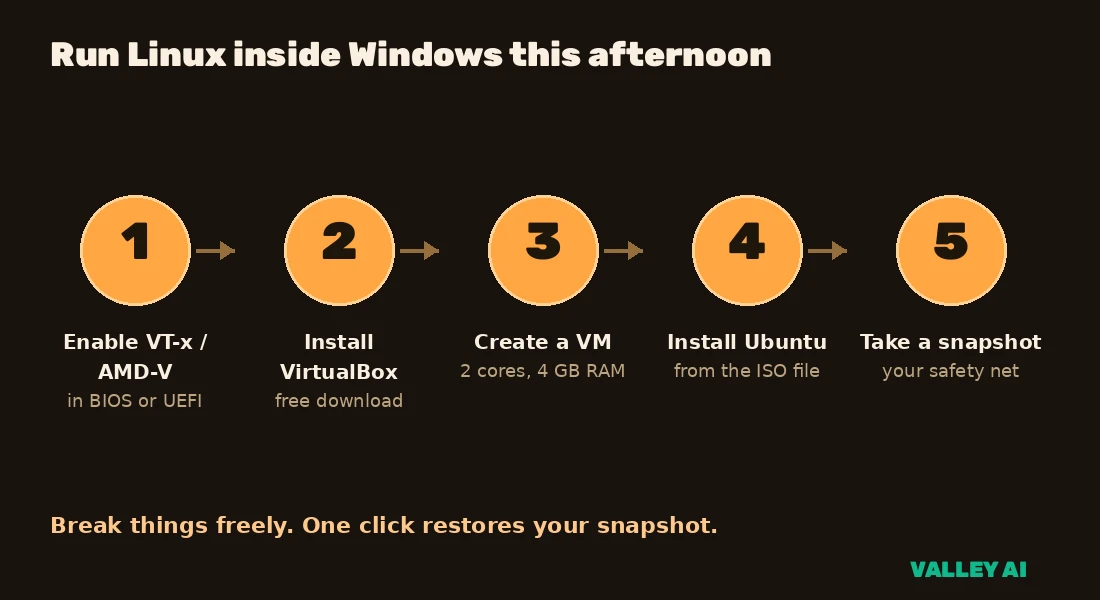
Here is where virtualization stops being theory. With a free Type 2 hypervisor, you can run Ubuntu Linux in a window on your Windows machine in under an hour, without touching your existing setup. If you break something, you delete the virtual machine and your real system is untouched.
- Check your hardware. You need a 64 bit processor (almost all modern ones), at least 8 GB of RAM, and 25 GB of free disk space.
- Enable virtualization in the BIOS or UEFI. Restart your computer, open the firmware settings, and look for Intel Virtualization Technology, VT-x, or on AMD systems, SVM Mode. Switch it on and save. This is the step most people miss, and without it everything runs slowly.
- Download and install VirtualBox from virtualbox.org. It is free, and it is the friendliest Type 2 hypervisor for beginners.
- Create a new virtual machine. Give it 2 CPU cores, 4 GB of RAM, and a 25 GB virtual disk. VirtualBox walks you through this with a wizard.
- Download the Ubuntu desktop ISO from ubuntu.com and attach it to the virtual machine as a virtual CD. Boot the VM and install Ubuntu exactly as if it were a real PC.
- Take a snapshot the moment the install finishes and everything works. From now on, experiment boldly: install strange software, change system settings, break things on purpose. One click restores your snapshot.
A word of caution: the virtual machine shares your RAM and CPU with your host system. Give the VM generous resources and your host will feel sluggish; give it too little and the guest will crawl. On a typical 16 GB laptop, 4 GB for the guest is a comfortable middle ground. Close the VM when you are done and your full performance returns.
Where virtualization quietly runs the world
Once you know what virtualization looks like, you start seeing it everywhere. Data centers were the first converts. A company that once needed a hundred physical servers for a hundred services now runs those services as virtual machines on a fraction of the hardware, saving floor space, power, and cooling. That practice, server consolidation, is still the classic business case for virtualization.
Then came the cloud, which is essentially virtualization rented by the hour. When you spin up a server on AWS, Azure, or Google Cloud, you are not getting a physical machine. You are getting a virtual machine running on a Type 1 hypervisor deep inside someone else’s data center, carved out of shared hardware in seconds. Every elastic, pay as you go promise of cloud computing rests on this foundation. Cloud providers are, at their core, very large landlords. The cloud rents out slices of those virtualized servers to many customers at once; see how cloud computing uses virtualization.
Closer to home, virtualization runs enterprise desktops (employees connect to a virtual PC hosted in the office data center), software testing labs (a tester boots twenty different OS configurations on one machine), legacy software (that critical program that only runs on an old Windows version lives happily in a VM), and cybersecurity training (analysts dissect real malware in isolated virtual machines that get wiped afterward). It is infrastructure you never see, holding up the software you use every day.
The tradeoffs nobody mentions
Virtualization is not free magic. Every abstraction has a price, and an honest guide should name it. The first cost is overhead. The hypervisor consumes some CPU and memory itself, and each guest OS needs its own slice of RAM just to exist. Running three operating systems means three kernels, three sets of background processes, three mouths to feed. The overhead is small on modern hardware, usually a few percent of CPU performance, but it is real.
The second cost is contention. Your virtual machines share physical resources, and when they all want the disk at once, everyone slows down. Data center engineers call the greedy neighbor the noisy neighbor problem: one VM hammering the storage can make its apartment mates feel sluggish. Good hypervisors offer resource limits and reservations to keep tenants polite, but on an oversubscribed host, contention is a fact of life.
So when should you skip virtualization entirely? When you need every ounce of raw performance and you only run one workload anyway. Competitive gaming, professional video rendering, and real time audio production all benefit from running directly on bare metal with no hypervisor in the path. And on very old hardware without Intel VT-x or AMD-V, virtualization is painfully slow, so emulation is not worth the trouble. For everything else, the flexibility usually outweighs the cost.
Frequently asked questions
Quick answers to the questions people ask most about virtualization.
What is virtualization in simple terms?
Virtualization is a way to run several independent computers inside one physical computer. A software layer called the hypervisor divides the hardware into sealed compartments called virtual machines, and each one runs its own operating system as if it owned the whole machine.
What is a hypervisor?
A hypervisor, also called a virtual machine monitor, is the software that makes virtualization possible. It sits between the physical hardware and the operating systems, handing out slices of CPU, memory, storage, and network to each virtual machine and keeping them isolated from one another.
What is the difference between Type 1 and Type 2 hypervisors?
A Type 1 hypervisor runs directly on the hardware with no operating system underneath, which makes it fast and efficient. Examples are VMware ESXi, Microsoft Hyper-V, and KVM. A Type 2 hypervisor runs as an application on top of an existing operating system, which makes it easy to use on a personal computer. Examples are VirtualBox and VMware Workstation.
Is a virtual machine the same as a container?
No. A virtual machine runs its own complete operating system with its own kernel. A container shares the host operating system kernel and only packages one application and its dependencies, which makes containers lighter and faster to start but less strongly isolated.
Can I run a virtual machine on my laptop?
Yes. Install a free Type 2 hypervisor like VirtualBox, enable Intel VT-x or AMD-V in your BIOS or UEFI settings, and create a virtual machine. You will want at least 8 GB of RAM and 25 GB of free disk space for a comfortable experience.
Does virtualization slow down my computer?
Only slightly. On modern hardware with Intel VT-x or AMD-V enabled, the performance overhead is typically a few percent. The bigger effect is resource sharing: the RAM and CPU you give to a virtual machine are not available to your host system while the VM is running.

Kaleem
Kaleem is a Computer Science graduate (Virtual University of Pakistan) and the founder and editor of Valley AI, where he publishes in-depth, tested guides on computer hardware, artificial intelligence, and how the internet works. Every guide is researched from primary sources, tested hands-on where possible, and updated when the facts change.