

Press the power button on a PC and, for a few seconds, no operating system exists. Something still has to wake the processor, check the memory, find the drive, and load Windows or Linux. That job belongs to the boot firmware, and it comes in two implementations: BIOS, the design from the early 1980s, and UEFI, its modern replacement. Almost every comparison stops at a spec table. This one starts with what the firmware actually does, because once you see the boot sequence, every other difference explains itself.
One naming note before we start. Most people, and most motherboard manuals, still say “BIOS” for the settings screen on a brand new machine. Underneath, that screen is almost certainly UEFI. The two words name two different generations of firmware that do the same job in very different ways.
What Boot Firmware Actually Does
Boot firmware is a small program stored on a flash chip soldered to the motherboard. The moment power stabilizes, the processor starts executing its instructions, long before any drive is read. It is the first software your computer ever runs, which is why our complete guide to how processors actually work treats it as step zero of everything a CPU does.
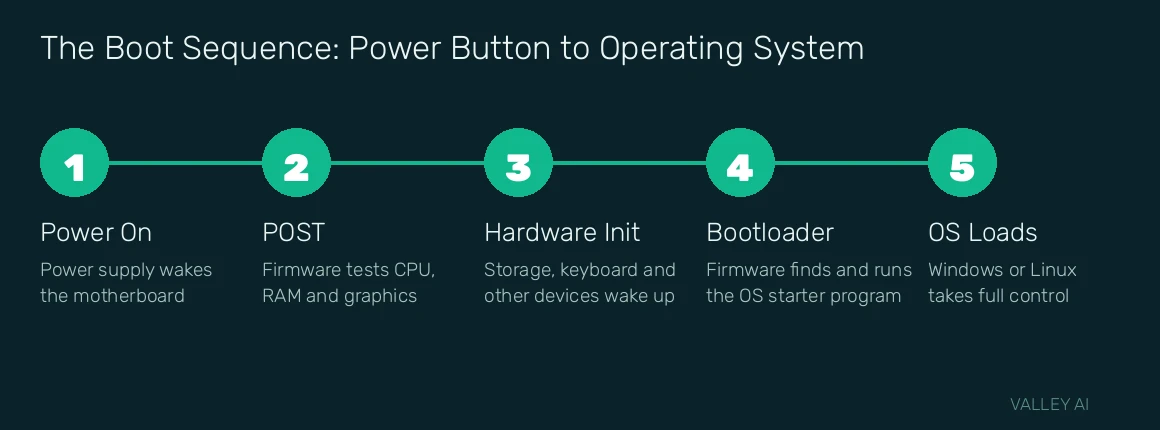
The firmware has three jobs. First, it runs POST, the power-on self-test, which checks that the processor, memory, and graphics hardware respond. Second, it initializes the rest of the hardware: storage drives, USB ports, network adapters. Third, it finds a bootloader, the small program that loads the operating system, and hands over control. Settings you change in the firmware setup screen, such as boot order and memory speed, are stored on the board and read again at every start. The firmware is one piece of the hardware puzzle; our computer hardware guide maps the rest of the components it wakes up.
If POST finds a serious problem, the boot stops there, usually with beep codes or a diagnostic LED rather than an error message, because the parts needed to show a friendly message may be exactly what failed.
What Is BIOS?
BIOS stands for Basic Input/Output System. It arrived with the IBM PC in 1981 and became the standard way compatible computers started for three decades. Its design reflects its era. BIOS runs in 16-bit real mode, the processor mode of early chips, and can address only about 1 MB of memory while it works. Every assumption inside it, from drive layout to how it talks to hardware, dates back to that period.
You can recognize a classic BIOS setup screen instantly: plain text, blocky colors, keyboard only. To boot, BIOS reads the very first sector of the selected drive, called the Master Boot Record, and runs whatever code it finds there. That code finds the operating system partition and starts the bootloader. The approach is simple and rigid, and for years that was enough.
What Is UEFI?
UEFI stands for Unified Extensible Firmware Interface. It began as Intel’s EFI project in the late 1990s, a ground-up redesign of how firmware should work, and was handed to the industry UEFI Forum in 2005. The current specification is maintained there today (see the UEFI Forum specifications), and every major PC maker ships it.
UEFI runs in 32-bit or 64-bit mode, so it is not squeezed into 1 MB of memory. It is modular, with proper drivers for storage, displays, and even networking before the operating system loads. Its setup screens are usually graphical, with mouse support. Most importantly, it boots differently: instead of running code from a raw disk sector, UEFI reads named boot entries and loads a program file, an .efi file, stored on a small dedicated partition called the EFI System Partition. That file is the operating system’s bootloader, such as Windows Boot Manager.
The Boot Sequence, Step by Step
Both firmware types walk through the same five stages. They differ in how stages three and four work, and that difference drives everything else in this article.
How a BIOS system boots
- Power on. The power supply stabilizes and the processor starts running BIOS code from the motherboard chip.
- POST. BIOS tests the processor, counts and tests memory, and initializes the graphics card so there is something on screen.
- Hardware initialization, one device at a time. BIOS works through its device list sequentially, using simple built-in routines.
- Boot sector load. BIOS reads the first sector (the Master Boot Record) of the first drive in the boot order and executes its code, with no check of where that code came from.
- Handoff. The boot code loads the operating system’s bootloader, which loads the OS itself.
How a UEFI system boots
- Power on and early initialization. UEFI starts with security and power phases, then initializes the processor and chipset.
- Driver stage. UEFI loads modular drivers for storage, displays, and input devices, and can initialize hardware in parallel rather than one device at a time.
- POST style checks. Memory and hardware are verified, often more quickly, and Fast Boot modes can skip checks on known good hardware.
- Bootloader load from a file. The firmware reads its stored boot entries, finds the right .efi program on the EFI System Partition, and, if Secure Boot is on, verifies its digital signature before running it.
- Handoff, with services left behind. The bootloader starts the OS, and some UEFI runtime services stay available to the operating system afterward.
MBR vs GPT: The Partition Split
A partition scheme is the map that describes where a drive’s partitions begin and end. BIOS is paired with MBR, introduced in 1983. MBR addresses disk sectors with 32-bit numbers, and that arithmetic sets a hard ceiling: a boot drive can be at most 2 TB, split into at most 4 primary partitions. The entire map, including the boot code, lives in that single first sector. If it corrupts, the drive stops booting and the map is gone with it.
GPT, short for GUID Partition Table, is the scheme built for UEFI. It uses 64-bit addressing, raising the ceiling to 9.4 zettabytes, a number so large that no physical drive comes close. It allows 128 partitions in Windows, gives every partition a unique ID and a name, protects the table with checksums, and keeps a backup copy at the end of the disk. Lose the main table and the backup can rebuild it.
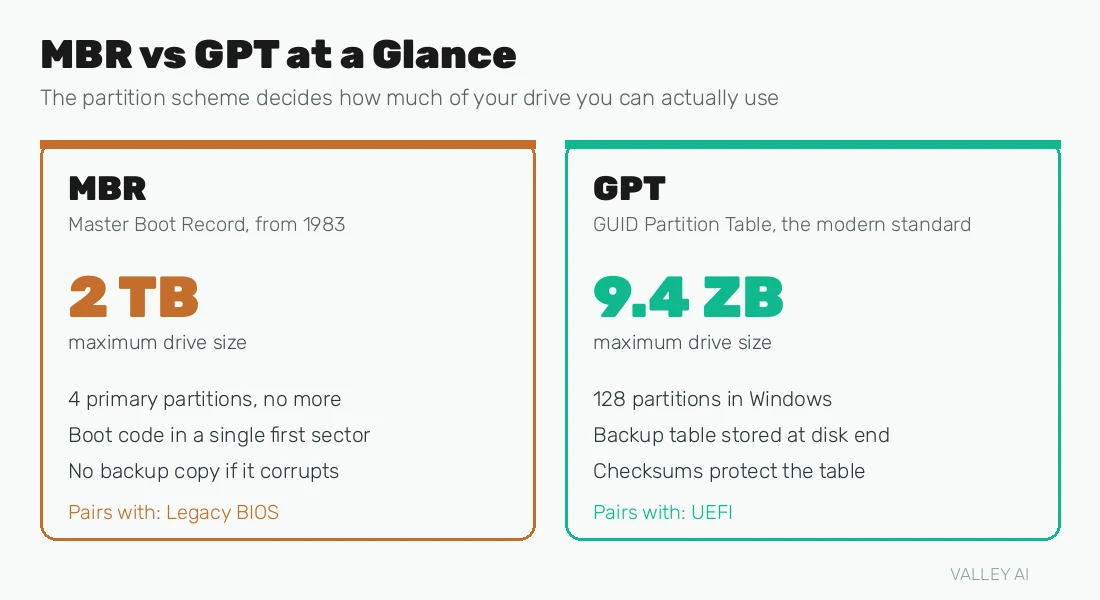
The pairing rule is strict for the boot drive: BIOS boots MBR disks, UEFI boots GPT disks. The common symptom of getting it wrong is a new 4 TB drive that shows only about 2 TB of space, which is the classic fingerprint of an MBR disk.
BIOS vs UEFI: Side by Side
With the boot sequence and the partition split in mind, the headline differences read less like trivia and more like consequences.
| BIOS | UEFI | |
|---|---|---|
| Full name | Basic Input/Output System | Unified Extensible Firmware Interface |
| Era | 1981, legacy today | 2005 standard, current on all modern PCs |
| Processor mode | 16-bit real mode, about 1 MB of space | 32-bit or 64-bit mode |
| Setup interface | Text only, keyboard navigation | Graphical, mouse support |
| How it boots | Runs code from the drive’s first sector | Loads a signed .efi file from the EFI System Partition |
| Partition scheme | MBR | GPT |
| Largest boot drive | 2 TB | 9.4 ZB (no practical limit) |
| Security | No verification of boot code | Secure Boot signature checks |
| Boot speed | Slower, sequential initialization | Faster, parallel initialization and Fast Boot |
Secure Boot: The Security Difference
BIOS runs whatever code it finds in the boot sector, no questions asked. That blind trust is an open door for bootkits, malware that loads before the operating system and can hide from antivirus software running inside it. Nothing in the BIOS design can tell a genuine bootloader from a tampered one.
Secure Boot is UEFI’s answer. The firmware holds a database of trusted digital signatures. Before any boot component runs, its signature is checked. Signed and trusted, it loads. Unsigned or altered, the firmware refuses it. Secure Boot verifies the code as it loads, while a TPM 2.0 chip records measurements of what loaded so the operating system can detect tampering afterward; the two work as a pair, which is why Microsoft lists both in the Windows 11 system requirements, alongside UEFI firmware itself.
This is the point where the comparison stops being academic. A PC that runs in legacy BIOS mode cannot use Secure Boot, and a PC without UEFI cannot officially run Windows 11 at all.
Speed and Size: Where the Limits Actually Bite
UEFI does start faster. It initializes hardware in parallel instead of in sequence, and its Fast Boot option can skip parts of the hardware checks when nothing has changed. In practice the saving is a few seconds, nice to have, rarely the reason to care. Once the operating system is running, firmware choice makes no difference to speed at all: the firmware has left the stage.
Size is the limit with teeth. The 2 TB wall is arithmetic, not policy, so no setting can move it. The first time you install a 3 TB or 4 TB drive as a boot disk, BIOS and MBR simply cannot use the space past 2 TB, and UEFI with GPT becomes mandatory. Large drives are now the default in new PCs, which is one reason legacy firmware has quietly vanished from new motherboards.
How to Check Which Firmware Your PC Uses
You do not need to restart and hunt for a setup key. Windows will tell you in under a minute:
- Press Windows key + R, type msinfo32, and press Enter. This opens System Information.
- In the System Summary, find the row labeled BIOS Mode. It reads UEFI on a modern system or Legacy on a BIOS system.
- The row just below, Secure Boot State, shows whether Secure Boot is on, off, or unsupported.
A second check confirms the drive side of the pairing. Open Disk Management (right-click the Start button and choose it), right-click your system disk’s label on the left, choose Properties, then the Volumes tab. Partition style reads GUID Partition Table (GPT) on a UEFI install or Master Boot Record (MBR) on a legacy one. If you find Legacy and MBR on a machine you plan to upgrade to Windows 11, Windows includes a conversion tool called MBR2GPT, but converting a boot drive is real surgery: back up everything first.
Which One Should You Use?
If your computer was made in roughly the last decade, it already has UEFI, and the right answer is to use it in UEFI mode, with a GPT system drive and Secure Boot on. That combination is faster to start, safer at boot, ready for large drives, and required for Windows 11.
The moment it matters most is a fresh install. When you install Windows on a new drive, check the firmware is set to UEFI mode before you start, so the installer creates a GPT disk with an EFI System Partition. This applies doubly to fast modern storage: follow the boot mode steps in our guide to installing an NVMe M.2 SSD and the drive will come up in the right mode the first time. Installing in legacy mode by accident means converting or reinstalling later.
Legacy BIOS still appears in a few corners: very old operating systems, old boot media and recovery tools, and some industrial hardware that never changes. Most UEFI firmware includes a CSM, or Compatibility Support Module, that emulates BIOS for those cases, though it is disappearing from new boards and must be off for Windows 11. If you are keeping an old machine alive, CSM is the bridge. For everything else, UEFI is simply what BIOS grew into, and knowing which one your PC uses takes less than a minute to check.
Frequently Asked Questions
Is UEFI better than BIOS?
For any modern PC, yes. UEFI supports boot drives larger than 2 TB through GPT, verifies boot software with Secure Boot, offers a graphical setup with mouse support, and starts slightly faster. BIOS only remains relevant for very old hardware and operating systems that cannot work with UEFI.
Can I switch from BIOS to UEFI without reinstalling Windows?
Usually, yes. The system disk must first be converted from MBR to GPT, which Windows can do with its built-in MBR2GPT tool, and then the firmware setting must be changed from Legacy or CSM mode to UEFI mode. Back up your data before converting, because a failed conversion can leave the system unbootable.
Are BIOS and UEFI the same thing?
No. They do the same job, starting the computer and loading the operating system, but they are different firmware designs from different eras. BIOS is the original 1981 design that runs in 16-bit mode and boots from a disk sector. UEFI is its modern replacement, running in 32-bit or 64-bit mode and booting from files on a dedicated partition. People often say BIOS when they mean the UEFI setup screen.
How do I open BIOS or UEFI settings?
Restart the PC and tap the setup key during startup, usually Delete or F2 on most motherboards. From inside Windows 10 or 11, go to Settings, then System, then Recovery, choose Restart now under Advanced startup, and follow Troubleshoot, Advanced options, UEFI Firmware Settings. That path works even when Fast Boot makes the startup key hard to catch.
Does UEFI make a computer faster?
Only at startup, and only by a few seconds, because it initializes hardware in parallel and can skip checks with Fast Boot. Once Windows or Linux is running, the firmware is no longer involved, so everyday performance is identical. The real reasons to prefer UEFI are drive capacity, Secure Boot, and Windows 11 compatibility.

Kaleem
Kaleem is a Computer Science graduate and the founder of Valley AI (valleyai.net), where he publishes in-depth, tested guides on computers, AI, and internet technologies. Every guide is researched from primary sources and updated regularly.