

A game can show a smooth average frame rate and still stutter when you enter a new area, rotate toward a detailed scene, or raise texture quality. The cause may be VRAM not because VRAM makes the GPU “faster,” but because the GPU needs somewhere to keep graphics data ready for rendering.
What Is VRAM?
VRAM, short for video random-access memory, is high-speed memory used by a GPU to hold graphics data that the GPU needs to render images and video. On a discrete graphics card, VRAM is usually dedicated memory built into the card. An integrated GPU commonly uses part of the computer’s system RAM instead.
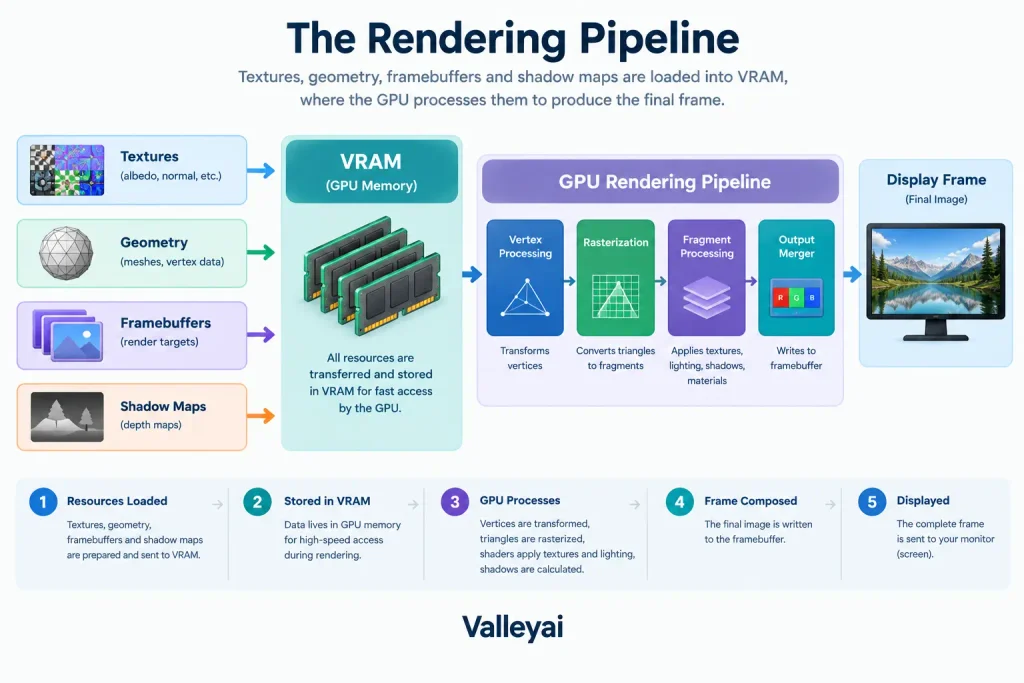
VRAM stores data such as textures, framebuffers, geometry, shadow maps, and render targets. Keeping that data close to the GPU reduces the need to repeatedly retrieve it from slower or less direct memory paths.
A simple way to separate the roles:
- VRAM capacity determines how much graphics data the GPU can keep available.
- Memory bandwidth determines how quickly data can move to and from graphics memory.
- GPU compute power determines how quickly the GPU processes graphics instructions.
A graphics card can have plenty of VRAM and still deliver low frame rates if its GPU is not powerful enough for the workload.
What Does VRAM Store During Rendering?
VRAM holds the working graphics assets needed to create each frame. The exact contents vary by game, application, resolution, and settings, but several categories appear repeatedly.
Textures
Textures are image data applied to surfaces. A game may use separate textures for color, roughness, metalness, normals, and other surface properties.
Higher texture settings usually require larger or more detailed texture assets. That increases the amount of data the GPU may need to keep accessible. Texture quality is therefore one of the clearest settings to test when investigating possible VRAM pressure.
Framebuffers and render targets
A framebuffer stores image data associated with a rendered frame. Render targets hold intermediate results while the GPU builds the final image.
Higher render resolutions can increase the memory required for these buffers because a 4K image contains more pixels than a 1080p image. Anti-aliasing, high dynamic range, and additional rendering passes can add more buffers to the workload.
Geometry and game assets
VRAM may also hold mesh geometry, model data, animation-related resources, shadow information, and other game assets. Large environments, detailed characters, and high-resolution scenes can require more graphics memory than simple scenes.
Shaders and lighting data
Shaders are programs that tell the GPU how to process vertices, surfaces, lighting, and pixels. The shader programs themselves are not usually the main VRAM consumer, but associated resources such as shadow maps, lighting buffers, and ray-tracing data can add to the total memory requirement.
The short answer is no, and the differences become clearer once you know how RAM works at the hardware level.
Is VRAM the Same as System RAM?
No. VRAM and system RAM serve different primary roles.
System RAM supports the operating system, applications, CPU workloads, and general program data. VRAM supports graphics data that the GPU needs for rendering. A discrete graphics card normally has its own dedicated VRAM, while the CPU and operating system use system RAM.
| Memory type | Main processor using it | Typical purpose | Hardware relationship |
|---|---|---|---|
| System RAM | CPU and operating system | Applications, services, program data | Installed on the motherboard or integrated into a system package |
| Dedicated VRAM | Discrete GPU | Textures, framebuffers, geometry, rendering resources | Built into or attached to the graphics card |
| Shared graphics memory | Integrated GPU | Graphics data borrowed from system RAM | Reduces the system RAM available to other workloads |
Dedicated VRAM is optimized for the graphics card’s memory system. System RAM can also supply graphics data, but it does not behave exactly like dedicated VRAM.
That distinction matters when reading hardware specifications. A computer may report a large amount of total GPU-accessible memory, but the total may combine dedicated GPU memory with shared system memory. Those figures should not be treated as equivalent.
Shared memory is one of the defining trade-offs in the wider comparison of iGPU vs dGPU vs eGPU.
How Integrated Graphics Uses Shared Memory
An integrated GPU, or iGPU, is built into the processor or system-on-chip rather than placed on a separate graphics card. Many integrated GPUs do not have a large, physically separate VRAM pool. Instead, the integrated GPU uses a portion of system RAM for graphics work.
This arrangement is often called shared graphics memory or a unified memory architecture, depending on the platform. The CPU and integrated GPU access the same physical memory pool, although the operating system may reserve or report portions of that memory differently.
Shared graphics memory is not an upgrade to dedicated VRAM. Adding more system RAM can give an integrated GPU more memory to work with in some configurations, but it does not turn the integrated GPU into a discrete graphics card. GPU architecture, memory bandwidth, cooling, and compute resources still determine performance.
Windows may show both dedicated GPU memory and shared GPU memory in Task Manager. Do not simply add the two numbers and describe the result as dedicated VRAM. The categories represent different sources of memory with different performance characteristics.
Capacity and processing power are separate things, which our guide to how graphics processing units work explains in more detail.
Why VRAM Capacity Does Not Equal GPU Speed
VRAM capacity answers one question: How much graphics data can the GPU keep available at once?
Capacity does not answer how quickly the GPU can render a frame. That depends on several other factors, including shader performance, GPU architecture, clock behavior, memory bandwidth, drivers, and the workload itself.
| Specification | What it tells you | What it does not tell you |
|---|---|---|
| VRAM capacity | How much graphics data can fit locally | How many frames the GPU can render per second |
| Memory bandwidth | How quickly data can move through the memory system | Whether the GPU has enough compute power |
| GPU compute power | How quickly the GPU processes graphics work | Whether the card can hold every required asset locally |
| Memory bus width and memory type | Parts of the path that influence data transfer | The card’s complete real-world performance |
A graphics card with more VRAM can be slower than a card with less VRAM when both workloads fit within the smaller capacity. The larger memory pool becomes valuable when the workload needs it for example, when high-resolution textures, large framebuffers, or complex assets exceed the smaller card’s practical limit.
That is why “more VRAM” is not a complete graphics-card recommendation. Capacity is one specification in a larger performance system.
Does More VRAM Increase FPS?
More VRAM does not automatically increase FPS. Additional VRAM can prevent performance problems when a workload exceeds the available capacity, but extra unused capacity does not directly make the GPU’s rendering hardware faster.
If a game already fits comfortably within a graphics card’s VRAM, moving to a card with more capacity may produce little or no improvement unless the second card also has a stronger GPU, faster memory system, or newer architecture.
VRAM can affect gaming performance indirectly:
- Insufficient VRAM may cause stuttering or texture streaming problems.
- Higher texture settings may require more VRAM without greatly changing average FPS.
- Higher resolution can increase framebuffer and rendering demands.
- Ray tracing can add graphics resources and memory pressure.
- A card with too little VRAM may force lower settings even when its GPU compute power is otherwise adequate.
The useful question is not “Which card has the most VRAM?” It is “Does the card have enough VRAM for the workload, and is the GPU itself fast enough for the target settings?”
How Resolution and Texture Quality Change VRAM Demand
Resolution and texture quality affect VRAM in different ways.
Higher resolution increases the number of pixels the GPU must process and can enlarge framebuffers, render targets, and related buffers. Higher texture quality increases the size or detail of the texture assets loaded into memory.
A useful practical distinction follows:
- Lowering resolution tests both memory demand and GPU rendering workload.
- Lowering texture quality tests graphics-asset memory demand more directly.
That does not make texture quality the only VRAM factor. Ray tracing, anti-aliasing, mods, large open-world assets, video editing timelines, and 3D scenes can also change memory requirements.
[VISUAL SUGGESTION: Add a two-axis table comparing settings that mainly affect VRAM capacity, settings that mainly affect GPU compute load, and settings that affect both.]
How Much VRAM Do You Need?
There is no universal VRAM number for every user. A sensible amount depends on the application, target resolution, texture settings, ray tracing, asset complexity, and how long you expect the graphics card to remain useful.
Use this workload-first framework:
- Set the target resolution.
A 1080p workload does not create the same framebuffer demand as a 4K workload. - Decide on texture quality.
High-resolution texture packs and modifications can use substantial graphics memory even when the render resolution stays unchanged. - Account for advanced features.
Ray tracing, high-quality shadows, additional rendering passes, and large environments can raise memory demand. - Check the workload type.
A competitive game, open-world game, 3D scene, video-editing project, and machine-learning model place different demands on VRAM. - Check the GPU’s compute performance.
Enough VRAM cannot compensate for a GPU that lacks the processing power required by the chosen settings.
Capacity guidance should therefore be treated as a starting point, not a guarantee. A card can have enough VRAM for a game but still fail to reach the desired frame rate because its GPU compute performance is insufficient.
What Happens When VRAM Is Not Enough?
When a workload needs more graphics memory than the GPU can conveniently keep locally, the system may move assets through other memory paths or load them as needed. That process can create delays during rendering.
Common symptoms include:
- Stuttering when entering a new area
- Frame-time spikes
- Texture pop-in
- Delayed texture loading
- Blurry or reduced-quality textures
- Sudden drops in frame consistency
- A game lowering or refusing certain graphics settings
The symptoms are not proof of a VRAM problem by themselves. Shader compilation, slow storage, CPU limits, insufficient system RAM, drivers, and game-engine behavior can produce similar results.
Average FPS can also conceal the problem. A game may report a high average while producing uneven frame times during asset transitions. For that reason, frame-time behavior is often more informative than a single VRAM percentage.
If graphics memory turns out not to be the limit, the next step is a GPU vs CPU check to find where the workload is really stalling.
How to Tell Whether VRAM Is the Actual Bottleneck
A practical test changes one category of setting at a time.
Step 1: Record the original behavior
Note the resolution, texture quality, ray-tracing settings, average FPS, and the moments when stuttering occurs. A frame-time graph is more useful than average FPS alone because it shows sudden spikes.
Step 2: Lower texture quality first
Keep resolution and most other settings unchanged, then lower texture quality by one or two levels. If stuttering or texture pop-in improves substantially, VRAM pressure becomes more plausible.
Step 3: Test resolution separately
Restore the texture setting and lower the render resolution. If FPS improves greatly but asset-loading stutter remains, the main limitation may be GPU compute power rather than VRAM capacity.
Step 4: Watch system memory and storage behavior
If system RAM is nearly full, the operating system may page data to storage. That can cause stuttering that looks similar to a graphics-memory problem. Slow asset storage, background applications, and shader compilation can also affect frame consistency.
Step 5: Compare the pattern, not one number
High VRAM allocation does not automatically mean the GPU is out of usable memory. Games often reserve or cache memory to avoid loading assets repeatedly. A meaningful diagnosis combines allocation, frame-time behavior, visual symptoms, and the result of controlled setting changes.
In practice, lowering textures while holding resolution steady is one of the cleaner first tests because it isolates asset-memory pressure better than changing every graphics setting at once.
Can You Check or Upgrade VRAM?
You can check the graphics memory reported by your operating system, but interpret the categories carefully.
On Windows, Task Manager can show dedicated GPU memory and shared GPU memory. The DirectX Diagnostic Tool, commonly called DxDiag, can provide additional graphics-device information. On macOS, System Information reports graphics hardware and memory details, although Apple systems with unified memory may not present a separate VRAM pool in the same way as a conventional discrete graphics card.
Dedicated VRAM is generally fixed to the graphics hardware. Software cannot normally convert system RAM into equivalent dedicated VRAM, and changing a firmware allocation does not create additional physical memory. Some integrated-graphics systems allow a reserved graphics-memory setting, but that changes allocation rather than adding faster dedicated memory.
A Better Way to Interpret a VRAM Specification
When comparing graphics cards, evaluate VRAM in this order:
- First: Is the capacity sufficient for the target games or applications?
- Second: Is the GPU fast enough for the desired resolution and settings?
- Third: Is the memory system—bandwidth, bus width, and memory type—appropriate for the GPU?
- Fourth: Does the card support the software features and drivers your workload needs?
- Finally: Does the price make sense compared with competing cards?
This avoids two common mistakes: buying too little VRAM for a known workload, or paying extra for capacity that the GPU cannot use effectively.
VRAM is best understood as working space for graphics data. It matters most when the workload approaches or exceeds that space not simply because the specification is larger.

Kaleem
My name is Kaleem and i am a computer science graduate with 5+ years of experience in Computer science, AI, tech, and web innovation. I founded ValleyAI.net to simplify AI, internet, and computer topics also focus on building useful utility tools. My clear, hands-on content is trusted by 5K+ monthly readers worldwide.