
CPU overheating occurs when your processor sustains temperatures above its safe operating range, triggering automatic performance reductions and, if left unaddressed, contributing to long-term hardware degradation. For most modern desktop processors, the threshold where protective mechanisms kick in sits between 90°C and 100°C but by that point, your system has likely already been running slower than it should for some time.
The processor is the single component most sensitive to heat. Every modern CPU has a specification called Tj Max (Thermal Junction Maximum) the highest temperature the processor die is rated to tolerate before the hardware automatically throttles or shuts down to protect itself. Intel desktop CPUs generally have a Tj Max of 100°C; AMD’s Tj Max varies by generation, with Ryzen 5000 chips rated to 90°C and Ryzen 7000 chips rated to 95°C.
Reaching Tj Max doesn’t immediately destroy your chip. What you want to avoid is consistently operating near Tj Max, because sustained thermal stress degrades the chip over time.
This guide gives you the tools to diagnose what’s actually causing your CPU to overheat before jumping to fixes because cleaning your PC won’t help if the real problem is a misconfigured fan curve.
How to Tell If Your CPU Is Actually Overheating
Before diagnosing causes, confirm you have an overheating problem not a different bottleneck presenting similar symptoms.
Use a monitoring tool first. Task Manager in Windows cannot read CPU core temperatures. You need a third-party tool:
| Tool | Platform | Best for |
|---|---|---|
| HWMonitor | Windows | Per-core temps + voltages |
| Core Temp | Windows | Minimal, core-focused |
| HWiNFO64 | Windows | Most comprehensive readings |
| MSI Afterburner | Windows | Temps + real-time GPU overlay |
| lm-sensors / Psensor | Linux | Command-line or GUI |
| NZXT CAM | Windows | Dashboard view, AIO cooler integration |
Most tools let you set a temperature alert in HWiNFO64, use the ‘Alert’ tab to notify at 85°C, so you act before throttling begins.
Run your monitoring tool during normal use, then during a heavy task (gaming, video rendering, compiling). Note: idle temperatures, load temperatures, and whether temperatures keep climbing indefinitely versus leveling off.
Temperatures that stabilize under load are normal. When under load, CPU temperature will rise and then stay at a consistent temperature not just keep going up and up. Continuously rising temperatures that never plateau indicate the heatsink is not doing its job. Tom’s Hardware Forum
Physical warning signs:
Fans running at maximum speed with excessive noise, inability to open basic programs, dark screen events, and the system rebooting and shutting off within a short span are all symptoms of CPU overheating.
A CPU consistently reaching 90°C or higher is typically abnormal and a sign to implement one or more remedies. If fans are loud enough that the noise is intrusive, that’s a sign they are either straining to deal with an unusually high temperature or they’re malfunctioning.
Safe CPU Temperature Ranges by Workload
Ranges reflect Intel and AMD official thermal guidelines for consumer desktop CPUs. Most modern CPUs share these baseline safety guidelines: at idle, safe temperatures typically range from 30°C to 50°C. Under moderate gaming loads, 60°C to 85°C is normal for modern CPUs. Heavy rendering can reach 90°C+ as expected boost behavior on current generations. Occasional spikes to 90°C are acceptable in isolated bursts, but prolonged exposure at that level can impact longevity.
A critical nuance for AMD Ryzen 7000 users: AMD Ryzen 7000 chips routinely operate at 90°C+ under load AMD explicitly states this is expected behavior due to the aggressive Precision Boost algorithm maximizing performance within the power envelope. If you upgraded from a Ryzen 3000 chip and your temperatures jumped significantly, that’s largely architectural, not a problem with your cooling. What would be concerning on a Ryzen 7000 chip is hitting 95°C at idle or light tasks.
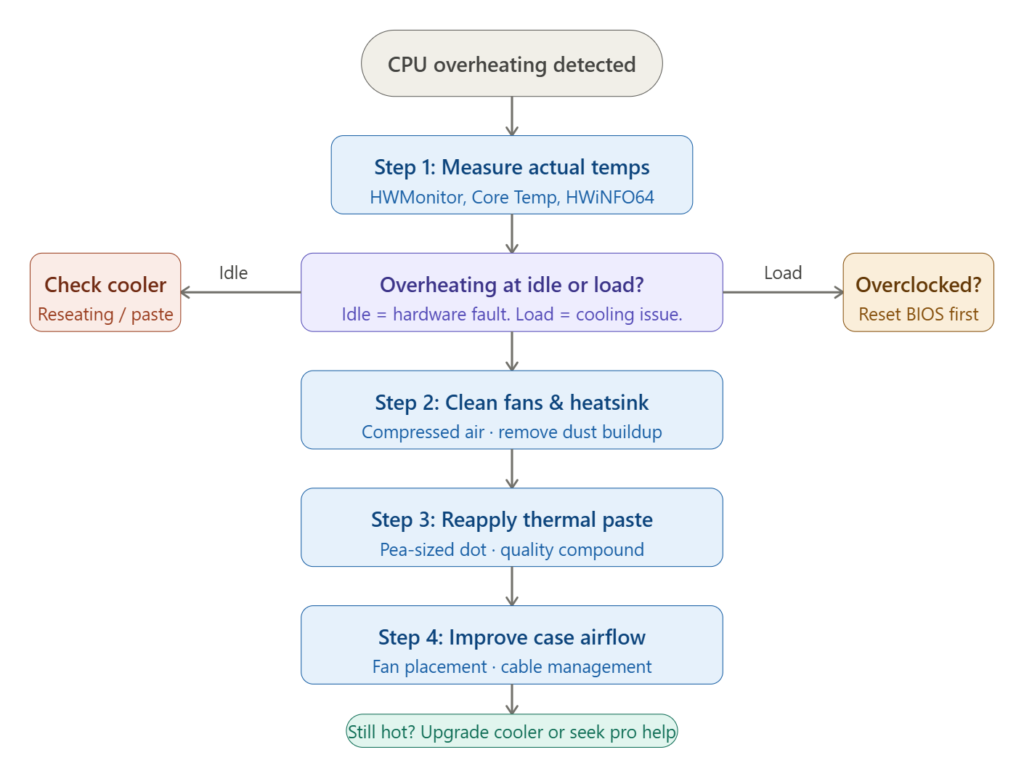
The idle vs load distinction is your primary triage step. Overheating at idle almost always points to a hardware problem a disconnected fan, failed pump, or improperly seated cooler. Overheating only under load points to insufficient cooling capacity or thermal interface issues. Overheating immediately on startup (before load) typically points to a disconnected fan header, unseated cooler, or BIOS reset to aggressive defaults not software.
| CPU State | “Old School” CPUs (Pre-2020) | Modern CPUs (Intel 13/14th Gen, Ryzen 70/90) | Verdict |
|---|---|---|---|
| Idle (Desktop) | 30°C – 40°C | 35°C – 45°C | Completely Normal |
| Gaming (Medium Load) | 60°C – 75°C | 70°C – 85°C | Safe / Optimal |
| Heavy Rendering (100% Load) | 80°C – 85°C | 90°C – 100°C | Expected (Boost Behavior) |
| Any Load | 90°C+ | 105°C+ | Overheating (Action Required) |
Is 90°C Too Hot for a CPU?
It depends on the processor and workload. AMD Ryzen 7000 series is designed to run up to 95°C under load, so 90°C is expected behavior. For older Intel chips, sustained 90°C under heavy load is at the upper edge and warrants cooling improvements. Idle temperatures at 90°C are always abnormal, regardless of model.
A common root cause is a cooler chosen against the TDP rating without understanding what that number really covers.
What Causes CPU Overheating: A Root-Cause Framework
Rather than a flat list of causes, use this triage sequence. The causes are ordered by how frequently they’re responsible and by how easy they are to confirm.
1. Dust Buildup Blocking Airflow
The CPU cooler is the first line of defense against overheating, and over time, it can get clogged with dust, hair, and debris. This buildup blocks airflow, preventing the cooler from doing its job effectively. The heatsink fins not just the fan blades accumulate the most insulating dust, and this is where heat transfer actually occurs.
For laptops, blocked intake vents (usually on the bottom) cause faster temperature escalation than desktop equivalents due to limited airflow volume. Placing a laptop directly on a blanket, bed, or sofa impedes airflow from the bottom vents where the cooling system exhausts air. Avast
2. Degraded or Incorrectly Applied Thermal Paste
Thermal paste is the compound filling microscopic air gaps between the CPU die and the heatsink base. When it dries out, cracks, or was applied incorrectly, heat transfer drops significantly. Thermal paste should be replaced every two to three years, or sooner if you notice your CPU is running hotter than usual.
Overapplication is as problematic as under-application. Be careful not to apply too much thermal paste roughly the size of a grain of rice or a pea is sufficient. Excess paste can actually cause overheating by trapping air bubbles or allowing paste to migrate onto socket contacts.
3. Cooling System Failure (Fan, Pump, or Mount)
A fan can fail in three distinct ways, each requiring a different response:
- Complete disconnect: The fan doesn’t spin at all. Usually caused by a cable being unplugged check the CPU_FAN header on the motherboard.
- Mechanical degradation: The fan spins slowly or makes clicking/grinding sounds. Bearings are failing; replacement needed.
- Incorrect fan curve: The fan is physically functional but configured to run too slowly for the thermal load. When the CPU fan spins up as intended but you’re still having overheating issues, the fan curve on your PC may simply not be aggressive enough. This is adjustable in BIOS.
For AIO liquid coolers, pump failure causes rapid temperature spikes even with the fans spinning normally a distinct pattern worth knowing.
4. Overclocking Without Adequate Cooling
Overclocking increases the CPU’s clock speed to boost performance, but it also generates significantly more heat. Reverting to default clock settings by accessing your BIOS/UEFI and resetting the CPU multiplier or base clock to original values can help reduce temperatures.
If BIOS access is unavailable or your system is unstable, you can remove the CMOS battery a circular metallic object on the motherboard press the tiny metal tab on the side to release it, leave it out for a couple of minutes, then reinsert it to reset all BIOS settings to default.
For Intel 13th and 14th Gen users specifically: In 2024, Intel acknowledged a microcode and power management issue affecting high-end 13th and 14th Gen desktop CPUs that caused instability at elevated voltages. Intel released a BIOS microcode patch to address this. If you own an i9-13900K/KS or i9-14900K/KS and are experiencing thermal instability, verify your motherboard has the latest BIOS update before pursuing other fixes.
5. Poor Case Airflow Design
Even a fully functional fan can’t maintain airflow if there’s something in the way. Cables routed across fan paths are a common culprit. The physics of case cooling require a pressure differential cool air in from the front/bottom, hot air exhausted from the rear/top.
Counter-intuitive fact: Don’t try to improve ventilation by removing side panels. This alters the internal pressure balance, making it even harder for the fans to maintain sufficient airflow, and allows dust to build up faster inside the machine.
Case pressure matters. A setup where intake fans exceed exhaust creates positive pressure useful for dust control but if exhaust is zero (as in the Reddit H510i case thread), heat traps internally. Aim for neutral or slight positive with at least one rear exhaust.
6. Software-Side Causes
Viruses and malware such as spyware or cryptojackers can cause overheating by running hidden processes that consume excessive system resources these malicious programs often operate in the background, forcing the CPU to work harder.
Outdated software can lead to overheating by causing inefficient resource management and increased system strain. Older applications may not optimize hardware usage effectively, forcing the CPU and memory to work harder. AVG
Update motherboard BIOS and chipset drivers periodically outdated firmware can mismanage voltage and fan control, generating excess heat even on stock settings.
7. The Plastic Peel Mistake
In testing labs, the number one cause of instant overheating on newly built PCs is the user forgetting to peel the transparent plastic protective film off the bottom of the CPU cooler before installation. This acts as a perfect thermal insulator, trapping all heat inside the chip.
The diagram below shows the full temperature spectrum. Here’s the practical interpretation:
How to Fix an Overheating CPU: Step-by-Step
Follow these steps in order. Do the cheap, reversible fixes first.
Clean Your Cooling System
What you need: Can of compressed air, soft brush (optional), isopropyl alcohol (90%+) for thermal paste removal.
- Power off completely and unplug from the wall. For desktops, also switch off the PSU rear switch and press the power button once to discharge capacitors.
- Open the case. Never work on a powered system.
- Hold fan blades still with a finger or pencil before spraying compressed air free-spinning fans can generate back-current through the motor.
- Spray in short bursts through the heatsink fins, fan blades, and case vents.
- For laptops, blow through intake vents on the bottom. If your laptop model allows disassembly, cleaning the heatsink-fan assembly directly provides far better results.
Expected result: If dust was the primary cause, temperatures should drop by 5–15°C after cleaning.
Reapply Thermal Paste
- Remove the CPU cooler.
- Clean residual paste from both the CPU IHS (integrated heat spreader) and heatsink base using isopropyl alcohol and a lint-free cloth or coffee filter.
- Apply a pea-sized dot of new thermal paste to the center of the CPU. Do not spread it the cooler’s mounting pressure distributes it.
- Remount the cooler, tightening the mounting screws in a cross pattern to ensure even pressure.
- Verify the cooler is firmly seated with no wobble.
Recommended thermal pastes: Arctic MX-6, Noctua NT-H2, Thermal Grizzly Kryonaut (for high-end builds). Avoid generic compound that ships with budget coolers quality compound can reduce temperatures by 3–6°C.
Check and Optimize Your Fan Curve
Your BIOS controls how aggressively your fans respond to temperature increases. Most motherboards ship with conservative curves that prioritize silence over cooling.
- Access BIOS during startup (typically Del, F2, or F10).
- Navigate to the fan control section (often labeled “Smart Fan,” “Q-Fan Control,” or “Fan Xpert”).
- Set the CPU fan to ramp to 60–70% speed at 60°C and 80%+ at 75°C.
- For AIO coolers, also configure the pump header to run at 100% speed continuously — pumps generate minimal noise and should not be throttled.
This is an underused fix. A CPU fan running at 40% when it should be at 80% creates significant temperature differences without requiring any new hardware.
Improve Case Airflow
Optimal configuration for a mid-tower:
- 1–2 intake fans at front (or bottom)
- 1 exhaust fan at rear
- 1–2 exhaust fans at top (optional, for high-heat builds)
Organize cables inside the case to avoid blocking airflow. Use cable ties or Velcro straps to keep them neat and out of the way. A bundle of cables in front of the CPU fan can reduce airflow more than a partially failed fan.
Ensure the PC is not placed inside a desk enclosure, against a wall with no clearance, or near a heat source. The ambient temperature of the room has a significant impact on CPU temperatures. A 5°C increase in room temperature can raise CPU temperatures by 3–5°C.
Reduce CPU Load (Temporary or Software-Side Fix)
Open Task Manager (Ctrl + Shift + Esc on Windows or Activity Monitor on Mac) to see which processes are using the most CPU resources. Close resource-intensive programs, and disable programs on startup by typing “Startup apps” in the Windows search bar and toggling off apps you don’t want to launch automatically.
For Windows users with persistent thermal issues, reducing the maximum processor state is a temporary measure:
- Search “Edit power plan” in the taskbar.
- Select “Advanced power settings.”
- Expand “Processor power management” → “Maximum processor state.”
- Reduce to 90% for both “On battery” and “Plugged in.”
This can lead to reduced app performance, so it’s only a temporary solution while you arrange a permanent hardware fix.
Upgrade Your Cooling Solution
If all previous steps have been completed and temperatures remain unacceptable, the cooler itself is insufficient for your CPU’s TDP.
Stock coolers vs aftermarket: Intel and AMD bundle stock coolers adequate for operation at base clocks but not sustained boost clocks under heavy loads. A $20–40 air cooler (Cooler Master Hyper 212 Evo, be quiet! Pure Rock 2) can cut peak temperatures by 15–25°C on a mid-range CPU.
Air cooler vs AIO liquid cooler:
| Factor | Quality Air Cooler | 240mm AIO Liquid |
|---|---|---|
| Cooling performance | Excellent (within 3–5°C of AIO) | Best for sustained loads |
| Noise at load | Moderate | Low |
| Reliability | Very high (no pump to fail) | Moderate (pump lifespan: 5–7 years) |
| Installation difficulty | Moderate | Moderate–high |
| Best for | Mid to high-end CPUs | Overclocked / HEDT / small form factor |
All-in-one liquid coolers come in different sizes 120mm, 240mm, and 360mm with larger radiators providing better cooling potential, provided the case has the space to accommodate them. TechRadar
The Long-Term Damage Picture: What Sustained Overheating Actually Does
The primary damage mechanism from sustained high temperatures is electromigration the gradual displacement of metal atoms in transistors and interconnects under the heat and current density of heavy operation. This is cumulative and irreversible. The processor doesn’t fail all at once; it becomes progressively less stable over time, first showing intermittent crashes under load, then at lighter tasks, until it fails entirely.
A CPU under thermal throttling can perform up to 50% below its maximum capability depending on severity. Consistently operating near thermal limits accelerates wear on electronic components, shortening the CPU’s lifespan and potentially affecting nearby parts like the motherboard, RAM, and power supply.
The thermal shock dimension: Repeated temperature cycling running hot during sessions and cooling down completely between also stresses solder joints and contact points through differential expansion. This is the documented mechanism behind the 2011 MacBook Pro GPU failure wave. The problem wasn’t any single overheating event; it was thousands of heat cycles degrading BGA solder connections incrementally.
Throttling prevents damage in the moment, but long-term overheating still reduces component lifespan. If your system is throttling regularly, it is operating beyond what your cooling solution was designed for and the fix is the cooling system, not the throttling behavior.
Laptop-Specific Overheating: Different Problem, Different Approach
Laptop cooling works differently from desktop cooling, and generic desktop advice can cause harm if applied incorrectly.
What you can do:
- Use the laptop on a hard, flat surface never on fabric that blocks bottom vents.
- A quality laptop cooling pad (with active fans) can reduce temperatures by 5–10°C.
- Compressed air through external vents helps, but disassembling the laptop for direct heatsink cleaning provides substantially better results for units over 2 years old.
- Many laptops have an “undervolting” option via tools like Intel XTU or AMD Ryzen Master, which reduces heat output without meaningful performance loss.
- Enabling “Eco mode” or “Power Saving” in your operating system’s power profile reduces sustained CPU TDP.
What not to do:
- Do not prop the laptop on objects that block the exhaust vent (usually at the rear hinge area).
- Do not use laptop cooling pads with fans pointing downward at a bottom-vented laptop — you’re fighting the natural airflow direction.
- Do not attempt to replace thermal paste on a thin-and-light laptop unless you are confident in disassembly the cooling assembly on ultrathin models is tightly integrated with fragile components.
Thin and light laptops are particularly prone to overheating because their compact design leaves little room for airflow. Laptop CPUs often have a lower Tj Max of around 90–100°C than their desktop equivalents, so exceeding this range more quickly increases the risk of damage.
Preventive Maintenance Schedule
Most CPU overheating problems are preventable. Here is a realistic maintenance cadence:
| Task | Frequency |
|---|---|
| Clean heatsink and case fans with compressed air | Every 6 months (3 months for pet owners) |
| Check CPU temps under load with monitoring software | Every 3 months |
| Verify fan curves in BIOS are still set correctly | After BIOS updates |
| Reapply thermal paste | Every 2–3 years, or if temps have risen noticeably |
| Inspect cooler mounting for looseness | After any case transportation or hardware installation |
| Clean laptop vents externally | Every 3–6 months |
| Full laptop heatsink disassembly clean | Every 2 years for heavy users |
FAQs:
Why is my CPU overheating even after cleaning?
If dust removal didn’t fix overheating, the next most likely culprits are degraded thermal paste (dry or cracked after years of use), a loosened cooler mount that has reduced contact pressure, or an insufficient cooler for your CPU’s actual TDP under boost. Check whether your motherboard’s BIOS power limits are set to “Auto” some motherboards apply manufacturer-defined power limits above Intel’s recommendations, which generates significantly more heat.
What temperature is too hot for a CPU?
CPU overheating occurs when temperatures remain above 85–90°C for extended periods, causing thermal throttling and performance drops. Intel processors have a Tj Max around 100°C while AMD CPUs usually range between 95°C and 105°C depending on design and cooling architecture these values define the upper threshold that triggers automatic protection mechanisms. Practically speaking, sustained temperatures above 85°C under load warrant investigation.
Is 90°C too hot for a CPU?
It depends on the processor. AMD officially states that Ryzen 7000 series CPUs are designed to operate up to 95°C under load — this is normal and expected behavior. What you’d want to worry about is if the chip is hitting 95°C at idle or light load. For most Intel desktop processors, 90°C under heavy sustained load is at the upper edge of acceptable and warrants cooling improvements. For older Intel chips (8th–10th Gen) or any AMD chips before Zen 4, 90°C under gaming load is too hot.
Can overheating permanently damage a CPU?
Yes, though modern CPUs are designed to throttle and shut down before catastrophic failure. The real risk is cumulative: sustained high temperatures accelerate electromigration and solder joint fatigue over months and years, progressively reducing processor stability and lifespan. A single thermal event rarely destroys a chip repeated thermal cycling does.
Does thermal throttling damage the CPU?
Occasional thermal throttling is not harmful it’s the protective mechanism doing its job. However, constant throttling signals a cooling problem that, if left unaddressed, will lead to long-term component wear. Think of it as an oil pressure warning light the car won’t seize immediately, but continuing to drive without addressing it leads to engine damage.
How often should I reapply thermal paste?
Thermal paste should be replaced every two to three years, or sooner if you notice your CPU running hotter than usual. High-quality pastes like Thermal Grizzly Kryonaut or Noctua NT-H2 maintain their properties longer than budget compounds. If you reapply paste and see no temperature improvement, the issue is elsewhere paste is not a universal fix.
Why is my CPU overheating only when gaming?
Load-specific overheating is almost always a cooling capacity problem: the cooler handles light tasks adequately but cannot dissipate heat fast enough during sustained GPU+CPU workloads common in gaming. Check whether your cooler is rated for your CPU’s full TDP, verify your fan curve ramps aggressively enough during load, and ensure your case airflow supports the added GPU heat that gaming sessions generate alongside CPU load.
What’s the difference between thermal throttling and power limit throttling?
These are commonly confused. Thermal throttling occurs when the CPU exceeds its temperature limit and reduces clock speed to cool down. Power limit throttling occurs when the CPU exceeds its configured wattage limit (set in BIOS or by the motherboard manufacturer) and reduces clocks regardless of temperature. A better cooler will only help if your CPU is thermal throttling it will not make your CPU run faster if it is power limit throttling. You need to identify which type is occurring (monitoring tools like HWiNFO64 show both) before deciding on a fix.
Is 84°C Hot for a CPU?
84°C is generally safe under gaming or moderate load for modern CPUs, which often run 70°C–85°C in that scenario. For older Intel chips (pre-10th Gen) or any CPU at idle, 84°C is too hot and signals a cooling problem. On AMD Ryzen 7000, 84°C under load is normal and expected.

Kaleem
Kaleem is a Computer Science graduate and the founder of Valley AI (valleyai.net), where he publishes in-depth, tested guides on computers, AI, and internet technologies. Every guide is researched from primary sources and updated regularly.