

Computers take in data, work on it, and send results back out. The three parts that receive input from the user are the keyboard, the mouse, and the touchpad. Each one sends a different kind of signal, and each one covers a job the other two handle poorly.
That split is the whole answer. Typing goes to the keyboard. Pointing on a laptop with no mouse goes to the touchpad. Touching the screen itself is a different device: the touchscreen.
Which three parts of the computer receive input?
The three parts of a computer that receive input are the keyboard, the mouse, and the touchpad. Input is data that enters the computer through one of these parts. A hard disk only stores data after it arrives; it does not receive input from the user.
| Part | What it sends | Main job |
|---|---|---|
| Keyboard | Letters, numbers, commands, shortcuts | Text entry and commands |
| Mouse | Pointer position, clicks, scrolls, drags | Pointing and selecting at a desk |
| Touchpad | Pointer moves, taps, gestures | Pointing on a laptop with no extra device |
Input Devices
Input devices let a user put data into a computer. Common examples are the keyboard, mouse, touchpad, trackball, camera, microphone, scanner, stylus, and joystick. Each one turns a human action into data the computer can use.
Examples of input devices
Pointing device (Trackball, Stylus, and More)
A pointing device moves the pointer on screen. A mouse, a touchpad, a trackball, a stylus, and a joystick all qualify: each one turns a hand movement into pointer movement. A trackball stays in place while its ball rolls under the thumb or fingers, which suits a cramped desk. A stylus draws on a tablet surface with pen-like precision.
Pick the one that fits the task and the space: a mouse for long sessions at a desk, a stylus for drawing, a trackball where the desk has no room to move a mouse.
Scanner
A scanner reads a paper page or photo and turns it into a digital image file. OCR software can then turn the scanned text into editable text. Resolution is quoted in DPI, dots per inch: a 300 DPI scan holds 300 dots for each inch of the page. Offices use scanners to file paper documents and receipts. A phone camera now does the same job for a single page, but a flatbed scanner still wins for a stack of pages or a photo that must come out flat and evenly lit.
Touchpad
Touchpads are built into laptops, below the keyboard. A desktop has no built-in touchpad; a desktop user who wants one buys a separate trackpad that connects by USB or Bluetooth. Two-finger scrolling and pinch zoom are the gestures most laptop users rely on, and both work without any extra device. One finger moves the cursor; two fingers scroll the page.
Keyboard
A keyboard is the main text-entry device on a computer. It is where typed commands and text enter the system. Most layouts use the QWERTY arrangement of letter keys, plus a number row, function keys, and arrow keys. Key spacing and travel decide how comfortable long typing feels. Press a key and the character appears in the field with the cursor; if nothing appears, the field has no focus.
Shortcuts such as Alt + Tab switch windows without touching the mouse, and a dedicated set of keyboard shortcuts covers restarting the machine. The complete keyboard guide lists the full layout and switch types.
Mouse
A mouse moves the cursor and selects objects by pointing, clicking, dragging, and scrolling. Its sensor tracks movement in counts per inch, called DPI: a 1600 DPI mouse reports 1600 counts for one inch of travel, so small hand movements cover large screen distances. A higher DPI suits large or multi-monitor screens; a lower DPI suits precise work such as photo editing. Move the mouse and the cursor follows. When the desk runs out, lift the mouse and set it down again without moving the cursor.
Microphone
Sound enters through a microphone, which turns it into an electrical signal the computer can record, transmit, or turn into text. A speaker does the reverse job, turning a signal back into sound. Video calls, voice notes, and voice commands all start at the microphone.
Other devices send input too, without joining the three: a webcam sends video, a joystick sends game controls, and a graphics tablet takes pen input for drawing.
Touchpad or touchscreen? They are not the same
A touchpad moves a cursor on a separate screen. The finger never touches the display. A touchscreen is the display itself, sensing each tap on its surface. Capacitive screens respond to a finger’s electrical charge and cover most phones and tablets; resistive screens respond to pressure on two flexible layers and survive mainly on older devices. A laptop can carry both: the touchpad below the keyboard and a touch-capable screen above it, each sending input by its own route.
How input travels from device to CPU
Every keypress or mouse movement travels a short chain before anything happens on screen. The device sends the signal over USB or Bluetooth to a controller, a driver translates it for the operating system, and the CPU acts on it with data held in memory while the program runs. Storage keeps it only if saved. The result then leaves as output on the screen or speakers.
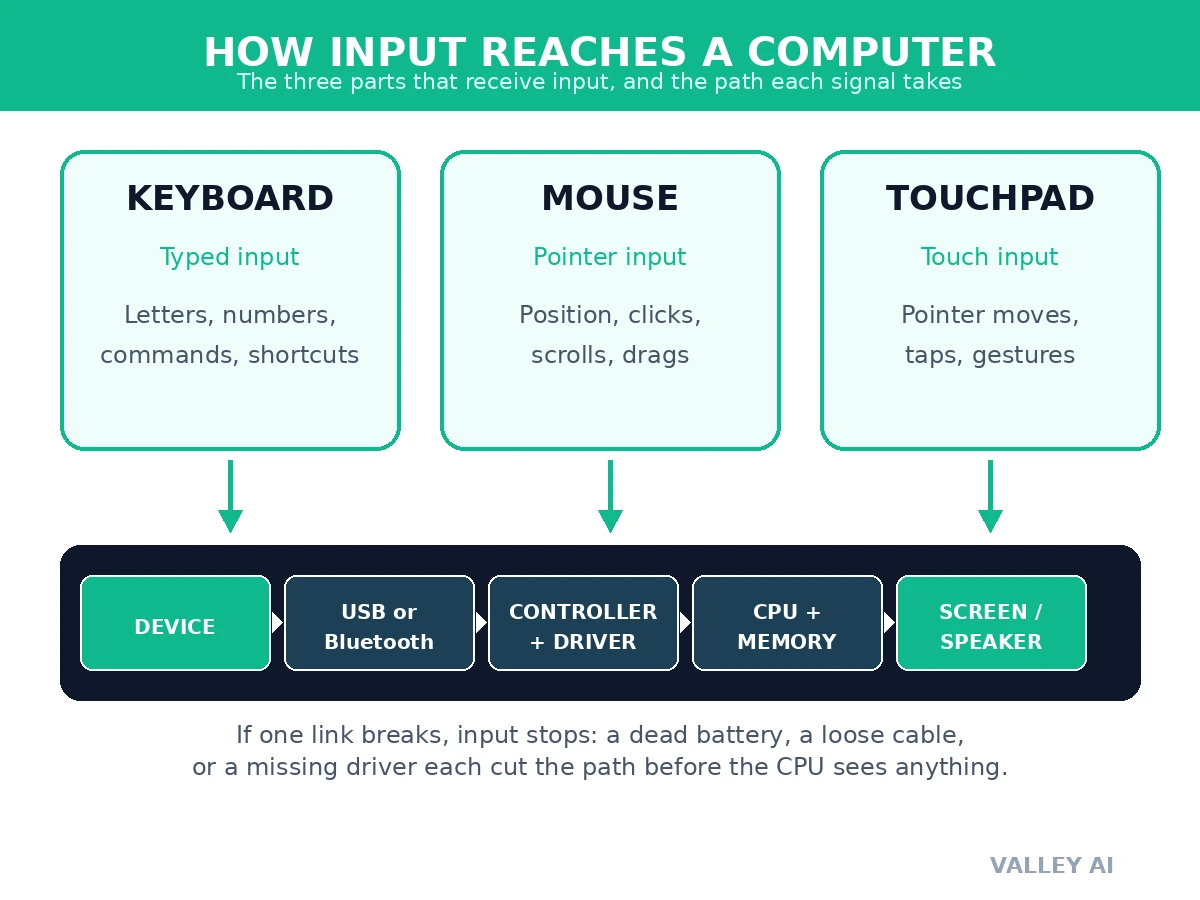
Pull the cable from a wired mouse. The pointer freezes at once. The mouse is unharmed, but the link is gone, so nothing reaches the CPU. Plug the cable back in and control returns without a restart.
Polling rate sets how often a mouse reports its position, and the arithmetic is simple: a mouse reporting at 1000 Hz sends a report every 1/1000 of a second, which is 1 millisecond. At 125 Hz the gap is 1/125 of a second, or 8 milliseconds. Moving a 1600 DPI mouse 2 inches across a desk generates 1600 x 2 = 3200 counts. These are calculations from the stated rates, not measurements from a test bench.
How are inputs processed?
For processing, an input device sends data to a computer system. The driver hands the input to the operating system, which routes it to the program in focus: a keystroke goes to the text field with the cursor, and a click goes to the button under the pointer. The CPU runs the instruction, memory holds the working data, and the result appears as output. When the CPU or memory cannot keep up, input lags. Keys appear late. The pointer stutters.
What do computers receive as input?
I/O stands for input/output: data going into the computer and data coming out. Input arrives as typed text, pointer actions, voice, scanned images, photos, and files from a drive or a network. A microphone supplies audio, a camera supplies video, and a scanner supplies digitised pages. Everything the computer works on first arrives through one of these routes.
Is a touchscreen an input device?
A touchscreen is both input and output. It shows output like any screen, and it senses touch, so a tap counts as input. That dual job is why a tablet can run with no keyboard or mouse at all.
Does a monitor receive input?
No. A monitor shows output. The buttons on its frame change brightness or switch its own source; they do not send data to the computer.
Why is the microphone not one of the three?
The microphone does send input, but it serves one sense: sound. The three named parts are the general controls for text and pointing, which nearly every computer task uses.
What are Output Devices and how do they work?
Output devices are the computer monitor, printer, projector, and speakers. Output is data that exits through a channel such as print to paper or sound from speakers. These parts of the computer give output to us.
Common types of output devices
Printers
Most homes and offices print documents, photos, and other materials on a printer.
Monitors
Computer monitors come in all shapes and sizes and can display everything from text files to pictures. Monitors use backlighting and often have features like tilt adjustment for easier viewing from different angles.
You’ll need an interface to connect your monitor to your computer. This is usually provided by a graphics card, but sometimes it’s built into the motherboard.
How do they work?
Output devices take processed data and turn it into something a person can see, hear, or hold. A monitor draws the image, a printer puts it on paper, and speakers play the sound. Input devices issue the instruction, and the monitor or printer shows the result.
Which computer parts give output?
The parts of a computer that give output are the monitor, printer, projector, and speakers. A printer outputs text and images on paper, while a monitor outputs graphics and text on screen.
Each output type serves a different need, and a single computer uses several at once.
Frequently Asked Questions
Can a computer work with no keyboard or mouse attached?
Yes, if another control exists. A tablet uses its touchscreen, a home-theater PC can use a remote or voice control, and a technician can reach a machine over a network with remote-desktop software. With no control device at all, a computer can still run scheduled tasks, but no person can direct it.
Can too much input slow a computer down?
Input alone rarely does. Slowdowns come when the CPU or memory cannot keep up with what the input asks for: a game stutters while it renders a scene, or a full disk slows every save. Closing heavy programs frees the resources that input needs.
How do I turn down what a computer sends out?
Use the volume control for sound, brightness for the screen, and the printer queue to hold or cancel print jobs. Notification settings on Windows and macOS control pop-ups; switching off a noisy app there stops its alerts without touching other output.
Conclusion
Set up a desk around the three. A keyboard handles text. A mouse suits long pointing sessions. The laptop touchpad works when space is tight. When a device stops responding, check its link first: cable, battery, or driver. The device itself is rarely the first thing at fault.

Kaleem
Kaleem is a Computer Science graduate (Virtual University of Pakistan) and the founder and editor of Valley AI, where he publishes in-depth, tested guides on computer hardware, artificial intelligence, and how the internet works. Every guide is researched from primary sources, tested hands-on where possible, and updated when the facts change.